> ## Documentation Index
> Fetch the complete documentation index at: https://docs.sevalla.com/llms.txt
> Use this file to discover all available pages before exploring further.
> ## Agent Instructions
> These are the docs for Sevalla, a platform for deploying applications, databases, static sites, object storage and load balancers. The dashboard is at https://app.sevalla.com.
> Bold text in steps is an exact dashboard label.
> To act on a Sevalla account, prefer the Sevalla MCP server (https://mcp.sevalla.com/mcp, see https://docs.sevalla.com/ai-agents/overview.md), then the Sevalla CLI (https://docs.sevalla.com/developer-tools/cli.md), then the REST API (https://api-docs.sevalla.com, OpenAPI spec at https://api.sevalla.com/v3/openapi.json).
> Every page index is at https://docs.sevalla.com/llms.txt.
# Sign in and two-factor authentication
> Sign in to Sevalla with email and password, a Git provider or SSO, reset a forgotten password, and use email codes or an authenticator app for two-factor authentication.
You sign in to Sevalla at [app.sevalla.com](https://app.sevalla.com/login) with your email address and password, with a GitHub, GitLab or Bitbucket account, or through your company's single sign-on (SSO). Signing in with your email and password takes a second step: a 6-digit code sent by email or generated by an authenticator app.
## Ways to sign in
| Method | How | Two-factor code |
| - | - | - |
| Email and password | Enter your **Email** and **Password**, then click **Sign in**. | By email, or from your authenticator app, unless you've trusted the device |
| Git provider | Click **GitHub**, **GitLab** or **Bitbucket**. Works once you've turned on **Login** for that provider. | No Sevalla code: the Git provider signs you in |
| Single sign-on | Click **Sign in with SSO** and enter your work email. Works when your company has set up SSO. | No Sevalla code: your identity provider signs you in |
To create an account, click **Sign up** on the sign-in page, or accept an [invitation](/company/users-and-roles#how-invited-people-join) to a company. To sign in the Sevalla CLI, see [Sevalla CLI](/developer-tools/cli).
 ## Sign in with your email and password
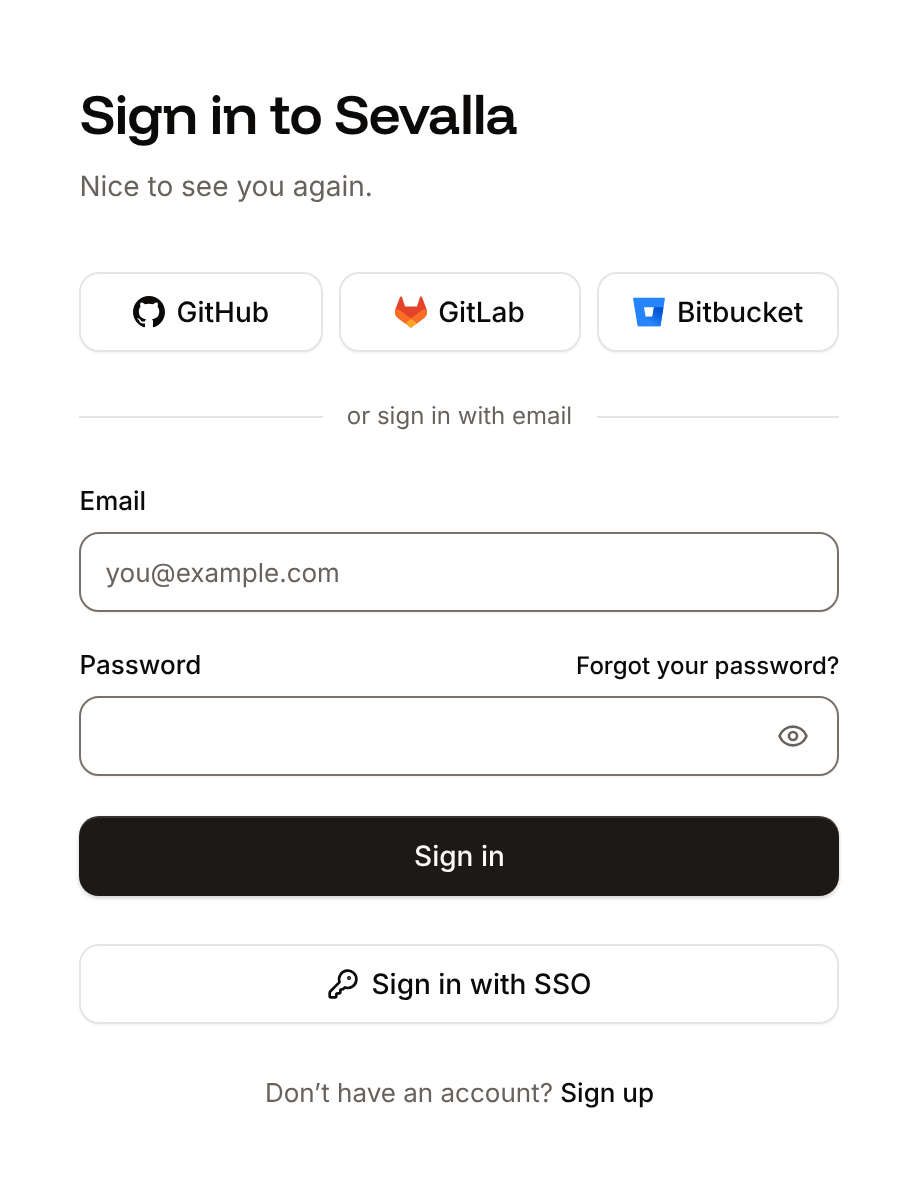
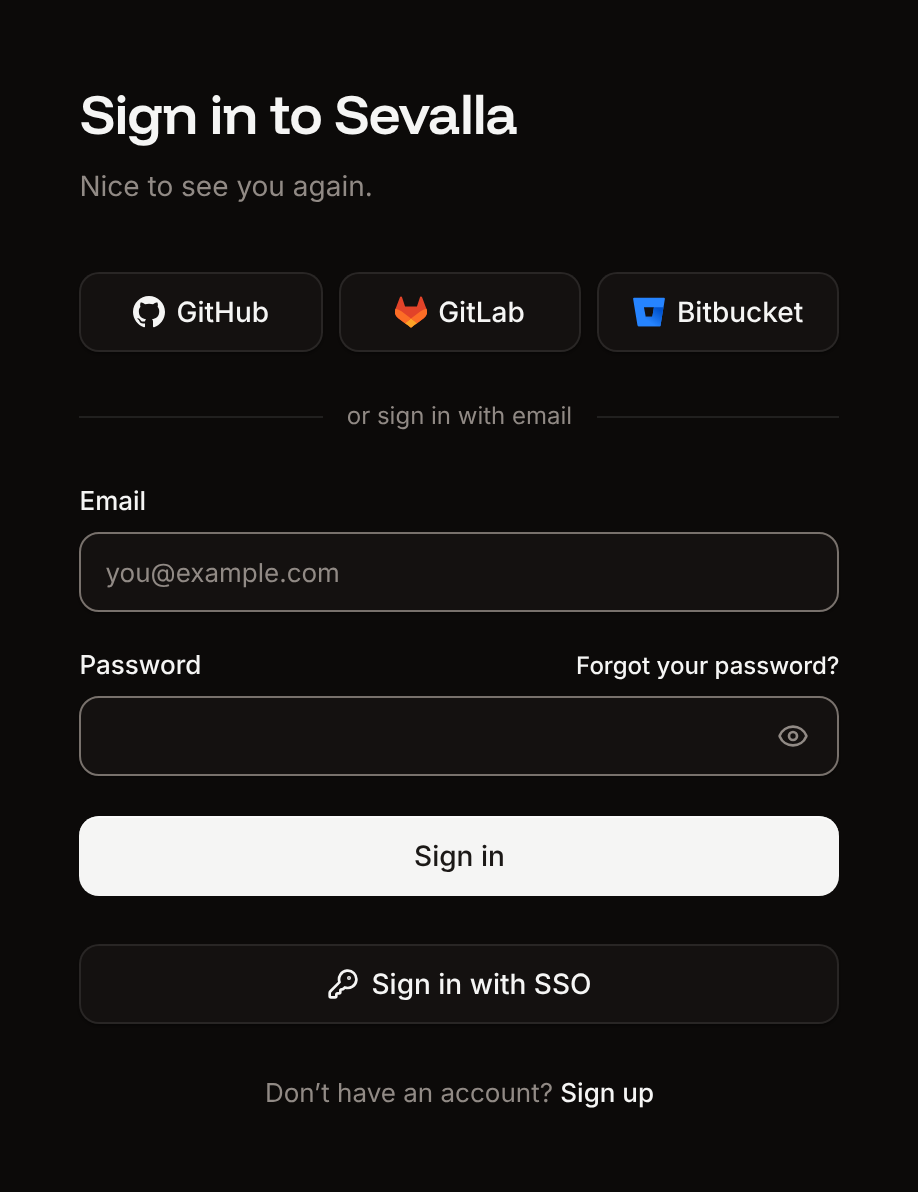
On the [sign-in page](https://app.sevalla.com/login), enter your **Email** and **Password**, then click **Sign in**.
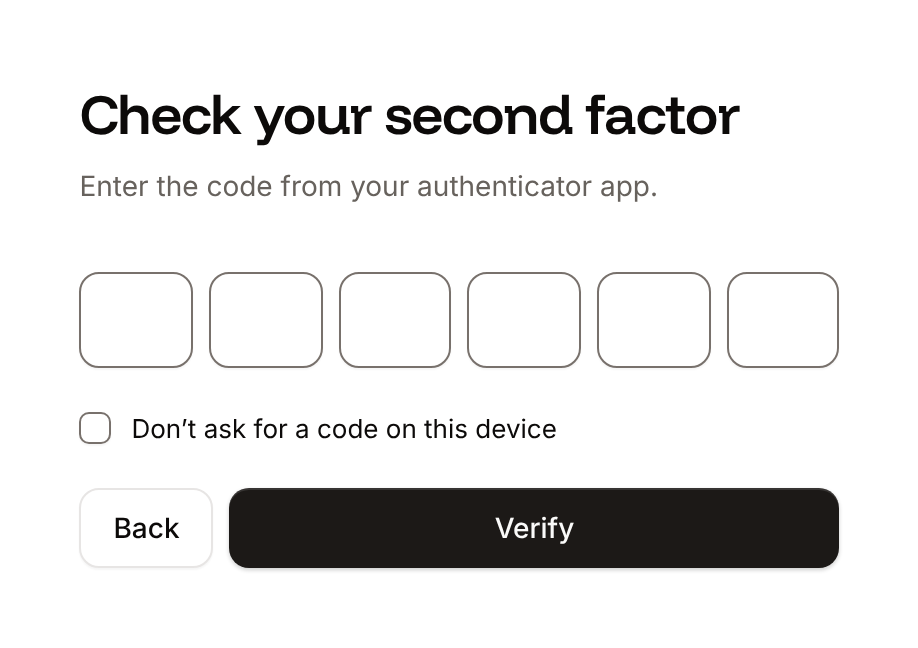
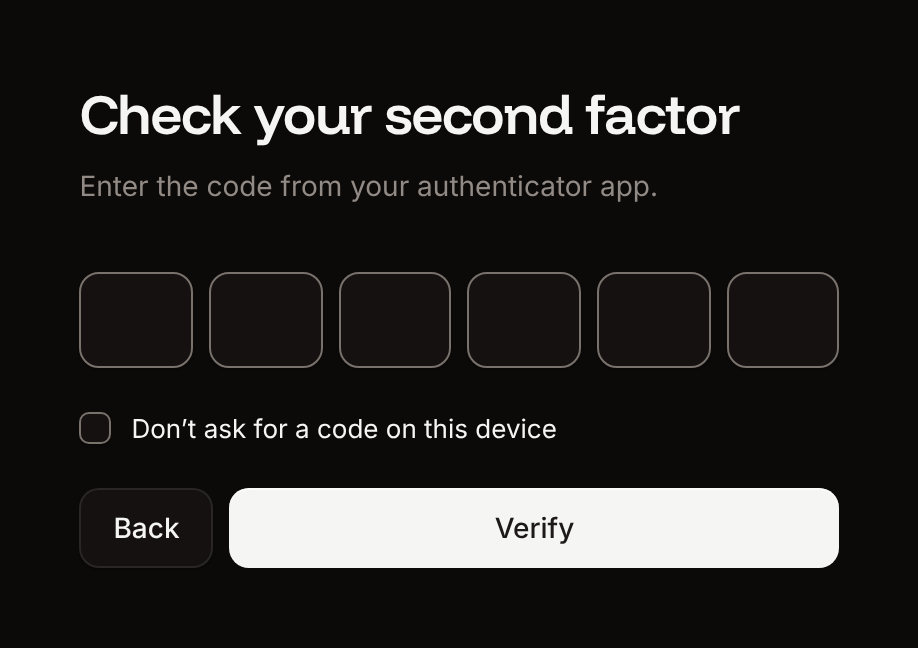
On **Check your second factor**, enter the 6-digit code from the email Sevalla sent you or from your authenticator app. Sevalla checks the code as soon as you type the last digit, or when you click **Verify**.
Sevalla opens your dashboard. A wrong email or password shows `Can't find user with this email/password`.
To skip the code on a device you trust, select **Don’t ask for a code on this device** before you verify. Sevalla then signs you in without a code for 30 days, as long as you use the same browser and IP address and keep the same two-factor method.
## Sign in with a Git provider
Click **GitHub**, **GitLab** or **Bitbucket** on the sign-in page, then approve Sevalla at the provider. This works only for a Git account you connected for sign-in on [My account](/account/overview#connect-git-sign-in). Otherwise, Sevalla shows `No Sevalla account uses this Git account. Sign up, or sign in with your email and password and connect your Git account in your account settings.`
## Sign in with SSO
On the sign-in page, click **Sign in with SSO**.
In **Work email**, enter the address you use at your company, then click **Continue**.
Sevalla sends you to your company's identity provider. Sign in there, and you're brought back to Sevalla, signed in.
If your company adds people automatically ([just-in-time provisioning](/company/single-sign-on/overview#turn-on-just-in-time-provisioning)) and you don't have a Sevalla account yet, Sevalla first asks you to agree to the Terms of Service and Privacy Policy, then creates your account. Your identity provider decides how long the SSO session lasts. For errors, see [Troubleshoot SSO sign-in](/company/single-sign-on/overview#troubleshoot-sso-sign-in).
To sign in with your password instead, click **Sign in with your password instead**.
## Reset your password
On the sign-in page, click **Forgot your password?**. Enter your **Email**, then click **Send reset link**.
Open the email from Sevalla and click the link. The link works for 24 hours.
Enter a **New password** (at least 8 characters, with a lowercase letter, a capital letter and a number), then click **Save new password**.
Sevalla shows `Password updated. Sign in with your new password.` and opens the sign-in page.
If the request fails, for example because no account uses that address, Sevalla shows `Couldn’t request a reset link. Try again.` A link older than 24 hours shows **This link has expired**; click **Request a new one**.
Resetting works the same way for accounts created with a Git provider or through SSO, and it changes only your Sevalla password, not your Git provider or identity provider password.
## Two-factor authentication
Sevalla asks for a 6-digit code every time you sign in with your email and password, unless you've trusted the device. Codes come by email by default; you can [use an authenticator app](#use-an-authenticator-app) instead. People who can open [User management](/company/users-and-roles#the-user-management-page) see each person's method in its **2FA** column.
| | Email codes | Authenticator app codes |
| - | - | - |
| Where the code comes from | An email to your account's address | An app such as Google Authenticator or 1Password |
| How long a code works | 10 minutes | 30 seconds per code; Sevalla accepts a code up to 1 minute early or late |
| New code | **Send a new code**, available 30 seconds after the last email | The app shows a new code every 30 seconds |
| Wrong codes | After 10 wrong codes, the code stops working; sign in again for a new one | Enter the current code |
If an email code doesn't arrive, check your spam folder. After 30 seconds, click **Send a new code**.
## Sign in with your email and password
On the [sign-in page](https://app.sevalla.com/login), enter your **Email** and **Password**, then click **Sign in**.
On **Check your second factor**, enter the 6-digit code from the email Sevalla sent you or from your authenticator app. Sevalla checks the code as soon as you type the last digit, or when you click **Verify**.
Sevalla opens your dashboard. A wrong email or password shows `Can't find user with this email/password`.
To skip the code on a device you trust, select **Don’t ask for a code on this device** before you verify. Sevalla then signs you in without a code for 30 days, as long as you use the same browser and IP address and keep the same two-factor method.
## Sign in with a Git provider
Click **GitHub**, **GitLab** or **Bitbucket** on the sign-in page, then approve Sevalla at the provider. This works only for a Git account you connected for sign-in on [My account](/account/overview#connect-git-sign-in). Otherwise, Sevalla shows `No Sevalla account uses this Git account. Sign up, or sign in with your email and password and connect your Git account in your account settings.`
## Sign in with SSO
On the sign-in page, click **Sign in with SSO**.
In **Work email**, enter the address you use at your company, then click **Continue**.
Sevalla sends you to your company's identity provider. Sign in there, and you're brought back to Sevalla, signed in.
If your company adds people automatically ([just-in-time provisioning](/company/single-sign-on/overview#turn-on-just-in-time-provisioning)) and you don't have a Sevalla account yet, Sevalla first asks you to agree to the Terms of Service and Privacy Policy, then creates your account. Your identity provider decides how long the SSO session lasts. For errors, see [Troubleshoot SSO sign-in](/company/single-sign-on/overview#troubleshoot-sso-sign-in).
To sign in with your password instead, click **Sign in with your password instead**.
## Reset your password
On the sign-in page, click **Forgot your password?**. Enter your **Email**, then click **Send reset link**.
Open the email from Sevalla and click the link. The link works for 24 hours.
Enter a **New password** (at least 8 characters, with a lowercase letter, a capital letter and a number), then click **Save new password**.
Sevalla shows `Password updated. Sign in with your new password.` and opens the sign-in page.
If the request fails, for example because no account uses that address, Sevalla shows `Couldn’t request a reset link. Try again.` A link older than 24 hours shows **This link has expired**; click **Request a new one**.
Resetting works the same way for accounts created with a Git provider or through SSO, and it changes only your Sevalla password, not your Git provider or identity provider password.
## Two-factor authentication
Sevalla asks for a 6-digit code every time you sign in with your email and password, unless you've trusted the device. Codes come by email by default; you can [use an authenticator app](#use-an-authenticator-app) instead. People who can open [User management](/company/users-and-roles#the-user-management-page) see each person's method in its **2FA** column.
| | Email codes | Authenticator app codes |
| - | - | - |
| Where the code comes from | An email to your account's address | An app such as Google Authenticator or 1Password |
| How long a code works | 10 minutes | 30 seconds per code; Sevalla accepts a code up to 1 minute early or late |
| New code | **Send a new code**, available 30 seconds after the last email | The app shows a new code every 30 seconds |
| Wrong codes | After 10 wrong codes, the code stops working; sign in again for a new one | Enter the current code |
If an email code doesn't arrive, check your spam folder. After 30 seconds, click **Send a new code**.
 ### Use an authenticator app
Click your name at the bottom of the sidebar, then click **My account**. In the **Authenticator app** row, click **Enable**.
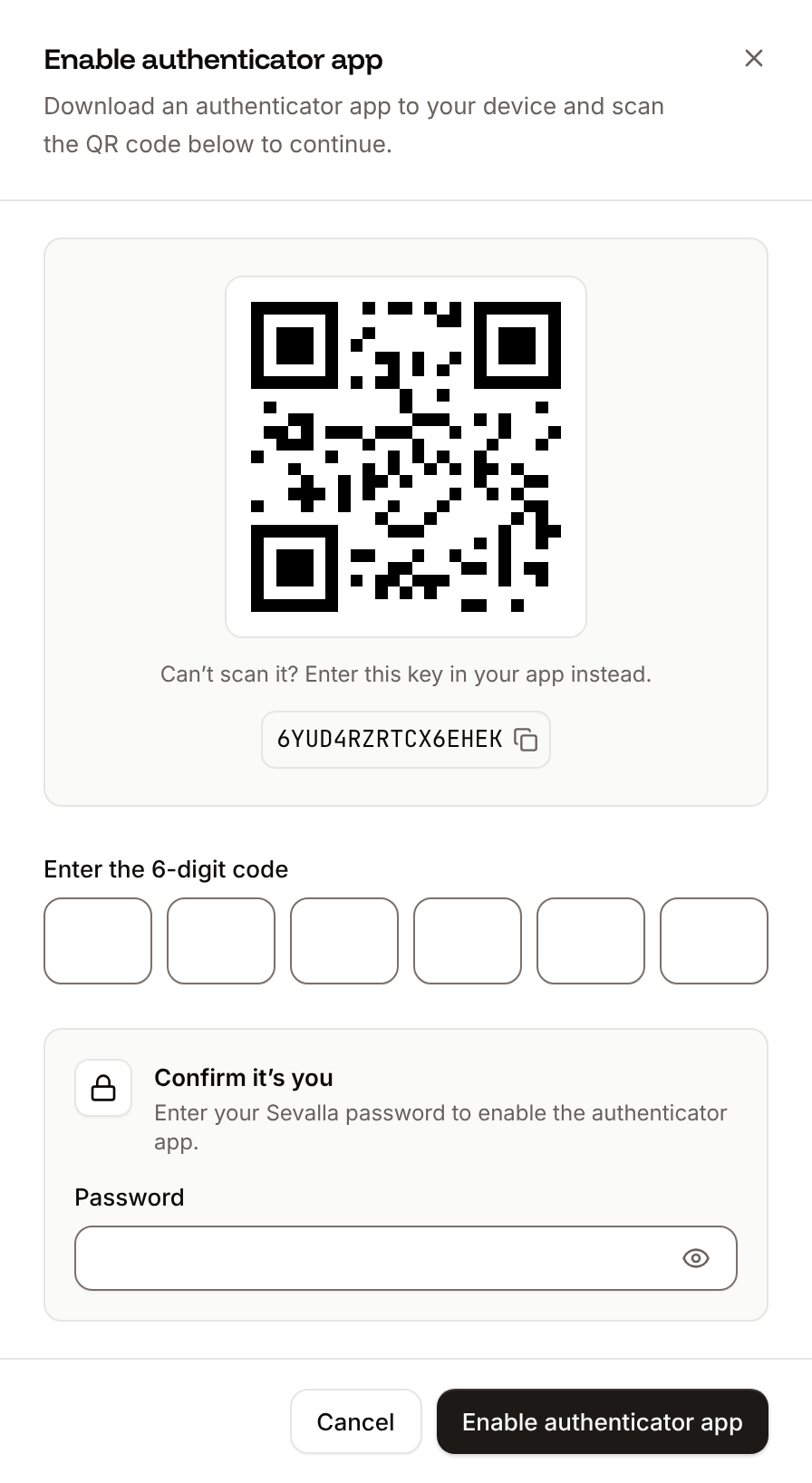
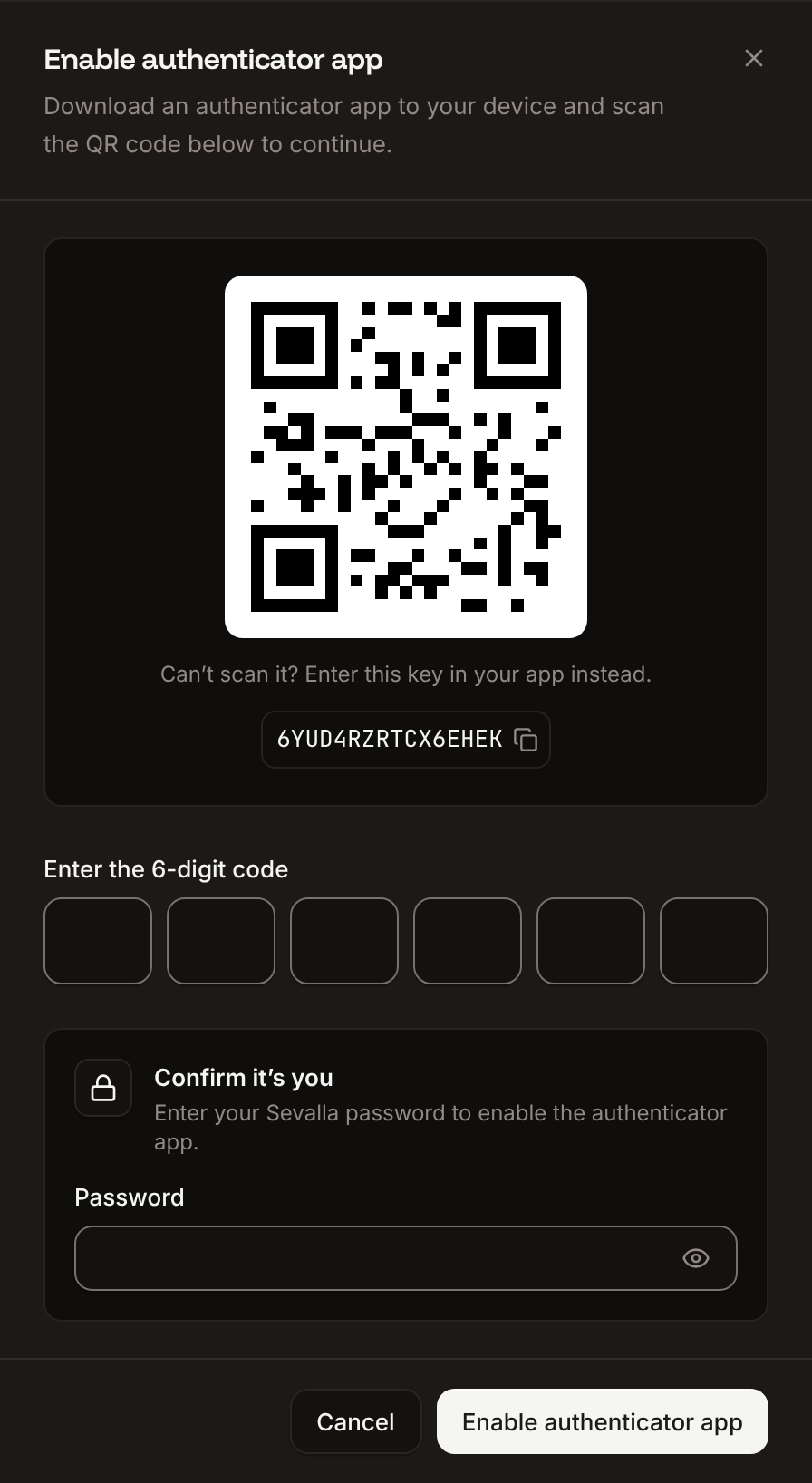
In your authenticator app, scan the QR code. If you can't scan it, enter the setup key shown under the code instead.
In **Enter the 6-digit code**, enter the code your app shows. Under **Confirm it’s you**, enter your Sevalla password. Click **Enable authenticator app**.
The row shows **Enabled · Codes are generated in your authenticator app**, and Sevalla stops emailing codes. Devices you trusted before ask for a code once more, because the method changed.
### Use an authenticator app
Click your name at the bottom of the sidebar, then click **My account**. In the **Authenticator app** row, click **Enable**.
In your authenticator app, scan the QR code. If you can't scan it, enter the setup key shown under the code instead.
In **Enter the 6-digit code**, enter the code your app shows. Under **Confirm it’s you**, enter your Sevalla password. Click **Enable authenticator app**.
The row shows **Enabled · Codes are generated in your authenticator app**, and Sevalla stops emailing codes. Devices you trusted before ask for a code once more, because the method changed.
 ### Add Sevalla to 1Password
1Password can store the code next to your Sevalla password and fill it in when you sign in.
On **My account**, in the **Authenticator app** row, click **Enable**, and leave the QR code on screen.
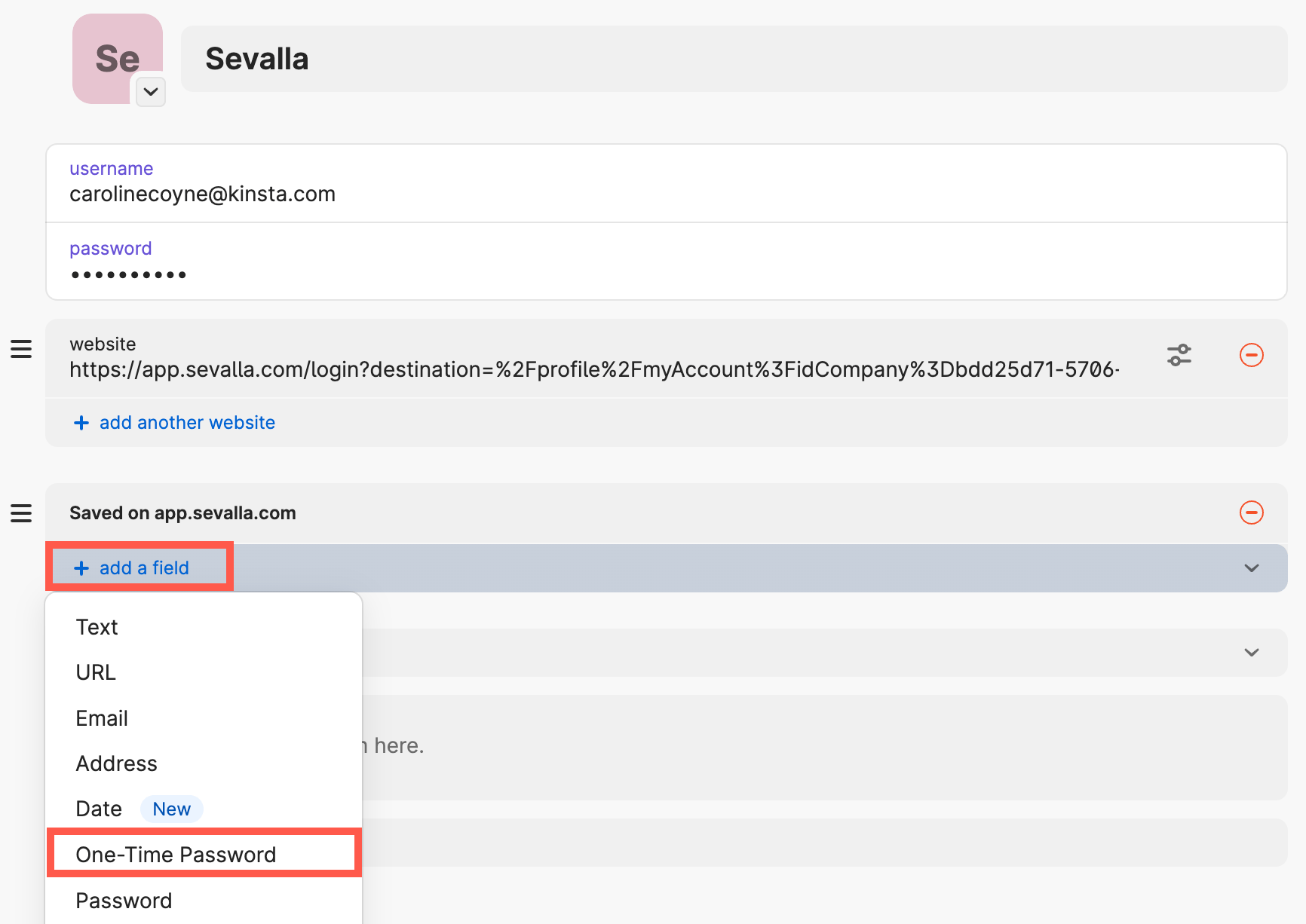
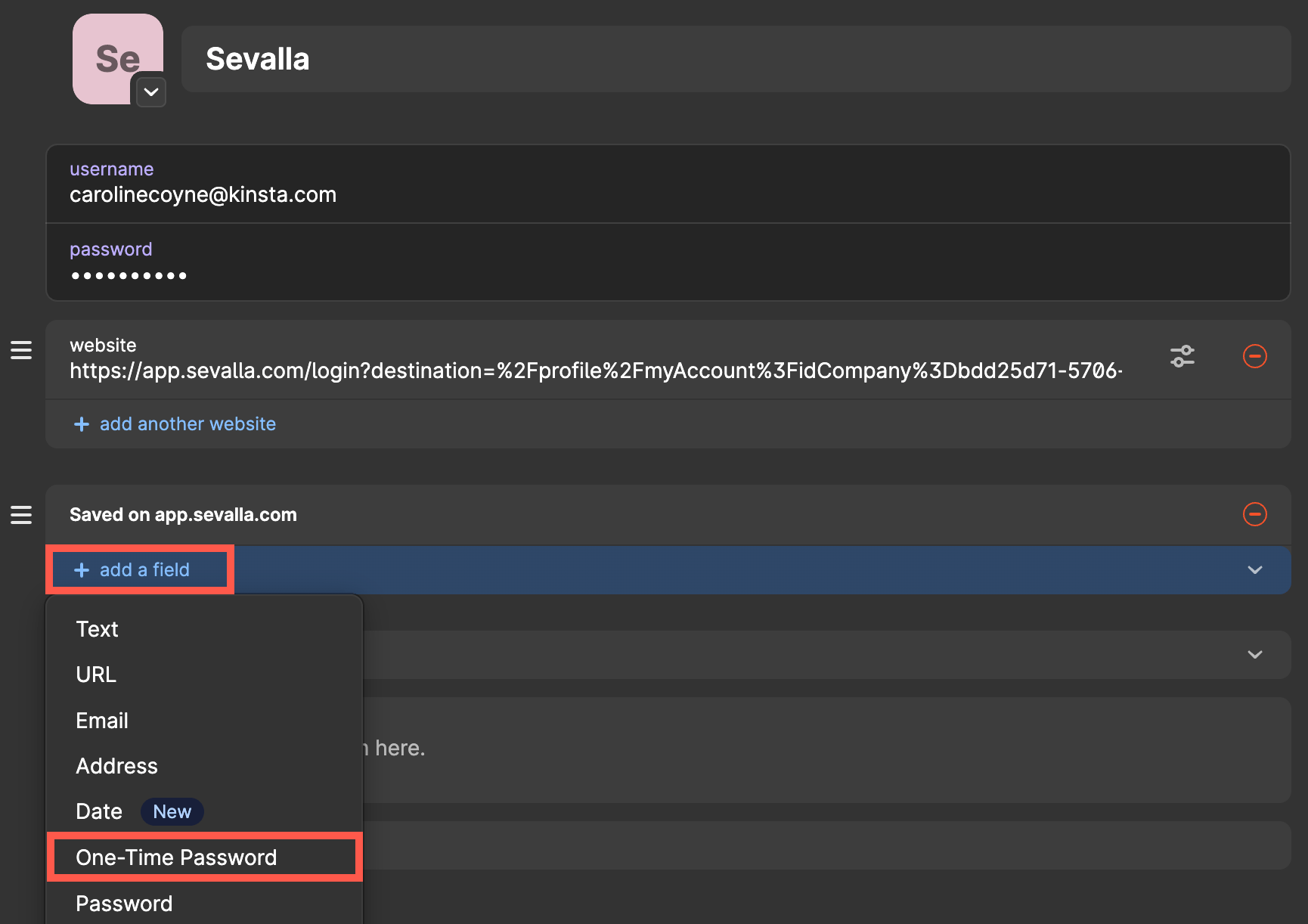
In 1Password, open your Sevalla login item and click **Edit**. Click **add a field**, then click **One-Time Password**.
In the new one-time password field, click the QR code icon. 1Password finds the QR code on your screen. Save the item.
Copy the code 1Password shows into **Enter the 6-digit code**, enter your password, and click **Enable authenticator app**.
### Add Sevalla to 1Password
1Password can store the code next to your Sevalla password and fill it in when you sign in.
On **My account**, in the **Authenticator app** row, click **Enable**, and leave the QR code on screen.
In 1Password, open your Sevalla login item and click **Edit**. Click **add a field**, then click **One-Time Password**.
In the new one-time password field, click the QR code icon. 1Password finds the QR code on your screen. Save the item.
Copy the code 1Password shows into **Enter the 6-digit code**, enter your password, and click **Enable authenticator app**.
 ### Turn off the authenticator app
On **My account**, in the **Authenticator app** row, click **Disable**. Enter your Sevalla password and click **Disable**. Sign-in codes come by email again.
### Lost access to your authenticator app
If you can't get codes from your authenticator app, our support team can remove it from your account:
1. Email [support@sevalla.com](mailto:support@sevalla.com) from the address on your Sevalla account, and say that you're locked out.
2. Support confirms the address and asks for the last 4 digits and the expiry date of the card on file.
3. Once both match, support removes the authenticator app. Sign in with an email code, then set up the app again.
## Locked accounts
After 10 wrong passwords in a row, Sevalla locks the account for 10 minutes and emails you. The sign-in page shows `This account has been locked after multiple failed login attempts. We sent you an email about how you can access your account.` Further wrong passwords lock it for 20 minutes, then 30 minutes at most. While it's locked, signing in shows `This account has been locked.` Wait for the lock to end, then sign in with the right password. If you've forgotten it, [reset your password](#reset-your-password) first.
## Sign out
Click your name at the bottom of the sidebar, then click **Sign out**. Changing your password or email address signs you out of every session.
This documentation is built and hosted on [Mintlify](https://mintlify.com), a developer documentation platform.
### Turn off the authenticator app
On **My account**, in the **Authenticator app** row, click **Disable**. Enter your Sevalla password and click **Disable**. Sign-in codes come by email again.
### Lost access to your authenticator app
If you can't get codes from your authenticator app, our support team can remove it from your account:
1. Email [support@sevalla.com](mailto:support@sevalla.com) from the address on your Sevalla account, and say that you're locked out.
2. Support confirms the address and asks for the last 4 digits and the expiry date of the card on file.
3. Once both match, support removes the authenticator app. Sign in with an email code, then set up the app again.
## Locked accounts
After 10 wrong passwords in a row, Sevalla locks the account for 10 minutes and emails you. The sign-in page shows `This account has been locked after multiple failed login attempts. We sent you an email about how you can access your account.` Further wrong passwords lock it for 20 minutes, then 30 minutes at most. While it's locked, signing in shows `This account has been locked.` Wait for the lock to end, then sign in with the right password. If you've forgotten it, [reset your password](#reset-your-password) first.
## Sign out
Click your name at the bottom of the sidebar, then click **Sign out**. Changing your password or email address signs you out of every session.
This documentation is built and hosted on [Mintlify](https://mintlify.com), a developer documentation platform.