> ## Documentation Index
> Fetch the complete documentation index at: https://docs.sevalla.com/llms.txt
> Use this file to discover all available pages before exploring further.
> ## Agent Instructions
> These are the docs for Sevalla, a platform for deploying applications, databases, static sites, object storage and load balancers. The dashboard is at https://app.sevalla.com.
> Bold text in steps is an exact dashboard label.
> To act on a Sevalla account, prefer the Sevalla MCP server (https://mcp.sevalla.com/mcp, see https://docs.sevalla.com/ai-agents/overview.md), then the Sevalla CLI (https://docs.sevalla.com/developer-tools/cli.md), then the REST API (https://api-docs.sevalla.com, OpenAPI spec at https://api.sevalla.com/v3/openapi.json).
> Every page index is at https://docs.sevalla.com/llms.txt.
# Persistent storage
> Keep files across deployments and restarts with a disk on a web process or background worker: sizes, mount paths, the single-instance limit, resizing, backups and deleting.
A disk is persistent storage attached to one web process or background worker, mounted at a path you choose. Files on it survive restarts and deployments, unlike the rest of the instance's filesystem. Use a disk for uploads, SQLite databases or caches that must outlive a deployment; for files that many instances share, use [object storage](/object-storage/overview) instead.
## How disks work
* **One disk per process.** Only web processes and background workers can have a disk, one each. Cron jobs and jobs can't.
* **One instance.** A process with a disk is limited to 1 instance and can't [autoscale](/applications/scaling#horizontal-autoscaling). Adding a disk to a process that runs more instances reduces it to one. Scale it up with a larger [instance size](/applications/scaling#instance-sizes) instead.
* **Downtime on deployments.** To move the disk to the new version, Sevalla stops the running instance before it starts the new one, so a process with a disk is unavailable for a few moments during each deployment.
* **Mounting hides the folder.** The disk replaces whatever the image has at its mount path: a new disk starts empty, and files your build put in that folder aren't visible.
* **Next deployment.** Creating, resizing or deleting a disk takes effect with the next [deployment](/applications/deployments).
* **Without a disk,** each instance has up to 20 GB of ephemeral storage that's wiped on every restart and deployment. An instance that writes more than that is stopped and restarted.
* **Location.** A disk stays in the application's [location](/platform/locations).
* **Cost.** Disks are billed per second while their process runs, by size. See [Pricing](/billing/pricing#applications).
Disks are managed in the dashboard. The public API and the CLI have no disk operations.
## Disk sizes
| Sizes | Notes |
| - | - |
| 10, 20, 50, 100, 150, 200, 300, 400, 500, 750 and 1000 GB | Sizes above 10 GB need a payment method on the company. Each size's monthly price is shown in the size picker |
A disk can grow but not shrink. To use a smaller disk, delete it and create a new one, which loses its files.
## Create a disk
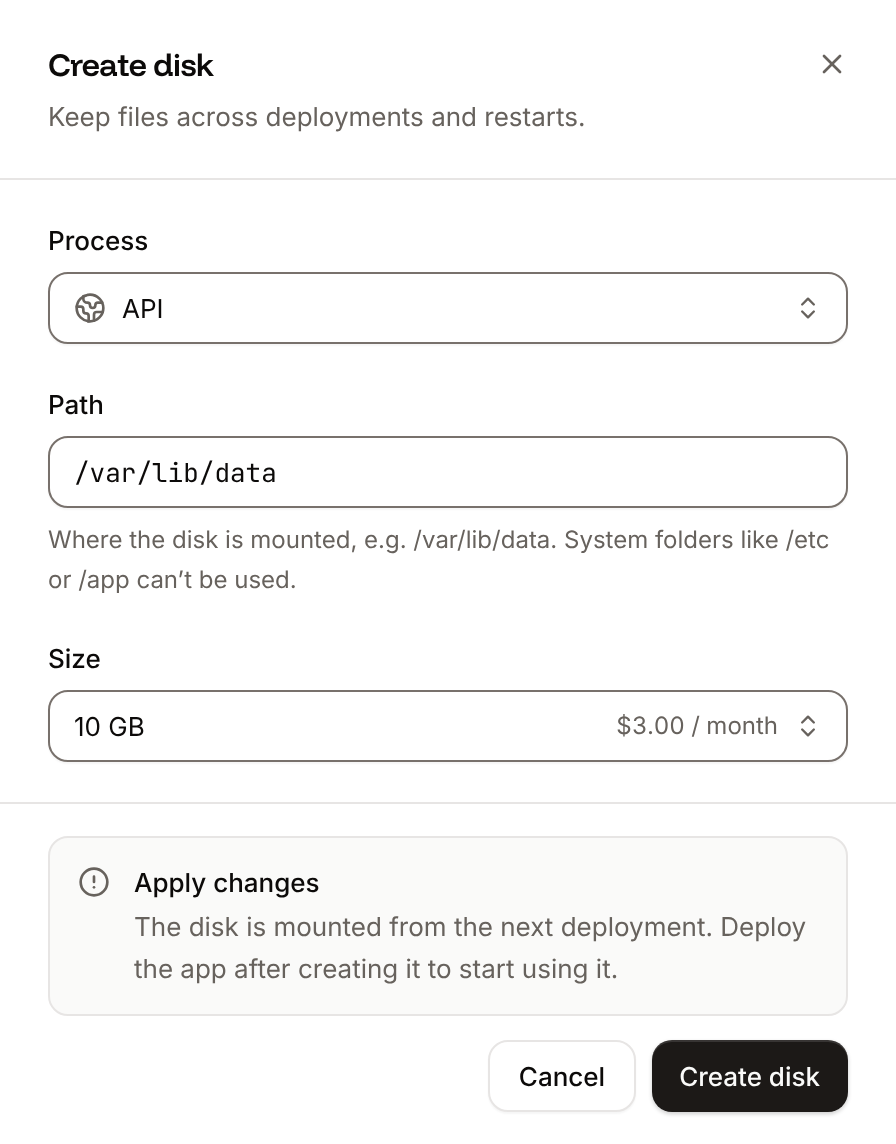
In the sidebar, click **Applications**, then click the application. Click the **Disks** tab, then click **Create disk**.
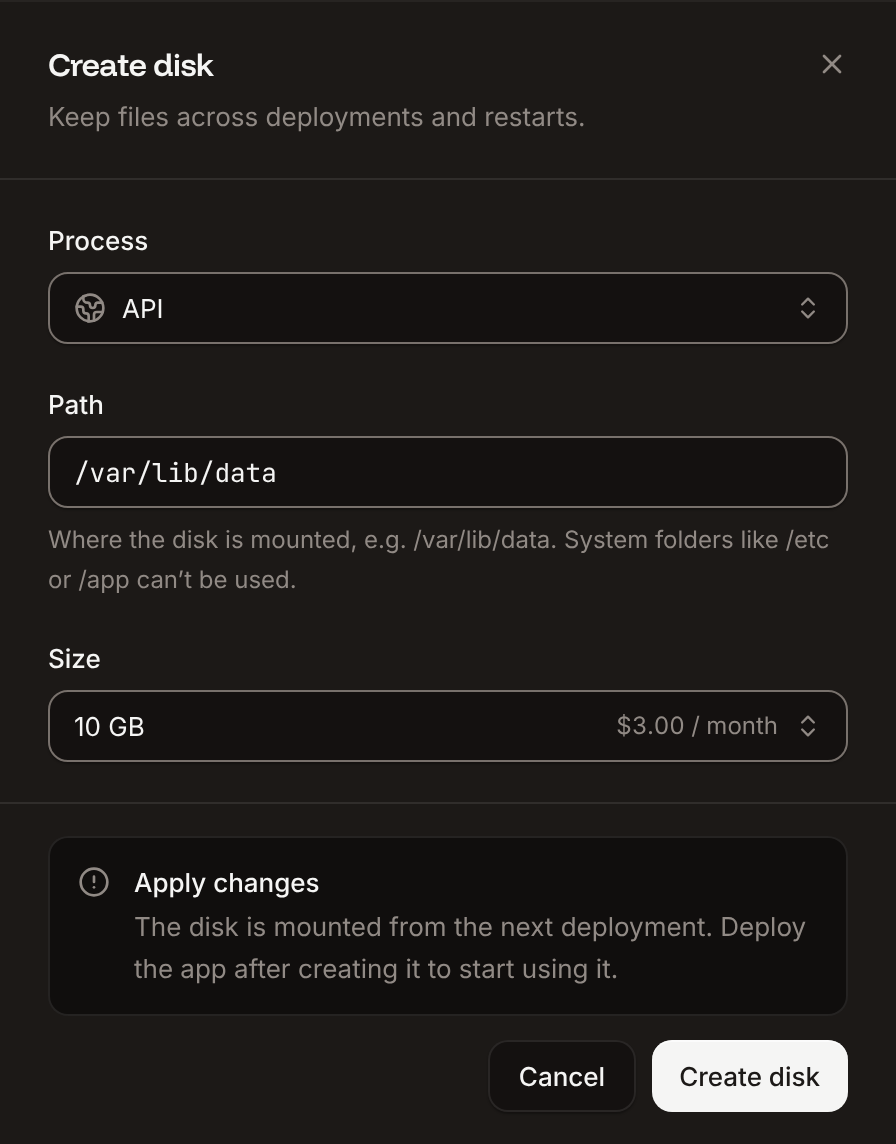
In **Process**, pick the web process or background worker. Processes that already have a disk, cron jobs and jobs can't be picked.
Enter the **Path** to mount the disk at (default `/var/lib/data`; see [mount path rules](#mount-path-rules)), and pick the **Size**.
Click **Create disk**, then deploy the application. The disk is mounted from that deployment on.
 You can also add a disk from the **Processes** tab: click **Add disk** at the bottom of a web process or background worker. The **Disks** tab lists each disk with its **Process**, **Path** and **Usage** (for example `1.2 GB / 10 GB`).
Creating a disk needs permission to update the application, and a company with credits or a valid payment method.
## Mount path rules
The path is where your application reads and writes the disk's files.
* It starts with `/` (or `./`) and uses only letters, digits, `_`, `-`, `.` and `/`.
* It can't be the root (`/`) or one of these system folders: `/app`, `/etc`, `/layers`, `/lib`, `/mnt`, `/root`, `/usr/local`, `/var`, `/workspace`. Folders inside them are fine: `/app/storage` and `/var/lib/data` are valid.
* To keep a folder of your application on the disk, use its full path in the container. With Nixpacks and Railpack your code is in `/app` (for example `/app/storage/uploads`); with Buildpacks it's in `/workspace`; with a Dockerfile it's your `WORKDIR`.
The dashboard shows `Invalid path` for a path that breaks these rules.
## Update a disk
On the application's **Disks** tab, click **⋯** on the disk, then click **Update disk**.
Change the **Path** or pick a larger **Size**. A disk stays with its process.
Click **Update disk**, then deploy the application to apply the change.
Changing the path doesn't move files: the same disk is mounted at the new path, and your application must look for its files there.
## Delete a disk
Deleting a disk deletes every file on it. You can't undo this.
On the application's **Disks** tab, click **⋯** on the disk, then click **Delete disk**.
Type the process name and click **Delete disk**.
Deploy the application. The disk is removed with that deployment, and stays attached and billed until it completes.
Deleting the process or the application deletes its disk too.
## Move files to and from a disk
You can't upload files to a disk from the dashboard. Open the [web terminal](/applications/web-terminal) on the process and pull the files from a URL you control, for example:
```bash theme={null}
cd /var/lib/data
curl -fLO https://files.example.com/uploads.tar.gz
tar -xzf uploads.tar.gz && rm uploads.tar.gz
```
Check that `curl` or `wget` exists in the image first (`which curl`). To copy files out, push them from the terminal to [object storage](/object-storage/overview) or another server you control. Keep credentials in [environment variables](/applications/environment-variables), not in commands you type.
## Backups
Sevalla backs up every disk daily and keeps each backup for 7 days. Restoring a backup rolls the whole disk back to the time the backup was taken. To restore one, [contact support](/support/get-help) with the application's name and the disk's mount path.
Deleting the application deletes its disk backups too.
## Frequently asked questions
Only to a disk. Everything else an instance writes is lost when it restarts or the application is deployed again. For user uploads in an application that runs more than one instance, use [object storage](/object-storage/overview).
No. A disk belongs to one process and is mounted in its single instance. To share files between processes, use object storage or a [database](/databases/overview).
This documentation is built and hosted on [Mintlify](https://mintlify.com), a developer documentation platform.
You can also add a disk from the **Processes** tab: click **Add disk** at the bottom of a web process or background worker. The **Disks** tab lists each disk with its **Process**, **Path** and **Usage** (for example `1.2 GB / 10 GB`).
Creating a disk needs permission to update the application, and a company with credits or a valid payment method.
## Mount path rules
The path is where your application reads and writes the disk's files.
* It starts with `/` (or `./`) and uses only letters, digits, `_`, `-`, `.` and `/`.
* It can't be the root (`/`) or one of these system folders: `/app`, `/etc`, `/layers`, `/lib`, `/mnt`, `/root`, `/usr/local`, `/var`, `/workspace`. Folders inside them are fine: `/app/storage` and `/var/lib/data` are valid.
* To keep a folder of your application on the disk, use its full path in the container. With Nixpacks and Railpack your code is in `/app` (for example `/app/storage/uploads`); with Buildpacks it's in `/workspace`; with a Dockerfile it's your `WORKDIR`.
The dashboard shows `Invalid path` for a path that breaks these rules.
## Update a disk
On the application's **Disks** tab, click **⋯** on the disk, then click **Update disk**.
Change the **Path** or pick a larger **Size**. A disk stays with its process.
Click **Update disk**, then deploy the application to apply the change.
Changing the path doesn't move files: the same disk is mounted at the new path, and your application must look for its files there.
## Delete a disk
Deleting a disk deletes every file on it. You can't undo this.
On the application's **Disks** tab, click **⋯** on the disk, then click **Delete disk**.
Type the process name and click **Delete disk**.
Deploy the application. The disk is removed with that deployment, and stays attached and billed until it completes.
Deleting the process or the application deletes its disk too.
## Move files to and from a disk
You can't upload files to a disk from the dashboard. Open the [web terminal](/applications/web-terminal) on the process and pull the files from a URL you control, for example:
```bash theme={null}
cd /var/lib/data
curl -fLO https://files.example.com/uploads.tar.gz
tar -xzf uploads.tar.gz && rm uploads.tar.gz
```
Check that `curl` or `wget` exists in the image first (`which curl`). To copy files out, push them from the terminal to [object storage](/object-storage/overview) or another server you control. Keep credentials in [environment variables](/applications/environment-variables), not in commands you type.
## Backups
Sevalla backs up every disk daily and keeps each backup for 7 days. Restoring a backup rolls the whole disk back to the time the backup was taken. To restore one, [contact support](/support/get-help) with the application's name and the disk's mount path.
Deleting the application deletes its disk backups too.
## Frequently asked questions
Only to a disk. Everything else an instance writes is lost when it restarts or the application is deployed again. For user uploads in an application that runs more than one instance, use [object storage](/object-storage/overview).
No. A disk belongs to one process and is mounted in its single instance. To share files between processes, use object storage or a [database](/databases/overview).
This documentation is built and hosted on [Mintlify](https://mintlify.com), a developer documentation platform.