> ## Documentation Index
> Fetch the complete documentation index at: https://docs.sevalla.com/llms.txt
> Use this file to discover all available pages before exploring further.
# Docker images
> Manage your Docker images and learn how to use them for deployments.
When you add an application, you can choose to use a [Git repository](/applications/git/overview) or a Docker image built for Linux/amd64 architecture. Docker images are standalone, executable packages that contain everything you need to run your application, including the code, runtime, libraries, dependencies, and configuration files. They are built from a Dockerfile, which contains instructions for assembling the image layer by layer.
Docker images are stored in repositories called registries, such as Docker Hub, where they can be versioned, tagged, and distributed. They can be easily shared and deployed across different environments, making Docker images a portable and scalable solution for packaging and distributing software applications.
With Sevalla, you can choose to use a public Docker image from any provider without authentication; however, it's important that you evaluate code quality and security and adhere to licensing and compliance requirements. You can also use a private image from any (or all) of the following registries:
* GitHub (ghcr.io)
* GitLab (registry.gitlab.com)
* Docker Hub (docker.io)
Sevalla only supports Docker images built for Linux/amd64 architecture. This is validated when you add an application and during the rollout phase.
Private images require authentication through your registry credentials. You can add your registry credentials within **Integration** > **Registry credentials** > **Create registry credential**.
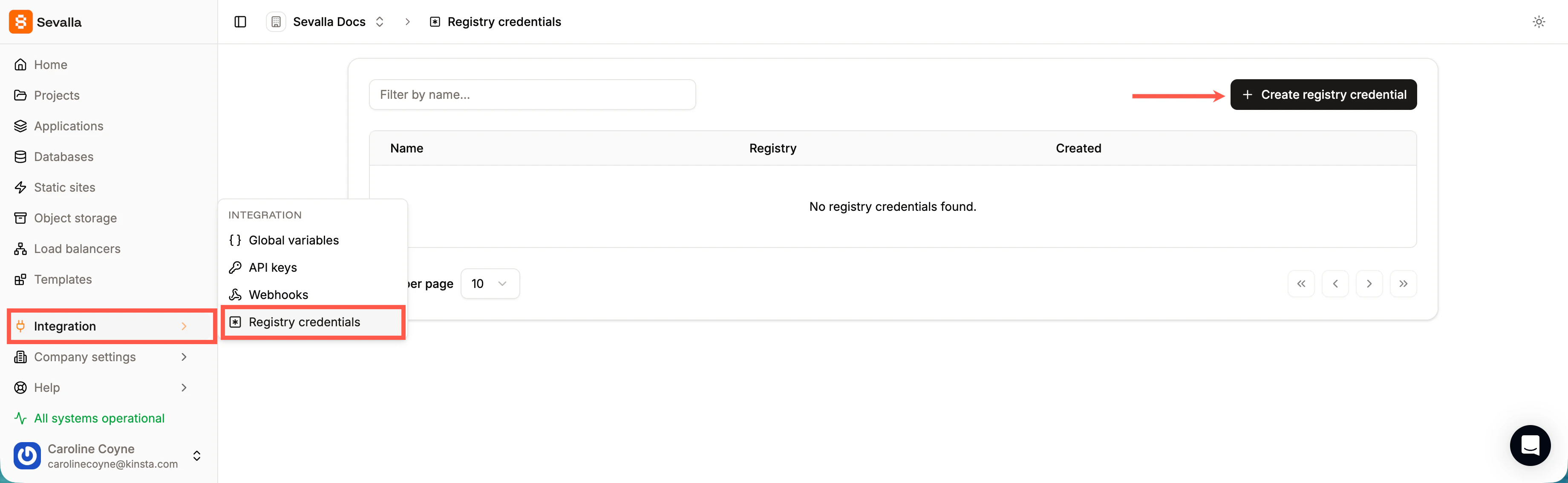
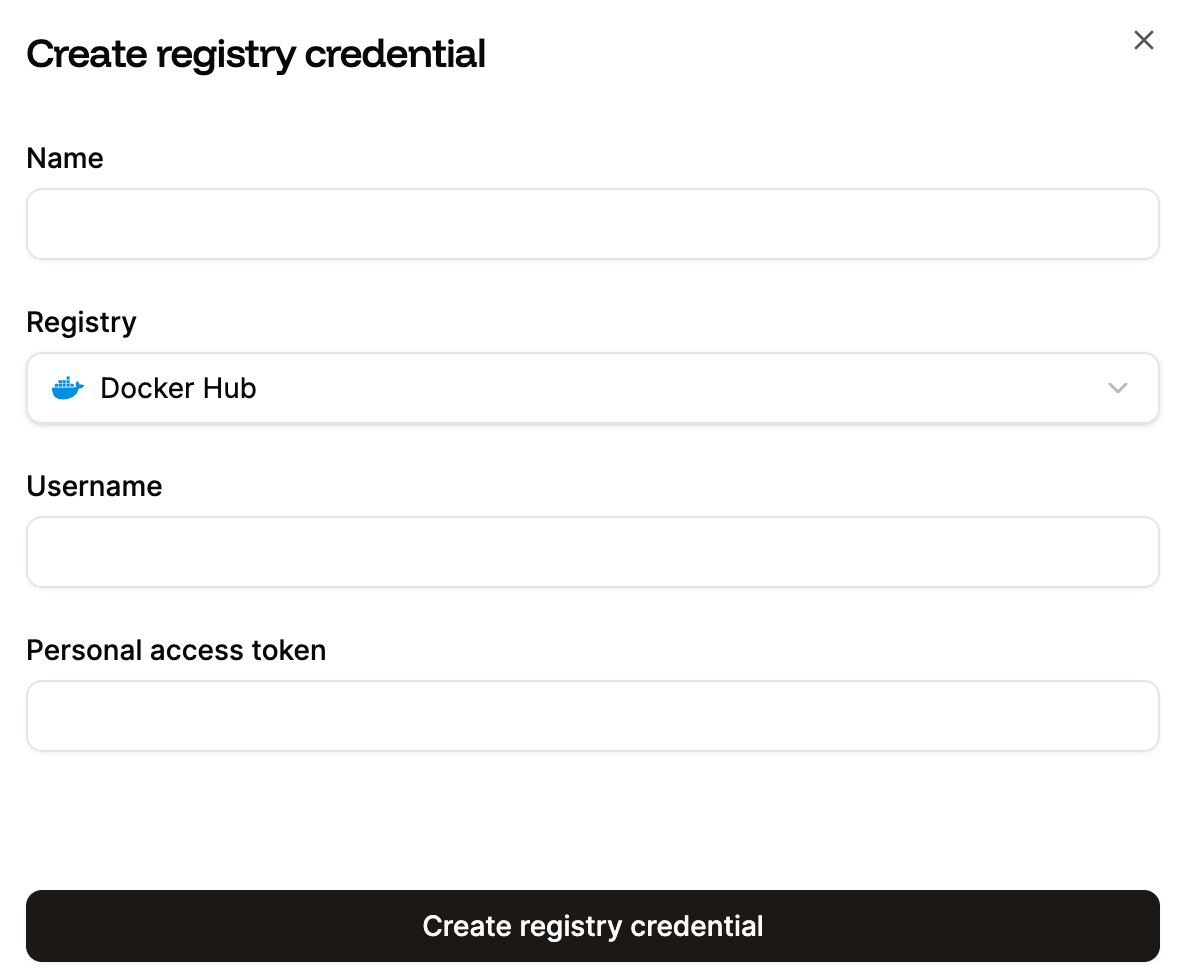
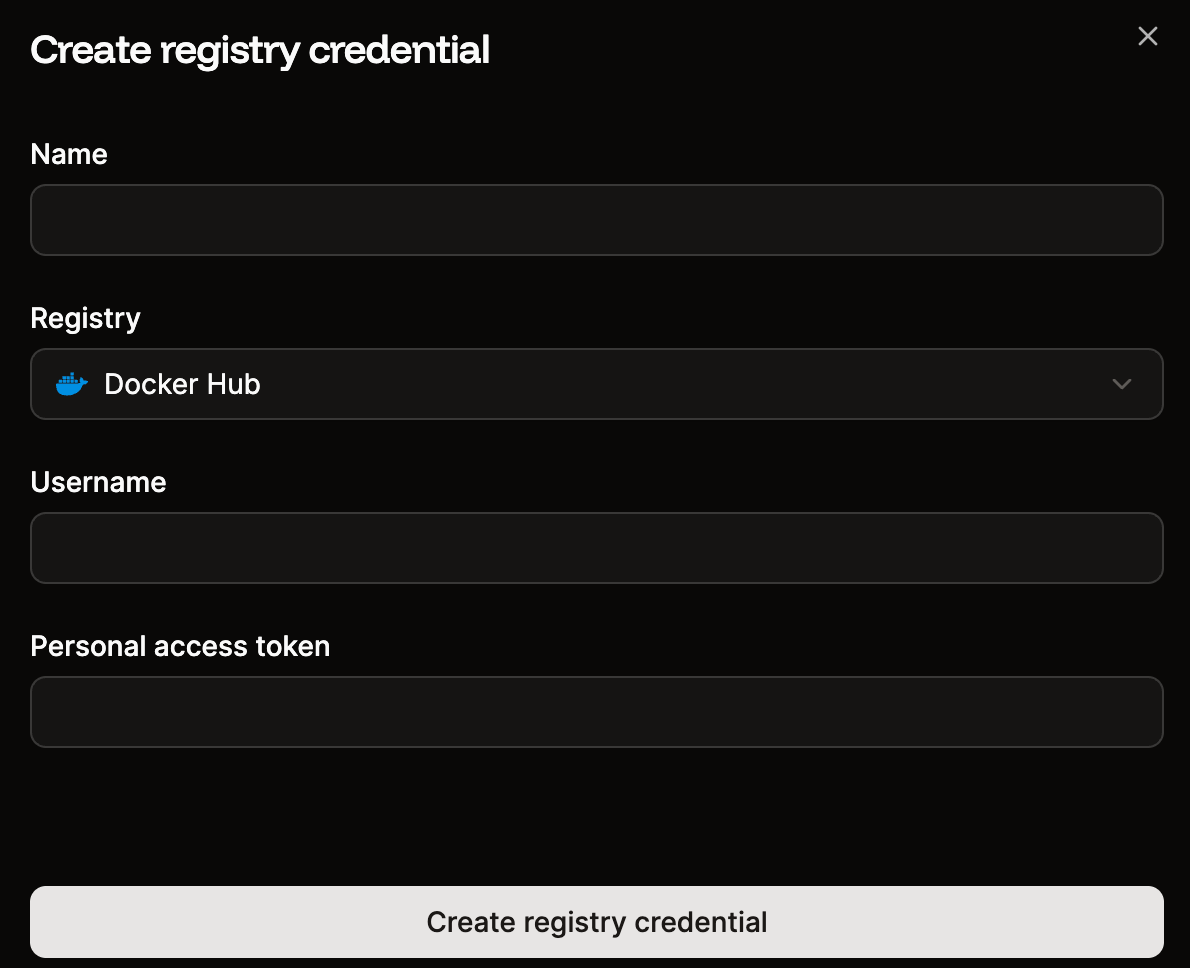
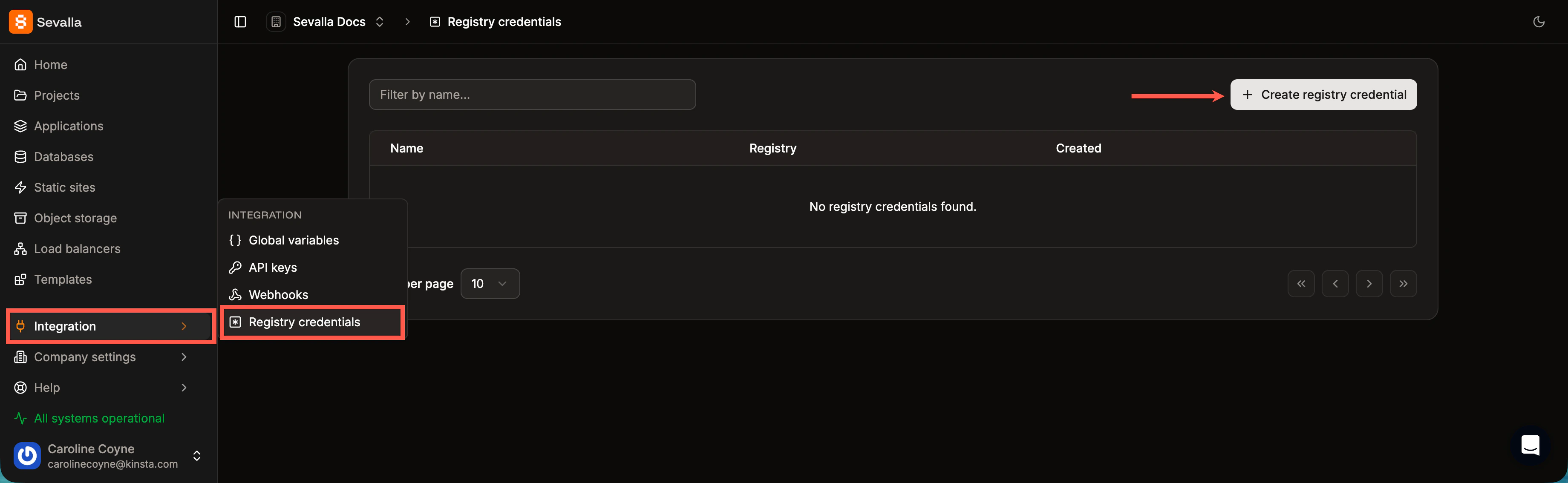 Complete the fields as follows:
* **Name:** Enter a name for the registry credentials to identify them when adding your application.
* **Registry:** Choose from one of the following:
* DockerHub
* GitHub Container Registry
* GitLab Container Registry
* **Username:** Enter your username for the registry provider.
* **Personal access token:** You must obtain this from the registry provider. For more information about how to obtain a personal access token, refer to one of the following:
* [DockerHub](https://docs.docker.com/security/access-tokens/)
* [GitHub](https://docs.github.com/en/authentication/keeping-your-account-and-data-secure/managing-your-personal-access-tokens)
* [GitLab](https://docs.gitlab.com/user/profile/personal_access_tokens/)
Click **Create registry credential**.
Complete the fields as follows:
* **Name:** Enter a name for the registry credentials to identify them when adding your application.
* **Registry:** Choose from one of the following:
* DockerHub
* GitHub Container Registry
* GitLab Container Registry
* **Username:** Enter your username for the registry provider.
* **Personal access token:** You must obtain this from the registry provider. For more information about how to obtain a personal access token, refer to one of the following:
* [DockerHub](https://docs.docker.com/security/access-tokens/)
* [GitHub](https://docs.github.com/en/authentication/keeping-your-account-and-data-secure/managing-your-personal-access-tokens)
* [GitLab](https://docs.gitlab.com/user/profile/personal_access_tokens/)
Click **Create registry credential**.
 Once you've added the required registry credentials, you can select the credentials you want to use within **Applications** > ***app name*** > **Settings** > **Build strategy** > **Update build strategy**.