> ## Documentation Index
> Fetch the complete documentation index at: https://docs.sevalla.com/llms.txt
> Use this file to discover all available pages before exploring further.
# Add an application
> Follow this guide to add a new application to the platform.
To help get you started and provide examples of minimal applications, you can use one of the Sevalla one-click templates from your **Dashboard** or from **Templates**. To access these templates, you must have a valid payment method on your account.
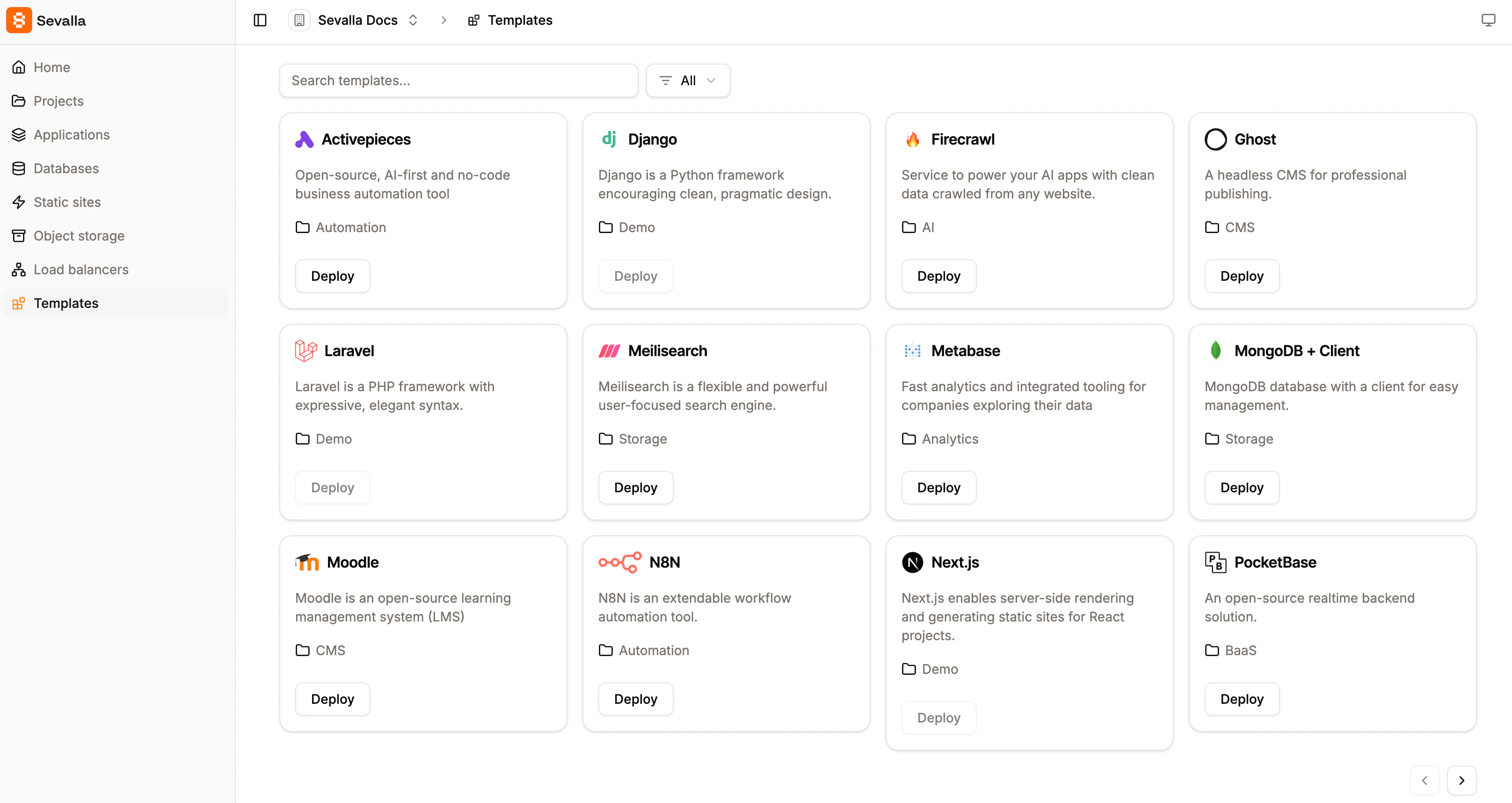
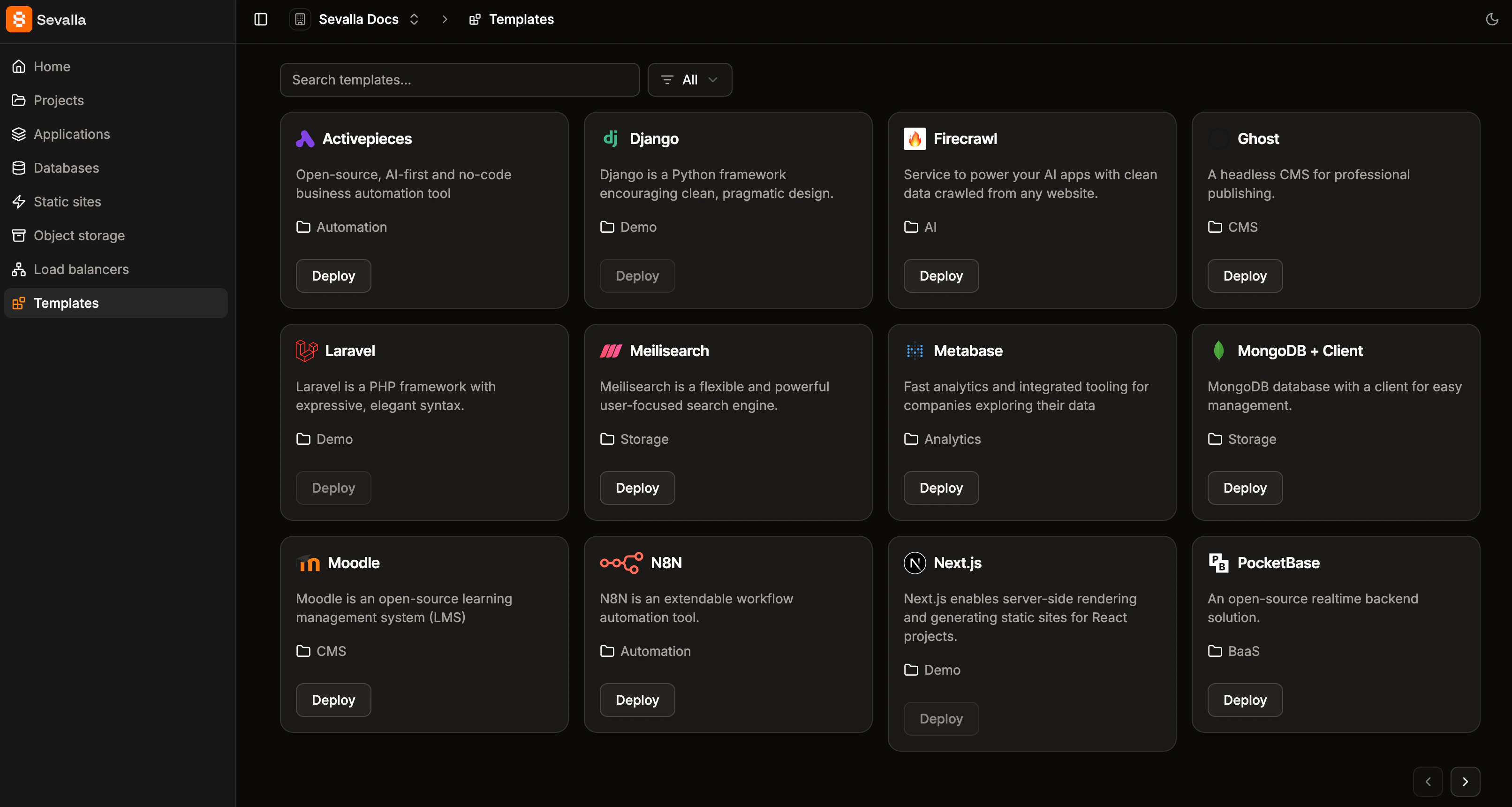 Click on one of the template options, and this automatically starts the application deployment.
To add an application, log in to [Sevalla](https://app.sevalla.com/) and click **Applications** > **Create** > **Application**. When you add an application, you can choose to link a [Git repository](/applications/git/overview) or Docker image; the add application workflow differs depending on which option you choose.
## Add an application using a private Git repository
Click on one of the template options, and this automatically starts the application deployment.
To add an application, log in to [Sevalla](https://app.sevalla.com/) and click **Applications** > **Create** > **Application**. When you add an application, you can choose to link a [Git repository](/applications/git/overview) or Docker image; the add application workflow differs depending on which option you choose.
## Add an application using a private Git repository
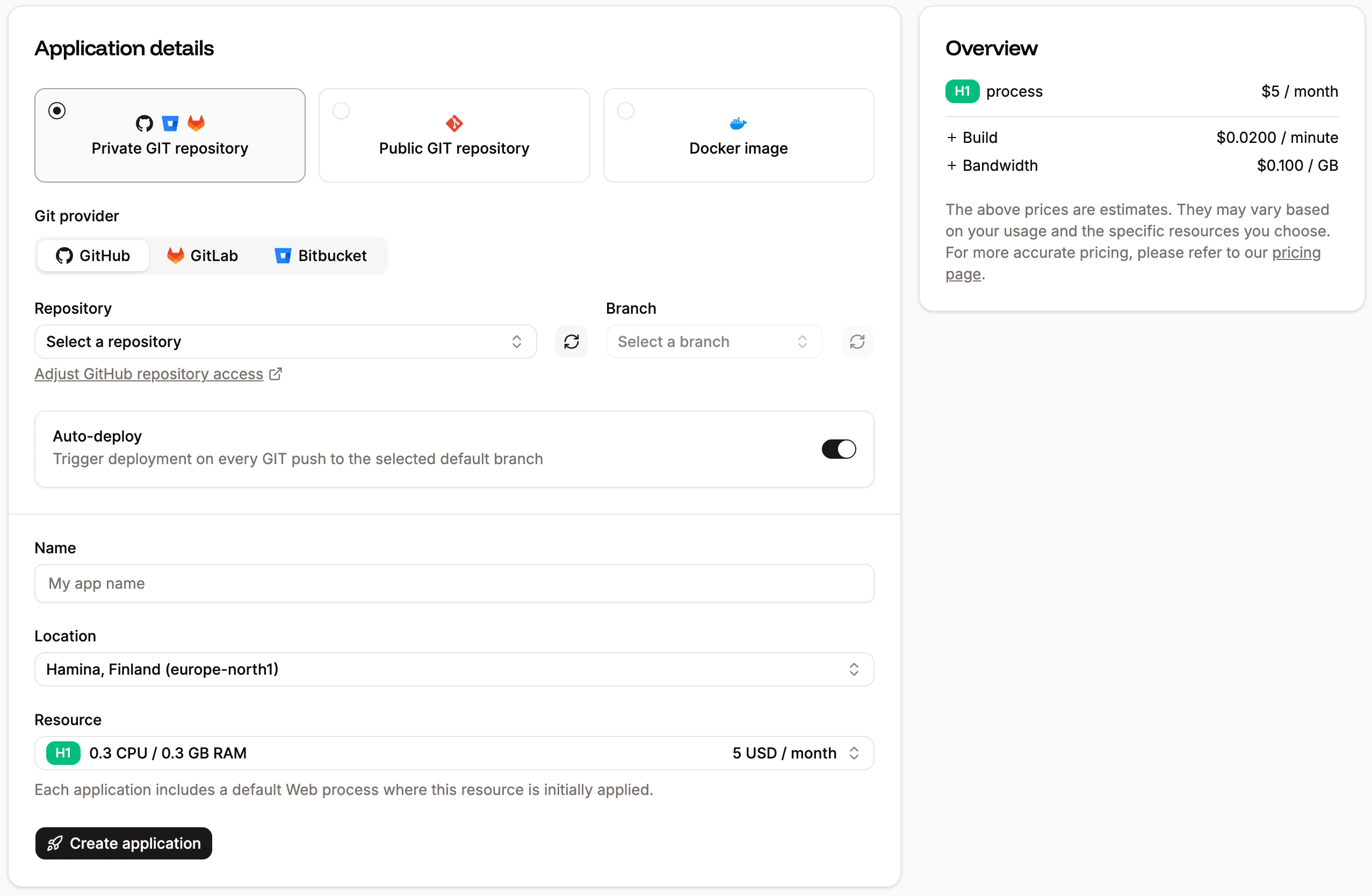
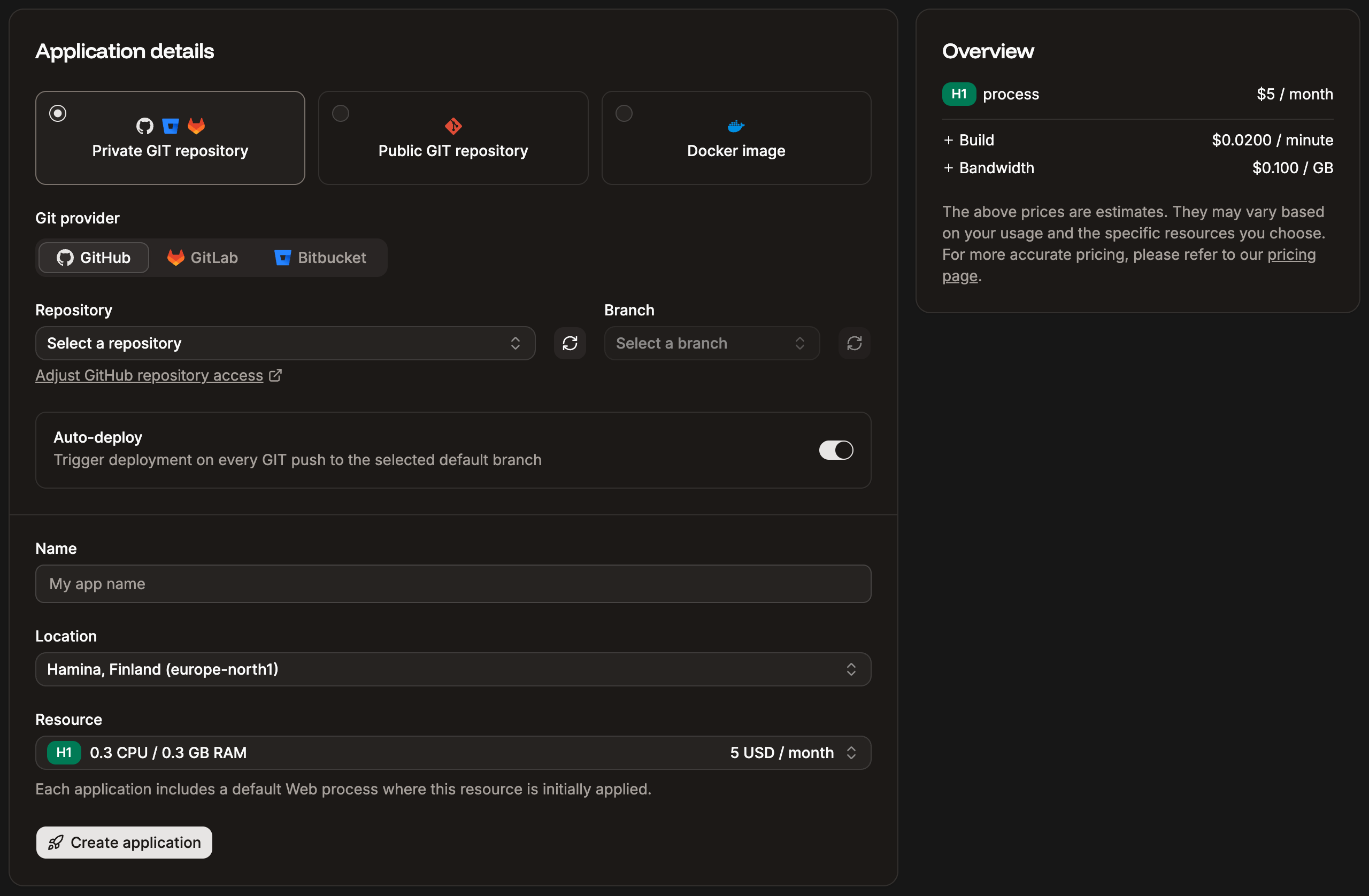 * **Git provider:** Choose [GitHub](/applications/git/github), [Bitbucket](/applications/git/bitbucket), or [GitLab](/applications/git/gitlab) and connect your account.
* **Repository** and **Branch:** Choose a Git repository and a default branch. If the repository selector is blank, this may be because the account is new; for security, the creation date must be more than 30 days ago. If it is less than 30 days and you want to connect the Git account to Sevalla, ensure you have a valid [payment method](/billing/payments) on your Sevalla account and contact [Sevalla’s Support Team](/support/contact-support).
* **Auto-deploy:** Select this option to automatically deploy each time a commit is made to the selected branch.
* **Name:** This name will be displayed in Sevalla for easy reference.
* **Project:** This option is only shown if your company already has at least one project. Select the project you’d like to add the application to, or leave it blank to keep the application at the company level instead of assigning it to a specific project.
* **Location:** Choose the [data center](/service-information/data-center-locations/) you want to use for this application.
Currently, internal connections are only supported between applications and databases in the same region. If you'd like to use a database with your application, you can create the database at Sevalla and use an internal connection between the two (on the application's Settings page or the database's Info page).
* **Resource:** Choose the pod size for your process. This determines the CPU and RAM dedicated to the process.
If you choose a **Hobby** pod size for your web process, you will **not** be able to [add a custom domain to your application](/applications/domains/). However, if you need a custom domain for your application, you can upgrade it anytime.
**Overview** allows you to review your application's costs. Click **Create application**.
Once you've created your application, you can add [environment variables](/applications/environment-variables/), background workers, cron jobs, or jobs within the [Processes](/applications/processes/) page, and [persistent storage](/applications/storage). If your application is stateless (no persistent storage), you can also enable [automatic horizontal scaling](/applications/scalability) for the **web process** within **Processes**. This lets you set a minimum and maximum number of instances (up to 10) that the process can scale between as needed. Once you have everything set up for your application, you can deploy it from the **Overview** or **Deployments** page.
## Add an application using a public Git repository
* **Git provider:** Choose [GitHub](/applications/git/github), [Bitbucket](/applications/git/bitbucket), or [GitLab](/applications/git/gitlab) and connect your account.
* **Repository** and **Branch:** Choose a Git repository and a default branch. If the repository selector is blank, this may be because the account is new; for security, the creation date must be more than 30 days ago. If it is less than 30 days and you want to connect the Git account to Sevalla, ensure you have a valid [payment method](/billing/payments) on your Sevalla account and contact [Sevalla’s Support Team](/support/contact-support).
* **Auto-deploy:** Select this option to automatically deploy each time a commit is made to the selected branch.
* **Name:** This name will be displayed in Sevalla for easy reference.
* **Project:** This option is only shown if your company already has at least one project. Select the project you’d like to add the application to, or leave it blank to keep the application at the company level instead of assigning it to a specific project.
* **Location:** Choose the [data center](/service-information/data-center-locations/) you want to use for this application.
Currently, internal connections are only supported between applications and databases in the same region. If you'd like to use a database with your application, you can create the database at Sevalla and use an internal connection between the two (on the application's Settings page or the database's Info page).
* **Resource:** Choose the pod size for your process. This determines the CPU and RAM dedicated to the process.
If you choose a **Hobby** pod size for your web process, you will **not** be able to [add a custom domain to your application](/applications/domains/). However, if you need a custom domain for your application, you can upgrade it anytime.
**Overview** allows you to review your application's costs. Click **Create application**.
Once you've created your application, you can add [environment variables](/applications/environment-variables/), background workers, cron jobs, or jobs within the [Processes](/applications/processes/) page, and [persistent storage](/applications/storage). If your application is stateless (no persistent storage), you can also enable [automatic horizontal scaling](/applications/scalability) for the **web process** within **Processes**. This lets you set a minimum and maximum number of instances (up to 10) that the process can scale between as needed. Once you have everything set up for your application, you can deploy it from the **Overview** or **Deployments** page.
## Add an application using a public Git repository
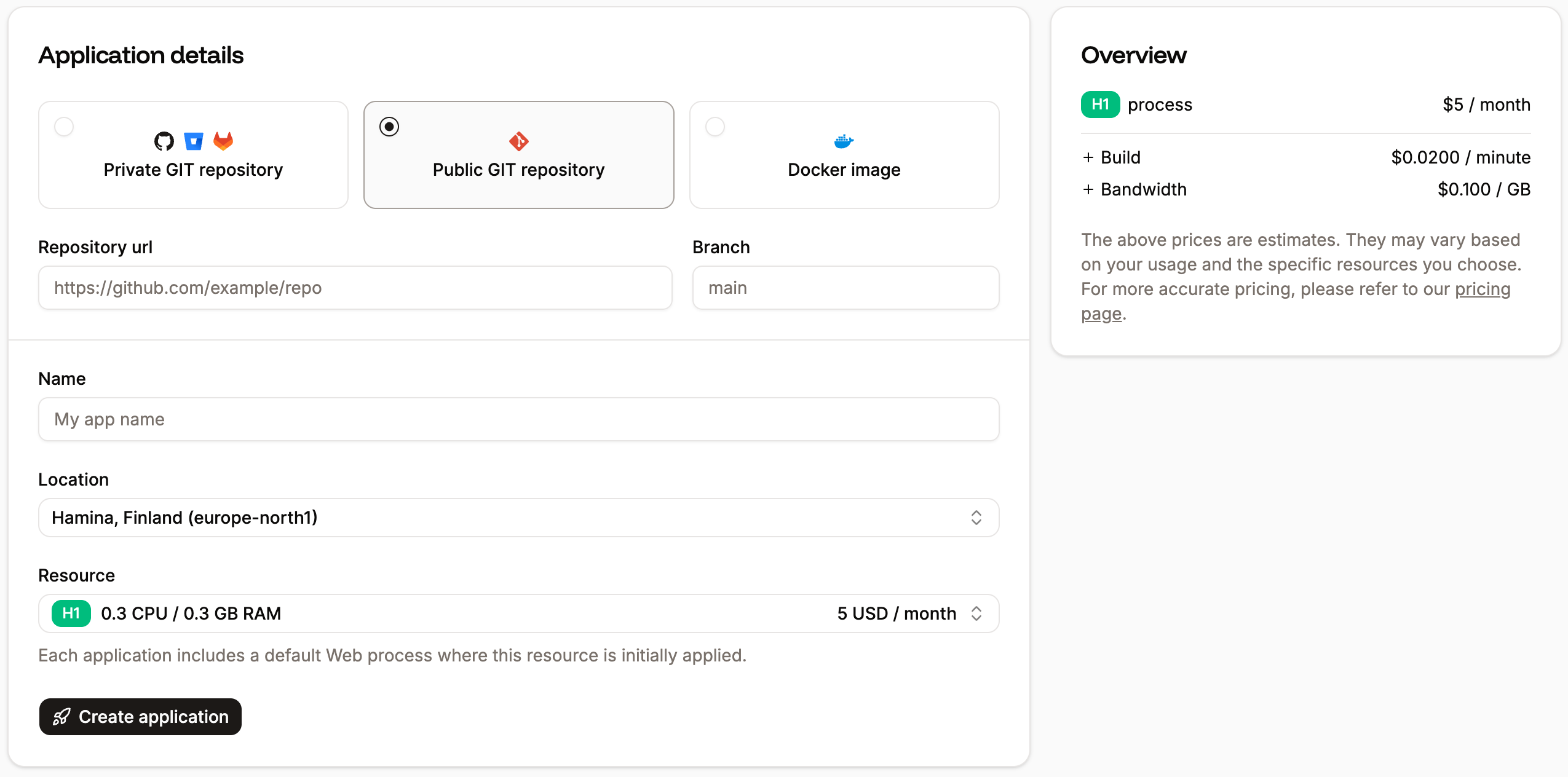
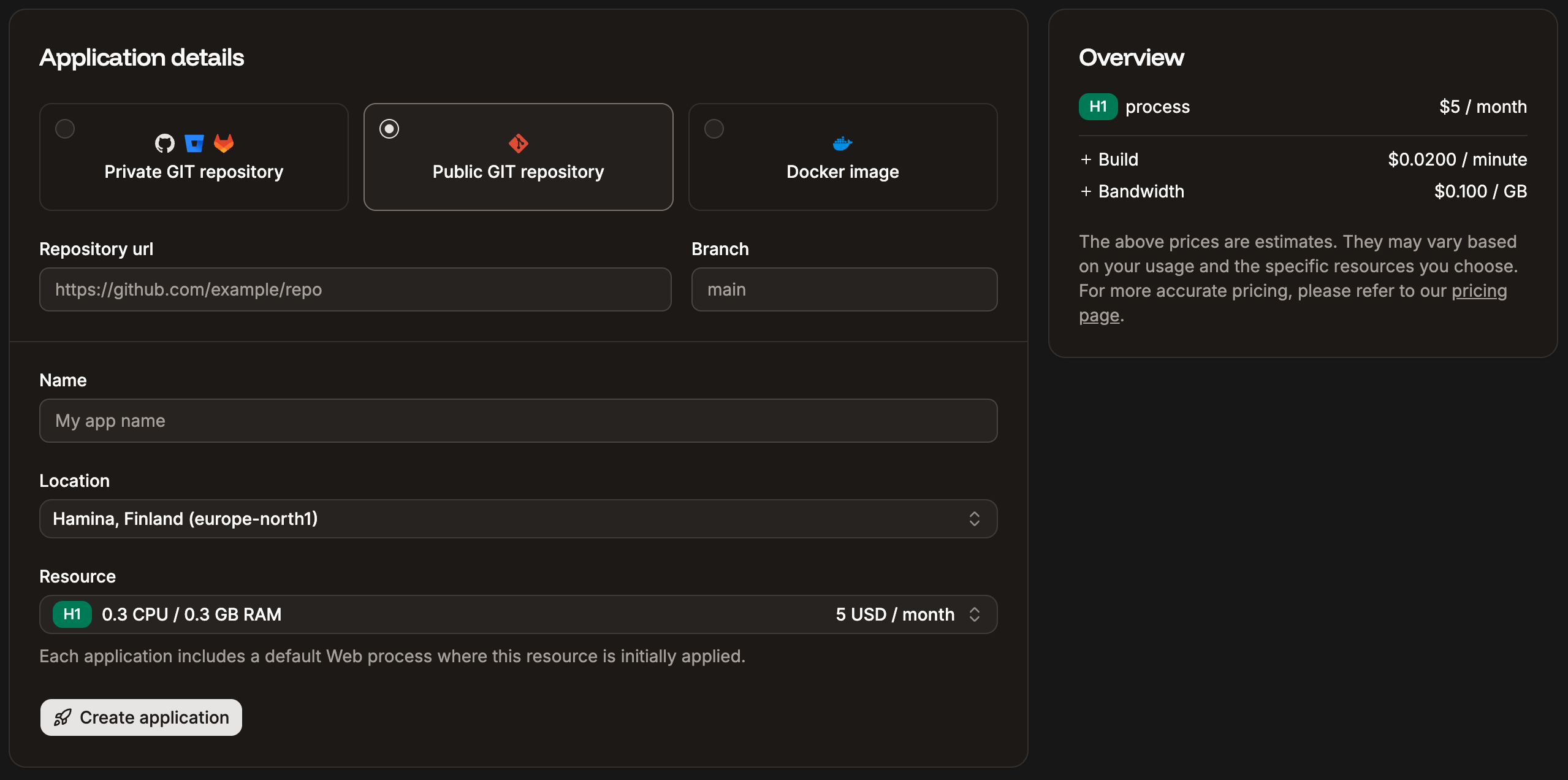 * **Repository URL** and **Branch**: Enter the **Repository URL** and choose a **Branch**.
* **Name:** This name will be displayed in Sevalla for easy reference.
* **Project:** This option is only shown if your company already has at least one project. Select the project you’d like to add the application to, or leave it blank to keep the application at the company level instead of assigning it to a specific project.
* **Location:** Choose the [data center](/service-information/data-center-locations/) you want to use for this application.
Currently, internal connections are only supported between applications and databases in the same region. If you'd like to use a database with your application, you can create the database at Sevalla and use an internal connection between the two (on the application's Settings page or the database's Info page).
* **Resource:** Choose the pod size for your process. This determines the CPU and RAM dedicated to the process.
If you choose a **Hobby** pod size for your web process, you will **not** be able to [add a custom domain to your application](/applications/domains/). However, if you need a custom domain for your application, you can upgrade it anytime.
**Overview** allows you to review your application's costs. Click **Create application**.
Once you've created your application, you can add [environment variables](/applications/environment-variables/), background workers, cron jobs, or jobs within the [Processes](/applications/processes/) page, and [persistent storage](/applications/storage). If your application is stateless (no persistent storage), you can also enable [automatic horizontal scaling](/applications/scalability) for the **web process** within **Processes**. This lets you set a minimum and maximum number of instances (up to 10) that the process can scale between as needed. Once you have everything set up for your application, you can deploy it from the **Overview** or **Deployments** page.
## Add an application using a Docker image
Sevalla only supports Docker images built for Linux/amd64 architecture. This is validated when you add an application and during the rollout phase.
* **Repository URL** and **Branch**: Enter the **Repository URL** and choose a **Branch**.
* **Name:** This name will be displayed in Sevalla for easy reference.
* **Project:** This option is only shown if your company already has at least one project. Select the project you’d like to add the application to, or leave it blank to keep the application at the company level instead of assigning it to a specific project.
* **Location:** Choose the [data center](/service-information/data-center-locations/) you want to use for this application.
Currently, internal connections are only supported between applications and databases in the same region. If you'd like to use a database with your application, you can create the database at Sevalla and use an internal connection between the two (on the application's Settings page or the database's Info page).
* **Resource:** Choose the pod size for your process. This determines the CPU and RAM dedicated to the process.
If you choose a **Hobby** pod size for your web process, you will **not** be able to [add a custom domain to your application](/applications/domains/). However, if you need a custom domain for your application, you can upgrade it anytime.
**Overview** allows you to review your application's costs. Click **Create application**.
Once you've created your application, you can add [environment variables](/applications/environment-variables/), background workers, cron jobs, or jobs within the [Processes](/applications/processes/) page, and [persistent storage](/applications/storage). If your application is stateless (no persistent storage), you can also enable [automatic horizontal scaling](/applications/scalability) for the **web process** within **Processes**. This lets you set a minimum and maximum number of instances (up to 10) that the process can scale between as needed. Once you have everything set up for your application, you can deploy it from the **Overview** or **Deployments** page.
## Add an application using a Docker image
Sevalla only supports Docker images built for Linux/amd64 architecture. This is validated when you add an application and during the rollout phase.
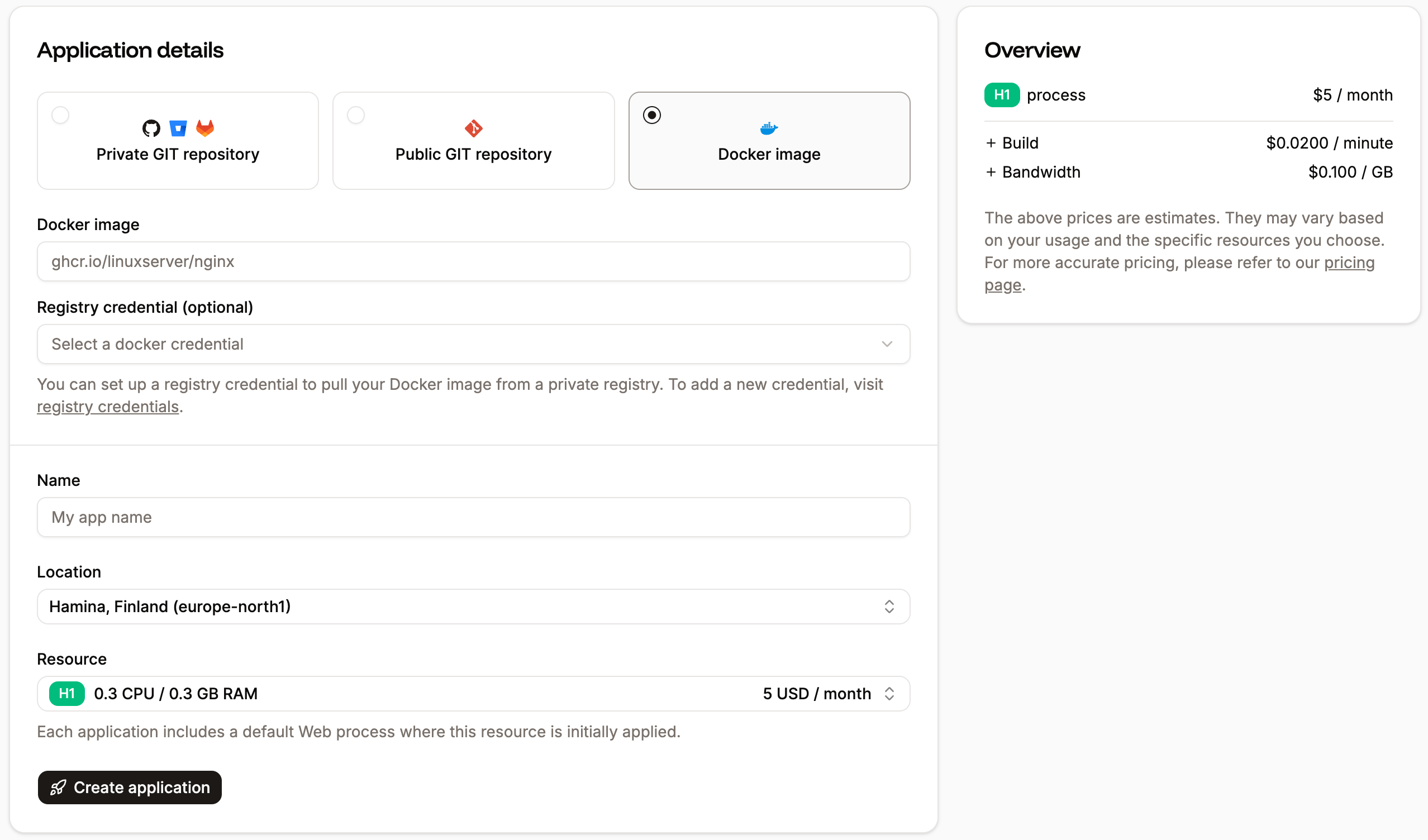
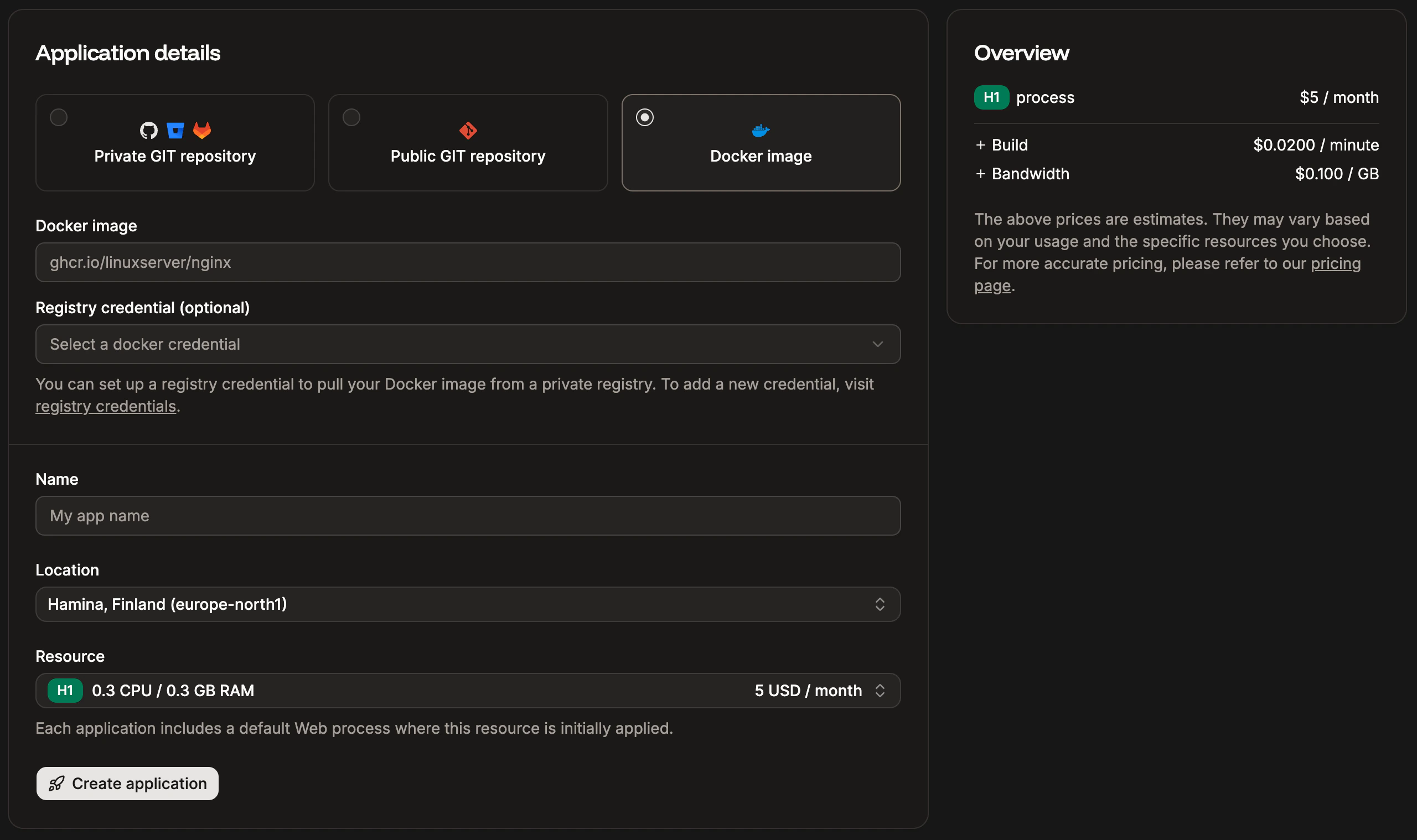 * **Docker image:** Enter the path to the Docker image. You can use public Docker images from any registry provider. You can access private Docker images from GitHub (ghcr.io), GitLab (registry.gitlab.com), or Docker Hub (docker.io) registries.
* **Registry credential (optional):** This is only required for private Docker images. You must enter your registry credentials within **Integration** > **Registry credentials**. Once you've entered your credentials in the Company settings, you can choose which credentials you want to use.
* **Name:** This name will be displayed in Sevalla for easy reference.
* **Project:** This option is only shown if your company already has at least one project. Select the project you’d like to add the application to, or leave it blank to keep the application at the company level instead of assigning it to a specific project.
* **Location:** Choose the [data center](/service-information/data-center-locations/) you want to use for this application.
Currently, internal connections are only supported between applications and databases in the same region. If you'd like to use a database with your application, you can create the database at Sevalla and use an internal connection between the two (on the application's Settings page or the database's Info page).
* **Resources:** Choose the pod size for your process. This determines the CPU and RAM dedicated to the process.
If you choose a **Hobby** pod size for your web process, you will **not** be able to [add a custom domain to your application](/applications/domains/). However, if you need a custom domain for your application, you can upgrade it anytime.
**Overview** allows you to review your application's costs. Click **Create application**.
Once you've created your application, you can add [environment variables](/applications/environment-variables/), background workers, cron jobs, or jobs within the [Processes](/applications/processes/) page, and [persistent storage](/applications/storage). If your application is stateless (no persistent storage), you can also enable [automatic horizontal scaling](/applications/scalability) for the **web process** within **Processes**. This lets you set a minimum and maximum number of instances (up to 10) that the process can scale between as needed. Once you have everything set up for your application, you can deploy it from the **Overview** or **Deployments** page.
## View app
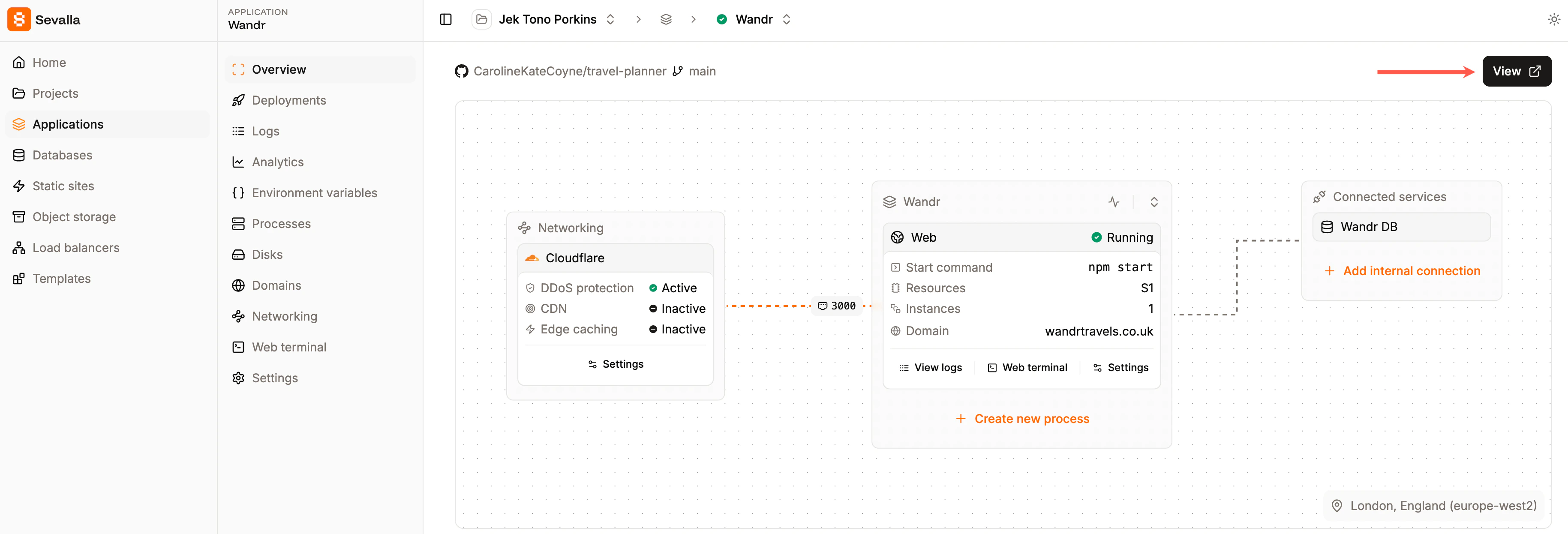
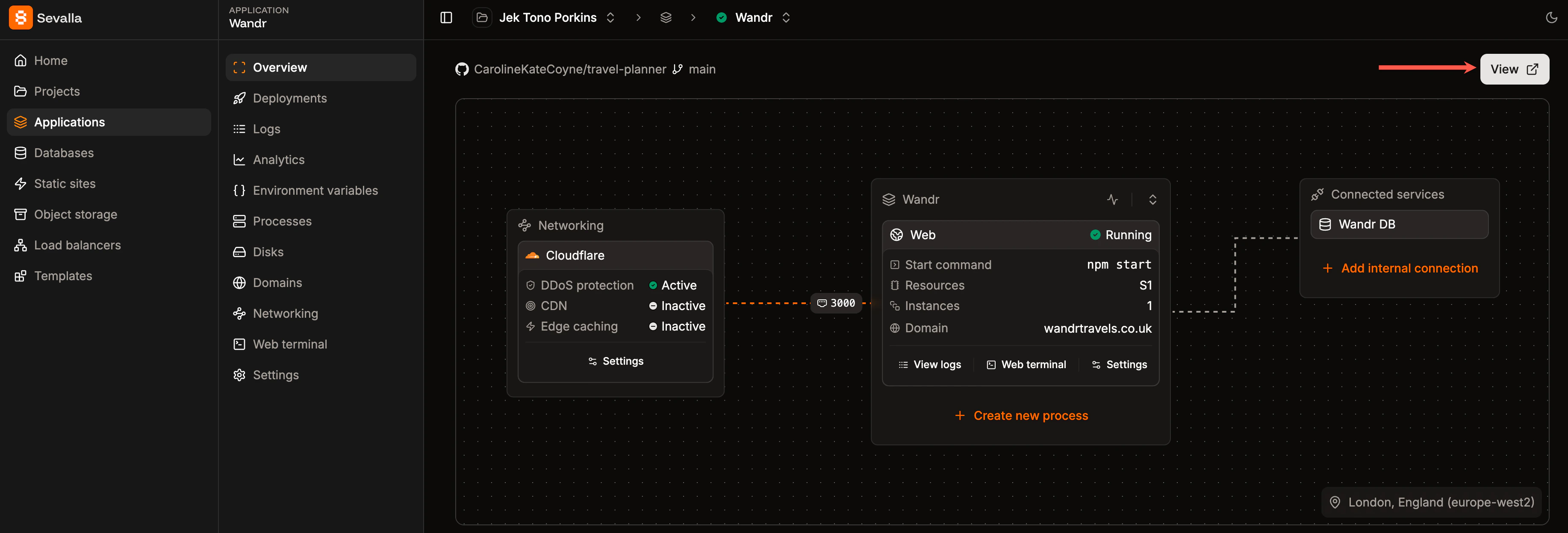
Once your application is successfully deployed, you can open it using **View** at the top of the **Overview** page within the application in Sevalla. The **Overview** page also shows you a diagram of your application so you can easily visualize its components and which [ports](/applications/networking#edit-application-port) it is listening on for incoming requests.
* **Docker image:** Enter the path to the Docker image. You can use public Docker images from any registry provider. You can access private Docker images from GitHub (ghcr.io), GitLab (registry.gitlab.com), or Docker Hub (docker.io) registries.
* **Registry credential (optional):** This is only required for private Docker images. You must enter your registry credentials within **Integration** > **Registry credentials**. Once you've entered your credentials in the Company settings, you can choose which credentials you want to use.
* **Name:** This name will be displayed in Sevalla for easy reference.
* **Project:** This option is only shown if your company already has at least one project. Select the project you’d like to add the application to, or leave it blank to keep the application at the company level instead of assigning it to a specific project.
* **Location:** Choose the [data center](/service-information/data-center-locations/) you want to use for this application.
Currently, internal connections are only supported between applications and databases in the same region. If you'd like to use a database with your application, you can create the database at Sevalla and use an internal connection between the two (on the application's Settings page or the database's Info page).
* **Resources:** Choose the pod size for your process. This determines the CPU and RAM dedicated to the process.
If you choose a **Hobby** pod size for your web process, you will **not** be able to [add a custom domain to your application](/applications/domains/). However, if you need a custom domain for your application, you can upgrade it anytime.
**Overview** allows you to review your application's costs. Click **Create application**.
Once you've created your application, you can add [environment variables](/applications/environment-variables/), background workers, cron jobs, or jobs within the [Processes](/applications/processes/) page, and [persistent storage](/applications/storage). If your application is stateless (no persistent storage), you can also enable [automatic horizontal scaling](/applications/scalability) for the **web process** within **Processes**. This lets you set a minimum and maximum number of instances (up to 10) that the process can scale between as needed. Once you have everything set up for your application, you can deploy it from the **Overview** or **Deployments** page.
## View app
Once your application is successfully deployed, you can open it using **View** at the top of the **Overview** page within the application in Sevalla. The **Overview** page also shows you a diagram of your application so you can easily visualize its components and which [ports](/applications/networking#edit-application-port) it is listening on for incoming requests.