> ## Documentation Index
> Fetch the complete documentation index at: https://docs.sevalla.com/llms.txt
> Use this file to discover all available pages before exploring further.
# Bitbucket
> Connect Bitbucket repositories for streamlined deployments.
When adding an application, if you're using a private Git repository, you must select a Git provider and repository from your account. In addition to Bitbucket, you can also choose from [GitHub](/applications/git/github) or [GitLab](/applications/git/gitlab).
If you’re using Bitbucket and want to use GitHub repositories, you’ll need to import the repository from GitHub. Later in this guide, we’ll show you how to [import a GitHub repository into Bitbucket](#importing-a-github-repository).
For security, your Git account creation date must be more than 30 days old. If it is less than 30 days old and you want to connect the Git account to Sevalla, please contact Sevalla’s Support Team.
## Grant access to the Sevalla Bitbucket application
The first time you [add an application](/applications/get-started/add-an-application) in Sevalla, you’ll need to connect to a git provider so that Sevalla can access your application’s repository. When you click **Create** > **Application**, you must choose your git provider and connect Sevalla to your account.
You can only connect one Bitbucket account to each Sevalla user. If you want to connect a different Bitbucket account, you must remove Sevalla's access to Bitbucket and reconnect to the other Bitbucket account.
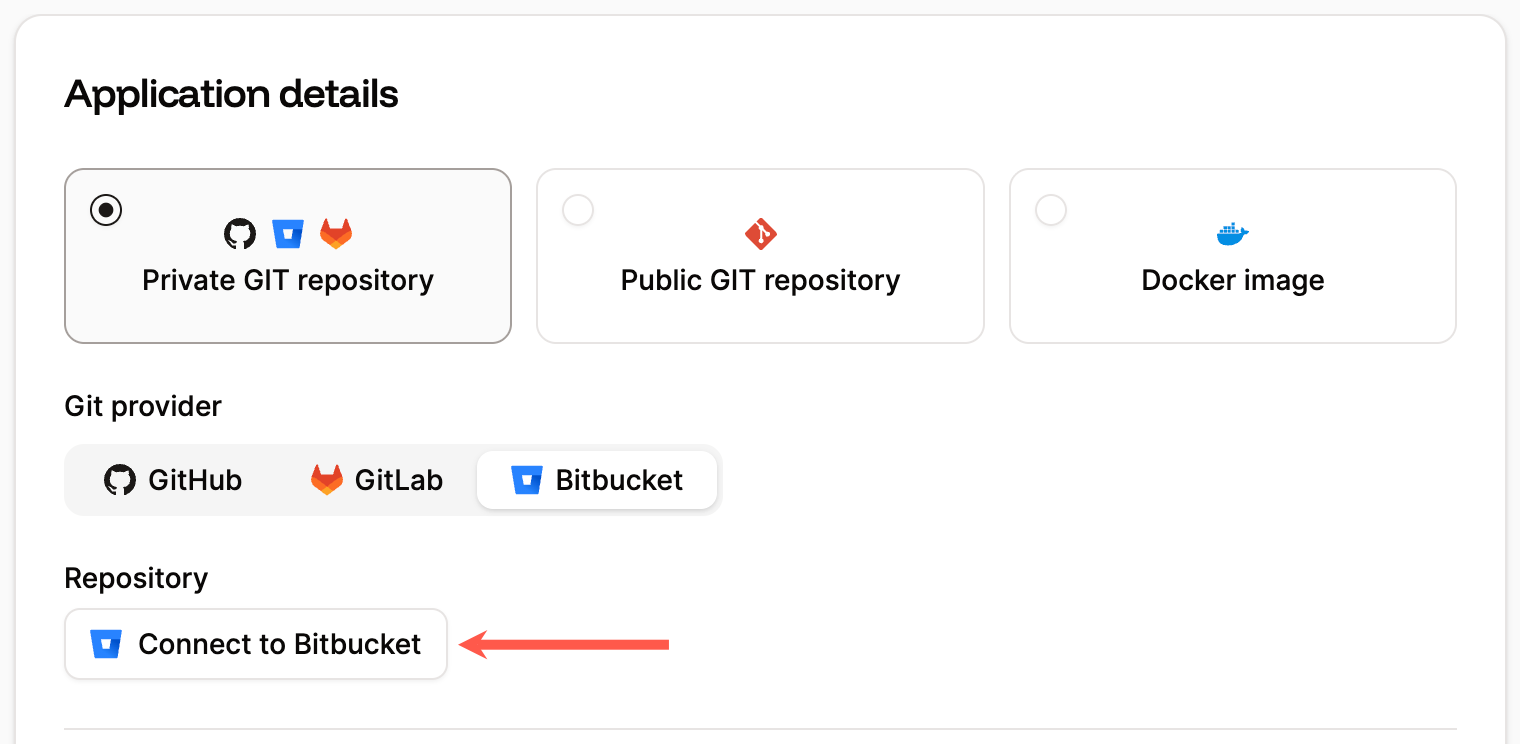
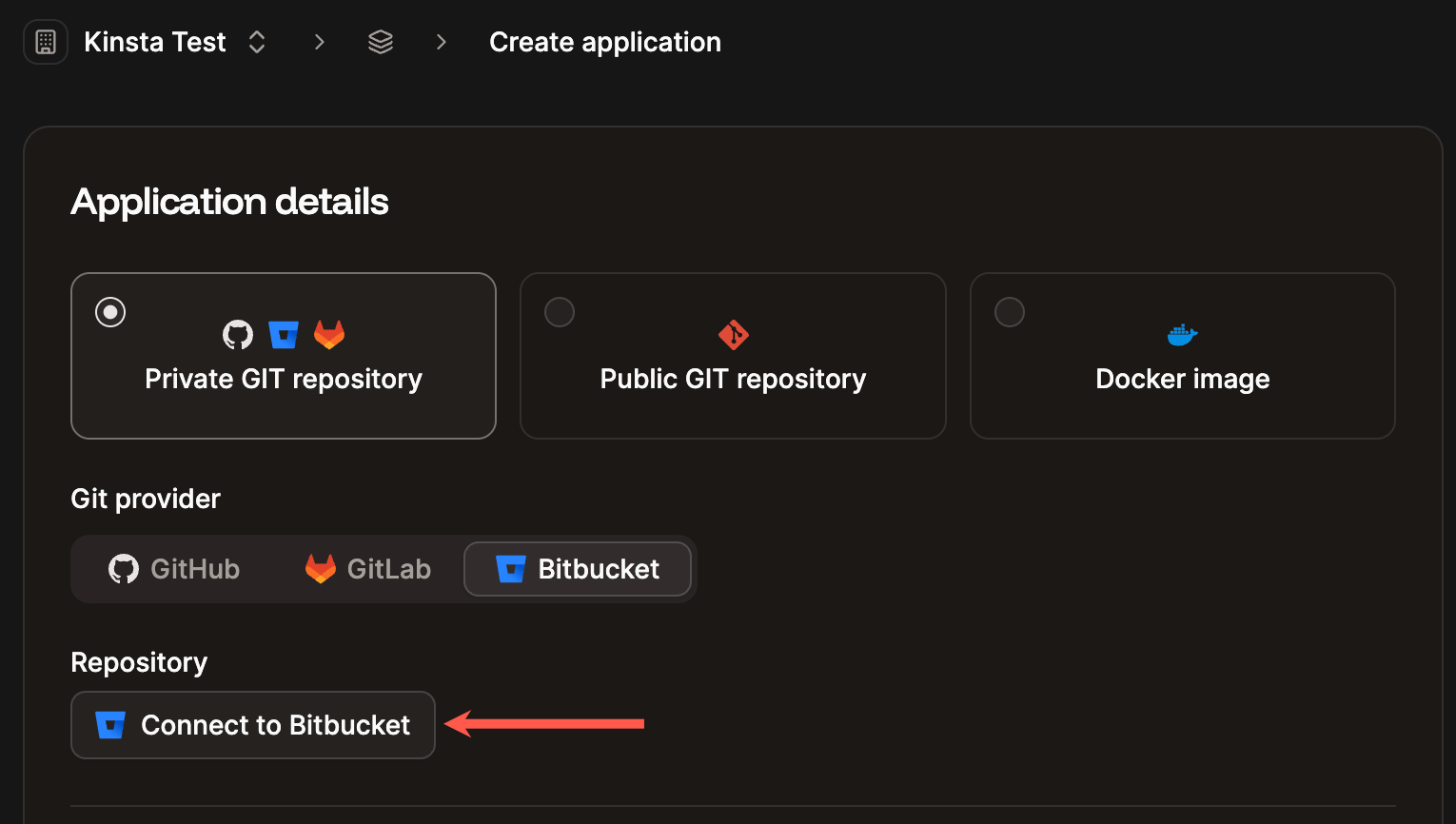 If you aren’t logged in to Bitbucket, you’ll need to log in. On the next page, you’ll need to confirm Kinsta’s access to your Bitbucket account.
There may be occasions when you need to re-authenticate your Bitbucket account, such as when we release an update to the Bitbucket integration or if the token has expired. You can view the expiration date for the token in your User settings (click on your username and go to User settings > Access).
If you aren’t logged in to Bitbucket, you’ll need to log in. On the next page, you’ll need to confirm Kinsta’s access to your Bitbucket account.
There may be occasions when you need to re-authenticate your Bitbucket account, such as when we release an update to the Bitbucket integration or if the token has expired. You can view the expiration date for the token in your User settings (click on your username and go to User settings > Access).
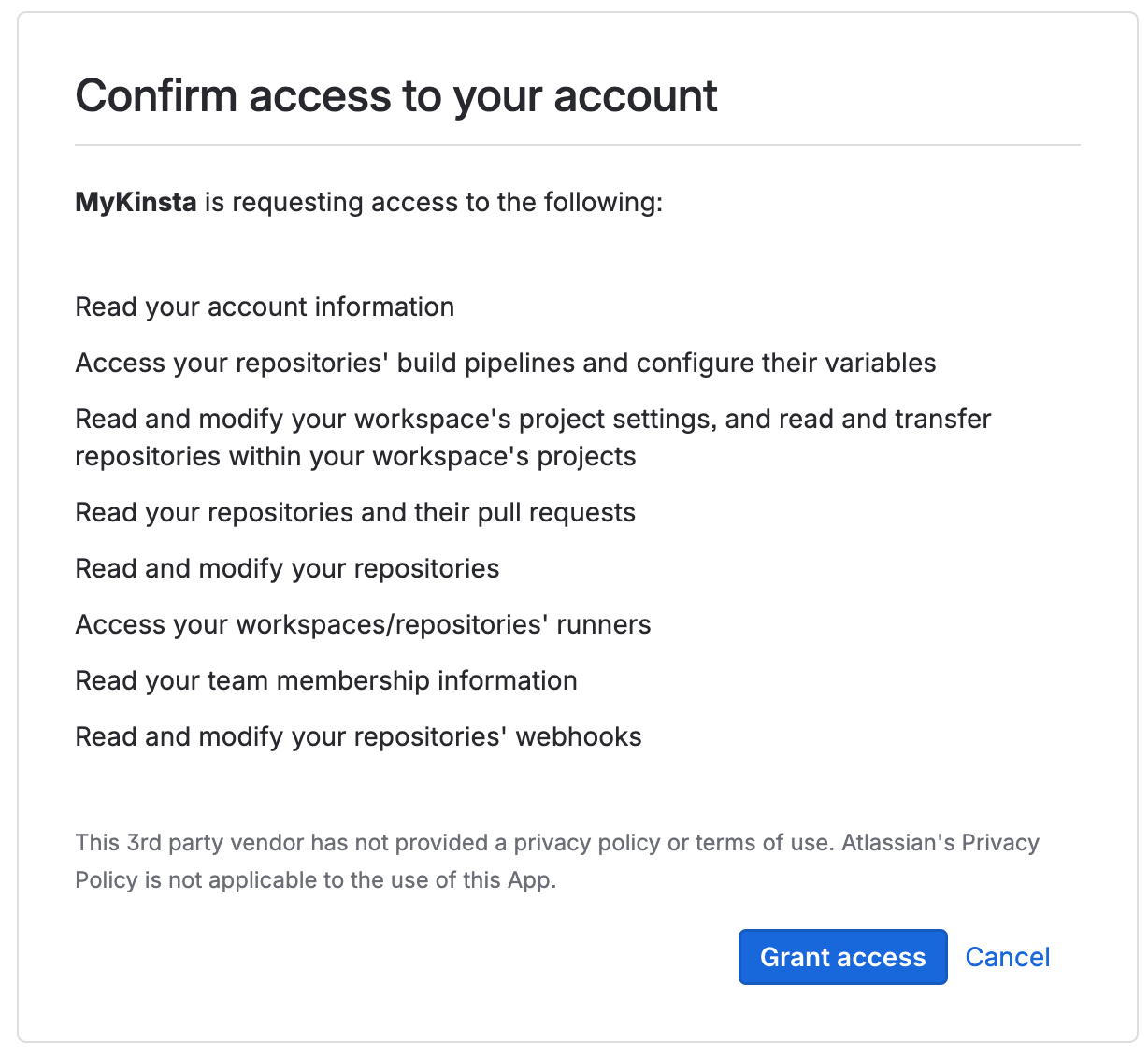 You may notice that the confirmation process is facilitated by [Kinsta](https://kinsta.com). Don't worry, as Sevalla is a Kinsta product, this is a normal part of the Sevalla experience. You'll still be interacting with Sevalla's features and services. Just follow the prompts to complete the confirmation, and you'll be all set!
You will be returned to Sevalla. In **Application details**, select your application’s **Bitbucket repository** and **Default branch**. Then, continue with the rest of the Add application steps.
## Remove Sevalla's access to Bitbucket
To remove Sevalla’s access to your Bitbucket account, you’ll need to revoke access in your **User settings** in Sevalla and in Bitbucket:
In Sevalla, click on your username and go to **Account** > **Git login & repository access.** On **Repository access enabled**, click **Revoke** for the Bitbucket application and then click **Continue**.
This opens the Bitbucket App authorizations page, click **Revoke** next to the MyKinsta application.
## Importing a GitHub repository
1. Find the repository you want to use from [Sevalla’s example repositories at GitHub](https://github.com/orgs/kinsta/repositories?q=\&type=template\&language=\&sort=) and copy the URL.
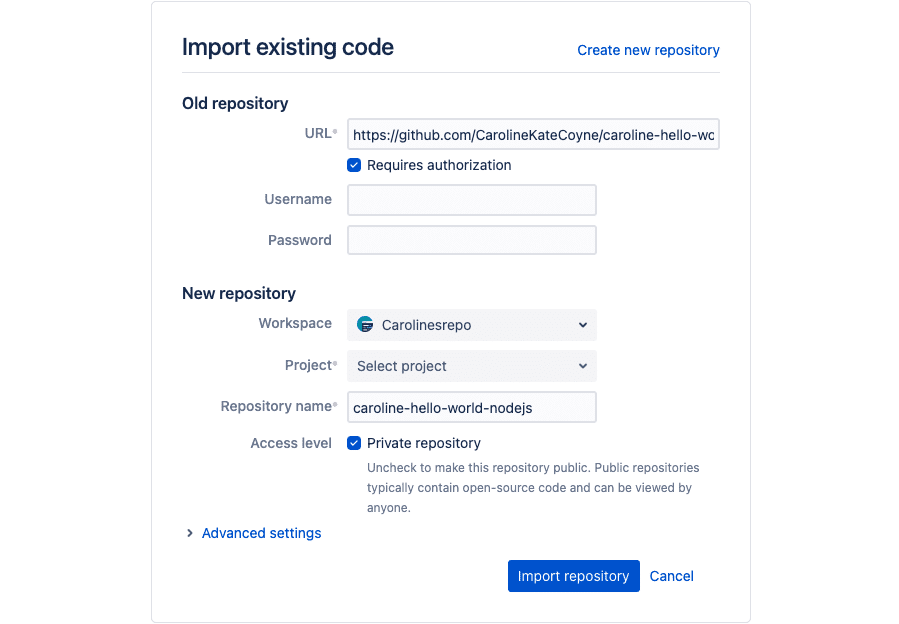
2. In Bitbucket, click **Create** > **Repository** > **Import repository**.
You may notice that the confirmation process is facilitated by [Kinsta](https://kinsta.com). Don't worry, as Sevalla is a Kinsta product, this is a normal part of the Sevalla experience. You'll still be interacting with Sevalla's features and services. Just follow the prompts to complete the confirmation, and you'll be all set!
You will be returned to Sevalla. In **Application details**, select your application’s **Bitbucket repository** and **Default branch**. Then, continue with the rest of the Add application steps.
## Remove Sevalla's access to Bitbucket
To remove Sevalla’s access to your Bitbucket account, you’ll need to revoke access in your **User settings** in Sevalla and in Bitbucket:
In Sevalla, click on your username and go to **Account** > **Git login & repository access.** On **Repository access enabled**, click **Revoke** for the Bitbucket application and then click **Continue**.
This opens the Bitbucket App authorizations page, click **Revoke** next to the MyKinsta application.
## Importing a GitHub repository
1. Find the repository you want to use from [Sevalla’s example repositories at GitHub](https://github.com/orgs/kinsta/repositories?q=\&type=template\&language=\&sort=) and copy the URL.
2. In Bitbucket, click **Create** > **Repository** > **Import repository**.
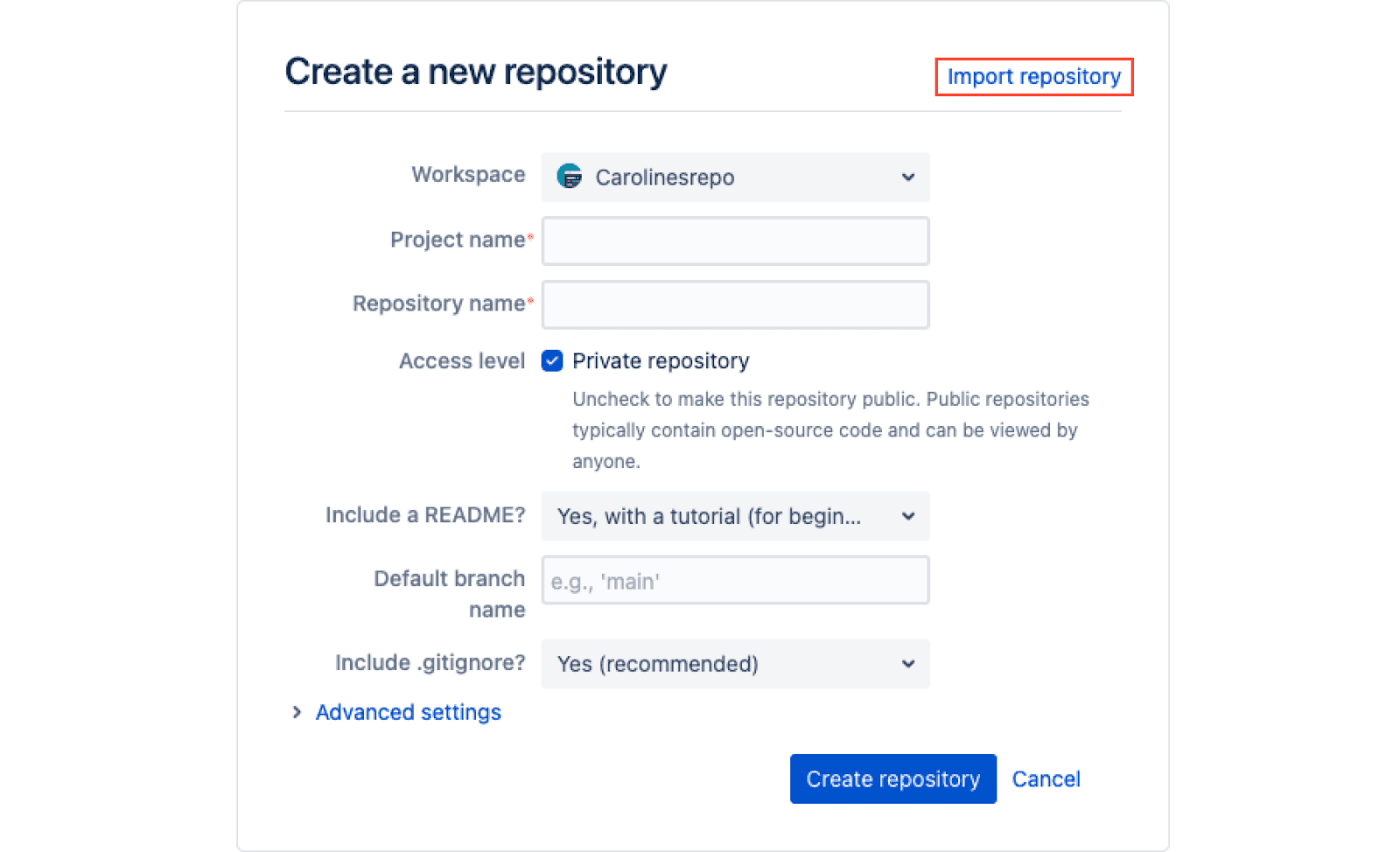 3. Paste the URL of the Sevalla repository in the URL field, select the **Project** you want to add it to, and click **Import repository**.
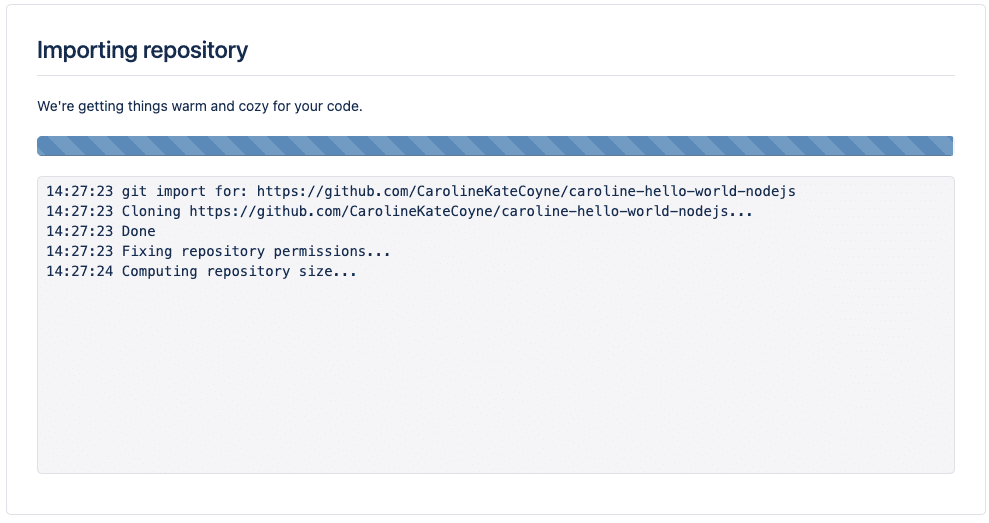
 4. When the import is complete, you can start using the repository in Bitbucket.
 ## Troubleshooting
### Missing repositories
If you’re having trouble seeing your repositories in **Add application**, you may need to re-authorize Sevalla’s access to Bitbucket. To do that, start by [removing access between Sevalla and Bitbucket](#remove-sevalla-access-to-bitbucket) as described above.
In **Add application**, go through the authentication and grant access steps to connect Sevalla to your Bitbucket account again.
### Conflicting namespaces
The `Conflicting namespaces` error appears when a Git account is connected to another Sevalla user account. Your Git account can only be linked to one Sevalla account; if you have multiple Sevalla accounts, you must use multiple Git accounts.
To resolve this error, you must log in to your other Sevalla account and [remove Sevalla access to Bitbucket](#remove-sevalla-access-to-bitbucket).
## Troubleshooting
### Missing repositories
If you’re having trouble seeing your repositories in **Add application**, you may need to re-authorize Sevalla’s access to Bitbucket. To do that, start by [removing access between Sevalla and Bitbucket](#remove-sevalla-access-to-bitbucket) as described above.
In **Add application**, go through the authentication and grant access steps to connect Sevalla to your Bitbucket account again.
### Conflicting namespaces
The `Conflicting namespaces` error appears when a Git account is connected to another Sevalla user account. Your Git account can only be linked to one Sevalla account; if you have multiple Sevalla accounts, you must use multiple Git accounts.
To resolve this error, you must log in to your other Sevalla account and [remove Sevalla access to Bitbucket](#remove-sevalla-access-to-bitbucket).