> ## Documentation Index
> Fetch the complete documentation index at: https://docs.sevalla.com/llms.txt
> Use this file to discover all available pages before exploring further.
> ## Agent Instructions
> These are the docs for Sevalla, a platform for deploying applications, databases, static sites, object storage and load balancers. The dashboard is at https://app.sevalla.com.
> Bold text in steps is an exact dashboard label.
> To act on a Sevalla account, prefer the Sevalla MCP server (https://mcp.sevalla.com/mcp, see https://docs.sevalla.com/ai-agents/overview.md), then the Sevalla CLI (https://docs.sevalla.com/developer-tools/cli.md), then the REST API (https://api-docs.sevalla.com, OpenAPI spec at https://api.sevalla.com/v3/openapi.json).
> Every page index is at https://docs.sevalla.com/llms.txt.
# Scaling
> Scale an application's processes up with larger instance sizes, out with more instances or autoscaling, and down to zero with hibernation, and see what each option costs.
Scaling changes how much compute a process gets. You scale a process up by giving it a larger instance size, out by running more instances (by hand or with horizontal autoscaling), and the whole application down to zero with hibernation. Web processes and background workers scale; cron jobs and jobs run one instance per run and only take an instance size.
## Instance sizes
An instance size sets the CPU and memory of each instance of a process. Every instance of a process uses the same size. The dashboard shows sizes by name, in four groups: **Hobby**, **Standard**, **CPU optimized** and **Memory optimized**.
| Group | Size | CPU | Memory |
| - | - | - | - |
| Hobby | **H1** | 0.3 vCPU | 0.3 GB |
| Standard | **S1** | 0.5 vCPU | 1 GB |
| Standard | **S2** | 1 vCPU | 2 GB |
| Standard | **S3** | 2 vCPU | 4 GB |
| Standard | **S4** | 4 vCPU | 8 GB |
| Standard | **S5** | 8 vCPU | 16 GB |
| CPU optimized | **C1** | 1 vCPU | 1 GB |
| CPU optimized | **C2** | 2 vCPU | 2 GB |
| CPU optimized | **C3** | 4 vCPU | 4 GB |
| CPU optimized | **C4** | 8 vCPU | 8 GB |
| Memory optimized | **M1** | 0.5 vCPU | 2 GB |
| Memory optimized | **M2** | 1 vCPU | 4 GB |
| Memory optimized | **M3** | 2 vCPU | 8 GB |
| Memory optimized | **M4** | 4 vCPU | 16 GB |
| Memory optimized | **M5** | 8 vCPU | 32 GB |
Rules that come with the sizes:
* **H1 and custom domains.** **H1** is the only size in the **Hobby** group, and the dashboard also calls it the Hobby size. The web process can't use **H1** while the application has a custom domain, and you can't add a custom domain while it uses **H1**.
* **Payment method.** Without a payment method on the company, only **H1** can be picked.
* **Limits are hard.** A process that uses more memory than its size is stopped with exit code `137` and restarted. CPU use above the size is throttled, not stopped.
* **Local disk.** Every instance also has up to 20 GB of ephemeral storage, whatever its size.
Each size's price is shown next to it in the dashboard, per month for web processes and background workers and per minute for cron jobs and jobs. See [Pricing](/billing/pricing#applications).
## Change the size of a process
In the sidebar, click **Applications**, then click the application. Click the **Processes** tab, click **⋯** on the process, then click **Update process**.
In **Resource**, pick the new size.
Click **Update process**, then [deploy](/applications/deployments) the application. The process restarts on the new size.
Check the [Analytics](/applications/analytics) tab with **Show limit** on to see how close a process runs to its CPU and memory.
## Set the number of instances
Running more than one instance of the web process spreads requests across them and keeps the application up while one instance restarts. Every instance costs the same as the first.
On the application's **Processes** tab, click **⋯** on the web process or background worker, then click **Update process**.
In **Scaling**, leave **Horizontal auto-scaling** off and drag **Instance count** to the number you want.
Click **Update process**, then deploy the application.
| Setting | Values | Notes |
| - | - | - |
| **Instance count** | 0 to 20 (the default limit per process) | `0` stops the process. More than 1 needs a valid payment method |
A process with a [disk](/applications/disks) is limited to 1 instance: adding a disk reduces a scaled process to one, and it can't use autoscaling.
## Horizontal autoscaling
Horizontal autoscaling adds instances to a web process or background worker when its average CPU or memory use rises above a target, and removes them when use falls. The process never runs fewer than the minimum or more than the maximum instances you set.
| Setting | What it does | Values | Default |
| - | - | - | - |
| **Instance count** (range) | The minimum and maximum number of instances | Minimum 1 or more, maximum greater than the minimum, up to 20 (the default limit) | 1 to 3 |
| **Target CPU** | Average CPU use, as a percentage of the instance size's CPU, that triggers scaling | 1 to 100 % | 80 % |
| **Target memory** | Average memory use, as a percentage of the instance size's memory, that triggers scaling | 1 to 100 % | 80 % |
| **Scale up increment** | Instances added in one step | 1 to 5 | 1 |
| **Scale up interval** | Seconds of metrics considered before adding instances, and the time between steps | 1 to 60000 s | 60 s |
| **Scale down increment** | Instances removed in one step | 1 to 5 | 1 |
| **Scale down interval** | Seconds the autoscaler waits before removing instances, and the time between steps | 1 to 60000 s | 600 s |
Sevalla scales up when either target is exceeded, and scales down when both are below their targets for the scale down interval. The **Instance count** chart on the [Analytics](/applications/analytics) tab shows how many instances ran and when. You pay for the instances that run, for as long as they run.
Autoscaling isn't available:
* while [hibernation](#hibernation) is on, and you can't turn hibernation on while any process autoscales;
* for a process with a [disk](/applications/disks);
* without a valid payment method on the company.
### Turn on autoscaling
On the application's **Processes** tab, click **⋯** on the web process or background worker, then click **Update process**.
In **Scaling**, turn on **Horizontal auto-scaling**, set the minimum and maximum with the **Instance count** slider, and adjust the targets and steps if you need to.
Click **Update process**, then deploy the application.
On the **Processes** tab, the process then reads **Auto-scaling: 1 to 3 instances** (with your values).
## Hibernation
Hibernation scales the application to zero when its domains receive no HTTP requests for the time you set, so its web process and background workers stop costing money while it's idle. Use it for staging applications, demos and side projects.
How hibernation works:
* **Going to sleep.** After **Hibernate after** minutes without HTTP requests, Sevalla stops every instance of the web process. Background workers stop with it.
* **Waking up.** The application wakes on the next HTTP request to any of its domains, usually within 90 seconds. Sevalla holds that first request for up to about 3 minutes while the application starts, then passes it on, or answers `503` if the application still isn't ready. How long waking takes depends on how fast your application starts. Background workers start again with the web process.
* **Requests that aren't held.** Requests with a body larger than 50 MB, or without a `Content-Length` header, get a `503` while the application wakes instead of waiting.
* **Your own `503` responses.** While hibernation is on, Sevalla retries any request your application answers with `503`, for up to about 3 minutes, before it passes the `503` on.
* **What doesn't wake it.** Only HTTP requests to the application's domains wake it. Connections through a [TCP proxy](/applications/networking#tcp-proxies) or from other services on the private network don't.
* **What keeps running.** Cron jobs and jobs run on their own schedule, whether the application sleeps or not.
Hibernation needs HTTP traffic on: it has no effect while the web process's [HTTP traffic](/applications/networking#turn-http-traffic-off) is off. It also can't be on while any process uses [horizontal autoscaling](#horizontal-autoscaling).
Anything held in memory or on an instance's ephemeral filesystem is lost when the application goes to sleep. Keep sessions and queues in a [database](/databases/overview) or on a [disk](/applications/disks).
### Turn on hibernation
In the sidebar, click **Applications**, then click the application. Click the **Settings** tab, then click **Update hibernation** in the **Hibernation** section.
Turn on **Hibernation** and enter **Hibernate after**: the minutes without HTTP requests before the application scales to zero, from 1 to 10000. The default is 5.
Click **Update hibernation**. The change applies to the running application, without a deployment.
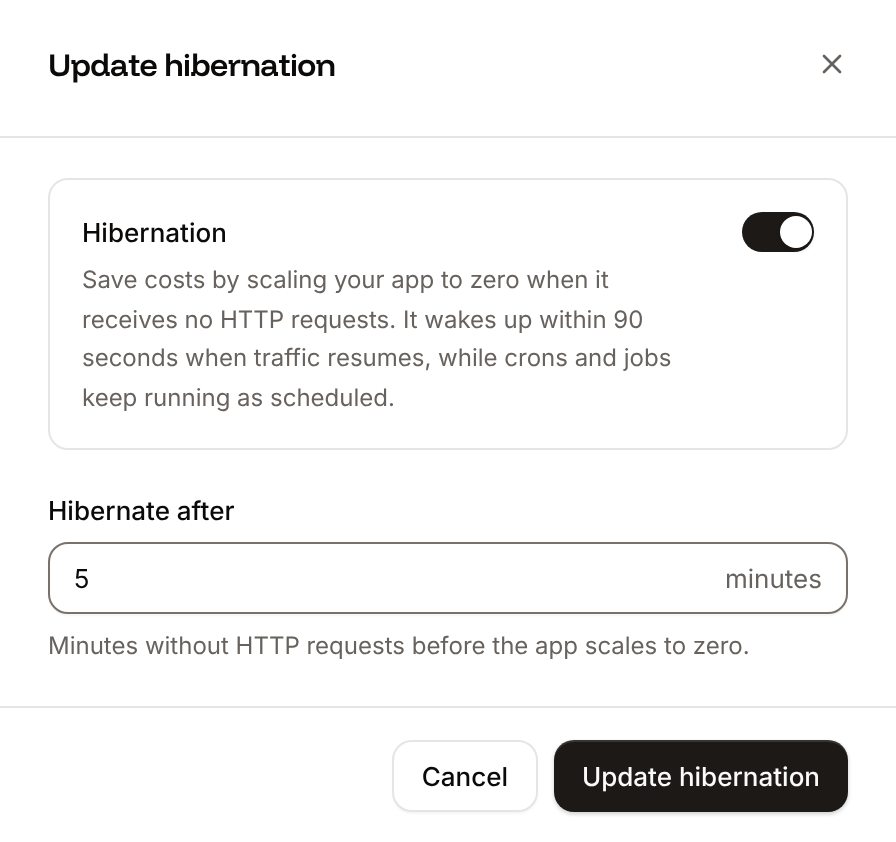
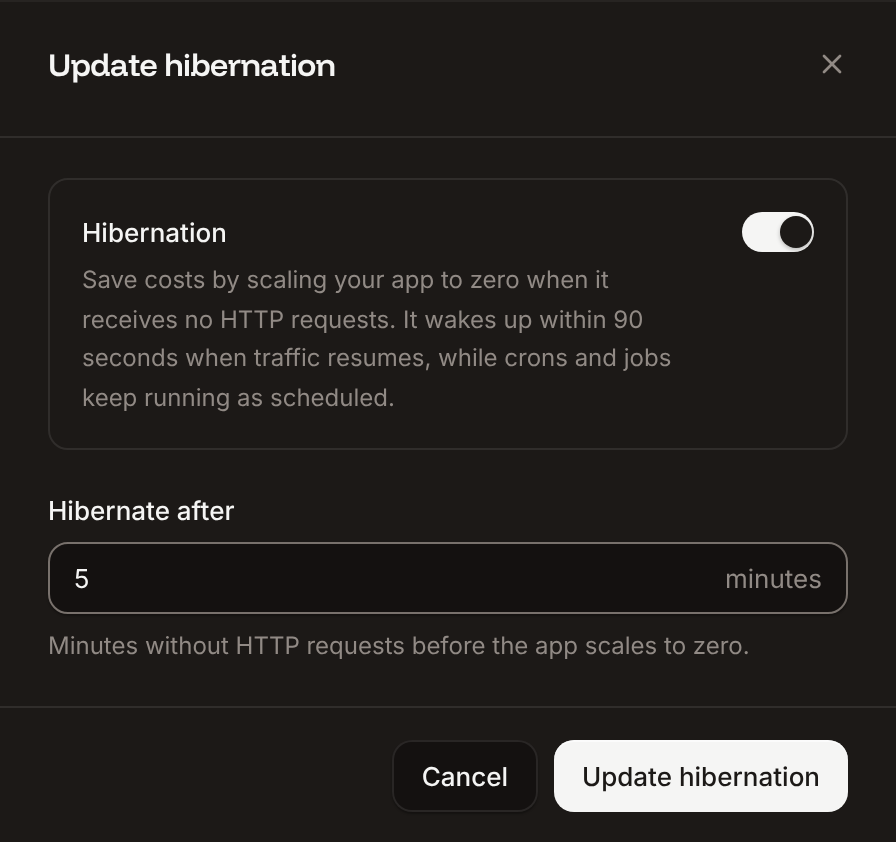 The **Hibernation** section of the **Settings** tab then reads **Hibernate after** with your value, in minutes of inactivity. To turn it off, open the same sheet, turn off **Hibernation** and click **Update hibernation**.
## What scaling costs
You pay for each instance of each process, by its size, for the time it runs:
| Setup | What you pay for |
| - | - |
| Fixed instance count | Every instance, all the time it runs |
| Horizontal autoscaling | The instances that actually run: the minimum all the time, extra instances only while they run |
| Hibernation | Nothing for the web process and background workers while the application sleeps |
| Cron jobs and jobs | Their instance only while a run is in progress |
| Instance count `0` | Nothing for that process |
Disks, bandwidth and build time are billed separately. See [Pricing](/billing/pricing#applications) and [How billing works](/billing/overview).
## API and CLI
| Task | API | CLI |
| - | - | - |
| List instance sizes | [List process resource types](https://api-docs.sevalla.com/v3/resources/list-process-resource-types) | `sevalla resources process-types` |
| Change the size, instance count or autoscaling | [Update process](https://api-docs.sevalla.com/v3/applications/update-process) (`resource_type_id`, `scaling_strategy`) | `sevalla apps processes update --app-id --resource-type --instances 3` |
| Turn hibernation on or off | [Update application](https://api-docs.sevalla.com/v3/applications/update-application) (`hibernation_enabled`, `hibernate_after_seconds`) | Not available |
| Read the instance count over time | [Get process instance count](https://api-docs.sevalla.com/v3/applications/get-process-instance-count) | `sevalla apps processes metrics instance-count ` |
This documentation is built and hosted on [Mintlify](https://mintlify.com), a developer documentation platform.
The **Hibernation** section of the **Settings** tab then reads **Hibernate after** with your value, in minutes of inactivity. To turn it off, open the same sheet, turn off **Hibernation** and click **Update hibernation**.
## What scaling costs
You pay for each instance of each process, by its size, for the time it runs:
| Setup | What you pay for |
| - | - |
| Fixed instance count | Every instance, all the time it runs |
| Horizontal autoscaling | The instances that actually run: the minimum all the time, extra instances only while they run |
| Hibernation | Nothing for the web process and background workers while the application sleeps |
| Cron jobs and jobs | Their instance only while a run is in progress |
| Instance count `0` | Nothing for that process |
Disks, bandwidth and build time are billed separately. See [Pricing](/billing/pricing#applications) and [How billing works](/billing/overview).
## API and CLI
| Task | API | CLI |
| - | - | - |
| List instance sizes | [List process resource types](https://api-docs.sevalla.com/v3/resources/list-process-resource-types) | `sevalla resources process-types` |
| Change the size, instance count or autoscaling | [Update process](https://api-docs.sevalla.com/v3/applications/update-process) (`resource_type_id`, `scaling_strategy`) | `sevalla apps processes update --app-id --resource-type --instances 3` |
| Turn hibernation on or off | [Update application](https://api-docs.sevalla.com/v3/applications/update-application) (`hibernation_enabled`, `hibernate_after_seconds`) | Not available |
| Read the instance count over time | [Get process instance count](https://api-docs.sevalla.com/v3/applications/get-process-instance-count) | `sevalla apps processes metrics instance-count ` |
This documentation is built and hosted on [Mintlify](https://mintlify.com), a developer documentation platform.