> ## Documentation Index
> Fetch the complete documentation index at: https://docs.sevalla.com/llms.txt
> Use this file to discover all available pages before exploring further.
# Billing
> Review and manage your billing information.
Within billing, you can add and update your payment methods, update your billing address and [VAT number](/billing/tax-vat-gst), and view and download your invoices and receipts.
With our multi-user feature, you can create and manage a team and give them access to various aspects of your account, such as billing. For a detailed explanation of the different access types, refer to [User Management](https://docs.sevalla.com/company-settings/user-management).
To grant access to billing, you can invite a company billing user who only sees billing details and company settings. They can see invoices and modify company details like name, address, and payment method. They do not have access to any websites in any way. To give a user company billing access, select **Company billing** when you [invite the user to your company](/company-settings/user-management/#invite-a-user).
## Payment methods
In order to process payments, we ask you to input your payment details in Stripe, our credit card processing company. Stripe is one of the [most secure](https://docs.stripe.com/security) payment providers in the industry.
### Add your credit/debit card in Sevalla
A valid payment method is required to use Sevalla's services. After signing up, you must add your billing details and a payment method before you can create or manage any resources in Sevalla.
To add your credit or debit card, click **Company settings** > **Billing** > **Manage billing**.
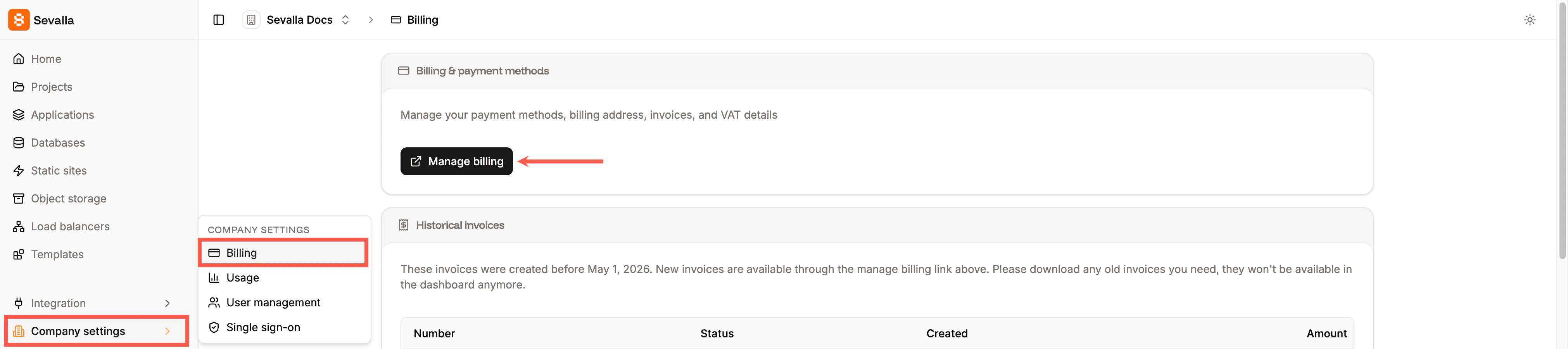
 This opens the Stripe platform, click **Add payment method**.
 You can then choose your payment method and enter your payment details. A couple of important notes regarding the CVC number:
* Your CVC number is a three-digit number found on the back of your card.
* If you have an American Express card, the CVC is a four-digit number on the front of your card.
Once you’ve entered your card details, select the check box if you would like this to be the default payment method, and then click **Add**.
You can then choose your payment method and enter your payment details. A couple of important notes regarding the CVC number:
* Your CVC number is a three-digit number found on the back of your card.
* If you have an American Express card, the CVC is a four-digit number on the front of your card.
Once you’ve entered your card details, select the check box if you would like this to be the default payment method, and then click **Add**.
 You can add multiple cards, but our payment system only charges the card marked as default. Additional cards on file are not used as a fallback if the default card fails.
You can change your default card at any time from **Manage billing** by clicking the kebab (three-dot) menu for that card and choosing **Make default**. You can also delete any unneeded non-default card at any time.
You can't remove the default payment method directly. To remove it, first mark another card as default, then delete the previous card.
You can add multiple cards, but our payment system only charges the card marked as default. Additional cards on file are not used as a fallback if the default card fails.
You can change your default card at any time from **Manage billing** by clicking the kebab (three-dot) menu for that card and choosing **Make default**. You can also delete any unneeded non-default card at any time.
You can't remove the default payment method directly. To remove it, first mark another card as default, then delete the previous card.
 Keeping your payment information up to date helps to prevent service interruptions caused by [failed payments](/billing/failed-payments).
To change the card holder name, credit or debit card number, CVC number, or expiration date, you’ll need to add a new card.
## Billing details
Only the [Company Owner](/company-settings/user-management/#company-owner), [Company Administrator](/company-settings/user-management/#company-administrator), and [Company Billing](/company-settings/user-management/#company-billing) roles can update the billing details.
The billing details show if you're an individual or an organization, your billing address, and your [VAT number](/billing/tax-vat-gst), if applicable.
To update your billing address in Sevalla, click **Company settings** > **Billing** > **Manage billing**.
This opens the Stripe platform, click **Update information**.
Keeping your payment information up to date helps to prevent service interruptions caused by [failed payments](/billing/failed-payments).
To change the card holder name, credit or debit card number, CVC number, or expiration date, you’ll need to add a new card.
## Billing details
Only the [Company Owner](/company-settings/user-management/#company-owner), [Company Administrator](/company-settings/user-management/#company-administrator), and [Company Billing](/company-settings/user-management/#company-billing) roles can update the billing details.
The billing details show if you're an individual or an organization, your billing address, and your [VAT number](/billing/tax-vat-gst), if applicable.
To update your billing address in Sevalla, click **Company settings** > **Billing** > **Manage billing**.
This opens the Stripe platform, click **Update information**.
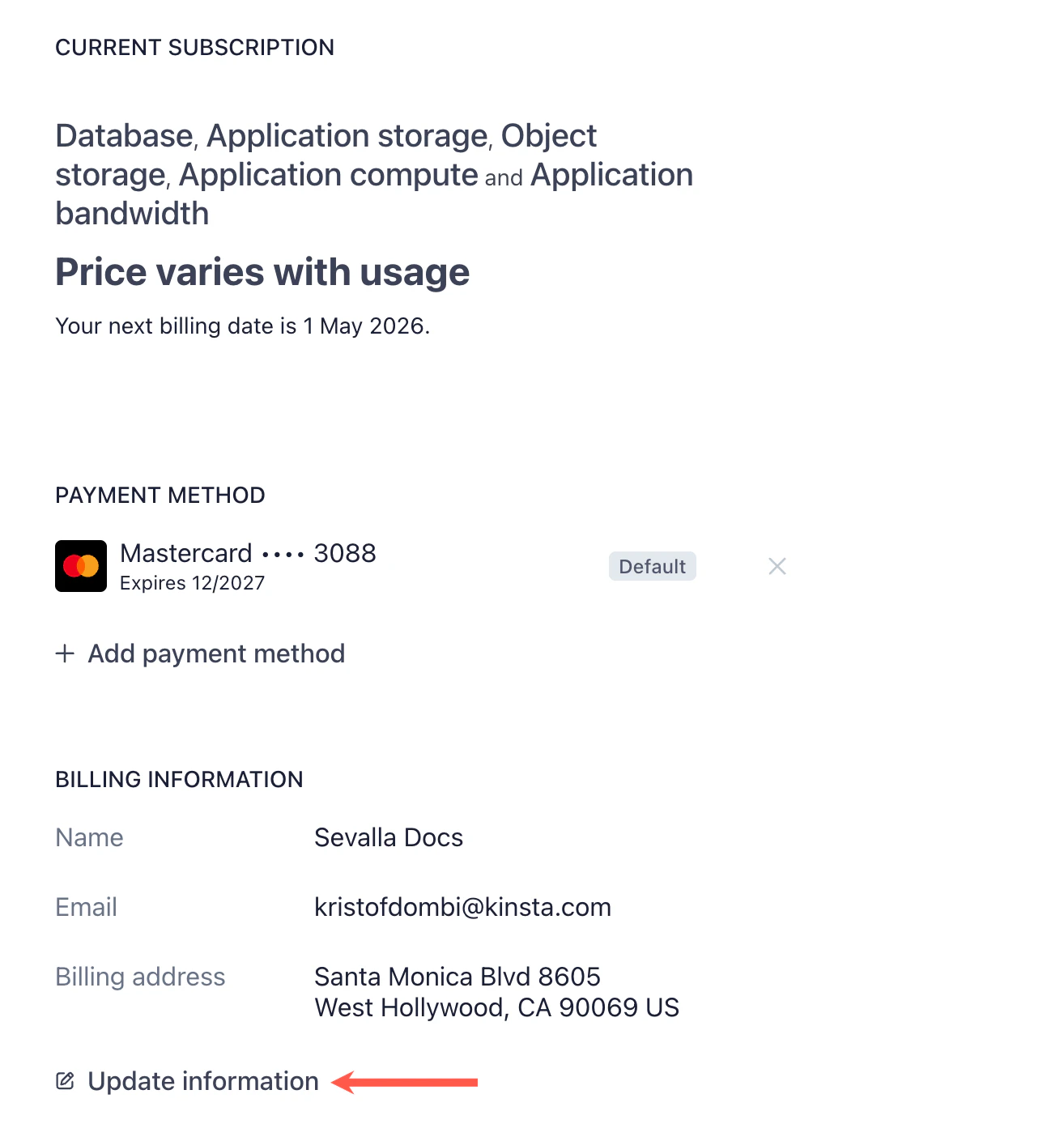 Update the required details and click **Save**.
 ## Invoices
From April 23, 2026, all invoices are stored within [Stripe.](http://Stripe.To) To access them, click **Manage Billing**, and they are shown in the **Invoice History** section.
### Historical invoices
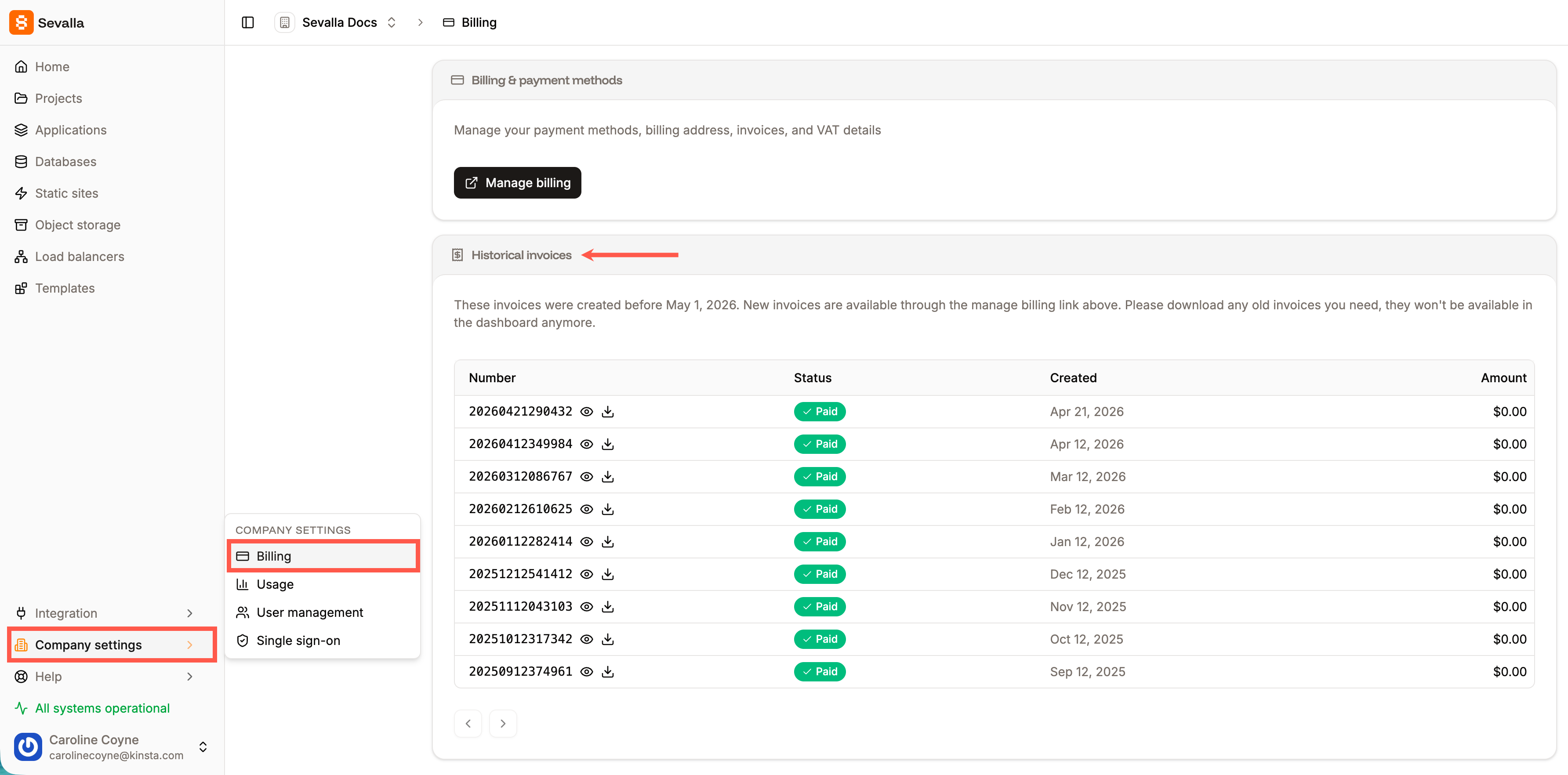
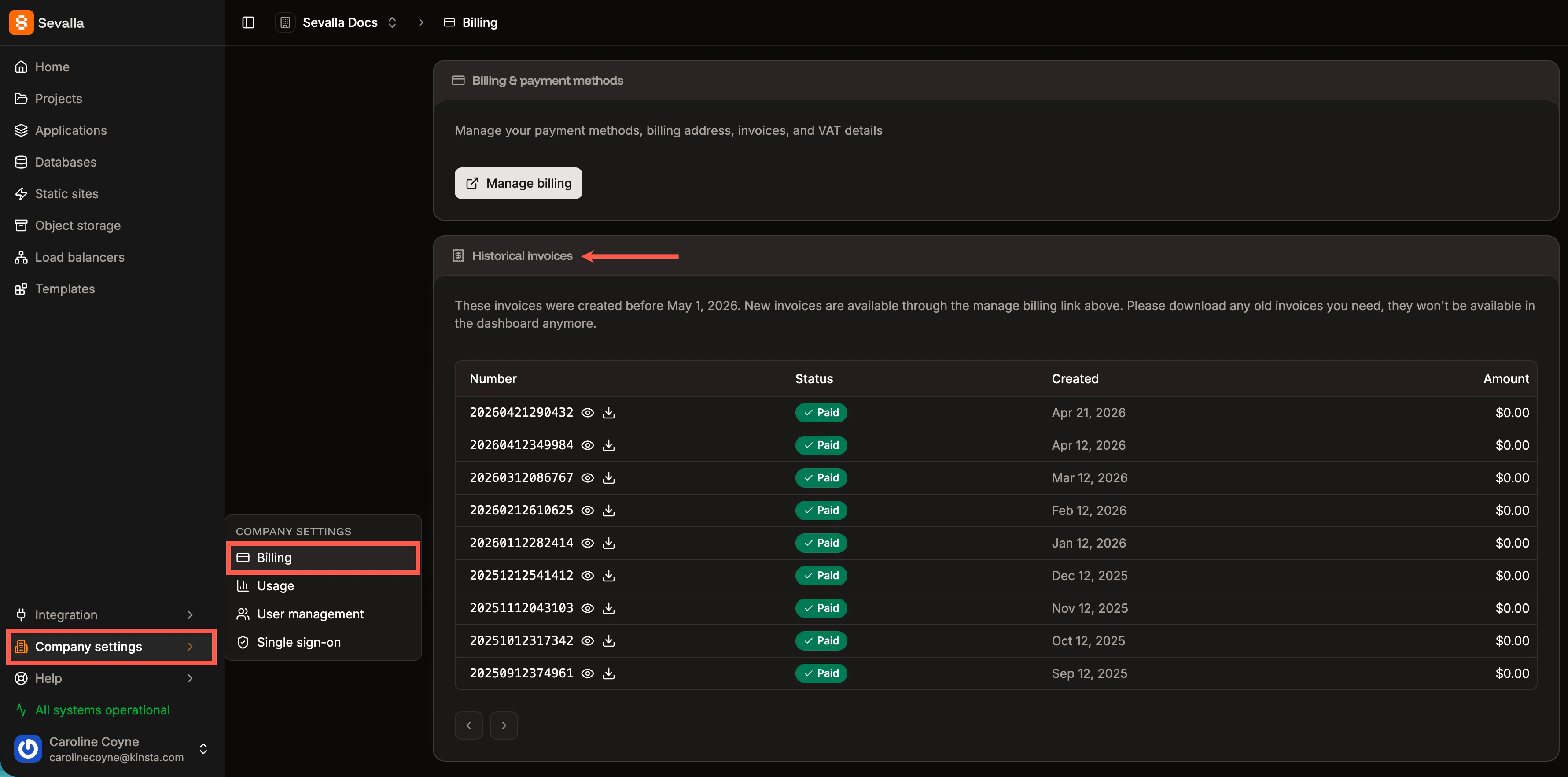
Invoices that were generated before April 23, 2026, are shown in **Company settings** > **Billing** > **Historical invoices**.
## Invoices
From April 23, 2026, all invoices are stored within [Stripe.](http://Stripe.To) To access them, click **Manage Billing**, and they are shown in the **Invoice History** section.
### Historical invoices
Invoices that were generated before April 23, 2026, are shown in **Company settings** > **Billing** > **Historical invoices**.
 ## Danger zone
If you are the [Company Owner](/company-settings/user-management/#company-owner), the bottom of the Billing page shows a **Danger zone** with the **Delete company** option. Deleting your company cancels your Sevalla subscription, settles your final balance immediately, and permanently deletes the company. For the full walkthrough and eligibility requirements, refer to [Delete company](/company-settings/delete-company).
## Danger zone
If you are the [Company Owner](/company-settings/user-management/#company-owner), the bottom of the Billing page shows a **Danger zone** with the **Delete company** option. Deleting your company cancels your Sevalla subscription, settles your final balance immediately, and permanently deletes the company. For the full walkthrough and eligibility requirements, refer to [Delete company](/company-settings/delete-company).