> ## Documentation Index
> Fetch the complete documentation index at: https://docs.sevalla.com/llms.txt
> Use this file to discover all available pages before exploring further.
# Ping Identity SAML SSO
> Learn how to set up SAML SSO in Sevalla with Ping Identity.
[Ping Identity](https://www.pingidentity.com/en.html) is an Identity Provider (IdP) that enables secure single sign-on (SSO), allowing your company's users to access multiple applications with one login.
With Security Assertion Markup Language (SAML) SSO, employees sign in once using their company credentials (typically email and password). The IdP, such as Ping Identity, verifies their identity and grants seamless, secure access to all connected services, without requiring separate logins for each application.
Company owners or IT administrators can link their organization’s email domain (e.g., @[mycompany.com](http://mycompany.com)) to the IdP so that anyone with a company email address is automatically recognized and can securely sign in to SAML-enabled tools.
Using Sevalla SAML SSO, you can connect Ping Identity to Sevalla by creating a SAML application within Ping Identity, verifying your company’s email domain, and adding the required Ping Identity details in Sevalla. This allows your team to log in with their existing company credentials, eliminating the need to create or manage separate Sevalla accounts.
When using SAML SSO with Sevalla, login must always be initiated from Sevalla. Logging in directly from your Identity Provider (IdP) is not supported.
IdPs only support one active session per browser. If you have multiple Google Workspace accounts and are logged into one, attempting to log into another through Sevalla will result in an error. To switch accounts, log out of Google Workspace or use your browser’s Incognito/Private mode.
## Enable SSO in Sevalla
When you set up SAML SSO, you can navigate away from the SSO setup at any stage to store your progress and return later.
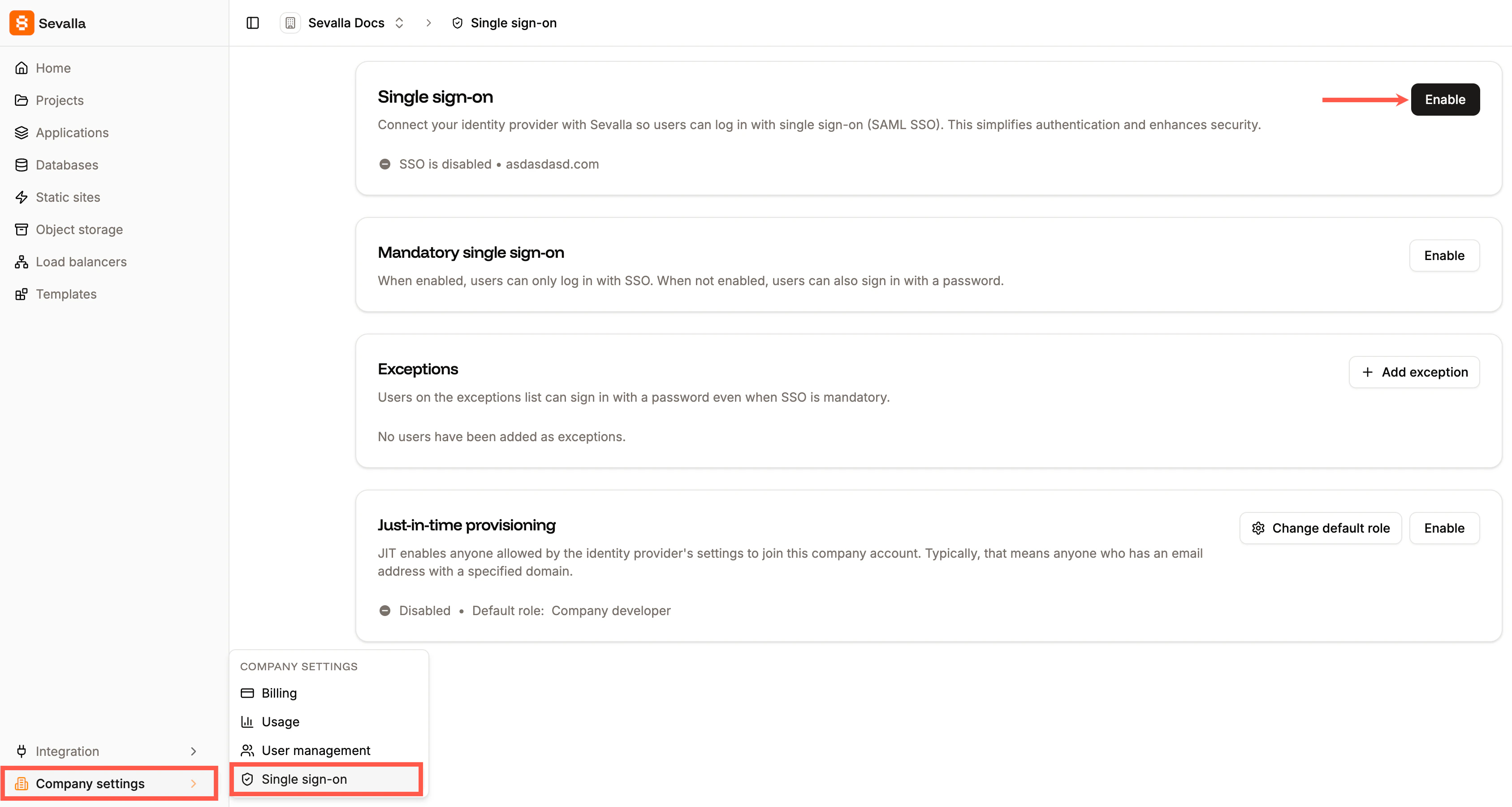
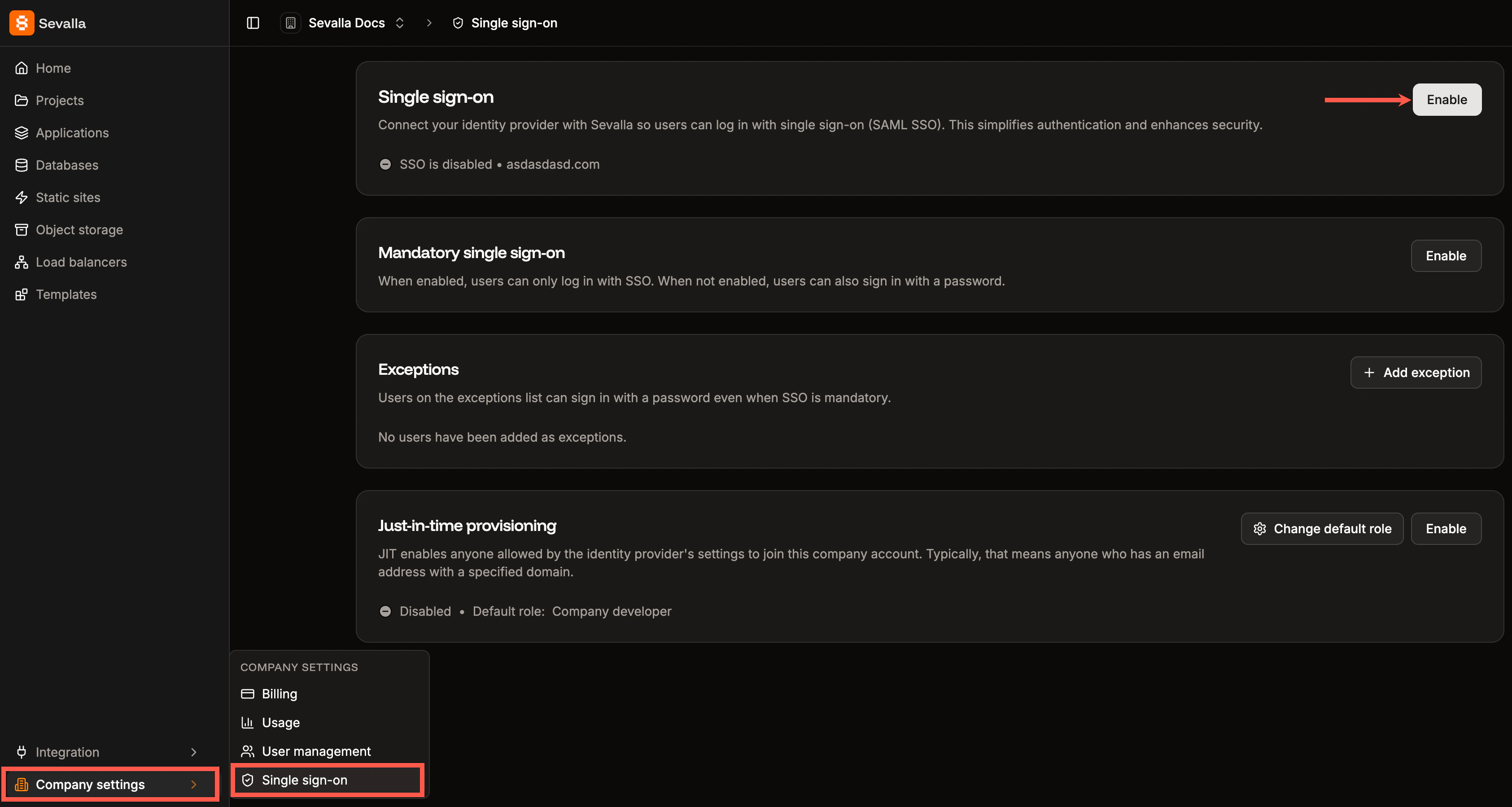
In Sevalla, go to your **Company settings** > **Single sign-on**, and click **Enable**.
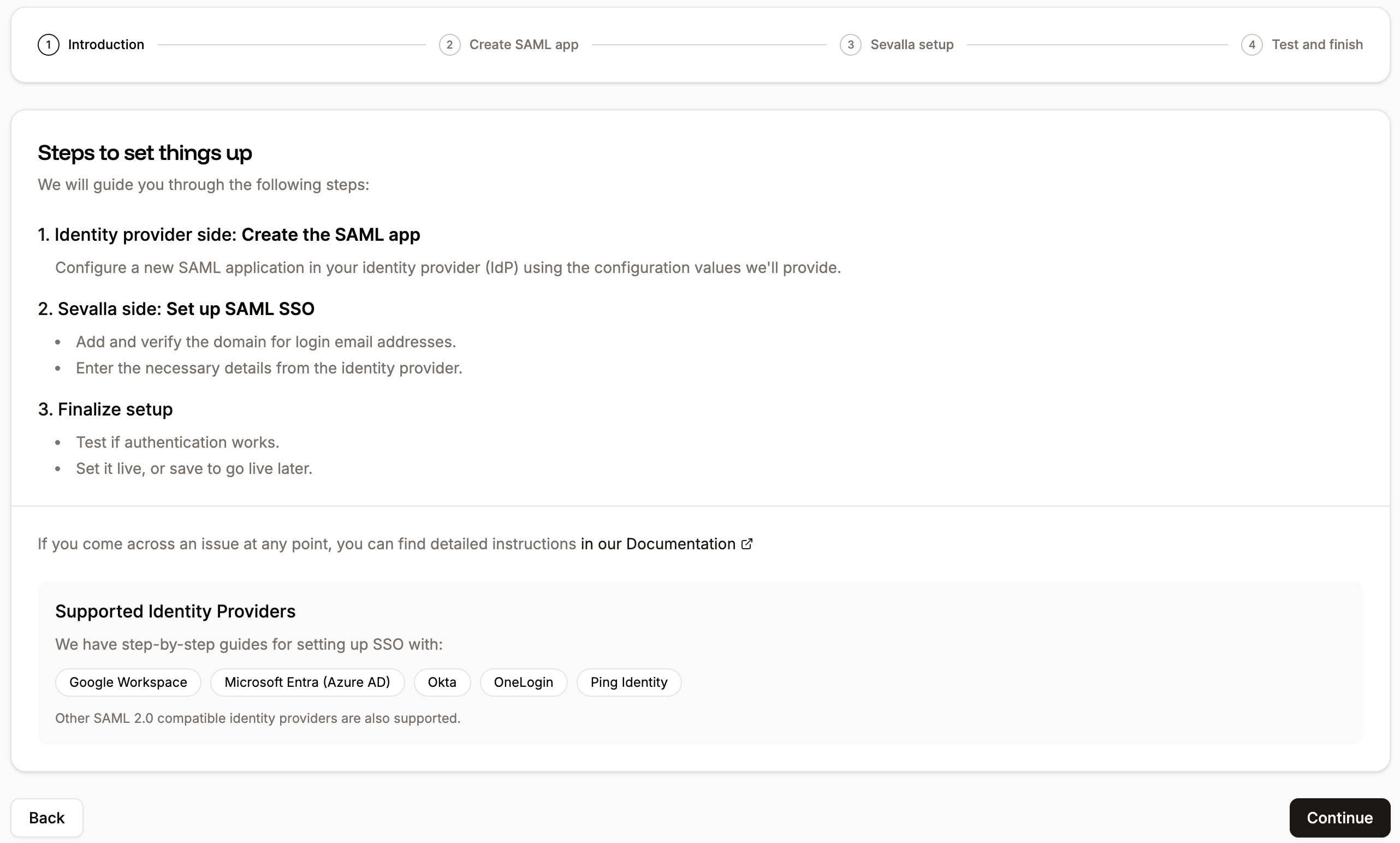
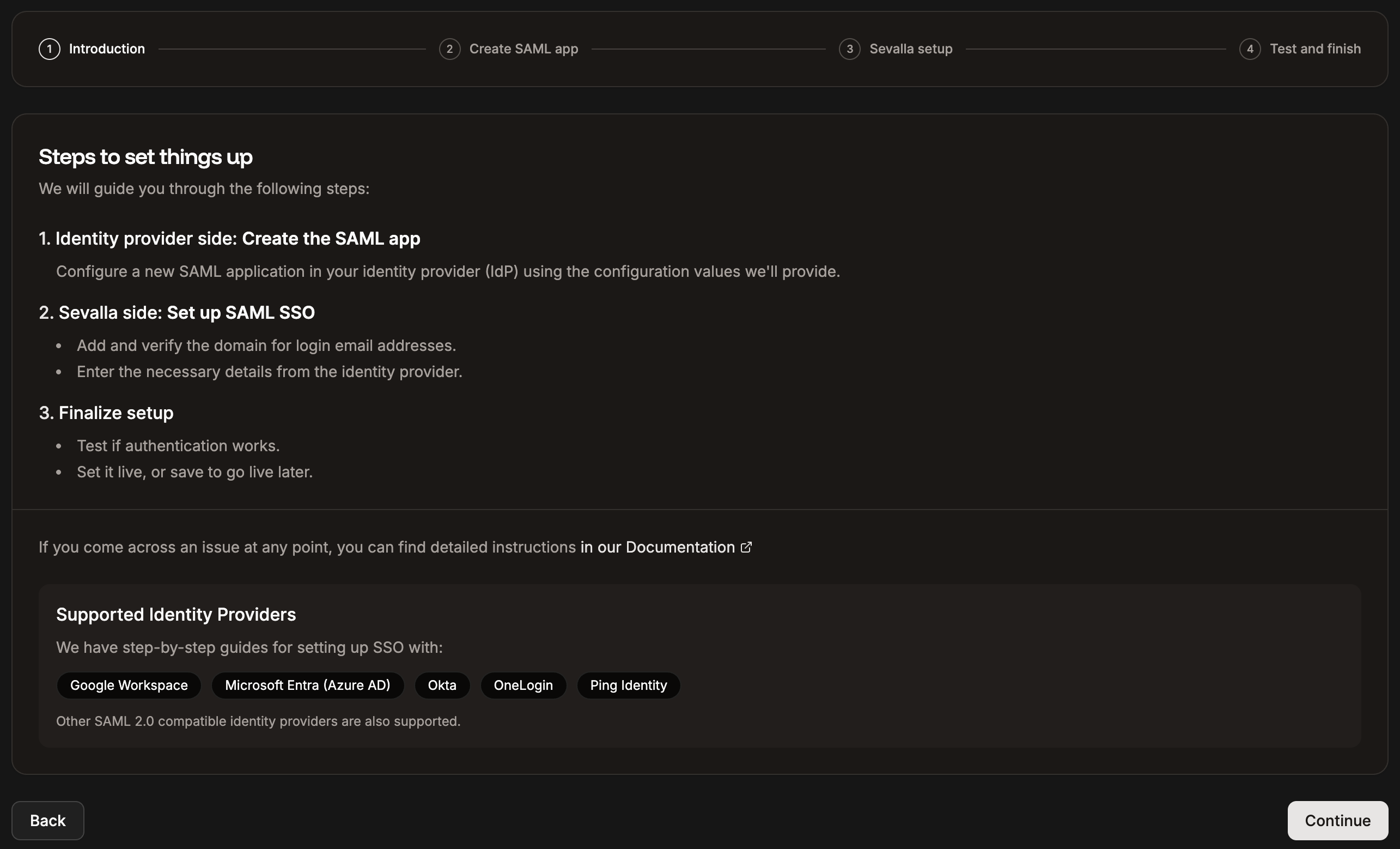
 Read through the introduction, which explains how SSO will be set up, and click **Continue**.
 The next page provides all the information you need to set up your SAML app within Ping Identity.
## Set up the app integration in Ping Identity
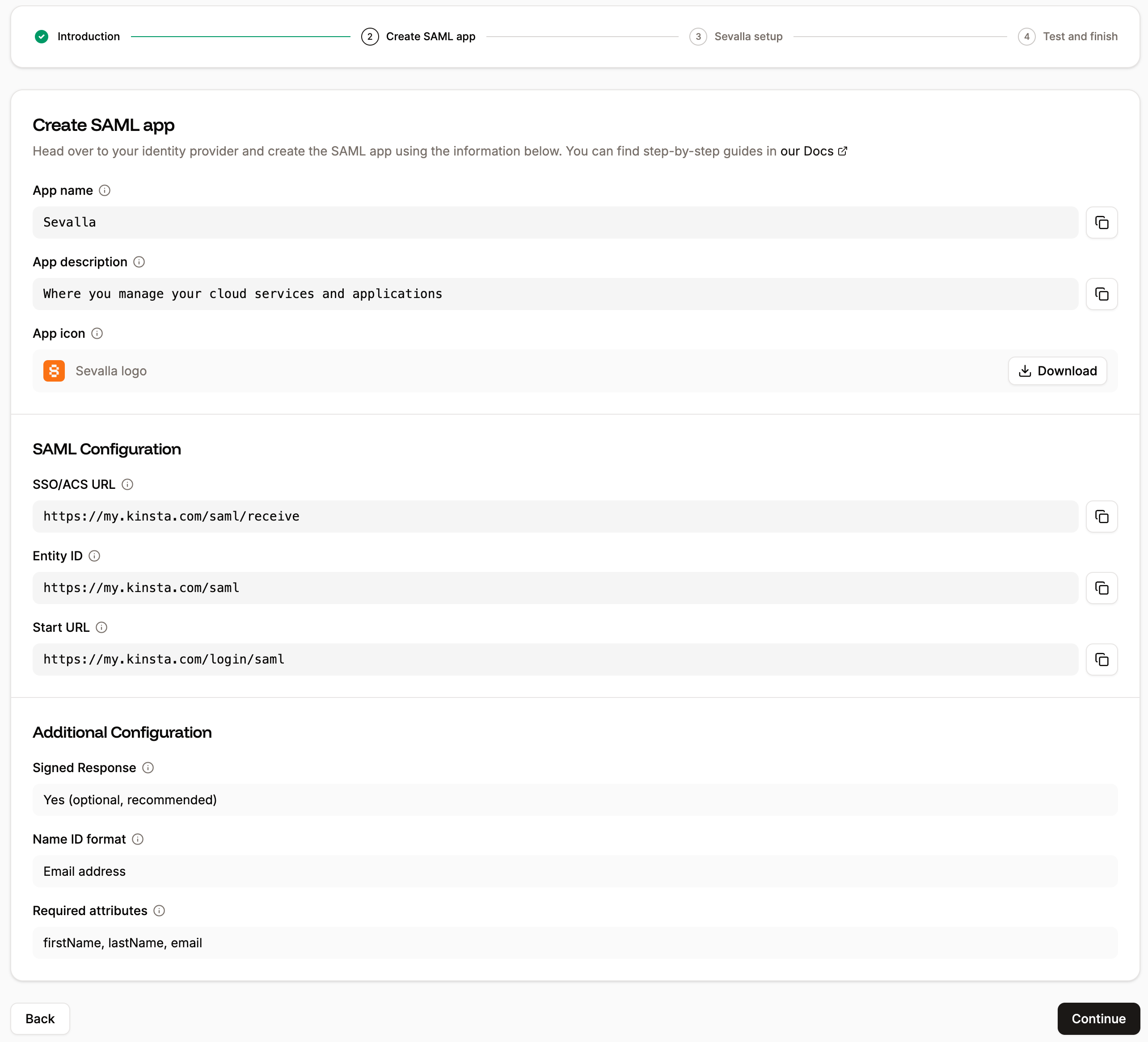
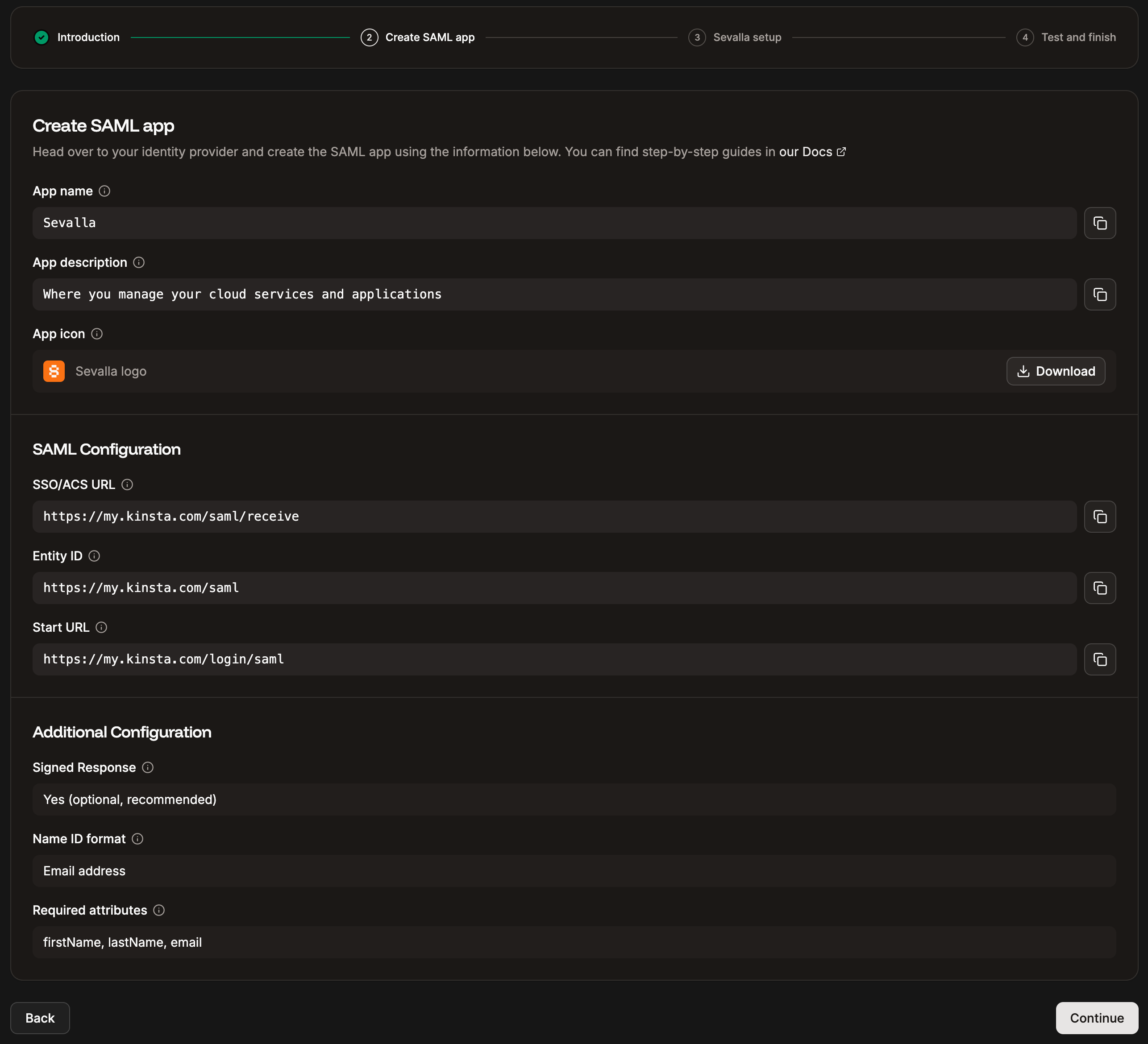
In Sevalla, the **Create SAML app** tab provides all the information you need to set up your SAML app within Ping Identity. The following steps explain where to add this information.
When using SAML SSO with Sevalla, all logins must be initiated directly from Sevalla. Logging in from your Identity Provider (IdP) dashboard is not supported. For this reason, you may want to hide the Sevalla app from users’ IdP dashboards to avoid confusion.
The next page provides all the information you need to set up your SAML app within Ping Identity.
## Set up the app integration in Ping Identity
In Sevalla, the **Create SAML app** tab provides all the information you need to set up your SAML app within Ping Identity. The following steps explain where to add this information.
When using SAML SSO with Sevalla, all logins must be initiated directly from Sevalla. Logging in from your Identity Provider (IdP) dashboard is not supported. For this reason, you may want to hide the Sevalla app from users’ IdP dashboards to avoid confusion.
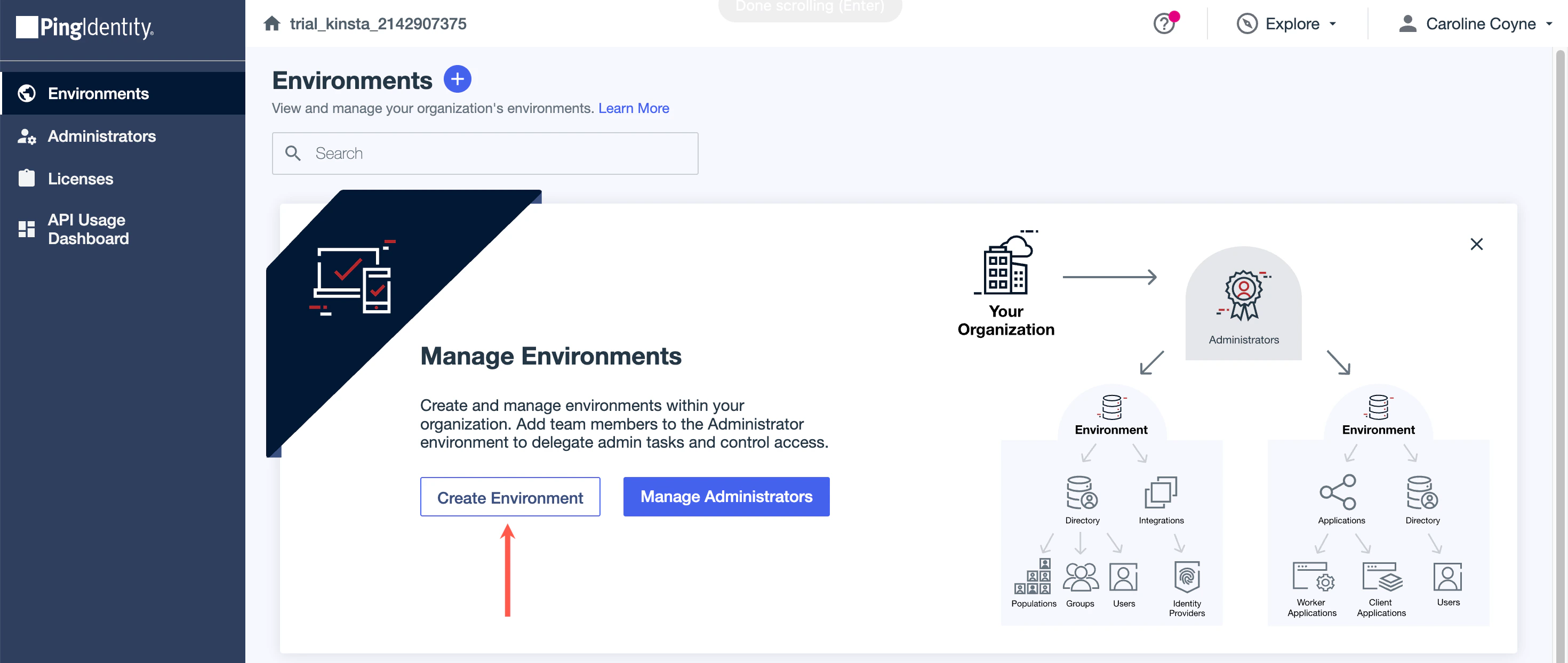
 Log in to Ping Identity as a user with admin access, and within **Environments**, click **Create Environment**.
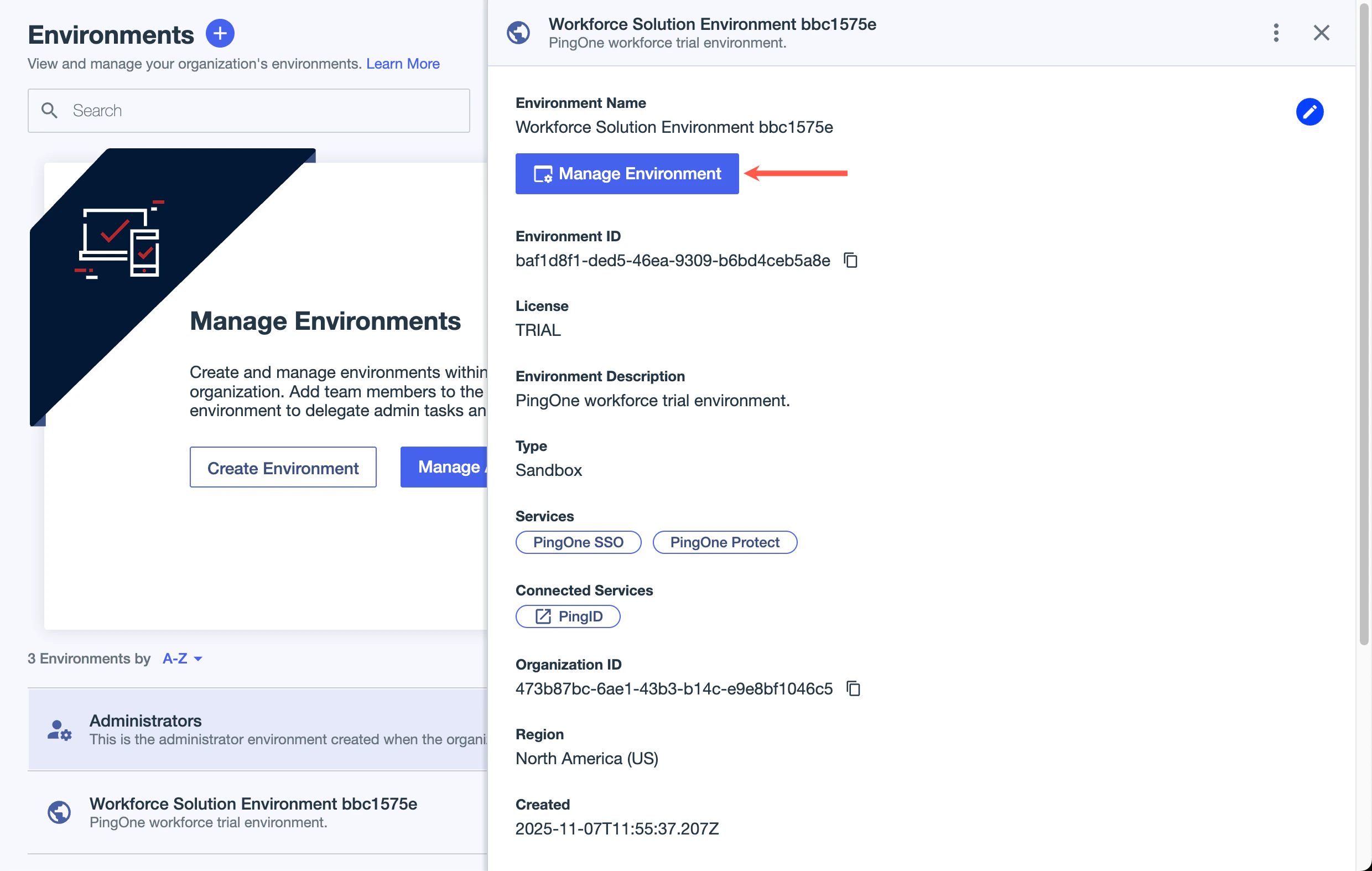
 Click **Create a Workforce Solution** and then click **Manage Environment**.
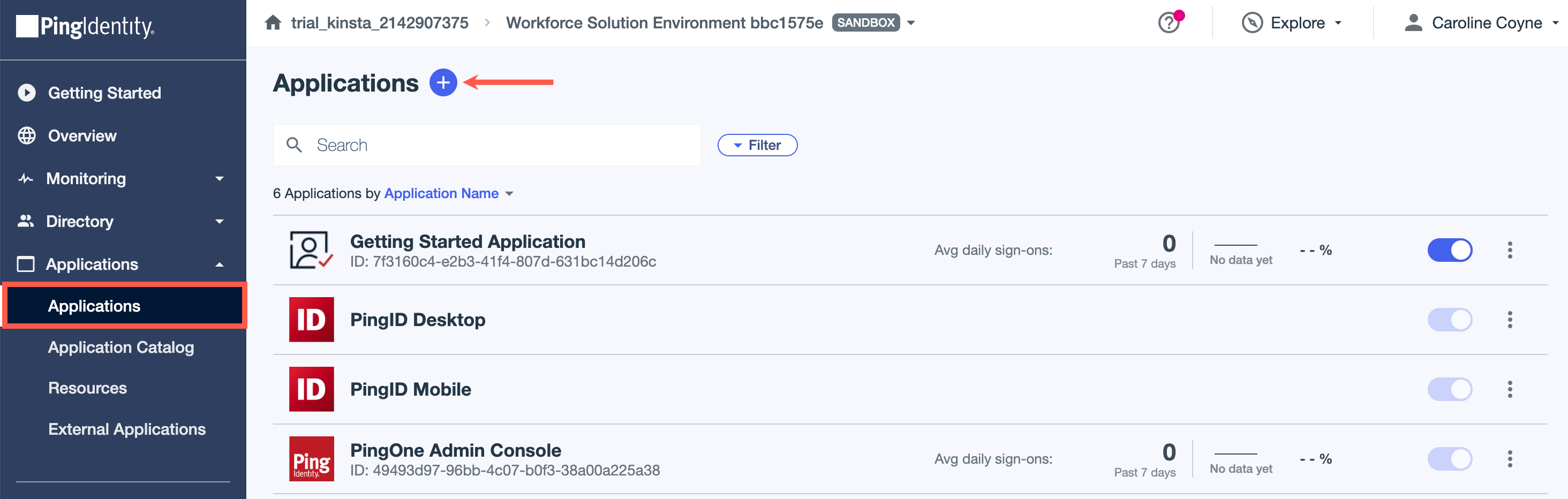
 Click **Applications** and then click the plus sign to add a new application.
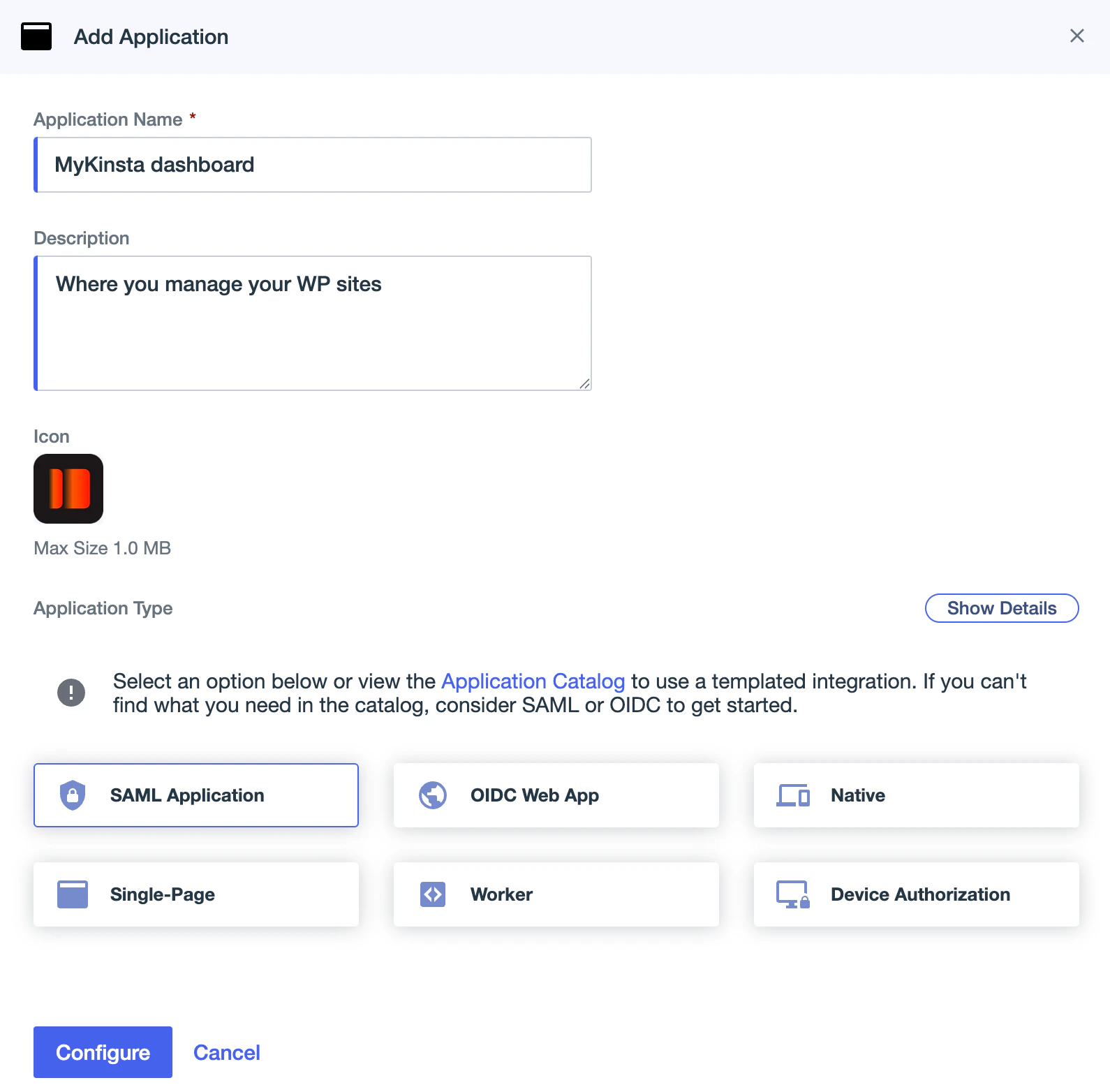
 Enter the **Application name** from Sevalla. You can also download the **App icon** from Sevalla and upload it to the **Icon**, if required. Select **SAML Application** and click **Configure**.
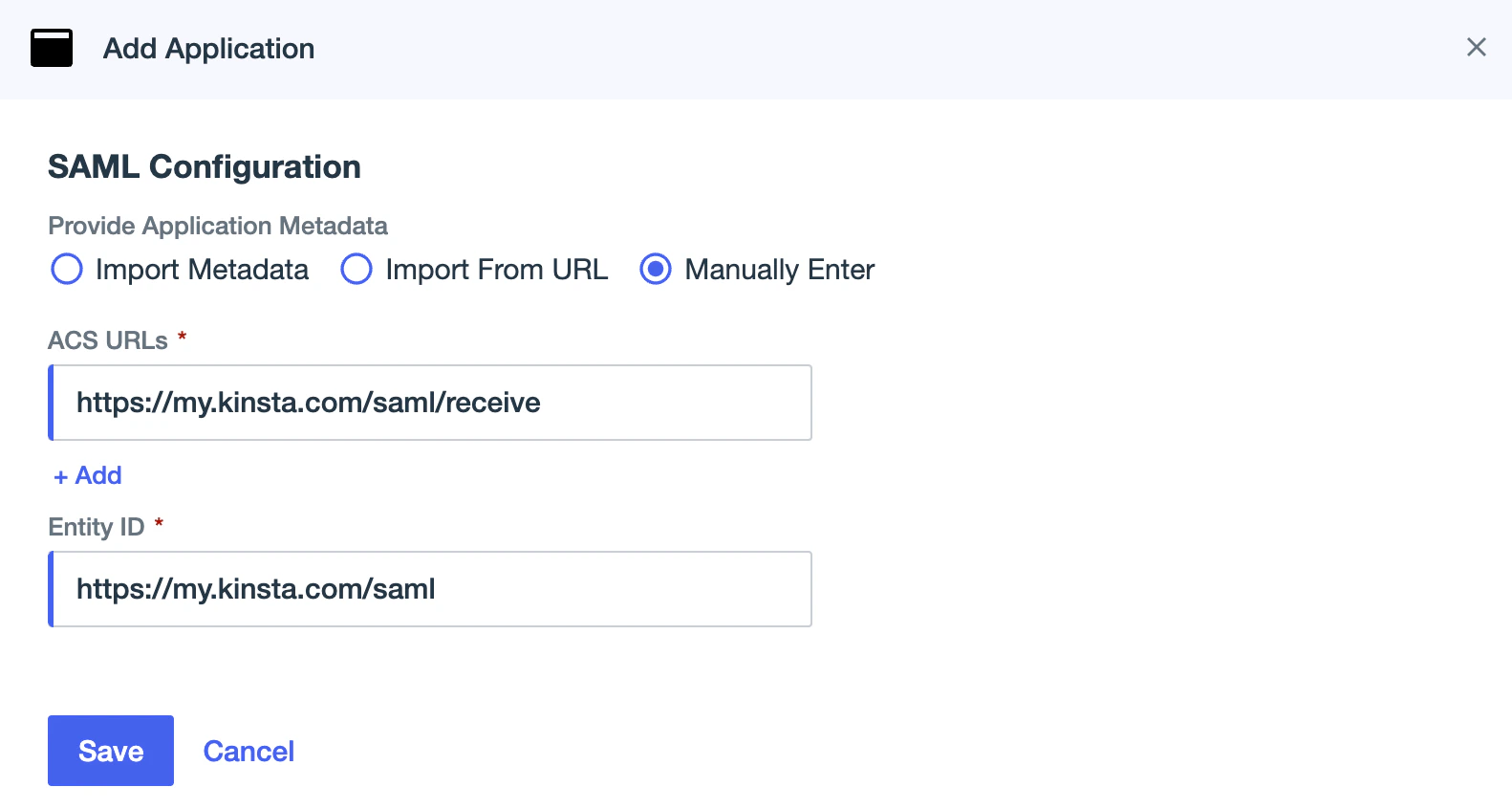
 Select **Manually Enter** and complete the **SAML Configuration** in Ping Identity as follows:
* **ACS URLs:** Copy and paste the **SSO/ACS URL** from Sevalla.
* **Entity ID:** Copy and paste the **Entity ID** from Sevalla.
Click **Save**.
Select **Manually Enter** and complete the **SAML Configuration** in Ping Identity as follows:
* **ACS URLs:** Copy and paste the **SSO/ACS URL** from Sevalla.
* **Entity ID:** Copy and paste the **Entity ID** from Sevalla.
Click **Save**.
 ## Map your Ping Identity attributes
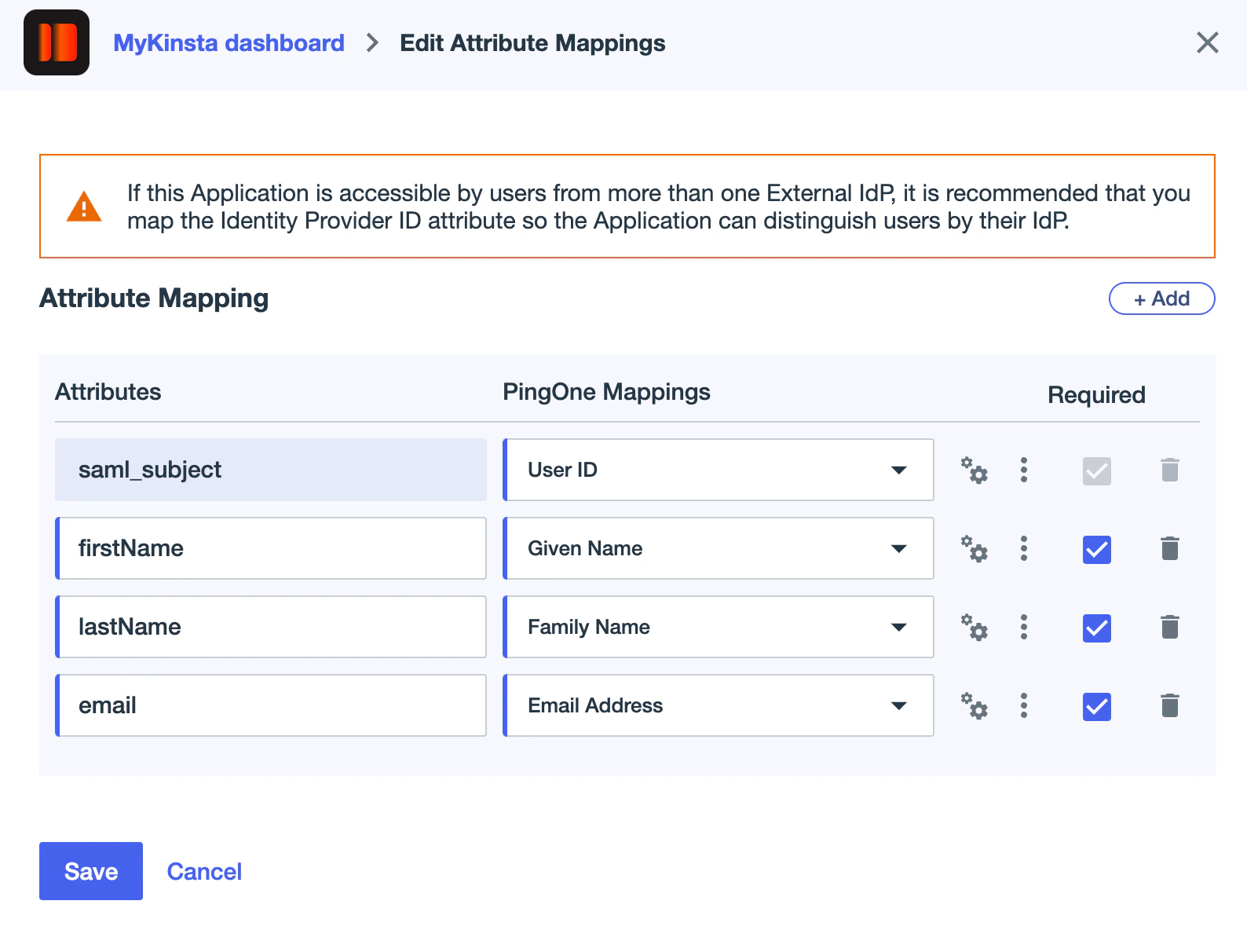
Click **Attribute Mappings** and then click the edit icon.
## Map your Ping Identity attributes
Click **Attribute Mappings** and then click the edit icon.
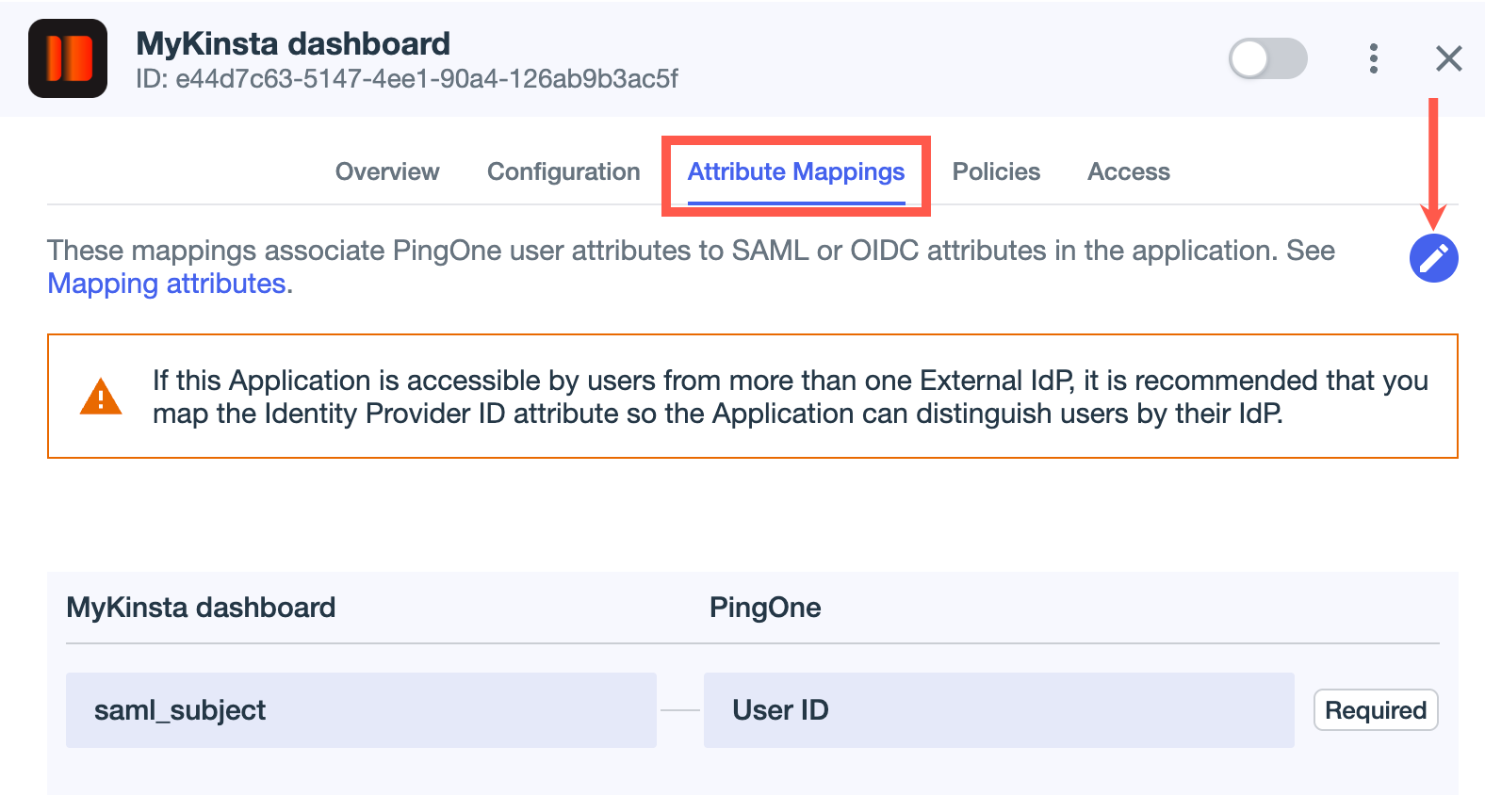 Add the following attributes:
| **Attributes** | **PingOne Mappings** | **Required** |
| -------------- | -------------------- | ------------ |
| firstName | Given Name | Selected |
| lastName | Family Name | Selected |
| email | Email Address | Selected |
Click **Save**.
Add the following attributes:
| **Attributes** | **PingOne Mappings** | **Required** |
| -------------- | -------------------- | ------------ |
| firstName | Given Name | Selected |
| lastName | Family Name | Selected |
| email | Email Address | Selected |
Click **Save**.
 ## Assign user access in Ping Identity
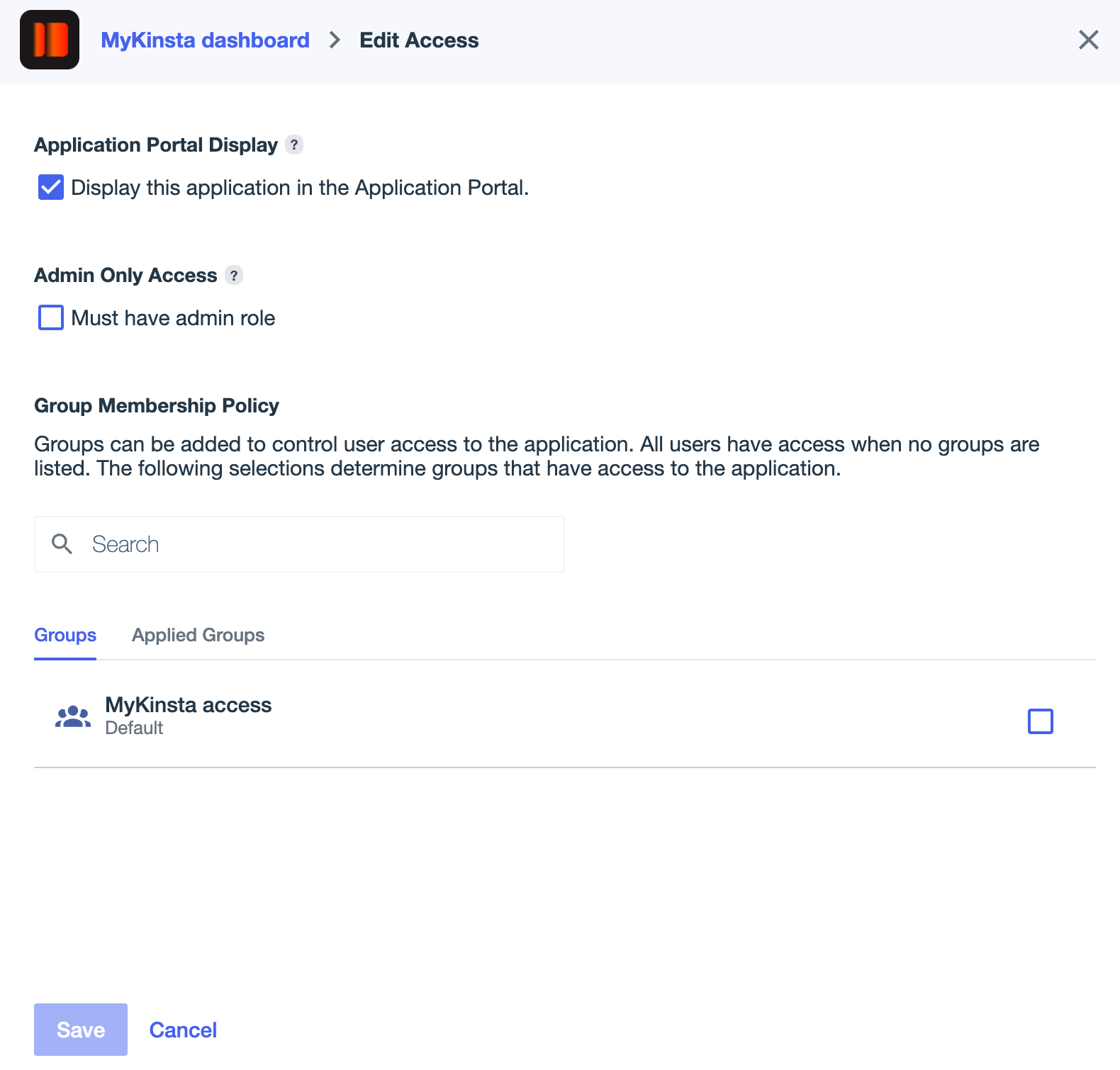
By default, the new application will allow all users to access it. To define specific user groups for access to this, in Ping Identity, navigate to **Applications**, select the application you set up for the Sevalla Dashboard, click **Access**, and then click the edit icon. You can choose whether you want only admin users to access the application or select which groups should have access.
## Assign user access in Ping Identity
By default, the new application will allow all users to access it. To define specific user groups for access to this, in Ping Identity, navigate to **Applications**, select the application you set up for the Sevalla Dashboard, click **Access**, and then click the edit icon. You can choose whether you want only admin users to access the application or select which groups should have access.
 ## Sevalla setup
In Sevalla, on **Create SAML app**, click **Continue** so that you are on the **Sevalla setup** page.
### Email domain
In the **Domain name**, enter the email domain users will use to sign in using SAML SSO, and click **Add domain**.
Only Sevalla accounts with an email address matching the verified domain can authenticate via SAML. For example, if SAML is enabled for `example.com`, only users with an `@example.com` email address will be able to sign in for that company.
Each email address can only be linked to one SAML configuration in Sevalla. This means a domain (e.g., `example.com`) can be associated with only one company at a time. Similarly, each Sevalla user can use SAML authentication for a single company only.
If the domain has already been verified in Sevalla through DNS management or as a site domain, it will automatically be verified. If it hasn’t, you’ll be prompted to add a TXT record to your DNS management service to confirm domain ownership.
## Sevalla setup
In Sevalla, on **Create SAML app**, click **Continue** so that you are on the **Sevalla setup** page.
### Email domain
In the **Domain name**, enter the email domain users will use to sign in using SAML SSO, and click **Add domain**.
Only Sevalla accounts with an email address matching the verified domain can authenticate via SAML. For example, if SAML is enabled for `example.com`, only users with an `@example.com` email address will be able to sign in for that company.
Each email address can only be linked to one SAML configuration in Sevalla. This means a domain (e.g., `example.com`) can be associated with only one company at a time. Similarly, each Sevalla user can use SAML authentication for a single company only.
If the domain has already been verified in Sevalla through DNS management or as a site domain, it will automatically be verified. If it hasn’t, you’ll be prompted to add a TXT record to your DNS management service to confirm domain ownership.
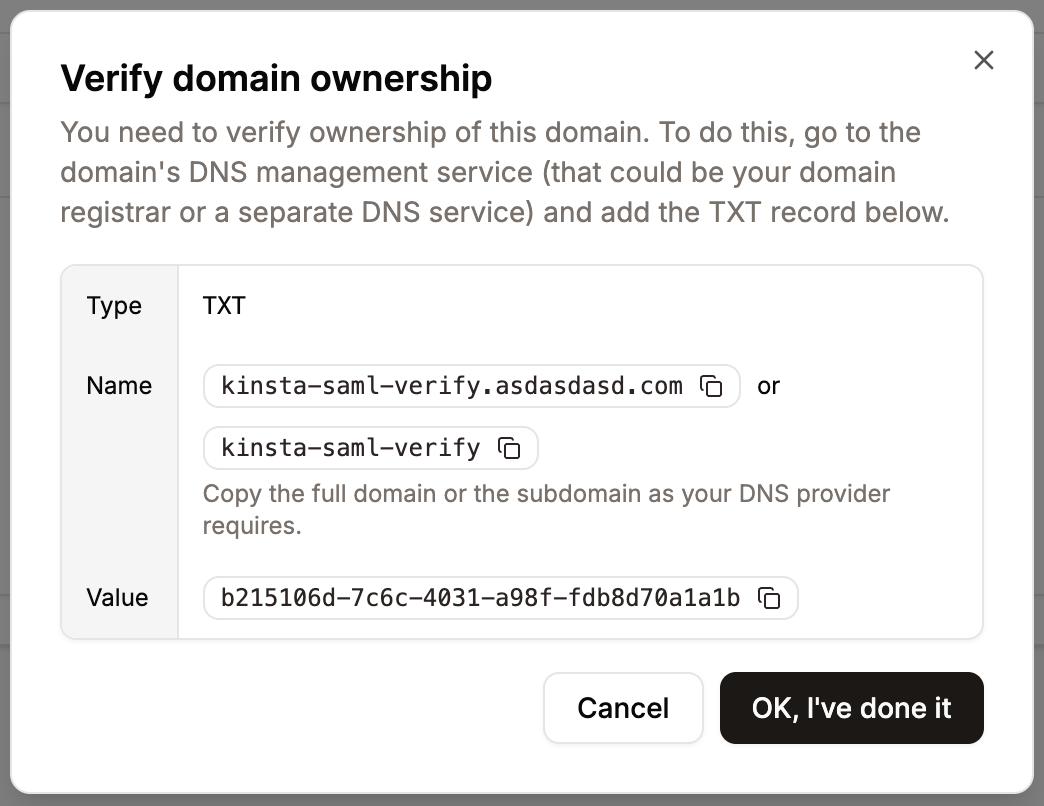
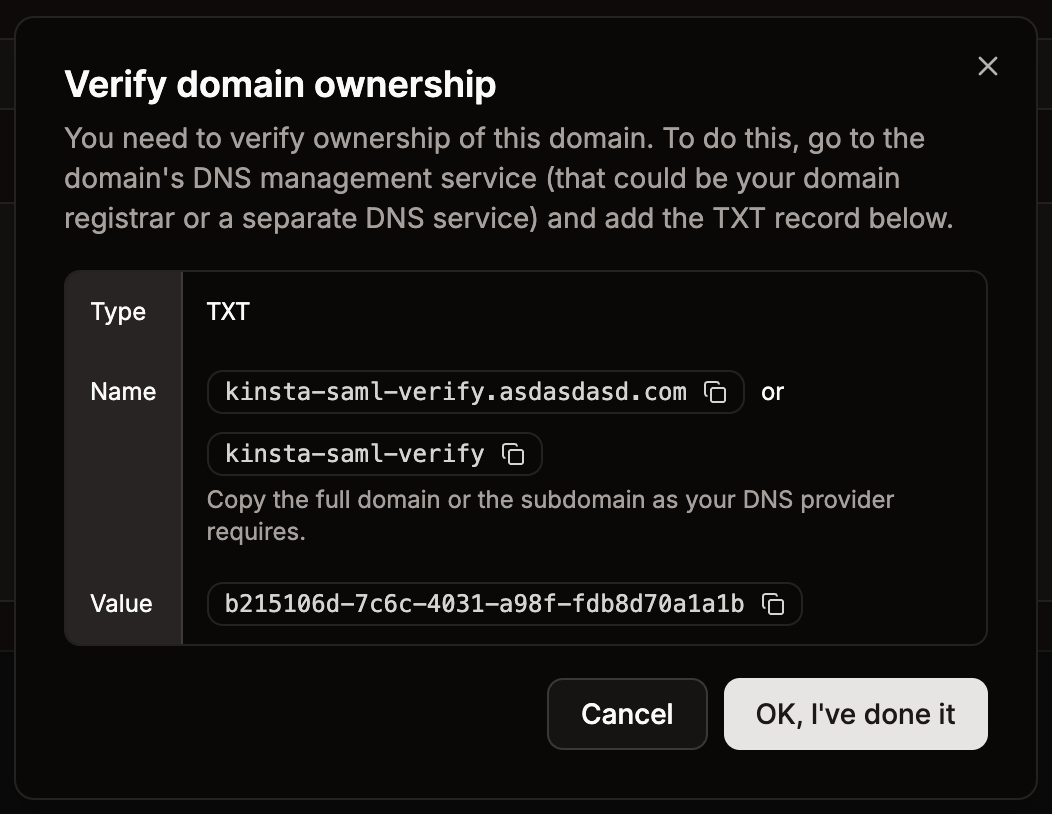 Because DNS changes can take time to propagate, you can navigate away from the SSO setup to store your progress and return later.
#### Set up Sevalla SAML
In Ping Identity, go to **Applications**, select the application you set up for the Sevalla Dashboard, click **Overview**, and then scroll down to **Connection Details**.
This page provides all the information you need to set up SAML in Sevalla.
Because DNS changes can take time to propagate, you can navigate away from the SSO setup to store your progress and return later.
#### Set up Sevalla SAML
In Ping Identity, go to **Applications**, select the application you set up for the Sevalla Dashboard, click **Overview**, and then scroll down to **Connection Details**.
This page provides all the information you need to set up SAML in Sevalla.
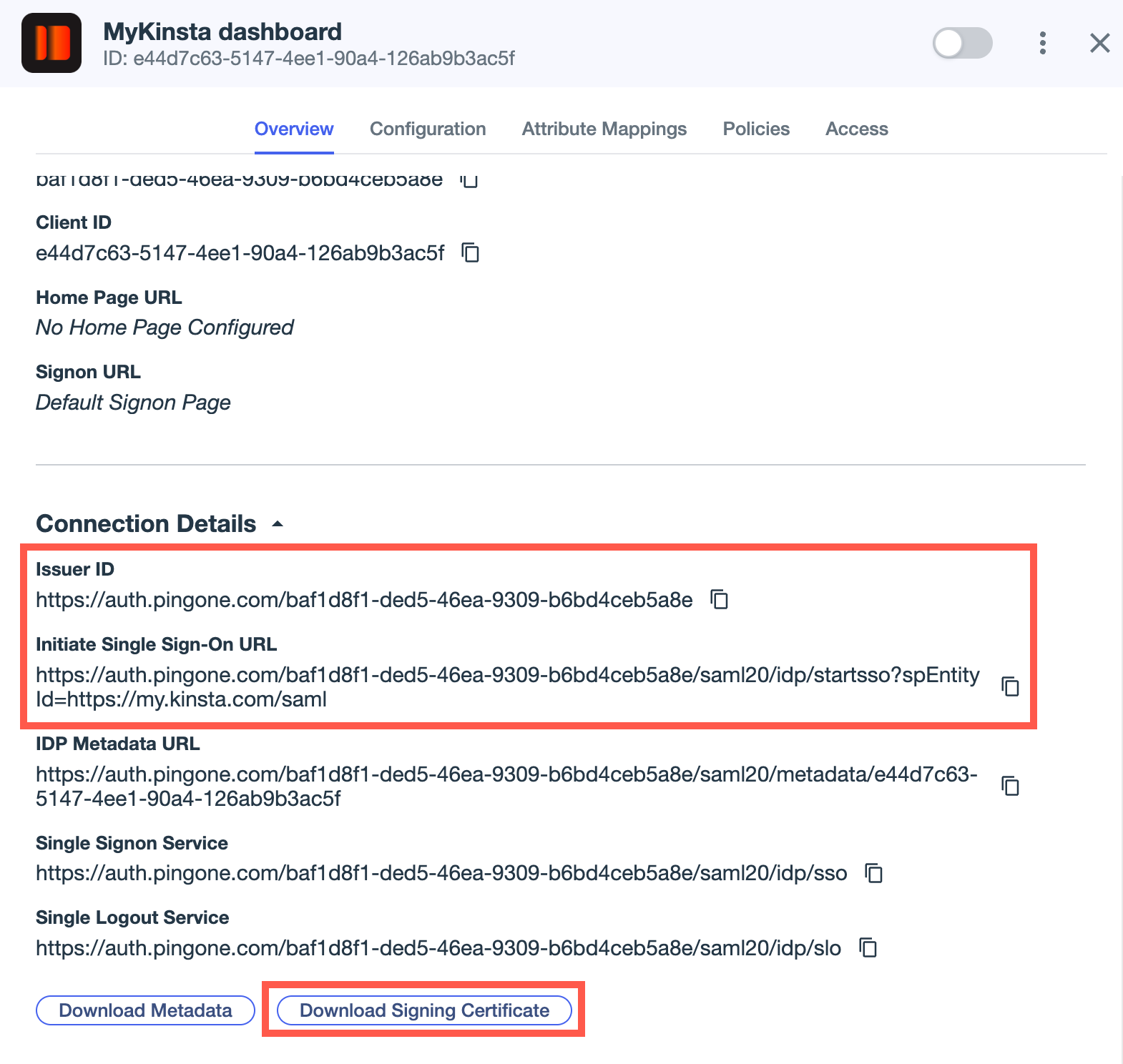 In Sevalla, within the Single sign-on **Sevalla setup** tab, complete the fields as follows:
* **SSO URL:** Copy and paste the **Initiate Single Sign-On URL** from Ping Identity.
* **Entity ID:** Copy and paste the **Issuer ID** from Ping Identity.
* **Public certificate:** Within Ping Identity, click **Download Signing Certificate**, select **X509 PEM (.crt)**. Open this file in any text editor, and copy and paste the contents into Sevalla.
Certificates can expire, so you may need to update this in the future. Company Owners and Company Administrators will receive a notification three weeks prior to certificate expiration to ensure the certificate is updated in a timely manner.
Click **Continue**.
## Test the authentication in Sevalla
You cannot enable SAML SSO within Sevalla without first testing the authentication.
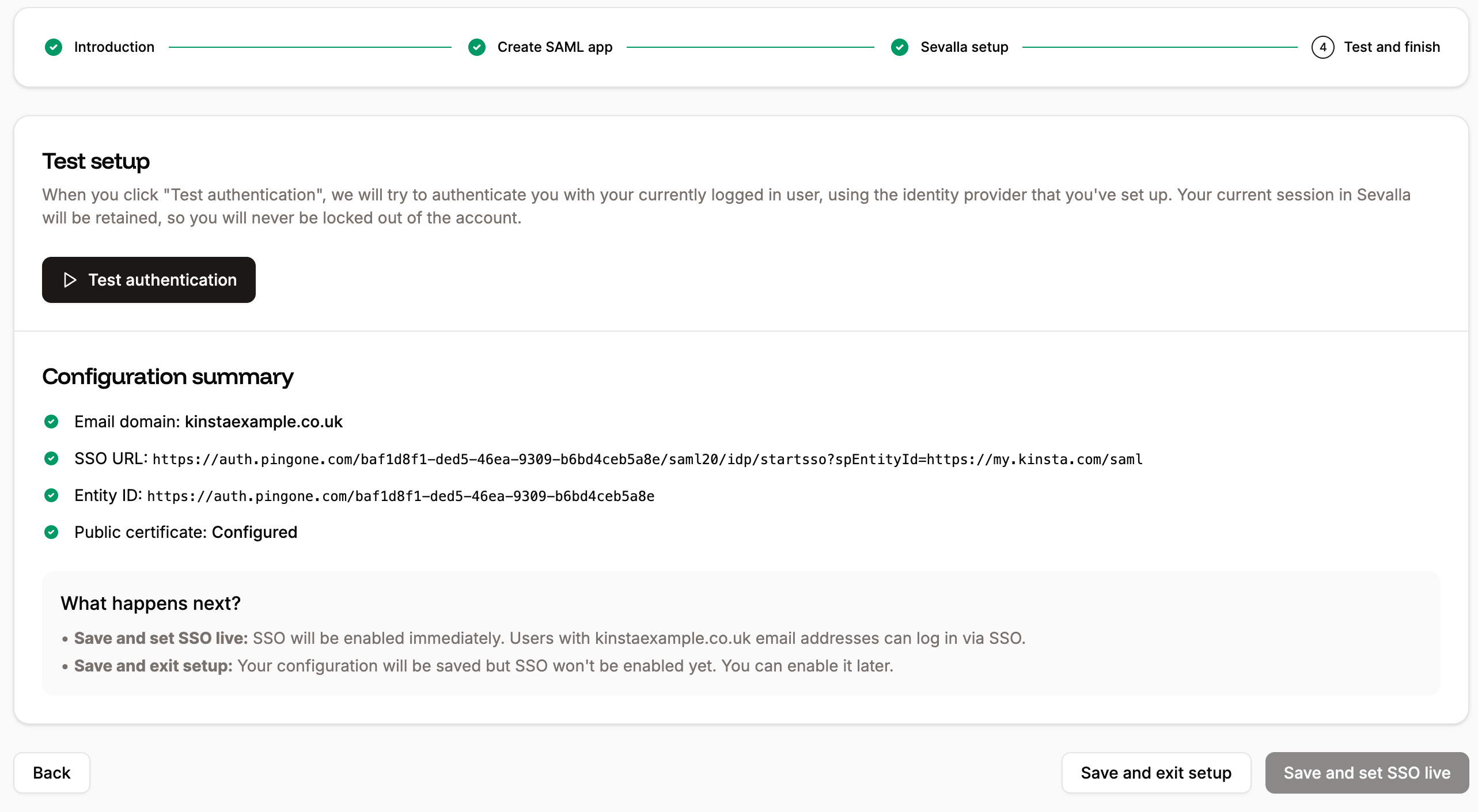
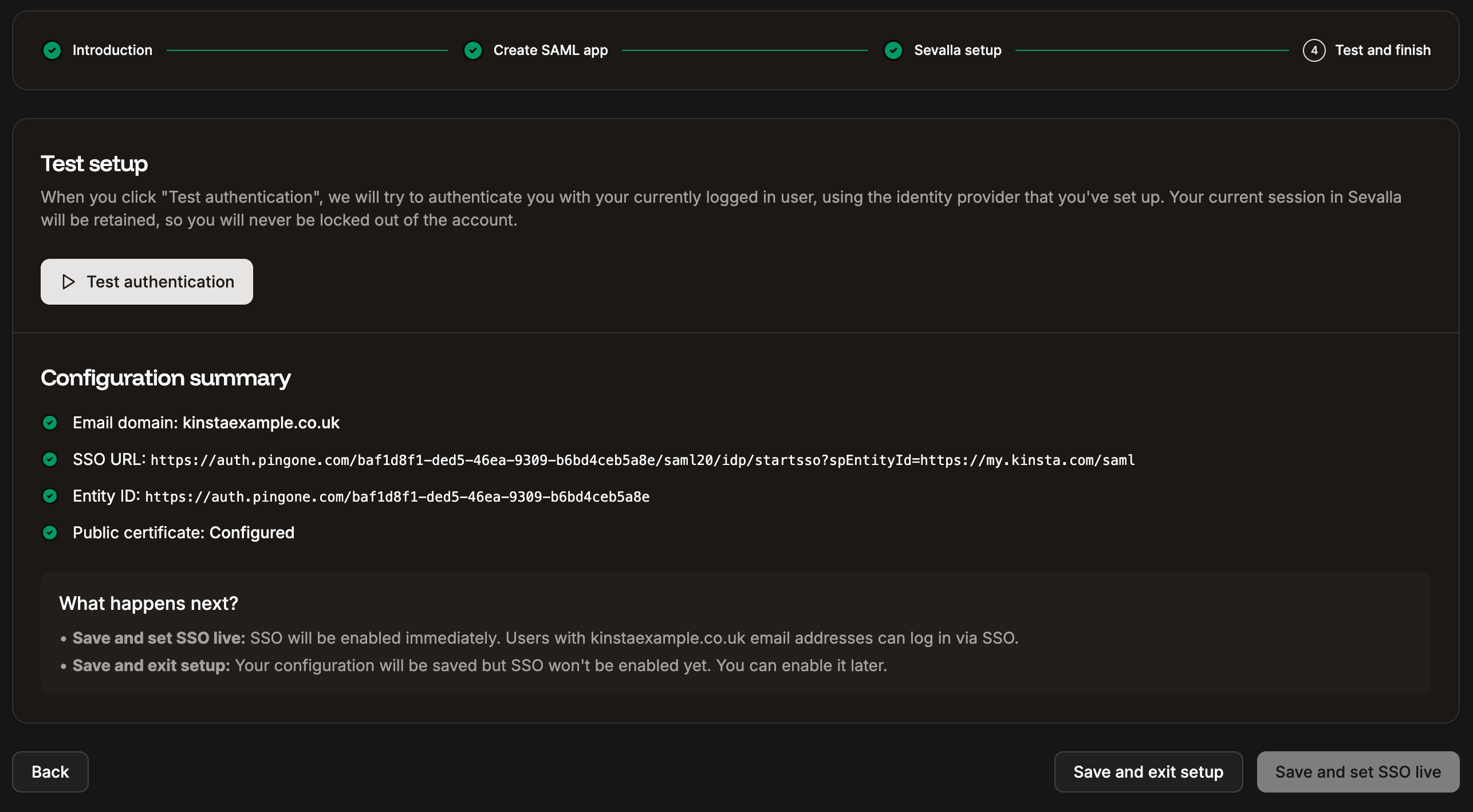
In Sevalla, within Single sign-on, click **Continue** until you are on the **Test and finish** tab, and click **Test authentication**.
A notification appears if the test was successful or if the test fails.
If the test fails, click **Back** and check your SAML settings within your IdP and within Sevalla.
If the test is successful and you want to enable SAML, click **Save and set SSO live**.
In Sevalla, within the Single sign-on **Sevalla setup** tab, complete the fields as follows:
* **SSO URL:** Copy and paste the **Initiate Single Sign-On URL** from Ping Identity.
* **Entity ID:** Copy and paste the **Issuer ID** from Ping Identity.
* **Public certificate:** Within Ping Identity, click **Download Signing Certificate**, select **X509 PEM (.crt)**. Open this file in any text editor, and copy and paste the contents into Sevalla.
Certificates can expire, so you may need to update this in the future. Company Owners and Company Administrators will receive a notification three weeks prior to certificate expiration to ensure the certificate is updated in a timely manner.
Click **Continue**.
## Test the authentication in Sevalla
You cannot enable SAML SSO within Sevalla without first testing the authentication.
In Sevalla, within Single sign-on, click **Continue** until you are on the **Test and finish** tab, and click **Test authentication**.
A notification appears if the test was successful or if the test fails.
If the test fails, click **Back** and check your SAML settings within your IdP and within Sevalla.
If the test is successful and you want to enable SAML, click **Save and set SSO live**.
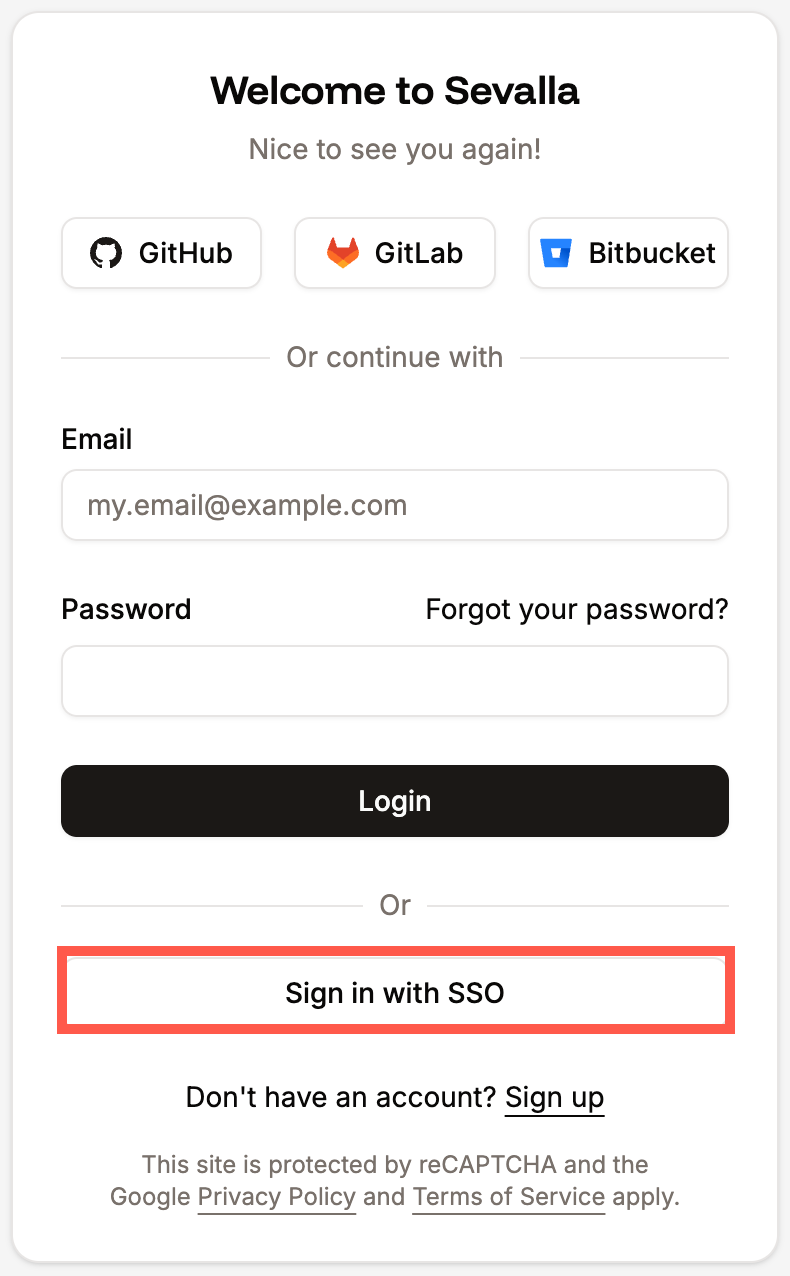
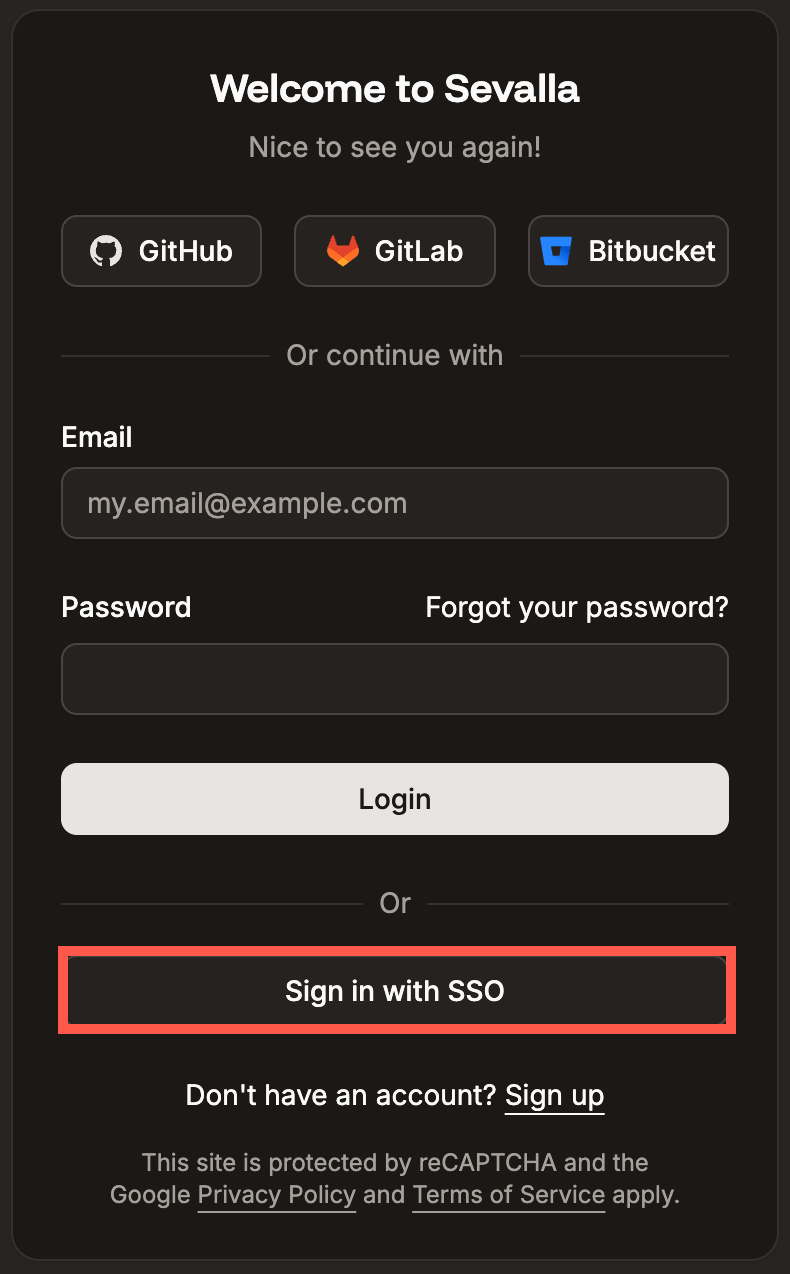
 Your Sevalla company users will now be able to sign in with SAML SSO or by entering their username and password. Users who sign in through an IdP are not required to complete Sevalla's 2FA, as authentication is handled directly by the IdP.
If you want to force users to sign on via SAML, you can enable Mandatory SSO and add Exceptions. You can also enable JIT provisioning to allow users authorized by your IdP to access your Sevalla company without requiring an invitation.
Your Sevalla company users will now be able to sign in with SAML SSO or by entering their username and password. Users who sign in through an IdP are not required to complete Sevalla's 2FA, as authentication is handled directly by the IdP.
If you want to force users to sign on via SAML, you can enable Mandatory SSO and add Exceptions. You can also enable JIT provisioning to allow users authorized by your IdP to access your Sevalla company without requiring an invitation.
 ## Change the session duration
Your Identity Provider (IdP) determines how long your SSO session remains active and when it expires. If your IdP doesn’t specify a session duration, Sevalla defaults to a 24-hour session.
When your SSO session expires, you’ll be logged out of SSO. If you’re working within a company that uses SSO, you’ll be prompted to reauthenticate. If you have access to multiple companies in Sevalla, you’ll remain logged in overall but will need to reauthenticate before accessing any company that requires SSO.
For details on adjusting session duration, refer to the [Ping Identity documentation](https://docs.pingidentity.com/pingone/directory/p1_manage_user_sessions_intro.html?_gl=1*7iinwk*_gcl_au*MTMwMzMwNjQ5My4xNzYyNTEyOTgy*_ga*MjA5MzYyMDUzMy4xNzYyNTEyOTcx*_ga_V94KKVLZPT*czE3NjI3Nzk4MTQkbzMkZzEkdDE3NjI3Nzk4MjYkajQ4JGwwJGg4MzI3NjA4OA..).
## Change the session duration
Your Identity Provider (IdP) determines how long your SSO session remains active and when it expires. If your IdP doesn’t specify a session duration, Sevalla defaults to a 24-hour session.
When your SSO session expires, you’ll be logged out of SSO. If you’re working within a company that uses SSO, you’ll be prompted to reauthenticate. If you have access to multiple companies in Sevalla, you’ll remain logged in overall but will need to reauthenticate before accessing any company that requires SSO.
For details on adjusting session duration, refer to the [Ping Identity documentation](https://docs.pingidentity.com/pingone/directory/p1_manage_user_sessions_intro.html?_gl=1*7iinwk*_gcl_au*MTMwMzMwNjQ5My4xNzYyNTEyOTgy*_ga*MjA5MzYyMDUzMy4xNzYyNTEyOTcx*_ga_V94KKVLZPT*czE3NjI3Nzk4MTQkbzMkZzEkdDE3NjI3Nzk4MjYkajQ4JGwwJGg4MzI3NjA4OA..).