> ## Documentation Index
> Fetch the complete documentation index at: https://docs.sevalla.com/llms.txt
> Use this file to discover all available pages before exploring further.
# User management
> Add, remove, and manage users in your company account.
With our [multi-user feature](https://kinsta.com/blog/manage-users-hosting-account/), you can create and manage a team, giving them access to various aspects of your applications, databases, or static sites. We offer a number of roles to allow you to fine-tune user access. This article explains the various capabilities you can give to your users.
Sevalla uses [Two-Factor Authentication (2FA)](https://docs.sevalla.com/user-settings/logging-in#two-factor-authentication-2fa) for all users to help protect your Sevalla account from unauthorized access, giving you enhanced security and greater peace of mind. 2FA requires an additional verification code sent to your email or available through an authentication or password manager app. You can see which authentication method each user has enabled (email or app authentication) within **Company settings** > **User management** > **2FA**.
## User roles
### Company Owner role
There is a special role called the **Company Owner**. A **Company Owner** is always also a **Company Administrator**. There can only be one **Company Owner** per company.
A **Company Owner** is the only user in a company who can request an account closure or [transfer company ownership](/company-settings/overview/#transfer-company-ownership) (to a **Company Administrator** in the same account). Apart from that, they are exactly like **Company Administrators** in day-to-day use.
### Company roles
When [inviting or modifying a user](#invite-a-user), the first choice is to give the user **Company access** or **Service access**. Service-level users only have access to specific applications, databases, static sites, or object storage containers you assign to them, while company users see company-level details. There are three company-level user roles to choose from, with various levels of access based on their role.
All user roles have access to Sevalla’s Support team, but we can only assist with sites your user role can access. If you only have Static Site Hosting with Sevalla, this is a free service, and therefore, chat support is not available. We do have detailed [Static Site Hosting documentation](/static-sites/overview), and you can also connect with developers and knowledgeable community members in the [Sevalla Community forum](https://community.kinsta.com/c/static-sites/22). This forum is where you can ask questions and discuss all things static site hosting, including website deployment, static site generators, and more. Whether you’re curious about choosing the right style of a static site, troubleshooting issues, or optimizing performance, our community is here to assist you.
#### Company Administrator
**Company Administrators** have the highest level of access. They have complete control of all company data and full access to all services, including DNS in Sevalla and migration requests. Only give **Company Administrator** access to users whom you trust.
#### Company Developer
A **Company Developer** has access to add and remove applications and databases, manage all services and DNS in Sevalla, and can manage service-level users. While a **Company Developer** can view the list of company users (including email addresses and roles), they cannot make any changes to company-level users.
Company Developers do not see billing details or company settings. The following actions are billing events that a company developer does **not** have access to:
* Change the build resources for an application.
* Change the pod size or the number of instances for an application process.
* Change the database size.
* Add or remove an add-on.
If you want a **Company Developer** to access any of the above features, you must increase their access level to **Company Administrator**.
#### Company Billing
A **Company Billing** user only sees billing details and company settings. They can see invoices, enable automatic invoice emails, and modify company details like name and address. They do not have access to any sites, applications, databases, or object storage containers in any way.
### Service roles
Service-level users can access a specific site, application, database, or object storage container. They may have access to more than one service, such as an application or two applications and a database.
#### Static Site Administrator
**Static Site Administrators** have complete access to the site they are given access to, with the exception of removing the static site. A single user can be a **Static Site Administrator** for multiple sites.
#### Application Administrator
**Application Administrators** have complete access to the application to which they are given access, with the exception of removing the application. A single user can be an **Application Administrator** for multiple applications.
#### Database Administrator
**Database Administrators** have complete access to the database to which they are given access, with the exception of removing the database. A single user can be a Database **Administrator** for multiple databases.
#### Object Storage Administrator
**Object Storage Administrators** have complete access to the object storage container to which they are given access, with the exception of removing the container. A single user can be an Object Storage **Administrator** for multiple containers.
#### Project Administrator
**Project Administrators** have access to the details of the projects. They can add new services to a project and fully manage any of the services they have added. They cannot add new projects, add existing services to a project, or delete a project.
They can also manage user access within their projects, allowing them to control who can access project resources without requiring company-level permissions. They can:
* Invite new or existing users to a project as a Project Administrator or Project Developer.
* Manage user roles within their projects.
* Control service-level access for applications and databases within their projects.
* Convert user access from service-level to project-level, provided the user has access to all services within that project and no others.
Project Administrators cannot manage company-level users, modify users in projects they do not administer, or change access for users who have service-level permissions outside of their projects.
#### Project Developer
**Project Developers** have access to the details of the projects. They can add new services to a project and fully manage any of the services they have added. They cannot add new projects, add existing services to a project, or delete a project. A single user can be a **Project Developer** for multiple projects.
### Sevalla user roles and permissions chart
The following chart provides more specific details about the capabilities each user role has.
| Capability | Company Owner | Company Administrator | Company Developer | Company Billing | Service-level Administrator | Project Administrator | Project Developer |
| ---------------------------------------------------------------------------------- | ------------- | --------------------- | ----------------- | --------------- | --------------------------- | ------------------------------- | ------------------------------- |
| Access billing details or change plan | Yes | Yes | No | Yes | No | No | No |
| Manage all sites, applications, databases, or object storage containers | Yes | Yes | Yes | No | No | Only those created in a project | Only those created in a project |
| Manage one site, application, database, or object storage container | Yes | Yes | Yes | No | Yes | Only those created in a project | Only those created in a project |
| Install or remove a paid add-on | Yes | Yes | No | Yes | No | No | No |
| Request 2FA be disabled for other users in a company\* | Yes | No | No | No | No | No | No |
| Add, suspend, or delete a site, application, database, or object storage container | Yes | Yes | Yes | No | No | Only those created in a project | Only those created in a project |
| Access site, application, or database analytics | Yes | Yes | Yes | No | Yes | Only those created in a project | Only those created in a project |
| Request persistent storage backup restoration | Yes | Yes | No | No | No | No | No |
| Create projects | Yes | Yes | Yes | No | No | No | No |
| Add existing services to a project | Yes | Yes | Yes | No | No | No | No |
| Add new services to a project | Yes | Yes | Yes | No | No | Yes | Yes |
\*Can request this if the user is only in one company.
## Invite a user
With our multi-user feature, you can create and manage a team and give them access to various aspects of your sites, applications, databases, or object storage. On the Company Users page, you can invite users to your company or services.
After you invite a user, they will receive a notification email inviting them to your company. If they do not have a Sevalla account, they’ll need to sign up for one or use Single Sign-On (SSO) to log in and access the company they’ve been invited to.
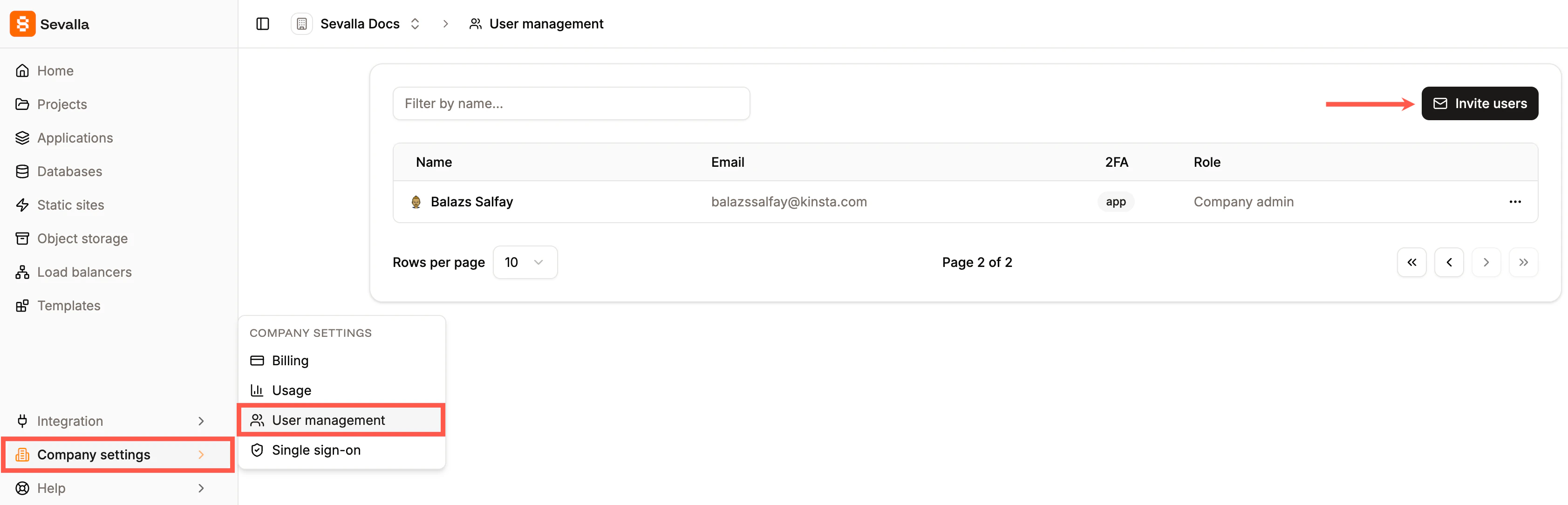
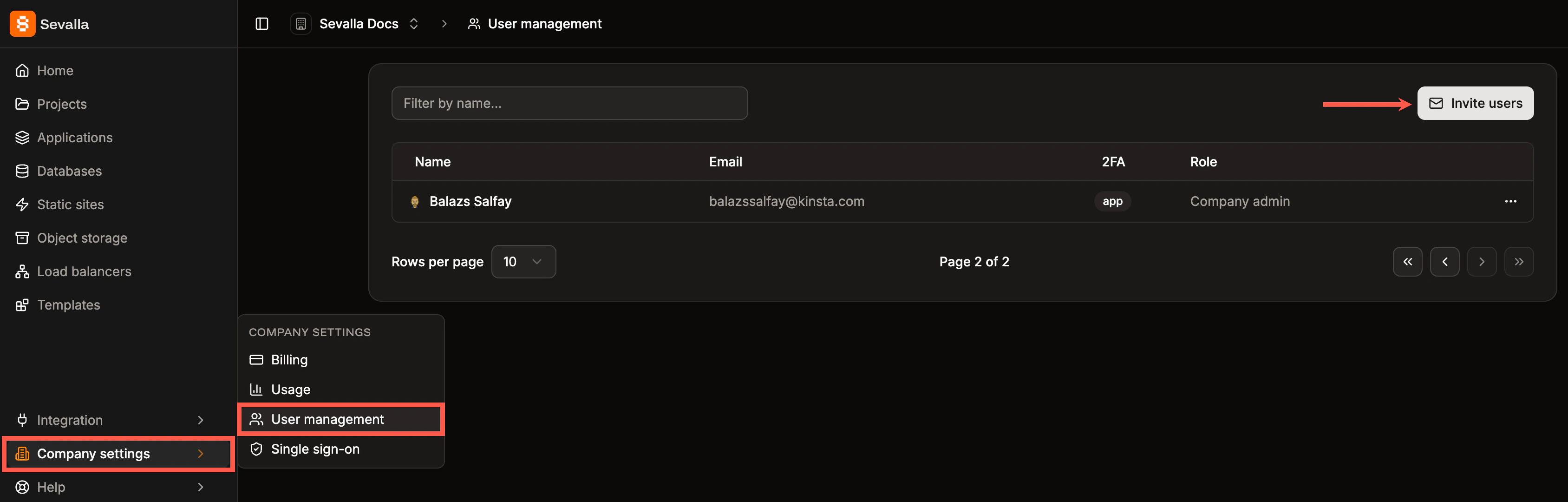
To invite a user to your company, go to **Company settings** > **User management** > **Invite users**.
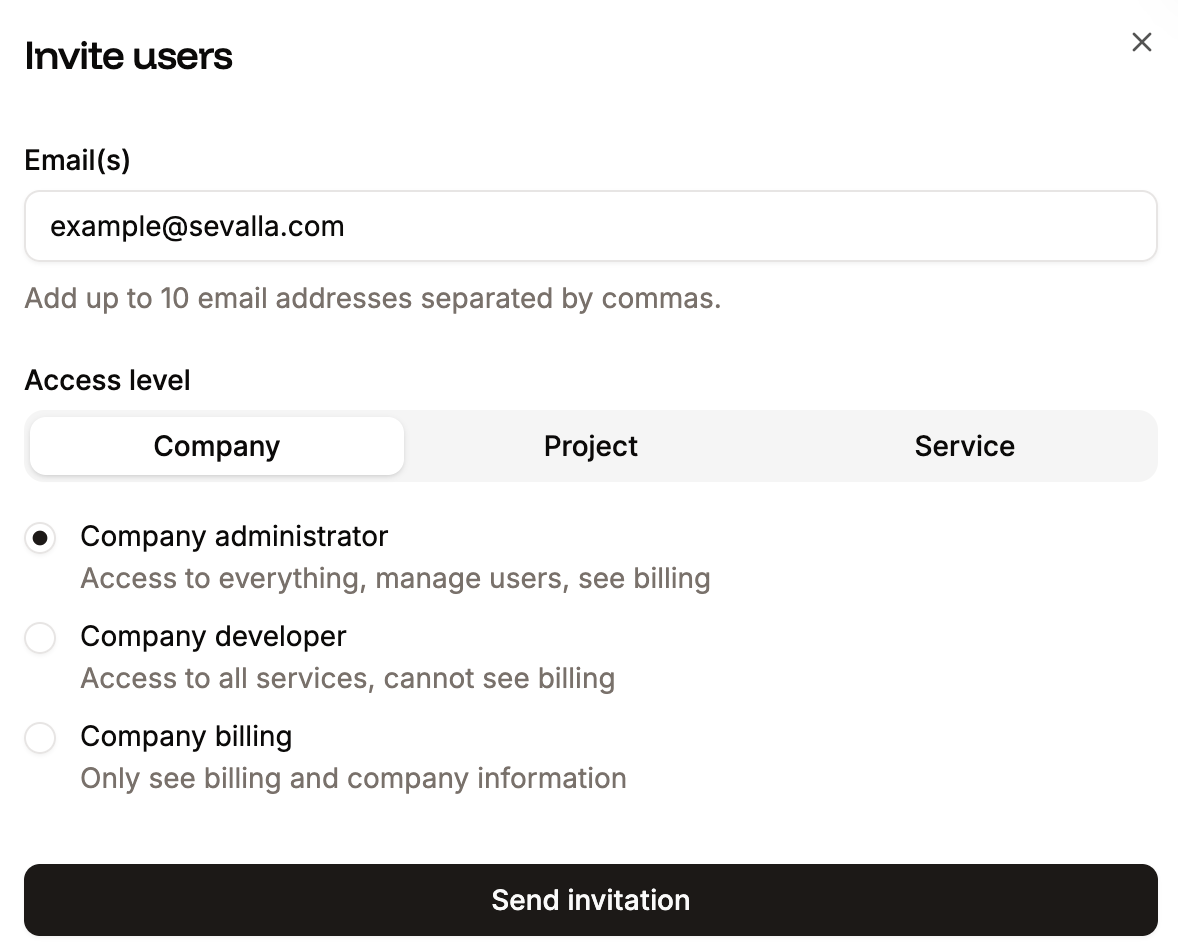
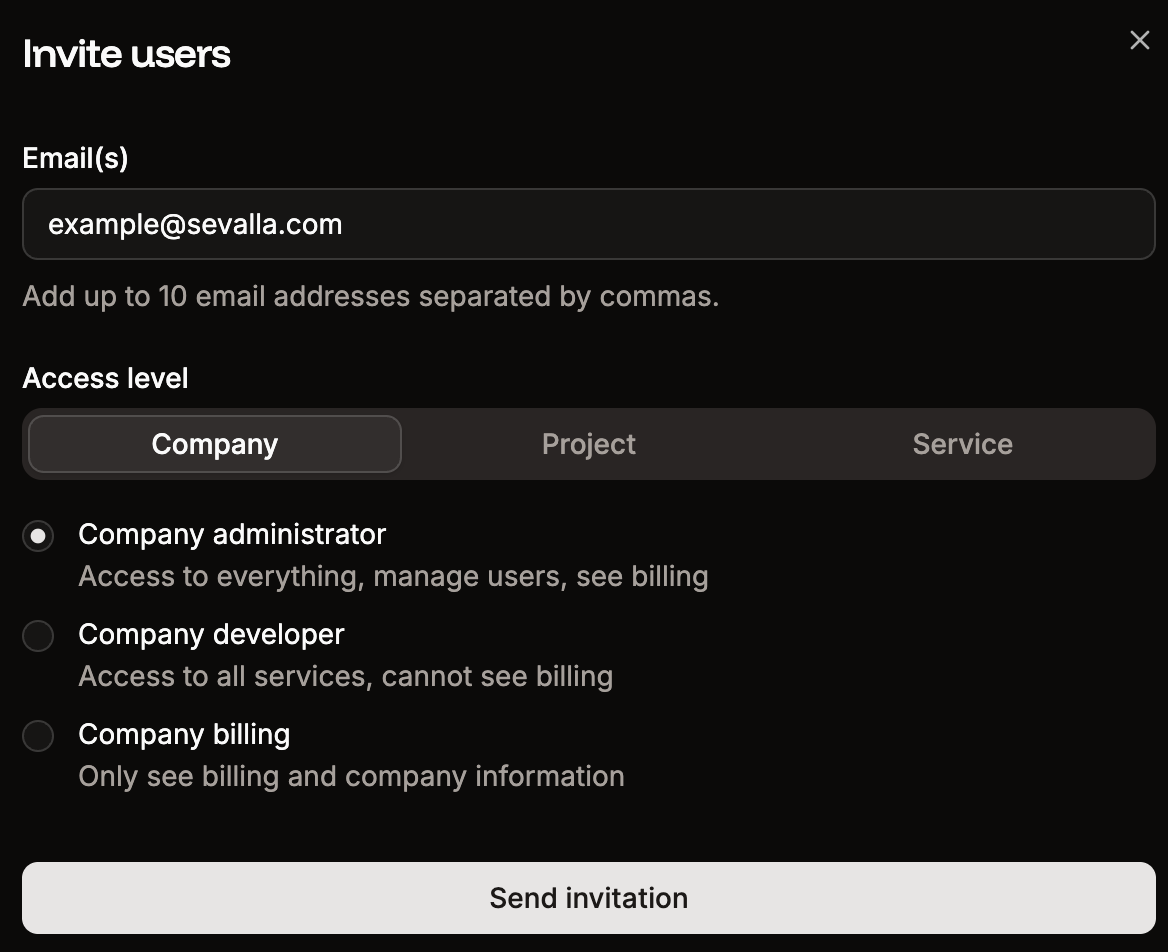
 Enter the email address of the user you’d like to invite. You can invite up to 10 users by separating their email addresses with commas in the email field.
Select **Company** to choose between **Company administrator**, **Company developer**, or **Company billing**.
Enter the email address of the user you’d like to invite. You can invite up to 10 users by separating their email addresses with commas in the email field.
Select **Company** to choose between **Company administrator**, **Company developer**, or **Company billing**.
 If you want to grant access only to a particular project, select **Project**, choose the project you want the user to have access to, and either type the project's name or select it from the list.
Project access is only shown if a project exists within the company.
If you want to grant access only to a particular project, select **Project**, choose the project you want the user to have access to, and either type the project's name or select it from the list.
Project access is only shown if a project exists within the company.
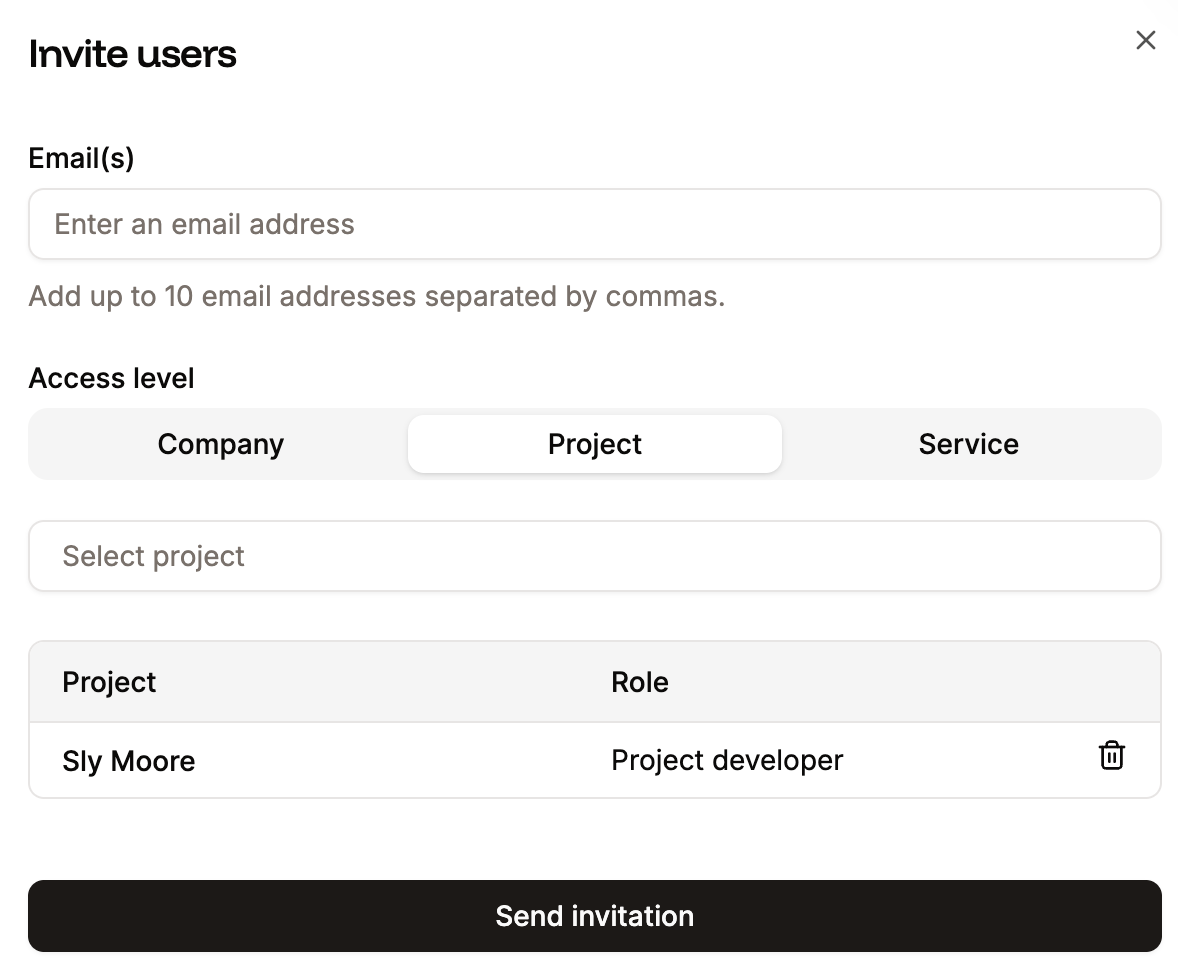
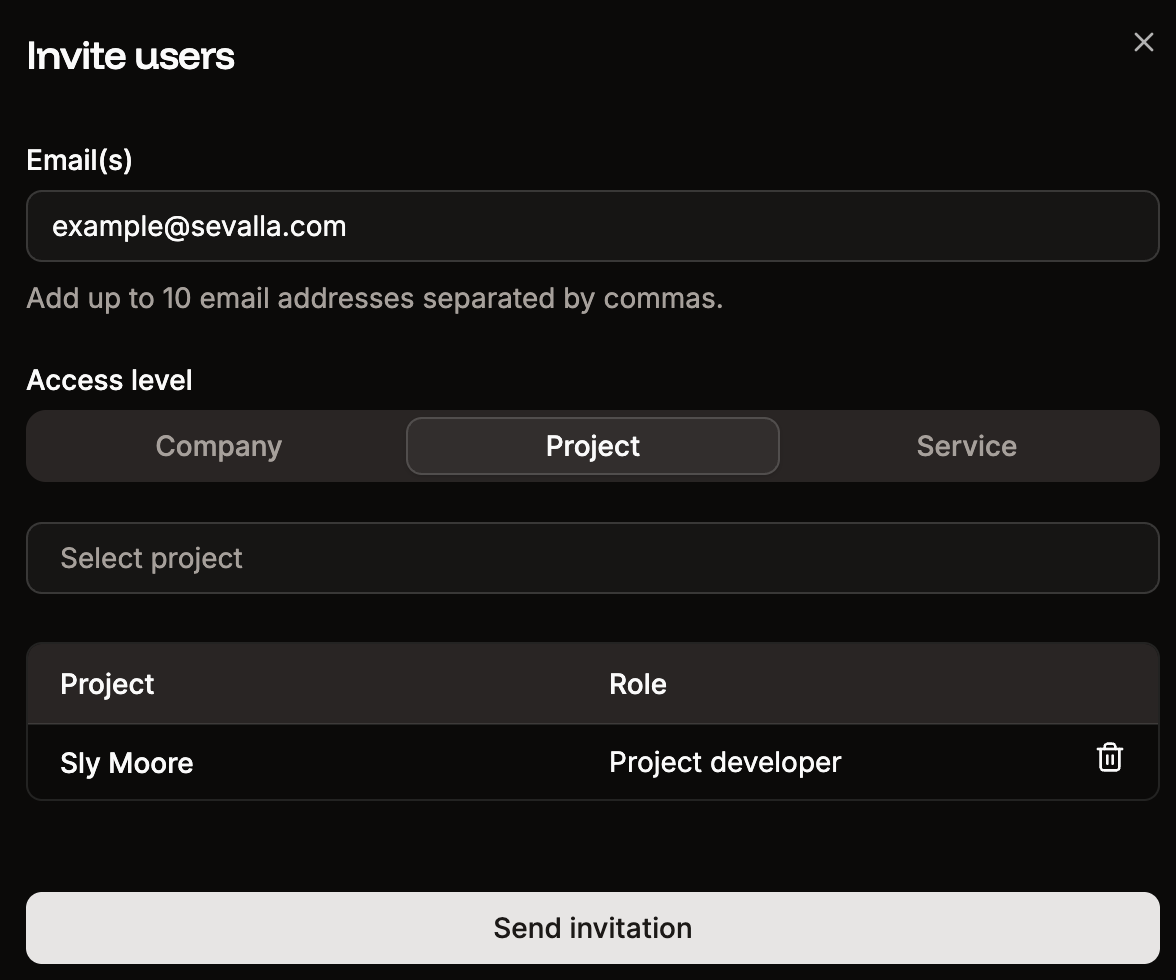 If you want to grant access only to a particular service, select **Service**, choose the service you want the user to have access to, and either type the service's name or select it from the list.
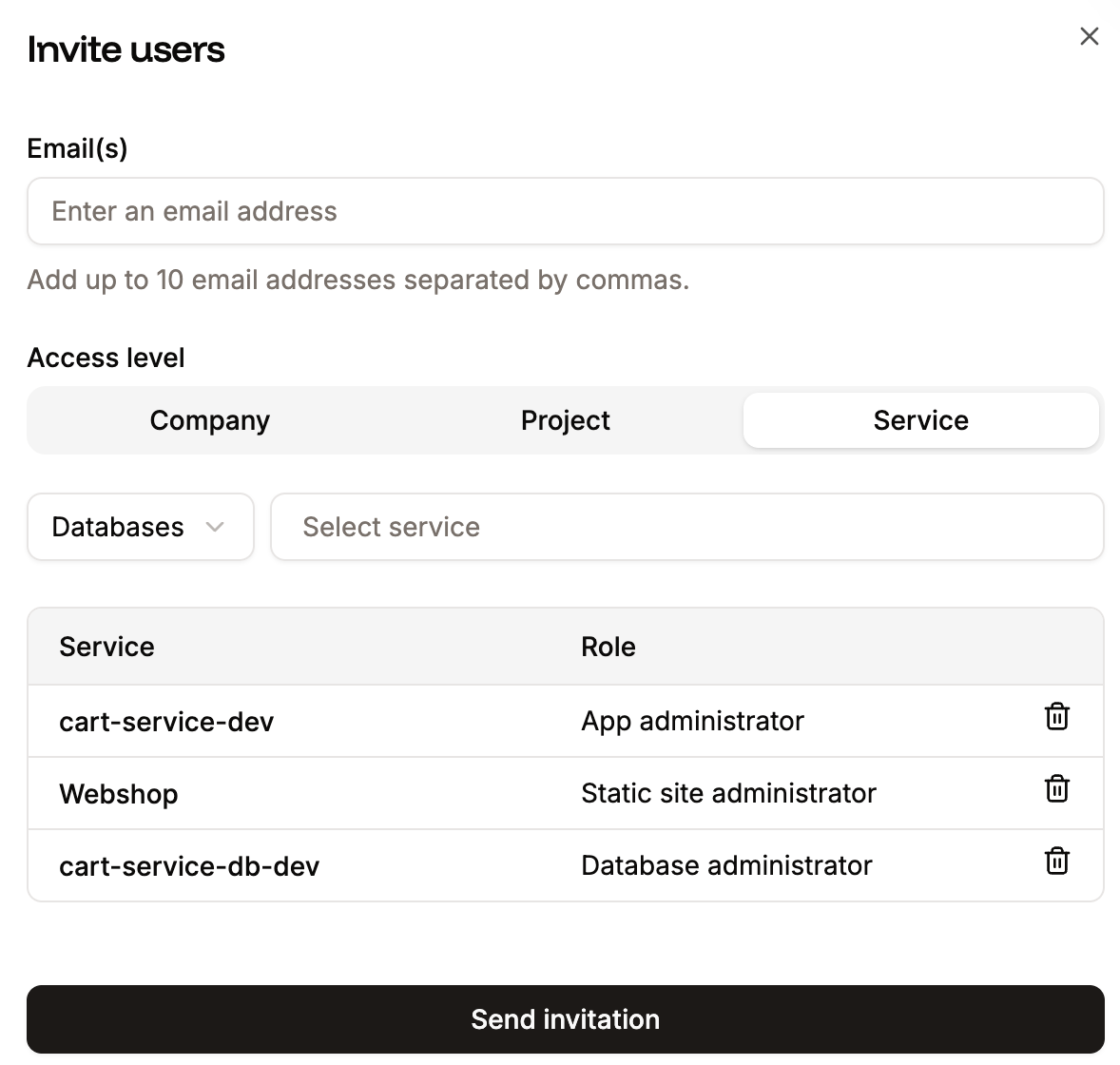
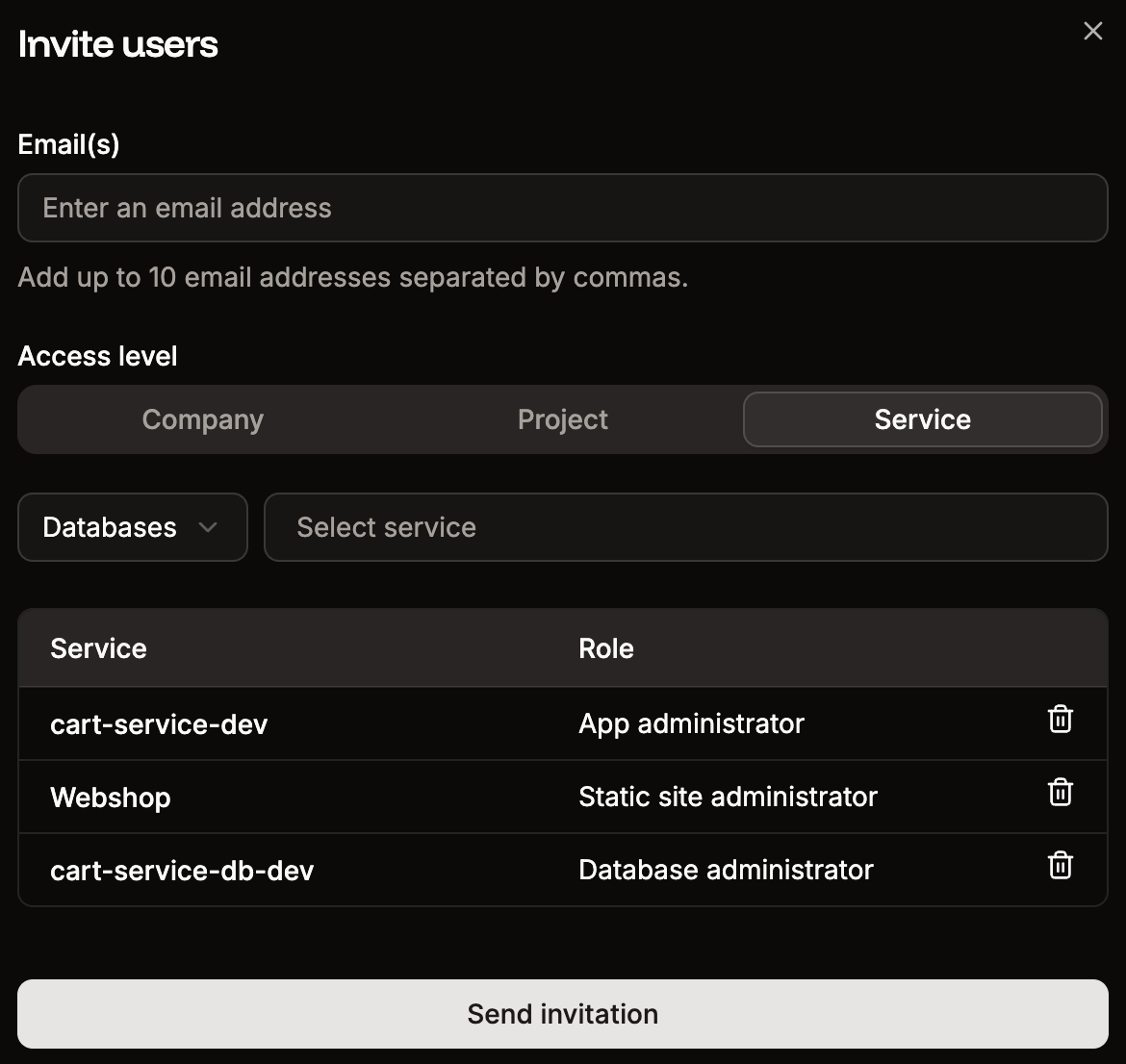 Click **Send invitation** to invite the users.
## Resend or cancel a user invitation
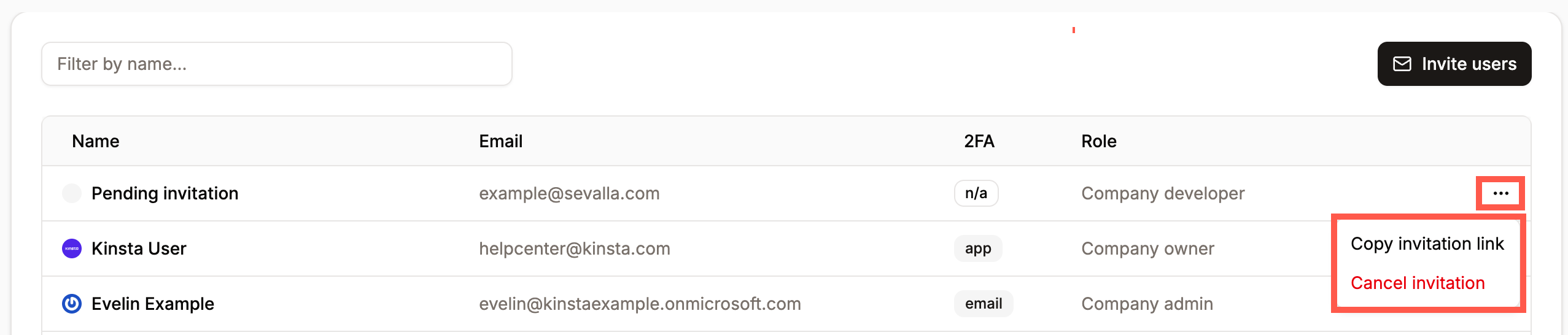
If you need to send the invitation to a user again, click the ellipsis (three dots) on the user, click **Copy invitation link**, and send it to them. If you need to cancel the pending invitation, click **Cancel invitation**.
Click **Send invitation** to invite the users.
## Resend or cancel a user invitation
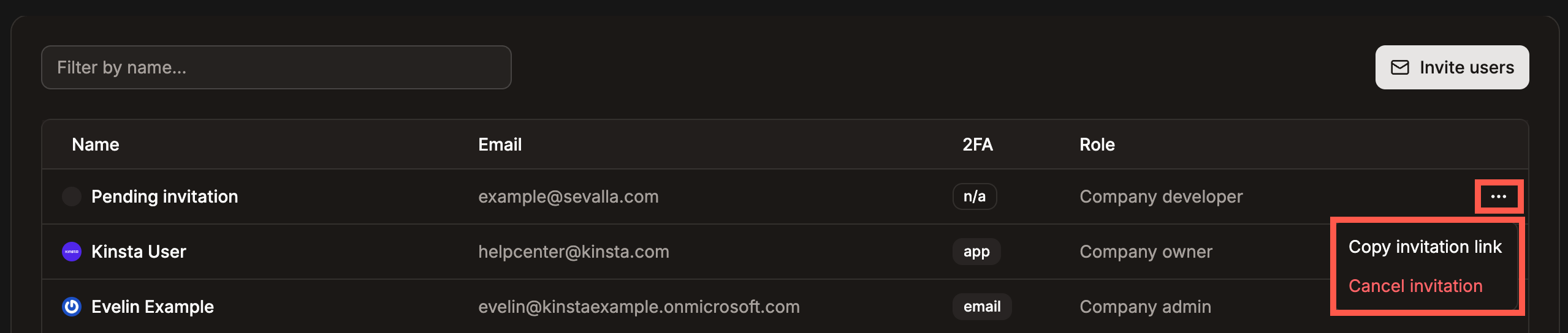
If you need to send the invitation to a user again, click the ellipsis (three dots) on the user, click **Copy invitation link**, and send it to them. If you need to cancel the pending invitation, click **Cancel invitation**.
 ## Update a user's access level
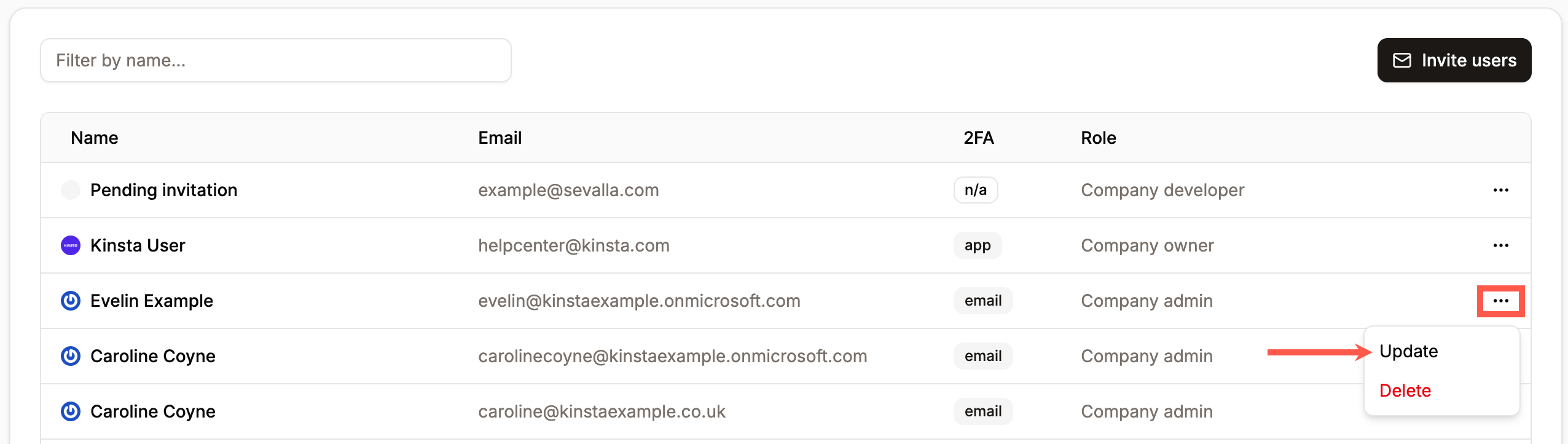
If you want to change a user's access level, click **Company settings** > **User management**, click the ellipsis (three dots) on the user, and click **Update**.
## Update a user's access level
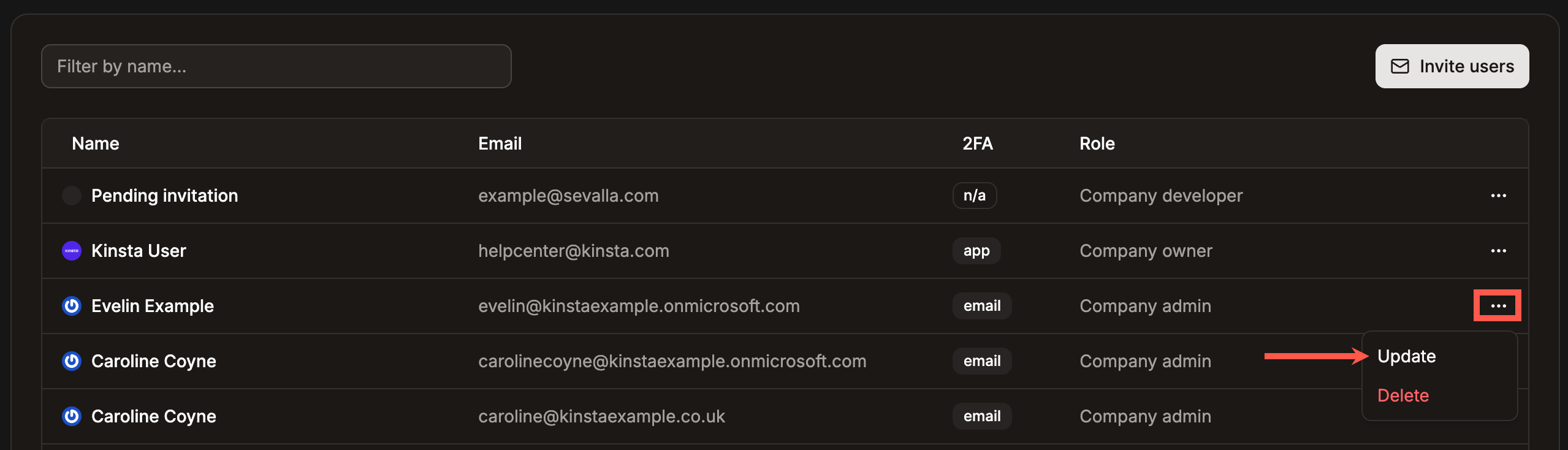
If you want to change a user's access level, click **Company settings** > **User management**, click the ellipsis (three dots) on the user, and click **Update**.
 Select the new level of company or service access, and click **Update access**.
## Remove a user
Removing a user from a company will also remove that user from all sites, applications, or databases associated with the company. The user does not receive any notification when they are removed. If you want the user to have access to one or more services but not company access, you can invite them and only give them access to the required services.
Removing a user does not automatically revoke access to any API keys they may have had. You should review your API keys and revoke access to any that the user may have had access to within **Company settings** > **API keys** > **Revoke**.
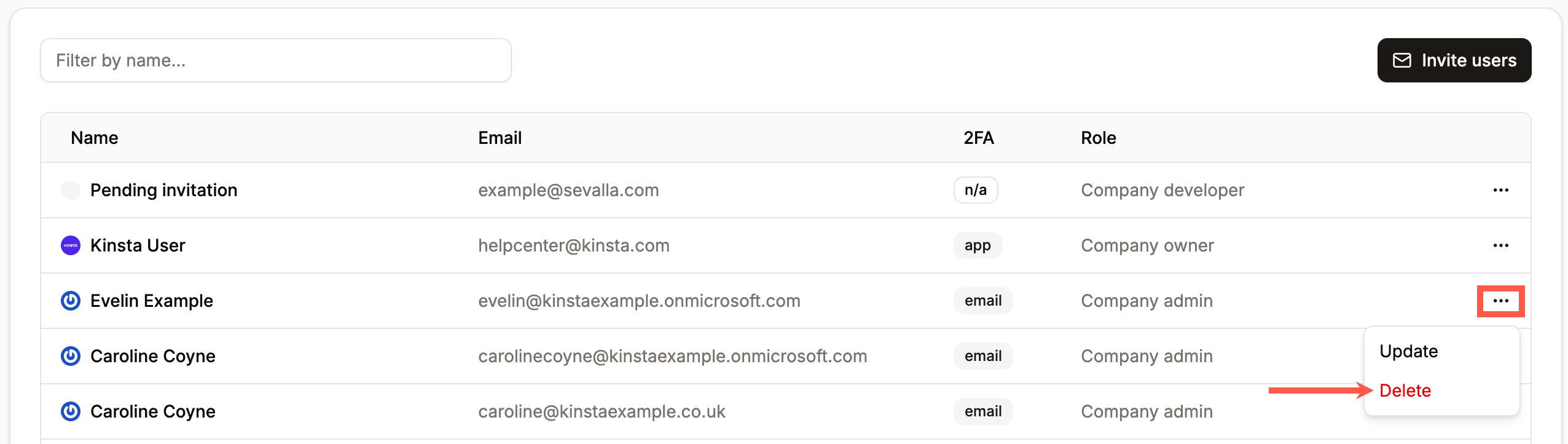
To remove a user, click **Company settings** > **User management**, click the ellipsis (three dots) on the user, and click **Delete**. You can also remove the user within the service **Access management** page.
Select the new level of company or service access, and click **Update access**.
## Remove a user
Removing a user from a company will also remove that user from all sites, applications, or databases associated with the company. The user does not receive any notification when they are removed. If you want the user to have access to one or more services but not company access, you can invite them and only give them access to the required services.
Removing a user does not automatically revoke access to any API keys they may have had. You should review your API keys and revoke access to any that the user may have had access to within **Company settings** > **API keys** > **Revoke**.
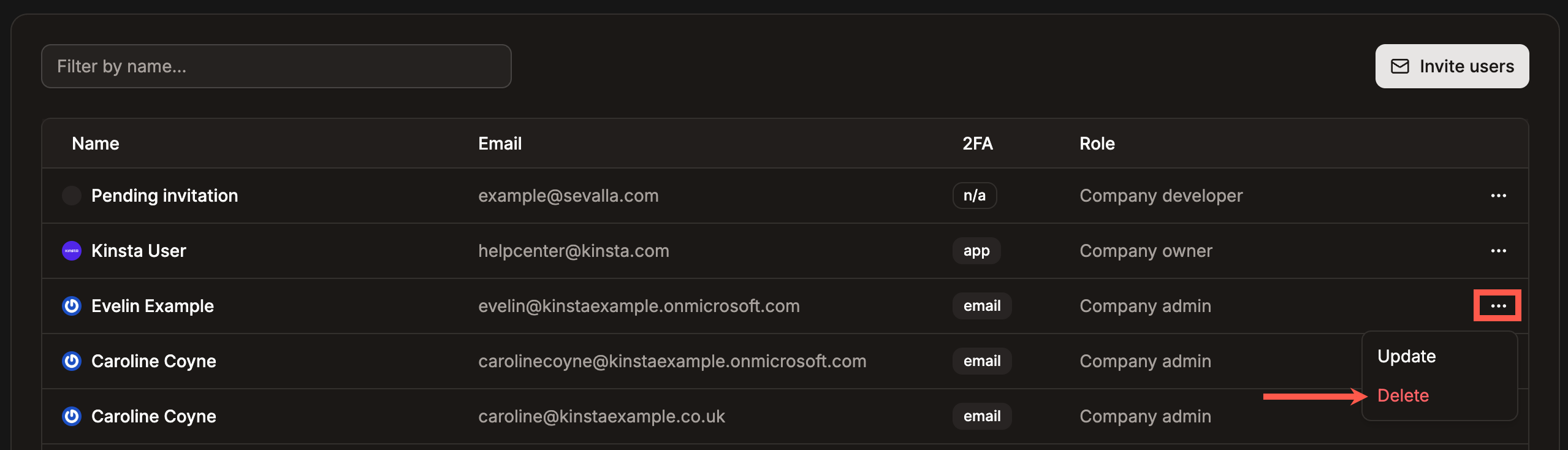
To remove a user, click **Company settings** > **User management**, click the ellipsis (three dots) on the user, and click **Delete**. You can also remove the user within the service **Access management** page.
 Confirm the deletion by clicking **Continue**.