> ## Documentation Index
> Fetch the complete documentation index at: https://docs.sevalla.com/llms.txt
> Use this file to discover all available pages before exploring further.
> ## Agent Instructions
> These are the docs for Sevalla, a platform for deploying applications, databases, static sites, object storage and load balancers. The dashboard is at https://app.sevalla.com.
> Bold text in steps is an exact dashboard label.
> To act on a Sevalla account, prefer the Sevalla MCP server (https://mcp.sevalla.com/mcp, see https://docs.sevalla.com/ai-agents/overview.md), then the Sevalla CLI (https://docs.sevalla.com/developer-tools/cli.md), then the REST API (https://api-docs.sevalla.com, OpenAPI spec at https://api.sevalla.com/v3/openapi.json).
> Every page index is at https://docs.sevalla.com/llms.txt.
# OneLogin
> Set up SAML single sign-on between OneLogin and Sevalla: add a SAML Custom Connector (Advanced) app with Sevalla's values, then copy OneLogin's endpoint, issuer and certificate back.
OneLogin is an identity provider (IdP) you can connect to Sevalla with SAML single sign-on (SSO). You add a **SAML Custom Connector (Advanced)** app in OneLogin with the values Sevalla shows, then paste OneLogin's values into Sevalla. For how SSO works in Sevalla, see [Single sign-on](/company/single-sign-on/overview).
## Before you begin
* You're a company owner or admin in Sevalla.
* You can add applications in OneLogin's administration.
* Your Sevalla account uses an email address on your company's domain, and you have a OneLogin user with the same address. The setup test signs you in with it.
## Values to copy
From Sevalla's **Create SAML app** step into the OneLogin app's **Configuration** tab:
| OneLogin field | Sevalla value |
| - | - |
| **Audience (EntityID)** | `https://my.kinsta.com/saml` (**Entity ID**) |
| **Recipient** | `https://my.kinsta.com/saml/receive` (**SSO/ACS URL**) |
| **ACS (Consumer) URL Validator** | `https://my.kinsta.com/saml/receive` (**SSO/ACS URL**) |
| **ACS (Consumer) URL** | `https://my.kinsta.com/saml/receive` (**SSO/ACS URL**) |
| **Login URL** | `https://my.kinsta.com/login/saml` (**Start URL**) |
| **SAML initiator** | **Service Provider** |
| **SAML nameID format** | **Email** |
From the OneLogin app's **SSO** tab into Sevalla's **Sevalla setup** step:
| Sevalla field | OneLogin value |
| - | - |
| **SSO URL** | **SAML 2.0 Endpoint (HTTP)** |
| **Entity ID** | **Issuer URL** |
| **Public certificate** | **X.509 Certificate** (under **View Details**): the whole certificate |
## Start the setup in Sevalla
In the sidebar, under **Company**, click **Single sign-on**. On the **Single sign-on** card, click **Enable** (or **Continue setup**).
Click **Continue** to reach **Create SAML app**. Keep this tab open: you'll copy its values into OneLogin.
## Create the SAML app in OneLogin
In OneLogin's administration, go to **Applications** > **Applications** and click **Add App**. Search for `SAML Custom Connector`, then select **SAML Custom Connector (Advanced)**.
In **Display Name**, enter `Sevalla`. Optionally, upload the Sevalla logo as the icon. Click **Save**.
Click the **Configuration** tab and fill in the fields from [Values to copy](#values-to-copy). Also set **SAML issuer type** to **Specific** and **SAML signature element** to **Assertion**. Leave the other fields as they are and click **Save**.
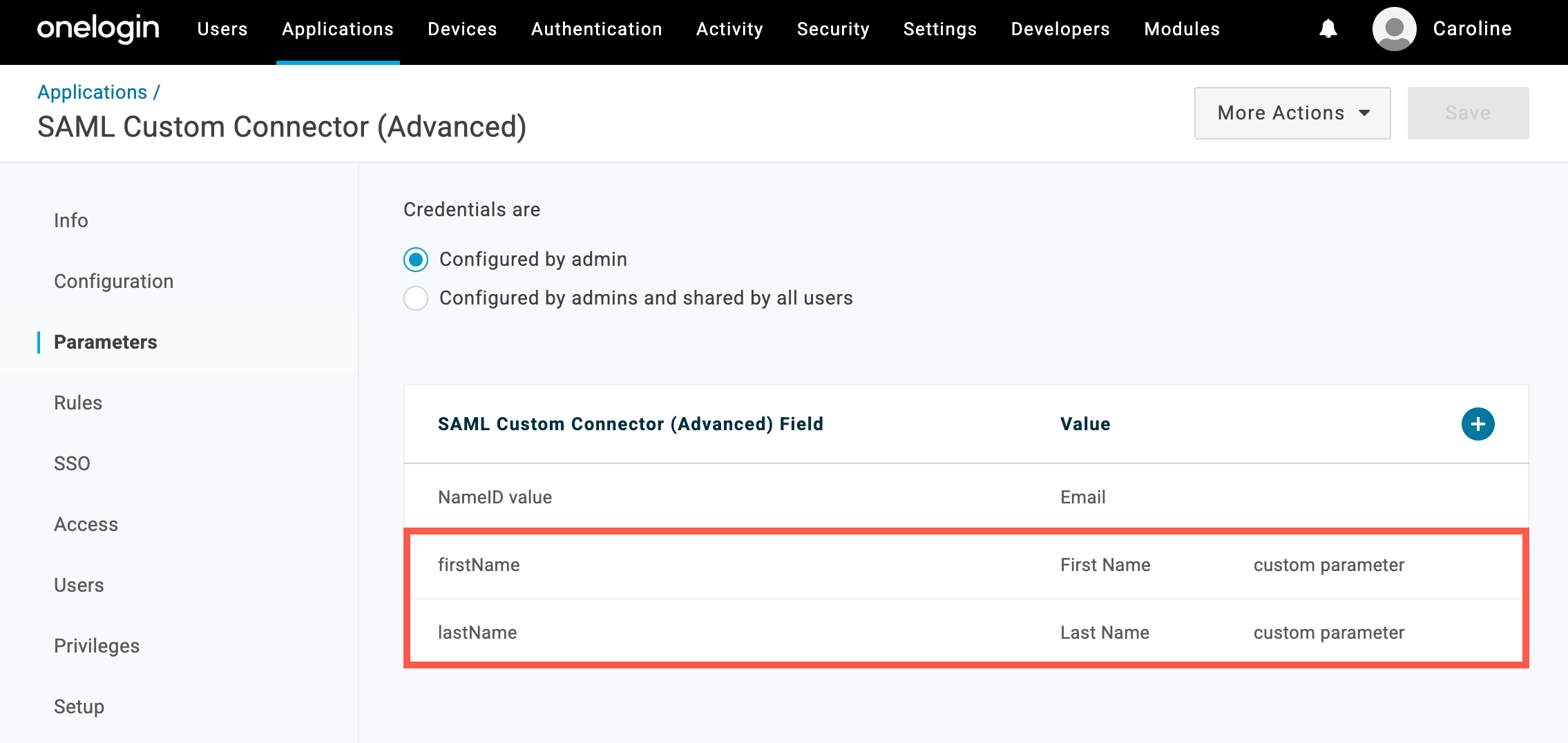
Click the **Parameters** tab. For each of these rows, click the **+** button, enter the **Field name**, select **Include in SAML assertion** and click **Save**. Then pick the **Value** and click **Save**.
| Field name | Value |
| - | - |
| `firstName` | **First Name** |
| `lastName` | **Last Name** |
| `email` | **Email** |
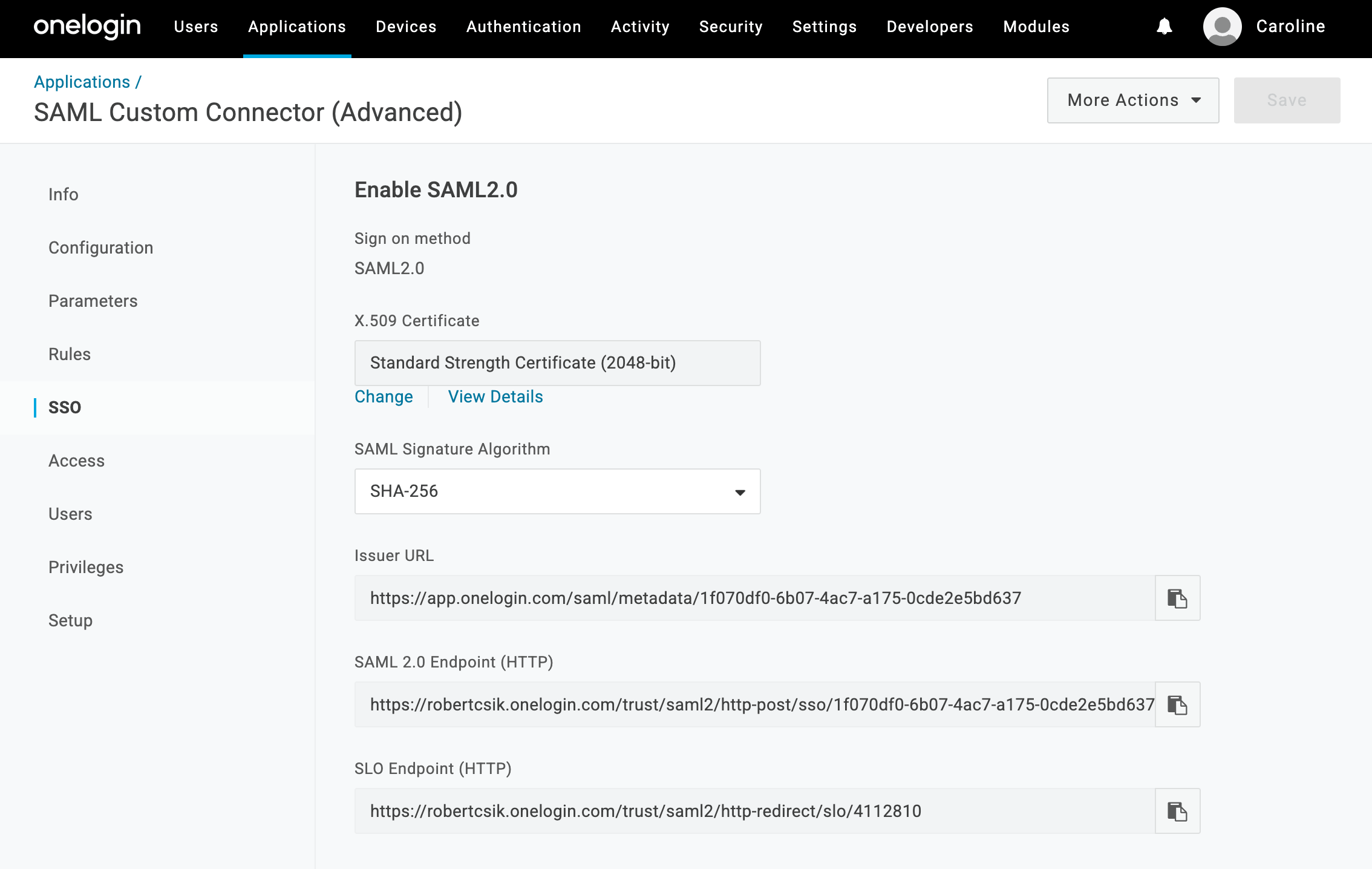
Click the **SSO** tab, set **SAML Signature Algorithm** to **SHA-256**, then click **Save**.
 ## Give people access to the app
Only people with access to the app can sign in to Sevalla with OneLogin.
* **By role**: on the app's **Access** tab, turn on the roles whose users get the app, then click **Save**.
* **One person at a time**: go to **Users** > **Users**, click the person, click **Applications**, then click the **+** button. Pick the Sevalla app, click **Continue**, select **Allow the user to sign in**, and click **Save**.
Include yourself, so you can run the test.
## Add the OneLogin details to Sevalla
In **Applications** > **Applications**, click the Sevalla app, then click the **SSO** tab.
In the Sevalla tab, click **Continue** to reach **Sevalla setup**. Under **Email domain**, add and verify your domain. See [Verify your email domain](/company/single-sign-on/overview#verify-your-email-domain).
Under **Set up Sevalla SAML**, paste:
* **SSO URL**: OneLogin's **SAML 2.0 Endpoint (HTTP)**
* **Entity ID**: OneLogin's **Issuer URL**
* **Public certificate**: under **X.509 Certificate**, click **View Details** and copy the whole certificate, including the `BEGIN CERTIFICATE` and `END CERTIFICATE` lines
Click **Continue**.
## Give people access to the app
Only people with access to the app can sign in to Sevalla with OneLogin.
* **By role**: on the app's **Access** tab, turn on the roles whose users get the app, then click **Save**.
* **One person at a time**: go to **Users** > **Users**, click the person, click **Applications**, then click the **+** button. Pick the Sevalla app, click **Continue**, select **Allow the user to sign in**, and click **Save**.
Include yourself, so you can run the test.
## Add the OneLogin details to Sevalla
In **Applications** > **Applications**, click the Sevalla app, then click the **SSO** tab.
In the Sevalla tab, click **Continue** to reach **Sevalla setup**. Under **Email domain**, add and verify your domain. See [Verify your email domain](/company/single-sign-on/overview#verify-your-email-domain).
Under **Set up Sevalla SAML**, paste:
* **SSO URL**: OneLogin's **SAML 2.0 Endpoint (HTTP)**
* **Entity ID**: OneLogin's **Issuer URL**
* **Public certificate**: under **X.509 Certificate**, click **View Details** and copy the whole certificate, including the `BEGIN CERTIFICATE` and `END CERTIFICATE` lines
Click **Continue**.
 ## Test and set SSO live
On **Test and finish**, click **Test authentication** and sign in to OneLogin. When Sevalla shows `Authentication test was successful.`, click **Save and set SSO live**. If the test fails, see [Troubleshoot SSO sign-in](/company/single-sign-on/overview#troubleshoot-sso-sign-in).
Next, you can [make SSO mandatory](/company/single-sign-on/overview#make-sso-mandatory) and [turn on just-in-time provisioning](/company/single-sign-on/overview#turn-on-just-in-time-provisioning).
## Change the session length
The **SAML sessionNotOnOrAfter** field on the app's **Configuration** tab sets how long an SSO session lasts, in minutes. OneLogin's default is 1440 minutes (24 hours). Change the value and click **Save**; it applies to the next SSO sign-in.
This documentation is built and hosted on [Mintlify](https://mintlify.com), a developer documentation platform.
## Test and set SSO live
On **Test and finish**, click **Test authentication** and sign in to OneLogin. When Sevalla shows `Authentication test was successful.`, click **Save and set SSO live**. If the test fails, see [Troubleshoot SSO sign-in](/company/single-sign-on/overview#troubleshoot-sso-sign-in).
Next, you can [make SSO mandatory](/company/single-sign-on/overview#make-sso-mandatory) and [turn on just-in-time provisioning](/company/single-sign-on/overview#turn-on-just-in-time-provisioning).
## Change the session length
The **SAML sessionNotOnOrAfter** field on the app's **Configuration** tab sets how long an SSO session lasts, in minutes. OneLogin's default is 1440 minutes (24 hours). Change the value and click **Save**; it applies to the next SSO sign-in.
This documentation is built and hosted on [Mintlify](https://mintlify.com), a developer documentation platform.