> ## Documentation Index
> Fetch the complete documentation index at: https://docs.sevalla.com/llms.txt
> Use this file to discover all available pages before exploring further.
> ## Agent Instructions
> These are the docs for Sevalla, a platform for deploying applications, databases, static sites, object storage and load balancers. The dashboard is at https://app.sevalla.com.
> Bold text in steps is an exact dashboard label.
> To act on a Sevalla account, prefer the Sevalla MCP server (https://mcp.sevalla.com/mcp, see https://docs.sevalla.com/ai-agents/overview.md), then the Sevalla CLI (https://docs.sevalla.com/developer-tools/cli.md), then the REST API (https://api-docs.sevalla.com, OpenAPI spec at https://api.sevalla.com/v3/openapi.json).
> Every page index is at https://docs.sevalla.com/llms.txt.
# PingOne
> Set up SAML single sign-on between PingOne and Sevalla: add a SAML application with Sevalla's values, map the attributes, then copy PingOne's sign-on URL, issuer and certificate back.
PingOne, from Ping Identity, is an identity provider (IdP) you can connect to Sevalla with SAML single sign-on (SSO). You add a SAML application in your PingOne environment with the values Sevalla shows, then paste PingOne's values into Sevalla. For how SSO works in Sevalla, see [Single sign-on](/company/single-sign-on/overview).
## Before you begin
* You're a company owner or admin in Sevalla.
* You can add applications in a PingOne environment.
* Your Sevalla account uses an email address on your company's domain, and you have a PingOne user with the same address. The setup test signs you in with it.
## Values to copy
From Sevalla's **Create SAML app** step into PingOne:
| PingOne field | Sevalla value |
| - | - |
| **Application Name** | `Sevalla` (**App name**) |
| **Icon** | The Sevalla logo (**App icon** > **Download**) |
| **ACS URLs** | `https://my.kinsta.com/saml/receive` (**SSO/ACS URL**) |
| **Entity ID** | `https://my.kinsta.com/saml` (**Entity ID**) |
| `saml_subject` mapping | **Email Address** |
From the application's **Connection Details** in PingOne into Sevalla's **Sevalla setup** step:
| Sevalla field | PingOne value |
| - | - |
| **SSO URL** | **Initiate Single Sign-On URL** |
| **Entity ID** | **Issuer ID** |
| **Public certificate** | **Download Signing Certificate** > **X509 PEM (.crt)**: the contents of the downloaded file |
## Start the setup in Sevalla
In the sidebar, under **Company**, click **Single sign-on**. On the **Single sign-on** card, click **Enable** (or **Continue setup**).
Click **Continue** to reach **Create SAML app**. Keep this tab open: you'll copy its values into PingOne.
## Create the SAML app in PingOne
In the PingOne admin console, open the environment your users are in, go to **Applications** > **Applications**, and click the **+** button to add an application.
In **Application Name**, enter `Sevalla`. Optionally add the description and upload the Sevalla logo as the **Icon**. Select **SAML Application**, then click **Configure**.
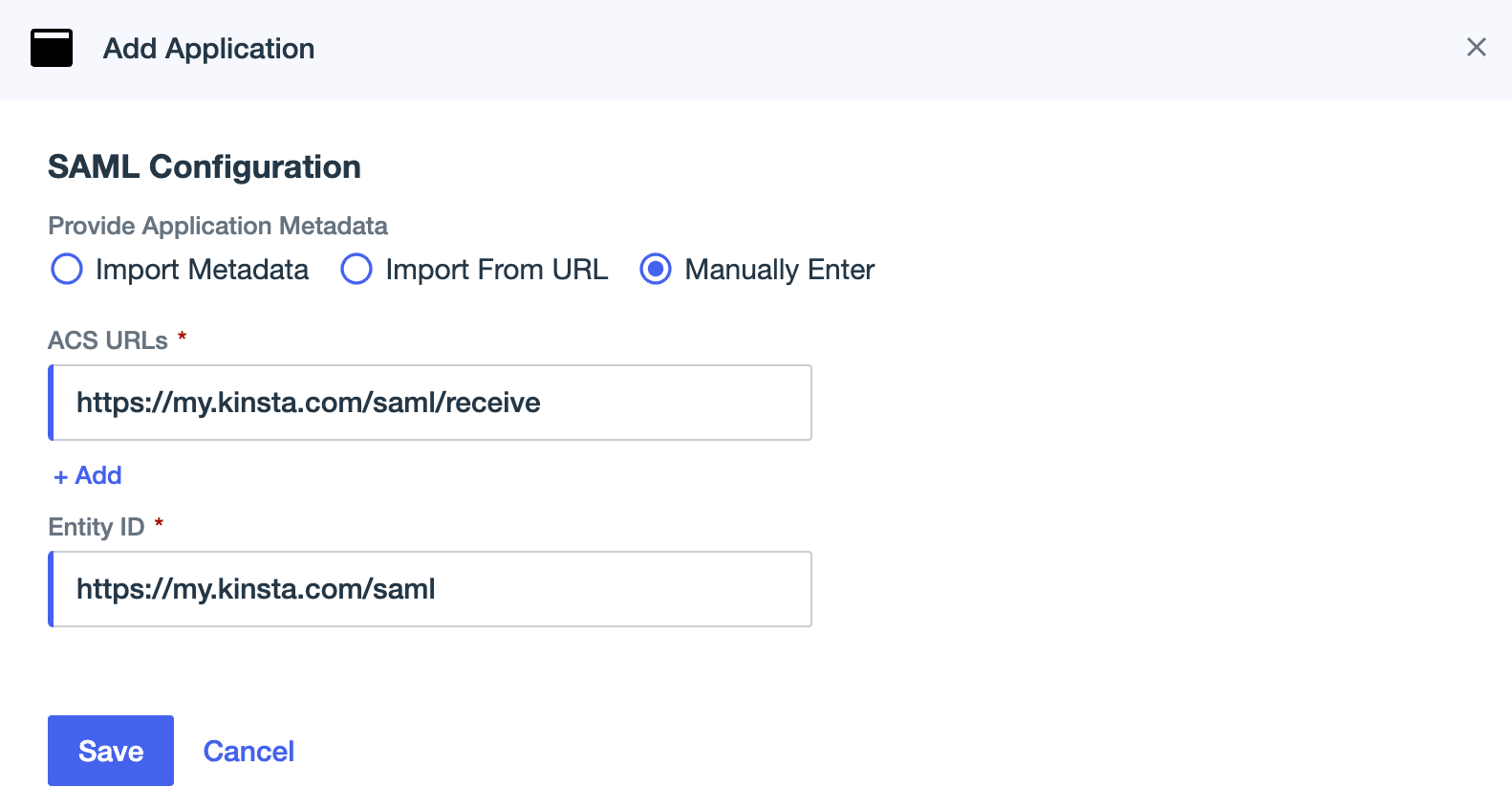
Select **Manually Enter**. In **ACS URLs**, enter `https://my.kinsta.com/saml/receive`. In **Entity ID**, enter `https://my.kinsta.com/saml`. Click **Save**.
Click the **Attribute Mappings** tab, then click the edit (pencil) icon. Map `saml_subject` to **Email Address**, so the Name ID is the person's email. Click **Add** for each of these rows and select **Required** on each:
| Attributes | PingOne Mappings |
| - | - |
| `firstName` | **Given Name** |
| `lastName` | **Family Name** |
| `email` | **Email Address** |
Click **Save**.
Turn on the toggle at the top of the application's details. A new application stays off until you do.
 ## Give people access to the app
To limit the application to some people, click its **Access** tab, click the edit (pencil) icon, and pick the groups that may use it. Include yourself, so you can run the test.
## Add the PingOne details to Sevalla
In PingOne, click the Sevalla application, open its **Overview** tab and scroll to **Connection Details**.
Click **Download Signing Certificate**, then select **X509 PEM (.crt)**. Open the file in a text editor.
In the Sevalla tab, click **Continue** to reach **Sevalla setup**. Under **Email domain**, add and verify your domain. See [Verify your email domain](/company/single-sign-on/overview#verify-your-email-domain).
Under **Set up Sevalla SAML**, paste:
* **SSO URL**: PingOne's **Initiate Single Sign-On URL**
* **Entity ID**: PingOne's **Issuer ID**
* **Public certificate**: the whole contents of the certificate file, including the `BEGIN CERTIFICATE` and `END CERTIFICATE` lines
Click **Continue**.
## Test and set SSO live
On **Test and finish**, click **Test authentication** and sign in to PingOne. When Sevalla shows `Authentication test was successful.`, click **Save and set SSO live**. If the test fails, see [Troubleshoot SSO sign-in](/company/single-sign-on/overview#troubleshoot-sso-sign-in).
Next, you can [make SSO mandatory](/company/single-sign-on/overview#make-sso-mandatory) and [turn on just-in-time provisioning](/company/single-sign-on/overview#turn-on-just-in-time-provisioning).
## Change the session length
PingOne's session settings decide how long an SSO session lasts. If PingOne doesn't send a session end time, Sevalla's SSO session lasts 24 hours. To change it, see the [PingOne documentation on user sessions](https://docs.pingidentity.com/pingone/directory/p1_manage_user_sessions_intro.html).
This documentation is built and hosted on [Mintlify](https://mintlify.com), a developer documentation platform.
## Give people access to the app
To limit the application to some people, click its **Access** tab, click the edit (pencil) icon, and pick the groups that may use it. Include yourself, so you can run the test.
## Add the PingOne details to Sevalla
In PingOne, click the Sevalla application, open its **Overview** tab and scroll to **Connection Details**.
Click **Download Signing Certificate**, then select **X509 PEM (.crt)**. Open the file in a text editor.
In the Sevalla tab, click **Continue** to reach **Sevalla setup**. Under **Email domain**, add and verify your domain. See [Verify your email domain](/company/single-sign-on/overview#verify-your-email-domain).
Under **Set up Sevalla SAML**, paste:
* **SSO URL**: PingOne's **Initiate Single Sign-On URL**
* **Entity ID**: PingOne's **Issuer ID**
* **Public certificate**: the whole contents of the certificate file, including the `BEGIN CERTIFICATE` and `END CERTIFICATE` lines
Click **Continue**.
## Test and set SSO live
On **Test and finish**, click **Test authentication** and sign in to PingOne. When Sevalla shows `Authentication test was successful.`, click **Save and set SSO live**. If the test fails, see [Troubleshoot SSO sign-in](/company/single-sign-on/overview#troubleshoot-sso-sign-in).
Next, you can [make SSO mandatory](/company/single-sign-on/overview#make-sso-mandatory) and [turn on just-in-time provisioning](/company/single-sign-on/overview#turn-on-just-in-time-provisioning).
## Change the session length
PingOne's session settings decide how long an SSO session lasts. If PingOne doesn't send a session end time, Sevalla's SSO session lasts 24 hours. To change it, see the [PingOne documentation on user sessions](https://docs.pingidentity.com/pingone/directory/p1_manage_user_sessions_intro.html).
This documentation is built and hosted on [Mintlify](https://mintlify.com), a developer documentation platform.