> ## Documentation Index
> Fetch the complete documentation index at: https://docs.sevalla.com/llms.txt
> Use this file to discover all available pages before exploring further.
> ## Agent Instructions
> These are the docs for Sevalla, a platform for deploying applications, databases, static sites, object storage and load balancers. The dashboard is at https://app.sevalla.com.
> Bold text in steps is an exact dashboard label.
> To act on a Sevalla account, prefer the Sevalla MCP server (https://mcp.sevalla.com/mcp, see https://docs.sevalla.com/ai-agents/overview.md), then the Sevalla CLI (https://docs.sevalla.com/developer-tools/cli.md), then the REST API (https://api-docs.sevalla.com, OpenAPI spec at https://api.sevalla.com/v3/openapi.json).
> Every page index is at https://docs.sevalla.com/llms.txt.
# Connect to a database
> Connect applications to a database over the private network, turn on the external connection for other clients, restrict it by IP address, and change the database password.
You connect to a database in one of two ways: an **internal connection** from an application in the same location, over Sevalla's private network, or the **external connection** from anywhere on the internet. Both use the same database, user and password; only the hostname and port differ.
## Choose a connection
| | Internal connection | External connection |
| - | - | - |
| Who connects | Sevalla applications in the same location as the database | Any client: your computer, CI, services outside Sevalla, applications in other locations |
| Network | Private network inside the location | Public internet |
| Hostname and port | Internal hostname, the engine's default port | A public hostname and port of its own |
| Default | Off until you connect an application | Off until you enable it |
| Access control | Only connected applications | Database password, plus optional [IP restrictions](#restrict-access-by-ip-address) |
Use an internal connection whenever the client is a Sevalla application in the same location: it's faster and never leaves the private network. Use the external connection for everything else.
## Find the connection details
The database's **Overview** tab has a **Connection** card. Switch between **Internal** and **External** to see the **Host**, **Port**, **Database**, **User**, **Password** and **URL** (Redis and Valkey have no database or user). Click the eye icon to reveal a secret and the copy icon to copy a value. Under **Connect from code**, the card shows examples for the **CLI**, **Node.js**, **Python** and **PHP** that read the connection from the environment variables an internal connection adds.
The **Networking** tab shows the same hostnames, ports and URLs under **External connection** and **Internal connection**.
| Engine | Internal hostname | Port | URL format |
| - | - | - | - |
| PostgreSQL | `orders-db-k3j4h-postgresql.orders-db-k3j4h.svc.cluster.local` | `5432` | `postgres://user:password@host:5432/database` |
| MySQL | `orders-db-k3j4h-mysql.orders-db-k3j4h.svc.cluster.local` | `3306` | `mysql://user:password@host:3306/database` |
| MariaDB | `orders-db-k3j4h-mariadb.orders-db-k3j4h.svc.cluster.local` | `3306` | `mysql://user:password@host:3306/database` |
| Redis | `orders-db-k3j4h-redis-master.orders-db-k3j4h.svc.cluster.local` | `6379` | `redis://:password@host:6379/0` |
| Valkey | `orders-db-k3j4h-valkey-master.orders-db-k3j4h.svc.cluster.local` | `6379` | `valkey://:password@host:6379/0` |
The internal hostname is built from the database's permanent name (`orders-db-k3j4h` in the table). The URL percent-encodes special characters in the password. Valkey URLs start with `valkey://`; for a client that accepts only `redis://` URLs, change the scheme: the protocol is the same.
## Connect an application
An internal connection opens the private network between an application and the database, and can add the connection details to the application's environment variables. The application must be in the same location as the database. You can also start from the application's **Networking** tab; see [Internal connections](/applications/networking#internal-connections).
In the sidebar, click **Databases**, then click the database. Click the **Networking** tab.
Under **Private networking**, in **Connected applications**, click **Add internal connection**.
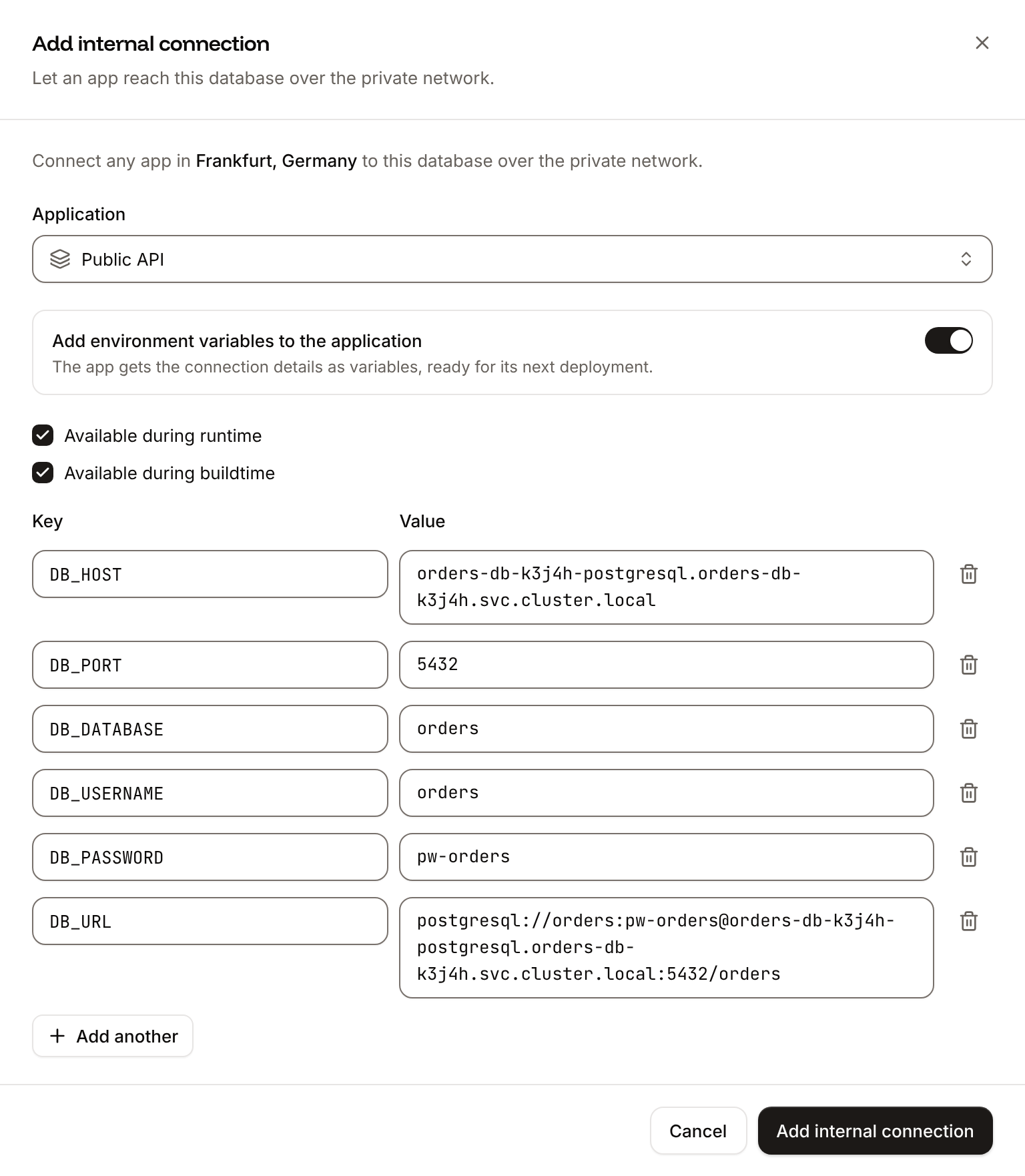
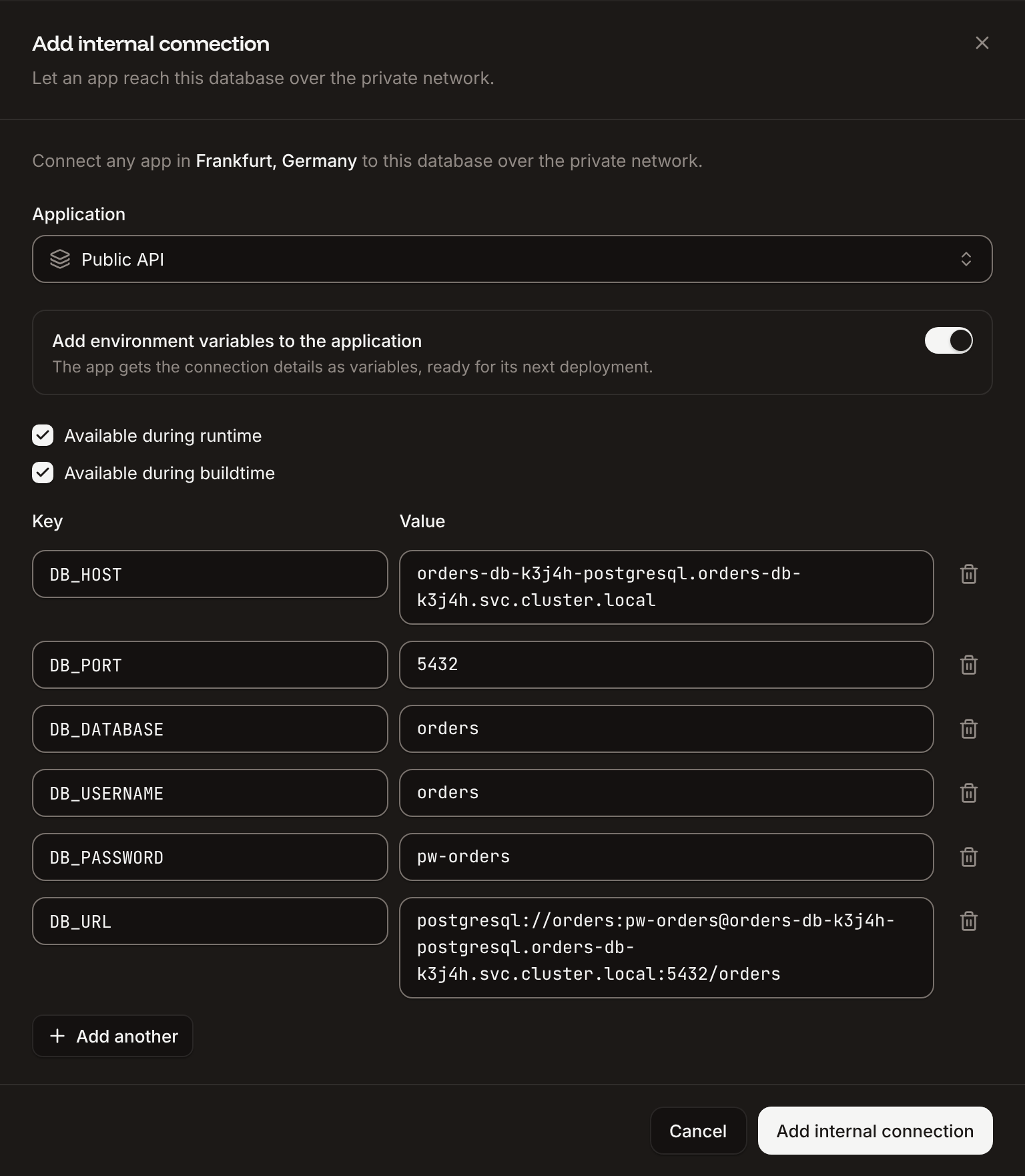
Choose the **Application**. Applications that are already connected, suspended or in another location are listed but can't be chosen.
Turn on **Add environment variables to the application**. Keep **Available during runtime** and **Available during buildtime** checked, or clear the one you don't need. Rename a key if your application expects another name, or click **Add another** to add a variable.
Click **Add internal connection**.
Deploy the application so its processes get the new variables. See [Deployments](/applications/deployments).
The application appears under **Connected applications**. The connection works as soon as it's added; the environment variables reach the application with its next deployment.
 ### Environment variables an internal connection adds
| PostgreSQL, MySQL, MariaDB | Redis, Valkey | Value |
| - | - | - |
| `DB_HOST` | `REDIS_HOST` | Internal hostname |
| `DB_PORT` | `REDIS_PORT` | Internal port |
| `DB_DATABASE` | | Database name |
| `DB_USERNAME` | | Database user |
| `DB_PASSWORD` | `REDIS_PASSWORD` | Database password |
| `DB_URL` | `REDIS_URL` | Internal connection URL |
* The variables are off unless you turn on **Add environment variables to the application**.
* For an application deployed from a Docker image, the variables are available at runtime only (images aren't built).
* The form stops you with `This key already exists on the application` if the application already has a variable with that key, `Duplicate key` if two rows share a key, and `Select at least one option` if neither runtime nor buildtime is checked.
* The variables are copies: they don't change when the database changes. After you [change the password](#change-the-database-password), update `DB_PASSWORD` and `DB_URL` (or `REDIS_PASSWORD` and `REDIS_URL`) on each application yourself. See [Environment variables](/applications/environment-variables).
### Disconnect an application
On the database's **Networking** tab, under **Connected applications**, click the trash icon next to the application, then click **Disconnect**. The application can no longer reach the database over the private network. Its environment variables stay as they are; delete them on the application's **Environment variables** tab if it no longer needs them.
## Enable the external connection
The external connection gives the database a public hostname and port. It's off for a new database.
In the sidebar, click **Databases**, then click the database. Click the **Networking** tab.
Under **Public networking**, in **External connection**, click **Enable**, then click **Enable** in the dialog.
The status changes to **Updating external connection**, then the section shows **Enabled** with the **External hostname**, **External port** and **External connection URL**. The **Overview** tab's **Connection** card shows them under **External**, where **Enable external connection** does the same.
* The external hostname starts with the database's permanent name, for example `orders-db-k3j4h.ext.sevalla.app`, and the port is assigned by Sevalla. Copy both from the dashboard; don't guess them.
* Anyone with the hostname, port, user and password can connect. Limit who can reach it with [IP restrictions](#restrict-access-by-ip-address).
* Turning the external connection off and on again keeps the same hostname and port.
* [Suspending the database](/databases/settings#suspend-a-database) turns the external connection off. Activating the database doesn't turn it back on: enable it again.
Databases that had their external connection on before the move to the current endpoints also had a legacy hostname of the form `.proxy.sevalla.app`, with a port from 30000 to 30999. Those legacy hostnames and ports were disabled on Oct 15, 2026, and connections to them fail. If a client still uses one, switch it to the hostname and port the dashboard shows now. When the **Overview** or **Networking** tab shows **Your external connection details have changed**, **Show legacy details** lists the old ones for reference. See [OCI migration](/platform/oci-migration#legacy-tcp-proxy-and-external-connection-endpoints).
To turn it off, click **Disable** in the same section, then **Disable** in the dialog. The database is no longer reachable from outside Sevalla; applications on internal connections keep working.
## Restrict access by IP address
IP restrictions allow or block clients of the external connection by IP address or CIDR block. They don't affect internal connections or the database studio.
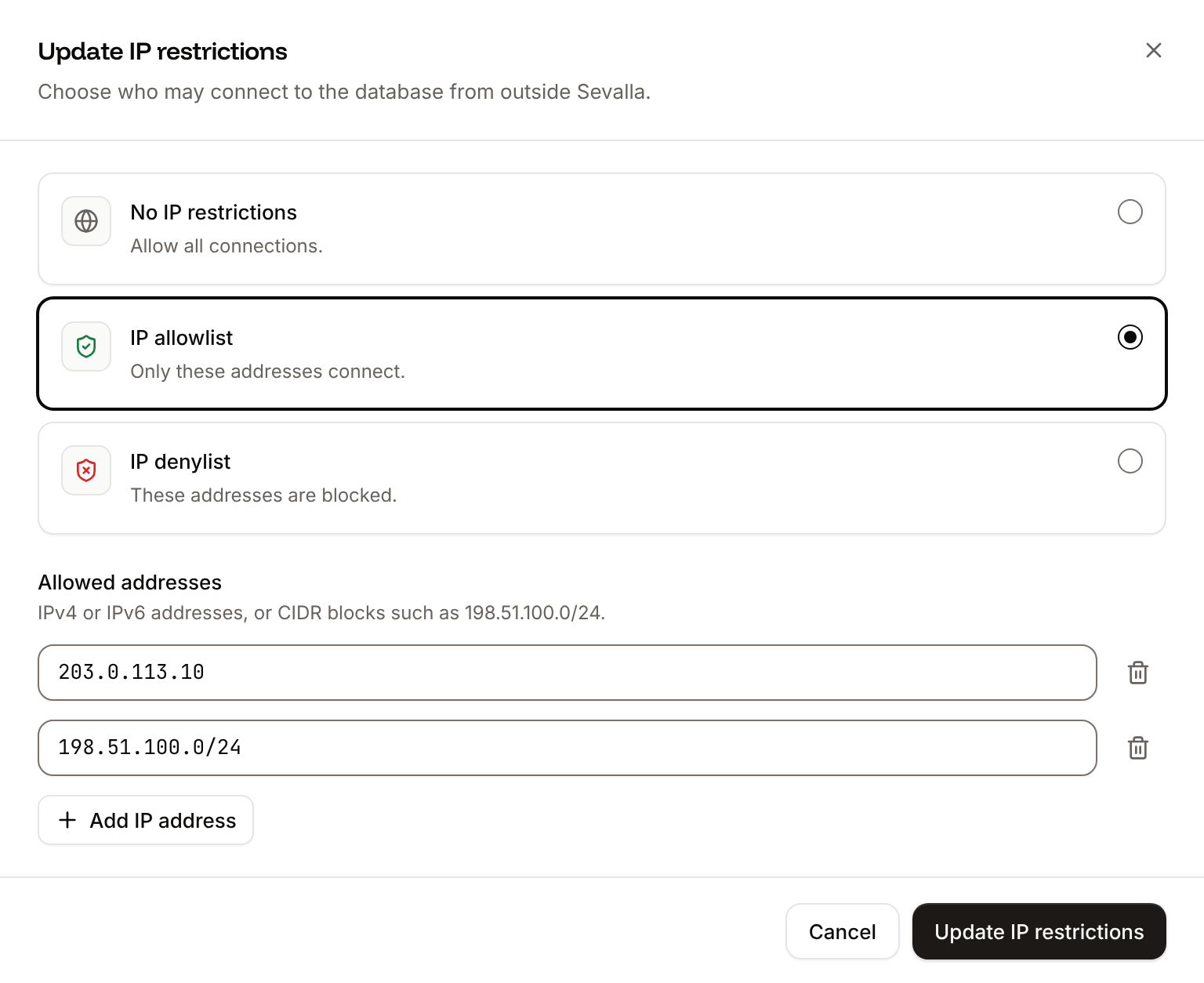
On the database's **Networking** tab, under **IP restrictions**, click **Update IP restrictions**.
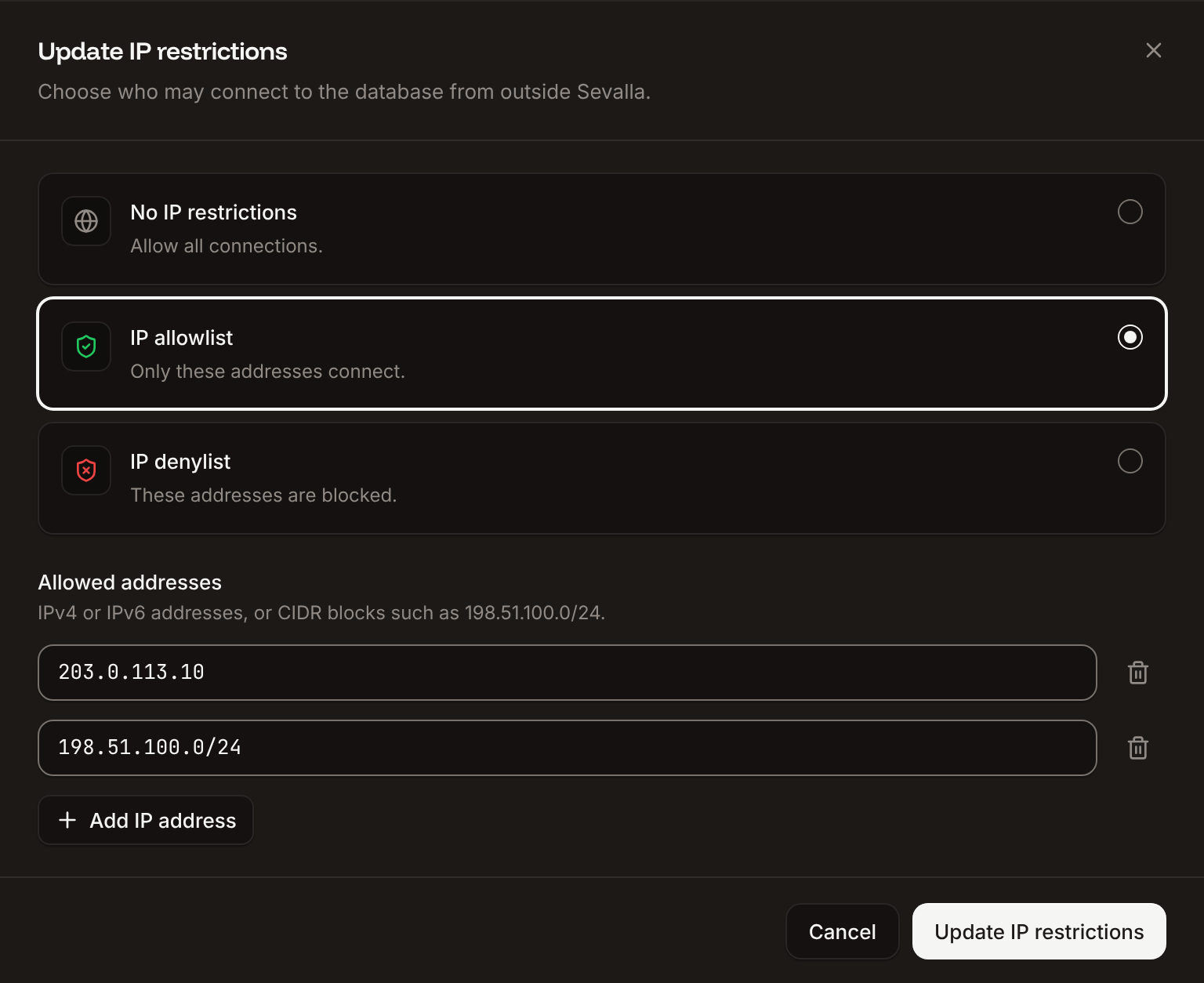
Click **IP allowlist** to let only the listed addresses connect, or **IP denylist** to block them. **No IP restrictions** lets every address connect.
Enter an address or CIDR block, for example `203.0.113.10` or `198.51.100.0/24`. Click **Add IP address** for each further entry.
Click **Update IP restrictions**.
The section shows **IP allowlist active** or **IP denylist active** with the list of addresses.
* Entries are IPv4 addresses in dotted four-part form, IPv6 addresses, or CIDR blocks of either.
* Use public addresses. Private, loopback and link-local addresses (such as `10.0.0.5`, `127.0.0.1` or `169.254.169.254`) are rejected with `Invalid IP address`.
* To reach the database from a Sevalla application in another location, allow that application's egress IP addresses. See [Networking](/applications/networking).
### Environment variables an internal connection adds
| PostgreSQL, MySQL, MariaDB | Redis, Valkey | Value |
| - | - | - |
| `DB_HOST` | `REDIS_HOST` | Internal hostname |
| `DB_PORT` | `REDIS_PORT` | Internal port |
| `DB_DATABASE` | | Database name |
| `DB_USERNAME` | | Database user |
| `DB_PASSWORD` | `REDIS_PASSWORD` | Database password |
| `DB_URL` | `REDIS_URL` | Internal connection URL |
* The variables are off unless you turn on **Add environment variables to the application**.
* For an application deployed from a Docker image, the variables are available at runtime only (images aren't built).
* The form stops you with `This key already exists on the application` if the application already has a variable with that key, `Duplicate key` if two rows share a key, and `Select at least one option` if neither runtime nor buildtime is checked.
* The variables are copies: they don't change when the database changes. After you [change the password](#change-the-database-password), update `DB_PASSWORD` and `DB_URL` (or `REDIS_PASSWORD` and `REDIS_URL`) on each application yourself. See [Environment variables](/applications/environment-variables).
### Disconnect an application
On the database's **Networking** tab, under **Connected applications**, click the trash icon next to the application, then click **Disconnect**. The application can no longer reach the database over the private network. Its environment variables stay as they are; delete them on the application's **Environment variables** tab if it no longer needs them.
## Enable the external connection
The external connection gives the database a public hostname and port. It's off for a new database.
In the sidebar, click **Databases**, then click the database. Click the **Networking** tab.
Under **Public networking**, in **External connection**, click **Enable**, then click **Enable** in the dialog.
The status changes to **Updating external connection**, then the section shows **Enabled** with the **External hostname**, **External port** and **External connection URL**. The **Overview** tab's **Connection** card shows them under **External**, where **Enable external connection** does the same.
* The external hostname starts with the database's permanent name, for example `orders-db-k3j4h.ext.sevalla.app`, and the port is assigned by Sevalla. Copy both from the dashboard; don't guess them.
* Anyone with the hostname, port, user and password can connect. Limit who can reach it with [IP restrictions](#restrict-access-by-ip-address).
* Turning the external connection off and on again keeps the same hostname and port.
* [Suspending the database](/databases/settings#suspend-a-database) turns the external connection off. Activating the database doesn't turn it back on: enable it again.
Databases that had their external connection on before the move to the current endpoints also had a legacy hostname of the form `.proxy.sevalla.app`, with a port from 30000 to 30999. Those legacy hostnames and ports were disabled on Oct 15, 2026, and connections to them fail. If a client still uses one, switch it to the hostname and port the dashboard shows now. When the **Overview** or **Networking** tab shows **Your external connection details have changed**, **Show legacy details** lists the old ones for reference. See [OCI migration](/platform/oci-migration#legacy-tcp-proxy-and-external-connection-endpoints).
To turn it off, click **Disable** in the same section, then **Disable** in the dialog. The database is no longer reachable from outside Sevalla; applications on internal connections keep working.
## Restrict access by IP address
IP restrictions allow or block clients of the external connection by IP address or CIDR block. They don't affect internal connections or the database studio.
On the database's **Networking** tab, under **IP restrictions**, click **Update IP restrictions**.
Click **IP allowlist** to let only the listed addresses connect, or **IP denylist** to block them. **No IP restrictions** lets every address connect.
Enter an address or CIDR block, for example `203.0.113.10` or `198.51.100.0/24`. Click **Add IP address** for each further entry.
Click **Update IP restrictions**.
The section shows **IP allowlist active** or **IP denylist active** with the list of addresses.
* Entries are IPv4 addresses in dotted four-part form, IPv6 addresses, or CIDR blocks of either.
* Use public addresses. Private, loopback and link-local addresses (such as `10.0.0.5`, `127.0.0.1` or `169.254.169.254`) are rejected with `Invalid IP address`.
* To reach the database from a Sevalla application in another location, allow that application's egress IP addresses. See [Networking](/applications/networking).
 ## Connect from the command line
With the external connection on, connect with the engine's own client and the values from the **External** tab. Replace the hostname, port, user and database in these examples with yours; each client asks for the password.
```bash PostgreSQL theme={null}
psql -h orders-db-k3j4h.ext.sevalla.app -p 20145 -U orders -d orders
```
```bash MySQL theme={null}
mysql -h orders-db-k3j4h.ext.sevalla.app -P 20145 -u orders -p orders
```
```bash MariaDB theme={null}
mariadb -h orders-db-k3j4h.ext.sevalla.app -P 20145 -u orders -p orders
```
```bash Redis theme={null}
REDISCLI_AUTH='' redis-cli -h orders-db-k3j4h.ext.sevalla.app -p 20145
```
```bash Valkey theme={null}
REDISCLI_AUTH='' valkey-cli -h orders-db-k3j4h.ext.sevalla.app -p 20145
```
For Redis and Valkey, replace `` with the database password. `REDISCLI_AUTH` keeps it out of the client's arguments (and avoids the warning `-a` prints); `valkey-cli` 7.2 and 8.1 read only this variable, 9.0 also reads `VALKEYCLI_AUTH`.
## Connect with TablePlus
[TablePlus](https://tableplus.com) works with every engine Sevalla offers. Any client for your engine works the same way: give it the external hostname, port, user, password and database.
The fastest way: with the external connection on, click **Open deeplink** on the **Overview** tab's **Connection** card (under **External**) or on the **Networking** tab. It opens the external connection URL in the application registered for it, such as TablePlus.
To add the connection by hand:
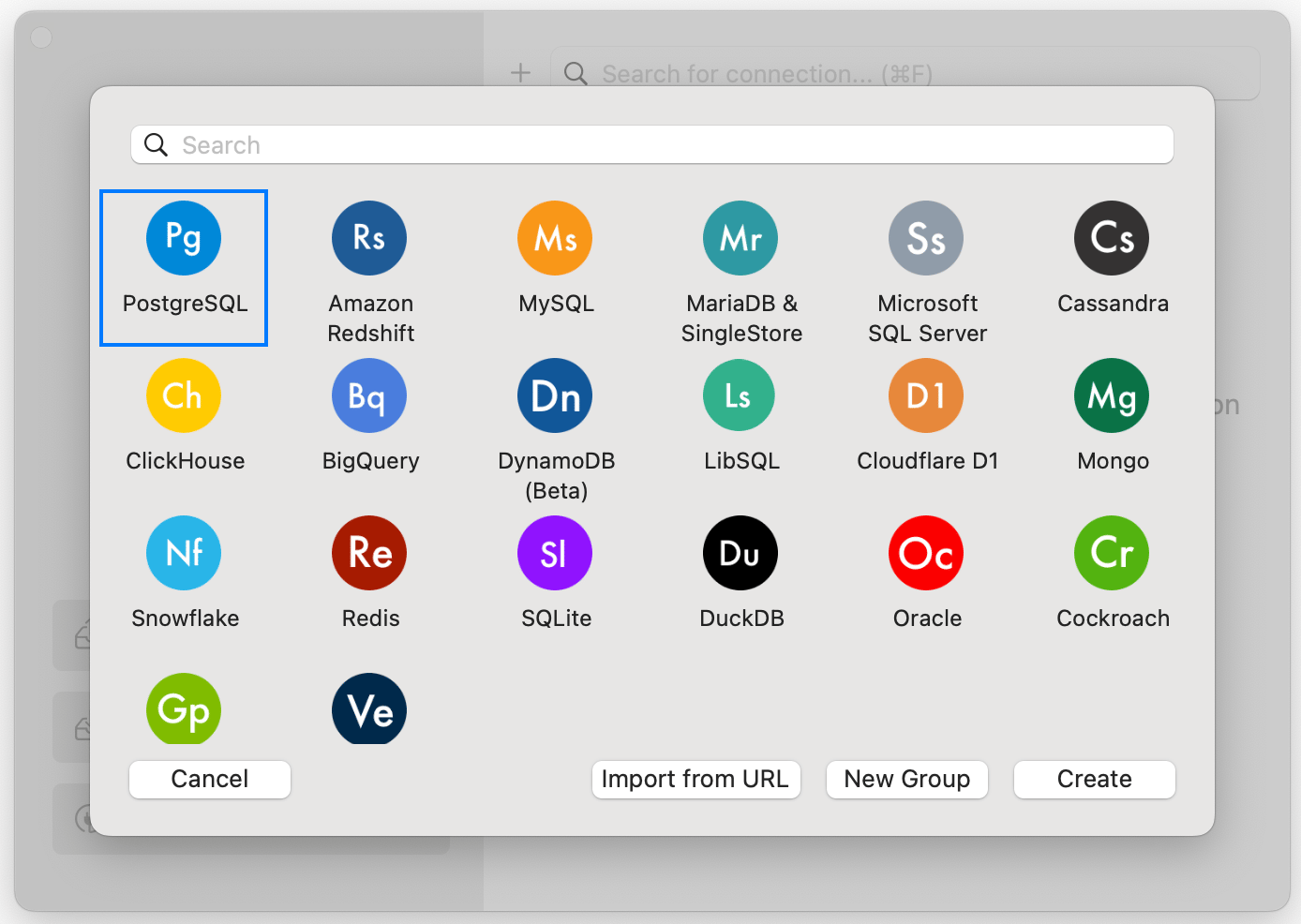
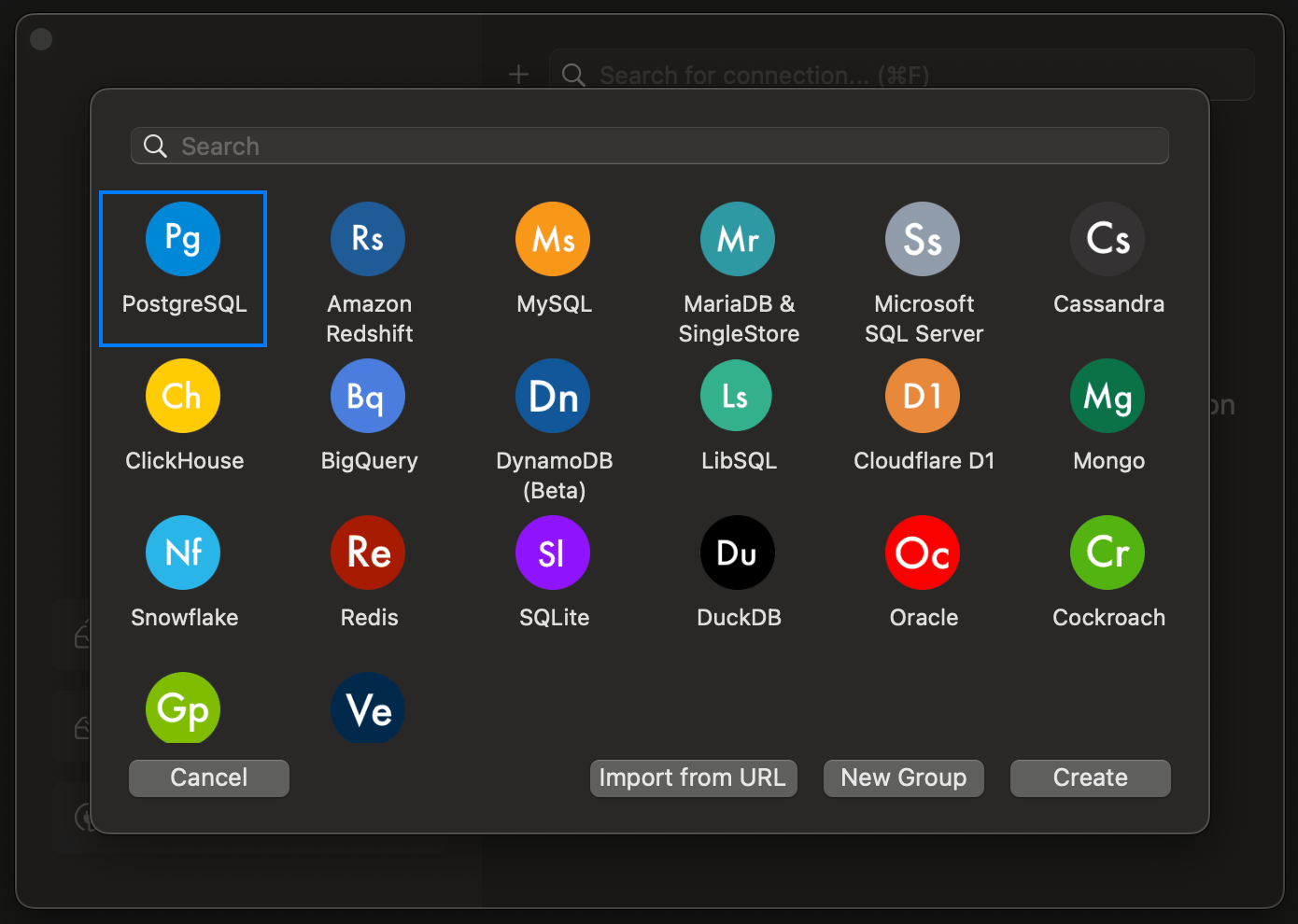
In TablePlus, click **Create a new connection**, choose the engine, then click **Create**. For Valkey, choose **Redis**.
## Connect from the command line
With the external connection on, connect with the engine's own client and the values from the **External** tab. Replace the hostname, port, user and database in these examples with yours; each client asks for the password.
```bash PostgreSQL theme={null}
psql -h orders-db-k3j4h.ext.sevalla.app -p 20145 -U orders -d orders
```
```bash MySQL theme={null}
mysql -h orders-db-k3j4h.ext.sevalla.app -P 20145 -u orders -p orders
```
```bash MariaDB theme={null}
mariadb -h orders-db-k3j4h.ext.sevalla.app -P 20145 -u orders -p orders
```
```bash Redis theme={null}
REDISCLI_AUTH='' redis-cli -h orders-db-k3j4h.ext.sevalla.app -p 20145
```
```bash Valkey theme={null}
REDISCLI_AUTH='' valkey-cli -h orders-db-k3j4h.ext.sevalla.app -p 20145
```
For Redis and Valkey, replace `` with the database password. `REDISCLI_AUTH` keeps it out of the client's arguments (and avoids the warning `-a` prints); `valkey-cli` 7.2 and 8.1 read only this variable, 9.0 also reads `VALKEYCLI_AUTH`.
## Connect with TablePlus
[TablePlus](https://tableplus.com) works with every engine Sevalla offers. Any client for your engine works the same way: give it the external hostname, port, user, password and database.
The fastest way: with the external connection on, click **Open deeplink** on the **Overview** tab's **Connection** card (under **External**) or on the **Networking** tab. It opens the external connection URL in the application registered for it, such as TablePlus.
To add the connection by hand:
In TablePlus, click **Create a new connection**, choose the engine, then click **Create**. For Valkey, choose **Redis**.
 Copy the values from the database's **External** connection details into **Host/Socket**, **Port**, **User**, **Password** and **Database**. Redis and Valkey need only the host, port and password.
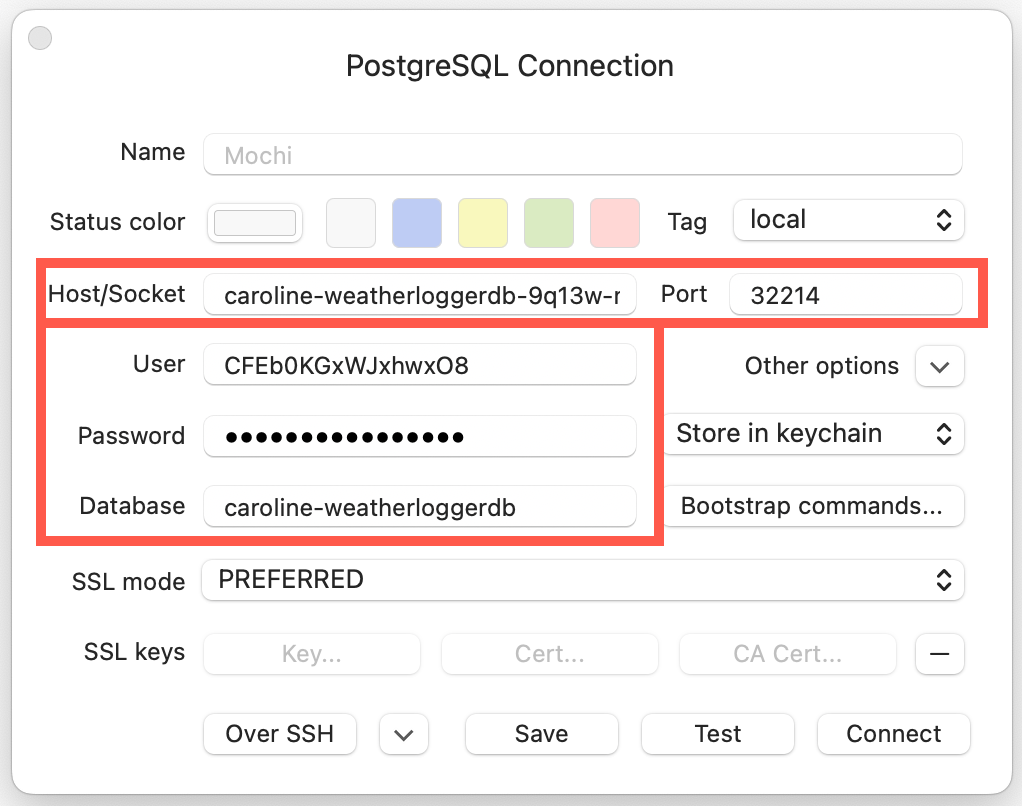
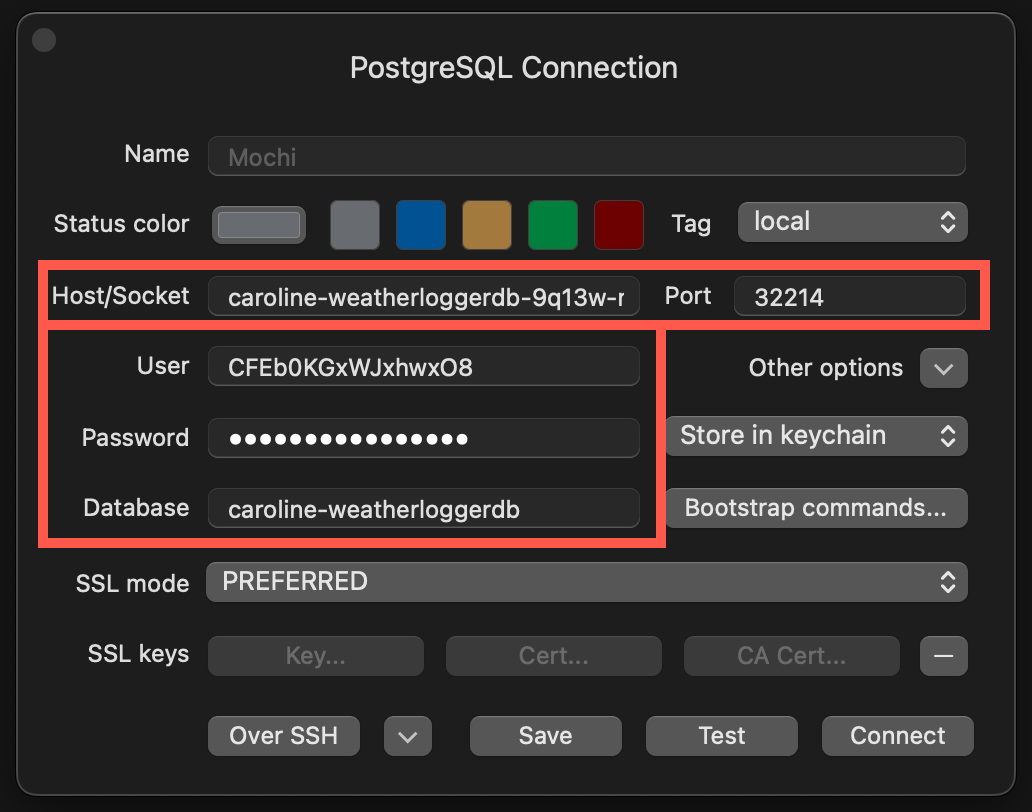 Click **Test** to check the details, then click **Connect**.
## Change the database password
In the sidebar, click **Databases**, then click the database. On the **Overview** tab, in the **Password** card, click **Change password**.
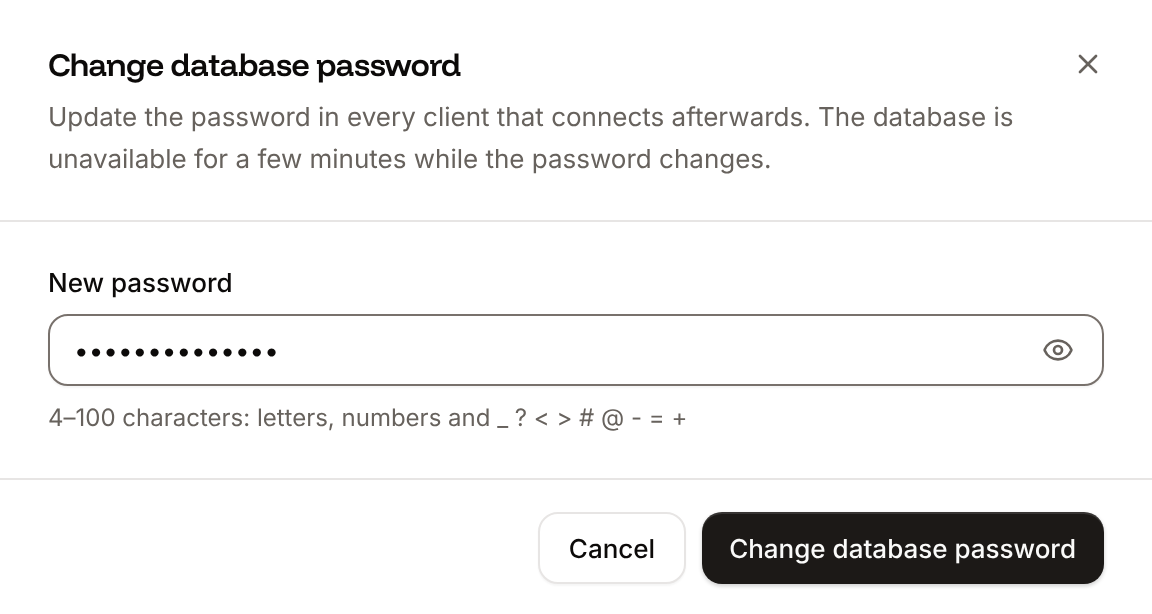
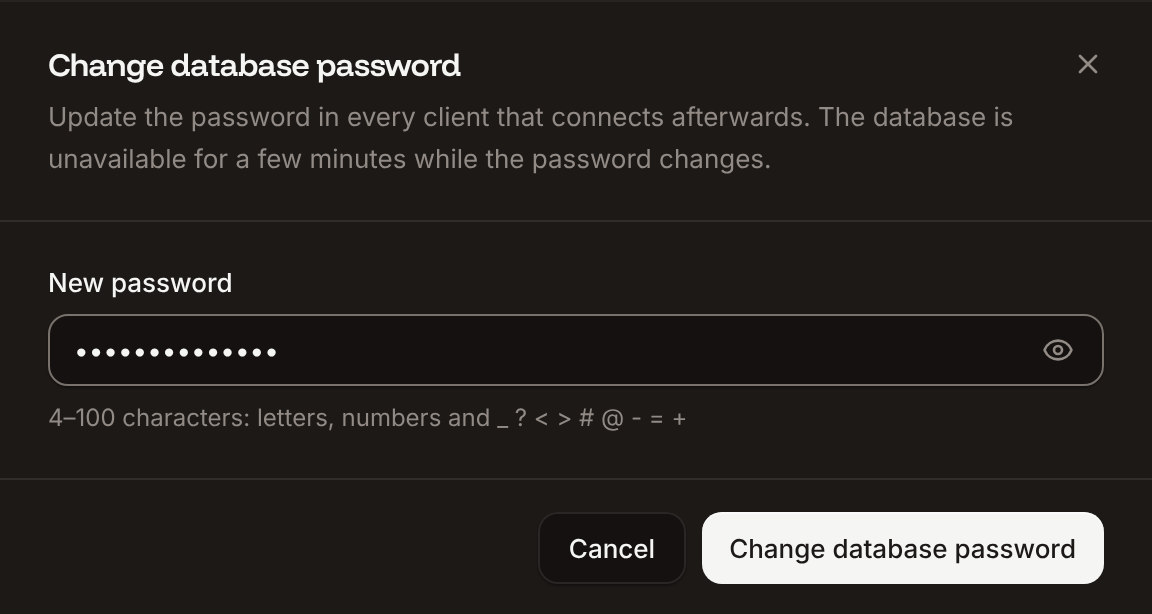
Enter the **New password**: 4 to 100 characters, letters, numbers and `_ ? < > # @ - = +`. It must differ from the current one.
Click **Change database password**.
The status changes to **Changing password**, and the database is unavailable for a few minutes. When it's **Ready** again, the new password works for internal and external connections and the connection URLs show it. If the status changes to **Password change failed**, the old password still works: try again.
Update the password in every client and application that connects, including the `DB_PASSWORD` and `DB_URL` (or `REDIS_PASSWORD` and `REDIS_URL`) variables of [connected applications](#environment-variables-an-internal-connection-adds), then deploy those applications. You can't change the password while the database is suspended or while another change is running.
Click **Test** to check the details, then click **Connect**.
## Change the database password
In the sidebar, click **Databases**, then click the database. On the **Overview** tab, in the **Password** card, click **Change password**.
Enter the **New password**: 4 to 100 characters, letters, numbers and `_ ? < > # @ - = +`. It must differ from the current one.
Click **Change database password**.
The status changes to **Changing password**, and the database is unavailable for a few minutes. When it's **Ready** again, the new password works for internal and external connections and the connection URLs show it. If the status changes to **Password change failed**, the old password still works: try again.
Update the password in every client and application that connects, including the `DB_PASSWORD` and `DB_URL` (or `REDIS_PASSWORD` and `REDIS_URL`) variables of [connected applications](#environment-variables-an-internal-connection-adds), then deploy those applications. You can't change the password while the database is suspended or while another change is running.
 ## API and CLI
| Task | API | CLI |
| - | - | - |
| List internal connections | [List internal connections](https://api-docs.sevalla.com/v3/databases/list-internal-connections) | `sevalla databases connections internal-list --db-id ` |
| Connect an application | [Create internal connection](https://api-docs.sevalla.com/v3/databases/create-internal-connection) | `sevalla databases connections internal-create --target-id ` |
| Disconnect an application | [Delete internal connection](https://api-docs.sevalla.com/v3/databases/delete-internal-connection) | `sevalla databases connections internal-delete --confirm` |
| Turn the external connection on or off | [Toggle external connection](https://api-docs.sevalla.com/v3/databases/toggle-external-connection) | `sevalla databases connections external-toggle ` |
| Get IP restrictions | [Get database IP restriction](https://api-docs.sevalla.com/v3/databases/get-database-ip-restriction) | `sevalla databases ip-restriction get ` |
| Update IP restrictions | [Update database IP restriction](https://api-docs.sevalla.com/v3/databases/update-database-ip-restriction) | `sevalla databases ip-restriction update --type allow --ip-list 203.0.113.10,198.51.100.0/24 --enabled true` |
| Change the password | [Reset database password](https://api-docs.sevalla.com/v3/databases/reset-database-password) | `sevalla databases reset-password --new-password ` |
The API's internal connection endpoint doesn't add environment variables; set them with the application's environment variable endpoints.
This documentation is built and hosted on [Mintlify](https://mintlify.com), a developer documentation platform.
## API and CLI
| Task | API | CLI |
| - | - | - |
| List internal connections | [List internal connections](https://api-docs.sevalla.com/v3/databases/list-internal-connections) | `sevalla databases connections internal-list --db-id ` |
| Connect an application | [Create internal connection](https://api-docs.sevalla.com/v3/databases/create-internal-connection) | `sevalla databases connections internal-create --target-id ` |
| Disconnect an application | [Delete internal connection](https://api-docs.sevalla.com/v3/databases/delete-internal-connection) | `sevalla databases connections internal-delete --confirm` |
| Turn the external connection on or off | [Toggle external connection](https://api-docs.sevalla.com/v3/databases/toggle-external-connection) | `sevalla databases connections external-toggle ` |
| Get IP restrictions | [Get database IP restriction](https://api-docs.sevalla.com/v3/databases/get-database-ip-restriction) | `sevalla databases ip-restriction get ` |
| Update IP restrictions | [Update database IP restriction](https://api-docs.sevalla.com/v3/databases/update-database-ip-restriction) | `sevalla databases ip-restriction update --type allow --ip-list 203.0.113.10,198.51.100.0/24 --enabled true` |
| Change the password | [Reset database password](https://api-docs.sevalla.com/v3/databases/reset-database-password) | `sevalla databases reset-password --new-password ` |
The API's internal connection endpoint doesn't add environment variables; set them with the application's environment variable endpoints.
This documentation is built and hosted on [Mintlify](https://mintlify.com), a developer documentation platform.