> ## Documentation Index
> Fetch the complete documentation index at: https://docs.sevalla.com/llms.txt
> Use this file to discover all available pages before exploring further.
# Database Studio
> Use the integrated Database Studio to run queries and manage your database.
With the Database Studio, you can manage your MySQL, MariaDB, and PostgreSQL databases right from the Sevalla UI. It allows you to run queries, view data, and more without having to use an external tool or download your database.
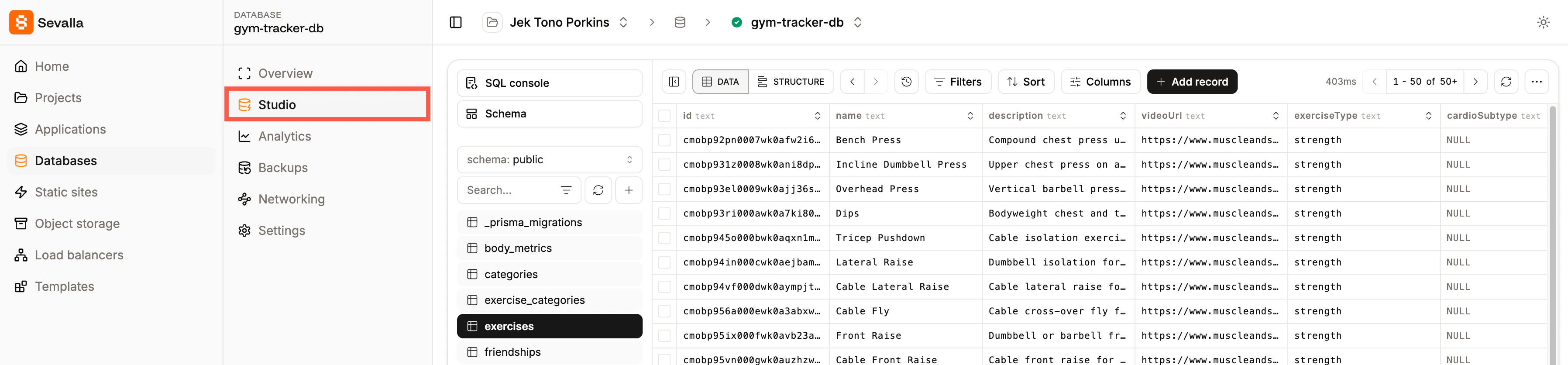
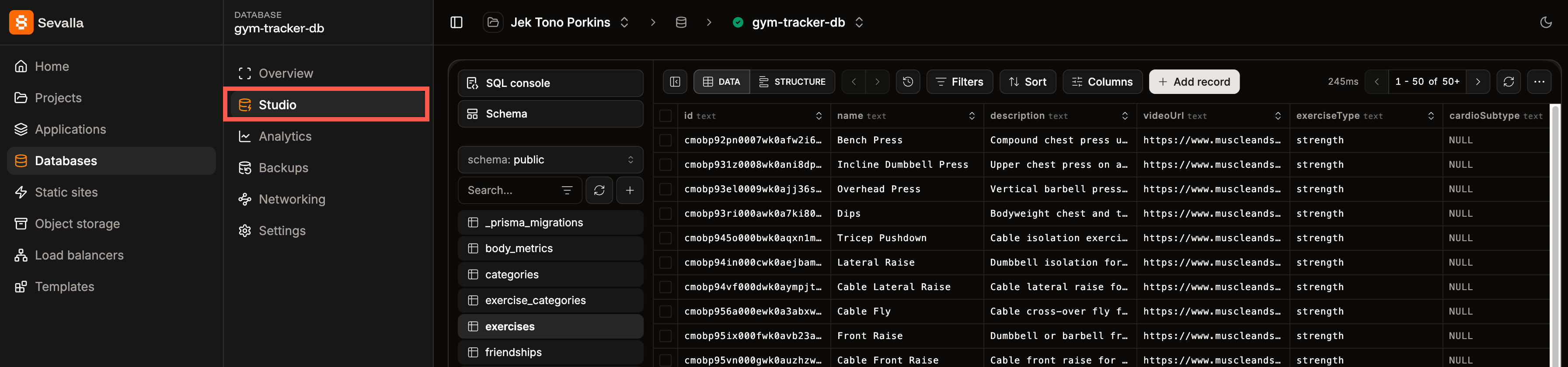
To access the Database Studio, go to your database and click **Studio**.
 ## Sort your data
Within the Database Studio, you can sort the columns by using the arrows at the top of each column; you can also choose which columns you want to show using the **Columns** option. You can use **Filters** to show specific data, and you can apply more than one filter at a time. When a filter is applied, it shows an exclamation mark on the **Filters** option.
## Sort your data
Within the Database Studio, you can sort the columns by using the arrows at the top of each column; you can also choose which columns you want to show using the **Columns** option. You can use **Filters** to show specific data, and you can apply more than one filter at a time. When a filter is applied, it shows an exclamation mark on the **Filters** option.
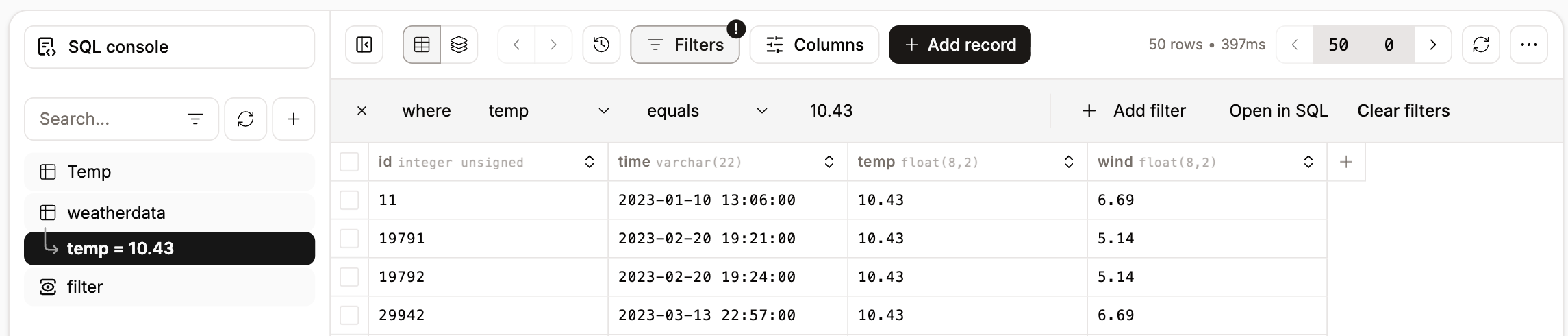
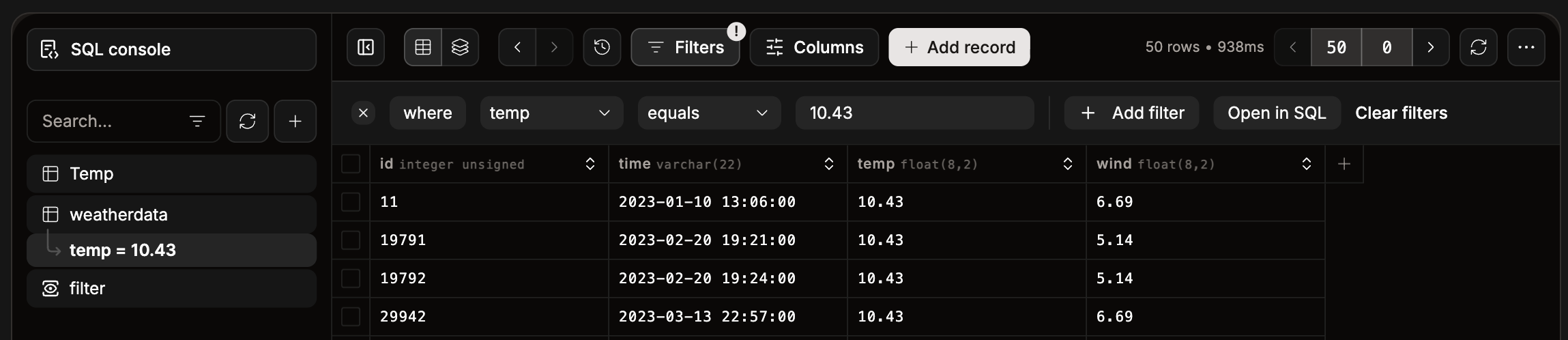 To open and edit the filter within the [SQL console](#sql-console), click **Open in SQL**.

 You can create customized views of your database for easier access to the data you need. Click the plus icon, then select **Create View**. From there, you can give your view a name, choose the tables and columns to display, and apply any necessary conditions.

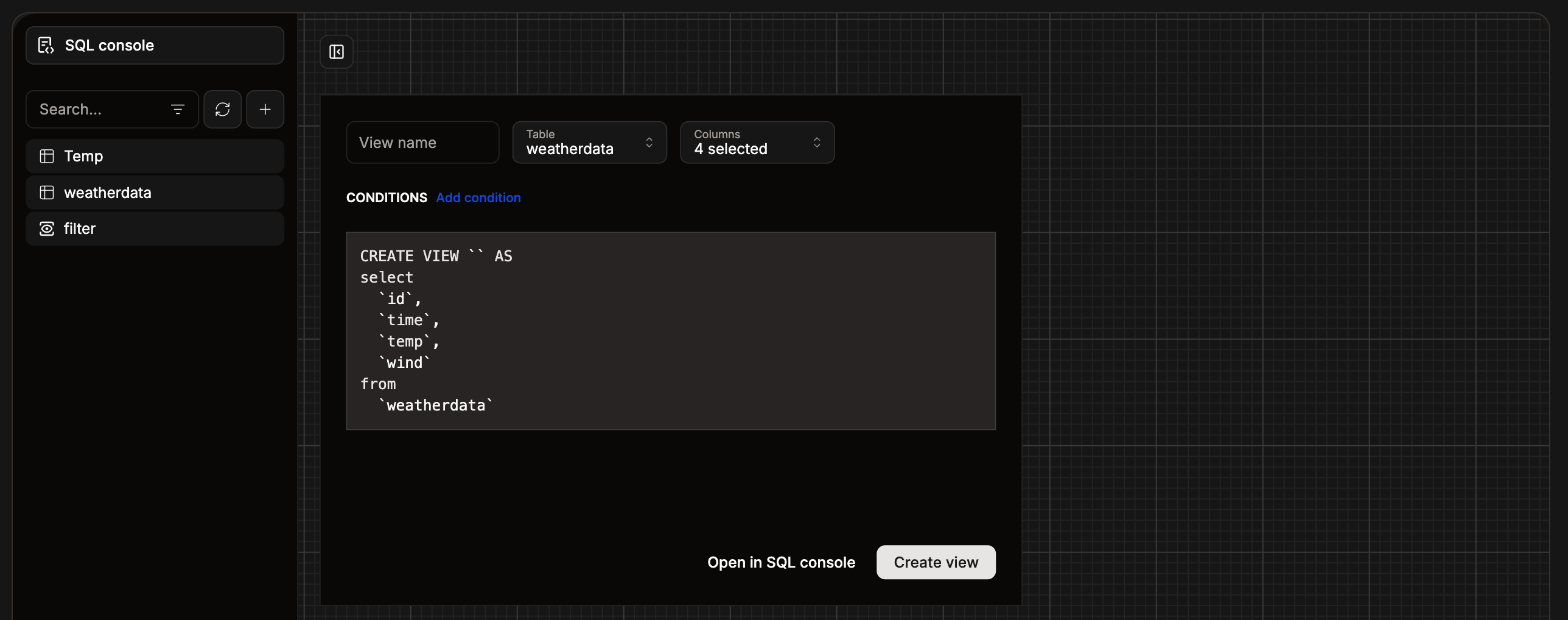 To open and edit the view within the [SQL console](#sql-console), click **Open in SQL console**.
## Export your database
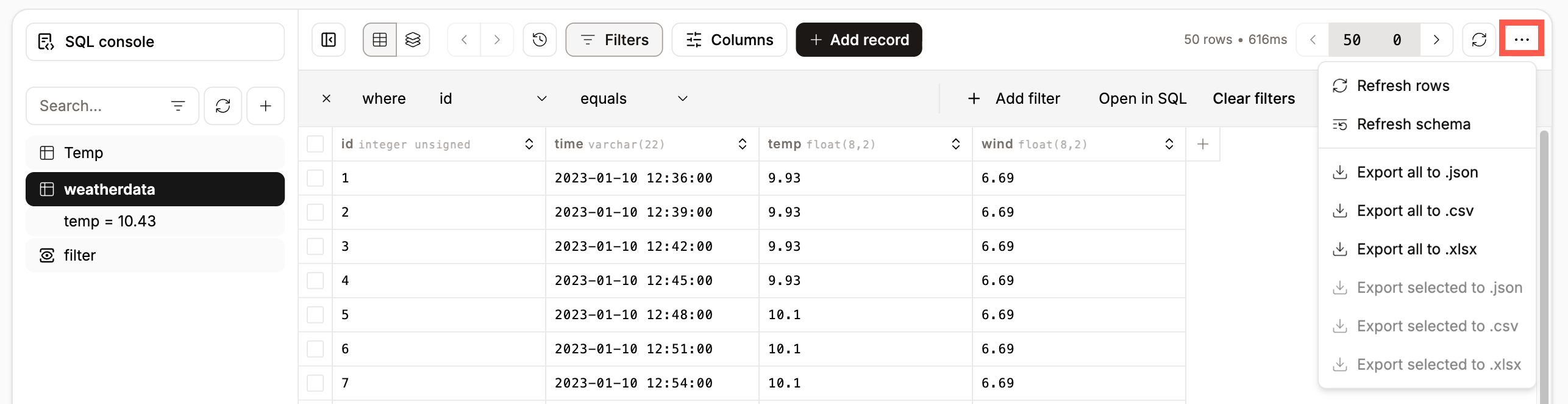
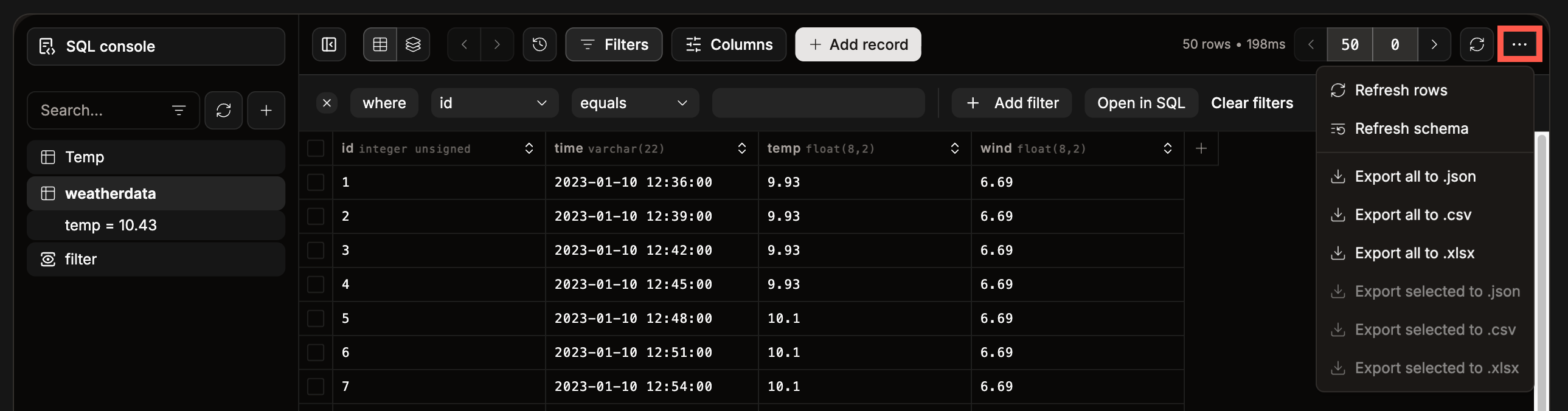
Within the Database studio, you can export your entire database or just selected data to a `.json`, `.csv`, or `.xlsx` file. To export your data, click the ellipsis (three dots) and choose the file type you want to export to.
To open and edit the view within the [SQL console](#sql-console), click **Open in SQL console**.
## Export your database
Within the Database studio, you can export your entire database or just selected data to a `.json`, `.csv`, or `.xlsx` file. To export your data, click the ellipsis (three dots) and choose the file type you want to export to.
 ## SQL console
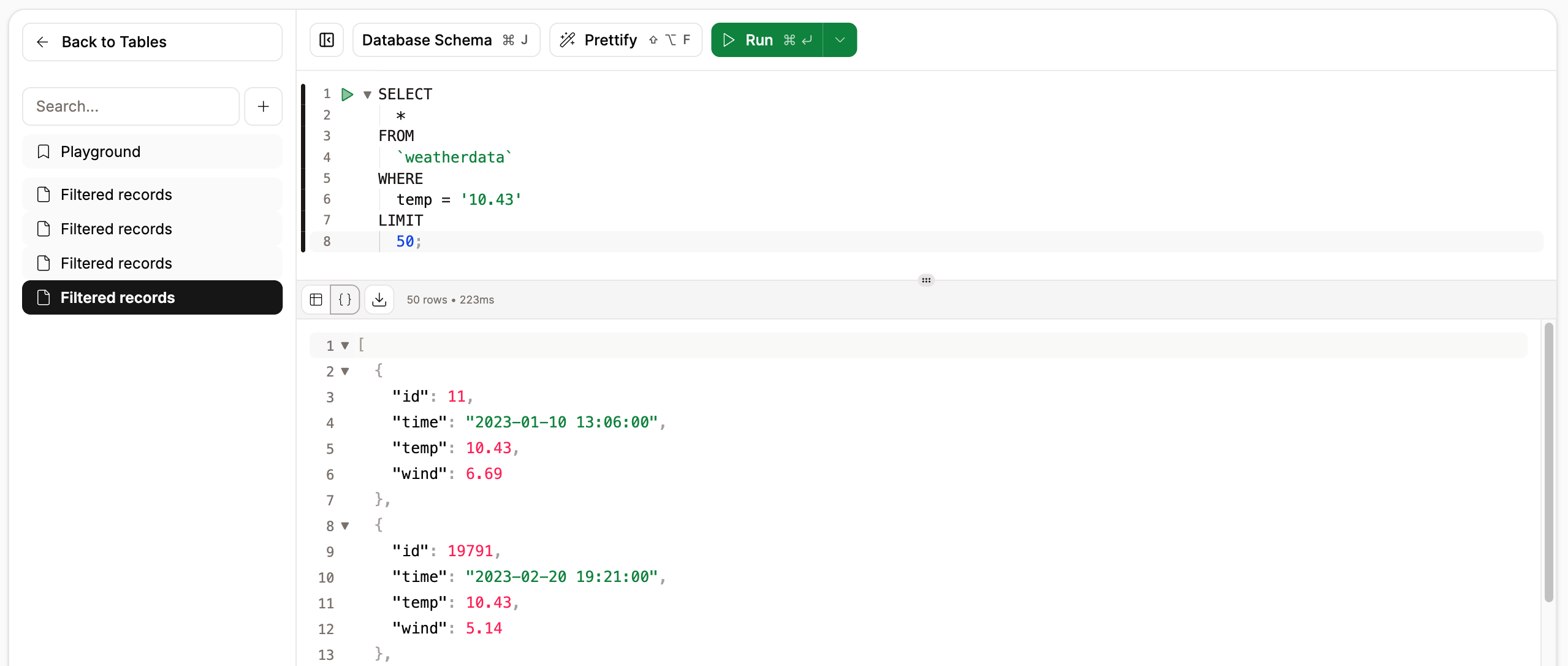
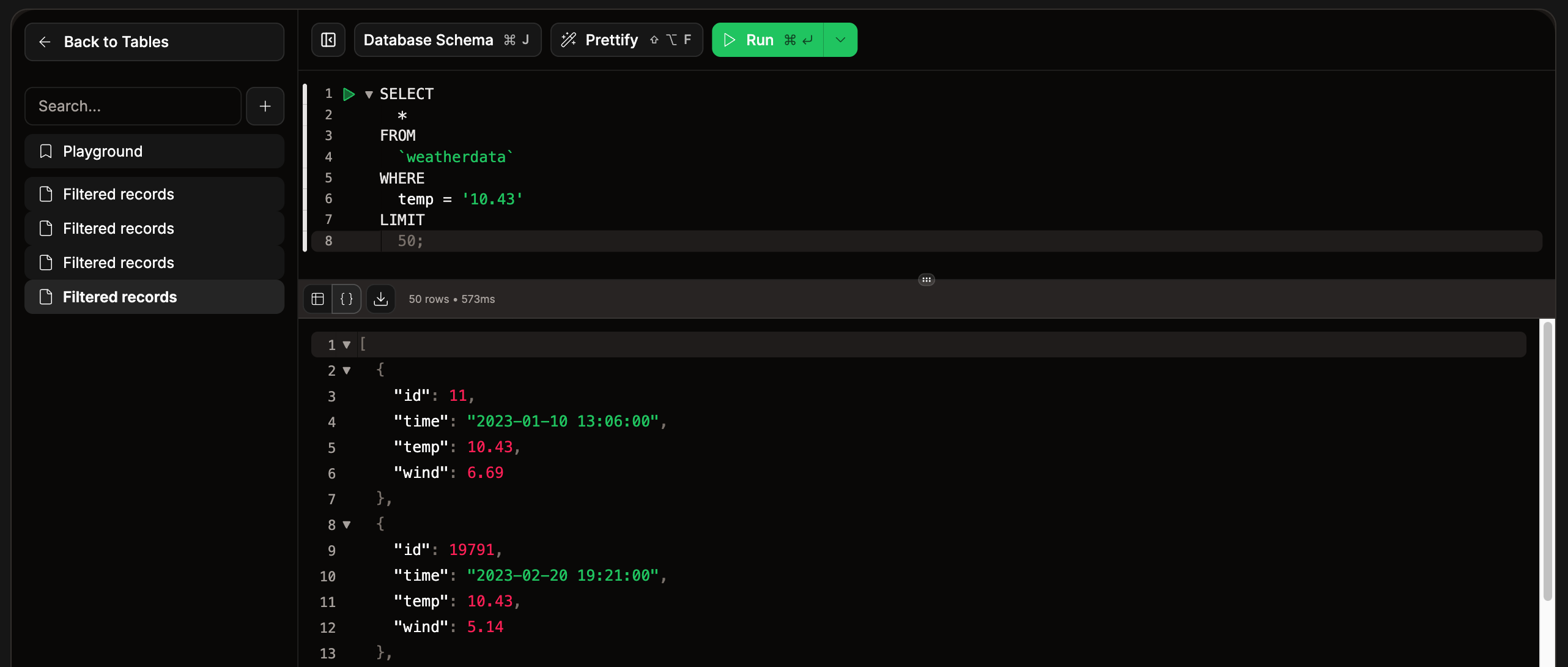
Within the Database studio, you can access an SQL console where you can run SQL queries on your database. The SQL editor lets you view the **Database Schema**, **Prettify** the code for better readability, and **Run** the SQL directly in the console. When you run the SQL query, you can choose to show the results as a table or as JSON, and export the results to a `.json`, `.csv`, or `.xlsx` file. You can also store these queries as snippets and create folders to organize the snippets.
## SQL console
Within the Database studio, you can access an SQL console where you can run SQL queries on your database. The SQL editor lets you view the **Database Schema**, **Prettify** the code for better readability, and **Run** the SQL directly in the console. When you run the SQL query, you can choose to show the results as a table or as JSON, and export the results to a `.json`, `.csv`, or `.xlsx` file. You can also store these queries as snippets and create folders to organize the snippets.
 ## Add a record
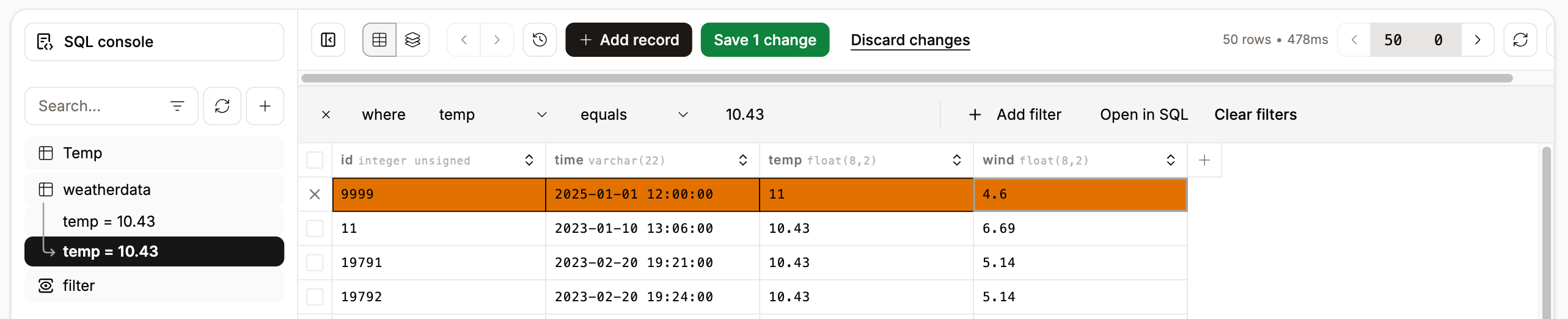
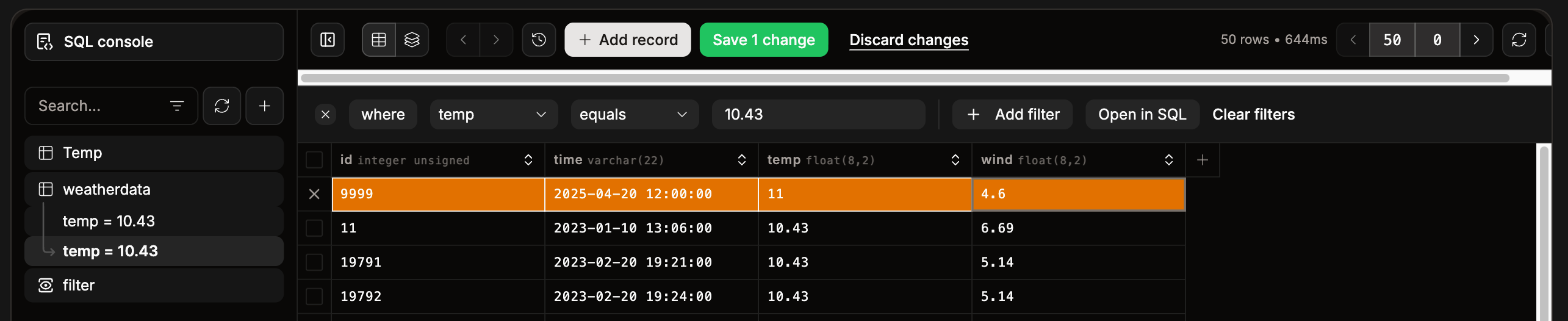
To add a record to your database, click **Add record**, enter the required data into the table, and click **Save x change(s)**.
## Add a record
To add a record to your database, click **Add record**, enter the required data into the table, and click **Save x change(s)**.
 ## Add a table
To add another table to your database, click the plus icon and then **Create Table**. You can then name the table and define its columns, specifying the data type, constraints, default values, and expressions for any generated data. Additionally, you can add table-level constraints and indexes as needed.
## Add a table
To add another table to your database, click the plus icon and then **Create Table**. You can then name the table and define its columns, specifying the data type, constraints, default values, and expressions for any generated data. Additionally, you can add table-level constraints and indexes as needed.
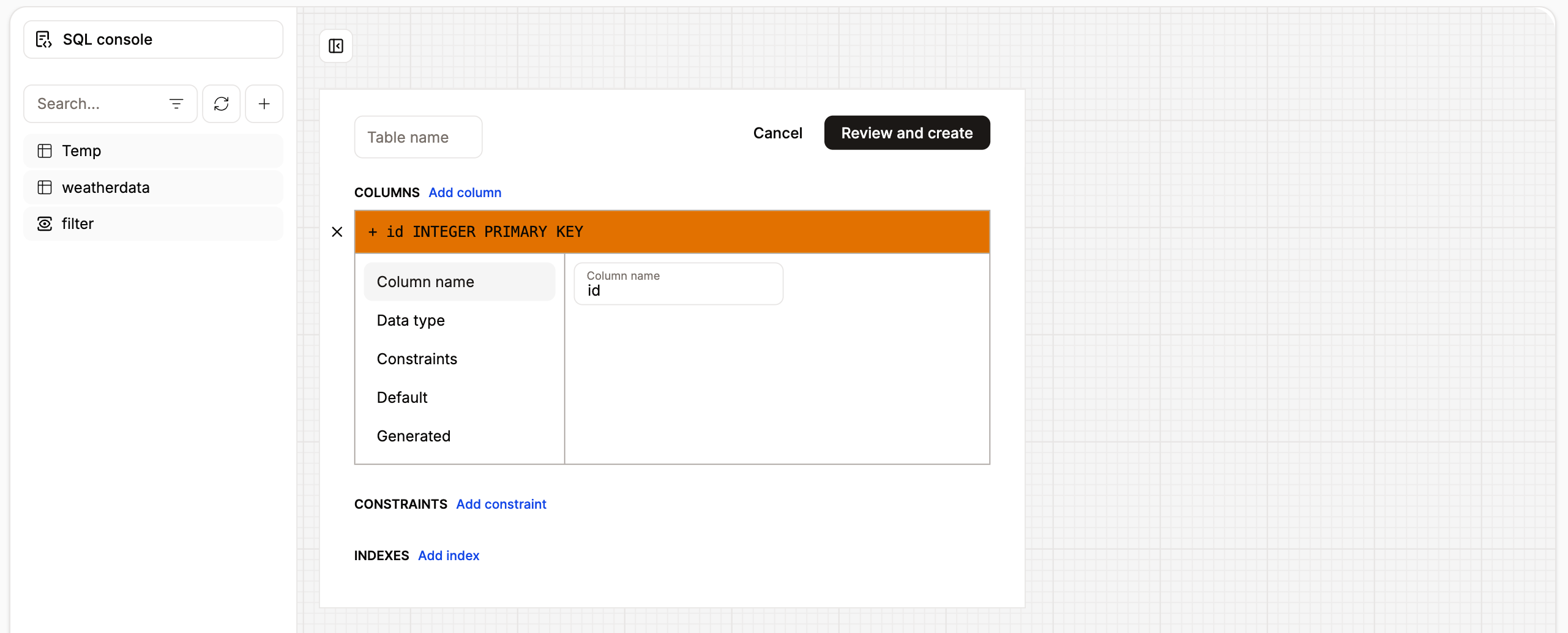
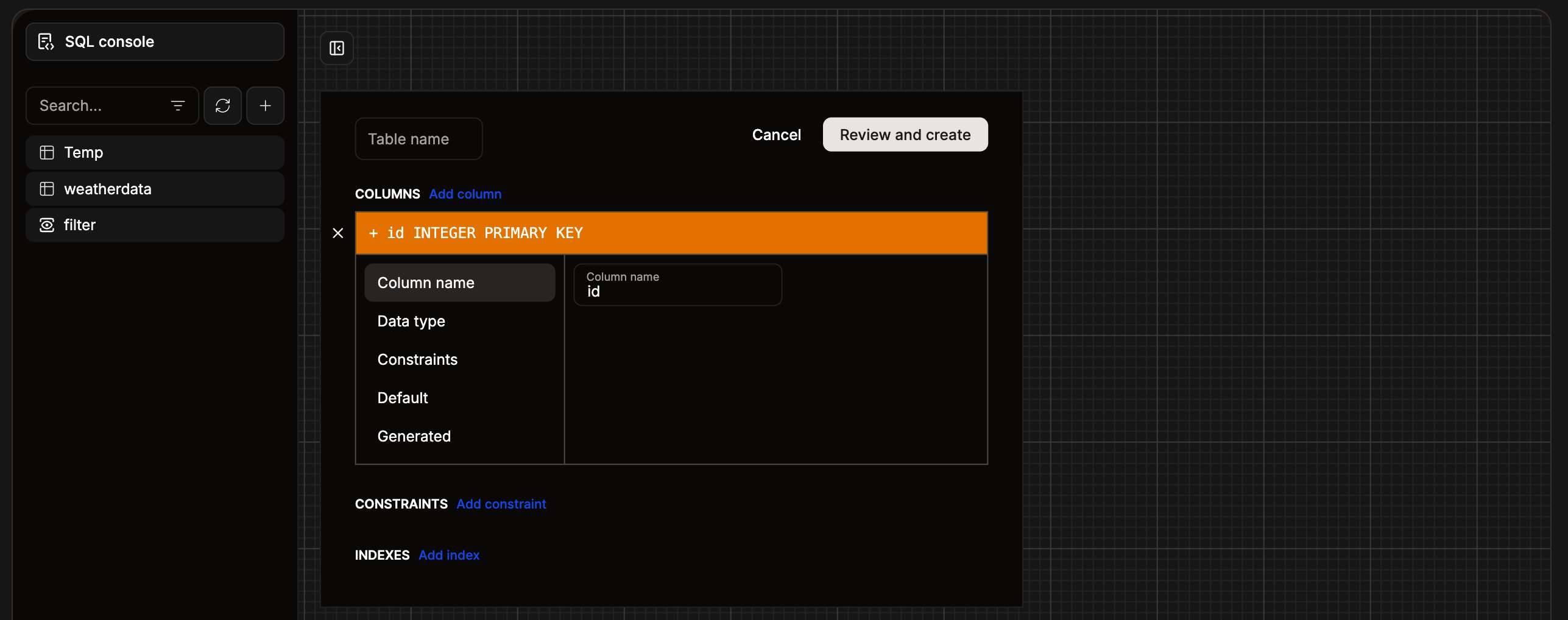 Once you've added the required columns, click **Review and create**. This will show you the SQL for the new table. If it looks correct, click **Create table**.
## Settings
The following settings are available within the Database studio:
* **Table rows count:** Displays the total number of rows in each table. This action performs a light scan of the table, which may slow down performance and increase billing costs, particularly for large tables or databases with many rows.
* **Expand subviews:** If a table contains a foreign key to another table, you can open the related data in a subview. This option keeps subviews open, allowing you to easily explore related records without navigating away.
* **Pagination type:** Choose how you want to view the results, **Limit offset** allows you to determine how many rows are shown per page, **Pages** shows the rows in batches of 50.
* **Flat schemas:** PostgreSQL only. Shows the database tables without grouping them by the schema.
* **Show bytea as:** PostgreSQL only. Choose to show the bytea data type as HEX or UTF8.
* **Editor keybindings:** Choose which keybinding profile you want to use for your keyboard shortcuts from VS Code, Vim, or Emacs.
## Report a bug
If you encounter an issue while using the Database studio, click Report a bug, you can then download the error context and report it to our [Support Team](/support/contact-support).
Once you've added the required columns, click **Review and create**. This will show you the SQL for the new table. If it looks correct, click **Create table**.
## Settings
The following settings are available within the Database studio:
* **Table rows count:** Displays the total number of rows in each table. This action performs a light scan of the table, which may slow down performance and increase billing costs, particularly for large tables or databases with many rows.
* **Expand subviews:** If a table contains a foreign key to another table, you can open the related data in a subview. This option keeps subviews open, allowing you to easily explore related records without navigating away.
* **Pagination type:** Choose how you want to view the results, **Limit offset** allows you to determine how many rows are shown per page, **Pages** shows the rows in batches of 50.
* **Flat schemas:** PostgreSQL only. Shows the database tables without grouping them by the schema.
* **Show bytea as:** PostgreSQL only. Choose to show the bytea data type as HEX or UTF8.
* **Editor keybindings:** Choose which keybinding profile you want to use for your keyboard shortcuts from VS Code, Vim, or Emacs.
## Report a bug
If you encounter an issue while using the Database studio, click Report a bug, you can then download the error context and report it to our [Support Team](/support/contact-support).