> ## Documentation Index
> Fetch the complete documentation index at: https://docs.sevalla.com/llms.txt
> Use this file to discover all available pages before exploring further.
# Databases - Networking
> Connect to your databases using various clients and tools.
Networking allows you to communicate with your database using one of the following methods:
* An **external connection** involves an internet round-trip, making it significantly slower than internal communication. External connections are turned off by default. We recommend external connections if you are hosting only your database with us, but not your front end. To connect to the database using an external connection, you must [enable public access](/databases/connections#external-connections).
* An **internal connection** stays within our network and is thus much faster and more secure. We recommend this method if you host both your front-end and database with Application Hosting and Database Hosting services.
Internal connections are only available between applications and databases hosted with Application Hosting and Database Hosting services.
## Public networking
 ### External connection
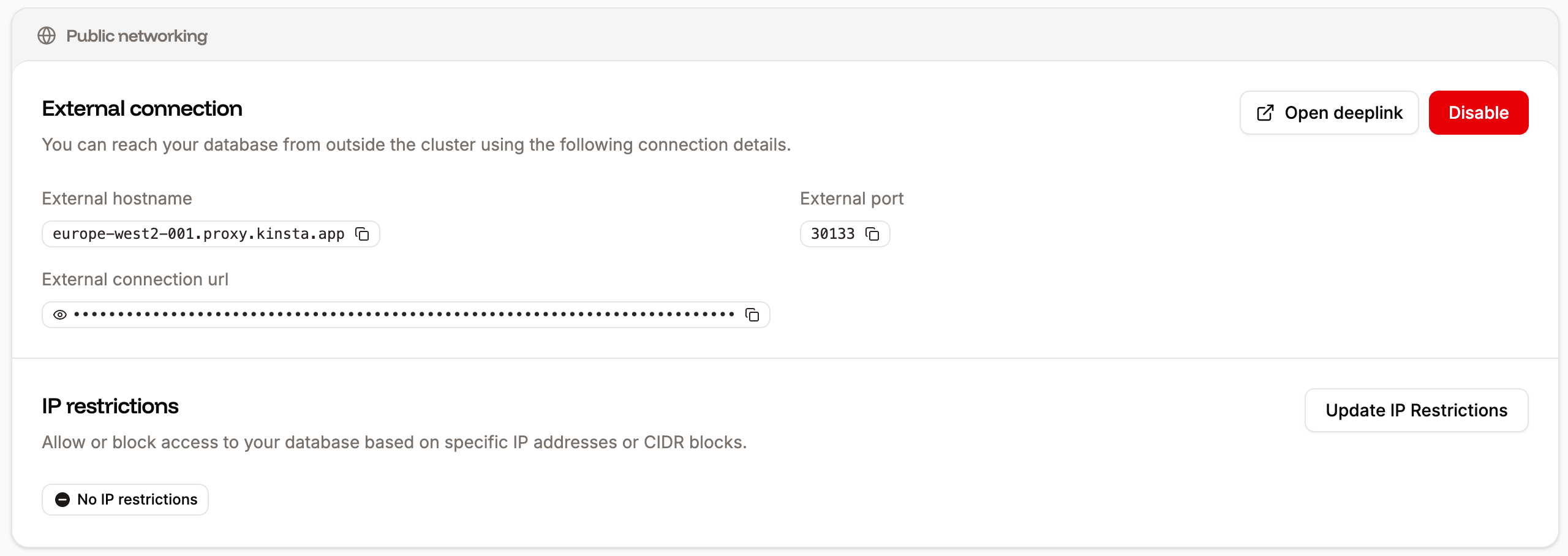
To enable or disable external access to your database, select either **Enable** or **Disable**. If public access is enabled, you can use the connection details to [connect to your database](/databases/manage-data/tableplus) via the command line (CLI) or with a database tool.
Click **Open deeplink** to open your database within [TablePlus](https://docs.sevalla.com/databases/manage-data/tableplus).
### IP restrictions
IP restrictions allow you to restrict or block access to specific IP addresses or CIDR blocks. If an unauthorized user (IP address) attempts to access the database, they will receive a **403 – Forbidden error**.
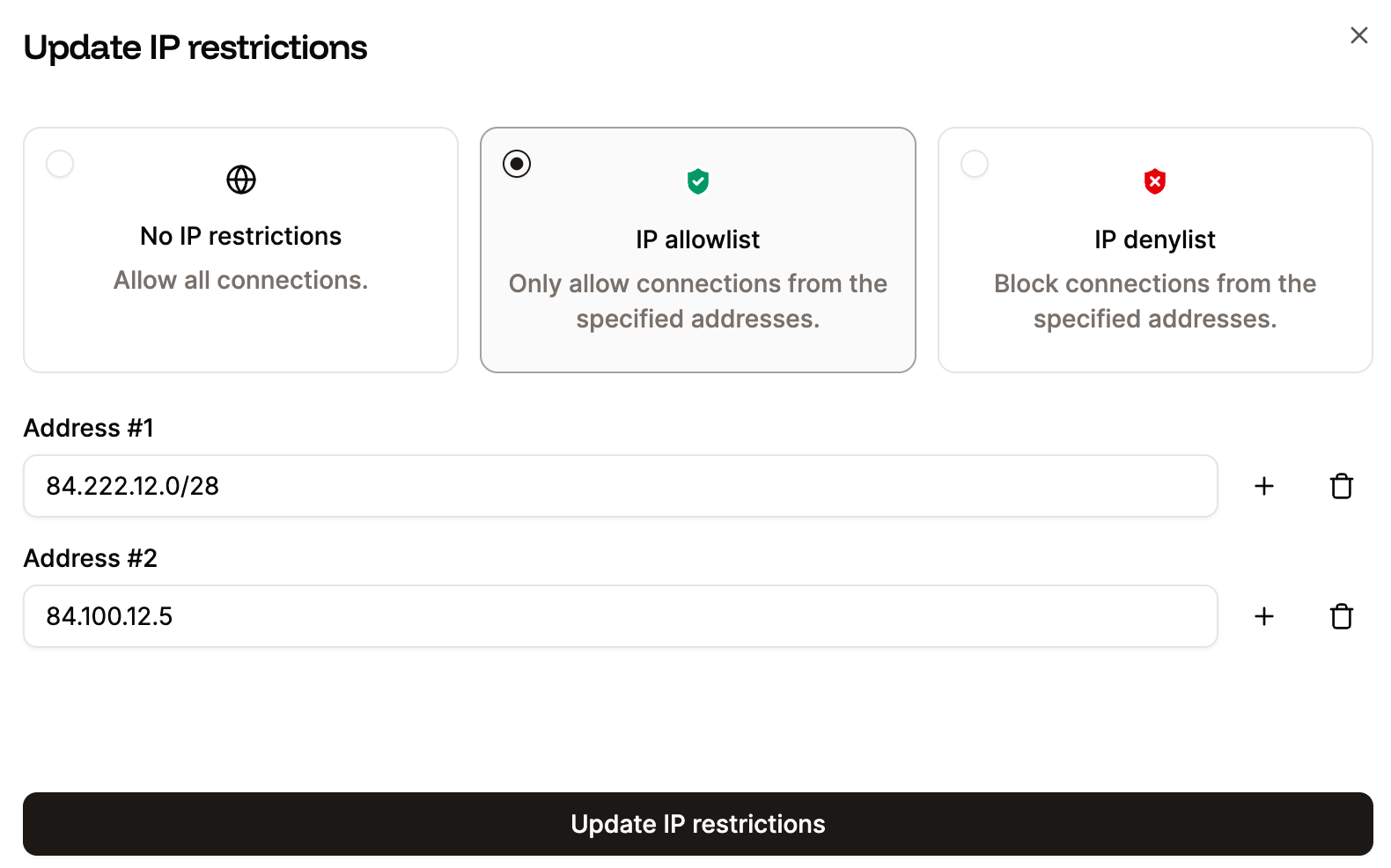
To change your IP restriction settings, click **Update IP Restrictions** and choose from the following:
* **No IP restrictions:** Allows all connections to your database.
* **IP allowlist:** Allows connections only from the specified IP addresses. When you select this option, enter the IP addresses or CIDR notations that should have access to your database. To add multiple entries, click the plus icon after each one. There is no limit to the number of entries.
* **IP denylist:** Blocks connections from specified IP addresses. When you select this option, enter the IP addresses or CIDR notations you want to block from accessing your database. To add multiple entries, click the plus icon after each one. There is no limit to the number of entries.
To save the changes, click **Update IP restrictions**.
### External connection
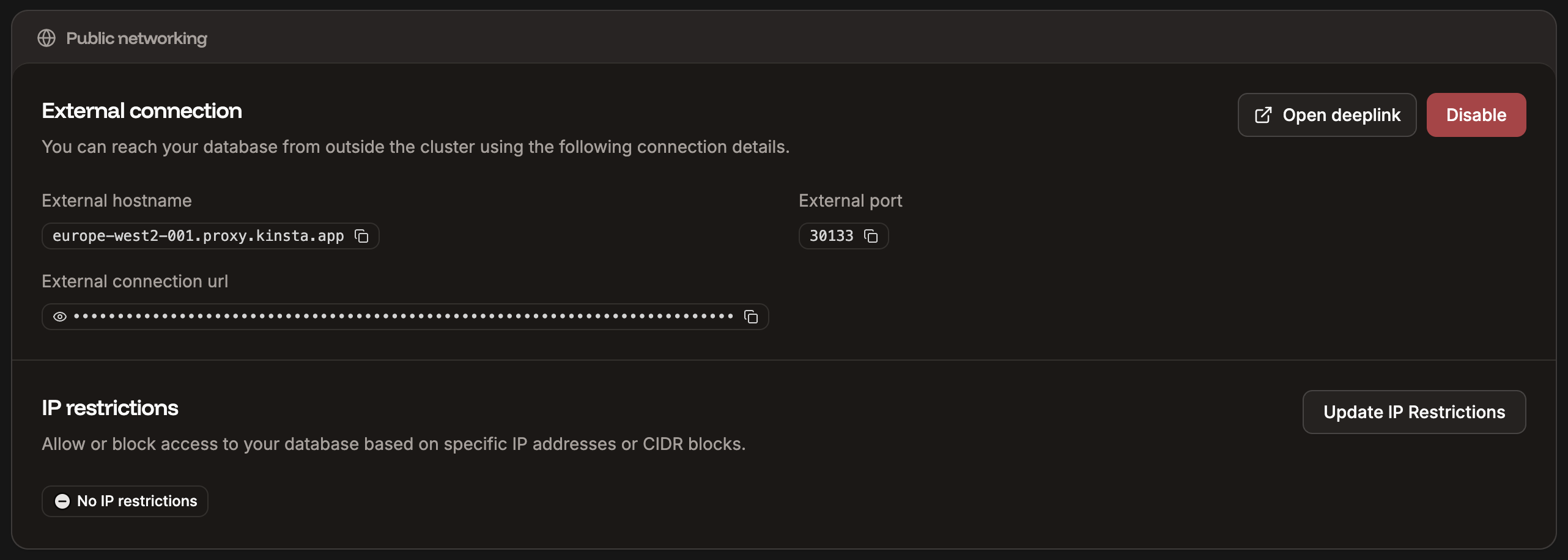
To enable or disable external access to your database, select either **Enable** or **Disable**. If public access is enabled, you can use the connection details to [connect to your database](/databases/manage-data/tableplus) via the command line (CLI) or with a database tool.
Click **Open deeplink** to open your database within [TablePlus](https://docs.sevalla.com/databases/manage-data/tableplus).
### IP restrictions
IP restrictions allow you to restrict or block access to specific IP addresses or CIDR blocks. If an unauthorized user (IP address) attempts to access the database, they will receive a **403 – Forbidden error**.
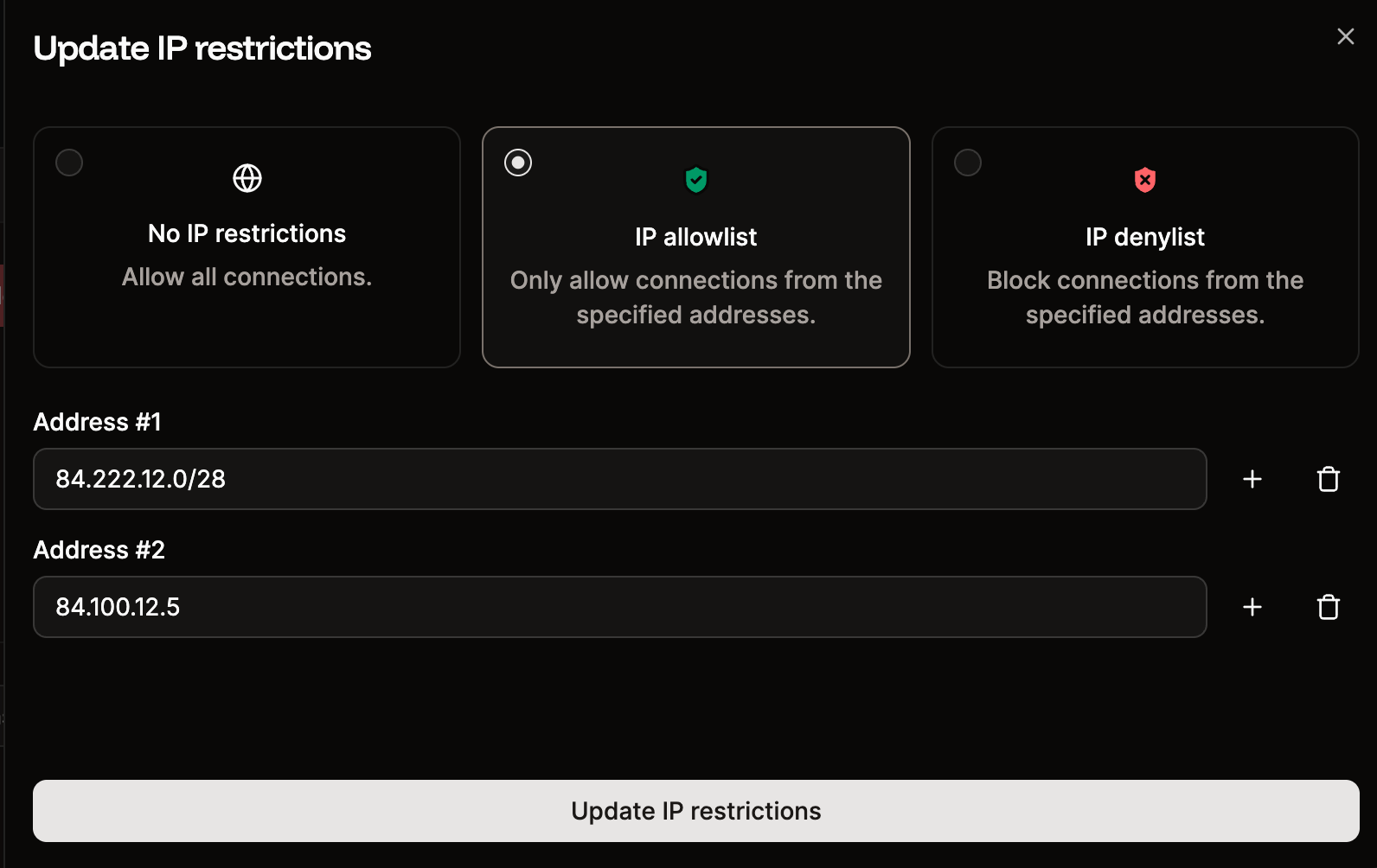
To change your IP restriction settings, click **Update IP Restrictions** and choose from the following:
* **No IP restrictions:** Allows all connections to your database.
* **IP allowlist:** Allows connections only from the specified IP addresses. When you select this option, enter the IP addresses or CIDR notations that should have access to your database. To add multiple entries, click the plus icon after each one. There is no limit to the number of entries.
* **IP denylist:** Blocks connections from specified IP addresses. When you select this option, enter the IP addresses or CIDR notations you want to block from accessing your database. To add multiple entries, click the plus icon after each one. There is no limit to the number of entries.
To save the changes, click **Update IP restrictions**.
 ## Private networking
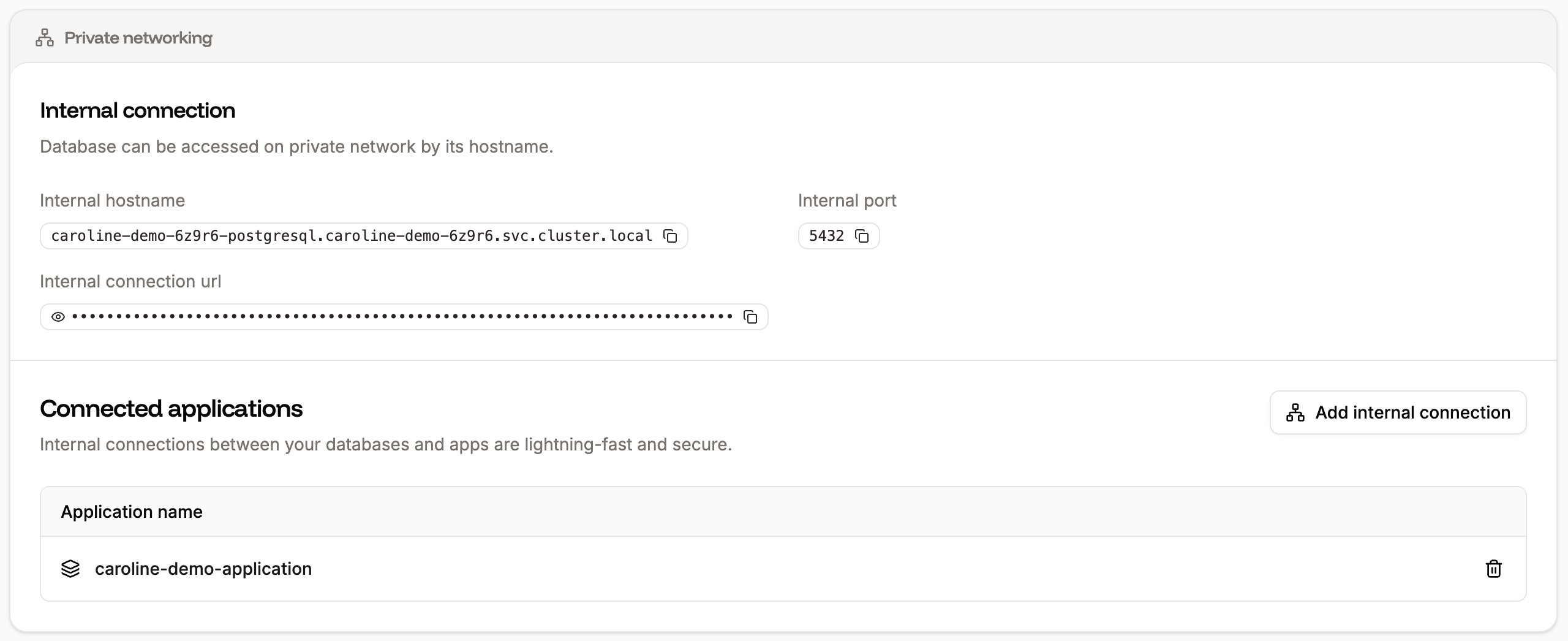
 ## Add internal connection
For the time being, internal connections are only supported between applications in the same region. If you're deploying an application and a database, you must choose the same region for both.
You can add internal connections from an application's **Networking** page or a database's **Networking** page. It doesn't matter where you start the process; the result will be the same.
To add a connection from a database to an application, click **Add internal connection**, and select the application you want to connect to.
To automatically populate an application's [environment variables](/applications/environment-variables) from the database connection details, select **Add environment variables to the application**. This automatically populates the environment variables from the database you're connecting to.
Select whether the variables will be available during runtime and/or the build process, and click **Add internal connection**.
Some applications may expect environment variables (keys) with different names. You can edit the names in the list before adding the connection or [**edit them later on the application's Settings page**](/applications/environment-variables).
## Add internal connection
For the time being, internal connections are only supported between applications in the same region. If you're deploying an application and a database, you must choose the same region for both.
You can add internal connections from an application's **Networking** page or a database's **Networking** page. It doesn't matter where you start the process; the result will be the same.
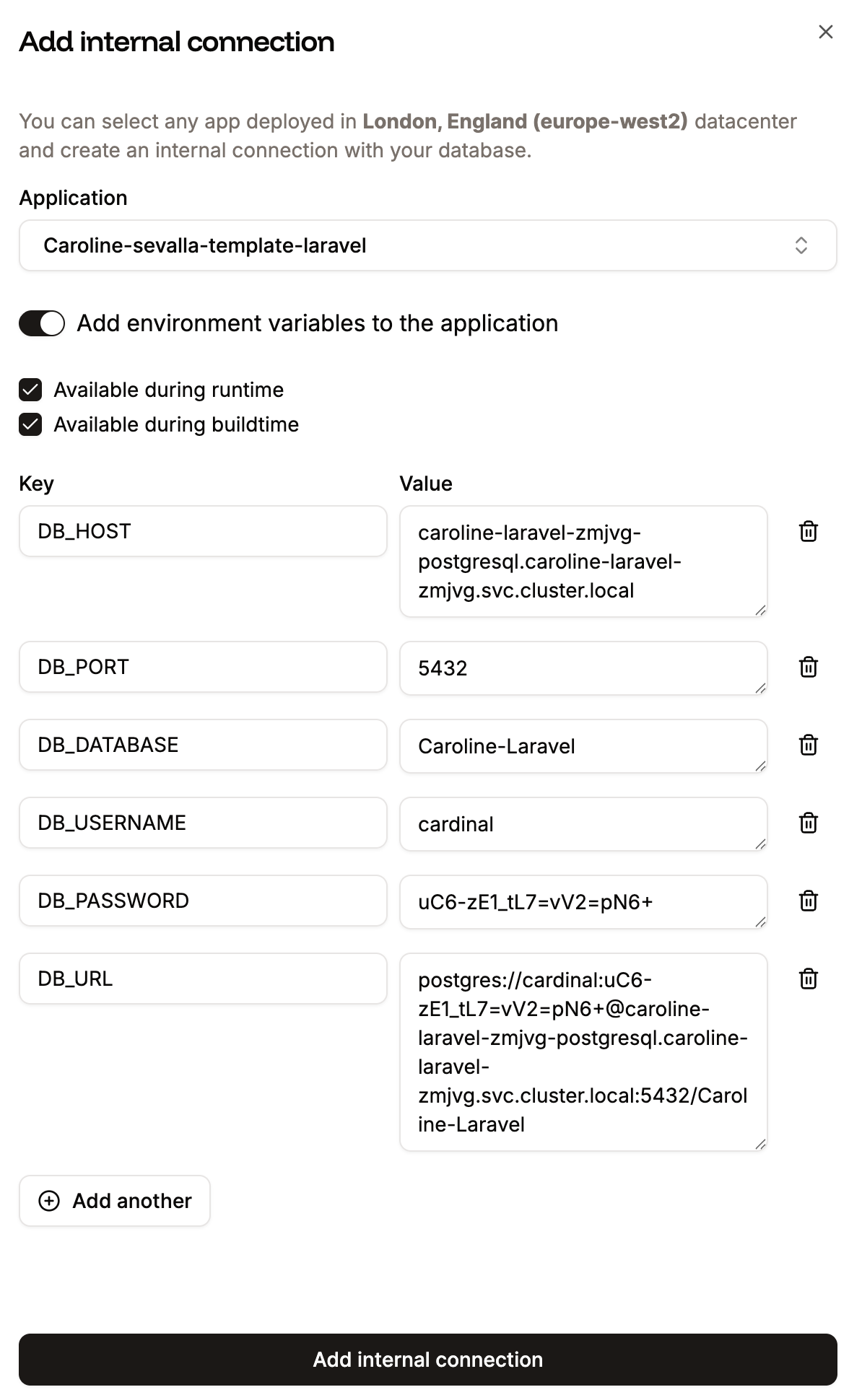
To add a connection from a database to an application, click **Add internal connection**, and select the application you want to connect to.
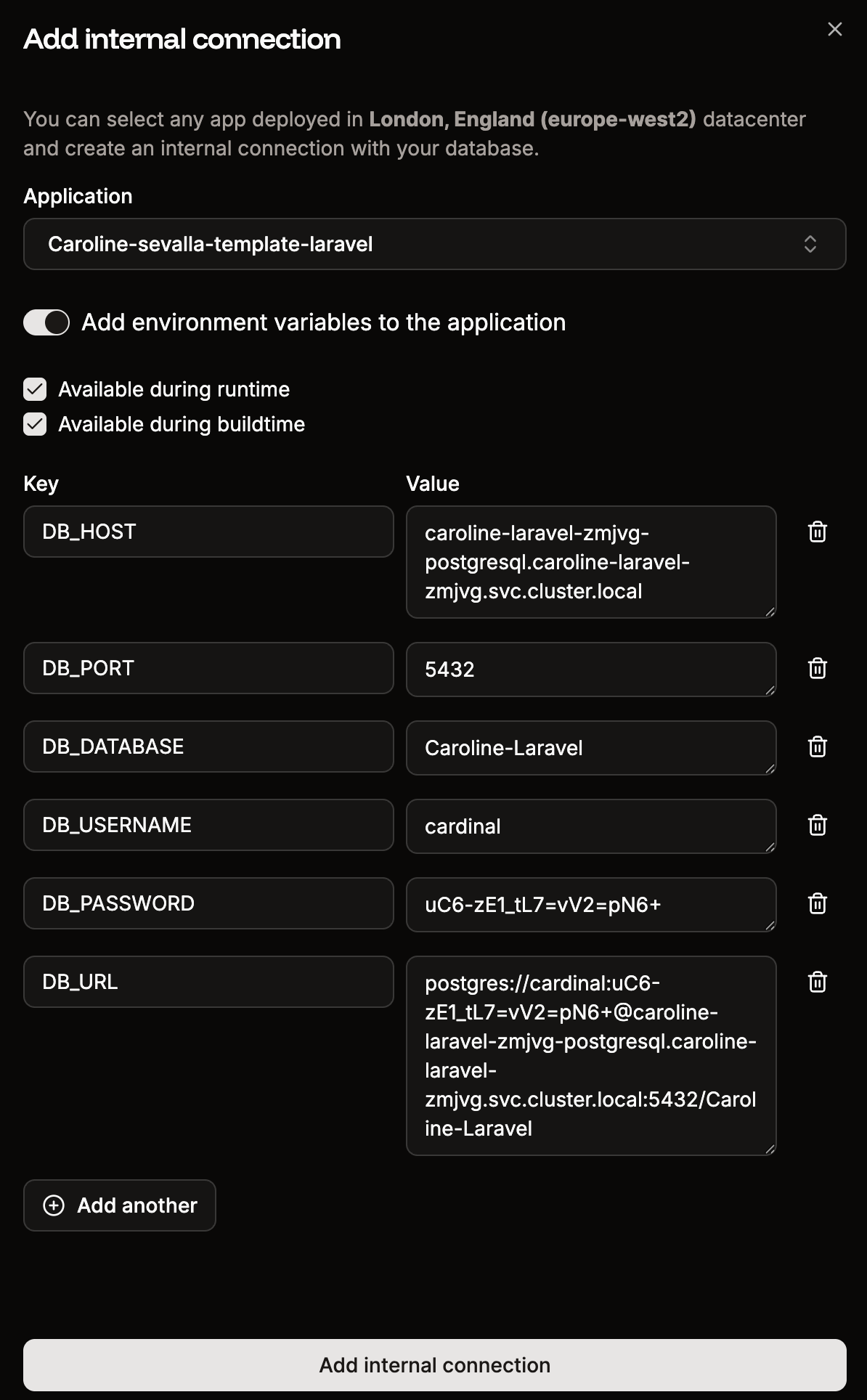
To automatically populate an application's [environment variables](/applications/environment-variables) from the database connection details, select **Add environment variables to the application**. This automatically populates the environment variables from the database you're connecting to.
Select whether the variables will be available during runtime and/or the build process, and click **Add internal connection**.
Some applications may expect environment variables (keys) with different names. You can edit the names in the list before adding the connection or [**edit them later on the application's Settings page**](/applications/environment-variables).
 ### Ports
[The port](/applications/settings) for internal connections to an application can be defined when you add your application or within your application's **Networking** > **Update port**. The port for internal connections to a database is 3306 and cannot be changed.
For applications, Sevalla automatically sets the `PORT` environment variable. You do not need to define it yourself or hard-code it into the application. When an application is deployed, it is reachable on the internet on ports 80 and 443, and we route those ports to the container on the port defined by your application.
### Remove an internal connection
If you need to remove a connection, go to the Database's **Networking** page, and under **Connected applications**, click the delete (trash can) icon.
### Ports
[The port](/applications/settings) for internal connections to an application can be defined when you add your application or within your application's **Networking** > **Update port**. The port for internal connections to a database is 3306 and cannot be changed.
For applications, Sevalla automatically sets the `PORT` environment variable. You do not need to define it yourself or hard-code it into the application. When an application is deployed, it is reachable on the internet on ports 80 and 443, and we route those ports to the container on the port defined by your application.
### Remove an internal connection
If you need to remove a connection, go to the Database's **Networking** page, and under **Connected applications**, click the delete (trash can) icon.

 Click **Continue** to confirm and remove the connection between the application and the database.
## Change database password
You can change the database password for your internal and external connections. On the database **Overview** page, within **Manage password**, click **Change password** and enter a new password.
Click **Continue** to confirm and remove the connection between the application and the database.
## Change database password
You can change the database password for your internal and external connections. On the database **Overview** page, within **Manage password**, click **Change password** and enter a new password.
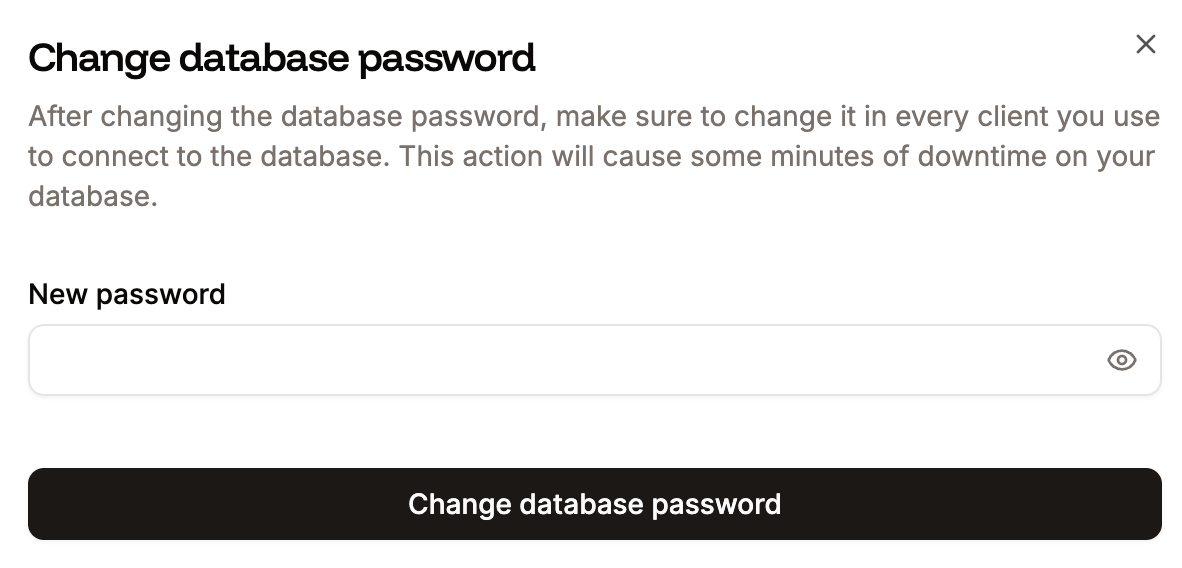
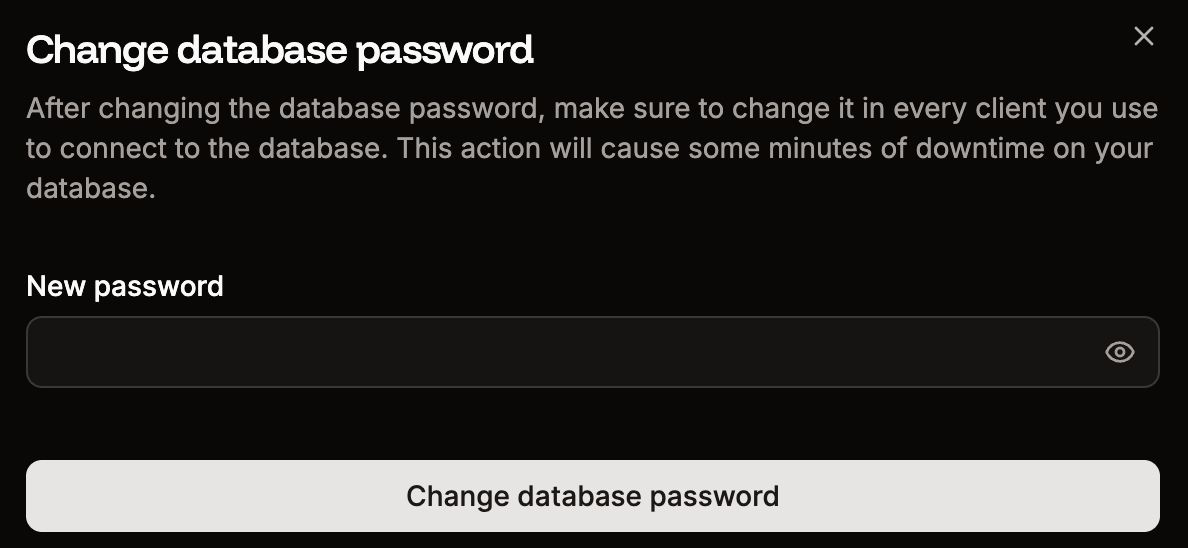 When you change the password, you must manually change the password in every client you use to connect to the database and update any other relevant [environment variables](/applications/environment-variables).
Passwords must be at least 8 characters and include at least one lowercase letter, one uppercase letter, a number, and one of the following special characters: ``, & * [ ] : ' $ ` "``
When you change the password, you must manually change the password in every client you use to connect to the database and update any other relevant [environment variables](/applications/environment-variables).
Passwords must be at least 8 characters and include at least one lowercase letter, one uppercase letter, a number, and one of the following special characters: ``, & * [ ] : ' $ ` "``