> ## Documentation Index
> Fetch the complete documentation index at: https://docs.sevalla.com/llms.txt
> Use this file to discover all available pages before exploring further.
# Databases - Settings
> Change your database configuration and preferences.
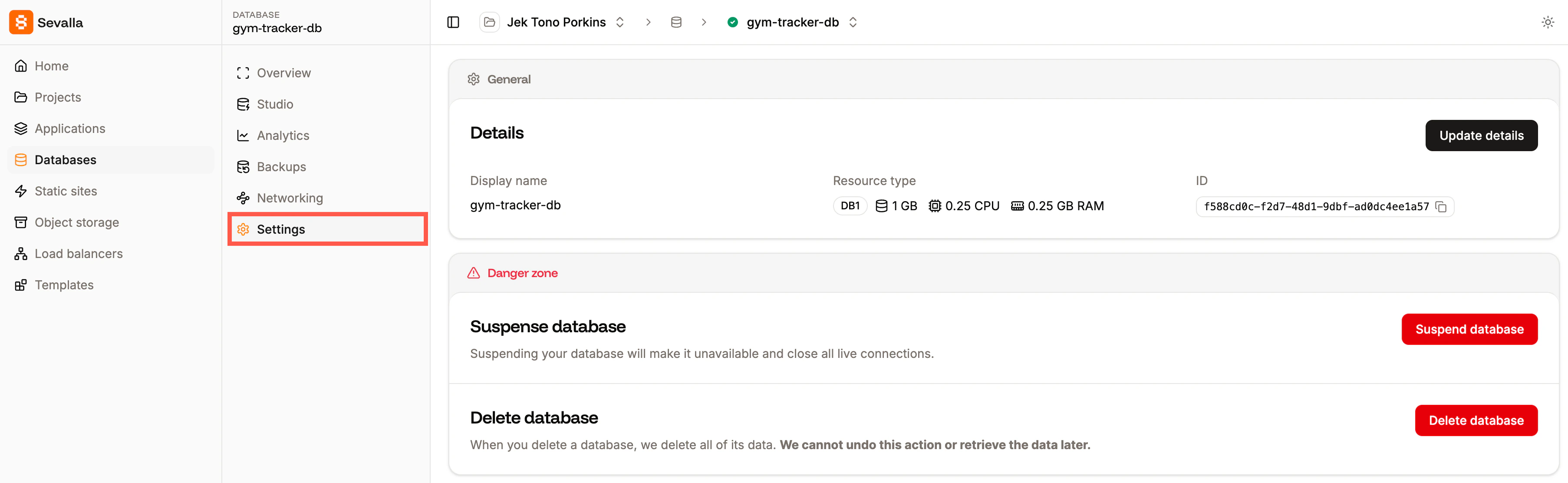
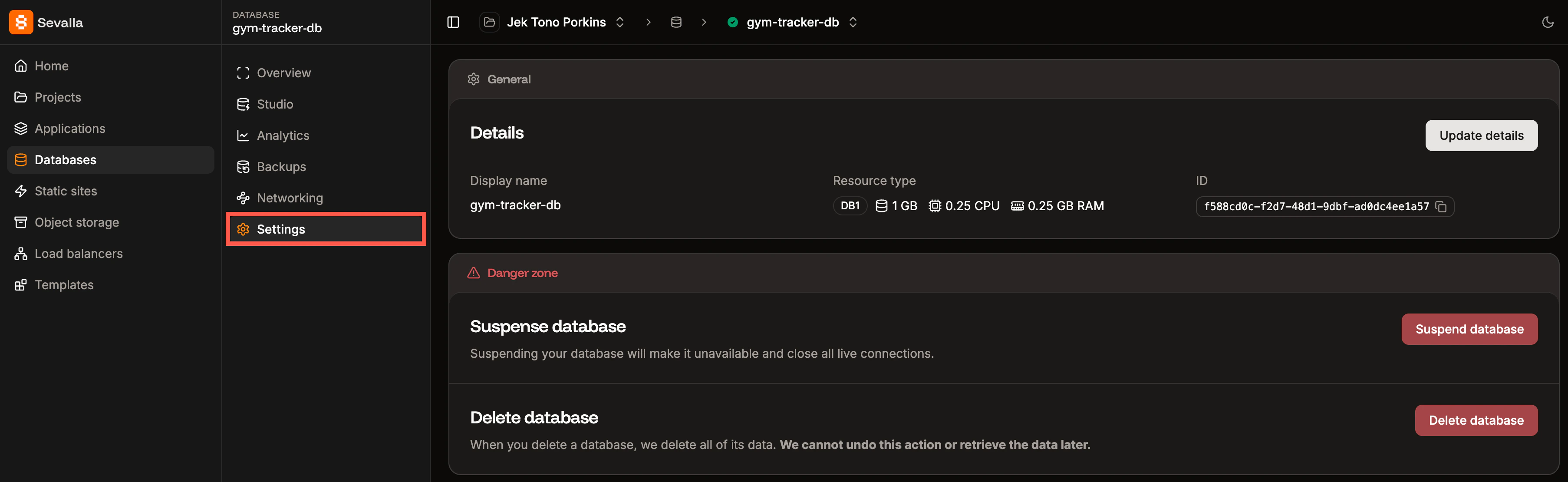
To access the database Settings, click **Settings** on the **Database** page.
 ## General
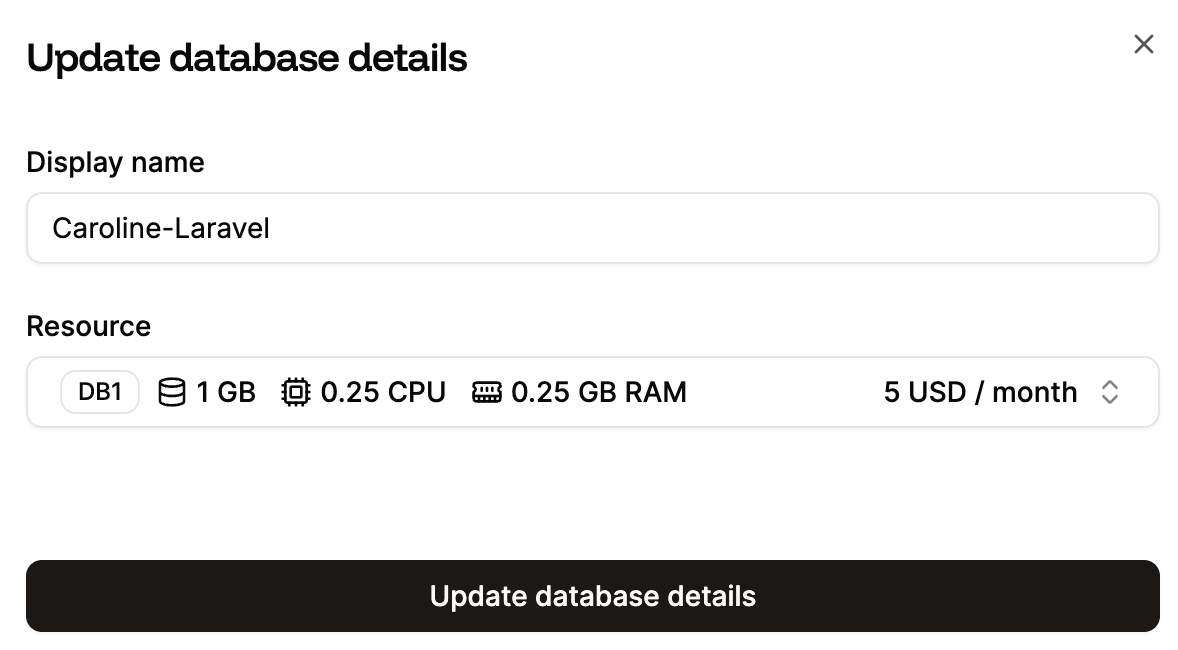
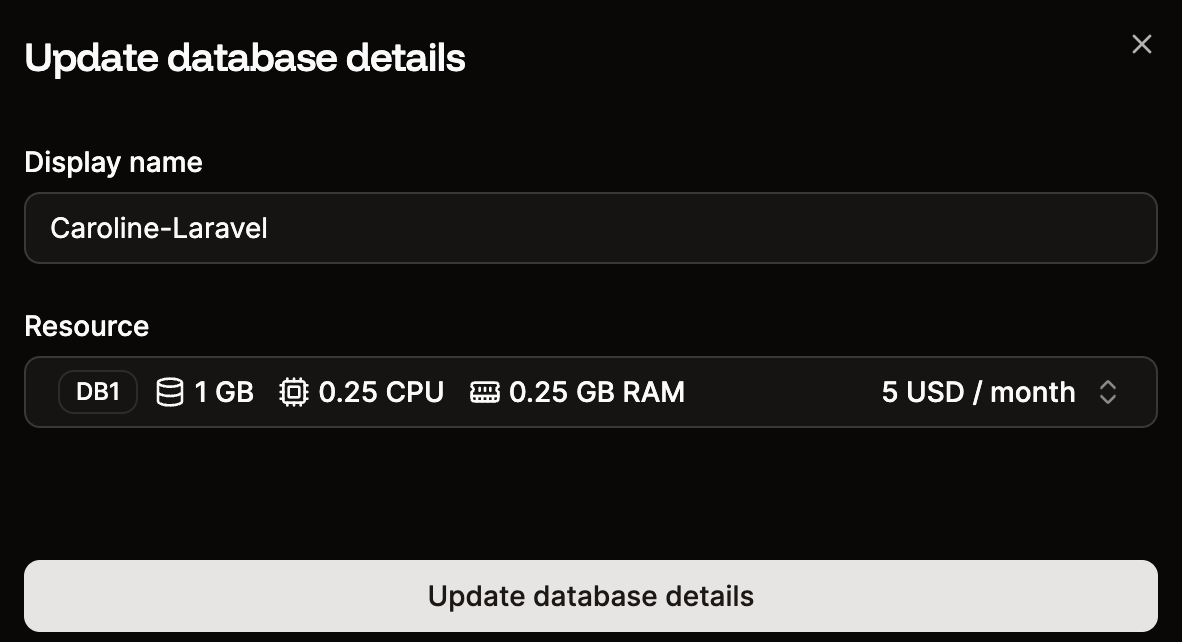
The **General** section shows you the display name and resources available for your database, including any [add-on storage](/billing/database-pricing#database-disk-space-add-on). To change your database’s display name or increase its size, click **Update details**, make your changes, and click **Update database details**.
If you’ve added any additional space with our database disk space add-on, you’ll need to follow the steps outlined here to [modify the database disk space add-on](/billing/database-pricing#database-disk-space-add-on).
You cannot decrease or downgrade the size of your database. The **Update details** flow only lets you increase the size, and this applies to any database type. If you need a smaller database, create a new database with the desired size (resource type) and move your data over - the easiest way is to [restore a backup](/databases/backups#restore-a-backup) to the new database, which works as long as it’s the same database type and in the same data center. Once the data has been moved, you can delete the old database. For the billing implications, see [Downgrade database](/billing/database-pricing#downgrade-database).
## General
The **General** section shows you the display name and resources available for your database, including any [add-on storage](/billing/database-pricing#database-disk-space-add-on). To change your database’s display name or increase its size, click **Update details**, make your changes, and click **Update database details**.
If you’ve added any additional space with our database disk space add-on, you’ll need to follow the steps outlined here to [modify the database disk space add-on](/billing/database-pricing#database-disk-space-add-on).
You cannot decrease or downgrade the size of your database. The **Update details** flow only lets you increase the size, and this applies to any database type. If you need a smaller database, create a new database with the desired size (resource type) and move your data over - the easiest way is to [restore a backup](/databases/backups#restore-a-backup) to the new database, which works as long as it’s the same database type and in the same data center. Once the data has been moved, you can delete the old database. For the billing implications, see [Downgrade database](/billing/database-pricing#downgrade-database).
 ## Restart database
Restarting the database causes a brief downtime.
Restarting your database gracefully stops and restarts the database service. During the restart, existing connections are closed, and any active queries or uncommitted transactions are interrupted. Your stored data is not affected. The restart runs in the background and is usually completed within a few minutes.
## Suspend or Activate the database
Only Company Owners and Company Administrators can suspend or resume a database. For information about how to change a user’s access, refer to User Management.
Suspending your database stops your database from running without deleting it. This doesn’t change or remove anything in the database itself. Connections to the database remain in place but will not work while the database is suspended. You will not incur any costs for the database during the suspension.
Click **Suspend database** and confirm the suspension by clicking **Continue**.
When you’re ready to restart your database, click **Activate database** and confirm the restart by clicking **Continue**.
## Delete database
Only Company Owners and Company Administrators can delete a database. For information about how to change a user’s access, refer to User Management.
**Delete database** completely removes the database. If you delete the database, all of the data in it is destroyed.
## Restart database
Restarting the database causes a brief downtime.
Restarting your database gracefully stops and restarts the database service. During the restart, existing connections are closed, and any active queries or uncommitted transactions are interrupted. Your stored data is not affected. The restart runs in the background and is usually completed within a few minutes.
## Suspend or Activate the database
Only Company Owners and Company Administrators can suspend or resume a database. For information about how to change a user’s access, refer to User Management.
Suspending your database stops your database from running without deleting it. This doesn’t change or remove anything in the database itself. Connections to the database remain in place but will not work while the database is suspended. You will not incur any costs for the database during the suspension.
Click **Suspend database** and confirm the suspension by clicking **Continue**.
When you’re ready to restart your database, click **Activate database** and confirm the restart by clicking **Continue**.
## Delete database
Only Company Owners and Company Administrators can delete a database. For information about how to change a user’s access, refer to User Management.
**Delete database** completely removes the database. If you delete the database, all of the data in it is destroyed.