> ## Documentation Index
> Fetch the complete documentation index at: https://docs.sevalla.com/llms.txt
> Use this file to discover all available pages before exploring further.
> ## Agent Instructions
> These are the docs for Sevalla, a platform for deploying applications, databases, static sites, object storage and load balancers. The dashboard is at https://app.sevalla.com.
> Bold text in steps is an exact dashboard label.
> To act on a Sevalla account, prefer the Sevalla MCP server (https://mcp.sevalla.com/mcp, see https://docs.sevalla.com/ai-agents/overview.md), then the Sevalla CLI (https://docs.sevalla.com/developer-tools/cli.md), then the REST API (https://api-docs.sevalla.com, OpenAPI spec at https://api.sevalla.com/v3/openapi.json).
> Every page index is at https://docs.sevalla.com/llms.txt.
# Database studio
> Browse, filter and edit data, run SQL or Redis commands, create tables and views, import CSV files and export data from the SQL studio and Redis studio tabs.
The database studio is a database client inside the dashboard: the **SQL studio** tab for PostgreSQL, MySQL and MariaDB, and the **Redis studio** tab for Redis and Valkey. It connects from inside Sevalla as the database's own user, so it works without the external connection and can do anything that user can do.
Everything you run or save in the studio changes the live database right away. Take a [manual backup](/databases/backups#create-a-manual-backup) before large edits.
## Open the studio
In the sidebar, click **Databases**, then click the database. Click the **SQL studio** tab (**Redis studio** for Redis and Valkey).
The studio loads the database's schema or server details first. If it shows **Failed to connect to the database**, check that the database's status is **Ready** and that it isn't suspended, then click **Try again**.
Press `Alt` + `F` (or click the full-width button) to give the studio the whole window; press `Esc` to leave. Press `Alt` + `S` to hide or show the sidebar.
## SQL studio
The SQL studio is for PostgreSQL, MySQL and MariaDB. The sidebar switches between **Tables** and the **SQL console**.
 ### Browse tables
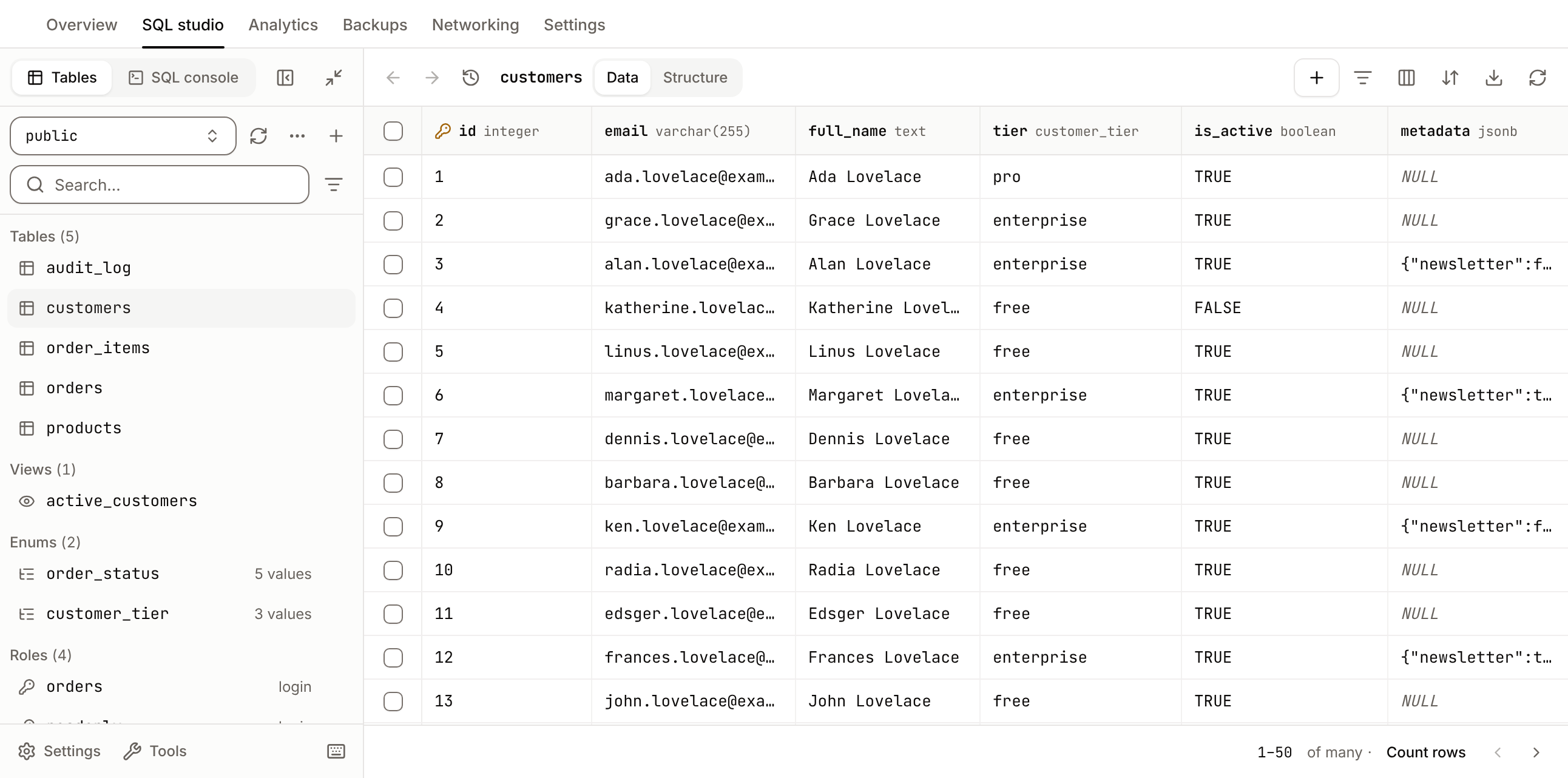
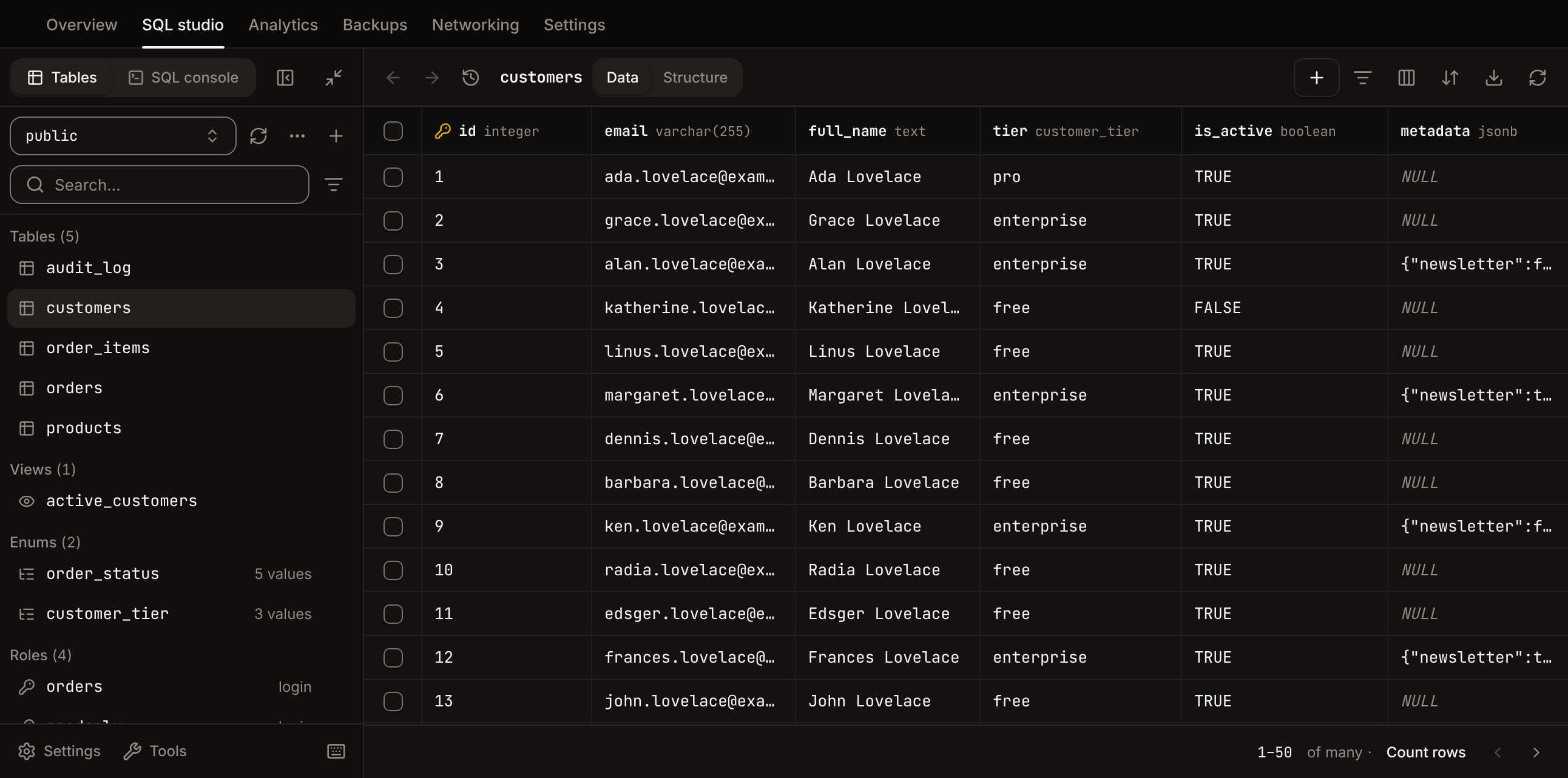
The sidebar lists the tables and views. On PostgreSQL, choose the schema at the top; the sidebar also lists **Enums**, **Roles** and **Policies**.
* Type in the search box to find a table. The filter icon shows or hides tables, views and materialized views, and sorts by name or by row count (with **Table rows count** on in the settings).
* Click a table to open its rows. The menu (**...**) next to it has **Browse data**, **Browse structure**, **Alter table** (or **Alter view**), **Open in SQL console**, **Copy name**, truncate and drop.
* Select more than one table with their checkboxes to truncate or drop them together. The confirmation shows the SQL and offers **Cascade**.
* Click the refresh icon (or press `Cmd` + `R`, `Ctrl` + `R` on Windows and Linux) to reload the schema after changing it elsewhere.
### Filter and sort rows
The toolbar above the rows has **Filters**, **Columns**, **Sort**, **Export** and a refresh button, and switches between **Data** and **Structure**.
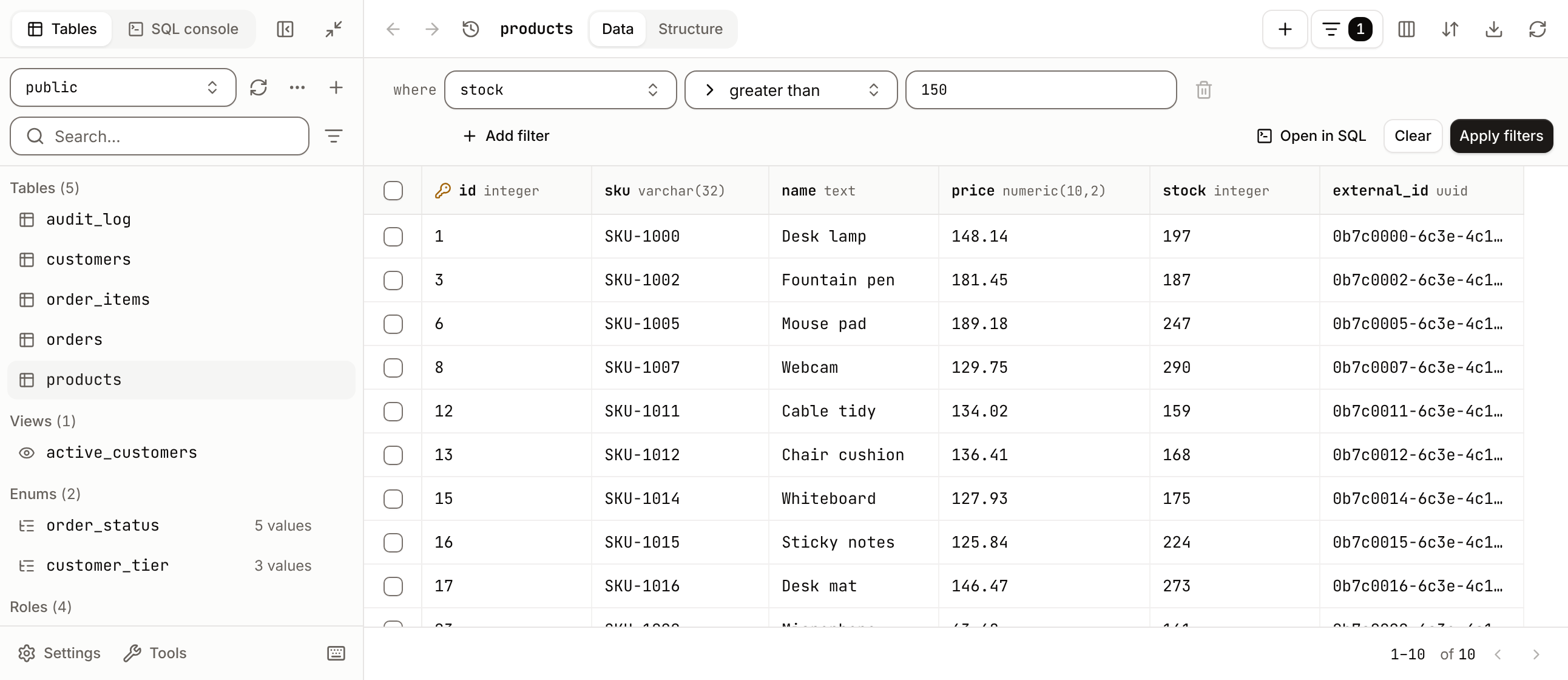
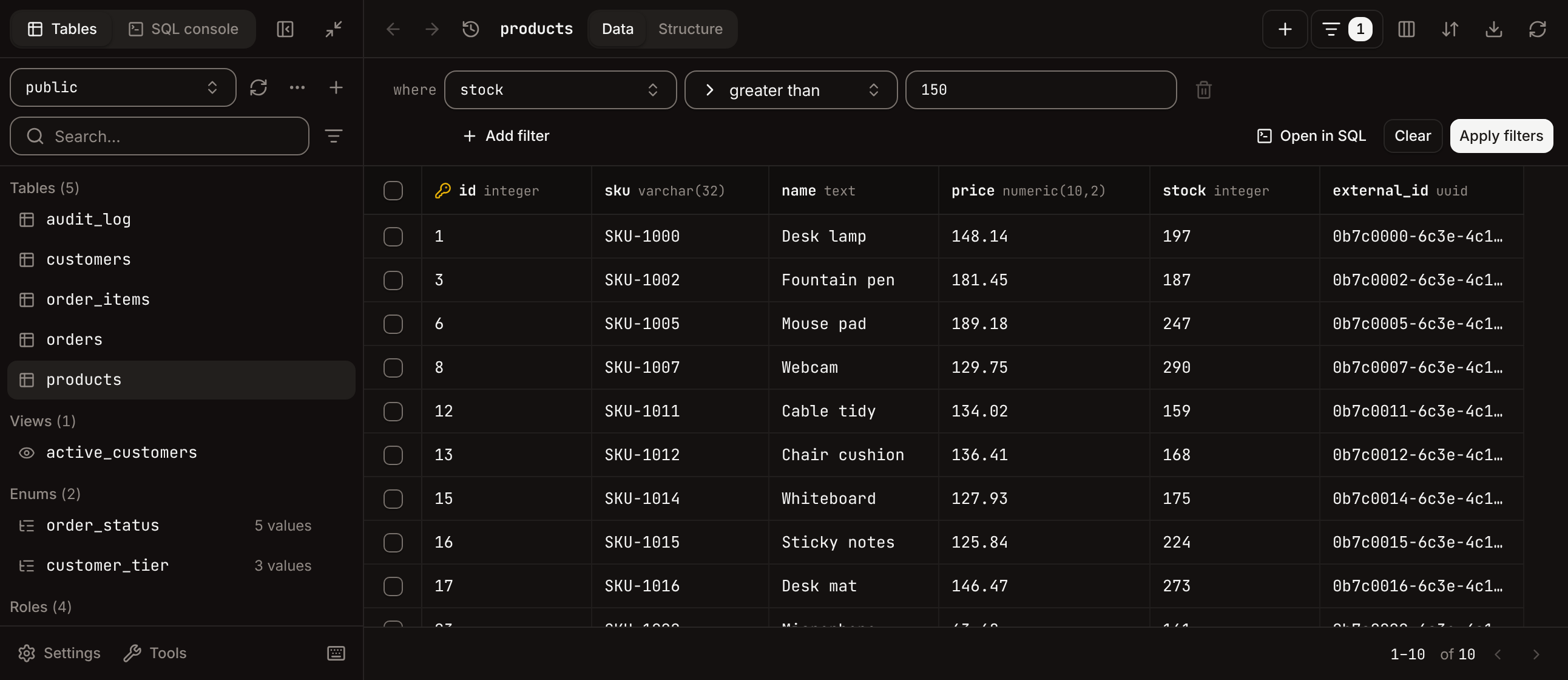
* **Filters**: click **Add filter**, pick a column and an operator, enter a value, then click **Apply filters**. Rows must match every filter. The button shows how many filters apply; **Clear** removes them, and **Open in SQL** opens the filtered `SELECT` in the console.
* Operators: `equals`, `not equals`, `greater than`, `greater or equals`, `less than`, `less or equals`, `like`, `ilike` (PostgreSQL), `not like`, `in`, `is null`, `is not null`, `is empty` and `is not empty`. The text operators apply to text columns only.
* **Columns** hides, shows and reorders columns. **Sort** orders the rows by one column, ascending or descending.
* The grid shows 50 rows per page. Click the row range at the bottom to set the **Limit** (up to 500) and **Offset**.
### Browse tables
The sidebar lists the tables and views. On PostgreSQL, choose the schema at the top; the sidebar also lists **Enums**, **Roles** and **Policies**.
* Type in the search box to find a table. The filter icon shows or hides tables, views and materialized views, and sorts by name or by row count (with **Table rows count** on in the settings).
* Click a table to open its rows. The menu (**...**) next to it has **Browse data**, **Browse structure**, **Alter table** (or **Alter view**), **Open in SQL console**, **Copy name**, truncate and drop.
* Select more than one table with their checkboxes to truncate or drop them together. The confirmation shows the SQL and offers **Cascade**.
* Click the refresh icon (or press `Cmd` + `R`, `Ctrl` + `R` on Windows and Linux) to reload the schema after changing it elsewhere.
### Filter and sort rows
The toolbar above the rows has **Filters**, **Columns**, **Sort**, **Export** and a refresh button, and switches between **Data** and **Structure**.
* **Filters**: click **Add filter**, pick a column and an operator, enter a value, then click **Apply filters**. Rows must match every filter. The button shows how many filters apply; **Clear** removes them, and **Open in SQL** opens the filtered `SELECT` in the console.
* Operators: `equals`, `not equals`, `greater than`, `greater or equals`, `less than`, `less or equals`, `like`, `ilike` (PostgreSQL), `not like`, `in`, `is null`, `is not null`, `is empty` and `is not empty`. The text operators apply to text columns only.
* **Columns** hides, shows and reorders columns. **Sort** orders the rows by one column, ascending or descending.
* The grid shows 50 rows per page. Click the row range at the bottom to set the **Limit** (up to 500) and **Offset**.
 ### Update rows
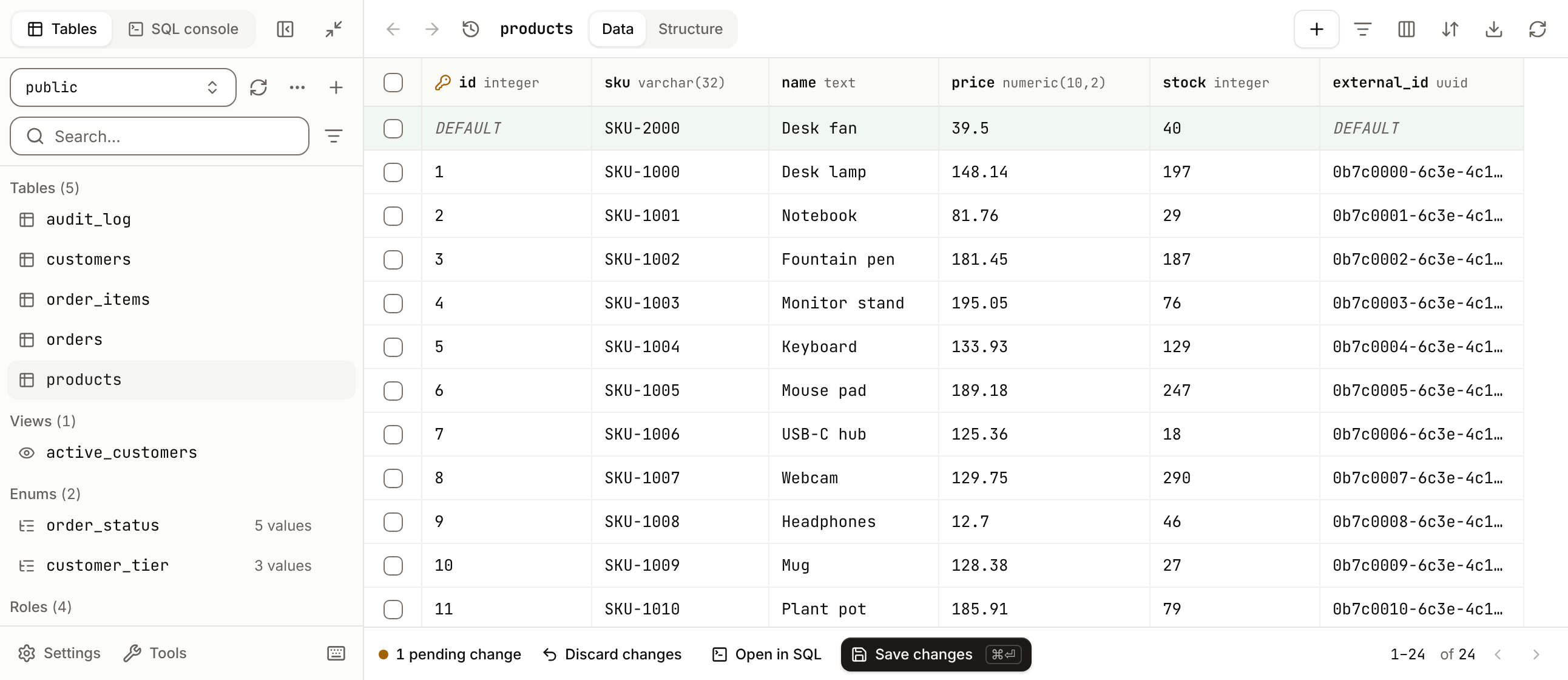
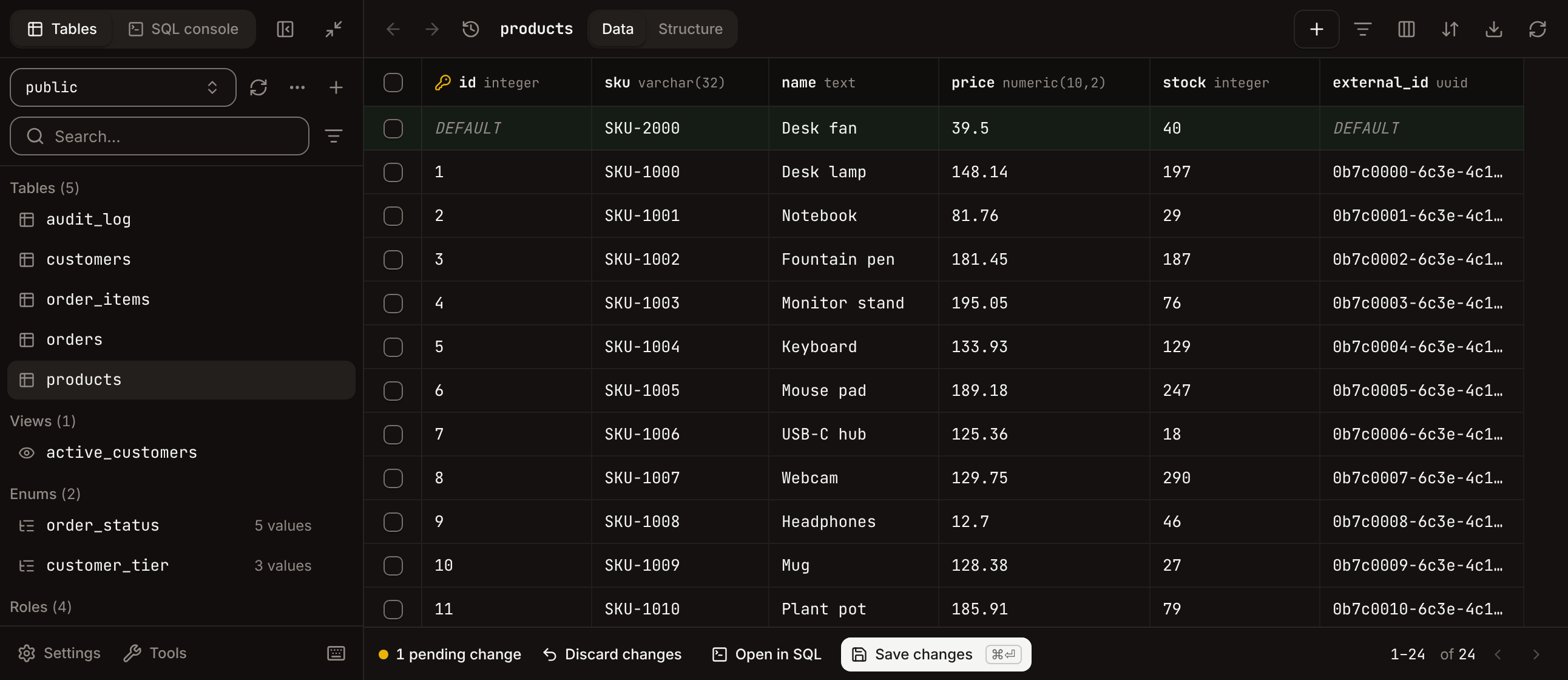
* To change a value, double-click the cell (or select it and press `Enter`), type, then press `Enter` or `Tab`. Press `Esc` to cancel. Copy and paste work on selected cells.
* To add a row, click **Add record**. To delete rows, select them and click **Delete N records**. The expand icon on a row opens it in a side panel.
* Edits wait as pending changes. The footer shows the count with **Discard changes**, **Open in SQL** (to see the statements) and **Save changes** (`Cmd` + `Enter` or `Cmd` + `S`).
* On PostgreSQL, **Save changes** writes every pending change in one transaction: either all of them land or none do, and your edits stay so you can fix the value that failed. On MySQL and MariaDB, changes are saved one statement at a time and the failures are listed.
* A table without a primary key shows **Read-only: add a primary key to update or delete rows**. You can still add rows.
* In a foreign key cell, click the relation icon (or right-click and choose **Show relation**) to see the referenced rows below the row.
### Update rows
* To change a value, double-click the cell (or select it and press `Enter`), type, then press `Enter` or `Tab`. Press `Esc` to cancel. Copy and paste work on selected cells.
* To add a row, click **Add record**. To delete rows, select them and click **Delete N records**. The expand icon on a row opens it in a side panel.
* Edits wait as pending changes. The footer shows the count with **Discard changes**, **Open in SQL** (to see the statements) and **Save changes** (`Cmd` + `Enter` or `Cmd` + `S`).
* On PostgreSQL, **Save changes** writes every pending change in one transaction: either all of them land or none do, and your edits stay so you can fix the value that failed. On MySQL and MariaDB, changes are saved one statement at a time and the failures are listed.
* A table without a primary key shows **Read-only: add a primary key to update or delete rows**. You can still add rows.
* In a foreign key cell, click the relation icon (or right-click and choose **Show relation**) to see the referenced rows below the row.
 ### Run SQL
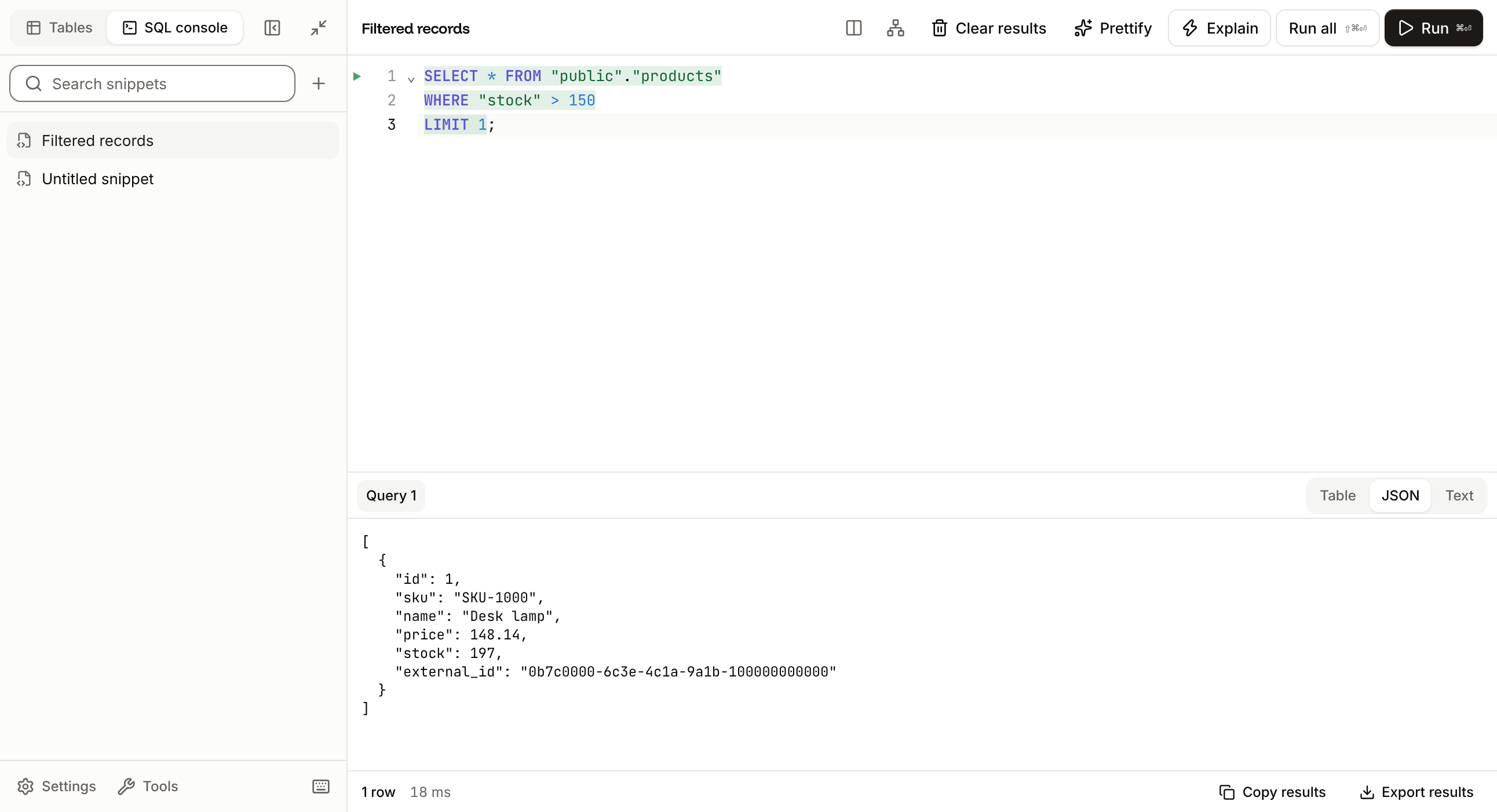
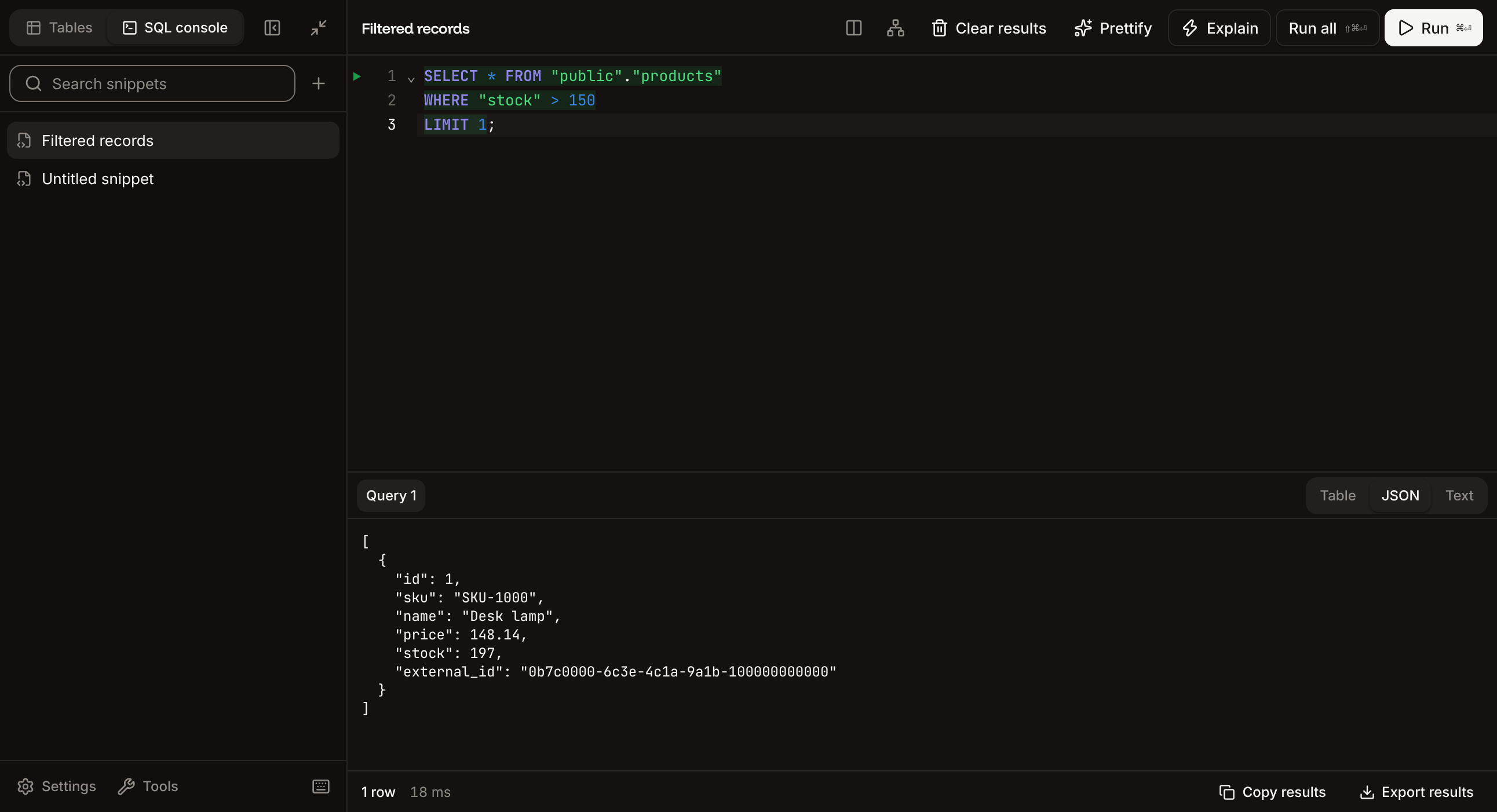
Click **SQL console** at the top of the sidebar. The sidebar lists your snippets: click the plus icon to **Create snippet**, **Create folder** or **Import snippets** from `.sql` files.
* Type SQL with autocomplete (`Ctrl` + `Space`). **Run** (`Cmd` + `Enter`) runs the statement at the cursor or the selected statements; **Run all** (`Shift` + `Cmd` + `Enter`) runs every statement in the editor. **Stop** cancels a run.
* **Explain** shows the query plan, also as a **Chart**. **Prettify** (`Shift` + `Alt` + `F`) formats the SQL. **Clear results** empties the results panel.
* The schema icon (`Alt` + `J`) opens the database schema beside the editor; click a table or column to insert its name.
* Results show as **Table**, **JSON** or **Text**. **Copy results** copies them, and **Export results** saves them as `.json`, `.csv` or `.xlsx`.
### Run SQL
Click **SQL console** at the top of the sidebar. The sidebar lists your snippets: click the plus icon to **Create snippet**, **Create folder** or **Import snippets** from `.sql` files.
* Type SQL with autocomplete (`Ctrl` + `Space`). **Run** (`Cmd` + `Enter`) runs the statement at the cursor or the selected statements; **Run all** (`Shift` + `Cmd` + `Enter`) runs every statement in the editor. **Stop** cancels a run.
* **Explain** shows the query plan, also as a **Chart**. **Prettify** (`Shift` + `Alt` + `F`) formats the SQL. **Clear results** empties the results panel.
* The schema icon (`Alt` + `J`) opens the database schema beside the editor; click a table or column to insert its name.
* Results show as **Table**, **JSON** or **Text**. **Copy results** copies them, and **Export results** saves them as `.json`, `.csv` or `.xlsx`.
 ### Create tables and views
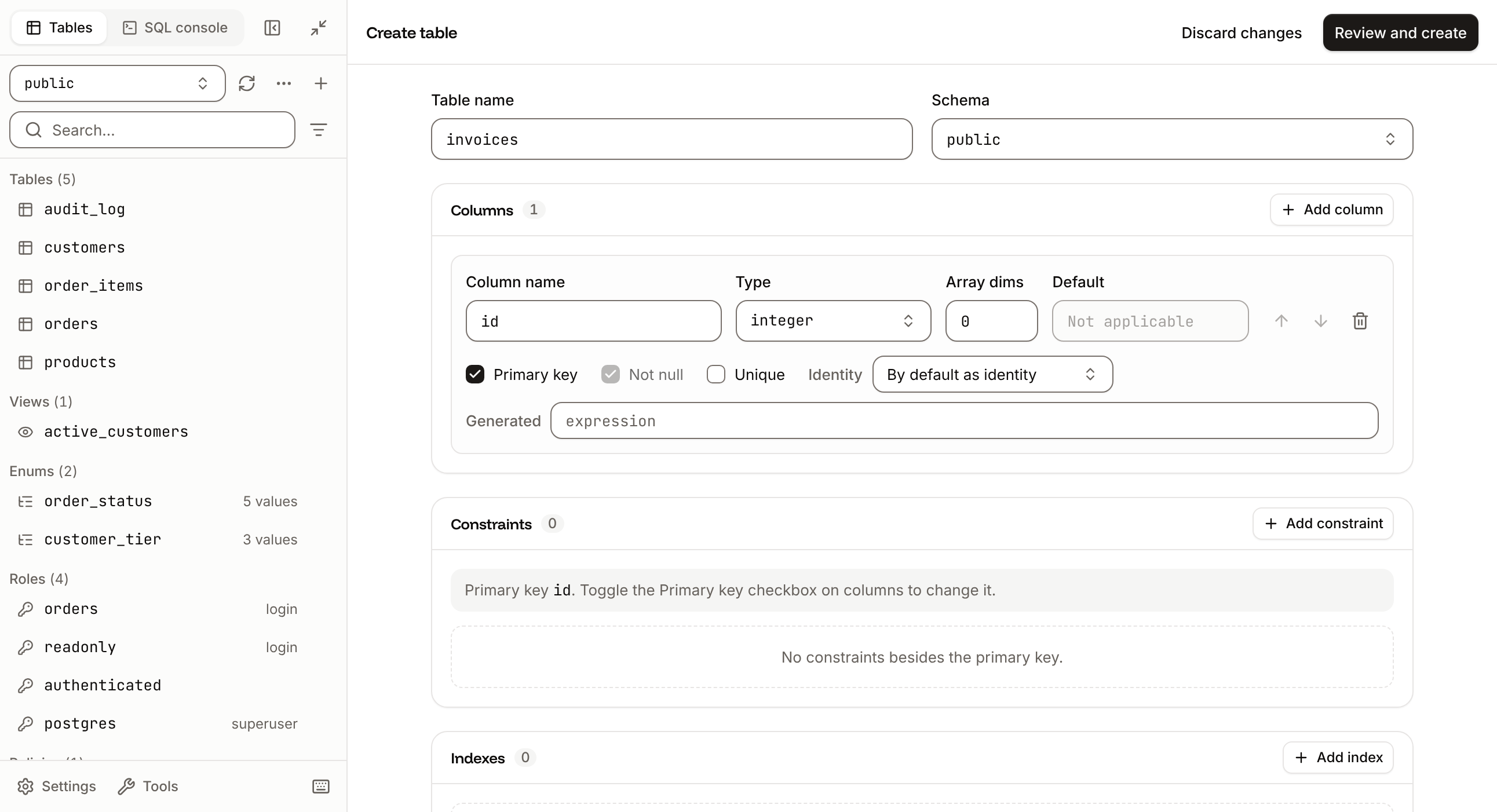
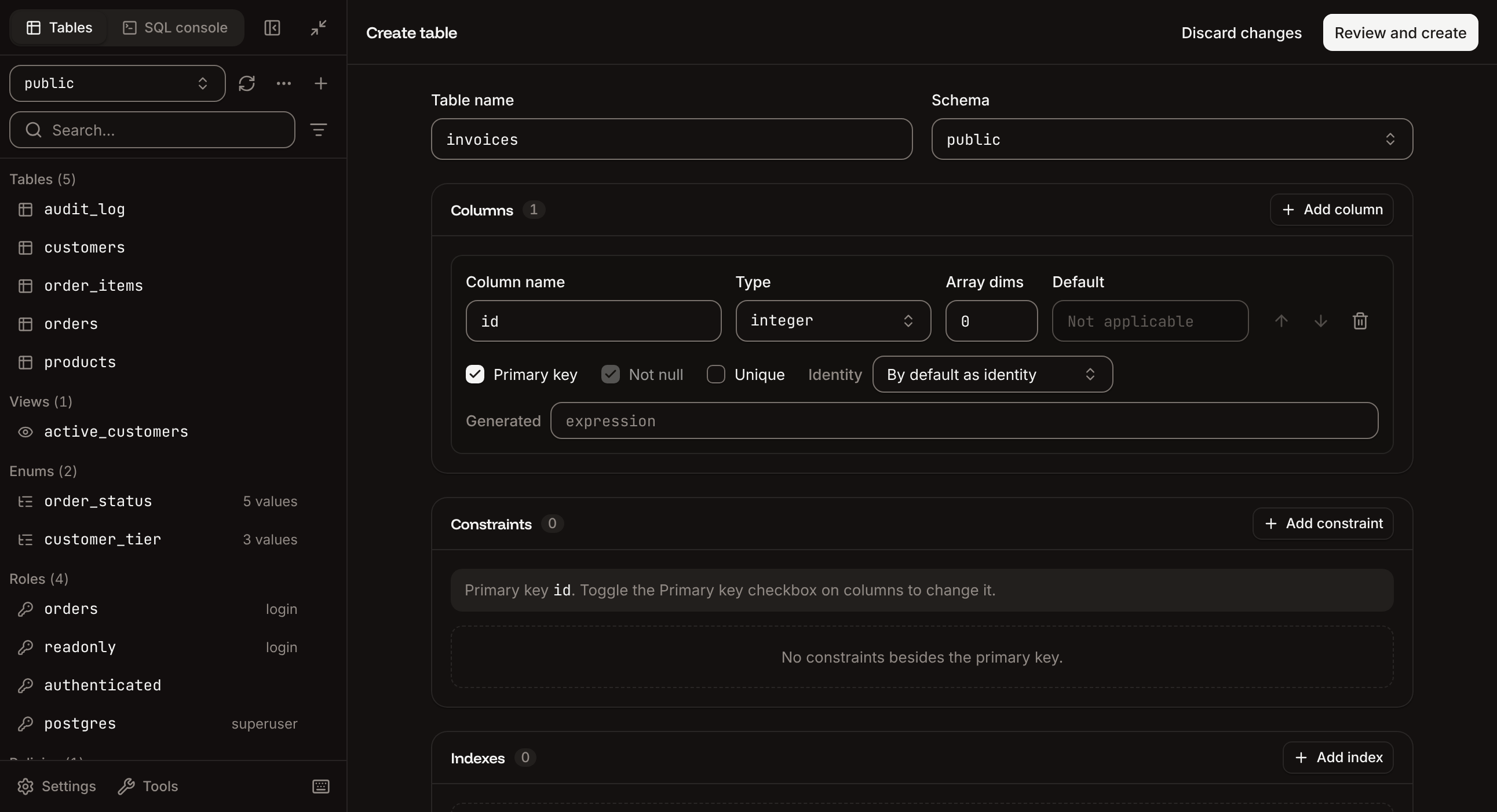
Click the plus icon at the top of the sidebar. It has **Create table**, **Create view**, **Import CSV** and **Manage tables**, and on PostgreSQL also **Create schema**, **Create enum**, **Create role** and **Create policy**.
* **Create table**: name the table and add columns (name, type, length or precision, default, generated expression, not null, primary key, identity or auto increment), then constraints (unique, check, foreign keys with on delete and on update rules) and indexes. Click **Review and create** to see the SQL, then **Create table**.
* **Create view**: enter the **View name**, the **Schema**, **Materialized** (PostgreSQL) and the SQL **Definition**. **Create in SQL** opens the statement in the console instead. Click **Review and create**, then **Create view**.
* To change an existing table or view, choose **Alter table** or **Alter view** from its menu. Click **Review and commit**, then **Commit changes**.
The statements run as the database user. Anything that needs more privileges than that user has, such as creating roles, fails with the engine's error.
### Create tables and views
Click the plus icon at the top of the sidebar. It has **Create table**, **Create view**, **Import CSV** and **Manage tables**, and on PostgreSQL also **Create schema**, **Create enum**, **Create role** and **Create policy**.
* **Create table**: name the table and add columns (name, type, length or precision, default, generated expression, not null, primary key, identity or auto increment), then constraints (unique, check, foreign keys with on delete and on update rules) and indexes. Click **Review and create** to see the SQL, then **Create table**.
* **Create view**: enter the **View name**, the **Schema**, **Materialized** (PostgreSQL) and the SQL **Definition**. **Create in SQL** opens the statement in the console instead. Click **Review and create**, then **Create view**.
* To change an existing table or view, choose **Alter table** or **Alter view** from its menu. Click **Review and commit**, then **Commit changes**.
The statements run as the database user. Anything that needs more privileges than that user has, such as creating roles, fails with the engine's error.
 ### Import a CSV file
Click the plus icon, then **Import CSV**, and choose the file. Then choose an action:
| Action | What it does |
| - | - |
| **View and query** | Opens the file in your browser to explore and query it. Nothing is written to the database. |
| **Create table** | Creates a table from the file and imports its rows. |
| **Seed data** | Inserts the rows into an existing table with matching columns. |
Set the **Separator**, the **Quote** character and whether the **First row contains column names**, check the preview and the column types, review the statements, then run them.
### Export data
Click **Export** in the table toolbar. Under **All rows**, **Export all to .json**, **.csv** or **.xlsx** exports every row that matches the current filters. Under **Selected rows**, the same formats export only the rows you selected.
In the sidebar's **Tools** menu, **Copy database schema** copies the schema's SQL, and **Open database schema** shows a diagram of the tables and their relations. For a full copy of the database, use the engine's dump tool; see [Import and export](/databases/import-export/postgresql).
### View the structure of a table
Click **Structure** in the table toolbar to see the table's **Columns**, **Constraints**, **Indexes** and the tables that reference it (**Referenced by**). On PostgreSQL it also shows **Row level security** and **Policies**.
### SQL studio settings
Click **Settings** at the bottom of the sidebar.
| Setting | What it does | Default |
| - | - | - |
| **Table rows count** | Shows each table's row count. `count(*)` scans each table, which can be slow on large tables. | Off |
| **Expand subviews** | Keeps foreign key subviews open | Off |
| **Flat schemas** | PostgreSQL only. Lists tables without grouping them by schema. | Off |
| **Show binary as** | Shows binary values as `hex` or `utf8` | `hex` |
| **Editor keybindings** | **VS Code**, **Vim** or **Emacs** | **VS Code** |
| **Editor font size** | 12 to 20 px | 13 px |
## Redis studio
The Redis studio is for Redis and Valkey. The sidebar has three pages, **Keys**, **Console** and **Server**, and a **Logical database** selector (`db0`, `db1` and so on, with each one's key count).
### Browse keys
* The **Keys** page loads keys page by page with `SCAN`, so large keyspaces stay responsive. Scroll to load more; the refresh icon (`Cmd` + `R`) rescans.
* Filter by pattern, for example `user:*` (press `/` to jump to the filter), and by type: **String**, **Hash**, **List**, **Set**, **Sorted set**, **Stream** or **JSON**.
* **Tree view** groups key names into folders on the namespace delimiter (`:` by default); **List view** shows a flat list.
* Select more than one key with their checkboxes to delete them or set their time to live together.
### View and update a key
Click a key to open it. The header shows its type, size, memory and time to live, with **Rename key**, **Duplicate key** (on servers with the `COPY` command, Redis and Valkey 6.2 and later), **Open in console** and **Delete key** in its menu. Click the time to live to set or remove the expiry.
| Type | What you can do |
| - | - |
| **String** | Update the value (JSON is highlighted); increment or decrement numbers |
| **Hash** | Add, update and delete fields; filter fields |
| **List** | Push elements to the head or tail, update or remove elements, **Pop from head (LPOP)** or **Pop from tail (RPOP)** |
| **Set** | Add and remove members; filter members |
| **Sorted set** | Add members with scores, update scores, remove members, sort by score |
| **Stream** | Read and add entries, delete entries, create and destroy consumer groups |
| **JSON** | Update the document. Shown only when the server has the JSON module. |
Large collections load page by page.
### Add and delete keys
The sidebar's **Tools** menu has:
* **Add key** (`Cmd` + `N`): enter the **Key name**, pick the **Type**, enter the value (collections need at least one element) and an optional **TTL in seconds**.
* **Delete keys by pattern**: enter a pattern such as `session:*`. Keys are deleted in batches of 200; click **Stop** to end early.
* **Copy loaded key names**, **Export loaded keys to .csv** and **Export loaded keys to .json**, for the keys loaded so far.
### Run commands
The **Console** page runs commands as in `redis-cli`, one per line, against the selected logical database.
* **Run** (`Cmd` + `Enter`) runs the current line or the selection; **Run all** (`Shift` + `Cmd` + `Enter`) runs every line. Command names autocomplete as you type.
* The sidebar keeps a searchable history of your commands and a reference of commands by group.
* **Protocol** switches between **RESP3** (maps as objects, doubles as numbers) and **RESP2** (flat arrays of strings). **Reply format** switches between **CLI** and **JSON**.
* Destructive commands such as `FLUSHALL`, `FLUSHDB`, `DEBUG` and `SHUTDOWN` ask **Run a destructive command?** first; click **Run anyway** to go ahead.
* To work in another logical database, use the selector instead of `SELECT`. Commands that keep a connection open, such as `SUBSCRIBE` and `MONITOR`, don't work in the console.
* On databases in Google Cloud locations, the `CONFIG` command is turned off.
### Inspect the server
The **Server** page has four sections:
| Section | What it shows |
| - | - |
| **Overview** | Version, uptime, memory, clients, operations per second, hit rate, keys, evictions, persistence, replication and keyspace |
| **Info** | Every `INFO` field, searchable |
| **Slow log** | Commands that exceeded the slow log threshold, with a button to clear the log |
| **Clients** | The connected clients, each of which you can disconnect |
Turn on **Auto refresh** to reload the page every 5 seconds.
### Redis studio settings
Click **Settings** at the bottom of the sidebar.
| Setting | What it does | Default |
| - | - | - |
| **Key list** | Opens keys in the tree or the list view | Tree |
| **Namespace delimiter** | Splits key names into folders in the tree view | `:` |
| **Keys per scan** | Keys loaded per page, 10 to 5000 | `200` |
| **Live TTL countdown** | Ticks the remaining time to live every second | On |
| **Console keybindings** | **VS Code**, **Vim** or **Emacs** | **VS Code** |
| **Console font size** | 12 to 20 px, shared with the SQL studio's editor font size | 13 px |
## Keyboard shortcuts
Press `Cmd` + `Shift` + `?` (`Ctrl` + `Shift` + `?` on Windows and Linux) to see them in the studio.
| Shortcut | SQL studio | Redis studio |
| - | - | - |
| `Alt` + `S` | Toggle the sidebar | Toggle the sidebar |
| `Alt` + `F` | Toggle full width | Toggle full width |
| `Cmd` + `R` | Refresh the schema and rows | Rescan keys and reload the key |
| `Cmd` + `Enter` | Save pending changes; in the console, run the selected statement | Save the value being edited; in the console, run the current line or selection |
| `Shift` + `Cmd` + `Enter` | Run all statements | Run all lines |
| `Cmd` + `S` | Save pending changes | |
| `Cmd` + `N` | | Add a key |
| `/` | | Focus the key filter |
| `Alt` + `J` | Toggle the database schema panel | |
| `Shift` + `Alt` + `F` | Prettify SQL | |
| `Ctrl` + `Space` | Autocomplete | Autocomplete |
In the data grid, the arrow keys move between cells, `Shift` and the arrow keys extend the selection, `Enter` edits a cell, `Tab` commits and moves on, and `Esc` cancels. On Windows and Linux, use `Ctrl` for `Cmd`.
## What the studio keeps in your browser
The studio stores its settings, your SQL snippets, saved subviews and command history in your browser. They don't follow you to another browser or computer. To clear them, open the sidebar's **Tools** menu, click **Reset studio state**, then **Reset**. Your database isn't affected.
This documentation is built and hosted on [Mintlify](https://mintlify.com), a developer documentation platform.
### Import a CSV file
Click the plus icon, then **Import CSV**, and choose the file. Then choose an action:
| Action | What it does |
| - | - |
| **View and query** | Opens the file in your browser to explore and query it. Nothing is written to the database. |
| **Create table** | Creates a table from the file and imports its rows. |
| **Seed data** | Inserts the rows into an existing table with matching columns. |
Set the **Separator**, the **Quote** character and whether the **First row contains column names**, check the preview and the column types, review the statements, then run them.
### Export data
Click **Export** in the table toolbar. Under **All rows**, **Export all to .json**, **.csv** or **.xlsx** exports every row that matches the current filters. Under **Selected rows**, the same formats export only the rows you selected.
In the sidebar's **Tools** menu, **Copy database schema** copies the schema's SQL, and **Open database schema** shows a diagram of the tables and their relations. For a full copy of the database, use the engine's dump tool; see [Import and export](/databases/import-export/postgresql).
### View the structure of a table
Click **Structure** in the table toolbar to see the table's **Columns**, **Constraints**, **Indexes** and the tables that reference it (**Referenced by**). On PostgreSQL it also shows **Row level security** and **Policies**.
### SQL studio settings
Click **Settings** at the bottom of the sidebar.
| Setting | What it does | Default |
| - | - | - |
| **Table rows count** | Shows each table's row count. `count(*)` scans each table, which can be slow on large tables. | Off |
| **Expand subviews** | Keeps foreign key subviews open | Off |
| **Flat schemas** | PostgreSQL only. Lists tables without grouping them by schema. | Off |
| **Show binary as** | Shows binary values as `hex` or `utf8` | `hex` |
| **Editor keybindings** | **VS Code**, **Vim** or **Emacs** | **VS Code** |
| **Editor font size** | 12 to 20 px | 13 px |
## Redis studio
The Redis studio is for Redis and Valkey. The sidebar has three pages, **Keys**, **Console** and **Server**, and a **Logical database** selector (`db0`, `db1` and so on, with each one's key count).
### Browse keys
* The **Keys** page loads keys page by page with `SCAN`, so large keyspaces stay responsive. Scroll to load more; the refresh icon (`Cmd` + `R`) rescans.
* Filter by pattern, for example `user:*` (press `/` to jump to the filter), and by type: **String**, **Hash**, **List**, **Set**, **Sorted set**, **Stream** or **JSON**.
* **Tree view** groups key names into folders on the namespace delimiter (`:` by default); **List view** shows a flat list.
* Select more than one key with their checkboxes to delete them or set their time to live together.
### View and update a key
Click a key to open it. The header shows its type, size, memory and time to live, with **Rename key**, **Duplicate key** (on servers with the `COPY` command, Redis and Valkey 6.2 and later), **Open in console** and **Delete key** in its menu. Click the time to live to set or remove the expiry.
| Type | What you can do |
| - | - |
| **String** | Update the value (JSON is highlighted); increment or decrement numbers |
| **Hash** | Add, update and delete fields; filter fields |
| **List** | Push elements to the head or tail, update or remove elements, **Pop from head (LPOP)** or **Pop from tail (RPOP)** |
| **Set** | Add and remove members; filter members |
| **Sorted set** | Add members with scores, update scores, remove members, sort by score |
| **Stream** | Read and add entries, delete entries, create and destroy consumer groups |
| **JSON** | Update the document. Shown only when the server has the JSON module. |
Large collections load page by page.
### Add and delete keys
The sidebar's **Tools** menu has:
* **Add key** (`Cmd` + `N`): enter the **Key name**, pick the **Type**, enter the value (collections need at least one element) and an optional **TTL in seconds**.
* **Delete keys by pattern**: enter a pattern such as `session:*`. Keys are deleted in batches of 200; click **Stop** to end early.
* **Copy loaded key names**, **Export loaded keys to .csv** and **Export loaded keys to .json**, for the keys loaded so far.
### Run commands
The **Console** page runs commands as in `redis-cli`, one per line, against the selected logical database.
* **Run** (`Cmd` + `Enter`) runs the current line or the selection; **Run all** (`Shift` + `Cmd` + `Enter`) runs every line. Command names autocomplete as you type.
* The sidebar keeps a searchable history of your commands and a reference of commands by group.
* **Protocol** switches between **RESP3** (maps as objects, doubles as numbers) and **RESP2** (flat arrays of strings). **Reply format** switches between **CLI** and **JSON**.
* Destructive commands such as `FLUSHALL`, `FLUSHDB`, `DEBUG` and `SHUTDOWN` ask **Run a destructive command?** first; click **Run anyway** to go ahead.
* To work in another logical database, use the selector instead of `SELECT`. Commands that keep a connection open, such as `SUBSCRIBE` and `MONITOR`, don't work in the console.
* On databases in Google Cloud locations, the `CONFIG` command is turned off.
### Inspect the server
The **Server** page has four sections:
| Section | What it shows |
| - | - |
| **Overview** | Version, uptime, memory, clients, operations per second, hit rate, keys, evictions, persistence, replication and keyspace |
| **Info** | Every `INFO` field, searchable |
| **Slow log** | Commands that exceeded the slow log threshold, with a button to clear the log |
| **Clients** | The connected clients, each of which you can disconnect |
Turn on **Auto refresh** to reload the page every 5 seconds.
### Redis studio settings
Click **Settings** at the bottom of the sidebar.
| Setting | What it does | Default |
| - | - | - |
| **Key list** | Opens keys in the tree or the list view | Tree |
| **Namespace delimiter** | Splits key names into folders in the tree view | `:` |
| **Keys per scan** | Keys loaded per page, 10 to 5000 | `200` |
| **Live TTL countdown** | Ticks the remaining time to live every second | On |
| **Console keybindings** | **VS Code**, **Vim** or **Emacs** | **VS Code** |
| **Console font size** | 12 to 20 px, shared with the SQL studio's editor font size | 13 px |
## Keyboard shortcuts
Press `Cmd` + `Shift` + `?` (`Ctrl` + `Shift` + `?` on Windows and Linux) to see them in the studio.
| Shortcut | SQL studio | Redis studio |
| - | - | - |
| `Alt` + `S` | Toggle the sidebar | Toggle the sidebar |
| `Alt` + `F` | Toggle full width | Toggle full width |
| `Cmd` + `R` | Refresh the schema and rows | Rescan keys and reload the key |
| `Cmd` + `Enter` | Save pending changes; in the console, run the selected statement | Save the value being edited; in the console, run the current line or selection |
| `Shift` + `Cmd` + `Enter` | Run all statements | Run all lines |
| `Cmd` + `S` | Save pending changes | |
| `Cmd` + `N` | | Add a key |
| `/` | | Focus the key filter |
| `Alt` + `J` | Toggle the database schema panel | |
| `Shift` + `Alt` + `F` | Prettify SQL | |
| `Ctrl` + `Space` | Autocomplete | Autocomplete |
In the data grid, the arrow keys move between cells, `Shift` and the arrow keys extend the selection, `Enter` edits a cell, `Tab` commits and moves on, and `Esc` cancels. On Windows and Linux, use `Ctrl` for `Cmd`.
## What the studio keeps in your browser
The studio stores its settings, your SQL snippets, saved subviews and command history in your browser. They don't follow you to another browser or computer. To clear them, open the sidebar's **Tools** menu, click **Reset studio state**, then **Reset**. Your database isn't affected.
This documentation is built and hosted on [Mintlify](https://mintlify.com), a developer documentation platform.