> ## Documentation Index
> Fetch the complete documentation index at: https://docs.sevalla.com/llms.txt
> Use this file to discover all available pages before exploring further.
# Load balancers - Domains
> Add and manage custom domains for your load balancers.
When you add a load balancer, it's automatically assigned a free sevalla.net domain as the primary domain.
You can add your custom domain on the **Domains** page. Every custom domain you add automatically includes a free SSL certificate. The temporary sevalla.net domains are automatically covered by the wildcard certificate of sevalla.net domain. (\*.sevalla.net). If you want to add a custom SSL certificate, please [contact our Support Team](https://docs.sevalla.com/support/contact-support), who can manually upload this for you.
## Add domain
In [Sevalla,](https://app.sevalla.com/) go to **Load balancers** > ***name*** > **Domains**.
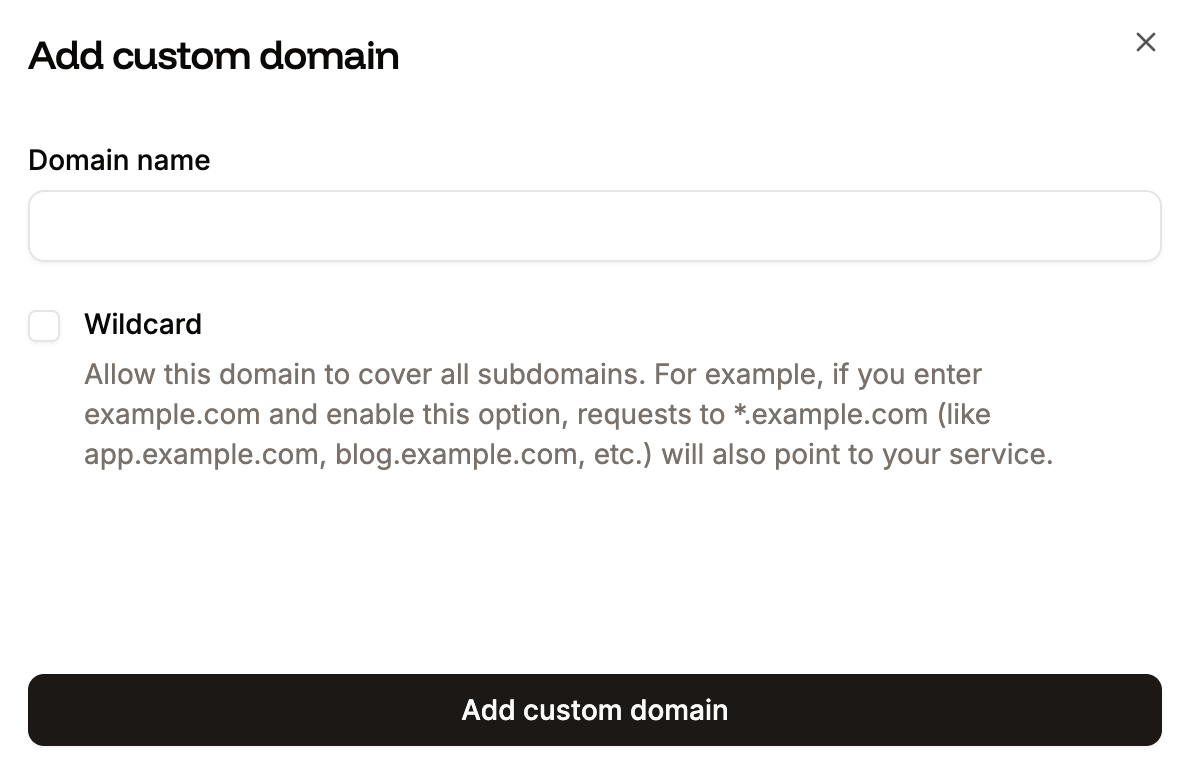
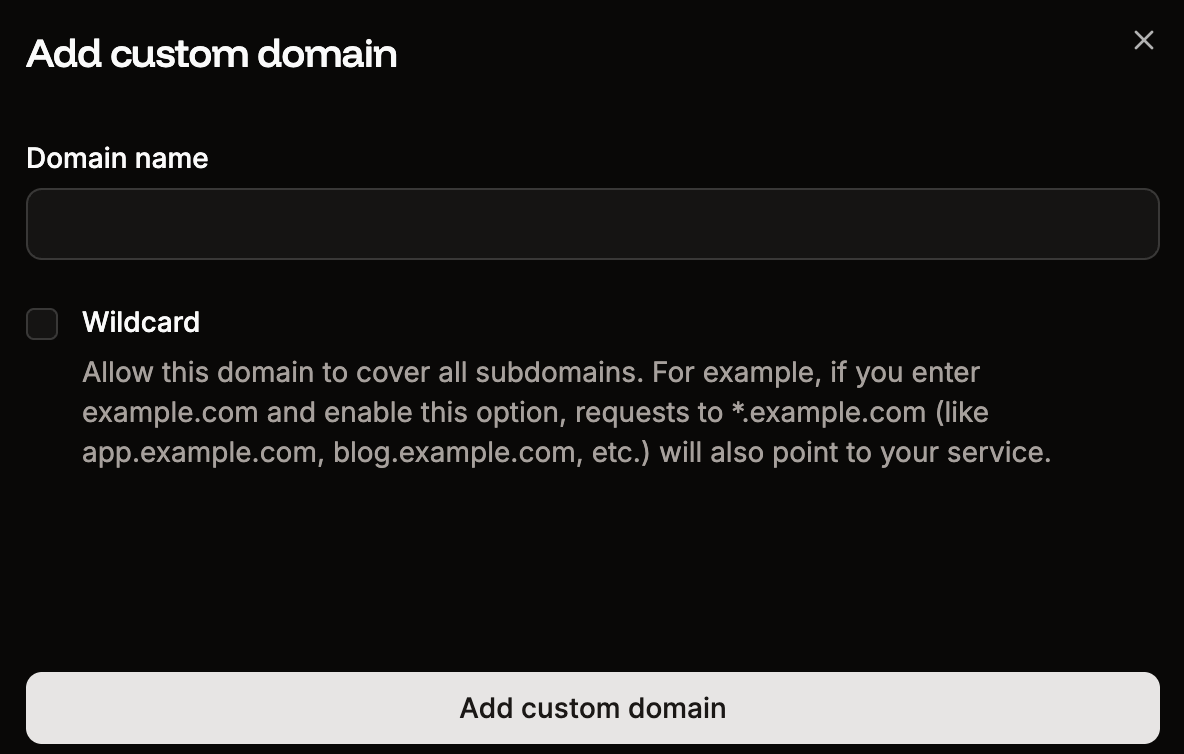
Click **Add custom domain** and enter your domain name. If you want to cover all subdomains, select **Wildcard** and then click **Add custom domain**.
If you add your domain without the wildcard subdomain, you should also consider adding the www version of the domain without the wildcard to ensure both versions are correctly configured.
 ## Verify domain
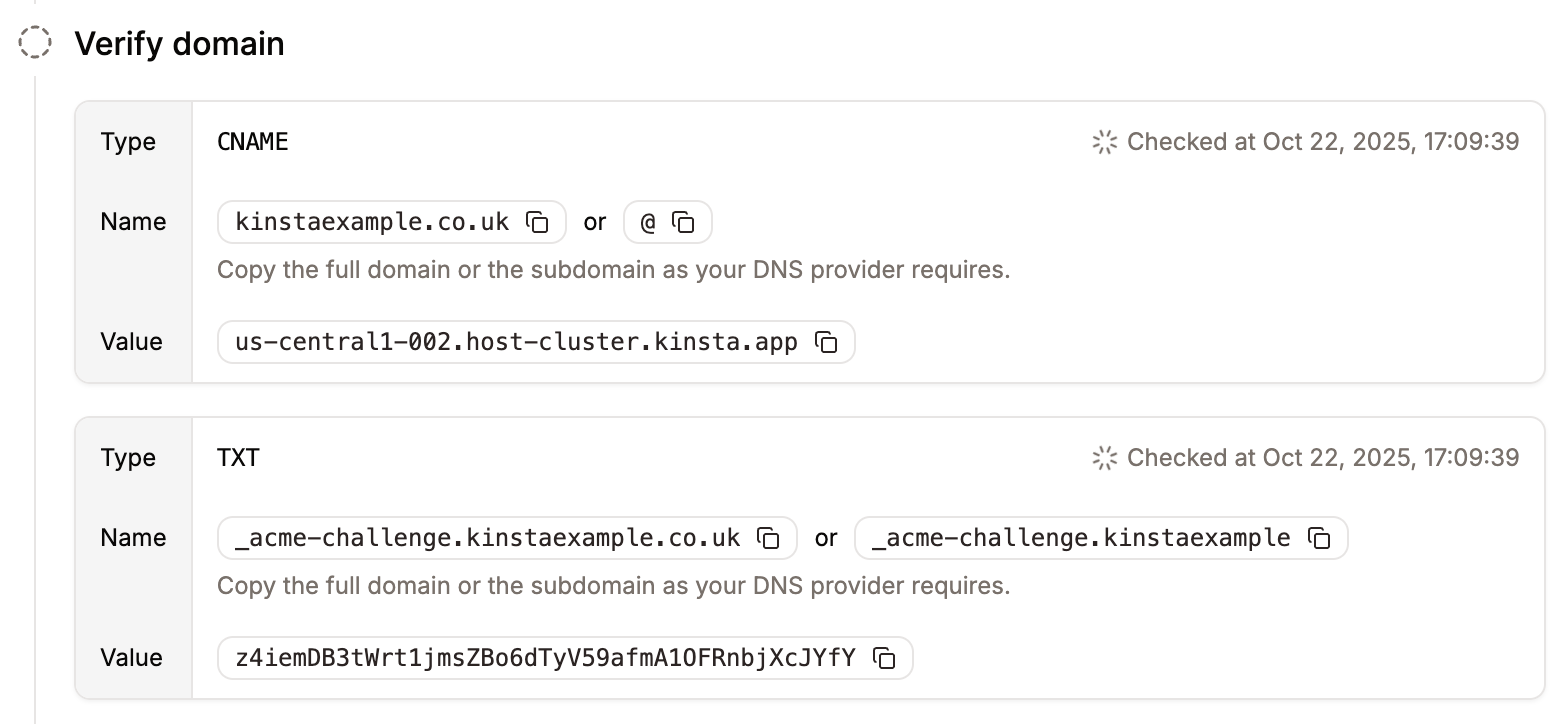
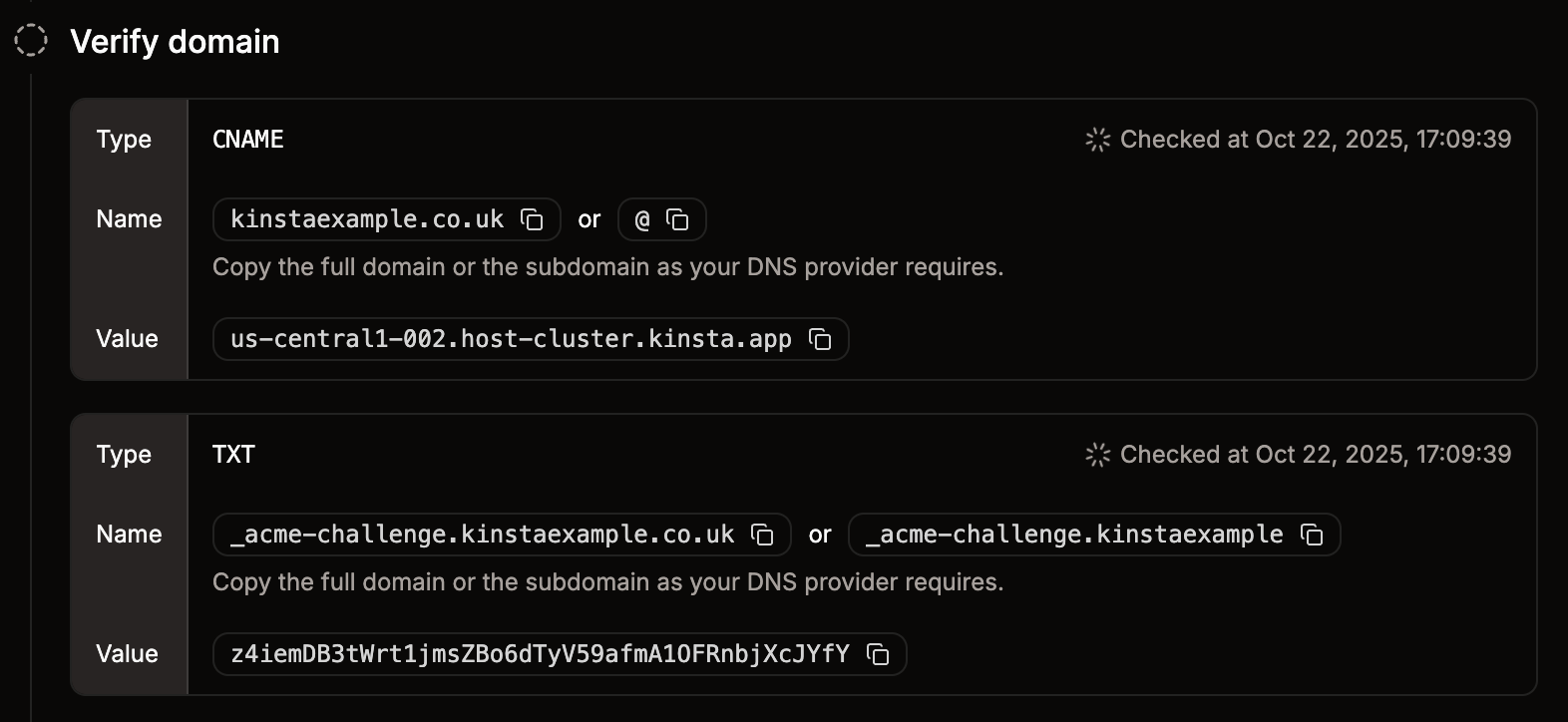
To verify your domain, you need to add the TXT record and CNAME record shown to your domain's DNS records. Some DNS providers, such as [Namecheap](https://www.namecheap.com/), [Spaceship](https://www.spaceship.com/), and [Squarespace](https://www.squarespace.com/) need the short version of DNS record names. Sevalla automatically provides both the full and short versions of each record, so you can use whichever format your DNS provider needs.
## Verify domain
To verify your domain, you need to add the TXT record and CNAME record shown to your domain's DNS records. Some DNS providers, such as [Namecheap](https://www.namecheap.com/), [Spaceship](https://www.spaceship.com/), and [Squarespace](https://www.squarespace.com/) need the short version of DNS record names. Sevalla automatically provides both the full and short versions of each record, so you can use whichever format your DNS provider needs.
 **TXT record**
The TXT record allows Cloudflare to verify that you own the domain and are authorized to use their services for that domain. Once the domain is fully validated, you can remove this record from your DNS if necessary.
* Name: `_cf-custom-hostname`
* Value: Unique UUID value from Sevalla (xxxxxxxx-xxxx-xxxx-xxxx-xxxxxxxxxxxx)
**CNAME record**
Sevalla uses this DNS entry to update the domain with the necessary tokens for your SSL certificate. As long as this record exists in your DNS, you won't need to manually renew your SSL certificate; Sevalla manages it for you. We don't recommend removing this DNS entry, as you will need to re-add it each time the SSL certificate requires renewal.
* Name: `_acme-challenge`
* Value: `example.com.[unique verification token].dcv.cloudflare.com`
Allow 5-10 minutes for DNS to propagate. If propagation doesn't occur as expected, you can use a DNS lookup tool, such as [dnschecker.org](https://dnschecker.org/) or [mxtoolbox.com](https://mxtoolbox.com/), to verify if the record is resolving correctly.
## Point domain
Once your domain is successfully verified, you can point it by adding the required A records to your domain's DNS settings.
Some DNS providers, such as [Namecheap](https://www.namecheap.com/), [Spaceship](https://www.spaceship.com/), and [Squarespace](https://www.squarespace.com/), need the short version of DNS record names. Sevalla automatically provides both the full and short versions of each record, so you can use whichever format your DNS provider needs.
If you select the **Wildcard** option, an additional A record for `*.yourdomain.com` appears to add to your domain's DNS settings, which ensures all subdomains are covered.
**TXT record**
The TXT record allows Cloudflare to verify that you own the domain and are authorized to use their services for that domain. Once the domain is fully validated, you can remove this record from your DNS if necessary.
* Name: `_cf-custom-hostname`
* Value: Unique UUID value from Sevalla (xxxxxxxx-xxxx-xxxx-xxxx-xxxxxxxxxxxx)
**CNAME record**
Sevalla uses this DNS entry to update the domain with the necessary tokens for your SSL certificate. As long as this record exists in your DNS, you won't need to manually renew your SSL certificate; Sevalla manages it for you. We don't recommend removing this DNS entry, as you will need to re-add it each time the SSL certificate requires renewal.
* Name: `_acme-challenge`
* Value: `example.com.[unique verification token].dcv.cloudflare.com`
Allow 5-10 minutes for DNS to propagate. If propagation doesn't occur as expected, you can use a DNS lookup tool, such as [dnschecker.org](https://dnschecker.org/) or [mxtoolbox.com](https://mxtoolbox.com/), to verify if the record is resolving correctly.
## Point domain
Once your domain is successfully verified, you can point it by adding the required A records to your domain's DNS settings.
Some DNS providers, such as [Namecheap](https://www.namecheap.com/), [Spaceship](https://www.spaceship.com/), and [Squarespace](https://www.squarespace.com/), need the short version of DNS record names. Sevalla automatically provides both the full and short versions of each record, so you can use whichever format your DNS provider needs.
If you select the **Wildcard** option, an additional A record for `*.yourdomain.com` appears to add to your domain's DNS settings, which ensures all subdomains are covered.
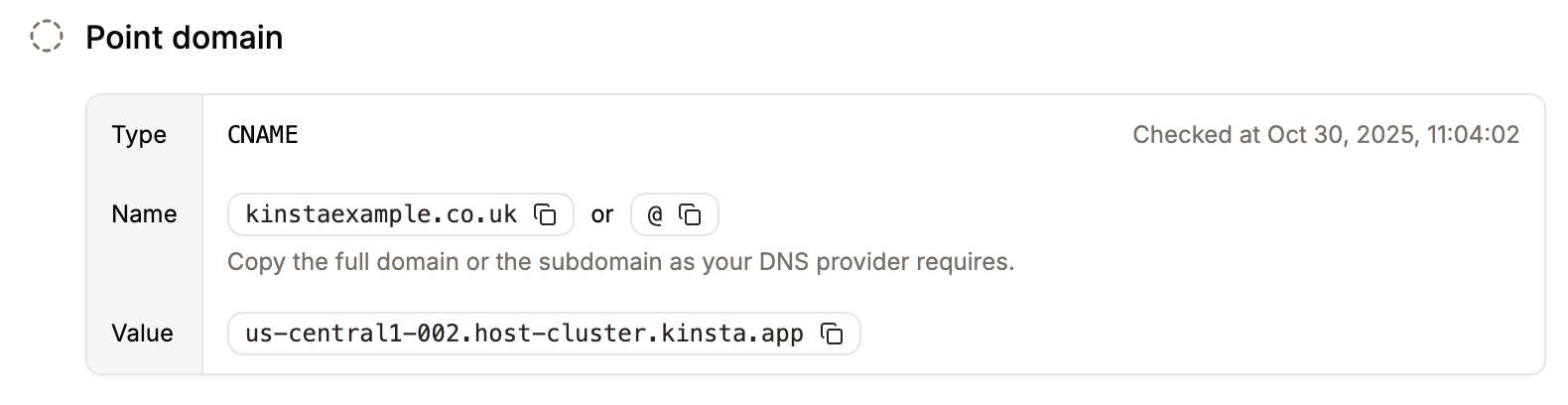
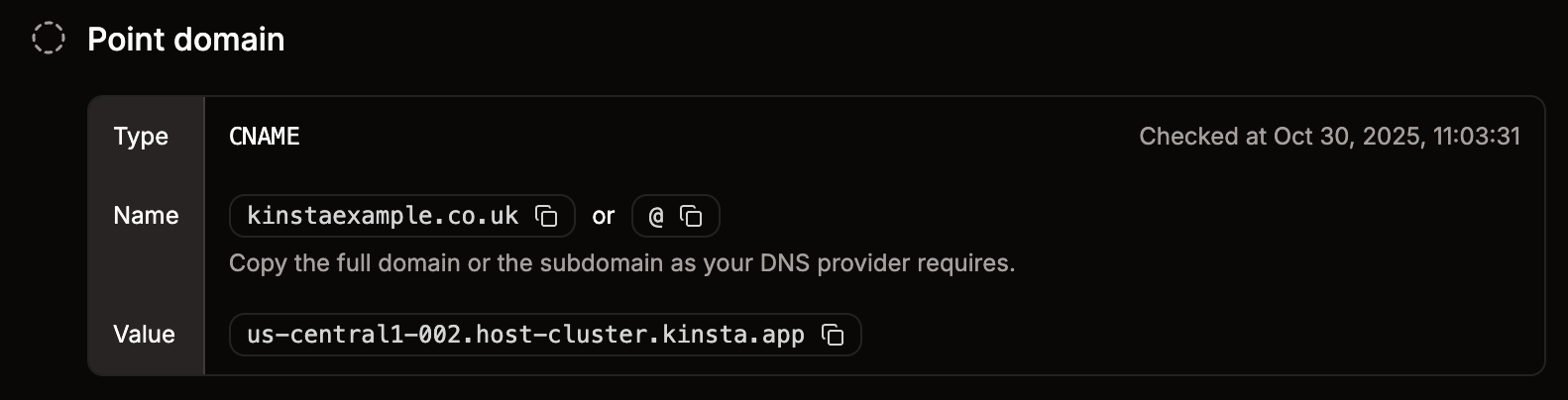 When the domain is successfully pointed, a success message appears.
### Point WWW domain
We recommend that you point the www version of your domain to Sevalla (if you haven't already). To do so, add the www version of the domain to Sevalla and repeat the steps to verify and point the subdomain.
## Change your primary domain
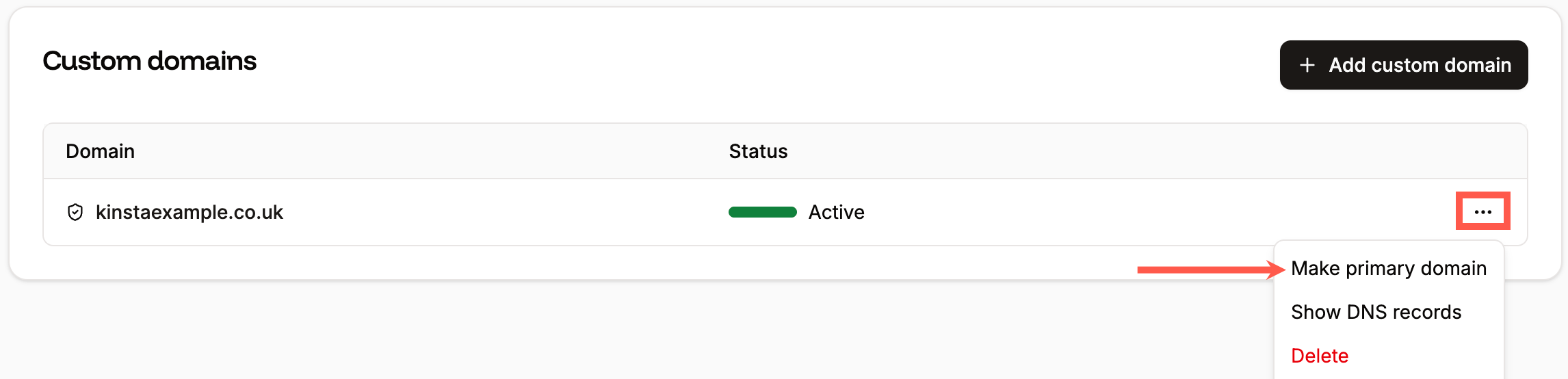
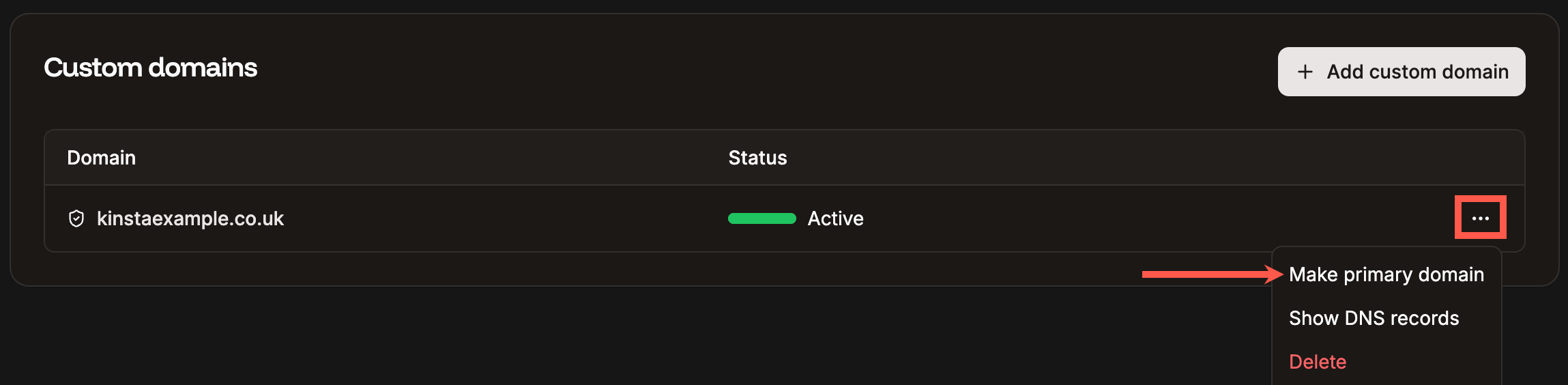
In the domains list, locate the domain you want to be the primary domain, click the kebab (three-dot) menu, and click **Make primary domain**. Verify that the correct domain is selected, then click **Continue**.
When the domain is successfully pointed, a success message appears.
### Point WWW domain
We recommend that you point the www version of your domain to Sevalla (if you haven't already). To do so, add the www version of the domain to Sevalla and repeat the steps to verify and point the subdomain.
## Change your primary domain
In the domains list, locate the domain you want to be the primary domain, click the kebab (three-dot) menu, and click **Make primary domain**. Verify that the correct domain is selected, then click **Continue**.
 ## Troubleshoot domain issues
Most domain problems happen during verification or pointing, and they usually come down to a conflicting or mis-entered DNS record. Work through the checks below in order.
### Domain won't verify
If your domain stays unverified after you've added the TXT and CNAME records, check the following:
* **Remove any existing A or CNAME record on the root domain.** If your domain already has an A or CNAME record (for example, pointing to a previous host), Cloudflare tries to verify ownership through that record, and verification fails. Remove the old A or CNAME record before verifying, then add the records Sevalla provides.
* **Confirm the `_acme-challenge` record is a CNAME, not a TXT.** The `_acme-challenge` value Sevalla provides (ending in `dcv.cloudflare.com`) must be added as a **CNAME** record. A common mistake is pasting it into a TXT record, which prevents the SSL certificate from being issued.
* **Disable the Cloudflare proxy on the verification records.** If you use Cloudflare as your DNS provider, set the verification records to **DNS only** (grey cloud). Proxied (orange cloud) records don't resolve publicly, so verification can't complete. You can re-enable the proxy on your A or CNAME records after the domain is active.
* **Remove conflicting or stale records.** If you previously added and removed this domain in Sevalla, an old `_cf-custom-hostname` TXT value may still be in your DNS. Delete any outdated `_cf-custom-hostname` or `_acme-challenge` records and re-add the exact values shown in Sevalla.
* **Confirm the value matches exactly.** Copy the value directly from Sevalla. A trailing space, a missing character, or a wrong record name causes verification to fail.
* **Check the Time-to-Live (TTL) setting.** This controls how long internet providers and other services remember your DNS settings before checking for updates. It is usually set to Auto or 5 minutes, but if it has been changed to a longer period, DNS propagation can take longer to take effect.
Allow 5-10 minutes after each change for DNS to propagate. Use [dnschecker.org](https://dnschecker.org/) or [mxtoolbox.com](https://mxtoolbox.com/) to confirm a record resolves before assuming it's wrong.
### SSL certificate isn't issued
Sevalla issues and renews your SSL certificate automatically once the domain is verified. If the certificate stays pending:
* Keep the `_acme-challenge` CNAME record in place. Removing it stops Sevalla from renewing your certificate, and you would need to re-add it.
* Check for a CAA record conflict, described in **Fix domain error** below.
### Fix domain error (CAA record conflict)
During the domain verification process, if a **Fix domain error** button appears next to the domain, this means a CAA record conflict is occurring.
A CAA record is an optional DNS record that lets you specify which certificate authorities (CAs) are allowed to issue SSL certificates for your domain. If a domain has no CAA records, any CA can generate an SSL certificate for it if requested. If a domain has a CAA record, only the CA(s) specified in the CA record can generate an SSL certificate for the domain.
To resolve this error, click the **Fix domain error** button and update the CAA record as indicated in the modal/pop-up. Alternatively, if you do not need a CAA record on your domain, you can remove the CAA record.
### Domain verified, but the load balancer doesn't respond
If the domain verifies but doesn't route traffic to your load balancer:
* Confirm the A record (or CNAME) matches the exact value shown on the **Point domain** step in Sevalla. If you reused an old record, update it.
* If you use the Cloudflare proxy, make sure it's enabled only on the A or CNAME records that point to Sevalla, not on the verification records.
* For wildcard domains, confirm you also added the `*.yourdomain.com` A record.
### Check your DNS records
You can see what's actually published for your domain with these commands:
```bash theme={null}
dig +short yourdomain.com A # Existing A record (remove before verifying)
dig +short yourdomain.com CNAME # Existing CNAME (remove before verifying)
dig +short _cf-custom-hostname.yourdomain.com TXT # Ownership TXT - must match the value in Sevalla
dig +short _acme-challenge.yourdomain.com CNAME # SSL validation CNAME
```
If the published values don't match what Sevalla shows, update your DNS records and wait for propagation. If they match and the domain still won't verify, [contact our Support Team](https://docs.sevalla.com/support/contact-support).
## Troubleshoot domain issues
Most domain problems happen during verification or pointing, and they usually come down to a conflicting or mis-entered DNS record. Work through the checks below in order.
### Domain won't verify
If your domain stays unverified after you've added the TXT and CNAME records, check the following:
* **Remove any existing A or CNAME record on the root domain.** If your domain already has an A or CNAME record (for example, pointing to a previous host), Cloudflare tries to verify ownership through that record, and verification fails. Remove the old A or CNAME record before verifying, then add the records Sevalla provides.
* **Confirm the `_acme-challenge` record is a CNAME, not a TXT.** The `_acme-challenge` value Sevalla provides (ending in `dcv.cloudflare.com`) must be added as a **CNAME** record. A common mistake is pasting it into a TXT record, which prevents the SSL certificate from being issued.
* **Disable the Cloudflare proxy on the verification records.** If you use Cloudflare as your DNS provider, set the verification records to **DNS only** (grey cloud). Proxied (orange cloud) records don't resolve publicly, so verification can't complete. You can re-enable the proxy on your A or CNAME records after the domain is active.
* **Remove conflicting or stale records.** If you previously added and removed this domain in Sevalla, an old `_cf-custom-hostname` TXT value may still be in your DNS. Delete any outdated `_cf-custom-hostname` or `_acme-challenge` records and re-add the exact values shown in Sevalla.
* **Confirm the value matches exactly.** Copy the value directly from Sevalla. A trailing space, a missing character, or a wrong record name causes verification to fail.
* **Check the Time-to-Live (TTL) setting.** This controls how long internet providers and other services remember your DNS settings before checking for updates. It is usually set to Auto or 5 minutes, but if it has been changed to a longer period, DNS propagation can take longer to take effect.
Allow 5-10 minutes after each change for DNS to propagate. Use [dnschecker.org](https://dnschecker.org/) or [mxtoolbox.com](https://mxtoolbox.com/) to confirm a record resolves before assuming it's wrong.
### SSL certificate isn't issued
Sevalla issues and renews your SSL certificate automatically once the domain is verified. If the certificate stays pending:
* Keep the `_acme-challenge` CNAME record in place. Removing it stops Sevalla from renewing your certificate, and you would need to re-add it.
* Check for a CAA record conflict, described in **Fix domain error** below.
### Fix domain error (CAA record conflict)
During the domain verification process, if a **Fix domain error** button appears next to the domain, this means a CAA record conflict is occurring.
A CAA record is an optional DNS record that lets you specify which certificate authorities (CAs) are allowed to issue SSL certificates for your domain. If a domain has no CAA records, any CA can generate an SSL certificate for it if requested. If a domain has a CAA record, only the CA(s) specified in the CA record can generate an SSL certificate for the domain.
To resolve this error, click the **Fix domain error** button and update the CAA record as indicated in the modal/pop-up. Alternatively, if you do not need a CAA record on your domain, you can remove the CAA record.
### Domain verified, but the load balancer doesn't respond
If the domain verifies but doesn't route traffic to your load balancer:
* Confirm the A record (or CNAME) matches the exact value shown on the **Point domain** step in Sevalla. If you reused an old record, update it.
* If you use the Cloudflare proxy, make sure it's enabled only on the A or CNAME records that point to Sevalla, not on the verification records.
* For wildcard domains, confirm you also added the `*.yourdomain.com` A record.
### Check your DNS records
You can see what's actually published for your domain with these commands:
```bash theme={null}
dig +short yourdomain.com A # Existing A record (remove before verifying)
dig +short yourdomain.com CNAME # Existing CNAME (remove before verifying)
dig +short _cf-custom-hostname.yourdomain.com TXT # Ownership TXT - must match the value in Sevalla
dig +short _acme-challenge.yourdomain.com CNAME # SSL validation CNAME
```
If the published values don't match what Sevalla shows, update your DNS records and wait for propagation. If they match and the domain still won't verify, [contact our Support Team](https://docs.sevalla.com/support/contact-support).