> ## Documentation Index
> Fetch the complete documentation index at: https://docs.sevalla.com/llms.txt
> Use this file to discover all available pages before exploring further.
# Add an object storage
> Add a new object storage bucket to your account.
Object storage lets you store any type of digital file for \$0.02 per GB. You can access your files using an S3-compatible API, an SDK, or the AWS CLI, making it easy to integrate with various applications and workflows.
If you currently have a bucket with AWS or GCP and would like to transfer your files from this bucket to Sevalla, please [contact our Support Team](/support/contact-support/).
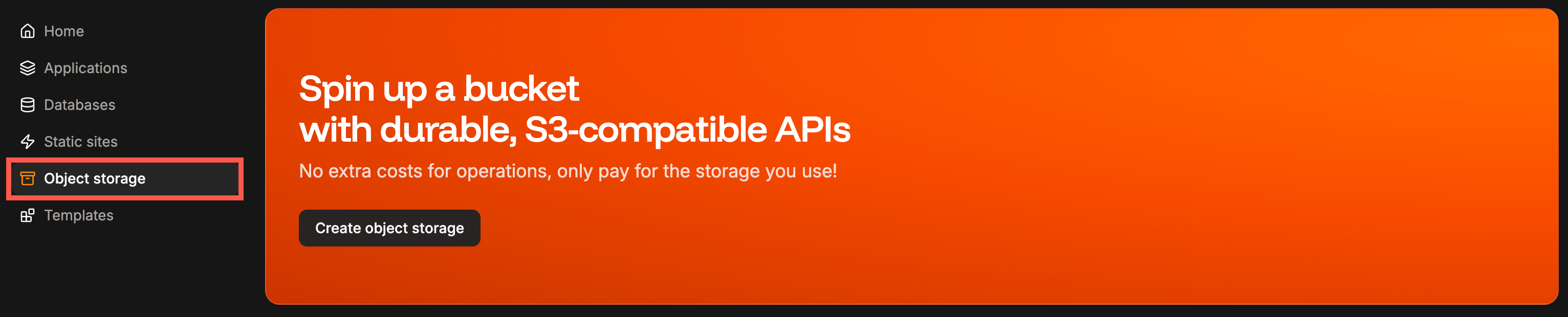
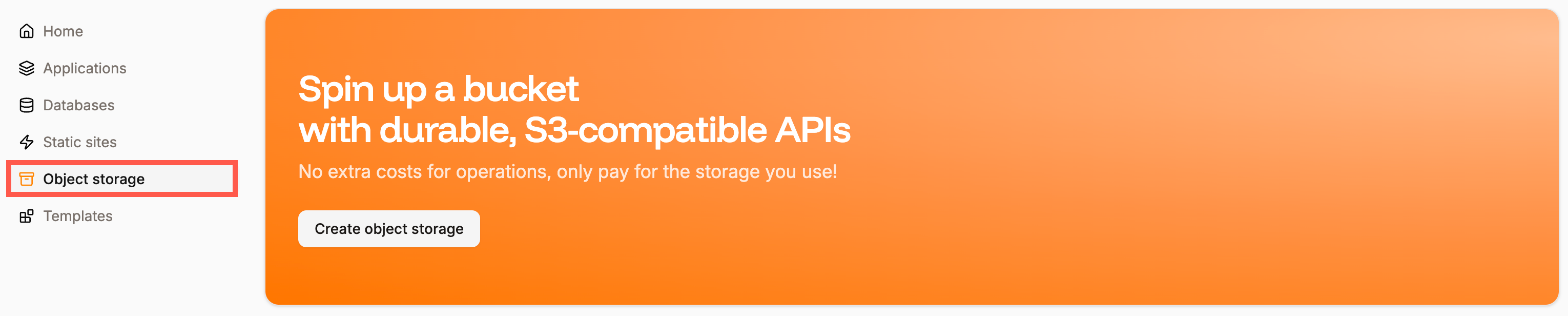
To add object storage within Sevalla, click **Object storage** and then **Create object storage**.
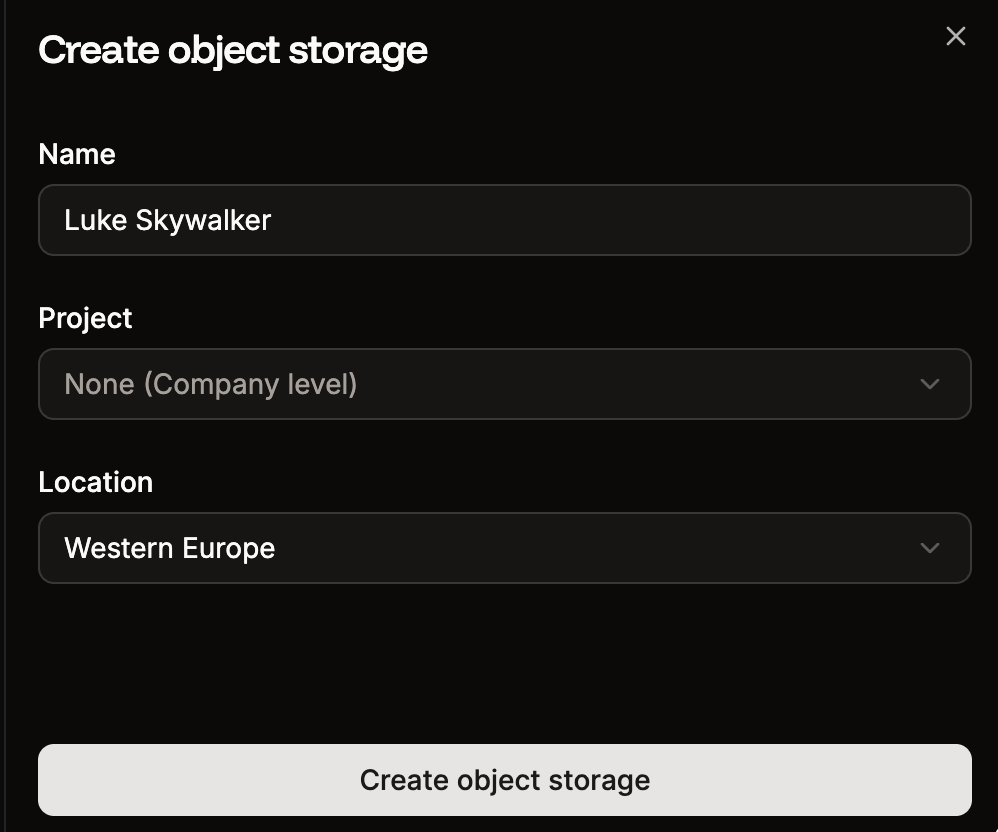
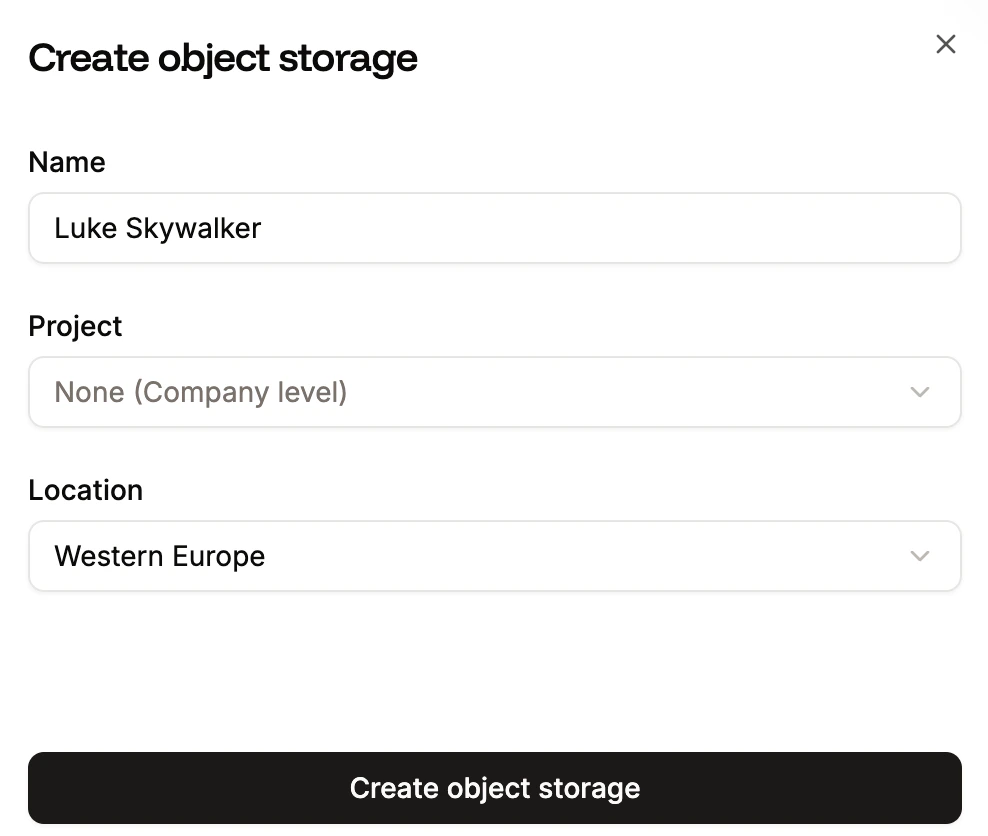
 Enter a name and choose a location. These locations are the available R2 locations, which are different from data center locations. By default, Sevalla selects a location in the closest available region.
The **Project** option is only shown if your company already has at least one project. Select the project you’d like to add the object storage to, or leave it blank to keep the object storage at the company level instead of assigning it to a specific project.
Once you've selected the required options, click **Create object storage**.
Enter a name and choose a location. These locations are the available R2 locations, which are different from data center locations. By default, Sevalla selects a location in the closest available region.
The **Project** option is only shown if your company already has at least one project. Select the project you’d like to add the object storage to, or leave it blank to keep the object storage at the company level instead of assigning it to a specific project.
Once you've selected the required options, click **Create object storage**.
 Once you've created the object storage, you can upload your files.
## Add files
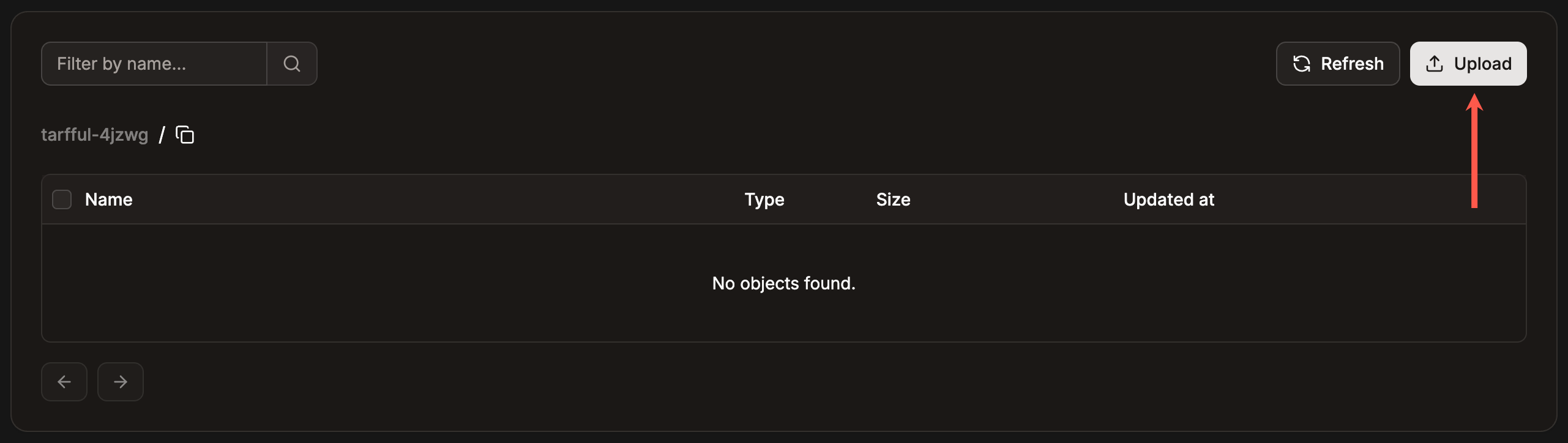
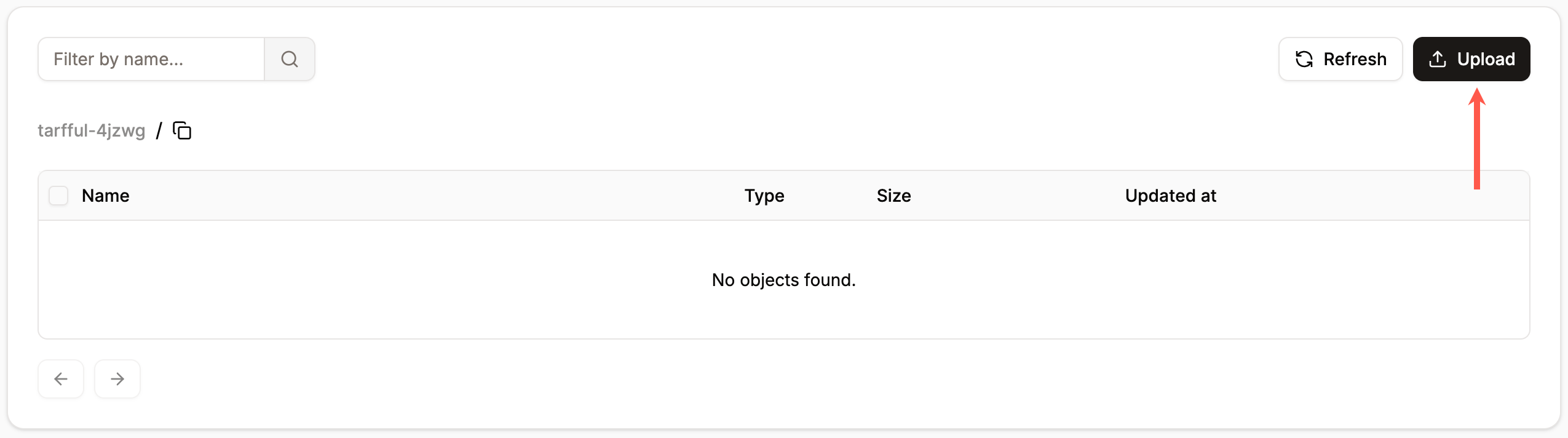
Within the object storage instance, click **Upload**.
Once you've created the object storage, you can upload your files.
## Add files
Within the object storage instance, click **Upload**.
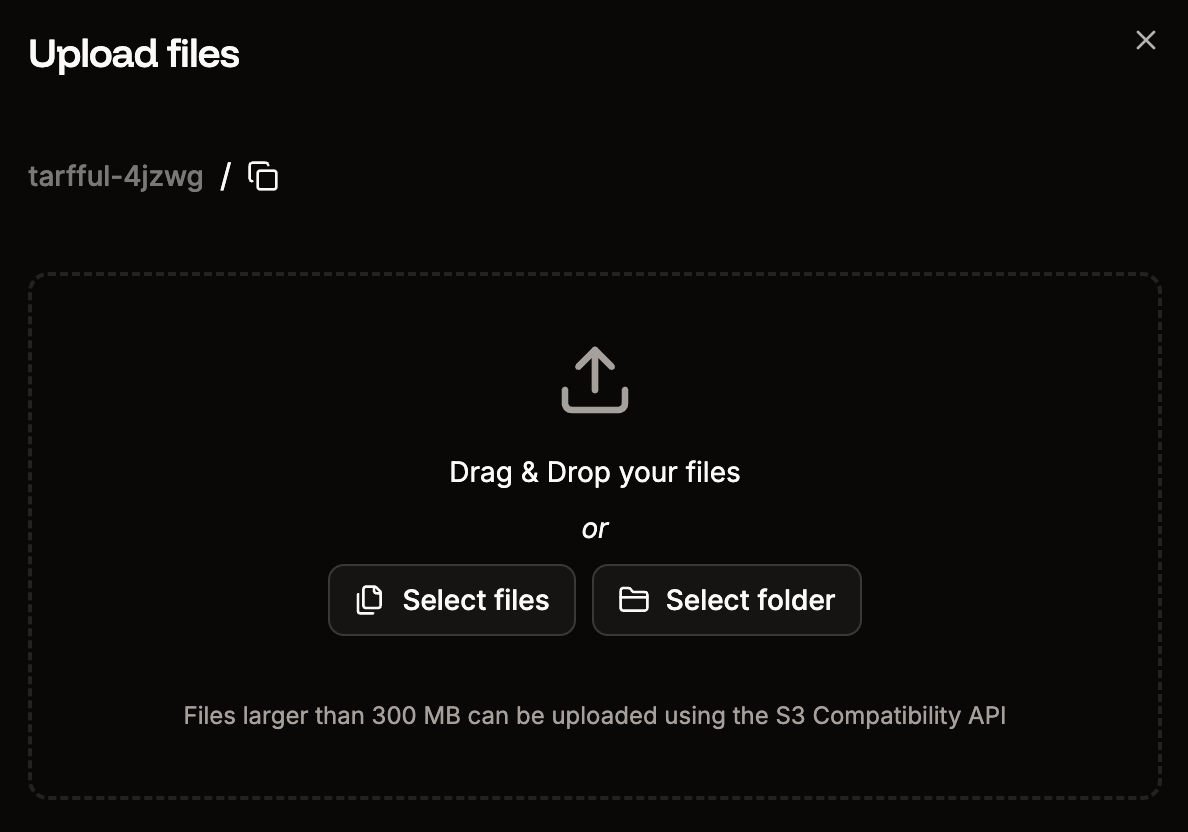
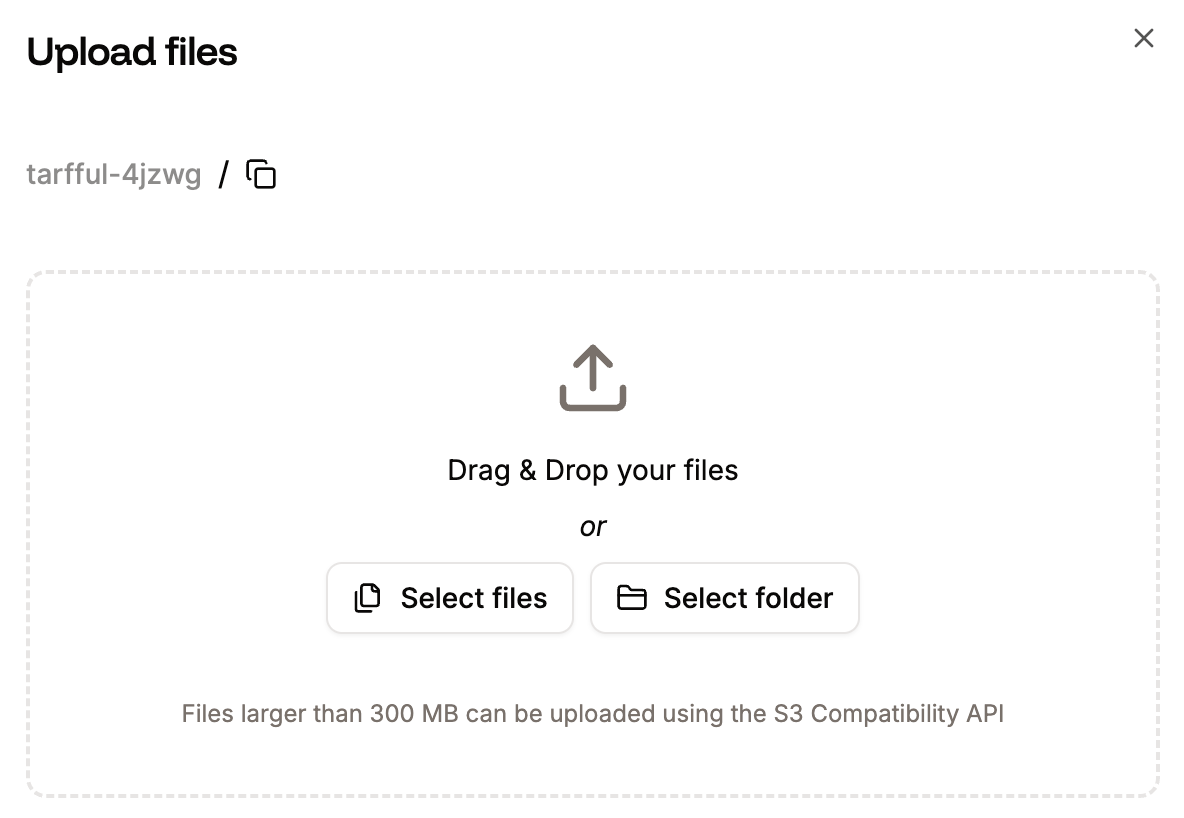
 You can upload files by simply dragging and dropping them or by selecting individual files or an entire folder containing the files you want to upload.
 ## Download files
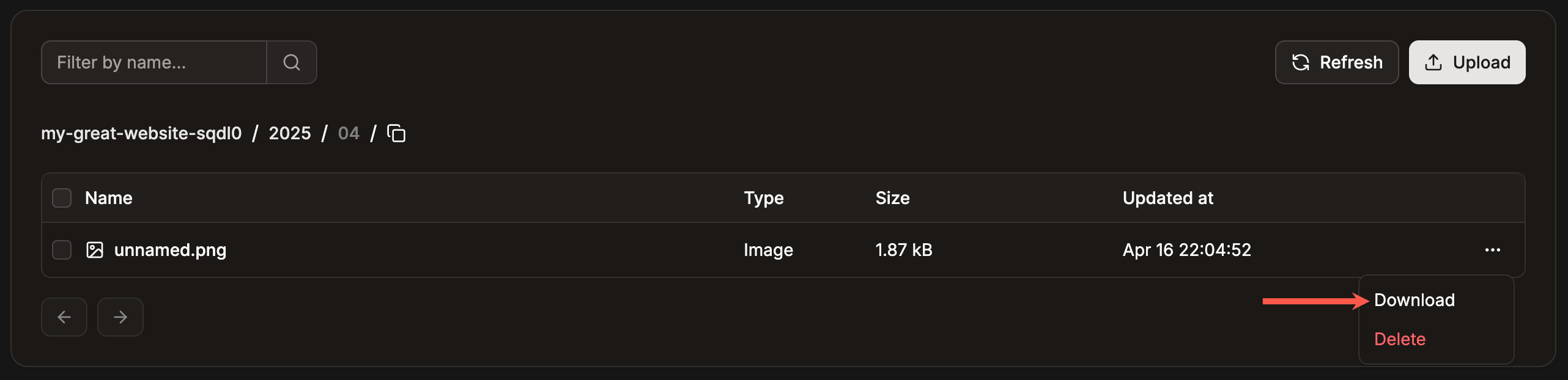
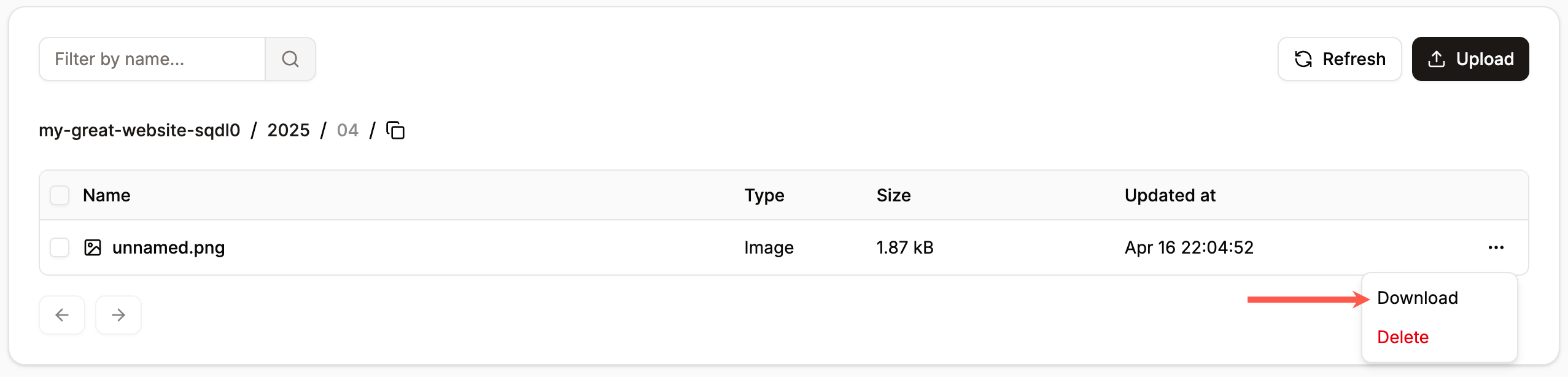
You can download any file within the object storage at any time. To do so, click the ellipsis (three dots) next to the file you want to download and click **Download**.
## Download files
You can download any file within the object storage at any time. To do so, click the ellipsis (three dots) next to the file you want to download and click **Download**.
 ## Delete files
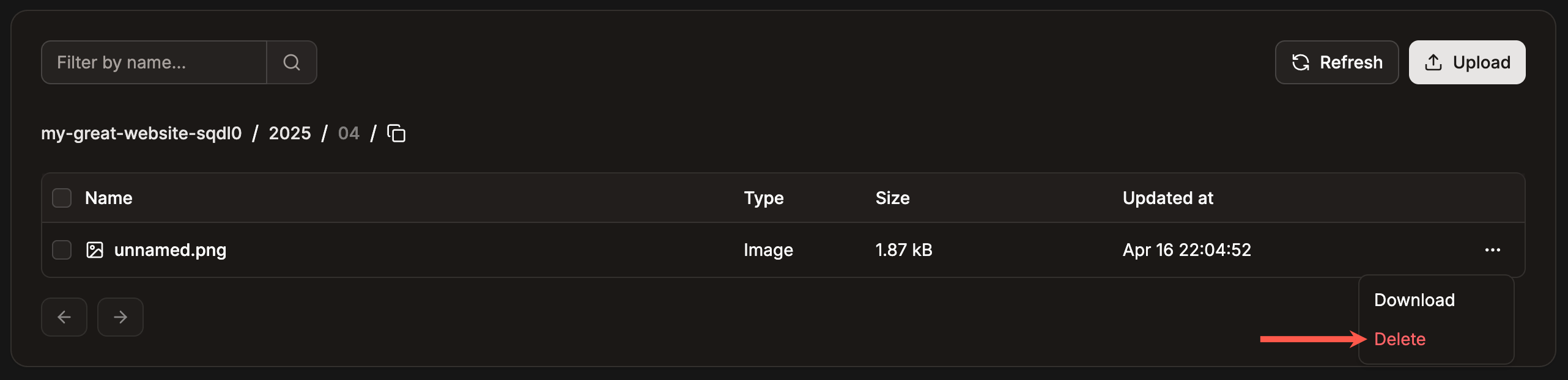
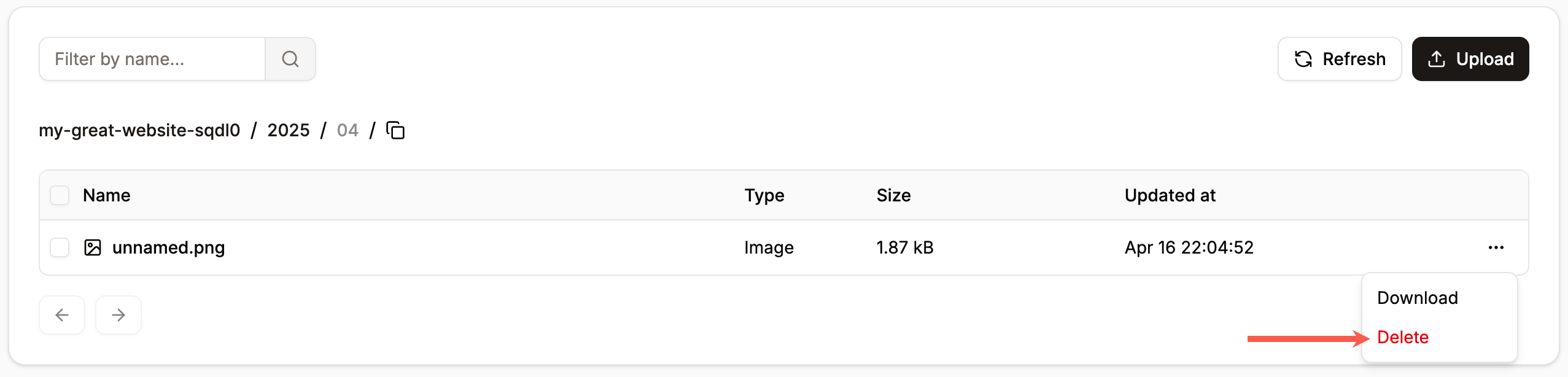
To delete a file, click the ellipsis (three dots) next to the file you want to remove and click **Delete**. Once an object is deleted, it cannot be recovered.
## Delete files
To delete a file, click the ellipsis (three dots) next to the file you want to remove and click **Delete**. Once an object is deleted, it cannot be recovered.
 You can also delete multiple files at once. Select the files you want to delete and click **Delete files**.