> ## Documentation Index
> Fetch the complete documentation index at: https://docs.sevalla.com/llms.txt
> Use this file to discover all available pages before exploring further.
> ## Agent Instructions
> These are the docs for Sevalla, a platform for deploying applications, databases, static sites, object storage and load balancers. The dashboard is at https://app.sevalla.com.
> Bold text in steps is an exact dashboard label.
> To act on a Sevalla account, prefer the Sevalla MCP server (https://mcp.sevalla.com/mcp, see https://docs.sevalla.com/ai-agents/overview.md), then the Sevalla CLI (https://docs.sevalla.com/developer-tools/cli.md), then the REST API (https://api-docs.sevalla.com, OpenAPI spec at https://api.sevalla.com/v3/openapi.json).
> Every page index is at https://docs.sevalla.com/llms.txt.
# Create a bucket
> Create an object storage bucket: give it a name, a project and a location, then find the bucket name, endpoint and access keys Sevalla generates for it.
Creating object storage gives you an empty, private bucket with its own S3 endpoint and access keys. As soon as it's created, the dashboard opens the bucket's **Objects** tab so you can upload files.
## Before you begin
* The company needs a valid payment method. Without one, creating fails with `No valid payment method found. Add one at https://app.sevalla.com/billing/payment-methods to continue.` See [Payment methods and invoices](/billing/payments).
* You need permission to create object storage in the company, or in at least one project. See [Users and roles](/company/users-and-roles).
## Create the bucket
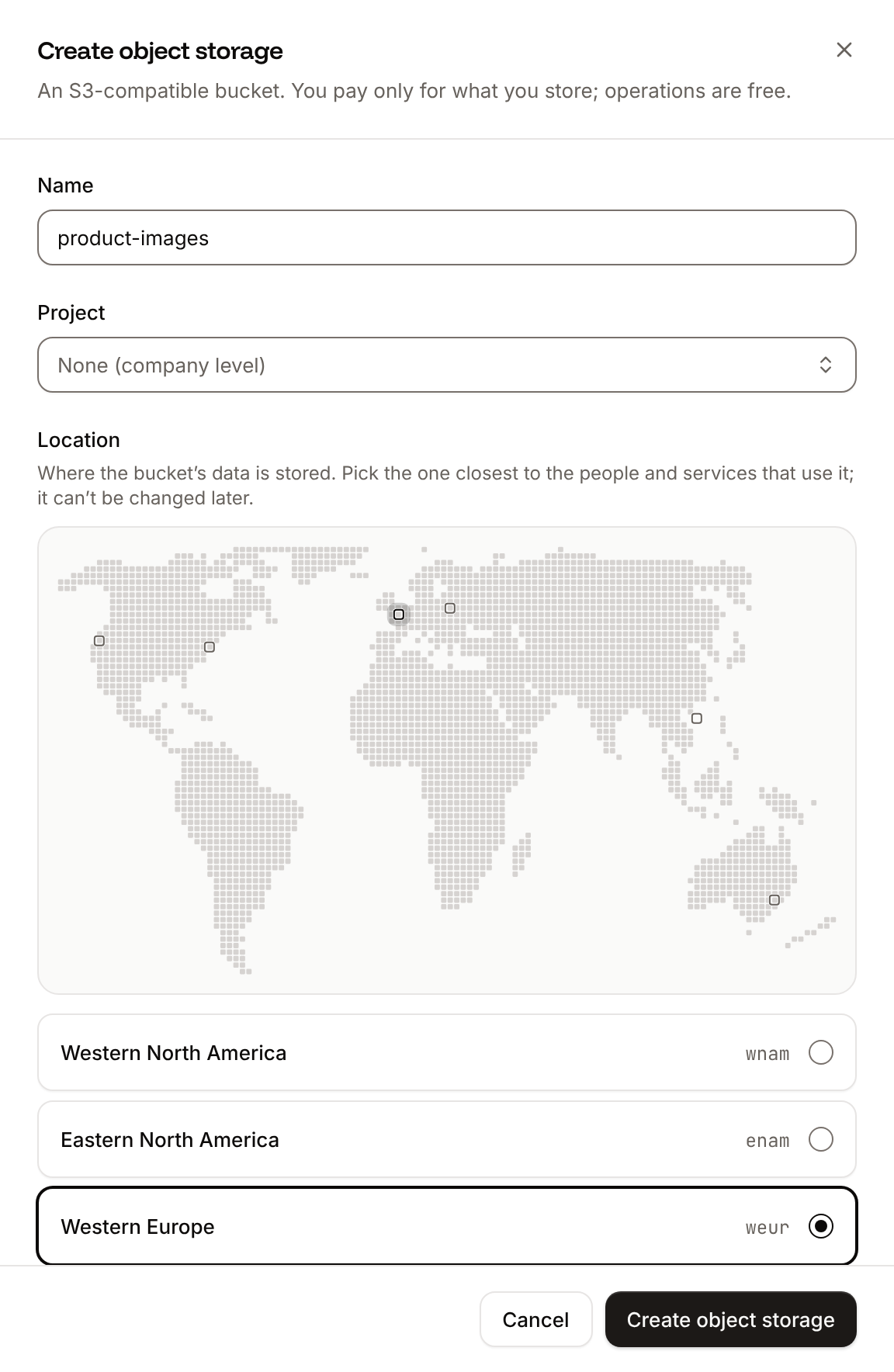
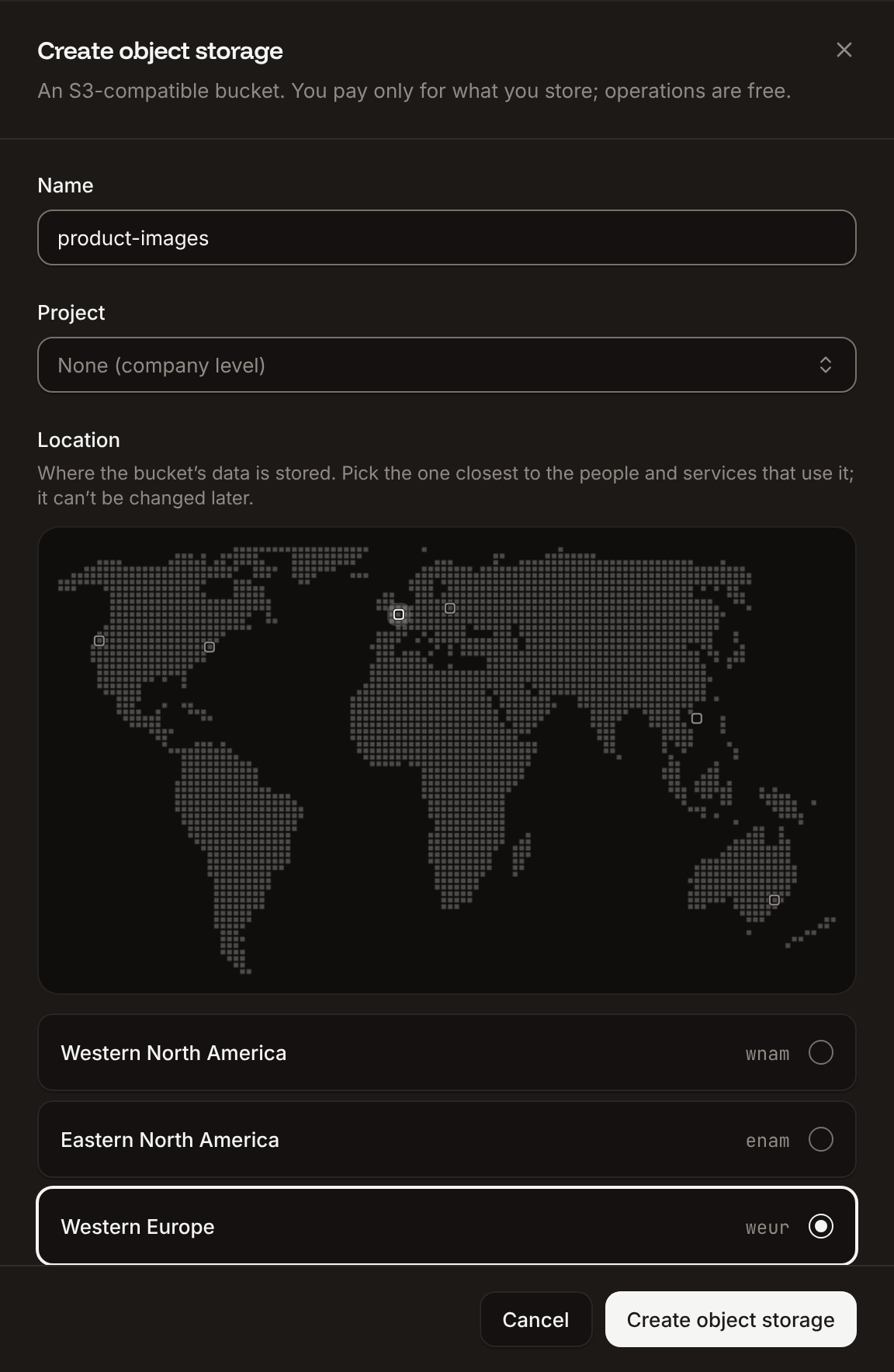
In the sidebar, click **Object storage**, then click **Create object storage**.
In **Name**, enter how the bucket appears in Sevalla, such as `Product images`. Sevalla generates the bucket name S3 clients use from it.
If your company has projects, pick one in **Project**, or keep **None (company level)**. The field only appears when there's a project you can create in.
Under **Location**, click the location closest to the applications and people that will use the bucket, on the map or in the list. You can't change it later.
Click **Create object storage**.
The dashboard shows **Object storage created.** and opens the new bucket. In the **Object storage** list, the bucket's status is **Active**.
 ## Fields
| Field | What it is | Values | Default |
| - | - | - | - |
| **Name** | The bucket's display name in Sevalla. | 1 to 100 characters, not only digits | A random name, such as `brave-olive-tiger` |
| **Project** | The [project](/projects/overview) the bucket belongs to. Shown only if there's a project you can create in. | A project, or **None (company level)** | **None (company level)**. If your access comes only from a project role, you must pick a project. |
| **Location** | Where most access to the bucket comes from. See [Locations](/object-storage/overview#locations). | Western North America, Eastern North America, Western Europe, Eastern Europe, Asia-Pacific, Oceania | Western Europe if your browser's time zone is in Europe, Western North America otherwise |
## What Sevalla sets up
* **A bucket name.** Sevalla turns the name into lowercase, replaces spaces with hyphens, removes special characters and leading digits, keeps the first 27 characters and adds a hyphen and 5 random characters. **Product images** becomes a bucket name like `product-images-x7k2m`. S3 clients must use this name, never the display name. It can't be changed.
* **An endpoint and access keys.** They're on the bucket's **Settings** tab. See [Connect with the S3 API](/object-storage/connect).
* **No public access.** The bucket is private until you [enable public access](/object-storage/settings#enable-public-access).
## If creating fails
Most errors appear in a notification titled **Couldn't create the object storage**, with the reason under it.
| Message | Cause | Fix |
| - | - | - |
| `No valid payment method found. Add one at https://app.sevalla.com/billing/payment-methods to continue.` | The company has no valid payment method. | Add a card on the **Billing** page, then try again. |
| `Object storage limit reached` | The company already has 20 buckets, the default limit. | Delete a bucket you don't need, or ask [support](/support/get-help) to raise the limit. |
| **No project to create object storage in**, shown instead of the form | You can create buckets only inside projects, and none of yours allows it. | Ask a project admin for access to a project. |
## API and CLI
| Task | API | CLI |
| - | - | - |
| Create a bucket | [Create object storage bucket](https://api-docs.sevalla.com/v3/object-storages/create-object-storage-bucket) | `sevalla object-storage create --name "Product images" --location weur` |
| List buckets | [List object storage buckets](https://api-docs.sevalla.com/v3/object-storages/list-object-storage-buckets) | `sevalla object-storage list` |
| Get a bucket's endpoint and keys | [Get object storage bucket](https://api-docs.sevalla.com/v3/object-storages/get-object-storage-bucket) | `sevalla object-storage get ` |
The API creates the bucket in Eastern North America (`enam`) when you leave out `location`, and can turn on public access in the same request with `public_access`.
This documentation is built and hosted on [Mintlify](https://mintlify.com), a developer documentation platform.
## Fields
| Field | What it is | Values | Default |
| - | - | - | - |
| **Name** | The bucket's display name in Sevalla. | 1 to 100 characters, not only digits | A random name, such as `brave-olive-tiger` |
| **Project** | The [project](/projects/overview) the bucket belongs to. Shown only if there's a project you can create in. | A project, or **None (company level)** | **None (company level)**. If your access comes only from a project role, you must pick a project. |
| **Location** | Where most access to the bucket comes from. See [Locations](/object-storage/overview#locations). | Western North America, Eastern North America, Western Europe, Eastern Europe, Asia-Pacific, Oceania | Western Europe if your browser's time zone is in Europe, Western North America otherwise |
## What Sevalla sets up
* **A bucket name.** Sevalla turns the name into lowercase, replaces spaces with hyphens, removes special characters and leading digits, keeps the first 27 characters and adds a hyphen and 5 random characters. **Product images** becomes a bucket name like `product-images-x7k2m`. S3 clients must use this name, never the display name. It can't be changed.
* **An endpoint and access keys.** They're on the bucket's **Settings** tab. See [Connect with the S3 API](/object-storage/connect).
* **No public access.** The bucket is private until you [enable public access](/object-storage/settings#enable-public-access).
## If creating fails
Most errors appear in a notification titled **Couldn't create the object storage**, with the reason under it.
| Message | Cause | Fix |
| - | - | - |
| `No valid payment method found. Add one at https://app.sevalla.com/billing/payment-methods to continue.` | The company has no valid payment method. | Add a card on the **Billing** page, then try again. |
| `Object storage limit reached` | The company already has 20 buckets, the default limit. | Delete a bucket you don't need, or ask [support](/support/get-help) to raise the limit. |
| **No project to create object storage in**, shown instead of the form | You can create buckets only inside projects, and none of yours allows it. | Ask a project admin for access to a project. |
## API and CLI
| Task | API | CLI |
| - | - | - |
| Create a bucket | [Create object storage bucket](https://api-docs.sevalla.com/v3/object-storages/create-object-storage-bucket) | `sevalla object-storage create --name "Product images" --location weur` |
| List buckets | [List object storage buckets](https://api-docs.sevalla.com/v3/object-storages/list-object-storage-buckets) | `sevalla object-storage list` |
| Get a bucket's endpoint and keys | [Get object storage bucket](https://api-docs.sevalla.com/v3/object-storages/get-object-storage-bucket) | `sevalla object-storage get ` |
The API creates the bucket in Eastern North America (`enam`) when you leave out `location`, and can turn on public access in the same request with `public_access`.
This documentation is built and hosted on [Mintlify](https://mintlify.com), a developer documentation platform.