> ## Documentation Index
> Fetch the complete documentation index at: https://docs.sevalla.com/llms.txt
> Use this file to discover all available pages before exploring further.
> ## Agent Instructions
> These are the docs for Sevalla, a platform for deploying applications, databases, static sites, object storage and load balancers. The dashboard is at https://app.sevalla.com.
> Bold text in steps is an exact dashboard label.
> To act on a Sevalla account, prefer the Sevalla MCP server (https://mcp.sevalla.com/mcp, see https://docs.sevalla.com/ai-agents/overview.md), then the Sevalla CLI (https://docs.sevalla.com/developer-tools/cli.md), then the REST API (https://api-docs.sevalla.com, OpenAPI spec at https://api.sevalla.com/v3/openapi.json).
> Every page index is at https://docs.sevalla.com/llms.txt.
# Manage objects
> Browse a bucket's folders and files in the dashboard, upload files and folders up to 300 MB per file, preview images, download files, copy keys and delete files.
The **Objects** tab is a file browser for a bucket: it lists folders and files, uploads files and whole folders, previews images, downloads files and deletes them. For files over 300 MB, or anything you do often, use the [S3 API](/object-storage/connect) instead.
## How keys and folders work
Every object has a key: its full path in the bucket, such as `documents/terms.pdf`. The browser splits keys at each `/` and shows the parts as folders.
* **Folders aren't objects.** A folder exists while at least one key starts with it, and you can't create an empty one. To make folders in the dashboard, upload a whole folder: its structure is kept.
* **Uploading creates the key.** A file `terms.pdf` uploaded while `documents` is open gets the key `documents/terms.pdf`.
* **The same key replaces the file.** Uploading a file with a key that already exists overwrites the old file.
## Browse a bucket
In the sidebar, click **Object storage**, then click the bucket. The **Objects** tab opens at the bucket's root.
| To | Do this |
| - | - |
| Open a folder | Click its name. Each folder has its own page address, so you can bookmark it. |
| Go back up | Click a part of the path bar, such as the bucket name. |
| Copy the path | Click the copy icon at the end of the path bar. It copies the bucket name and folder, such as `media-assets-h3k9p/documents/`. |
| Find files | Type in **Filter by name…**. It matches names that start with the text, in the open folder only, and it's case-sensitive. |
| See more | The browser shows 25 items per page, folders first. Use the **Previous page** and **Next page** arrows. |
| Show changes made elsewhere | Click **Refresh**. Files uploaded with other tools appear after a refresh. |
The **Type** column comes from the file extension: **Folder**, **Image**, **Document**, **Video**, **Audio** or **File**. **Size** and **Updated** are shown for files only.
## Upload files
In the sidebar, click **Object storage**, click the bucket, then open the folder to upload into. Stay at the root to upload there.
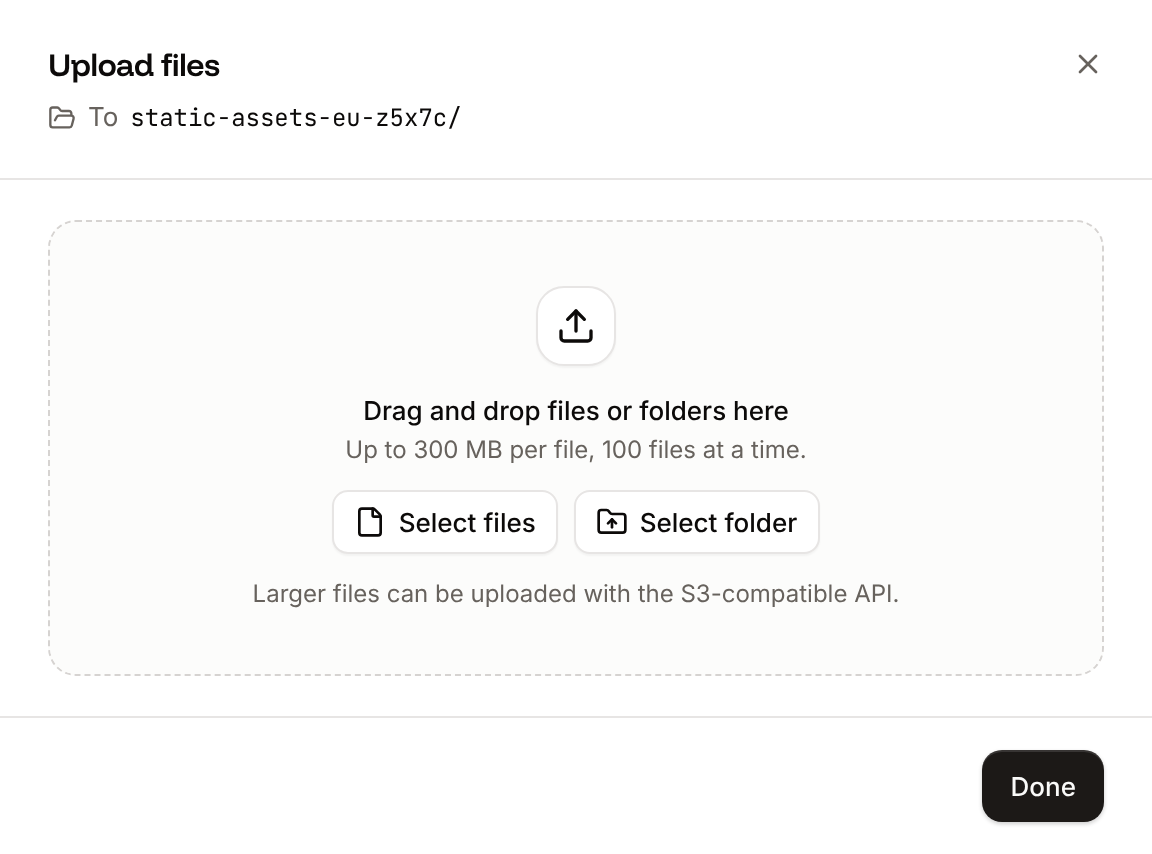
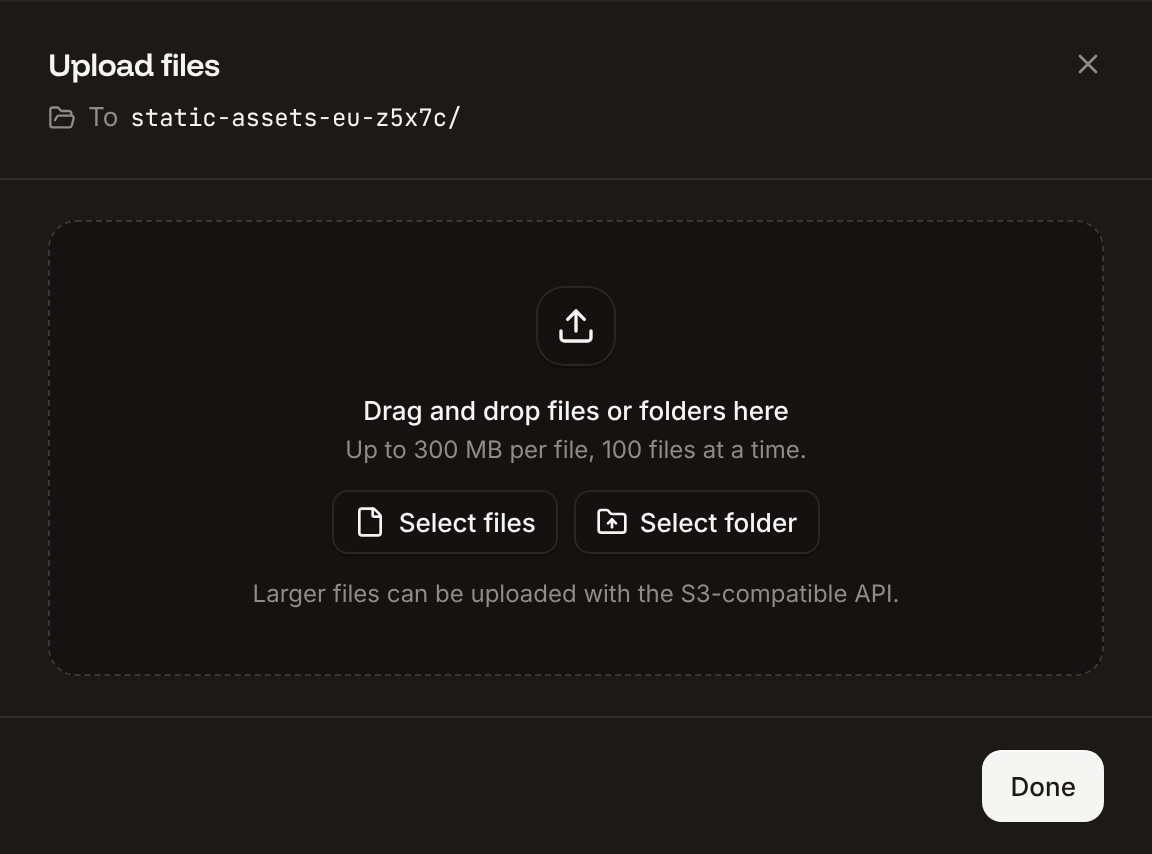
Click **Upload**. The **Upload files** sheet shows the destination, such as **To** `media-assets-h3k9p/documents/`.
Click **Select files** or **Select folder**, or drag files and folders onto the sheet. Each file starts uploading right away, with its own progress bar.
Click **Done** when every file has a green check mark. While files are still uploading, the button reads **Upload in background**: the uploads continue while the bucket's **Objects** tab stays open.
The files appear in the open folder when the uploads finish. You can also drag files or folders straight onto the file browser: the **Upload files** sheet opens and uploads them into the open folder.
 | Rule | What happens |
| - | - |
| 300 MB per file | A larger file isn't added. The sheet lists it with `Larger than 300 MB. Upload it with the S3-compatible API.` |
| 100 files at a time | Files after the 100th in one selection or drop aren't added: `Only 100 files can be added at once. Add the rest after these.` |
| The same file twice | A file already in the list isn't added again: `Already in the list.` |
| Folders | A folder keeps its structure. Uploading the folder `photos` with `2026/team.jpg` inside it, into `documents`, creates `documents/photos/2026/team.jpg`. |
| Cancel and retry | Click the **x** on a running upload to cancel it. A failed or cancelled upload has a retry button. **Clear finished** removes completed rows from the list. |
| Permission | Uploading needs permission to update the bucket. Without it, **Upload** is disabled. |
## Preview an image
Click an image's name, or click **...** next to it and then **Preview**. The **Preview image** dialog shows the image, with a **Download** button.
## Download a file
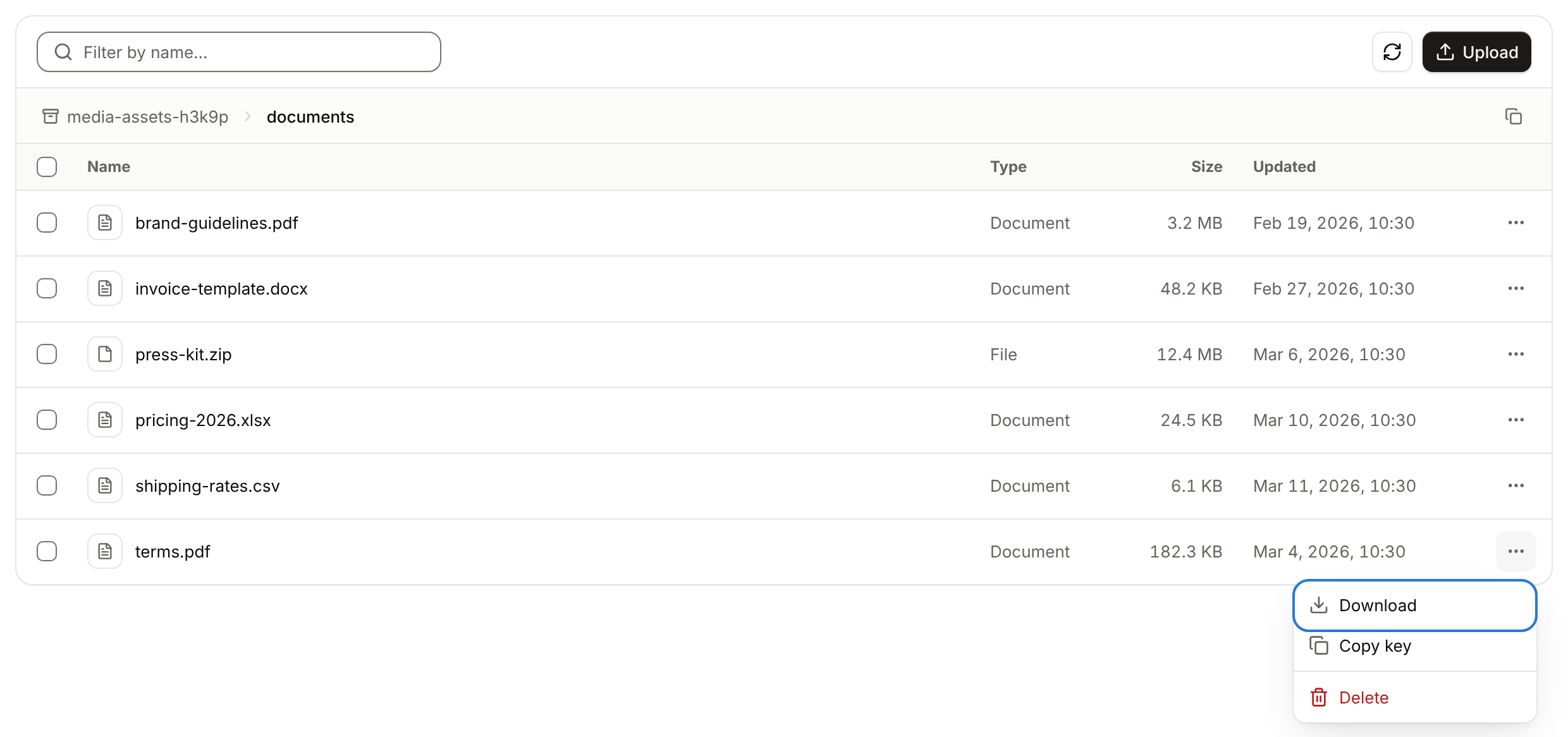
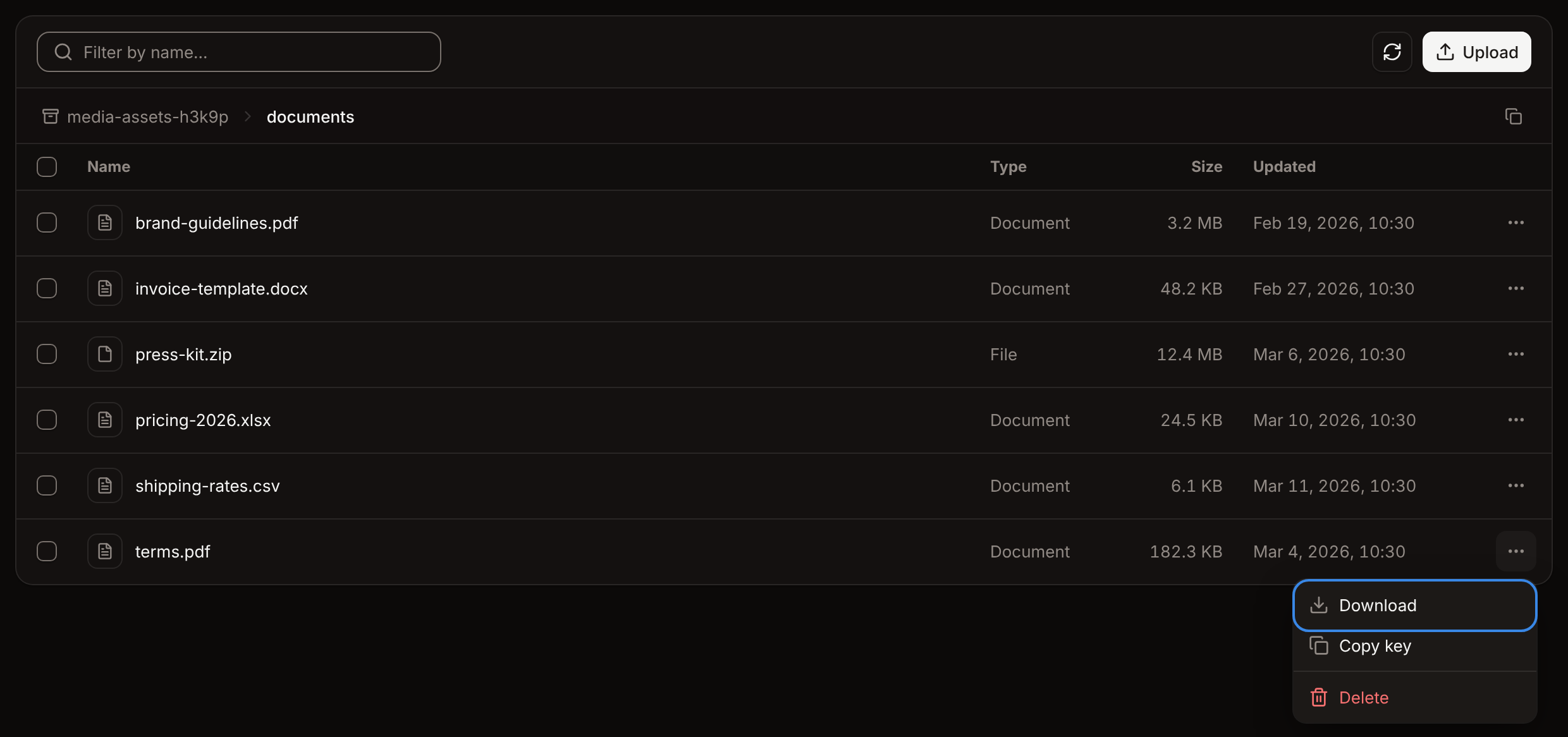
Click **...** next to the file, then click **Download**. The browser saves it under the file's name. The dashboard downloads one file at a time; to download a whole folder, use an S3 tool, such as `aws s3 cp --recursive` with the [AWS CLI](/object-storage/connect#connect-with-the-aws-cli).
| Rule | What happens |
| - | - |
| 300 MB per file | A larger file isn't added. The sheet lists it with `Larger than 300 MB. Upload it with the S3-compatible API.` |
| 100 files at a time | Files after the 100th in one selection or drop aren't added: `Only 100 files can be added at once. Add the rest after these.` |
| The same file twice | A file already in the list isn't added again: `Already in the list.` |
| Folders | A folder keeps its structure. Uploading the folder `photos` with `2026/team.jpg` inside it, into `documents`, creates `documents/photos/2026/team.jpg`. |
| Cancel and retry | Click the **x** on a running upload to cancel it. A failed or cancelled upload has a retry button. **Clear finished** removes completed rows from the list. |
| Permission | Uploading needs permission to update the bucket. Without it, **Upload** is disabled. |
## Preview an image
Click an image's name, or click **...** next to it and then **Preview**. The **Preview image** dialog shows the image, with a **Download** button.
## Download a file
Click **...** next to the file, then click **Download**. The browser saves it under the file's name. The dashboard downloads one file at a time; to download a whole folder, use an S3 tool, such as `aws s3 cp --recursive` with the [AWS CLI](/object-storage/connect#connect-with-the-aws-cli).
 ## Copy the key of a file
Click **...** next to the file, then click **Copy key**. It copies the full key, such as `documents/terms.pdf`, which S3 clients and [public URLs](/object-storage/connect#public-urls) use.
## Delete files
To delete one file, click **...** next to it, then click **Delete**. To delete more than one, select their checkboxes (the checkbox in the header selects every file on the page), then click **Delete 2 files** (the button shows how many are selected).
Click **Delete file** or **Delete files**.
The files disappear from the list, and the dashboard shows **File deleted.** or, for more than one, how many were deleted.
Deleted files can't be recovered.
Folders have no checkbox and no menu: delete the files in a folder, and the folder disappears once it's empty. A selection covers the current page only. Deleting files needs permission to delete the bucket; without it, the checkboxes don't appear and **Delete** is disabled.
## API and CLI
| Task | API | CLI |
| - | - | - |
| List objects | [List objects](https://api-docs.sevalla.com/v3/object-storages/list-objects) | `sevalla object-storage objects list --bucket-id ` |
| Delete objects | [Delete objects](https://api-docs.sevalla.com/v3/object-storages/delete-objects) | `sevalla object-storage objects delete --keys documents/terms.pdf,documents/old.pdf --confirm` |
| Upload and download | Use an S3 client: see [Connect with the S3 API](/object-storage/connect) | |
This documentation is built and hosted on [Mintlify](https://mintlify.com), a developer documentation platform.
## Copy the key of a file
Click **...** next to the file, then click **Copy key**. It copies the full key, such as `documents/terms.pdf`, which S3 clients and [public URLs](/object-storage/connect#public-urls) use.
## Delete files
To delete one file, click **...** next to it, then click **Delete**. To delete more than one, select their checkboxes (the checkbox in the header selects every file on the page), then click **Delete 2 files** (the button shows how many are selected).
Click **Delete file** or **Delete files**.
The files disappear from the list, and the dashboard shows **File deleted.** or, for more than one, how many were deleted.
Deleted files can't be recovered.
Folders have no checkbox and no menu: delete the files in a folder, and the folder disappears once it's empty. A selection covers the current page only. Deleting files needs permission to delete the bucket; without it, the checkboxes don't appear and **Delete** is disabled.
## API and CLI
| Task | API | CLI |
| - | - | - |
| List objects | [List objects](https://api-docs.sevalla.com/v3/object-storages/list-objects) | `sevalla object-storage objects list --bucket-id ` |
| Delete objects | [Delete objects](https://api-docs.sevalla.com/v3/object-storages/delete-objects) | `sevalla object-storage objects delete --keys documents/terms.pdf,documents/old.pdf --confirm` |
| Upload and download | Use an S3 client: see [Connect with the S3 API](/object-storage/connect) | |
This documentation is built and hosted on [Mintlify](https://mintlify.com), a developer documentation platform.