> ## Documentation Index
> Fetch the complete documentation index at: https://docs.sevalla.com/llms.txt
> Use this file to discover all available pages before exploring further.
> ## Agent Instructions
> These are the docs for Sevalla, a platform for deploying applications, databases, static sites, object storage and load balancers. The dashboard is at https://app.sevalla.com.
> Bold text in steps is an exact dashboard label.
> To act on a Sevalla account, prefer the Sevalla MCP server (https://mcp.sevalla.com/mcp, see https://docs.sevalla.com/ai-agents/overview.md), then the Sevalla CLI (https://docs.sevalla.com/developer-tools/cli.md), then the REST API (https://api-docs.sevalla.com, OpenAPI spec at https://api.sevalla.com/v3/openapi.json).
> Every page index is at https://docs.sevalla.com/llms.txt.
# Pipelines
> Group applications into ordered stages such as Dev and Production, promote a tested build from one stage to the next without rebuilding, and add preview apps for pull requests.
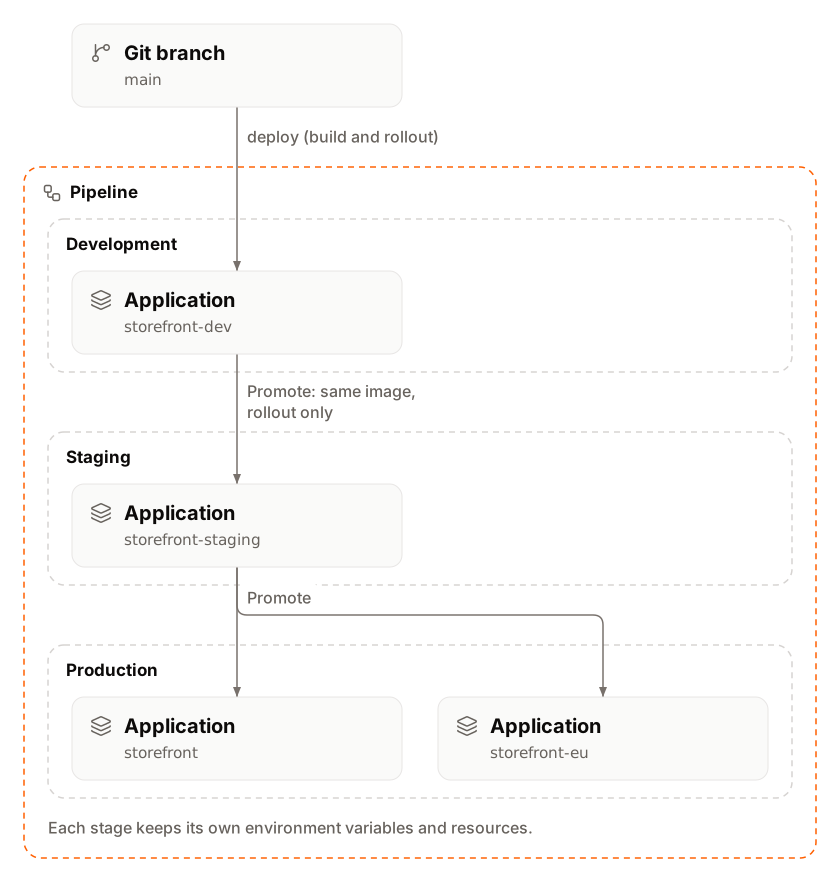
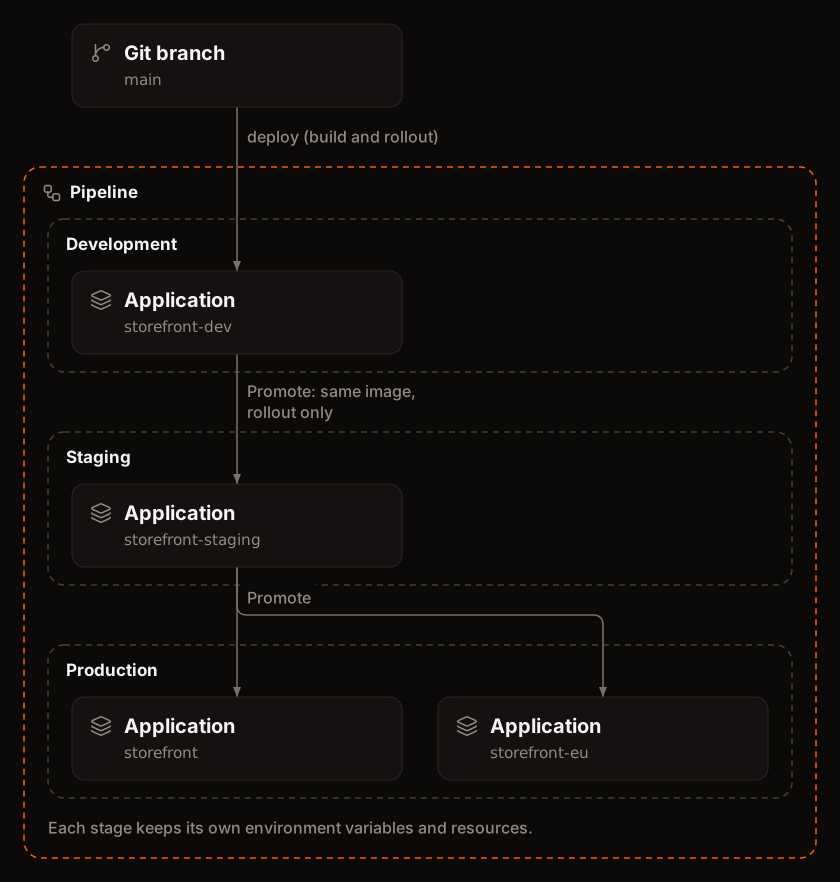
A pipeline groups applications into ordered stages, such as Dev, Staging and Production, so a change moves through them in one direction. On a trunk-based pipeline you promote an application's build to the next stage: each application there rolls out the same Docker image with its own settings, without rebuilding. A pipeline can also have a preview stage that creates a short-lived [preview app](/pipelines/preview-apps) for each pull request.
## How pipelines work
A pipeline holds stages, and each stage holds applications. An application belongs to one pipeline stage at most. Pipelines and stages cost nothing: you pay for the applications in them as for any other [application](/billing/pricing).
| Part | What it is |
| - | - |
| Stage | A column on the pipeline board, with any number of applications. A new pipeline starts with two stages, **Dev** and **Production**. |
| Release strategy | **Trunk-based development** or **Git flow**: decides whether changes move between stages by promotion. |
| Promotion | Rolls out the source application's last successful build on the applications you pick in the next stage. Trunk-based pipelines only. |
| Preview stage | An optional first column with a [preview app](/pipelines/preview-apps) per pull request or branch. Turned on with **Enable preview apps**. |
 ### Release strategies
| Strategy | How code reaches each stage | Promote | New empty applications in a stage |
| - | - | - | - |
| **Trunk-based development** | The first stage deploys from a branch (usually `main`). Later stages get changes only by promotion. | Yes, from each stage to the next one | Yes |
| **Git flow** | Each stage's applications deploy from their own branch (for example `dev`, `next`, `main`) with [automatic deployments](/applications/deployments). | No | No, only existing applications |
On a Git flow pipeline the board shows where each branch is deployed; Sevalla doesn't move code between stages. You can switch the release strategy at any time in [pipeline settings](#update-pipeline-settings). Switching changes nothing in the applications: it only shows or hides **Promote**.
### Limits
| Limit | Value |
| - | - |
| Pipelines per company | 50 |
| Stages per pipeline | 10, the preview stage included |
| Stages per application | 1: an application is in one pipeline stage at most |
| Names of pipelines and stages | 1 to 255 characters |
At a limit, Sevalla refuses with `Pipeline limit reached` or `Pipeline stage limit reached`. To raise a limit, [contact support](/support/get-help).
### Who can do what
Pipelines use the permissions for applications, in the pipeline's project or, for a pipeline outside projects, in the company. See [Users and roles](/company/users-and-roles).
| Action | Permission needed |
| - | - |
| Create a pipeline | Create applications |
| Add stages, add and remove applications, promote, update settings, turn preview apps on or off | Update applications |
| Create preview apps | Create and update applications |
| Delete the pipeline | Delete applications |
Without the permission, the dashboard shows the action disabled with the reason.
## Create a pipeline
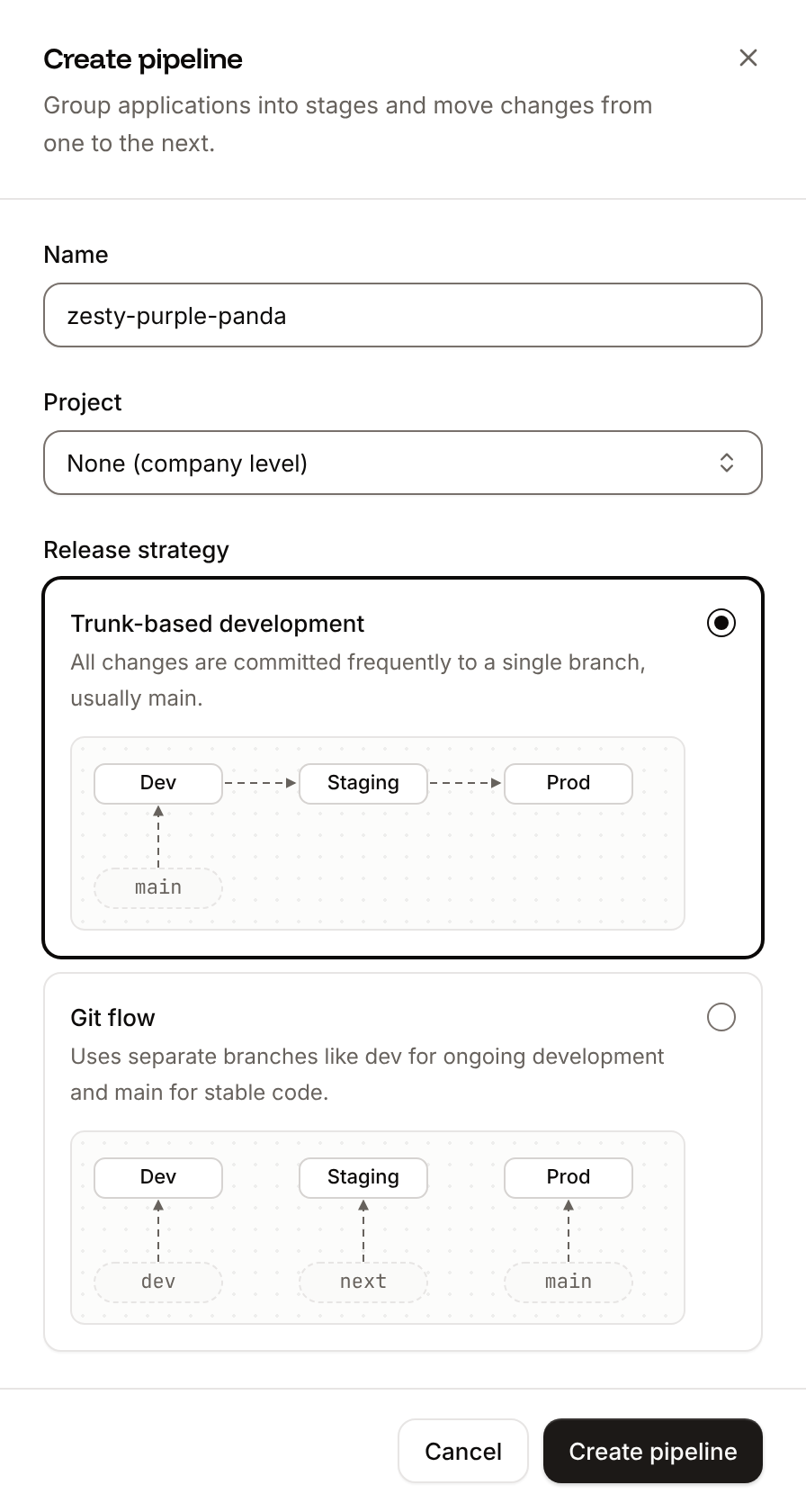
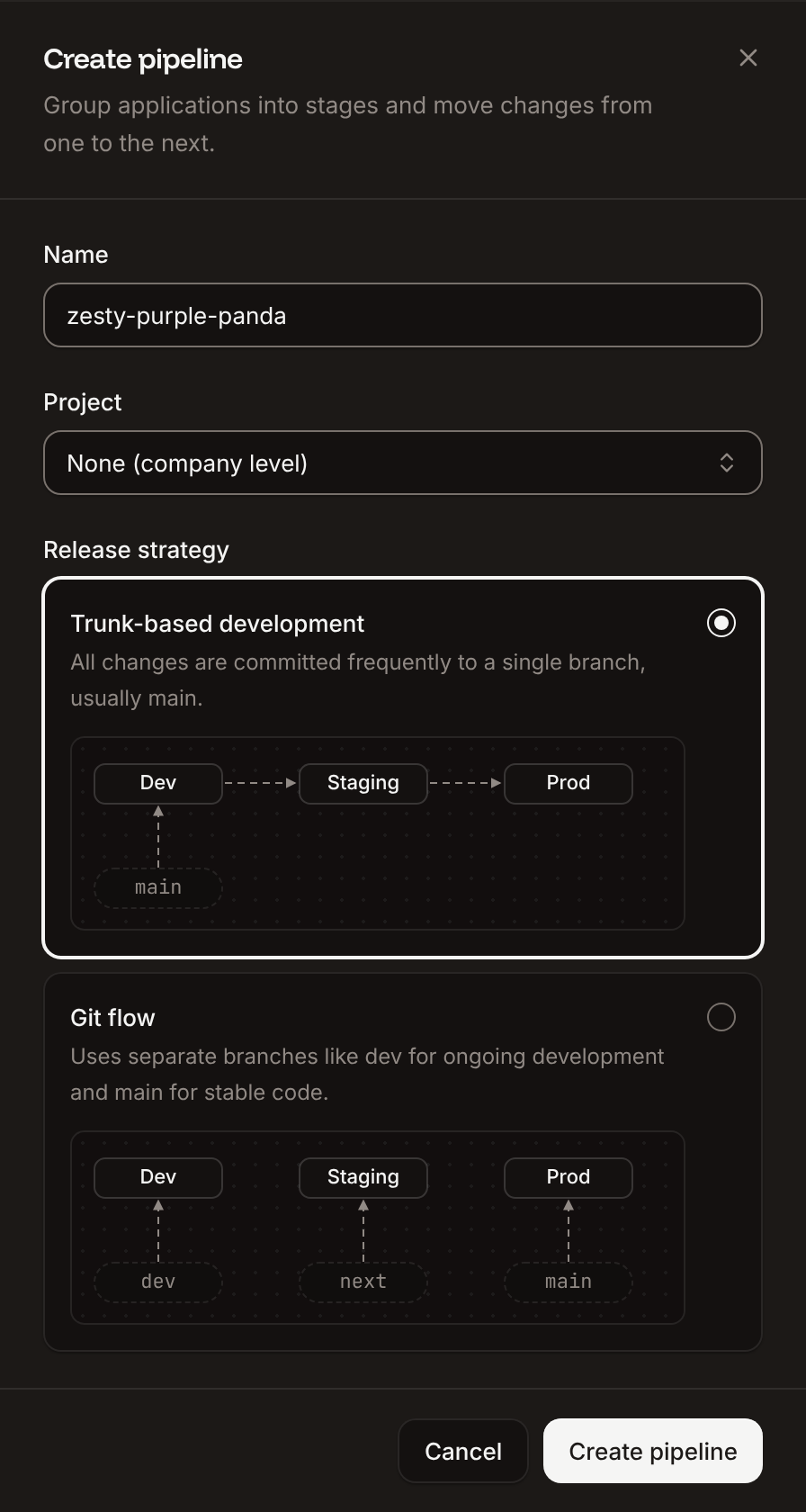
In the sidebar, click **Applications**. Click **Create**, then click **Pipeline**. From a project, click **Create pipeline** on its **Services** tab instead.
In **Name**, keep the generated name (like `brave-olive-tiger`) or enter your own, such as `storefront`.
In **Project**, pick a project, or **None (company level)** to keep the pipeline outside projects. The field shows only when your company has projects. If your role applies to projects only, picking a project is required.
Pick **Trunk-based development** (the default) or **Git flow**. See [Release strategies](#release-strategies).
Click **Create pipeline**.
### Release strategies
| Strategy | How code reaches each stage | Promote | New empty applications in a stage |
| - | - | - | - |
| **Trunk-based development** | The first stage deploys from a branch (usually `main`). Later stages get changes only by promotion. | Yes, from each stage to the next one | Yes |
| **Git flow** | Each stage's applications deploy from their own branch (for example `dev`, `next`, `main`) with [automatic deployments](/applications/deployments). | No | No, only existing applications |
On a Git flow pipeline the board shows where each branch is deployed; Sevalla doesn't move code between stages. You can switch the release strategy at any time in [pipeline settings](#update-pipeline-settings). Switching changes nothing in the applications: it only shows or hides **Promote**.
### Limits
| Limit | Value |
| - | - |
| Pipelines per company | 50 |
| Stages per pipeline | 10, the preview stage included |
| Stages per application | 1: an application is in one pipeline stage at most |
| Names of pipelines and stages | 1 to 255 characters |
At a limit, Sevalla refuses with `Pipeline limit reached` or `Pipeline stage limit reached`. To raise a limit, [contact support](/support/get-help).
### Who can do what
Pipelines use the permissions for applications, in the pipeline's project or, for a pipeline outside projects, in the company. See [Users and roles](/company/users-and-roles).
| Action | Permission needed |
| - | - |
| Create a pipeline | Create applications |
| Add stages, add and remove applications, promote, update settings, turn preview apps on or off | Update applications |
| Create preview apps | Create and update applications |
| Delete the pipeline | Delete applications |
Without the permission, the dashboard shows the action disabled with the reason.
## Create a pipeline
In the sidebar, click **Applications**. Click **Create**, then click **Pipeline**. From a project, click **Create pipeline** on its **Services** tab instead.
In **Name**, keep the generated name (like `brave-olive-tiger`) or enter your own, such as `storefront`.
In **Project**, pick a project, or **None (company level)** to keep the pipeline outside projects. The field shows only when your company has projects. If your role applies to projects only, picking a project is required.
Pick **Trunk-based development** (the default) or **Git flow**. See [Release strategies](#release-strategies).
Click **Create pipeline**.
 Sevalla opens the new pipeline's board with the stages **Dev** and **Production** and no applications. The pipeline also shows in the **Applications** list, with its applications under it.
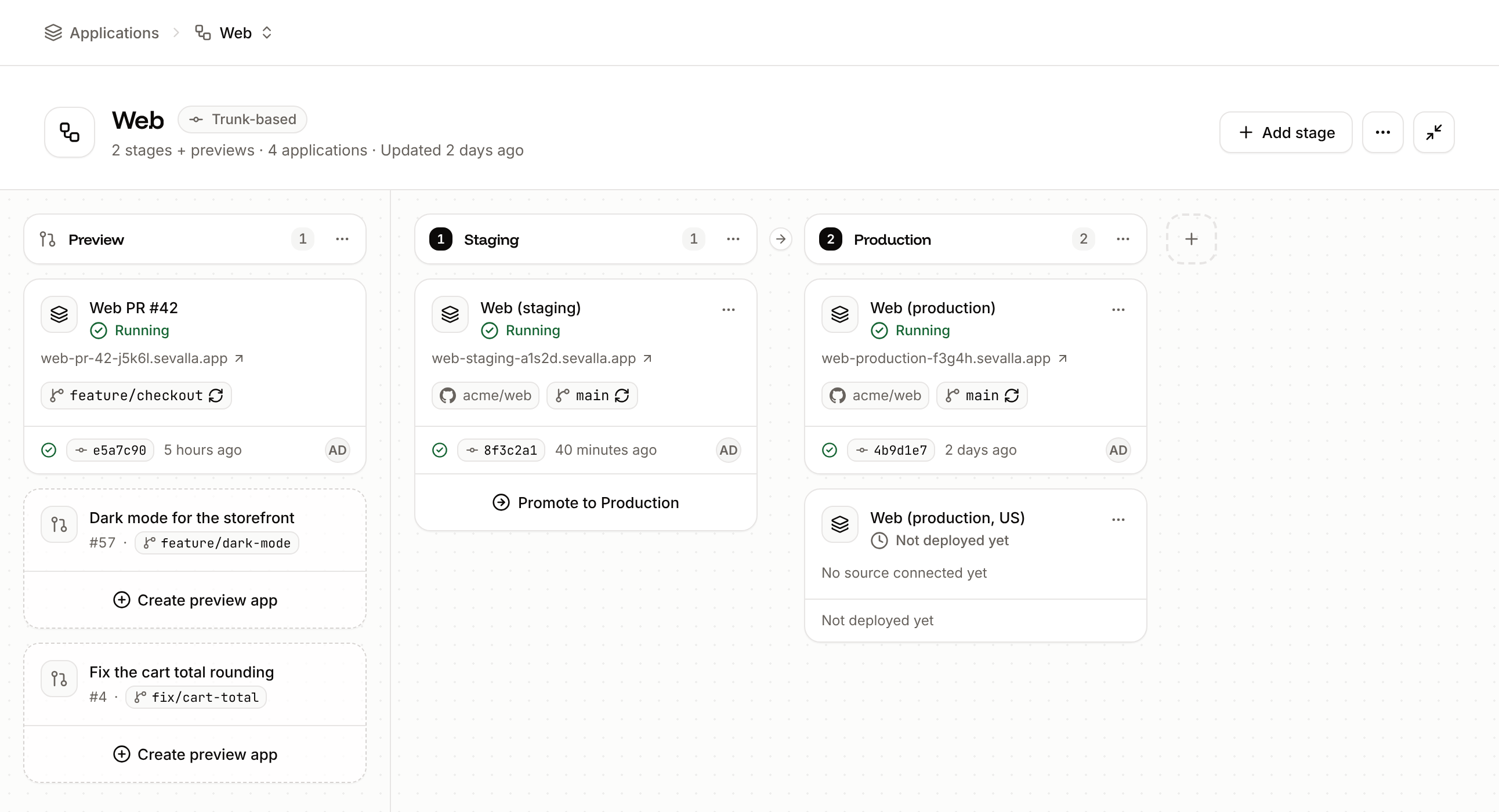
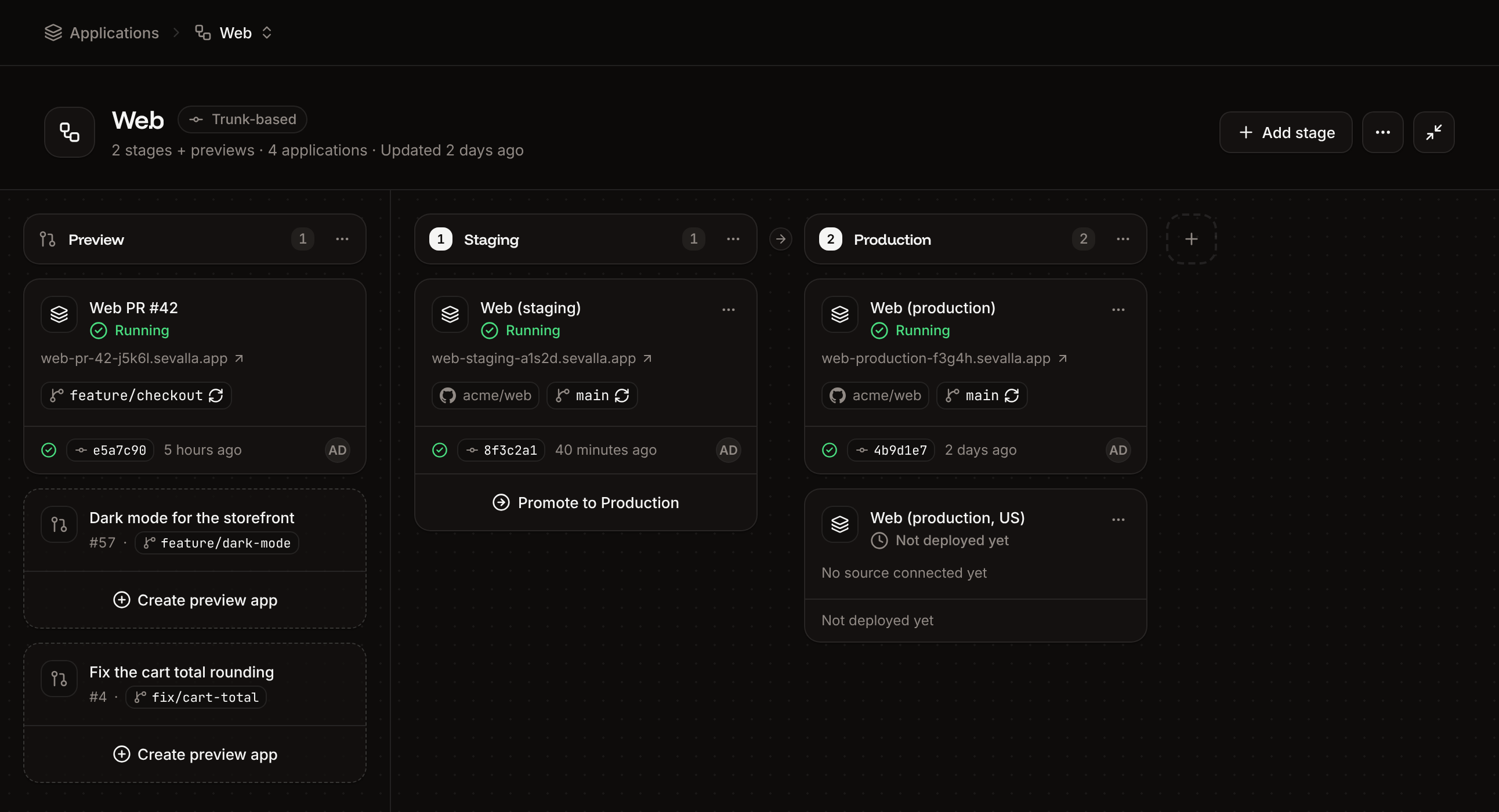
## The pipeline board
The board is the pipeline's page. To open it, click **Applications** in the sidebar, then click the pipeline.
| Part | What it shows and does |
| - | - |
| Header | The name, the release strategy (**Trunk-based** or **Git flow**), the number of stages and applications, **Add stage**, and the **Pipeline actions** (⋯) menu: **Pipeline settings**, **Enable preview apps** or **Preview app settings**, **Delete pipeline** |
| Preview column | First on the board. Without preview apps, a card with **Enable preview apps**. See [Preview apps](/pipelines/preview-apps). |
| Stage columns | Numbered, left to right. The ⋯ menu of a stage has **Add app** and **Delete stage**. An empty stage shows **Add app**. |
| Application card | The application's name (opens it), status, primary domain, repository and branch (with a refresh icon when automatic deployments are on) or Docker image, and the last deployment: status, commit, time and author. Its ⋯ menu has **Remove from stage**. |
| **Promote to** button | Under each application of a trunk-based pipeline that has a next stage. See [Promote changes](#promote-changes-to-the-next-stage). |
Sevalla opens the new pipeline's board with the stages **Dev** and **Production** and no applications. The pipeline also shows in the **Applications** list, with its applications under it.
## The pipeline board
The board is the pipeline's page. To open it, click **Applications** in the sidebar, then click the pipeline.
| Part | What it shows and does |
| - | - |
| Header | The name, the release strategy (**Trunk-based** or **Git flow**), the number of stages and applications, **Add stage**, and the **Pipeline actions** (⋯) menu: **Pipeline settings**, **Enable preview apps** or **Preview app settings**, **Delete pipeline** |
| Preview column | First on the board. Without preview apps, a card with **Enable preview apps**. See [Preview apps](/pipelines/preview-apps). |
| Stage columns | Numbered, left to right. The ⋯ menu of a stage has **Add app** and **Delete stage**. An empty stage shows **Add app**. |
| Application card | The application's name (opens it), status, primary domain, repository and branch (with a refresh icon when automatic deployments are on) or Docker image, and the last deployment: status, commit, time and author. Its ⋯ menu has **Remove from stage**. |
| **Promote to** button | Under each application of a trunk-based pipeline that has a next stage. See [Promote changes](#promote-changes-to-the-next-stage). |
 On GitHub, every deployment of an application in a pipeline also shows as a GitHub deployment, in an environment named after its stage (for example `Production`). See [GitHub](/git/github#what-sevalla-does-in-your-repositories).
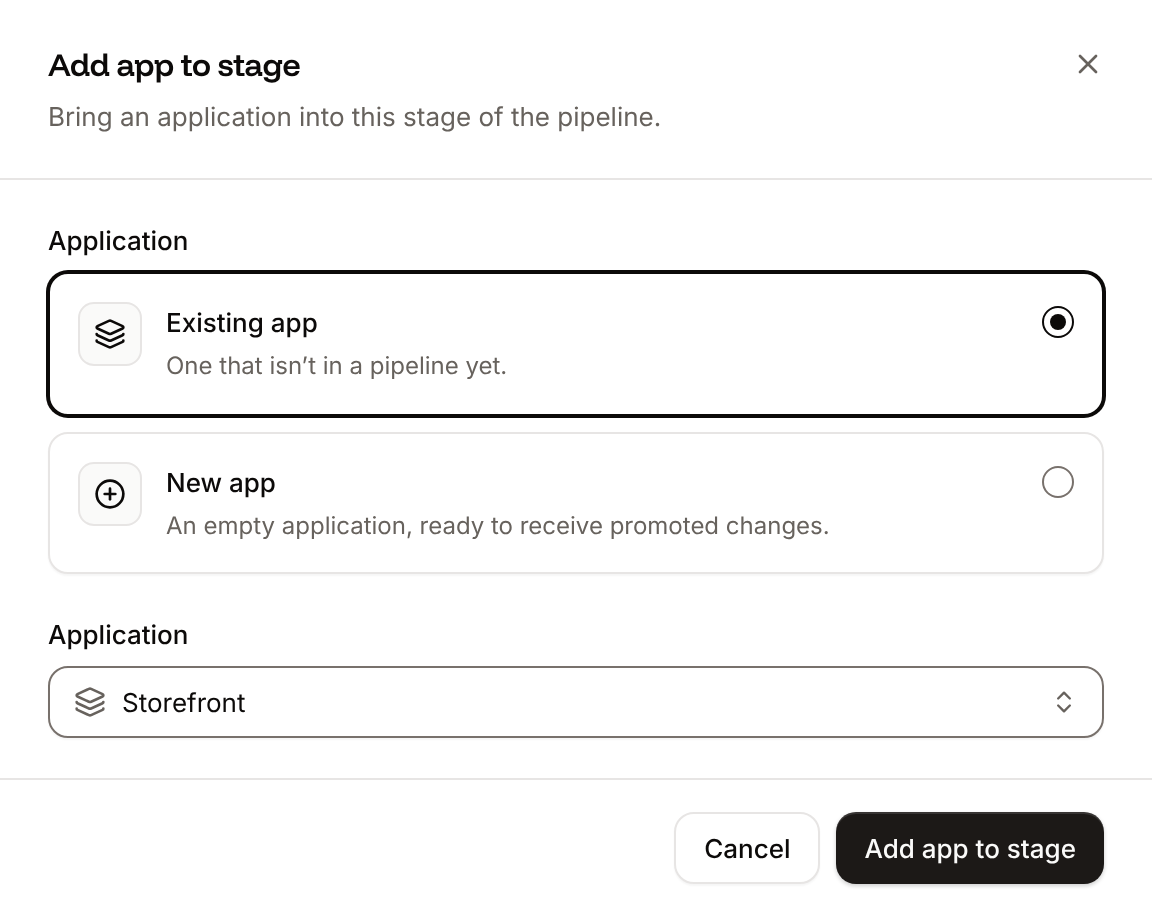
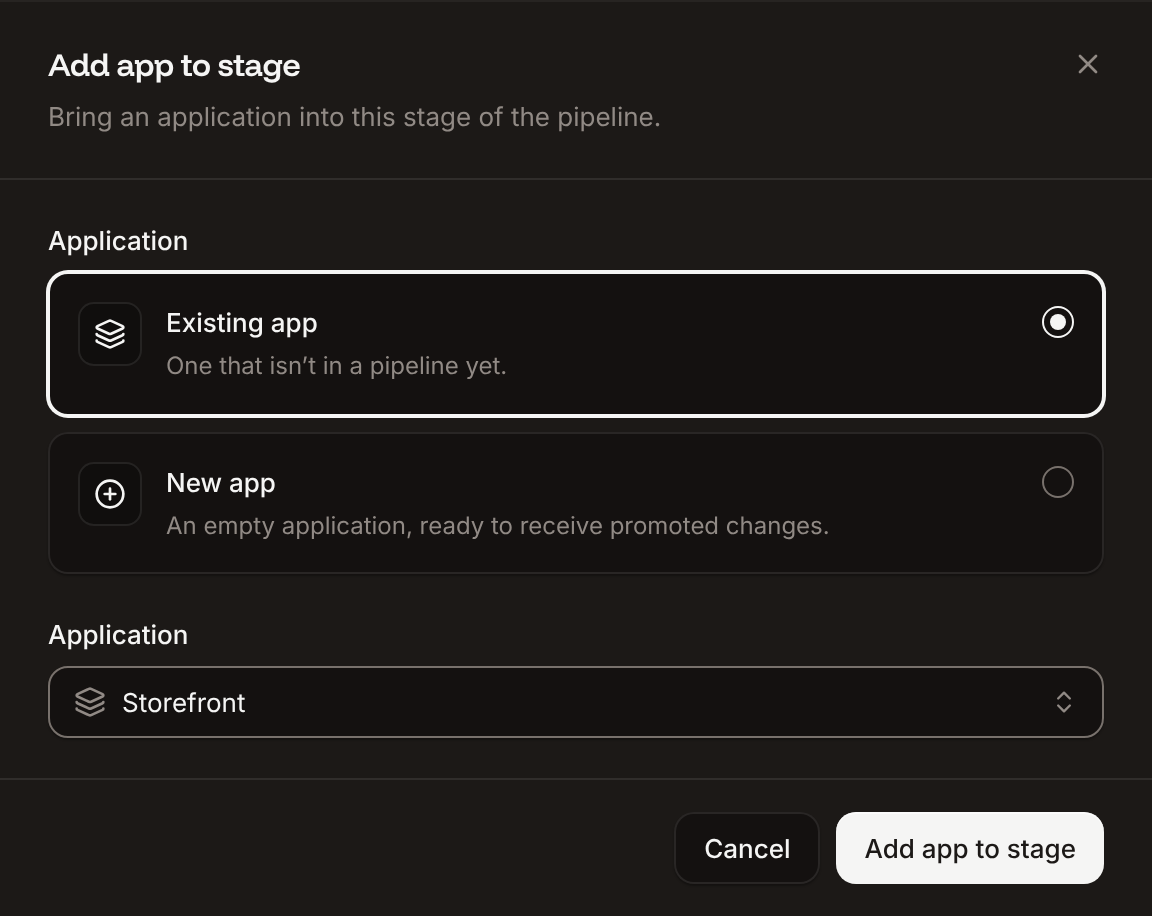
## Add an application to a stage
On the pipeline board, click **Add app** in an empty stage, or open the stage's ⋯ menu and click **Add app**.
On a trunk-based pipeline, pick **Existing app** or **New app**. A Git flow pipeline takes existing applications only.
For **Existing app**, pick it in **Application**. The list holds every application of the company that isn't in a pipeline yet. For **New app**, enter a **Name** and pick a **Location** (Sevalla preselects the one closest to you).
Click **Add app to stage**.
On GitHub, every deployment of an application in a pipeline also shows as a GitHub deployment, in an environment named after its stage (for example `Production`). See [GitHub](/git/github#what-sevalla-does-in-your-repositories).
## Add an application to a stage
On the pipeline board, click **Add app** in an empty stage, or open the stage's ⋯ menu and click **Add app**.
On a trunk-based pipeline, pick **Existing app** or **New app**. A Git flow pipeline takes existing applications only.
For **Existing app**, pick it in **Application**. The list holds every application of the company that isn't in a pipeline yet. For **New app**, enter a **Name** and pick a **Location** (Sevalla preselects the one closest to you).
Click **Add app to stage**.
 The application's card appears in the stage. What happens to it:
* **Existing app**: it moves to the pipeline's project, or out of its project when the pipeline isn't in one. Its source, settings and deployments don't change.
* **New app**: Sevalla creates an empty application with a default web process and no source. It runs nothing until the first promotion reaches it, which also sets its build strategy to the source's. Its card says **No source connected yet**.
**New app** is locked without a valid payment method, unless the company has credits and no applications yet: the card says `Add a payment method to create more applications.`
On a trunk-based pipeline, put an application that deploys from your repository in the first stage, and add new or existing applications to the later stages. Each application of a later stage can run in its own [location](/platform/locations) with its own [environment variables](/applications/environment-variables), [processes](/applications/processes), [domains](/domains/overview) and scaling.
## Add a stage
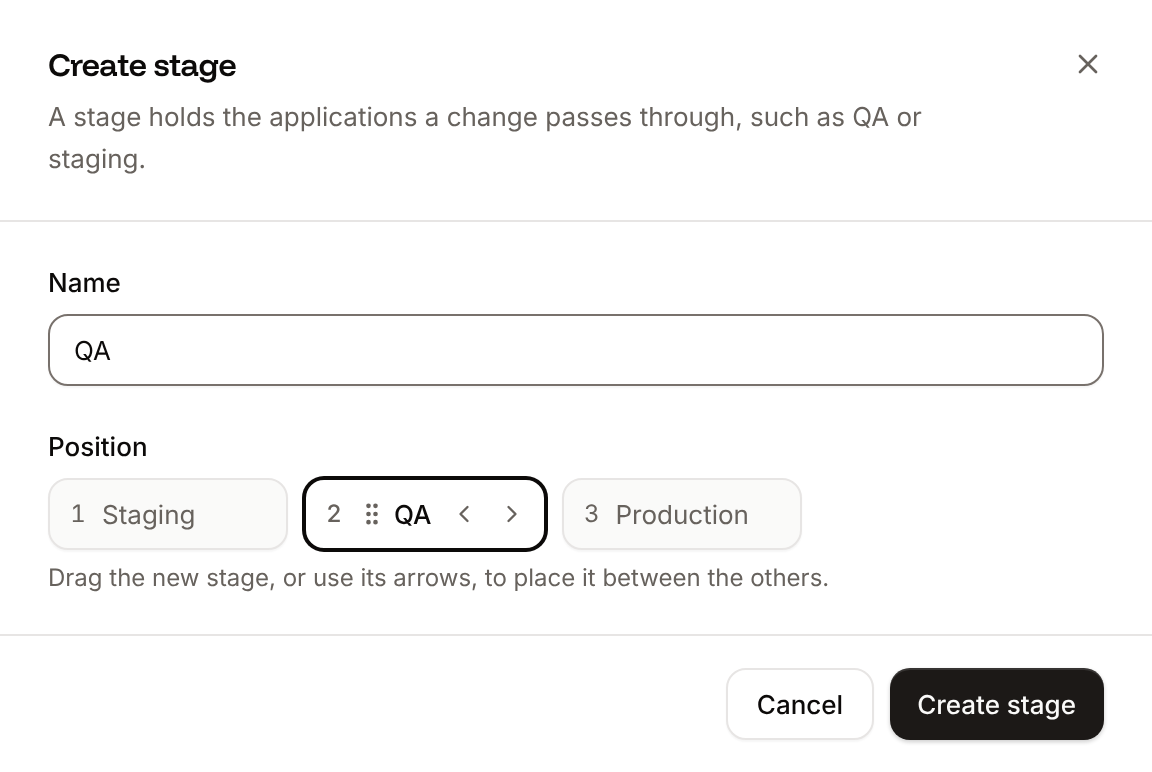
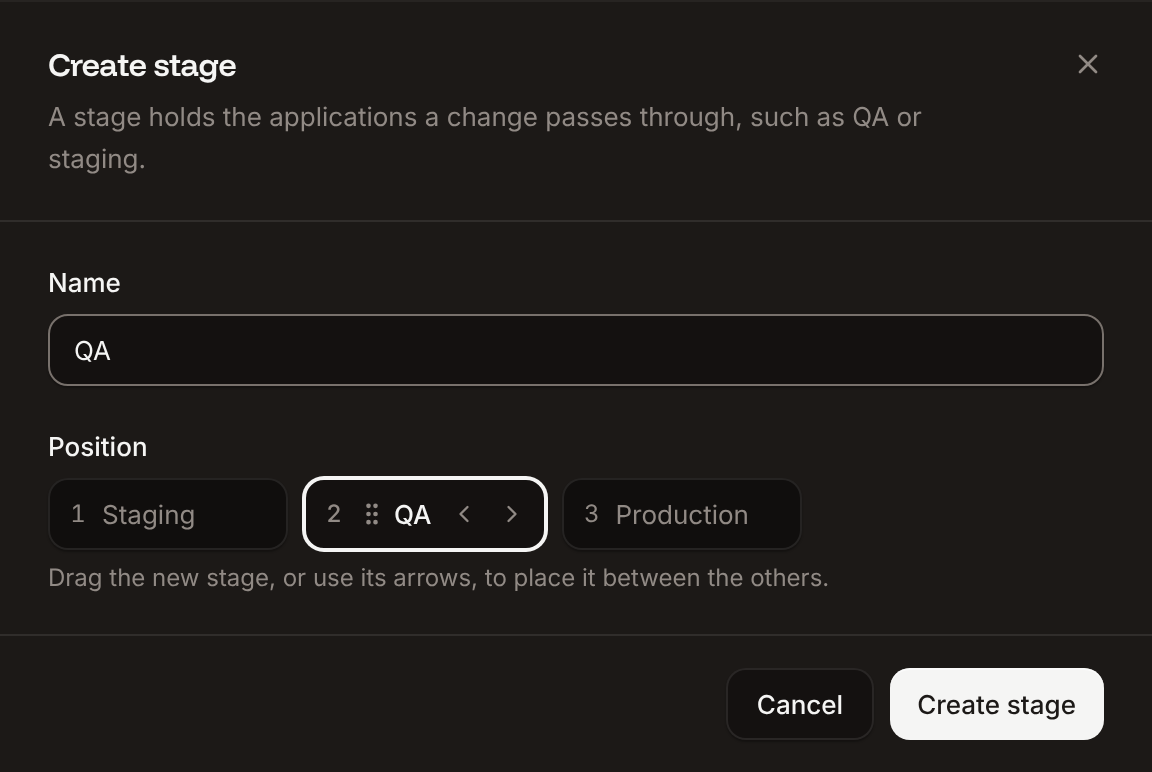
On the pipeline board, click **Add stage** in the header, or the dashed **+** tile after the last stage.
In **Name**, enter a name such as `QA`.
In **Position**, drag the new stage, or use its arrows, to put it between the others. It goes last unless you move it.
Click **Create stage**.
The application's card appears in the stage. What happens to it:
* **Existing app**: it moves to the pipeline's project, or out of its project when the pipeline isn't in one. Its source, settings and deployments don't change.
* **New app**: Sevalla creates an empty application with a default web process and no source. It runs nothing until the first promotion reaches it, which also sets its build strategy to the source's. Its card says **No source connected yet**.
**New app** is locked without a valid payment method, unless the company has credits and no applications yet: the card says `Add a payment method to create more applications.`
On a trunk-based pipeline, put an application that deploys from your repository in the first stage, and add new or existing applications to the later stages. Each application of a later stage can run in its own [location](/platform/locations) with its own [environment variables](/applications/environment-variables), [processes](/applications/processes), [domains](/domains/overview) and scaling.
## Add a stage
On the pipeline board, click **Add stage** in the header, or the dashed **+** tile after the last stage.
In **Name**, enter a name such as `QA`.
In **Position**, drag the new stage, or use its arrows, to put it between the others. It goes last unless you move it.
Click **Create stage**.
 The new stage appears on the board at that position, empty. On a trunk-based pipeline, promotion now goes through it: the stage before it promotes to the new stage, and the new stage promotes to the next one.
## Promote changes to the next stage
Promoting takes the source application's last successful deployment and rolls out its Docker image on applications of the next stage. Nothing is rebuilt, so each target runs exactly the build you tested. Promotion is available on trunk-based pipelines, from a stage to the stage right after it.
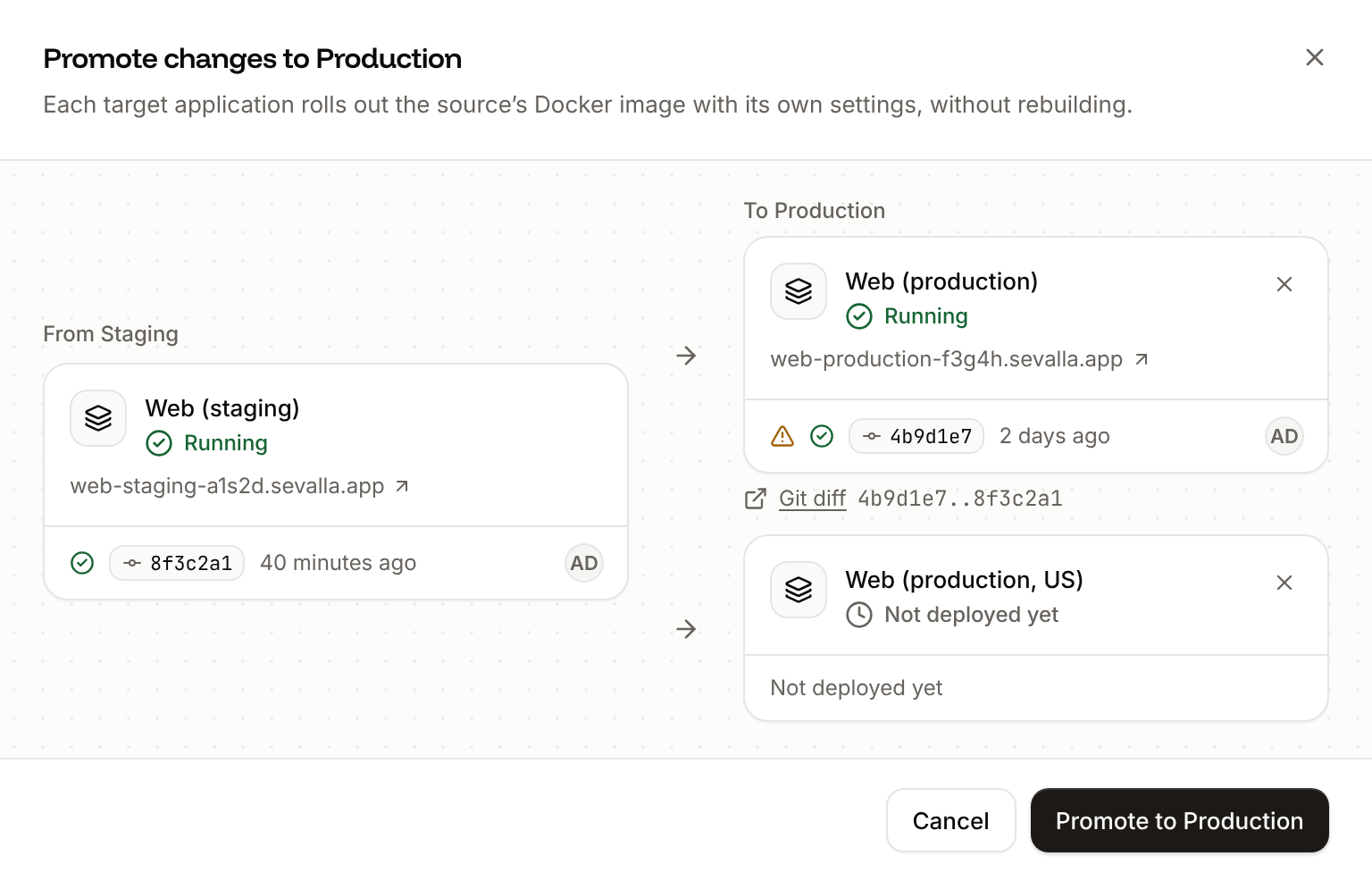
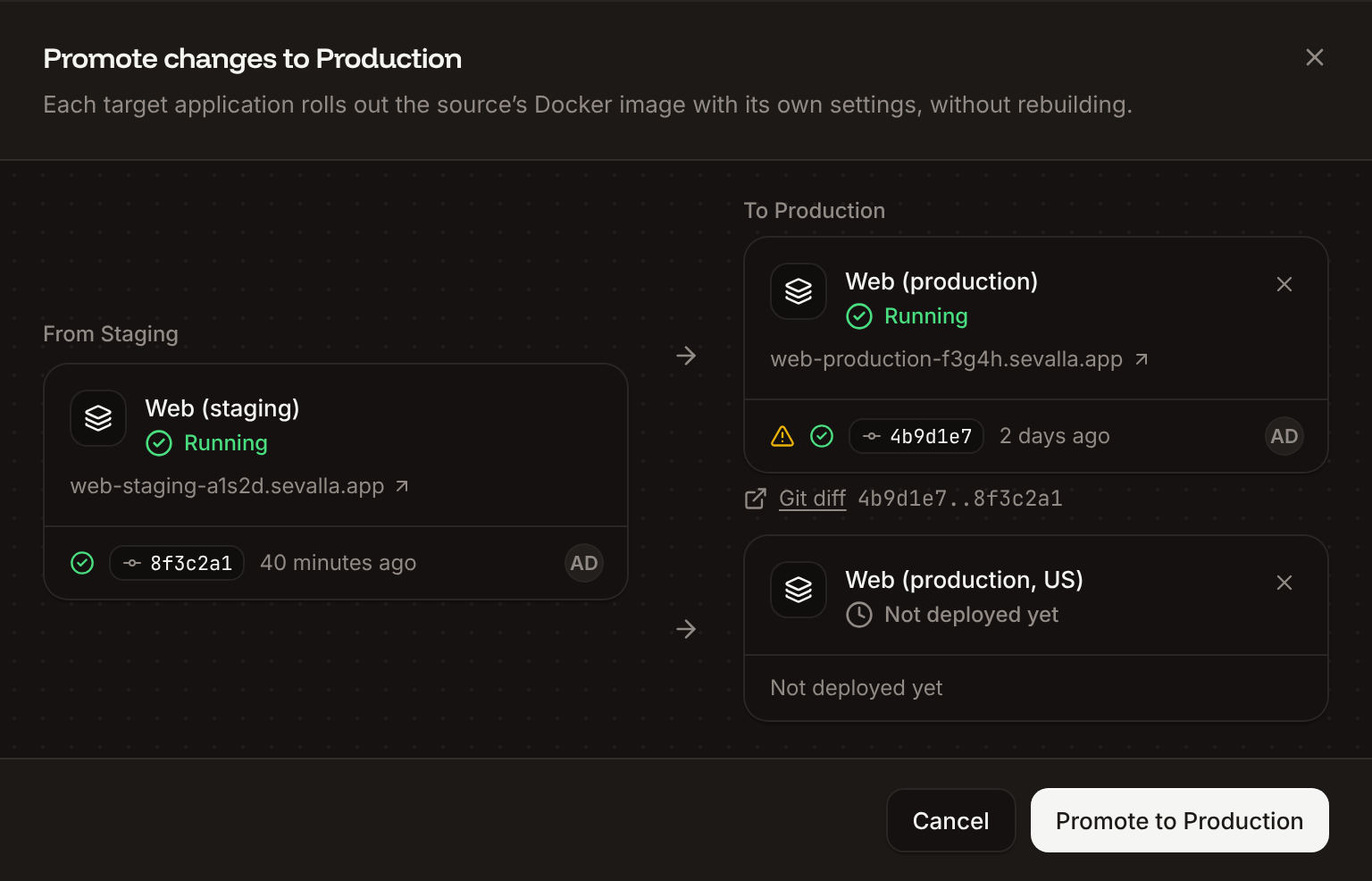
On the pipeline board, click **Promote to** *next stage* under the application you tested, for example **Promote to Production**.
Every application of the next stage is a target. To leave one out, click its **✕** (**Don't promote to** *application*). At least one target stays.
A warning icon on a target explains a risk: see [Promotion warnings](#promotion-warnings). **Git diff** opens the provider's comparison between the target's commit and the source's.
Click **Promote to** *stage*.
The new stage appears on the board at that position, empty. On a trunk-based pipeline, promotion now goes through it: the stage before it promotes to the new stage, and the new stage promotes to the next one.
## Promote changes to the next stage
Promoting takes the source application's last successful deployment and rolls out its Docker image on applications of the next stage. Nothing is rebuilt, so each target runs exactly the build you tested. Promotion is available on trunk-based pipelines, from a stage to the stage right after it.
On the pipeline board, click **Promote to** *next stage* under the application you tested, for example **Promote to Production**.
Every application of the next stage is a target. To leave one out, click its **✕** (**Don't promote to** *application*). At least one target stays.
A warning icon on a target explains a risk: see [Promotion warnings](#promotion-warnings). **Git diff** opens the provider's comparison between the target's commit and the source's.
Click **Promote to** *stage*.
 Each target starts a deployment right away. On the target's **Deployments** tab, its trigger reads **Promoted** from *the source application*, and its card on the board shows the promoted commit.
### When Promote is not available
The button is disabled, with the reason in its tooltip, when:
| Reason | Tooltip |
| - | - |
| The source is deploying | `Wait for the current deployment to finish.` |
| The source was never deployed | `Deploy this application before promoting it.` |
| The next stage has no applications | `Add an application to first.` |
| The application is in the last stage, or the pipeline uses Git flow | No button |
### What a promotion copies
| From the source | To each target |
| - | - |
| Docker image of its last successful deployment | Rolled out as is, without a build. If the source's latest deployment failed, its most recent successful one is promoted. |
| Commit, branch, commit message, author, repository | Shown on the target's deployment |
| Build strategy | Set on a new empty application. Other targets keep theirs, but don't rebuild. |
The target keeps its own runtime [environment variables](/applications/environment-variables), [processes](/applications/processes) and resources, [disks](/applications/disks), [domains](/domains/overview), [networking](/applications/networking) and location. Values your build step bakes into the image come from the source, because the target doesn't rebuild: build-time environment variables of the target don't apply. For a frontend that embeds variables at build time (for example `NEXT_PUBLIC_*` in Next.js), set those values the same way in every stage or read them at runtime.
### Promotion warnings
| Warning | What it means |
| - | - |
| `Auto-deploy is on for this application, so its next push replaces the promoted image.` | The target also deploys its own branch on every push. Turn off automatic deployments on targets that should only get promotions. |
| `The source and target repositories are different.` | The target is connected to another repository than the source. |
| `This application deploys from a Git repository, the source from a Docker image.` | The target's source type differs from the source's. |
| `This application deploys from a Docker image, the source from a Git repository.` | The target's source type differs from the source's. |
Promotion fails with `No successful deployment found for application ""` when the source has no successful deployment, and with `The promoted image was deployed with a Docker registry credential that no longer exists. Redeploy "" with a valid credential and promote again.` when the source deployed a private image whose [registry credential](/applications/docker-images) was deleted.
## Update pipeline settings
On the pipeline board, open **Pipeline actions** (⋯) and click **Pipeline settings**.
Update the **Name** (`Pipeline name is required` when empty), the **Release strategy**, or the **Stage order**: drag a stage, or use its arrows. **Stage order** shows when the pipeline has more than one stage. The preview stage always comes first and isn't part of the order.
Click **Update pipeline**.
The board shows the new name and order. Reordering changes where promotion goes: each stage promotes to the stage to its right.
## Remove an application from a stage
On the pipeline board, open the ⋯ menu on the application's card.
Click **Remove from stage**, then click **Remove app**.
The application leaves the pipeline and keeps running, with its project, settings and deployments unchanged. You can add it to another stage or pipeline. To delete it, use its [settings](/applications/settings).
## Delete a stage
On the pipeline board, open the stage's ⋯ menu.
Click **Delete stage**, then click **Delete stage** in the dialog.
The stage disappears from the board and the stages after it move up. Its applications aren't deleted: they leave the pipeline and keep running. The dialog lists them first. To turn off the preview stage, see [Disable preview apps](/pipelines/preview-apps#disable-preview-apps).
## Delete a pipeline
Deleting a pipeline deletes its preview apps permanently. You can't undo this.
On the pipeline board, open **Pipeline actions** (⋯) and click **Delete pipeline**.
The dialog lists the applications that stay, detached from the pipeline, and the preview apps that will be deleted.
Type the pipeline's name, then click **Delete pipeline**.
Sevalla deletes the pipeline and its stages and goes back to the **Applications** list. The applications of its stages keep running, outside any pipeline. API keys with capabilities scoped to the pipeline lose those capabilities.
## API and CLI
| Task | API | CLI |
| - | - | - |
| List pipelines | [List pipelines](https://api-docs.sevalla.com/v3/pipelines/list-pipelines) | `sevalla pipelines list` |
| Get a pipeline and its stages | [Get pipeline](https://api-docs.sevalla.com/v3/pipelines/get-pipeline) | `sevalla pipelines get ` |
| Create a pipeline | [Create pipeline](https://api-docs.sevalla.com/v3/pipelines/create-pipeline) | `sevalla pipelines create --name storefront --type trunk` |
| Rename, change the strategy or project, reorder stages | [Update pipeline](https://api-docs.sevalla.com/v3/pipelines/update-pipeline) | `sevalla pipelines update --name ` (name only) |
| Delete a pipeline | [Delete pipeline](https://api-docs.sevalla.com/v3/pipelines/delete-pipeline) | `sevalla pipelines delete --confirm` |
| Add a stage | [Create pipeline stage](https://api-docs.sevalla.com/v3/pipelines/create-pipeline-stage) | `sevalla pipelines stages create --name ` |
| Delete a stage | [Delete pipeline stage](https://api-docs.sevalla.com/v3/pipelines/delete-pipeline-stage) | `sevalla pipelines stages delete --confirm` |
| Add an existing application to a stage | [Add application to pipeline stage](https://api-docs.sevalla.com/v3/pipelines/add-application-to-pipeline-stage) | `sevalla pipelines stages apps add ` |
| Remove an application from a stage | [Remove application from pipeline stage](https://api-docs.sevalla.com/v3/pipelines/remove-application-from-pipeline-stage) | `sevalla pipelines stages apps remove --confirm` |
| Promote | [Promote pipeline](https://api-docs.sevalla.com/v3/pipelines/promote-pipeline) | `sevalla pipelines promote --source-app-id --target-app-ids ` |
In the API, the release strategies are `trunk` (Trunk-based development) and `branch` (Git flow). Moving a pipeline to another project with the API moves its applications too. To promote from a CI workflow, use the [GitHub Action](/developer-tools/github-actions) or the API. Preview app operations are on [Preview apps](/pipelines/preview-apps#api-and-cli).
This documentation is built and hosted on [Mintlify](https://mintlify.com), a developer documentation platform.
Each target starts a deployment right away. On the target's **Deployments** tab, its trigger reads **Promoted** from *the source application*, and its card on the board shows the promoted commit.
### When Promote is not available
The button is disabled, with the reason in its tooltip, when:
| Reason | Tooltip |
| - | - |
| The source is deploying | `Wait for the current deployment to finish.` |
| The source was never deployed | `Deploy this application before promoting it.` |
| The next stage has no applications | `Add an application to first.` |
| The application is in the last stage, or the pipeline uses Git flow | No button |
### What a promotion copies
| From the source | To each target |
| - | - |
| Docker image of its last successful deployment | Rolled out as is, without a build. If the source's latest deployment failed, its most recent successful one is promoted. |
| Commit, branch, commit message, author, repository | Shown on the target's deployment |
| Build strategy | Set on a new empty application. Other targets keep theirs, but don't rebuild. |
The target keeps its own runtime [environment variables](/applications/environment-variables), [processes](/applications/processes) and resources, [disks](/applications/disks), [domains](/domains/overview), [networking](/applications/networking) and location. Values your build step bakes into the image come from the source, because the target doesn't rebuild: build-time environment variables of the target don't apply. For a frontend that embeds variables at build time (for example `NEXT_PUBLIC_*` in Next.js), set those values the same way in every stage or read them at runtime.
### Promotion warnings
| Warning | What it means |
| - | - |
| `Auto-deploy is on for this application, so its next push replaces the promoted image.` | The target also deploys its own branch on every push. Turn off automatic deployments on targets that should only get promotions. |
| `The source and target repositories are different.` | The target is connected to another repository than the source. |
| `This application deploys from a Git repository, the source from a Docker image.` | The target's source type differs from the source's. |
| `This application deploys from a Docker image, the source from a Git repository.` | The target's source type differs from the source's. |
Promotion fails with `No successful deployment found for application ""` when the source has no successful deployment, and with `The promoted image was deployed with a Docker registry credential that no longer exists. Redeploy "" with a valid credential and promote again.` when the source deployed a private image whose [registry credential](/applications/docker-images) was deleted.
## Update pipeline settings
On the pipeline board, open **Pipeline actions** (⋯) and click **Pipeline settings**.
Update the **Name** (`Pipeline name is required` when empty), the **Release strategy**, or the **Stage order**: drag a stage, or use its arrows. **Stage order** shows when the pipeline has more than one stage. The preview stage always comes first and isn't part of the order.
Click **Update pipeline**.
The board shows the new name and order. Reordering changes where promotion goes: each stage promotes to the stage to its right.
## Remove an application from a stage
On the pipeline board, open the ⋯ menu on the application's card.
Click **Remove from stage**, then click **Remove app**.
The application leaves the pipeline and keeps running, with its project, settings and deployments unchanged. You can add it to another stage or pipeline. To delete it, use its [settings](/applications/settings).
## Delete a stage
On the pipeline board, open the stage's ⋯ menu.
Click **Delete stage**, then click **Delete stage** in the dialog.
The stage disappears from the board and the stages after it move up. Its applications aren't deleted: they leave the pipeline and keep running. The dialog lists them first. To turn off the preview stage, see [Disable preview apps](/pipelines/preview-apps#disable-preview-apps).
## Delete a pipeline
Deleting a pipeline deletes its preview apps permanently. You can't undo this.
On the pipeline board, open **Pipeline actions** (⋯) and click **Delete pipeline**.
The dialog lists the applications that stay, detached from the pipeline, and the preview apps that will be deleted.
Type the pipeline's name, then click **Delete pipeline**.
Sevalla deletes the pipeline and its stages and goes back to the **Applications** list. The applications of its stages keep running, outside any pipeline. API keys with capabilities scoped to the pipeline lose those capabilities.
## API and CLI
| Task | API | CLI |
| - | - | - |
| List pipelines | [List pipelines](https://api-docs.sevalla.com/v3/pipelines/list-pipelines) | `sevalla pipelines list` |
| Get a pipeline and its stages | [Get pipeline](https://api-docs.sevalla.com/v3/pipelines/get-pipeline) | `sevalla pipelines get ` |
| Create a pipeline | [Create pipeline](https://api-docs.sevalla.com/v3/pipelines/create-pipeline) | `sevalla pipelines create --name storefront --type trunk` |
| Rename, change the strategy or project, reorder stages | [Update pipeline](https://api-docs.sevalla.com/v3/pipelines/update-pipeline) | `sevalla pipelines update --name ` (name only) |
| Delete a pipeline | [Delete pipeline](https://api-docs.sevalla.com/v3/pipelines/delete-pipeline) | `sevalla pipelines delete --confirm` |
| Add a stage | [Create pipeline stage](https://api-docs.sevalla.com/v3/pipelines/create-pipeline-stage) | `sevalla pipelines stages create --name ` |
| Delete a stage | [Delete pipeline stage](https://api-docs.sevalla.com/v3/pipelines/delete-pipeline-stage) | `sevalla pipelines stages delete --confirm` |
| Add an existing application to a stage | [Add application to pipeline stage](https://api-docs.sevalla.com/v3/pipelines/add-application-to-pipeline-stage) | `sevalla pipelines stages apps add ` |
| Remove an application from a stage | [Remove application from pipeline stage](https://api-docs.sevalla.com/v3/pipelines/remove-application-from-pipeline-stage) | `sevalla pipelines stages apps remove --confirm` |
| Promote | [Promote pipeline](https://api-docs.sevalla.com/v3/pipelines/promote-pipeline) | `sevalla pipelines promote --source-app-id --target-app-ids ` |
In the API, the release strategies are `trunk` (Trunk-based development) and `branch` (Git flow). Moving a pipeline to another project with the API moves its applications too. To promote from a CI workflow, use the [GitHub Action](/developer-tools/github-actions) or the API. Preview app operations are on [Preview apps](/pipelines/preview-apps#api-and-cli).
This documentation is built and hosted on [Mintlify](https://mintlify.com), a developer documentation platform.