> ## Documentation Index
> Fetch the complete documentation index at: https://docs.sevalla.com/llms.txt
> Use this file to discover all available pages before exploring further.
> ## Agent Instructions
> These are the docs for Sevalla, a platform for deploying applications, databases, static sites, object storage and load balancers. The dashboard is at https://app.sevalla.com.
> Bold text in steps is an exact dashboard label.
> To act on a Sevalla account, prefer the Sevalla MCP server (https://mcp.sevalla.com/mcp, see https://docs.sevalla.com/ai-agents/overview.md), then the Sevalla CLI (https://docs.sevalla.com/developer-tools/cli.md), then the REST API (https://api-docs.sevalla.com, OpenAPI spec at https://api.sevalla.com/v3/openapi.json).
> Every page index is at https://docs.sevalla.com/llms.txt.
# AI support
> Let Stella, Sevalla's AI support agent, read and act on your company's services with the permissions you choose: consent, permissions, what it can do, hand-off to people, and disabling it.
AI support gives Stella, Sevalla's AI support agent, access to your company's account, so it can look into your services and act on them when you chat with support. You choose what it may do, and it uses those permissions for everyone in the company. Without AI support, Stella still answers in the support chat, but only from the documentation.
## How AI support works
When you click **Chat with support** in the **Help** menu, the conversation starts with Stella, shown in the chat as **Stella (AI)**. Stella is built on Claude by Anthropic and replies in the language you write in. What it can do depends on whether AI support is on:
| | AI support off | AI support on |
| - | - | - |
| Answers from docs.sevalla.com and the API reference | Yes | Yes |
| Checks public DNS for a domain that's stuck | Yes | Yes |
| Reads screenshots you attach | Yes | Yes |
| Hands the conversation to a person | Yes | Yes |
| Reads your services, deployments, logs and settings | No | Within its permissions |
| Makes changes, such as deploying, scaling or updating settings | No | Within its permissions |
When AI support is on, Sevalla creates an API key for Stella with the permissions you choose. Stella works in the company you have open in the dashboard when you start the chat, and only if you're a member of it. It asks you to confirm before anything destructive or hard to undo, such as deleting a service, restarting with downtime or scaling up, unless you've clearly asked for it.
AI support is different from the [Sevalla MCP server](/ai-agents/overview), which connects your own AI coding agent to your account with your own sign-in or API key.
## What Stella can do with access
Everything the [Sevalla API](/developer-tools/api) offers within the permissions you grant. For example:
* Find why a deployment failed from its build log, or why a process keeps restarting from its runtime logs.
* Check an application's settings, processes, domains and environment variable keys.
* With **Read applications**, run read-only commands inside a running process to inspect the files and environment that are actually deployed.
* Deploy, roll back, scale or update settings, if it has the update permission for that kind of service.
If you ask for something its permissions don't cover, Stella tells you which permission to add on the **AI support** page. Permission changes apply to the next message, without starting a new chat.
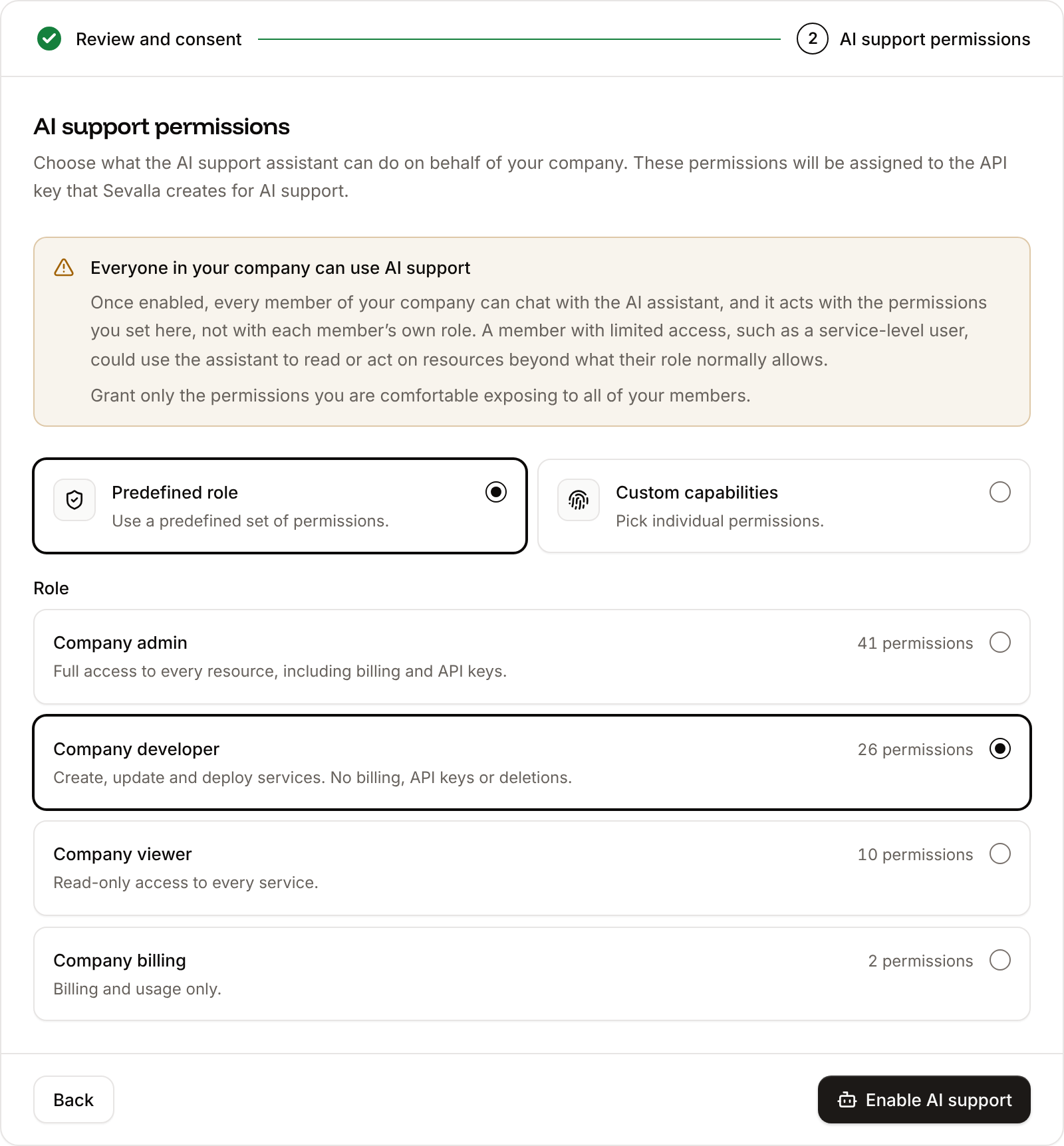
Everyone in the company can chat with Stella, and Stella uses the permissions set on the **AI support** page, not each person's own role. A person with limited access, such as someone with access to one service only, can use Stella to read or change anything those permissions allow. Grant only what you're comfortable exposing to every member.
## How your data is processed
| What | Detail |
| - | - |
| Provider | Anthropic, PBC (the Claude API), added as a subprocessor for your company while AI support is on |
| What's sent | Your messages and the account data Stella reads through its API key to answer them |
| Training | Your prompts and account data aren't used to train Anthropic's models |
| Retention | Anthropic keeps inputs and outputs for a limited period to operate the service and for trust and safety. Sevalla logs which API key was used and may keep redacted records of conversations for service improvement and abuse prevention. |
| Terms | The Kinsta [Privacy Policy](https://kinsta.com/legal/privacy-policy/) and [Data Processing Addendum](https://kinsta.com/legal/data-processing-addendum/). The [subprocessor list](https://kinsta.com/legal/subprocessors/) and the [Kinsta Trust Center](https://trust.kinsta.com/) have the details. |
## Enable AI support
Only company owners and admins can enable, update or disable AI support. Other people don't see **AI support** in the **Help** menu.
In the sidebar, click **Help**, then **AI support**.
Read the disclosures on the **Review and consent** step, then check all three boxes: that you're authorized to accept the terms for your company, that you accept the Kinsta Privacy Policy and Data Processing Addendum as they apply to AI support, and that you acknowledge Anthropic, PBC as a subprocessor. Click **Continue**.
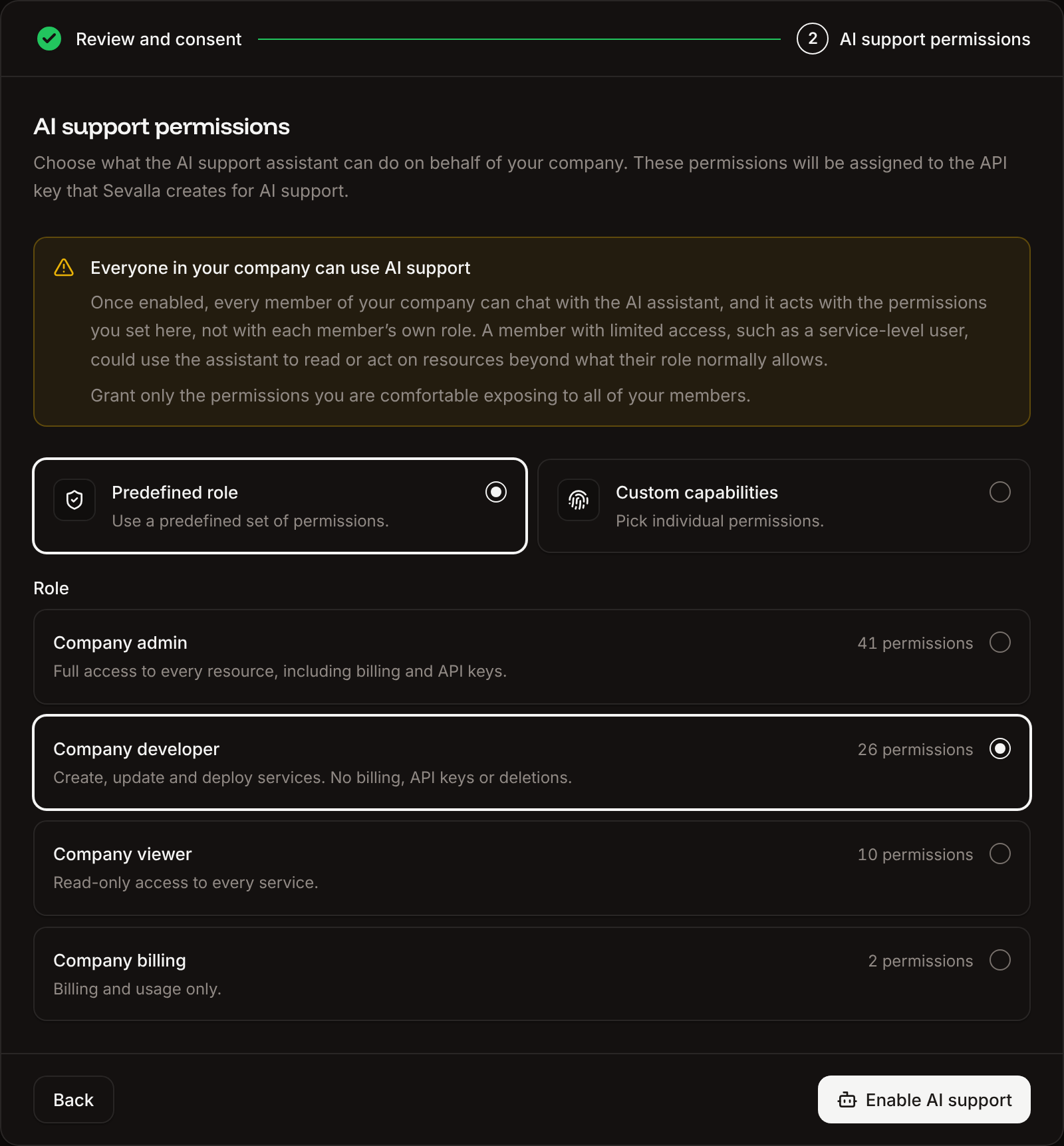
On the **AI support permissions** step, pick **Predefined role** and a **Role** (**Company viewer** is selected by default), or pick **Custom capabilities** and choose individual permissions, for every resource of a type or for specific ones. See [API keys](/developer-tools/api-keys) for what each role and permission allows.
Click **Enable AI support**, then **Enable AI support** in the confirmation.
The toast **AI support enabled.** confirms it, and the page shows the permissions with **Save permissions** and **Disable AI support**. The steps bar shows when consent was accepted.
 ## The managed API key
Enabling AI support creates an API key named `Sevalla Support AI agent` for your company. It isn't listed on **Tools** > **API keys** and you manage it only from the **AI support** page: updating the permissions there updates the key, and disabling AI support revokes it.
If the company is [suspended](/billing/failed-payments#what-suspension-does), its API keys are disabled, this one included, and reactivation doesn't turn it back on. To restore Stella's access afterwards, disable AI support and enable it again.
## Update the permissions
In the sidebar, click **Help**, then **AI support**.
Pick another role, or change the custom capabilities.
Click **Save permissions**.
The toast **AI support permissions updated.** confirms it. Stella uses the new permissions from the next message.
## Disable AI support
In the sidebar, click **Help**, then **AI support**.
Click **Disable AI support**, then **Disable AI support** in the confirmation.
AI support stops right away: Stella loses access to your account, the API key is revoked, and Anthropic is no longer a subprocessor for your company. Data already processed is kept as described in [How your data is processed](#how-your-data-is-processed). The toast **AI support disabled.** confirms it, and the page shows the consent steps again so you can re-enable it at any time. Stella keeps answering support chats from the documentation.
## Hand-off to a person
Stella hands the conversation to Sevalla's support team, and tells you a teammate is taking over, when:
* You ask to talk to a person.
* There's a billing or account dispute it can't resolve: a wrong charge, a refund, a contested suspension, a payment that keeps failing, or a final charge that fails when you delete a company.
* There's a suspected security or abuse issue: a compromised account, suspected fraud or a security vulnerability.
* There's a legal, compliance or data request, such as a formal GDPR erasure request.
* You want only your user account deleted and you can't do it yourself (you aren't a company owner, or you belong to more than one company).
After the hand-off, Stella stops replying and a person continues the conversation. Cancelling the subscription or deleting a company is self-serve, so Stella walks you through it instead. Human support hours are on [Get help](/support/get-help#chat-with-support).
## Attachments
Stella reads images you attach in the chat: PNG, JPEG, GIF and WebP, up to 5 per message. Use them for error messages, dashboard screens or logs. Other files stay in the conversation for the support team but Stella doesn't read them, so paste text such as logs or error messages into the message instead.
This documentation is built and hosted on [Mintlify](https://mintlify.com), a developer documentation platform.
## The managed API key
Enabling AI support creates an API key named `Sevalla Support AI agent` for your company. It isn't listed on **Tools** > **API keys** and you manage it only from the **AI support** page: updating the permissions there updates the key, and disabling AI support revokes it.
If the company is [suspended](/billing/failed-payments#what-suspension-does), its API keys are disabled, this one included, and reactivation doesn't turn it back on. To restore Stella's access afterwards, disable AI support and enable it again.
## Update the permissions
In the sidebar, click **Help**, then **AI support**.
Pick another role, or change the custom capabilities.
Click **Save permissions**.
The toast **AI support permissions updated.** confirms it. Stella uses the new permissions from the next message.
## Disable AI support
In the sidebar, click **Help**, then **AI support**.
Click **Disable AI support**, then **Disable AI support** in the confirmation.
AI support stops right away: Stella loses access to your account, the API key is revoked, and Anthropic is no longer a subprocessor for your company. Data already processed is kept as described in [How your data is processed](#how-your-data-is-processed). The toast **AI support disabled.** confirms it, and the page shows the consent steps again so you can re-enable it at any time. Stella keeps answering support chats from the documentation.
## Hand-off to a person
Stella hands the conversation to Sevalla's support team, and tells you a teammate is taking over, when:
* You ask to talk to a person.
* There's a billing or account dispute it can't resolve: a wrong charge, a refund, a contested suspension, a payment that keeps failing, or a final charge that fails when you delete a company.
* There's a suspected security or abuse issue: a compromised account, suspected fraud or a security vulnerability.
* There's a legal, compliance or data request, such as a formal GDPR erasure request.
* You want only your user account deleted and you can't do it yourself (you aren't a company owner, or you belong to more than one company).
After the hand-off, Stella stops replying and a person continues the conversation. Cancelling the subscription or deleting a company is self-serve, so Stella walks you through it instead. Human support hours are on [Get help](/support/get-help#chat-with-support).
## Attachments
Stella reads images you attach in the chat: PNG, JPEG, GIF and WebP, up to 5 per message. Use them for error messages, dashboard screens or logs. Other files stay in the conversation for the support team but Stella doesn't read them, so paste text such as logs or error messages into the message instead.
This documentation is built and hosted on [Mintlify](https://mintlify.com), a developer documentation platform.