> ## Documentation Index
> Fetch the complete documentation index at: https://docs.sevalla.com/llms.txt
> Use this file to discover all available pages before exploring further.
# Contact support
> Official Sevalla support is available via chat, which is the fastest and most reliable way to get help. Our Discord is a community space where developers connect, share ideas, and help each other.
Sevalla offers both **AI-powered support through Stella** and **human support from our Support team**, all accessible through the chat system integrated directly into Sevalla.
For the fastest assistance, we recommend starting with **Stella**. Depending on the permissions granted by your company, Stella can help troubleshoot issues, answer account and billing questions, analyze screenshots, and provide guidance based on your services and repositories. If additional investigation is required, Stella can escalate the conversation to our Support team.
Customers with an active paid service can also contact our Support team through live chat from anywhere within Sevalla. Human support is currently available in English, Monday through Friday, from **08:00 to 17:00 UTC**.
If you are unable to access Sevalla, you can contact our Support team by sending an email to [support@sevalla.com](mailto:support@sevalla.com) from the email address associated with your Sevalla account.
## AI support
AI support is provided by **Stella**, Sevalla's AI support agent.
AI support can only be enabled by **Company Owners** and **Administrators**, who can also determine the level of access Stella is granted. Once enabled, Stella becomes available to all users within the company. However, Stella's capabilities are limited to the permissions configured by the Company Owner or Administrator.
Depending on the permissions assigned, Stella can:
* Troubleshoot your services and Git repositories by analyzing configuration and deployment issues and providing tailored recommendations and step-by-step guidance.
* Analyze screenshots shared during a conversation and provide support based on the information shown.
* Answer billing and account-related questions.
* Determine when human assistance is needed and escalate support requests to our Support team when additional investigation or intervention is required.
* Submit product feedback directly to the Sevalla team, helping ensure feature requests, usability concerns, and other suggestions reach the right people.
This allows organizations to benefit from AI-powered support while maintaining control over the information and actions available to the AI agent.
## Enable AI support
Company owners and administrators can configure the AI support agent in **Help** > **AI Agent**.
Before enabling the agent, you must review and accept the disclosures and consent on behalf of your company. Once you have done so, click **Continue**.
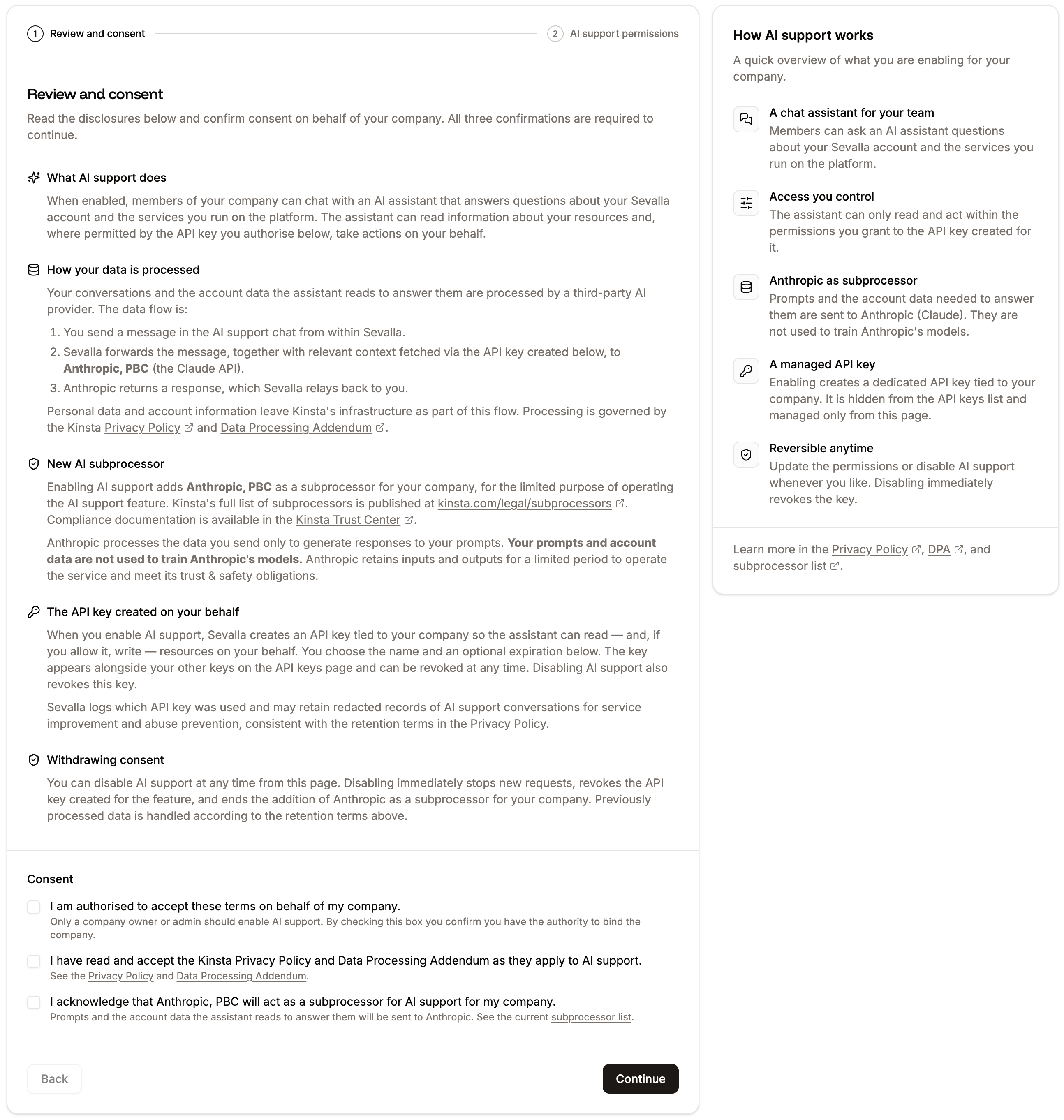
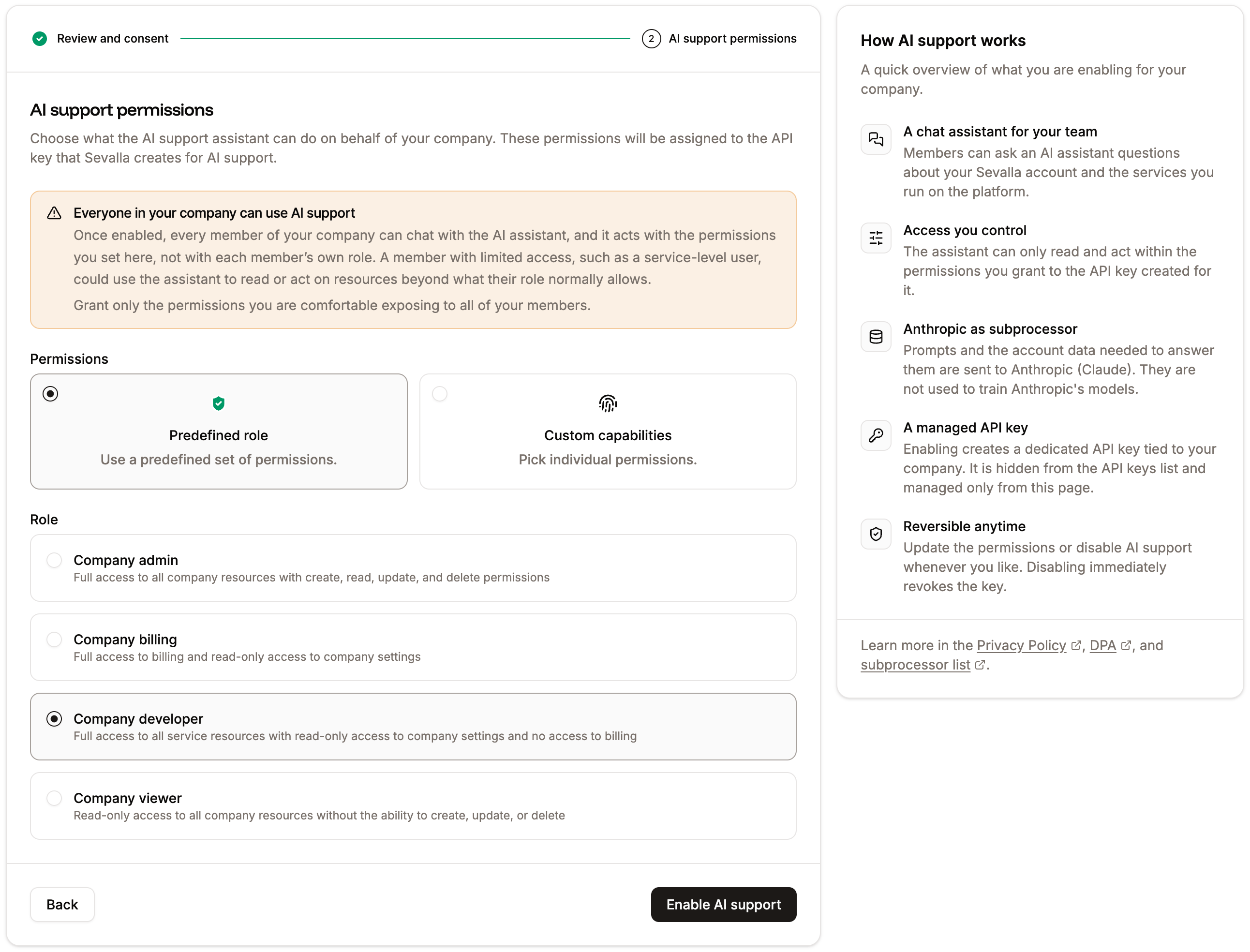
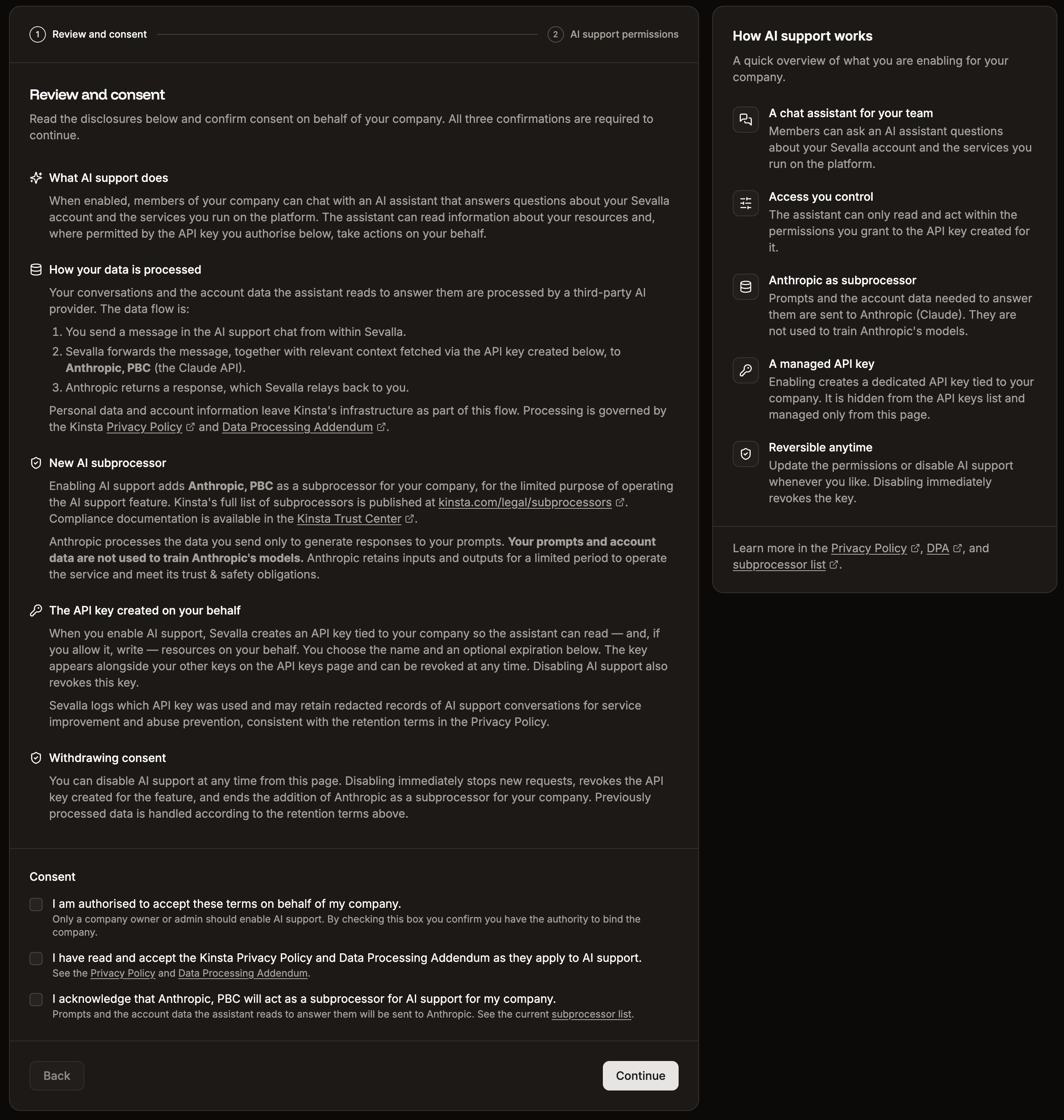 Next, configure the AI agent's permissions. You can either assign one of the predefined roles, which use the same permission sets as [Sevalla's User Management](https://docs.sevalla.com/company-settings/user-management) roles, or create a custom capability permission set.
Custom permissions allow you to grant the AI agent specific create, read, update, and delete access to individual Sevalla features and resources, giving you fine-grained control over what actions the agent can perform. You can change the permissions at any time within **Help** > **AI support**.
Once you've set the required permissions, click **Enable AI support**.
Next, configure the AI agent's permissions. You can either assign one of the predefined roles, which use the same permission sets as [Sevalla's User Management](https://docs.sevalla.com/company-settings/user-management) roles, or create a custom capability permission set.
Custom permissions allow you to grant the AI agent specific create, read, update, and delete access to individual Sevalla features and resources, giving you fine-grained control over what actions the agent can perform. You can change the permissions at any time within **Help** > **AI support**.
Once you've set the required permissions, click **Enable AI support**.
 ## Open a support chat
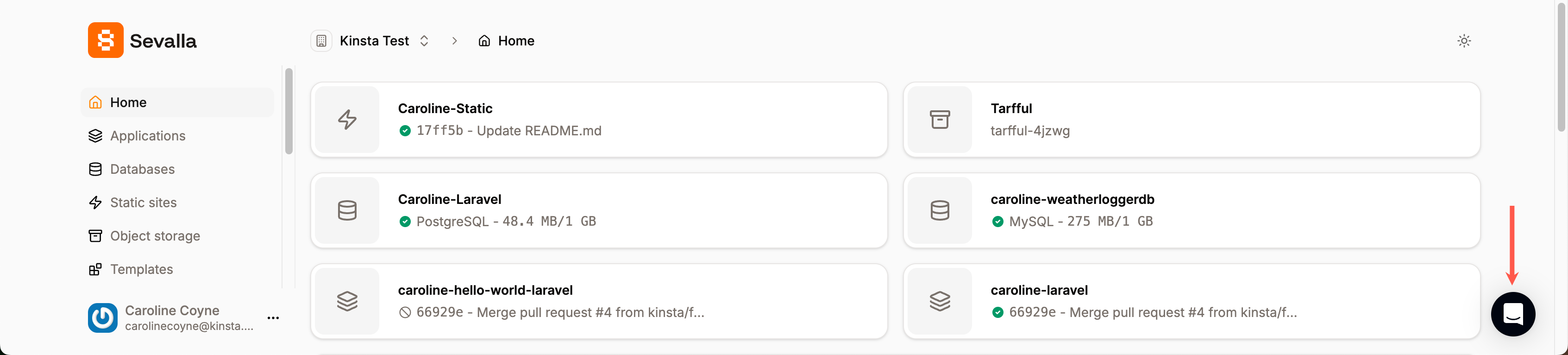
To open a new support chat or ticket, log in to [Sevalla](https://app.sevalla.com/) and click the **chat icon** in the lower right corner.
## Open a support chat
To open a new support chat or ticket, log in to [Sevalla](https://app.sevalla.com/) and click the **chat icon** in the lower right corner.
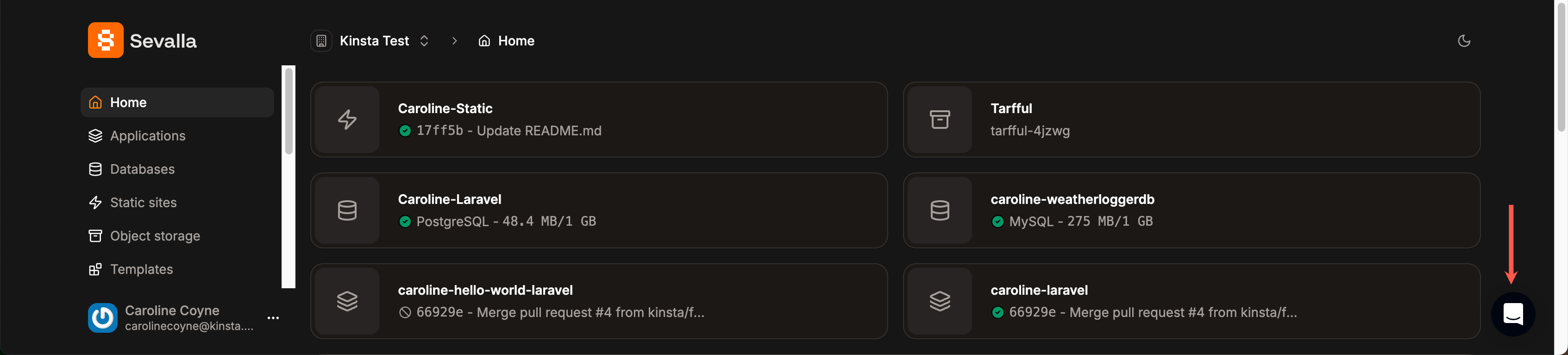 Click **Send us a message**, then choose between AI support and human support.
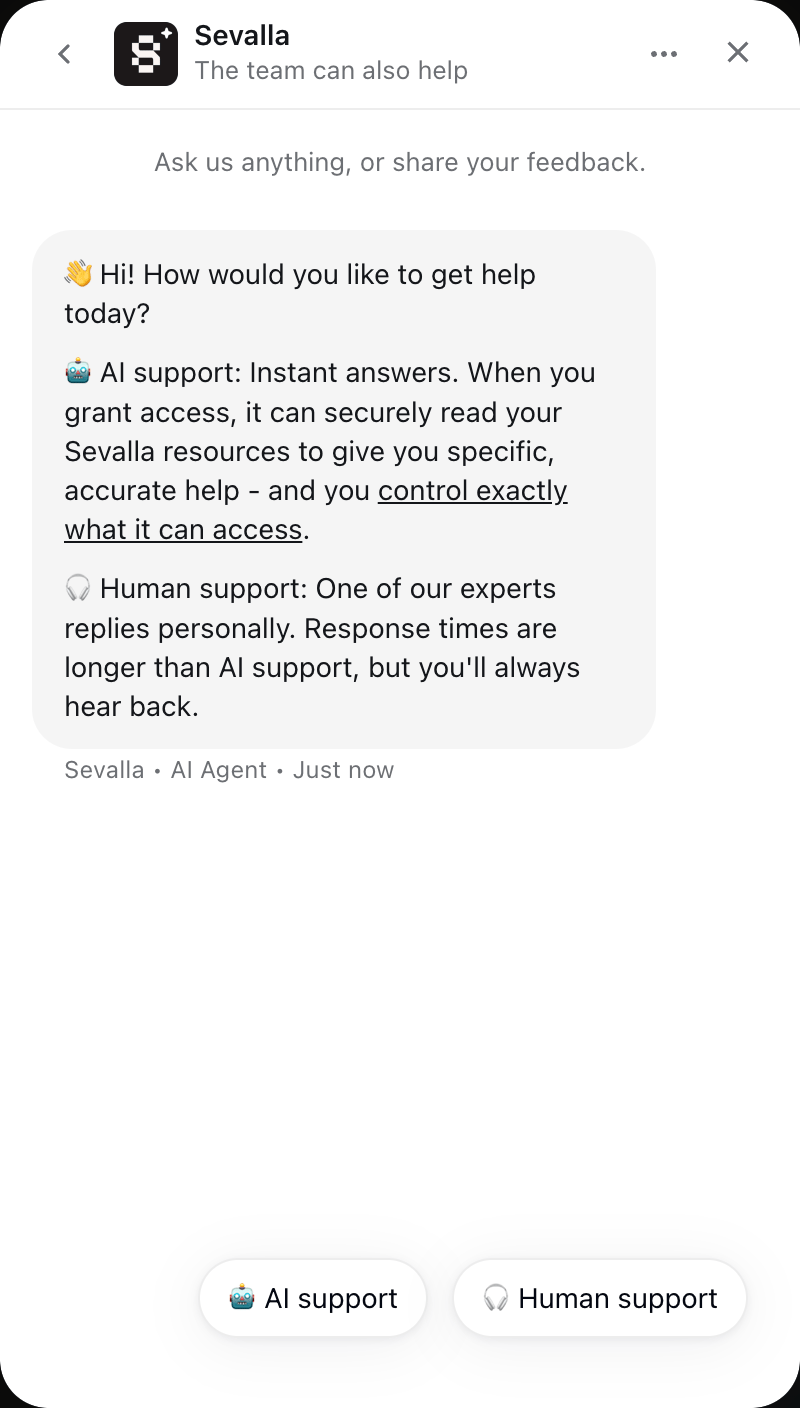 Let us know what type of support you need (technical, plan questions, billing questions, etc.). Type your message (you can attach files via the paper clip icon) and press enter/return (or click on the arrow) to send.
If you have a paid service but you don’t see the support icon, it might be because you have an ad blocker running. We’ve also observed that certain VPN services can interfere with the live chat feature. If you are experiencing issues with live chat, try enabling “Don’t run on pages on this domain” in your ad blocker or disabling your VPN.
### Save a chat transcript
To download a transcript of your conversation, scroll to the top of the window, click the ellipsis (three dots), and click Download transcript. A pop-up window will appear with a .txt file of your transcript that you can save to your computer.
Let us know what type of support you need (technical, plan questions, billing questions, etc.). Type your message (you can attach files via the paper clip icon) and press enter/return (or click on the arrow) to send.
If you have a paid service but you don’t see the support icon, it might be because you have an ad blocker running. We’ve also observed that certain VPN services can interfere with the live chat feature. If you are experiencing issues with live chat, try enabling “Don’t run on pages on this domain” in your ad blocker or disabling your VPN.
### Save a chat transcript
To download a transcript of your conversation, scroll to the top of the window, click the ellipsis (three dots), and click Download transcript. A pop-up window will appear with a .txt file of your transcript that you can save to your computer.
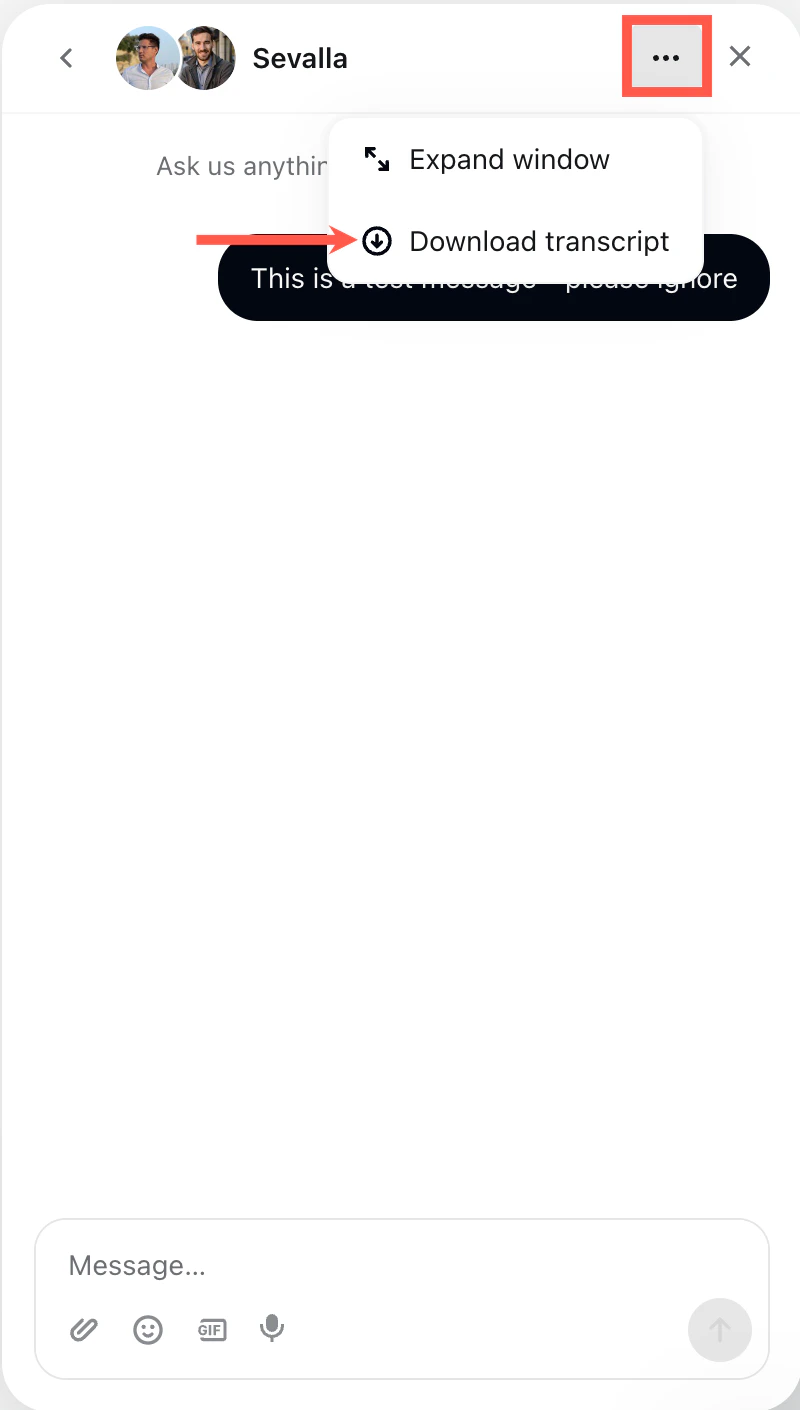 Depending on your browser settings, the pop-up for downloading your transcript may be blocked. If it is, you’ll need to update your preferences to allow pop-ups from app.sevalla.com and click the arrow icon again.