> ## Documentation Index
> Fetch the complete documentation index at: https://docs.sevalla.com/llms.txt
> Use this file to discover all available pages before exploring further.
# Global Variables
> Learn how to add global environment variables in Sevalla for use across all applications.
In Sevalla, you can define global environment variables at the company level. These variables are available to all applications within the organization, making them ideal for shared settings such as API keys, credentials, or feature flags.
Set global environment variables within **Integration** > **Global variables**.
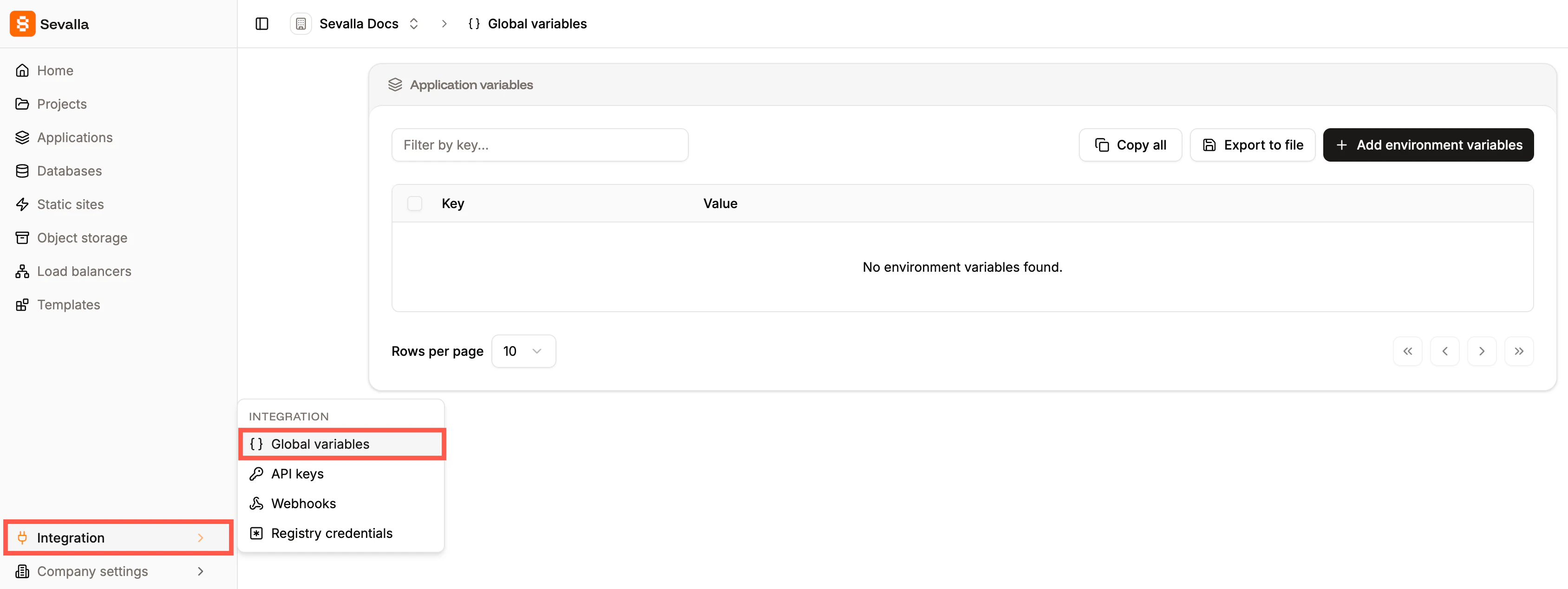
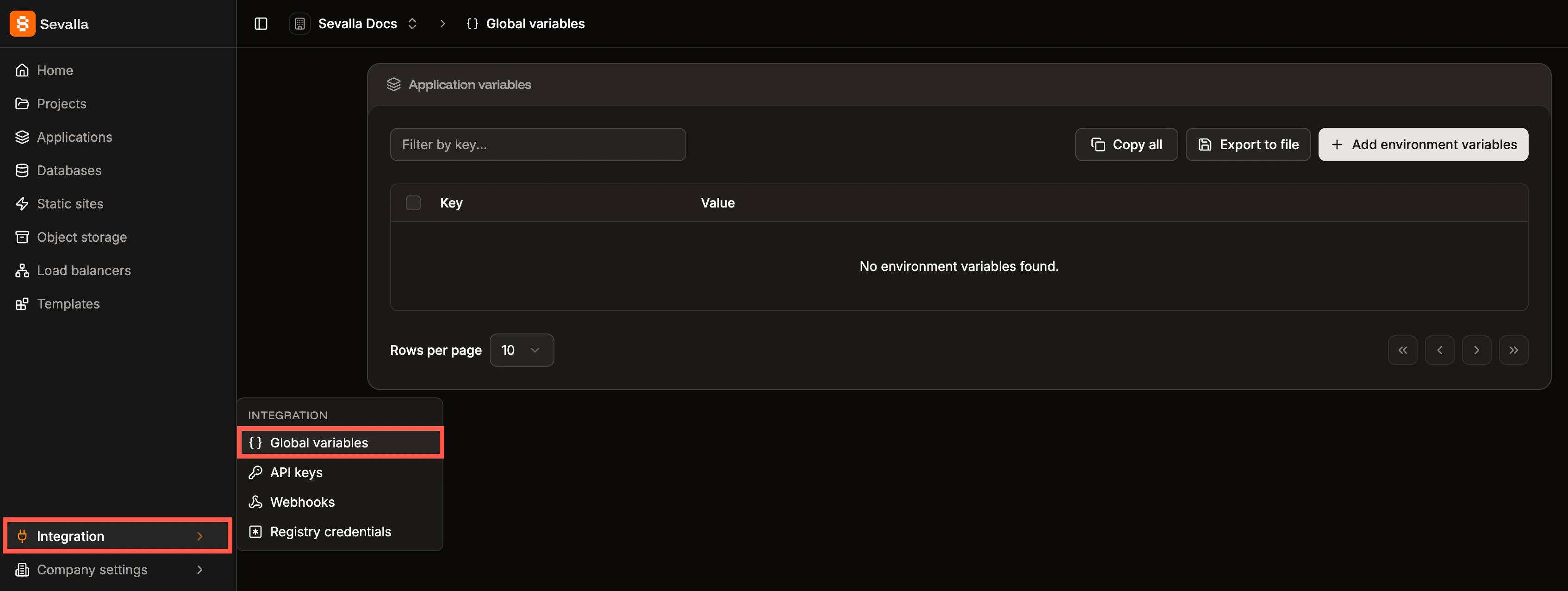 **Copy all** copies all environment variables, allowing you to paste them elsewhere. **Export to file** exports all the environment variables; if you only want to export certain values, select the required environment variables and then click **Export to file**.
You cannot use a `.env` file to pass environment variables to the application; you must set them in Sevalla. You can import the contents of a `.env` file when you add environment variables.
## Special characters in environment variables
In the environment variable keys, you can only use a-z, 0-9, or underscore (`_`). Environment variable values are applied literally, with the exception of parentheses, commas, and double quotes.
### Parentheses
Parentheses can cause the build or rollout process to fail, depending on when they are available during deployment. They cannot be used in environment variables.
### Commas
Unescaped [commas are interpreted as delimiters](/applications/troubleshooting/failed-deployment#environment-variables) and cannot be used in environment variables.
* For example: `write_stock,read_orders` will cause the rollout process to fail.
* To keep a comma inside a string, escape it with a backslash (`\`) like this: `write_stock\,read_orders` — which will be applied as `write_stock,read_orders`.
### Double quotes
Unescaped double quotes are either disregarded or will cause the rollout process to fail.
* For example, `"my_example_variable"` will be applied as `my_example_variable`.
* To keep double quotes around a variable, escape them with a backslash (`\`) like this: `\"my_example_var\"` — which will be applied as `"my_example_var"`.
* If double quotes are inside of a string (e.g. `my_exampl"e_text`), the [rollout process will fail](/applications/troubleshooting/failed-deployment).
* To keep double quotes inside a string, escape them with a backslash (`\`) like this: `my_examp\"le_var` — which will be applied as `my_examp"le_var`.
### Base64 encoded variables
If your environment variable is Base64 encoded and you experience issues (e.g. 500 errors in the browser, build errors, runtime errors, etc.), try wrapping the value of the variable with single quotes.
## Add global variables
If you use a Dockerfile to build your application and you want the environment variable to be available during build time, you must add ARG ENVVAR\_XY to your Dockerfile, where ENVVAR\_XY is the environment variable. For example, if your environment variable is DB\_CONNECTION\_URL you would need to add ARG DB\_CONNECTION\_URL.
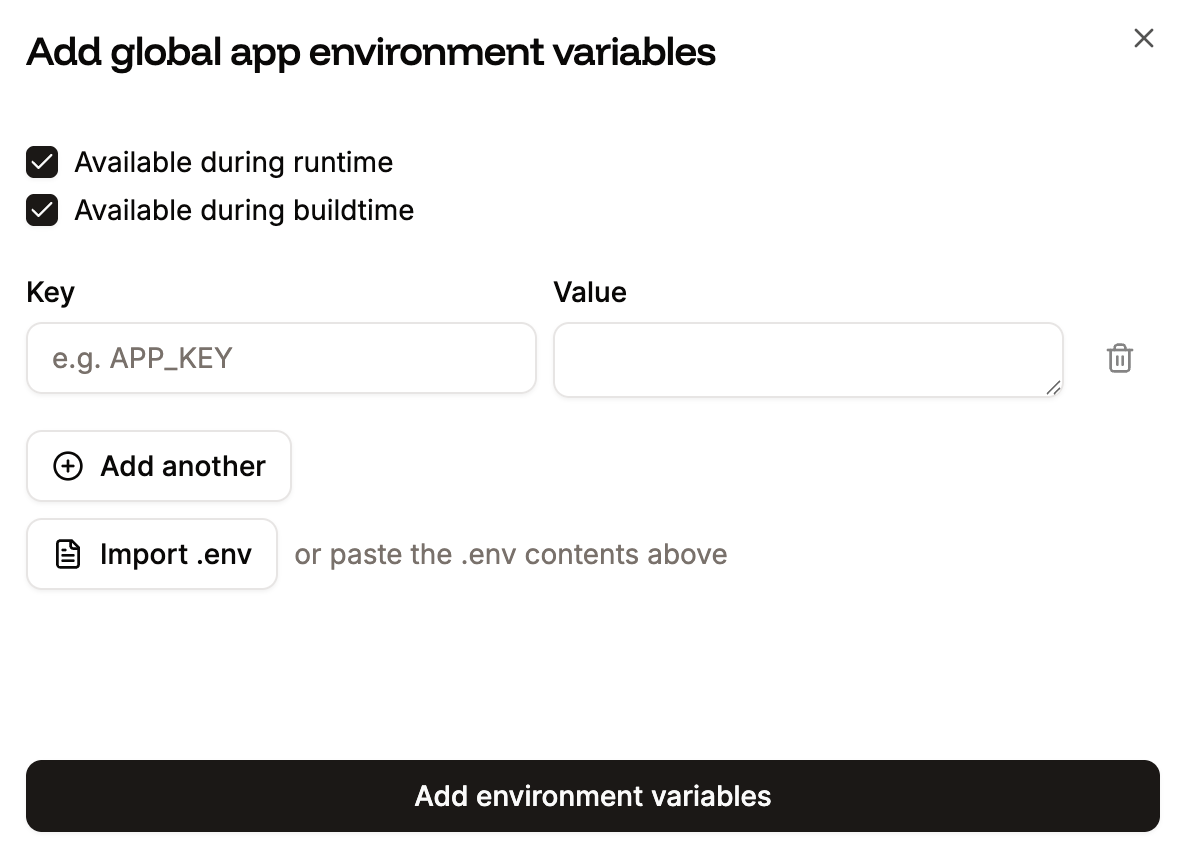
To add global environment variables, click **Add environment variables**. Add the key-value pairs, select if the variables are to be available during runtime and/or the build process, and click **Add environment variables**.
You can reference another environment variable using the `${key}` format. For example, to reference an environment variable with the key `DB_PASSWORD` use `${DB_PASSWORD}`.
To add multiple environment variables, copy the keys and values using CMD + C (Mac) or CTRL + C (Windows), and in **Add global app environment variables**, press CMD + V (Mac) or CTRL + V (Windows). You can also paste the contents of a `.env` file or import the `.env` file using **Import .env**.
**Copy all** copies all environment variables, allowing you to paste them elsewhere. **Export to file** exports all the environment variables; if you only want to export certain values, select the required environment variables and then click **Export to file**.
You cannot use a `.env` file to pass environment variables to the application; you must set them in Sevalla. You can import the contents of a `.env` file when you add environment variables.
## Special characters in environment variables
In the environment variable keys, you can only use a-z, 0-9, or underscore (`_`). Environment variable values are applied literally, with the exception of parentheses, commas, and double quotes.
### Parentheses
Parentheses can cause the build or rollout process to fail, depending on when they are available during deployment. They cannot be used in environment variables.
### Commas
Unescaped [commas are interpreted as delimiters](/applications/troubleshooting/failed-deployment#environment-variables) and cannot be used in environment variables.
* For example: `write_stock,read_orders` will cause the rollout process to fail.
* To keep a comma inside a string, escape it with a backslash (`\`) like this: `write_stock\,read_orders` — which will be applied as `write_stock,read_orders`.
### Double quotes
Unescaped double quotes are either disregarded or will cause the rollout process to fail.
* For example, `"my_example_variable"` will be applied as `my_example_variable`.
* To keep double quotes around a variable, escape them with a backslash (`\`) like this: `\"my_example_var\"` — which will be applied as `"my_example_var"`.
* If double quotes are inside of a string (e.g. `my_exampl"e_text`), the [rollout process will fail](/applications/troubleshooting/failed-deployment).
* To keep double quotes inside a string, escape them with a backslash (`\`) like this: `my_examp\"le_var` — which will be applied as `my_examp"le_var`.
### Base64 encoded variables
If your environment variable is Base64 encoded and you experience issues (e.g. 500 errors in the browser, build errors, runtime errors, etc.), try wrapping the value of the variable with single quotes.
## Add global variables
If you use a Dockerfile to build your application and you want the environment variable to be available during build time, you must add ARG ENVVAR\_XY to your Dockerfile, where ENVVAR\_XY is the environment variable. For example, if your environment variable is DB\_CONNECTION\_URL you would need to add ARG DB\_CONNECTION\_URL.
To add global environment variables, click **Add environment variables**. Add the key-value pairs, select if the variables are to be available during runtime and/or the build process, and click **Add environment variables**.
You can reference another environment variable using the `${key}` format. For example, to reference an environment variable with the key `DB_PASSWORD` use `${DB_PASSWORD}`.
To add multiple environment variables, copy the keys and values using CMD + C (Mac) or CTRL + C (Windows), and in **Add global app environment variables**, press CMD + V (Mac) or CTRL + V (Windows). You can also paste the contents of a `.env` file or import the `.env` file using **Import .env**.
 ## Edit global variables
You can edit variable names (keys) or values on the **Global variables** page. To edit a variable, click the ellipsis (three dots) and click **Update**, make your changes, and click **Update global environment variable**.
## View global variables in your applications
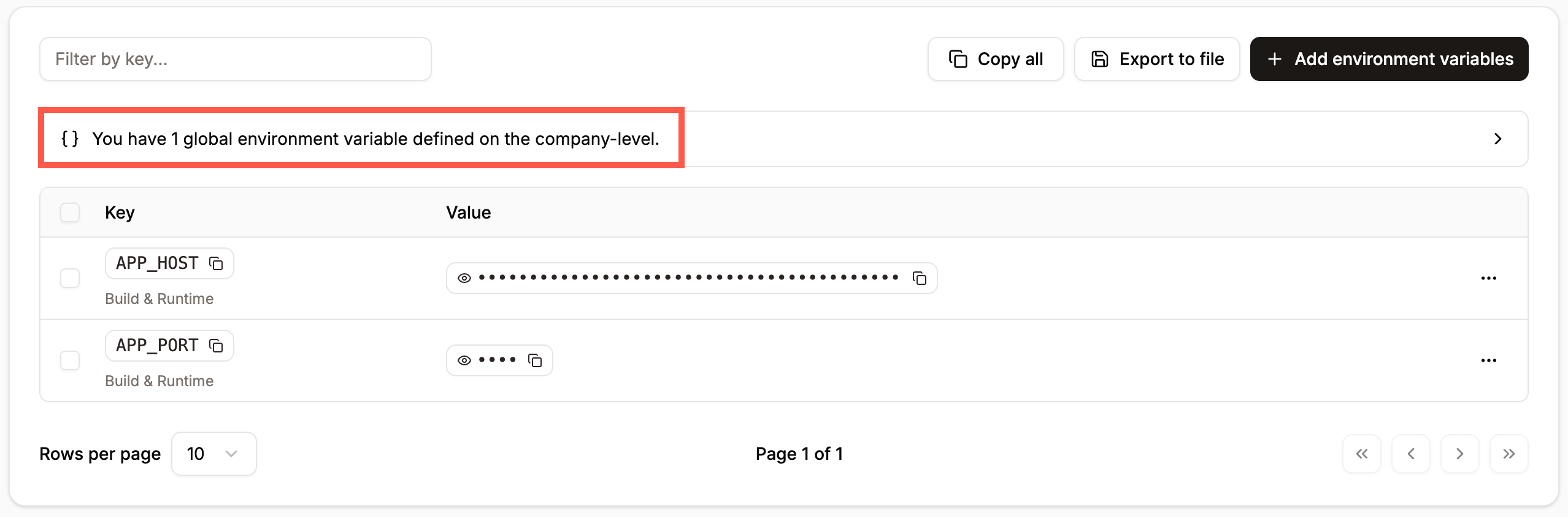
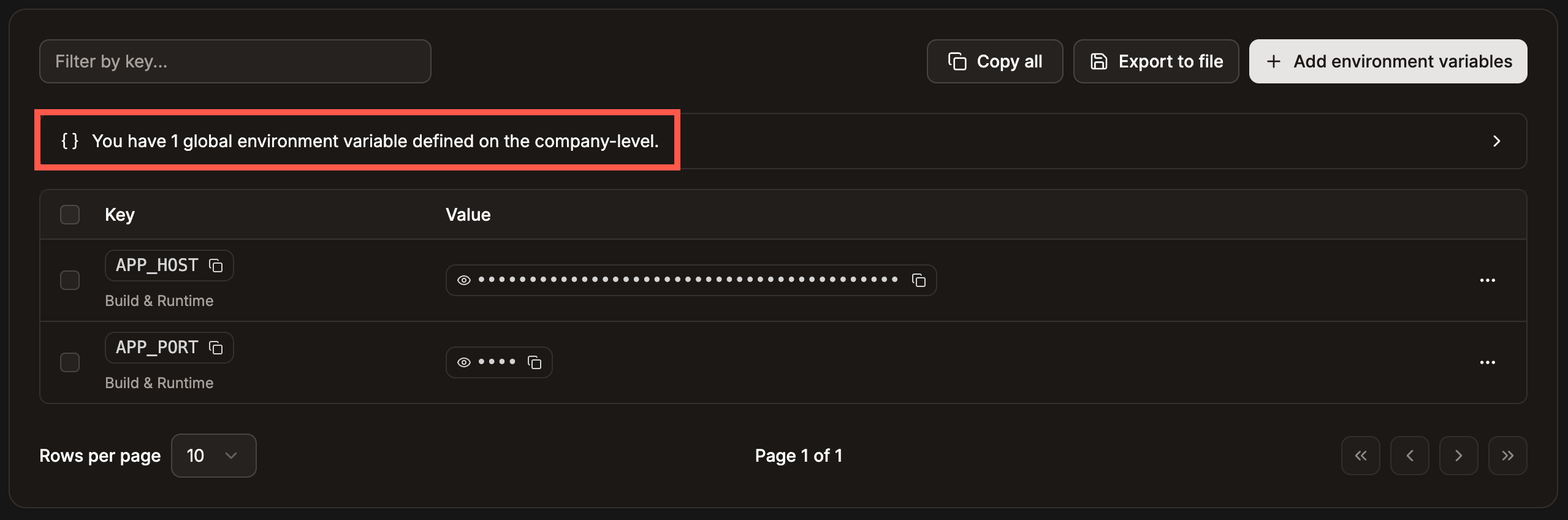
If you have a global variable, it is displayed within each application's [Environment variables](https://docs.sevalla.com/applications/environment-variables).
## Edit global variables
You can edit variable names (keys) or values on the **Global variables** page. To edit a variable, click the ellipsis (three dots) and click **Update**, make your changes, and click **Update global environment variable**.
## View global variables in your applications
If you have a global variable, it is displayed within each application's [Environment variables](https://docs.sevalla.com/applications/environment-variables).