

Process types
What each type can use:
A process’s type is fixed when you create it. Instance counts above 1 and autoscaling need a valid payment method, and 20 instances is the default limit per process.
How processes run
- Start command. Each process runs its Custom start command inside the image that the latest deployment built. Leave it empty to run the image’s default command (the one your build strategy detected, or your Dockerfile’s
CMDorENTRYPOINT). The command runs in a shell, sonpm run migrate && npm startworks. - Changes apply with the next deployment. Creating a process, or changing its start command, size, schedule or scaling, takes effect when you deploy. The dashboard lists pending changes in an undeployed changes bar with a Deploy button. Deleting a process takes effect at once.
- Crashes. If a web process or background worker exits, Sevalla restarts it. A process that keeps crashing shows Crashed in the dashboard; see Troubleshoot runtime errors.
- Shutdown. When an instance stops (during a deployment, a scale-down or a delete), Sevalla waits 5 seconds, sends
SIGTERM, and stops the instance if it’s still running 30 seconds after the shutdown began. HandleSIGTERMto finish in-flight work. A Custom start command runs with/bin/sh -l -c, and that shell doesn’t passSIGTERMon, so start a long-running command withexec, for exampleexec celery -A storefront worker: the command then replaces the shell and gets the signal itself. - Files. Each instance has its own ephemeral filesystem, up to 20 GB, that’s wiped on every restart and deployment. Use a disk or object storage for files you keep.
- Cost. Web processes and background workers cost money for every instance while it runs. Cron jobs and jobs cost money only while a run is in progress. See Pricing.
You need permission to update the application to create, update or delete processes, and the company needs a valid payment method.
Create a process
The web process is created with the application. You create background workers, cron jobs and jobs on the Processes tab.1
Open the Processes tab
In the sidebar, click Applications, then click the application. Click the Processes tab.
2
Choose the type
Click Create process, then pick Background worker, Cron job or Job.
3
Fill in the fields
Enter a Name, an optional Custom start command, and pick the Resource (the instance size). Cron jobs also need a schedule, and jobs a start policy. Background workers have a Scaling section; see Scaling.
4
Create and deploy
Click Create process, then deploy the application. The process starts with the deployment.
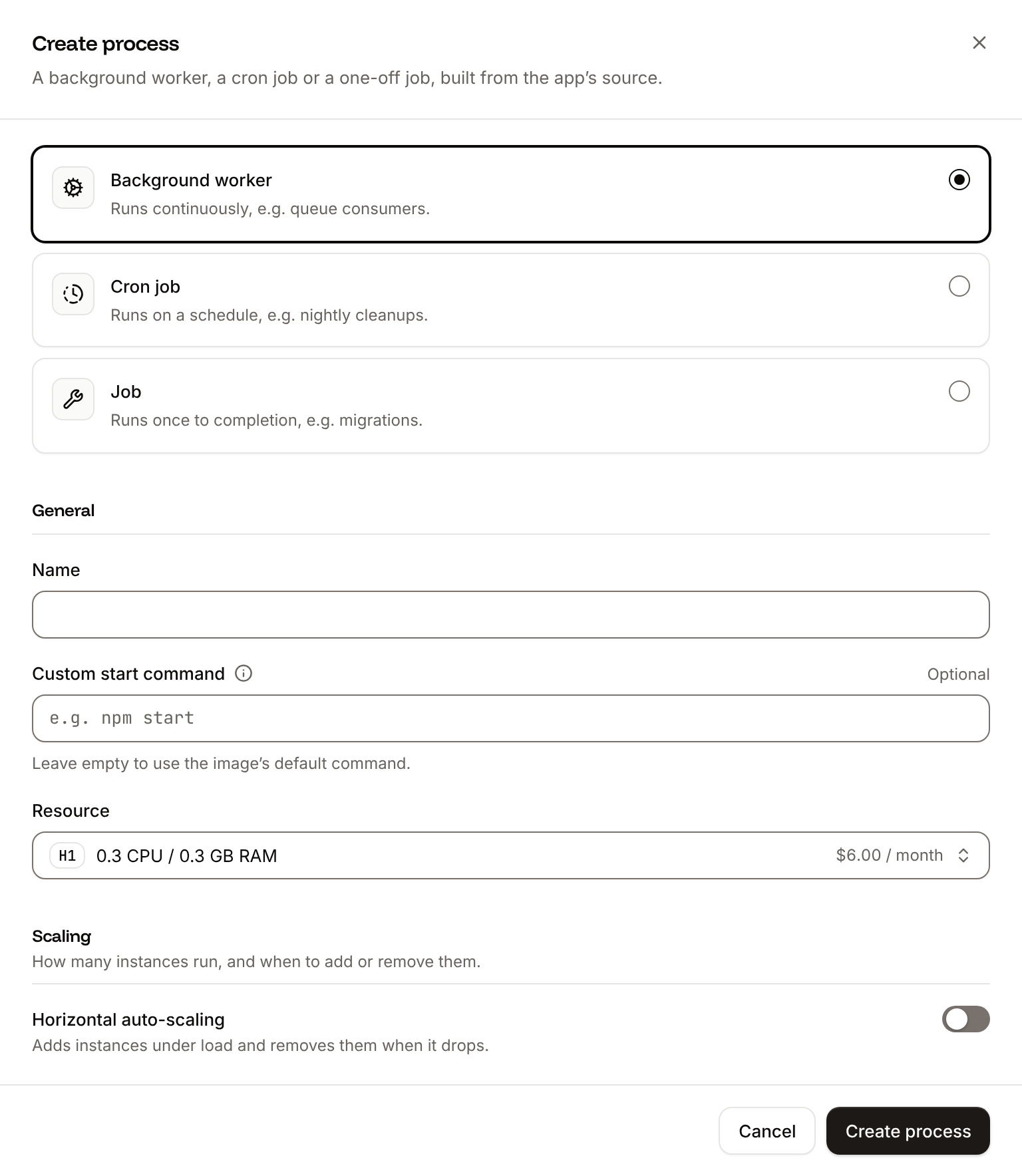
The new process appears on the Processes tab. Its status reads Not running (web and workers) or Not run yet (cron jobs and jobs) until the deployment starts it.
Update a process
1
Open the process
On the application’s Processes tab, click ⋯ on the process, then click Update process.
2
Change the settings
Change any field except the type. The web process also has a Health checks section.
3
Save and deploy
Click Update process, then deploy the application to apply the change.
Delete a process
Deleting stops the process and removes it with its settings, at once. You can’t delete the web process, and you can’t delete any process while a deployment is in progress.1
Start the deletion
On the application’s Processes tab, click ⋯ on the process, then click Delete process.
2
Confirm
Type the process name and click Delete process.
Web process
The web process receives the application’s HTTP traffic. It listens on port8080 by default; Sevalla passes the port in the PORT environment variable, so start your server on process.env.PORT (or your language’s equivalent). Requests reach it through Cloudflare on ports 80 and 443 of every domain of the application. See Networking for the port, the protocol (HTTP or gRPC) and turning HTTP traffic off.
The web process can’t use the H1 size while the application has a custom domain, and you can’t add a custom domain while it uses H1. See Instance sizes.
Background workers
A background worker runs continuously and has no public traffic. Use it for queue consumers, schedulers and WebSocket servers you expose through a TCP proxy. If its command exits, Sevalla starts it again, so a command that does one task and exits belongs in a cron job or a job instead.Cron jobs
A cron job starts a new run on a schedule, runs its command to completion, and stops. Between runs it uses no instances.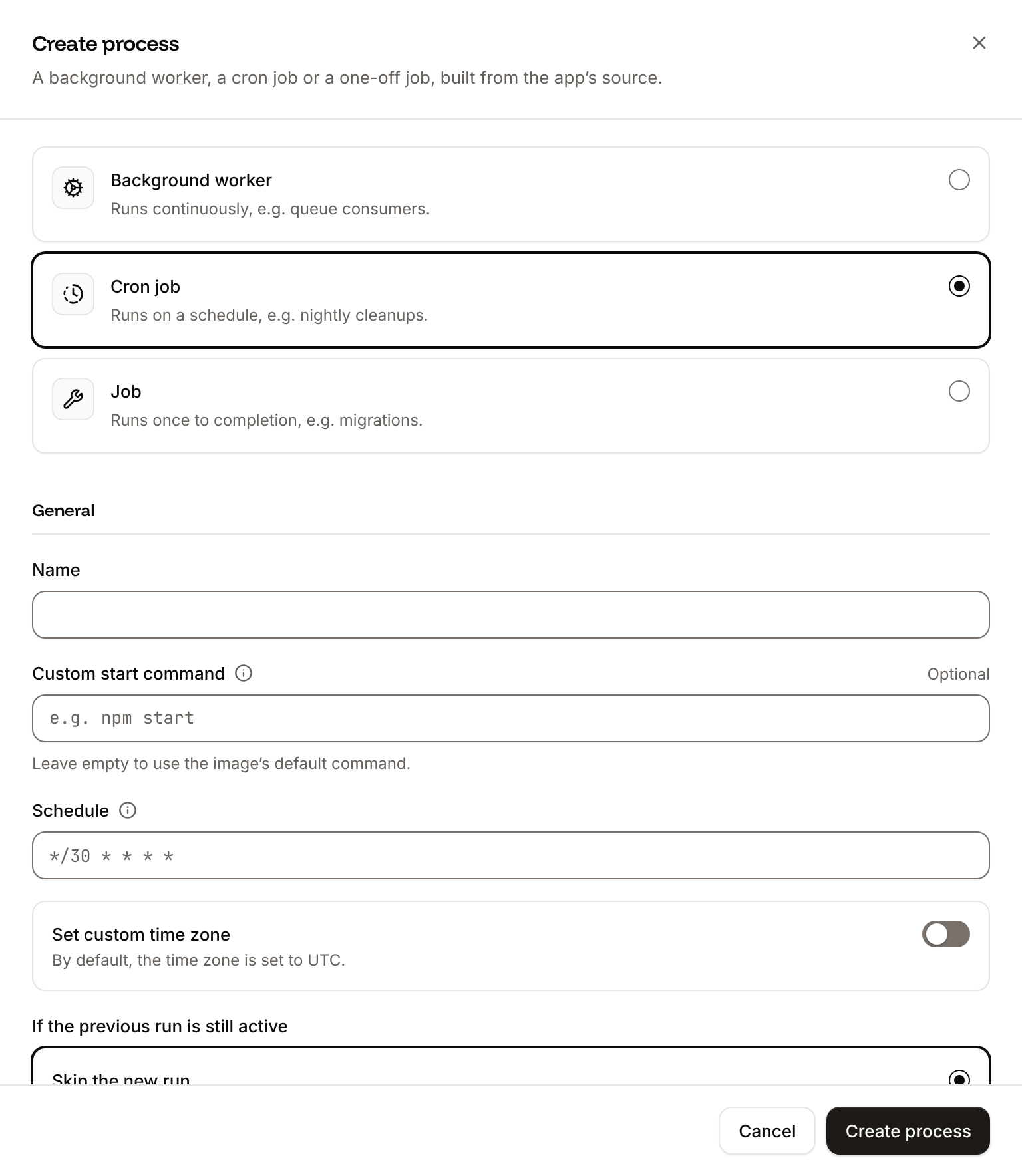
Below the field, the dashboard describes the schedule in words and shows the next run. Common schedules:
30 * * * * runs once an hour, at minute 30; */30 runs every 30 minutes.
If a run fails, Sevalla retries it once. A cron job’s status, on the Processes tab and in the application’s Overview, is the status of its latest run: Running, Succeeded or Failed.
Run a cron job now
To start one run outside the schedule, click ⋯ on the cron job on the Processes tab, click Run now, then click Run now in the dialog. The next scheduled run isn’t affected.Check cron runs
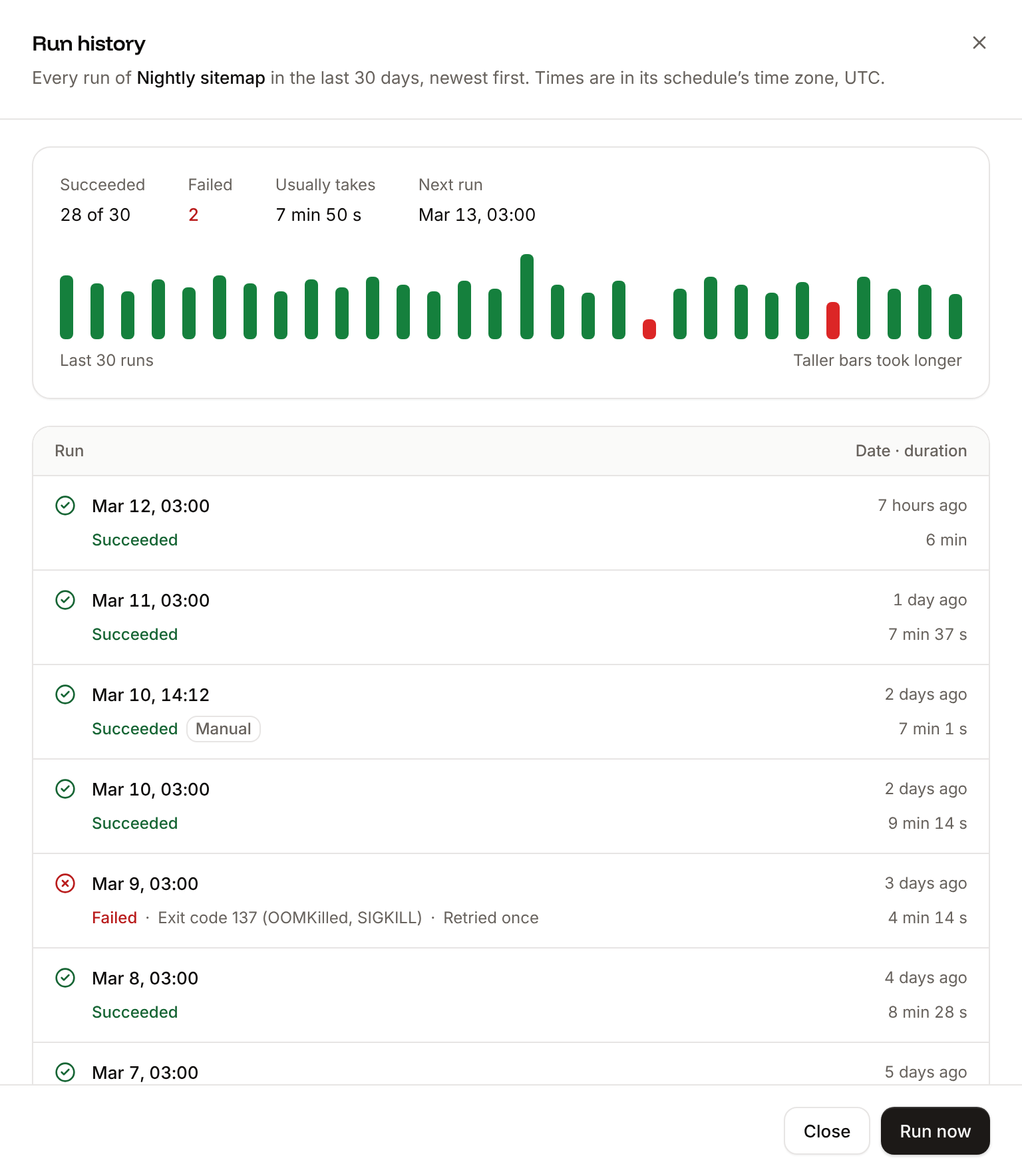
Sevalla records every run of a cron job, scheduled or started with Run now, and keeps it for 30 days. On the Processes tab, click a cron job’s name to expand its card: it shows the last 30 runs as bars, oldest on the left. A bar’s color is the run’s outcome and its height how long the run took, compared with the longest run shown; point at a bar to see the run’s status, duration and time. Beside the bars is when the last run started and how long it took, or why it failed. A cron job that ran before Sevalla recorded runs shows No runs recorded yet until its next run.

Check the run history
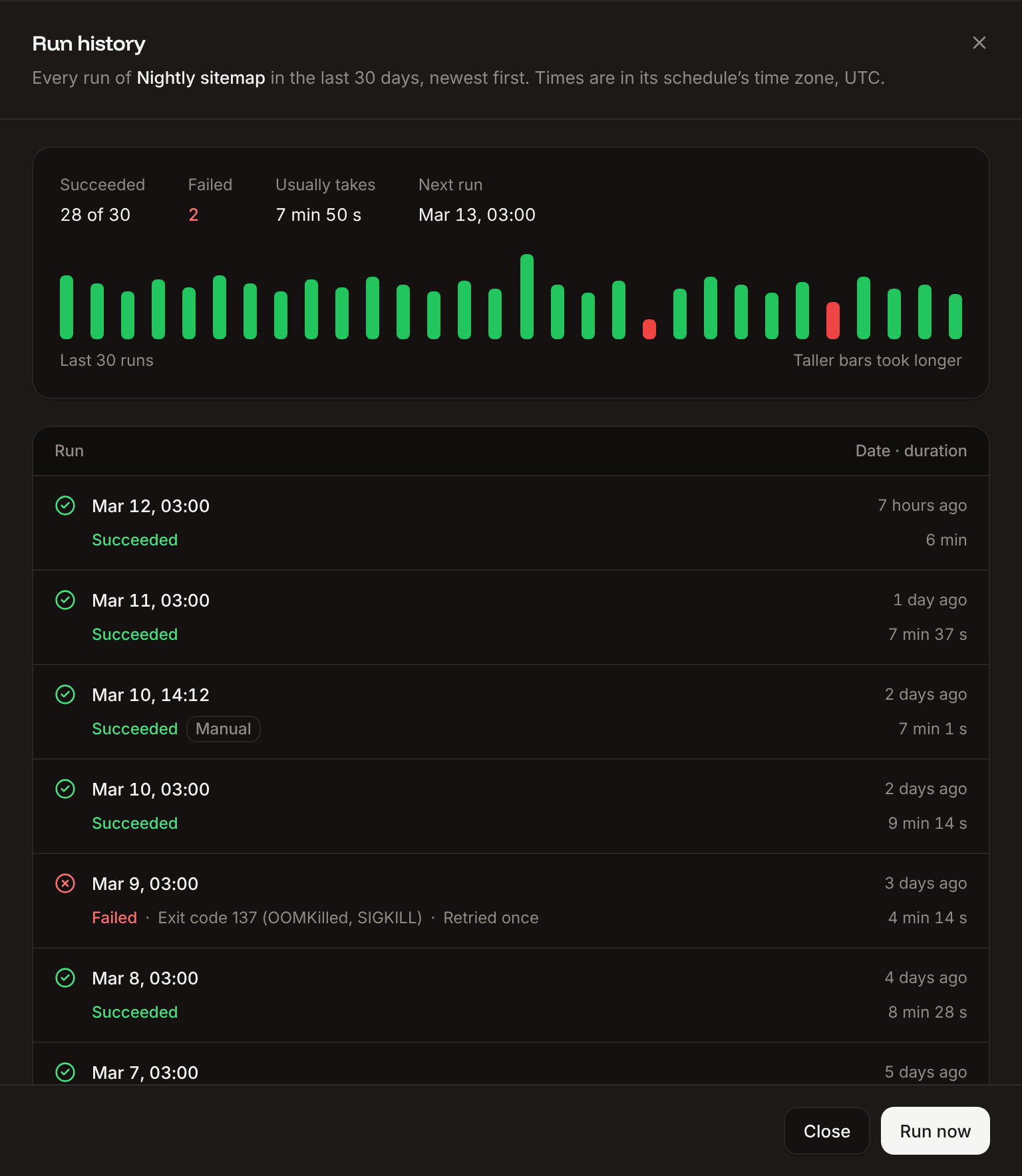
The run history lists every run of a cron job from the last 30 days, newest first.1
Open the run history
In the sidebar, click Applications, then click the application. Click the Processes tab, click the cron job’s name to expand its card, then click Run history.
2
Open the logs of a run
Click the time of a run. The Logs tab opens with the cron job’s runtime logs from 1 minute before the run started to 1 minute after it finished, or follows them live while the run is in progress.
Jobs
A job runs its command once per deployment and stops. Use it for database migrations, cache warm-ups or notifications instead of adding them to the web process’s start command. The Start policy decides when it runs:
How jobs run:
- Jobs with the same start policy run one after another, and each must finish before the deployment continues.
- A job that’s still running after its Max run time, or after 10 minutes when it has none, is stopped and its deployment fails. The build log shows
<job name> has timed out after <seconds>s and has been stopped. In the dashboard, Set max run time on a job accepts up to 3,600 seconds (1 hour), and the deployment’s own 30-minute limit still applies. - A failed job isn’t retried. The build log shows
<job name> has failed. - The job runs from the image being deployed, with the application’s runtime environment variables.
A deployment that only restarts the application (no new build) still runs its jobs. Make migrations safe to run more than once.
Health checks
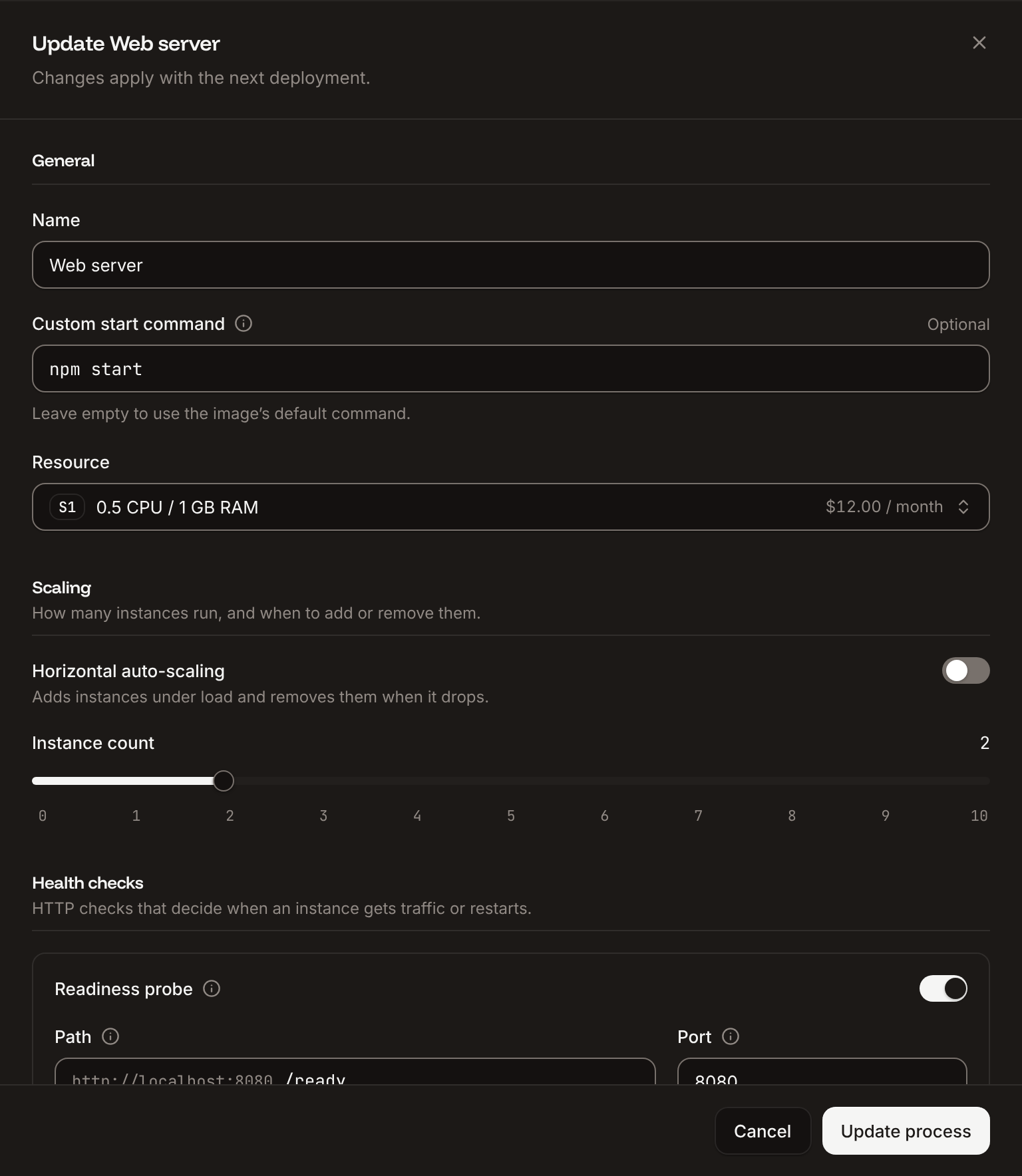
Health checks are HTTPGET requests that Sevalla sends to each instance of the web process. They’re off by default: without a readiness probe, an instance receives traffic as soon as its container starts, even if your server isn’t listening yet. You set them when you update the web process, in its Health checks section.
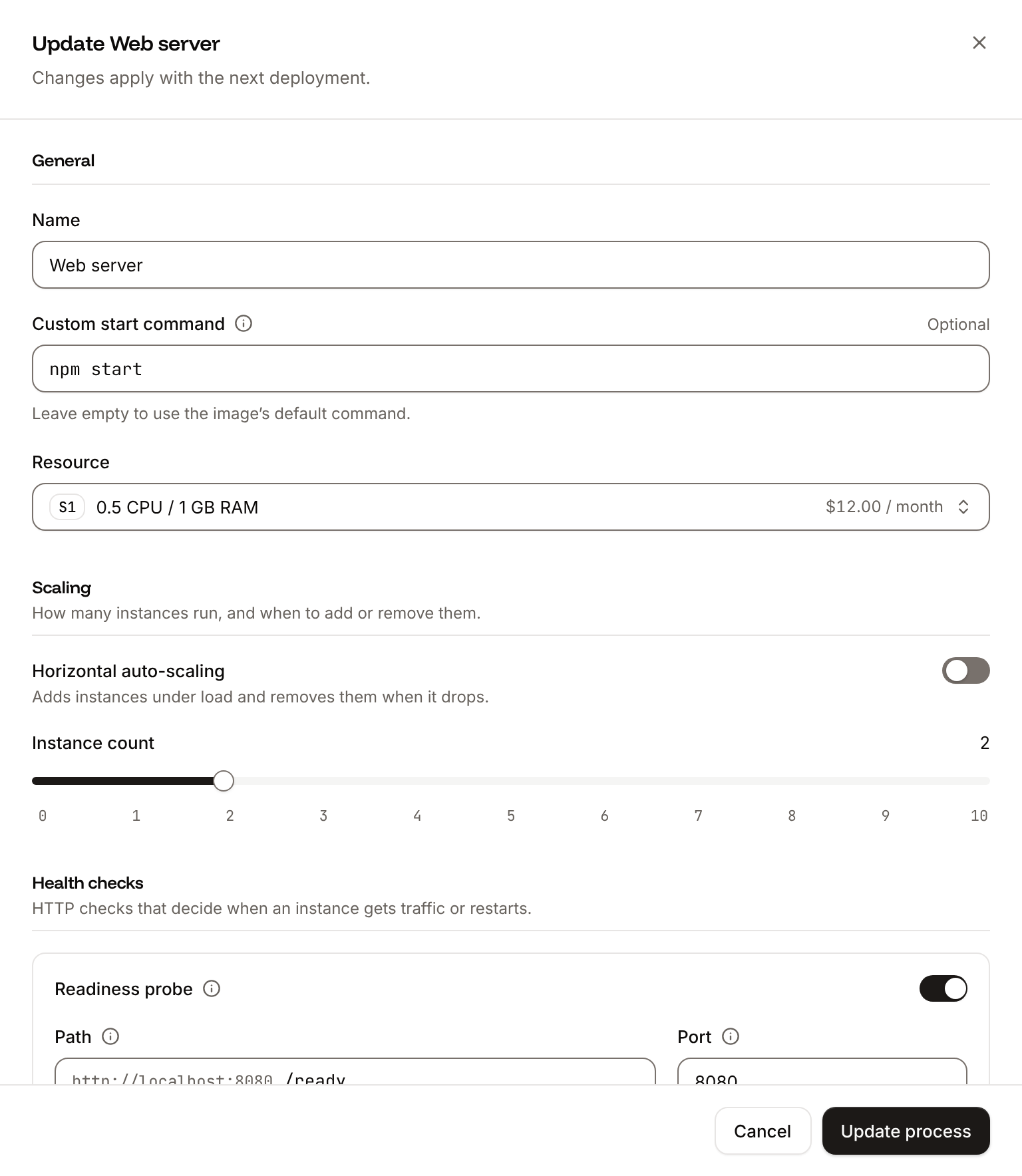
Each probe has these fields:
A check passes when the path answers with a status from
200 to 399 within the timeout. Point the probes at a lightweight endpoint that doesn’t depend on slow services, and give a slow-starting application an Initial delay: a liveness probe that fails while the application boots restarts it in a loop.
API and CLI
In the API, the cron settings are
schedule, time_zone, concurrency_policy (Forbid or Replace) and active_deadline_seconds, and the start policy is job_start_policy (beforeDeployment, afterSuccessDeployment or afterFailedDeployment). Each cron run has a trigger (scheduled or manual), a status (running, succeeded or failed), a reason, the exit_code of its last attempt, its retries, and scheduled_at, started_at and finished_at times.