

How variables work
- Changes apply from the next deployment. Adding, updating or deleting a variable doesn’t rebuild the site: deploy it to use the change.
- Each variable is for production, previews or both. With pull request previews on, you choose Production, Preview or both for each variable. Production deployments use the Production variables, preview deployments the Preview ones. Without previews, new variables are production only.
- A key can exist once per environment: once for production and once for previews, with different values. Adding a key that already exists for the same environment fails with
This key already exists on the static site. - Values are encrypted when Sevalla stores them, and masked in the dashboard until you reveal them.
- One variable can use another. Write
${KEY}in a value to insert the value of the variableKEYfrom the same environment, for example${API_HOST}/v2. References can nest up to 10 levels. A reference to a key that doesn’t exist stays as written. - Global variables don’t apply. The company’s Global variables (Tools > Global variables) are for applications only.
Add environment variables
1
Open the variables
In the sidebar, click Static sites, then click the site. Click the Environment variables tab.
2
Open the add sheet
Click Add environment variables.
3
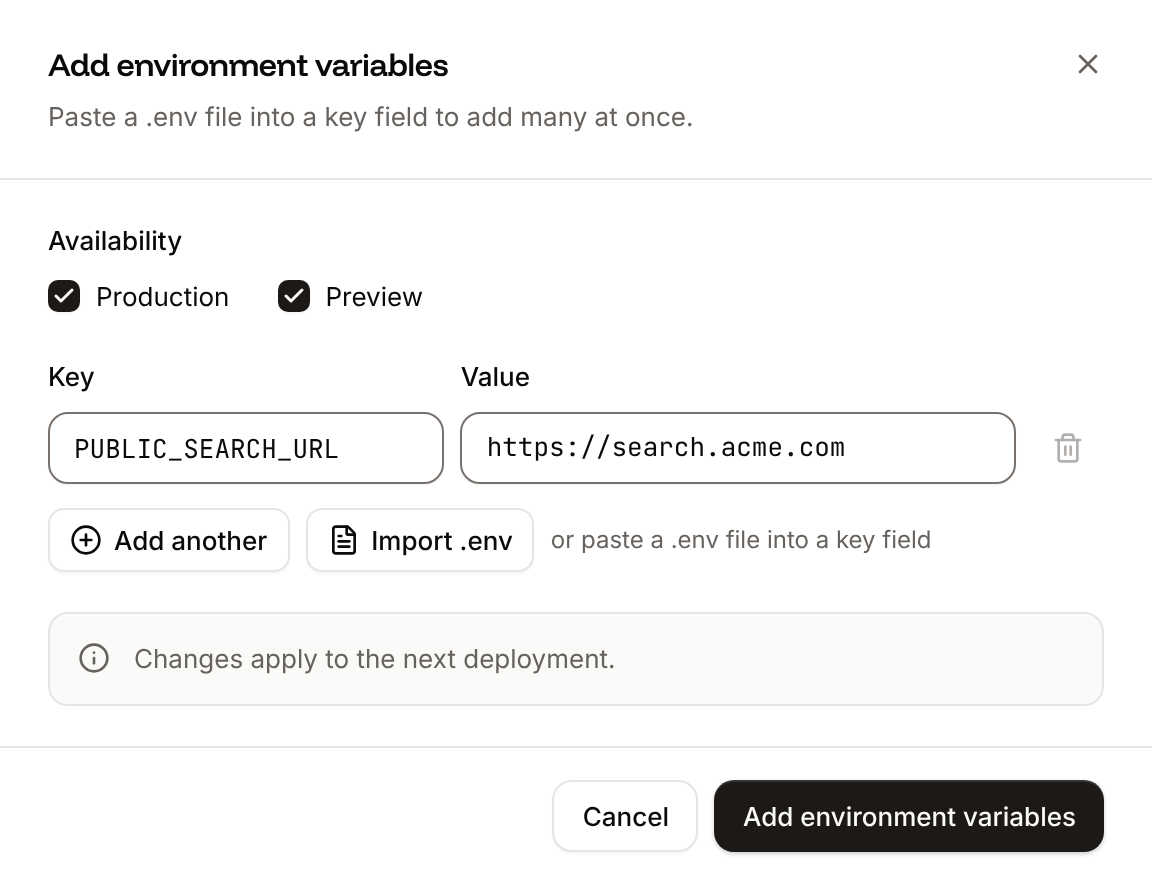
Enter the variables
Enter a Key and a Value. Click Add another for more rows, click Import .env to load a
.env file, or paste a .env file’s contents into a key field. With previews on, choose the Availability: Production, Preview or both.4
Save them
Click Add environment variables.
Key is required, Duplicate key). Deploy the site to use them.
Update an environment variable
1
Open the variable
On the site’s Environment variables tab, open the variable’s menu and click Update.
2
Change it
Update the Key, the Value or the Availability, then click Update environment variable.
Delete environment variables
1
Choose the variables
On the site’s Environment variables tab, open a variable’s menu and click Delete. To delete more than one, select their checkboxes and click the button that names how many, for example Delete 3 variables.
2
Confirm
Click Delete variable (or Delete 3 variables).
Find, copy and export variables
- Filter by key… narrows the list to keys that contain what you type.
- Copy all copies every variable to the clipboard in
.envformat. - Export downloads every variable as a file named
export.env.
API and CLI
The API sets the environments with
is_production and is_preview, both true unless you say otherwise. Its branch field limits a preview variable to one branch: previews of other branches don’t get it, and production deployments ignore the field.