

Before you begin
- The process must have a running, ready instance. A process with 0 instances, a crashing process or a suspended application has nothing to connect to.
- Cron jobs and jobs can’t be opened: they only run on their schedule or around deployments.
Anyone who can view the application can open a web terminal in it, and the shell has the same access as the process, including its environment variables. Copying files needs permission to update the application. Give access to the application with care.
Open a terminal
1
Open the Web terminal tab
In the sidebar, click Applications, then click the application. Click the Web terminal tab.
2
Run commands
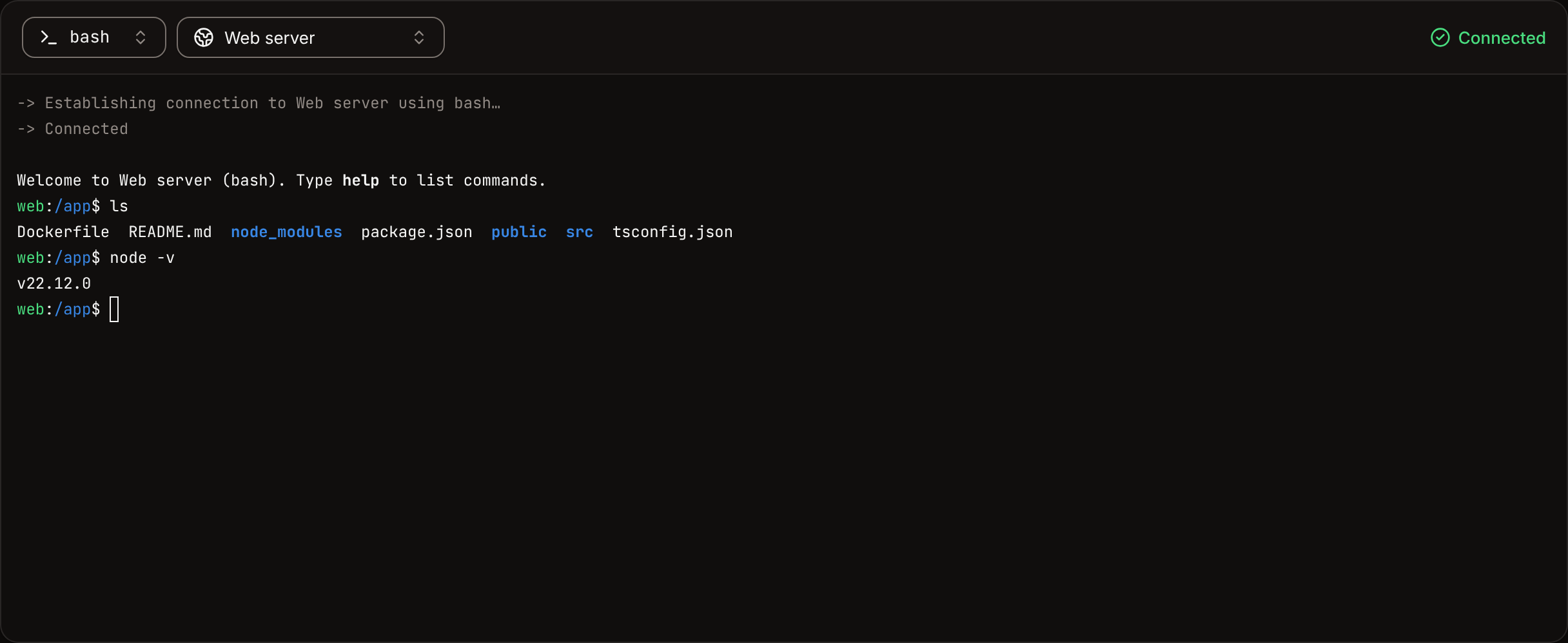
The first time, the terminal opens a tab with
sh in the web process (or the first background worker when there’s no web process). When the status in the toolbar reads Live, type in the terminal.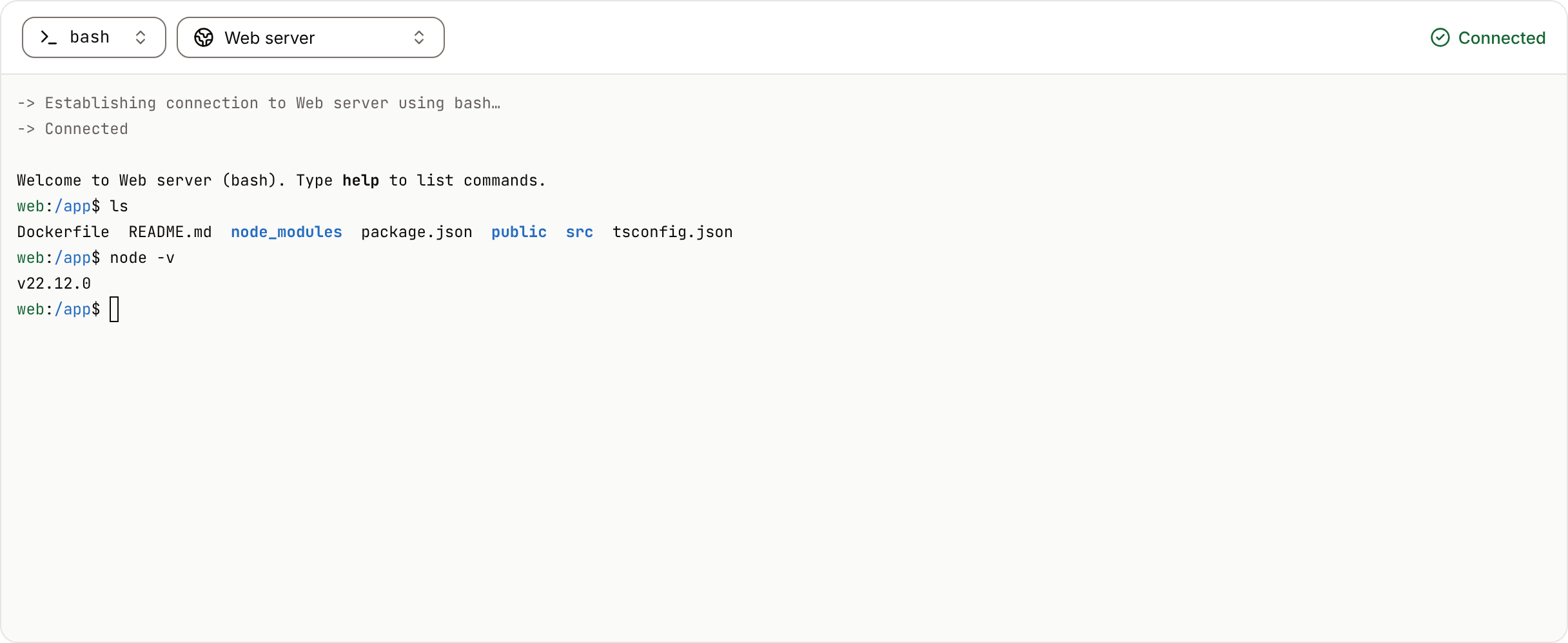
- Which instance. The terminal connects to one ready instance of the process. With more than one instance, you can’t pick which one.
- Shells.
shis always available.bashandzshwork only if the image contains them; otherwise the pane says“bash” isn’t available in this process. Open a tab with sh, which every image has. - Size. The terminal fills the window, and the shell’s size follows it, so
tmux,vimand other full-screen programs use every row and column. - Environment. The shell sees the process’s runtime environment variables; run
printenvto list them. It starts withTERM=xterm-256color,COLORTERM=truecolorand, when the image sets no locale,LANG=C.UTF-8. For images built with Buildpacks, the shell starts through the buildpack launcher, so the language runtimes are on thePATH. - Output. What you run in the terminal doesn’t appear in the runtime logs.
Open more shells
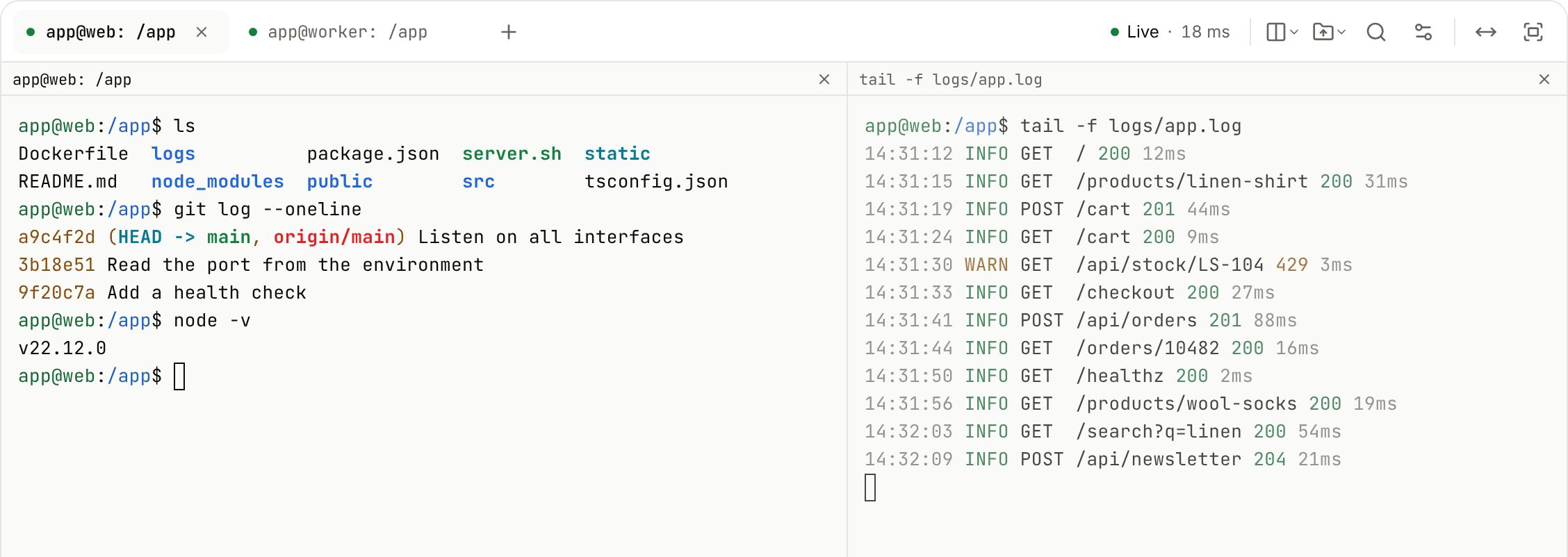
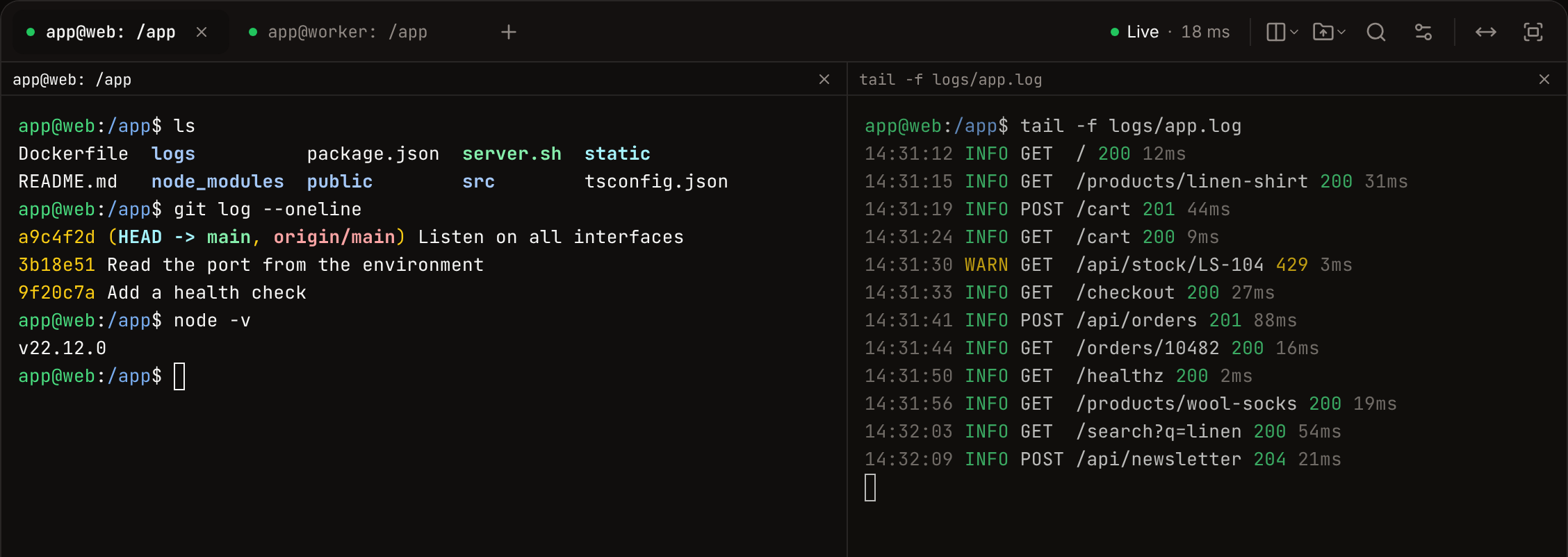
Each tab and each pane is its own shell. You can have up to 8 tabs per application.- New tab. Click New tab (+) in the toolbar, pick the Process and the Shell (
sh,bashorzsh), then click Open tab. - Split. Click Split, then Split right or Split down. The new pane opens a new shell in the same process with the same shell. Each pane needs at least 20 columns and 5 rows; when there’s no room, the menu says so.
- Resize. Drag the divider between two panes, or focus it and press the arrow keys (one column at a time, ten with Shift).
- Close. Click the × on a tab or a pane, or click Split > Close pane. Closing ends the shell. If a program is still running in it, the dashboard asks first.
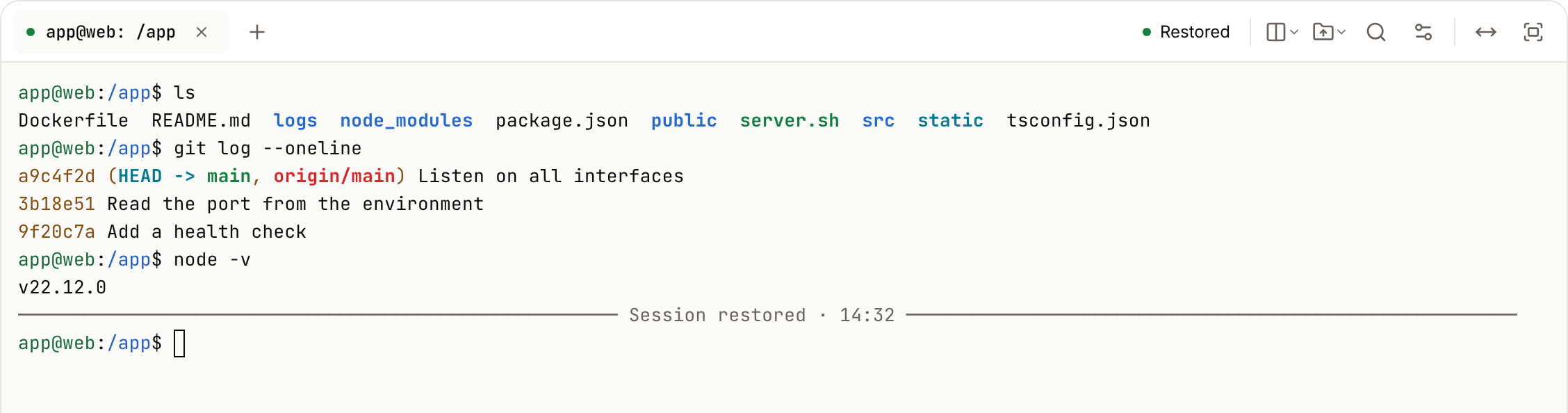
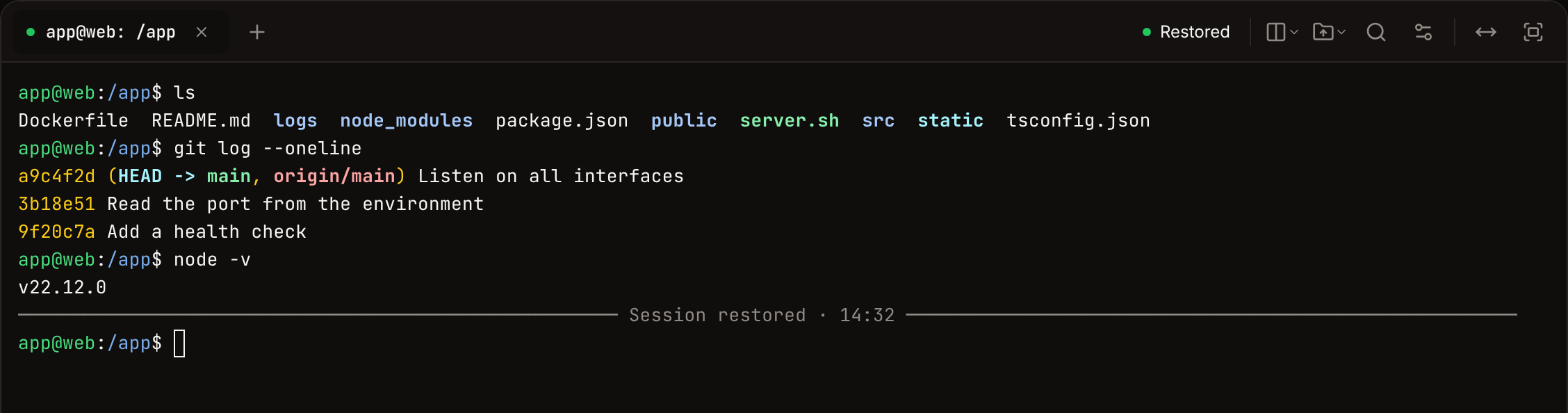
app@web: /app. Your browser remembers the tabs and panes of each application. In the same browser tab, every pane reattaches to its shell when you come back within 15 minutes.
Keep a session through dropped connections
A shell keeps running for 15 minutes after its connection drops, so a network change, a laptop that slept, a page reload or a visit to another tab of the application doesn’t end it. The terminal reconnects by itself, replays the output it missed, and marks the place with aSession restored · 14:32 line. The status reads Reconnecting…, then Restored.
- What you type while the terminal reconnects (up to 1 KB) is sent once it’s back.
- Sevalla keeps the last 256 KB of output of each session. When a program printed more while you were away, the replay starts from the oldest output Sevalla kept.
- After 30 seconds of reconnecting, the pane says
Still reconnecting. Your session is kept for 15 minutes.Click Try now to retry at once. - A shell is shown in one place at a time. Opening it in another browser tab or window takes it over, and the first one shows Session opened elsewhere with an Open it here button.
Keep long tasks running with tmux
When the image hastmux, the Session ended and Session not restored messages offer Start in tmux. The new shell runs inside a tmux session that only you can attach to, and if the terminal service restarts, the pane lands back in it with everything that runs there. tmux runs in the instance, so it still ends when the instance restarts or the application is deployed again.
To add tmux, install it in your image, for example RUN apk add --no-cache tmux on Alpine.
What persists
The terminal runs inside the instance’s container, so it changes only that instance:- Files you create or change are lost when the instance restarts or the application is deployed again, unless they’re on a disk.
- Other instances of the process don’t see the change.
- When a session ends, Sevalla hangs up its shell, and the processes you started from it stop. Processes started with
nohup, or inside tmux, keep running until the instance restarts.
Copy files to and from a process
The Files menu uploads files into the instance and downloads files and folders from it, up to 100 MB per upload or download. You need permission to update the application; with view access, the menu’s items are off and say why. Files go straight between your browser and the container; Sevalla keeps no copy.Upload files
1
Choose the files
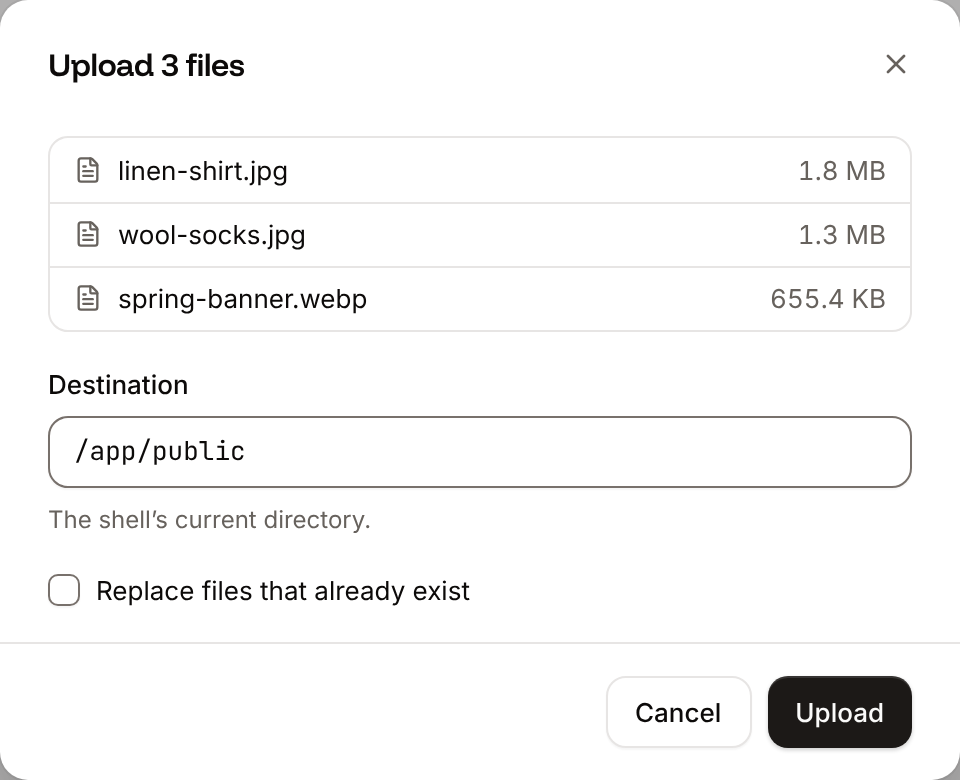
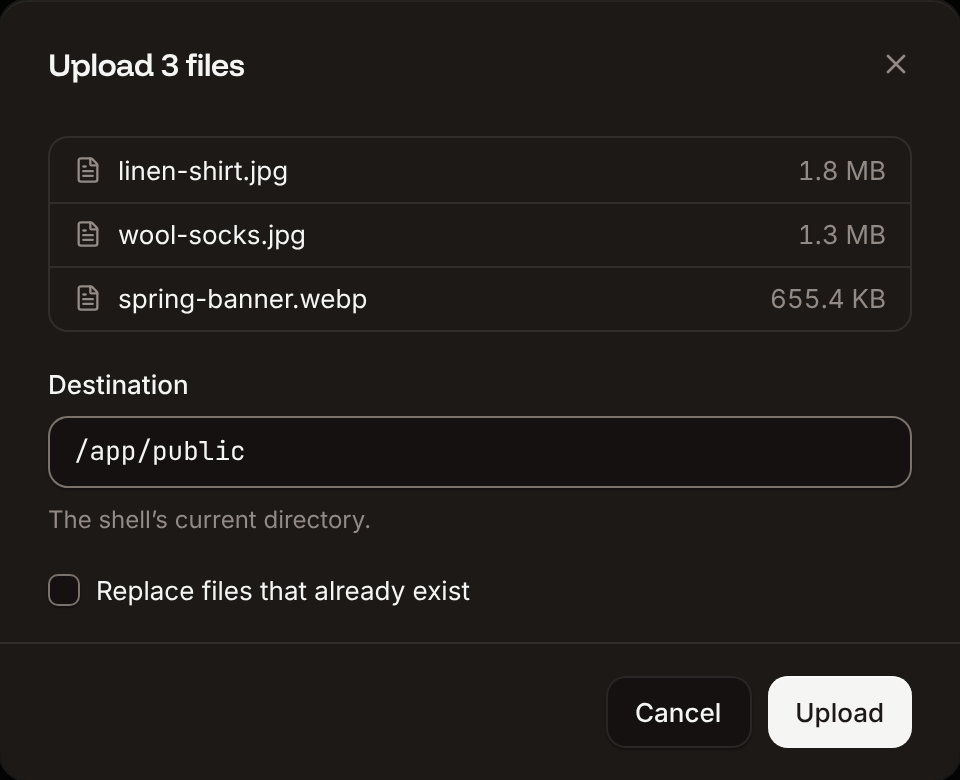
Drag files or folders onto a pane, or click Files > Upload files… and choose them.
2
Check the destination
The Destination is the shell’s current directory when the shell reports it, otherwise the container’s working directory. Change it to any absolute path, such as
/app/uploads. Select Replace files that already exist to overwrite files with the same name.3
Upload
Click Upload. The Transfers panel shows each file’s progress; click × on a row to cancel it.
ls in the destination to see it. A dropped folder keeps its structure, and Sevalla creates its subfolders. A destination you type must already exist. Each file is written to a hidden temporary file and renamed when all of it has arrived, so a cut upload never leaves a partial file. Files belong to the container’s user, so pick a folder that user can write to.
Download a file or folder
1
Open the download dialog
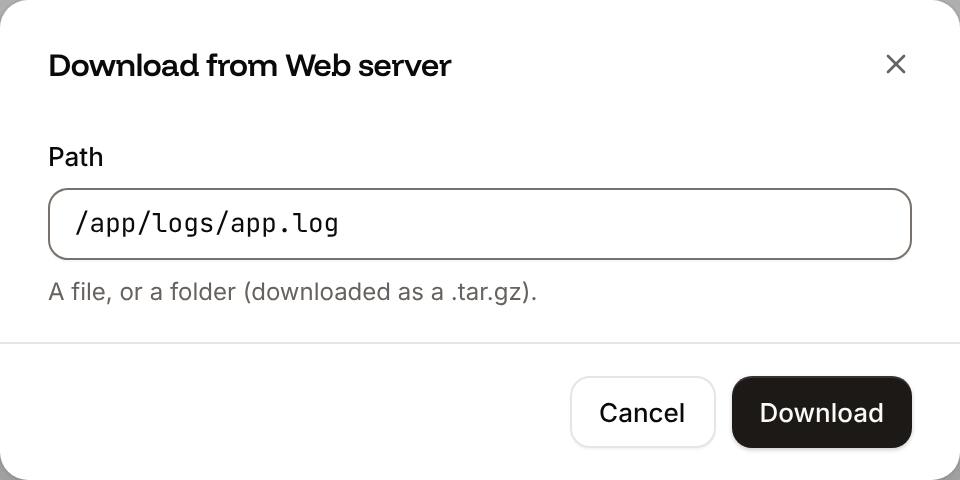
Click Files > Download….
2
Enter the path
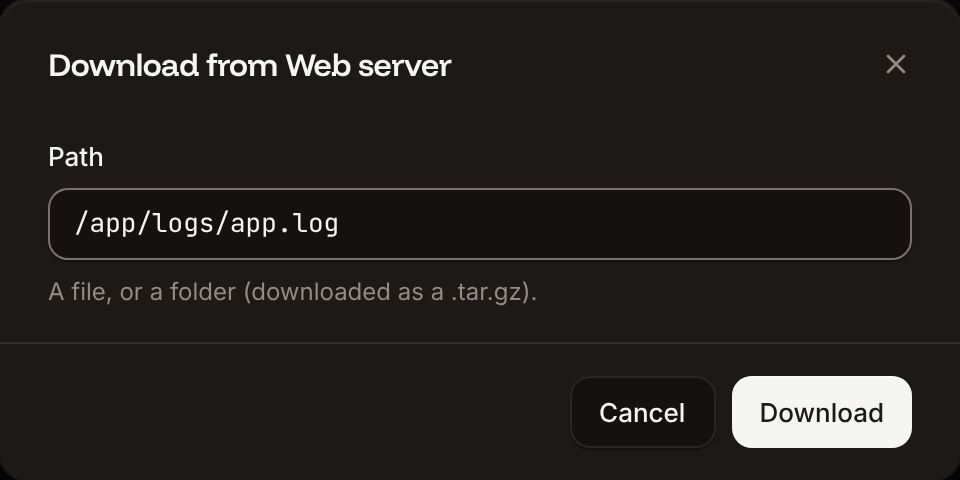
In Path, enter the absolute path of a file or folder, such as
/app/logs/app.log, then click Download..tar.gz archive (.tar when the image has tar but no gzip), and needs tar in the image. A folder whose archive grows past 100 MB is cut off, and the download fails.
When a copy fails
The error shows in a toast and on the transfer’s row. A copy stops when nothing moves for 2 minutes.Settings and shortcuts
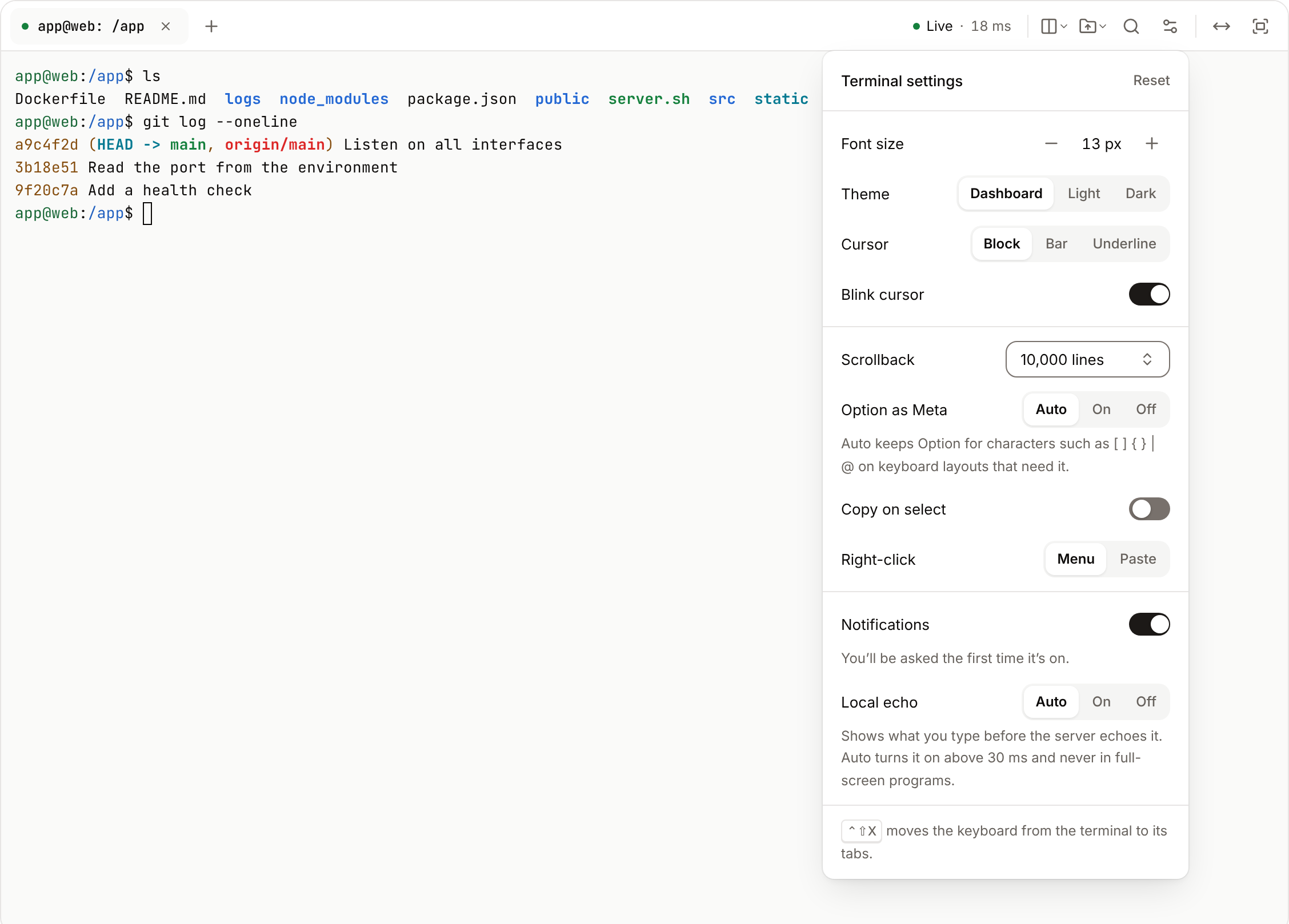
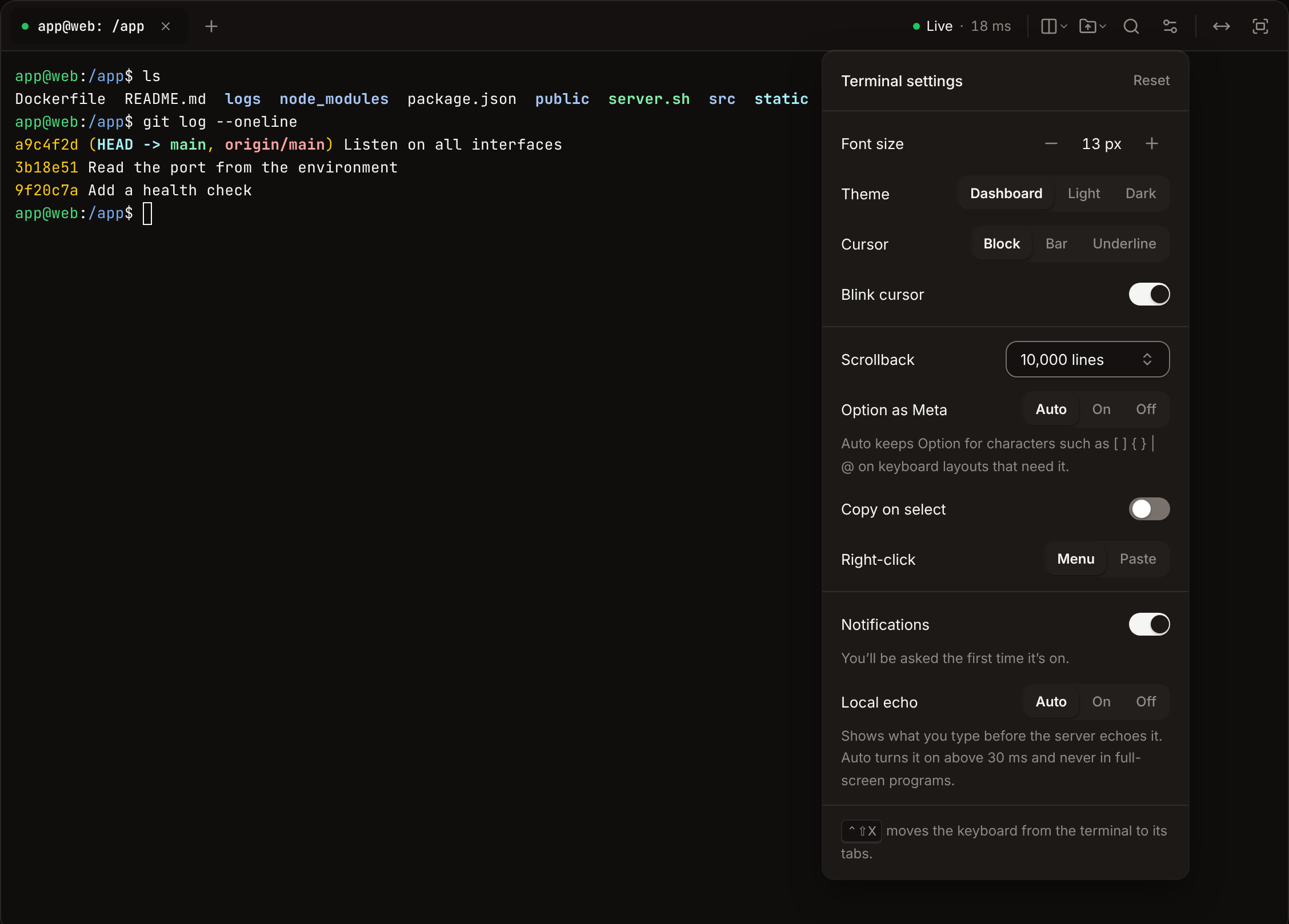
Click Settings in the toolbar to change how the terminal looks and behaves. Settings are saved in your browser and apply to every pane; Reset restores the defaults.
Keys work as in a local terminal. While a pane has focus, no dashboard shortcut takes a key from it, and Shift+Enter adds a line to the prompt of an agent CLI such as Claude Code instead of sending it.
Browsers keep Ctrl+Tab and Ctrl+Shift+Tab, and on Windows and Linux also Ctrl+Shift+T and Ctrl+Shift+W, except in full screen in Chrome, Edge and other Chromium-based browsers. Right-click a pane for Copy, Paste, Select all, Find and Clear.
Get notified when a terminal needs you
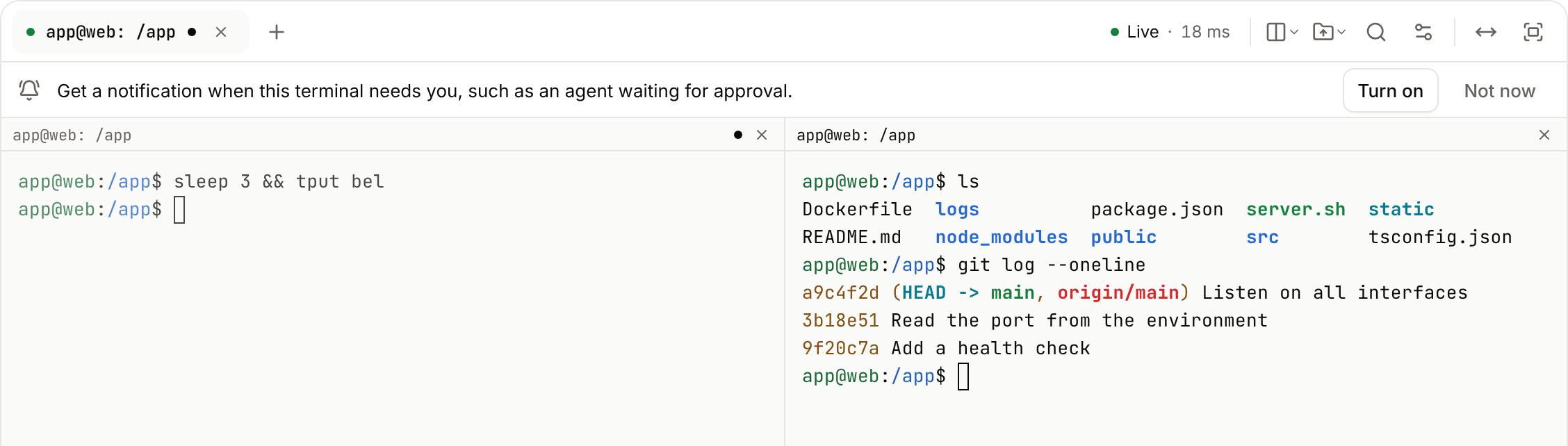
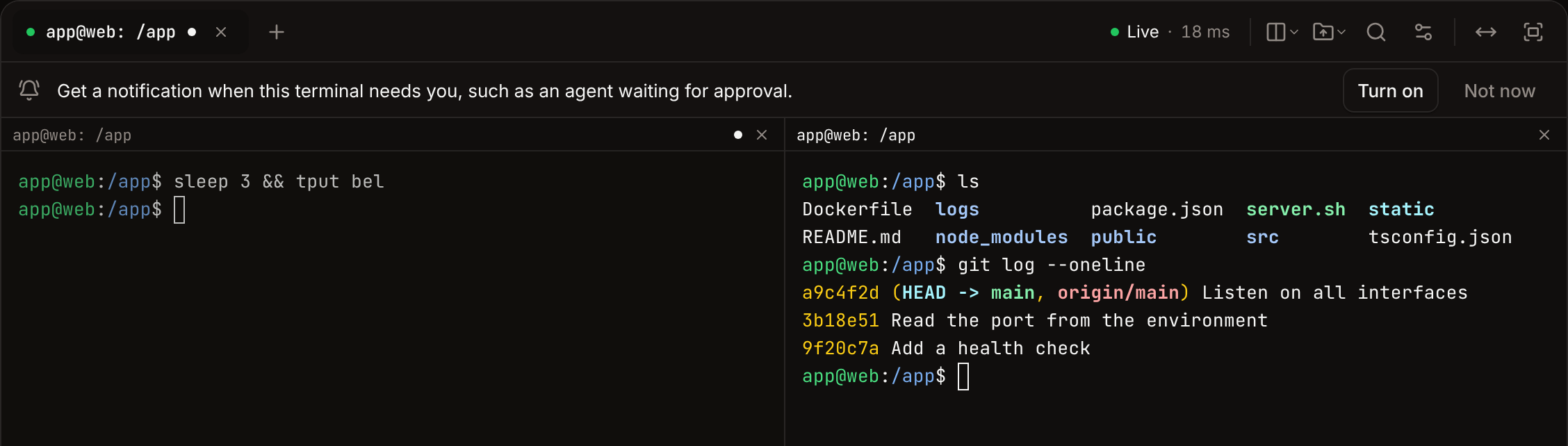
When a program rings the terminal bell or sends a notification (OSC 9 or OSC 777), for example an agent waiting for approval or a build that finished, while you’re looking at another pane, tab or window:- the pane and its tab get a dot, and the browser tab’s title starts with
●until you look at the pane; - with Notifications on and your browser’s permission, a desktop notification names the application and the process, at most one every 10 seconds per pane.
Get a notification when this terminal needs you, such as an agent waiting for approval. Click Turn on to let the browser ask for permission, or Not now.
Check the connection
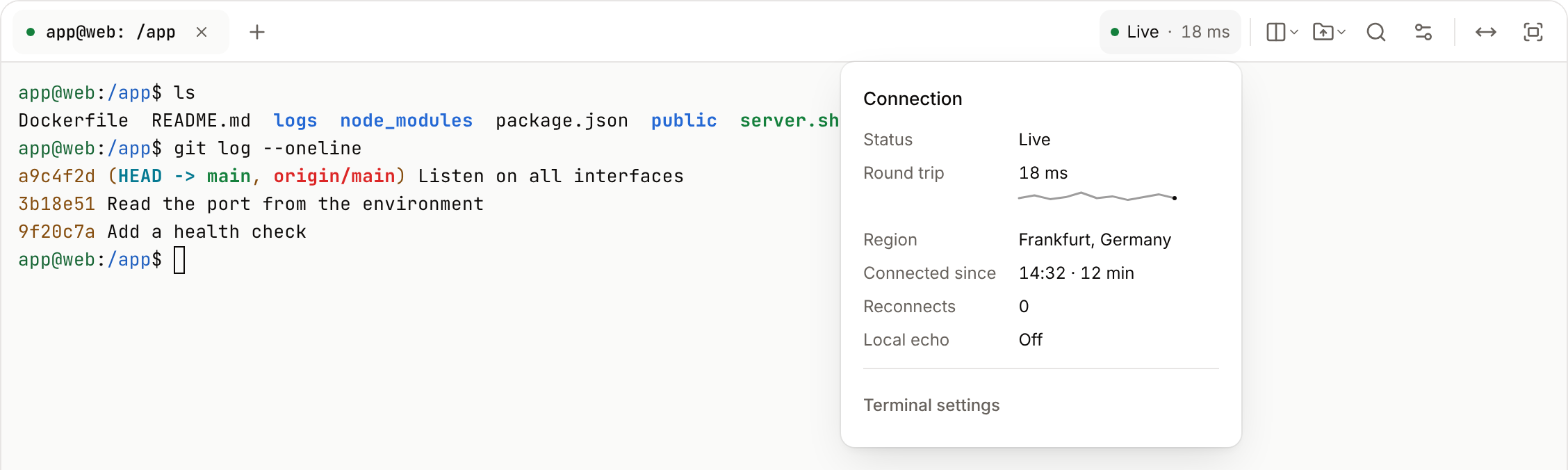
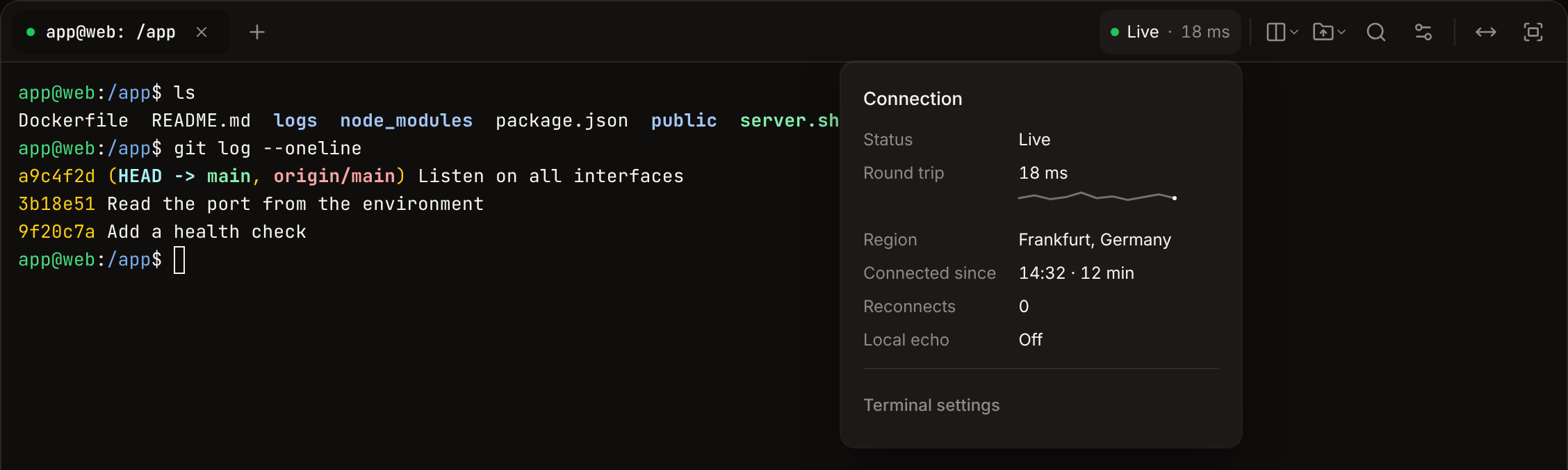
The status in the toolbar shows the active pane’s connection and its round trip, for example Live · 18 ms.
Click the status for the connection’s details: Status, Round trip (with its recent history), Region, Connected since, Reconnects, Local echo and, after a close, Last close with the close code.
Use the terminal on a phone or tablet
On a touch screen, a key bar sits above the on-screen keyboard while a pane has focus, with Esc, Tab, Ctrl, Alt, the arrow keys and|, ~, /, -. Tap Ctrl or Alt once to apply it to the next key, or twice to lock it. On a phone, the tabs become a menu, and Files, Find, Settings and full screen are in the More actions menu.
Find language tools in a Nixpacks image
In images built with Nixpacks, language tools live under/nix/var/nix/profiles/default/bin/ (for example /nix/var/nix/profiles/default/bin/node), and Python packages are installed in a virtual environment in /opt/venv. To run Django or other Python commands, activate it first:
Troubleshoot a session
When a shell can’t open, the pane shows Couldn’t open a shell in and the process name, with a reason and a Try again button. When a session ends, it shows Session ended with the reason and a Start a new shell button (or press Enter).
An instance that restarts ends every session open in it.
Run a command without a terminal
To run one command from a script or an AI agent, use the Run a command in a process API operation. It runs a single command in a running instance and returns its output and exit code:- The command is an argument list (
["ls", "-la", "/app"]) run without a shell, so pipes, redirects and&&don’t work. Wrap it as["sh", "-c", "…"]when you need them. - It waits up to 15 seconds by default and 60 seconds at most.
- An API key with read access can run only read-only commands such as
ls,cat,env,psandgrep; a key with write access can run any command.
dash, ksh, csh and tcsh shells. It doesn’t reattach to a shell after a dropped connection, and it doesn’t copy files.