

When using SAML SSO with Sevalla, login must always be initiated from Sevalla. Logging in directly from your Identity Provider (IdP) is not supported.IdPs only support one active session per browser. If you have multiple Google Workspace accounts and are logged into one, attempting to log into another through Sevalla will result in an error. To switch accounts, log out of Google Workspace or use your browser’s Incognito/Private mode.
Enable SSO in Sevalla
When you set up SAML SSO, you can navigate away from the SSO setup at any stage to store your progress and return later. In Sevalla, go to your Company settings > Single sign-on, and click Enable.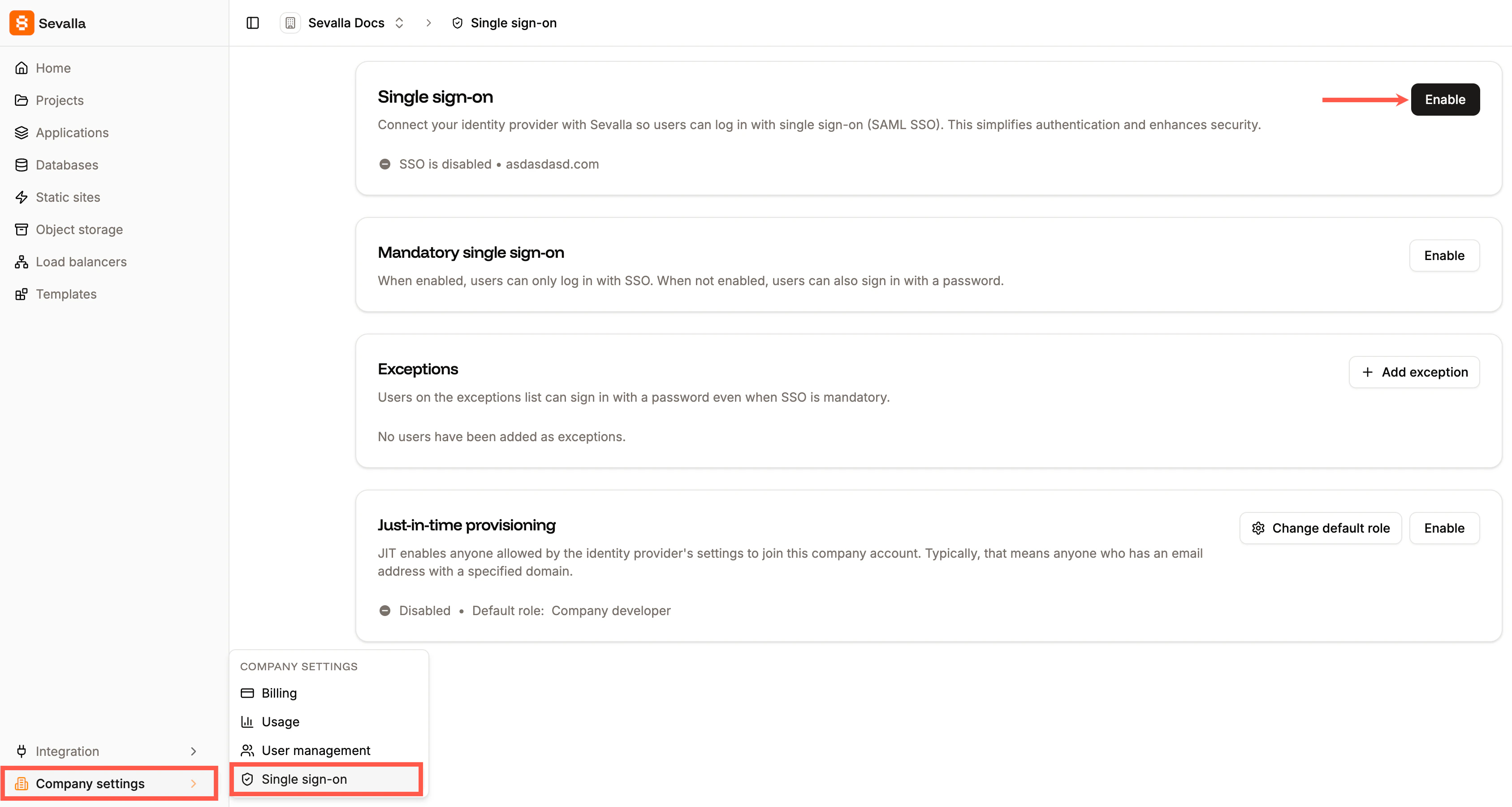
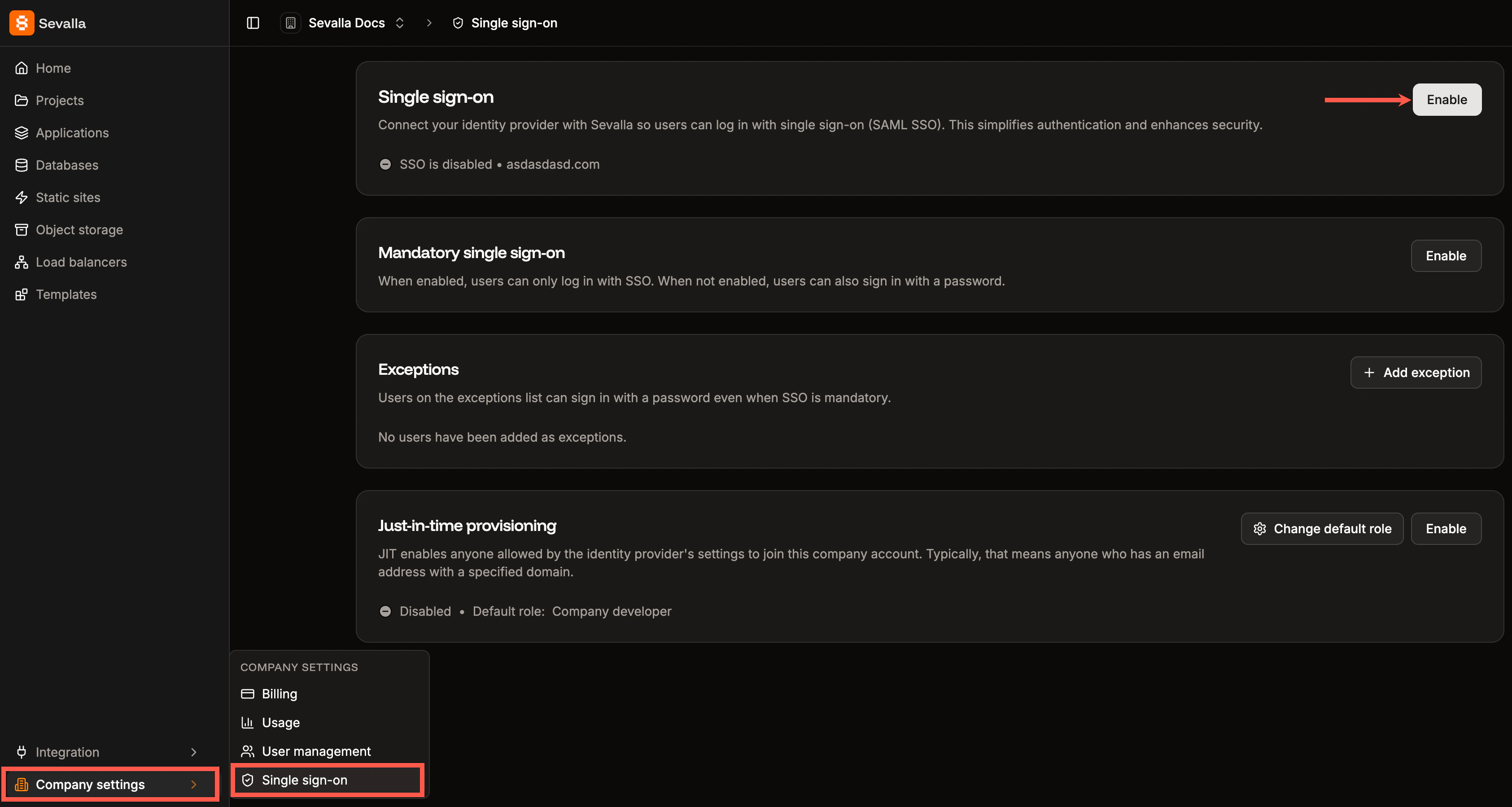
Enable SSO in Sevalla.
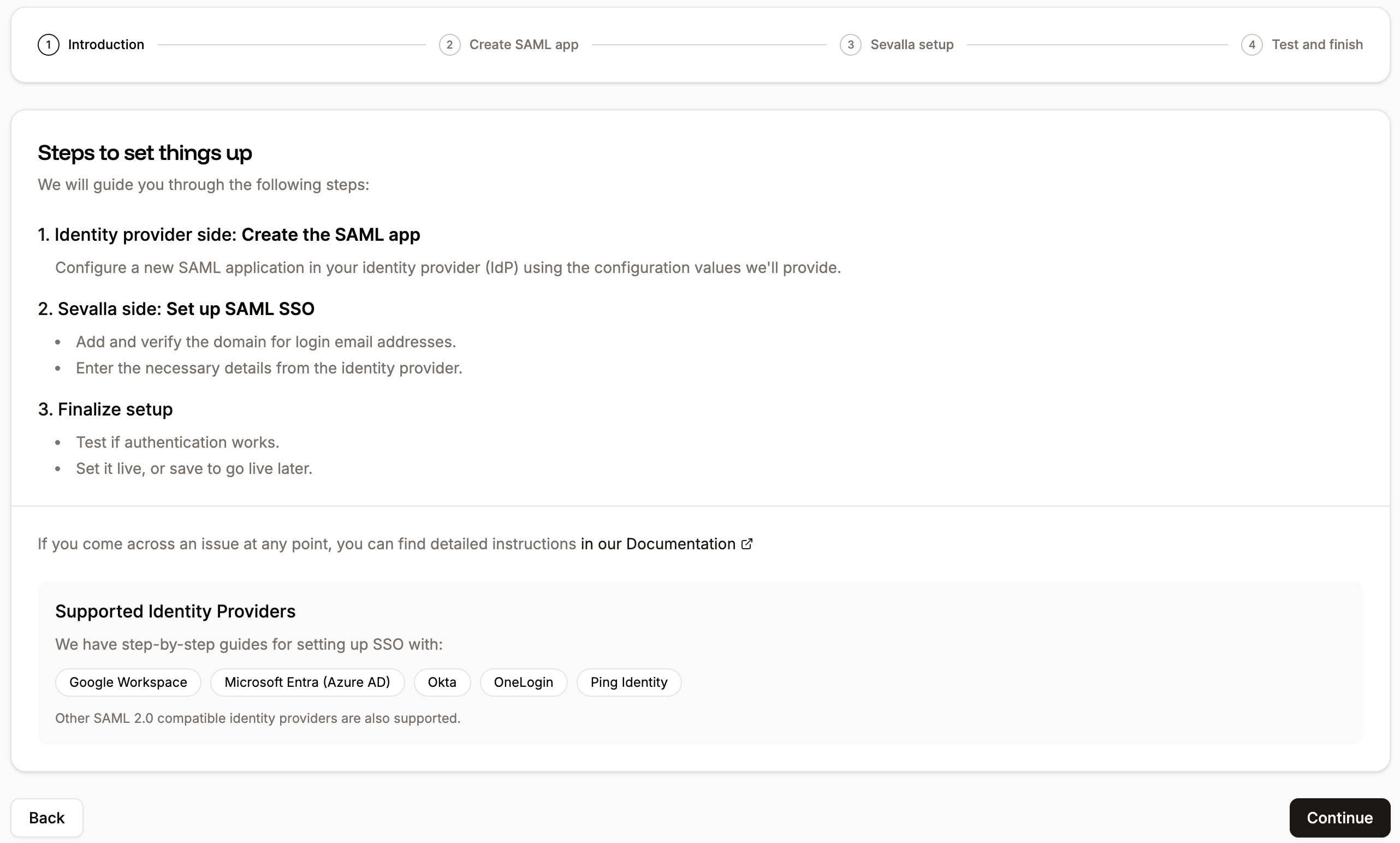
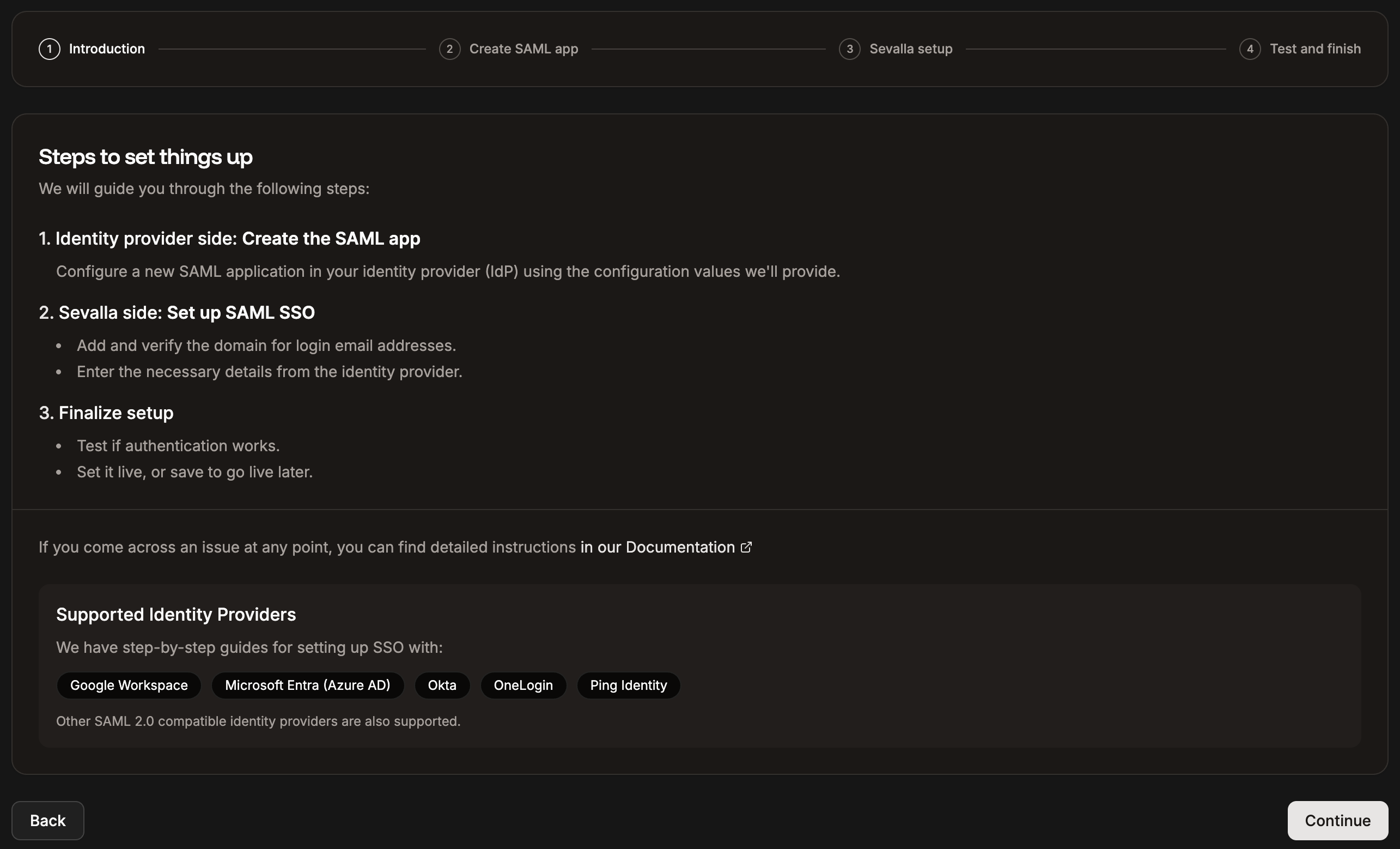
Introduction to the steps required to set up SSO.
Set up the app integration in OneLogin
In Sevalla, the Create SAML app tab provides all the information you need to set up your SAML app within OneLogin. The following steps explain where to add this information.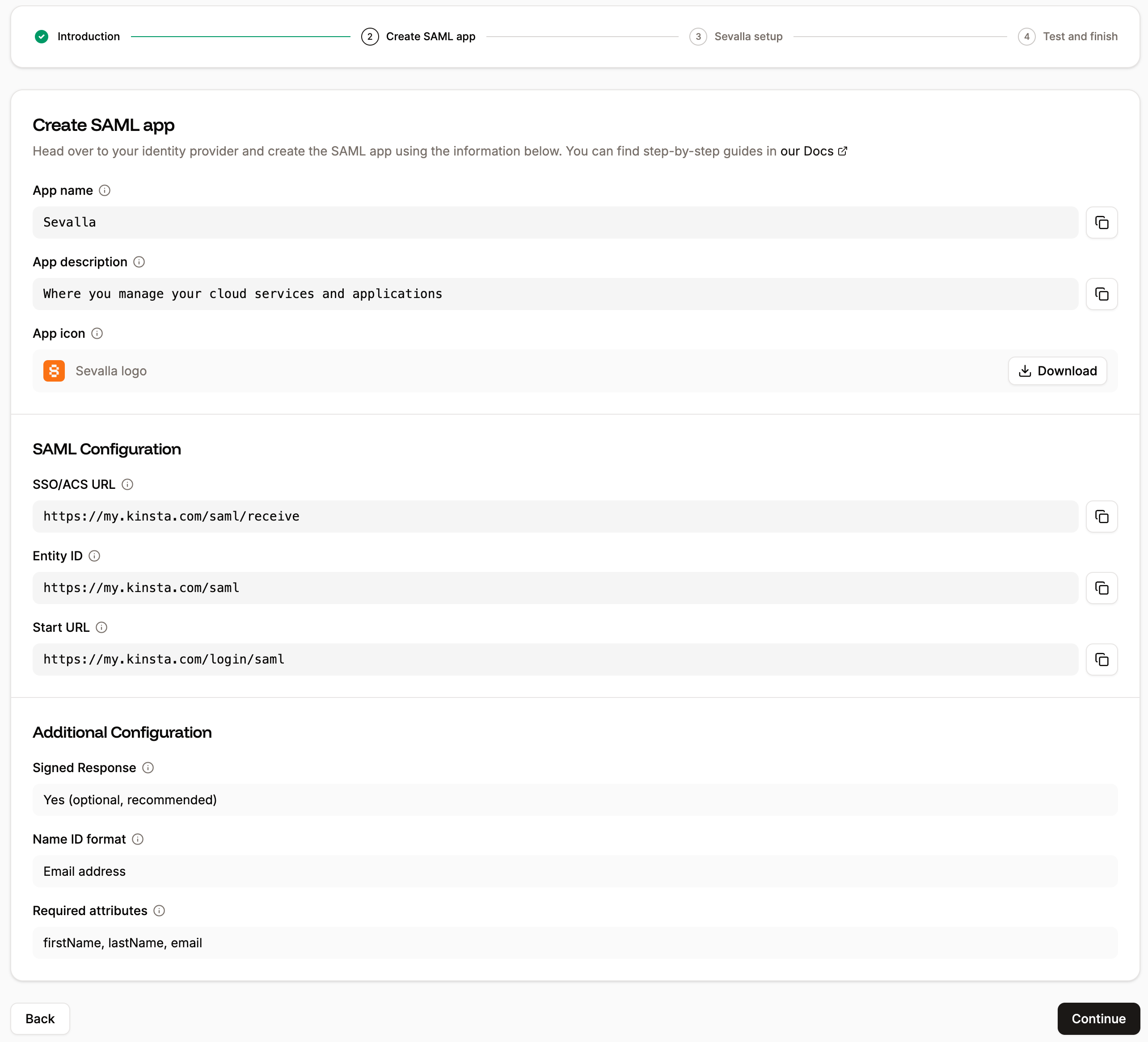
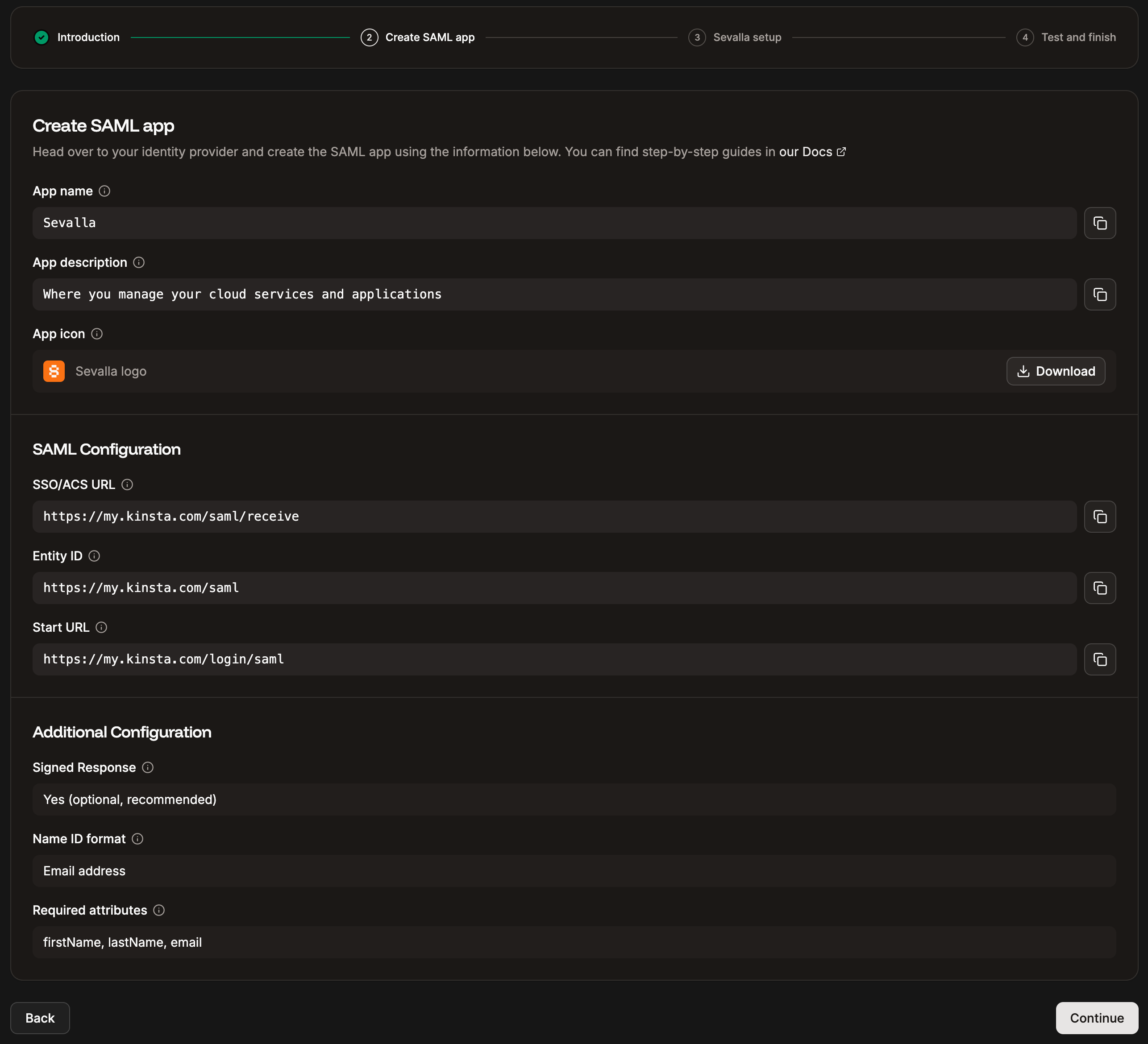
Information to create the SAML app at your IdP.
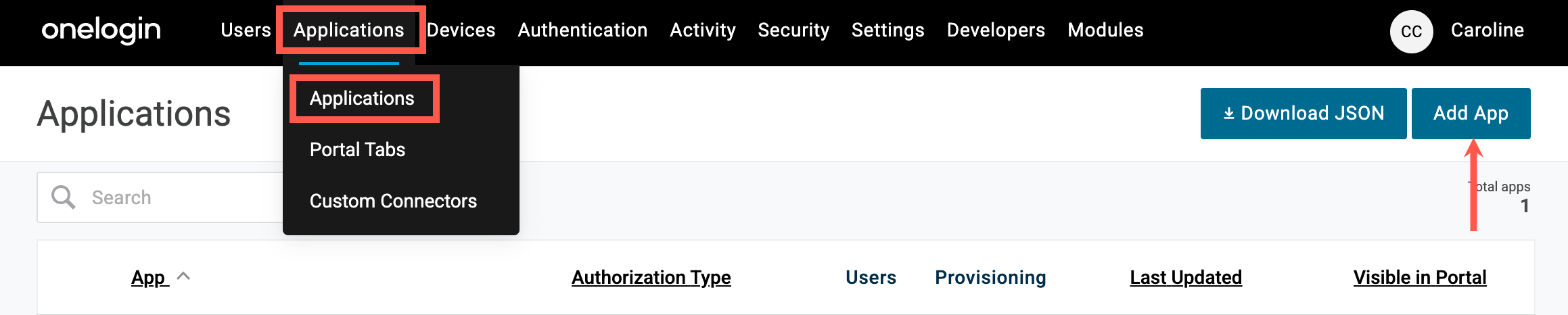
Add an application in OneLogin.
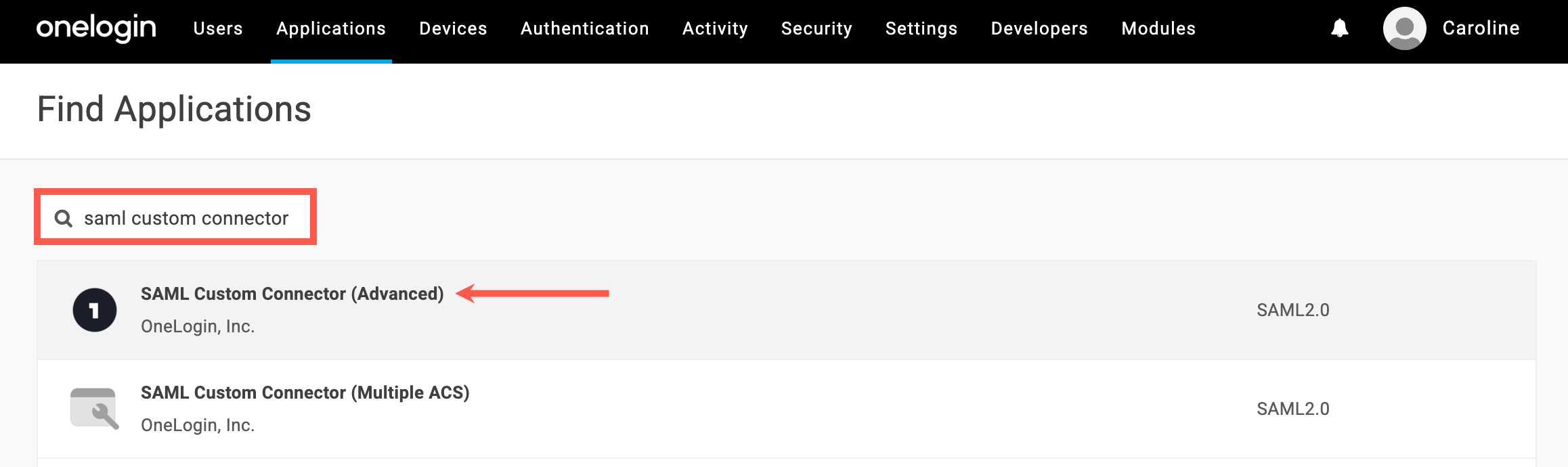
Search for the SAML custom connector app in OneLogin.
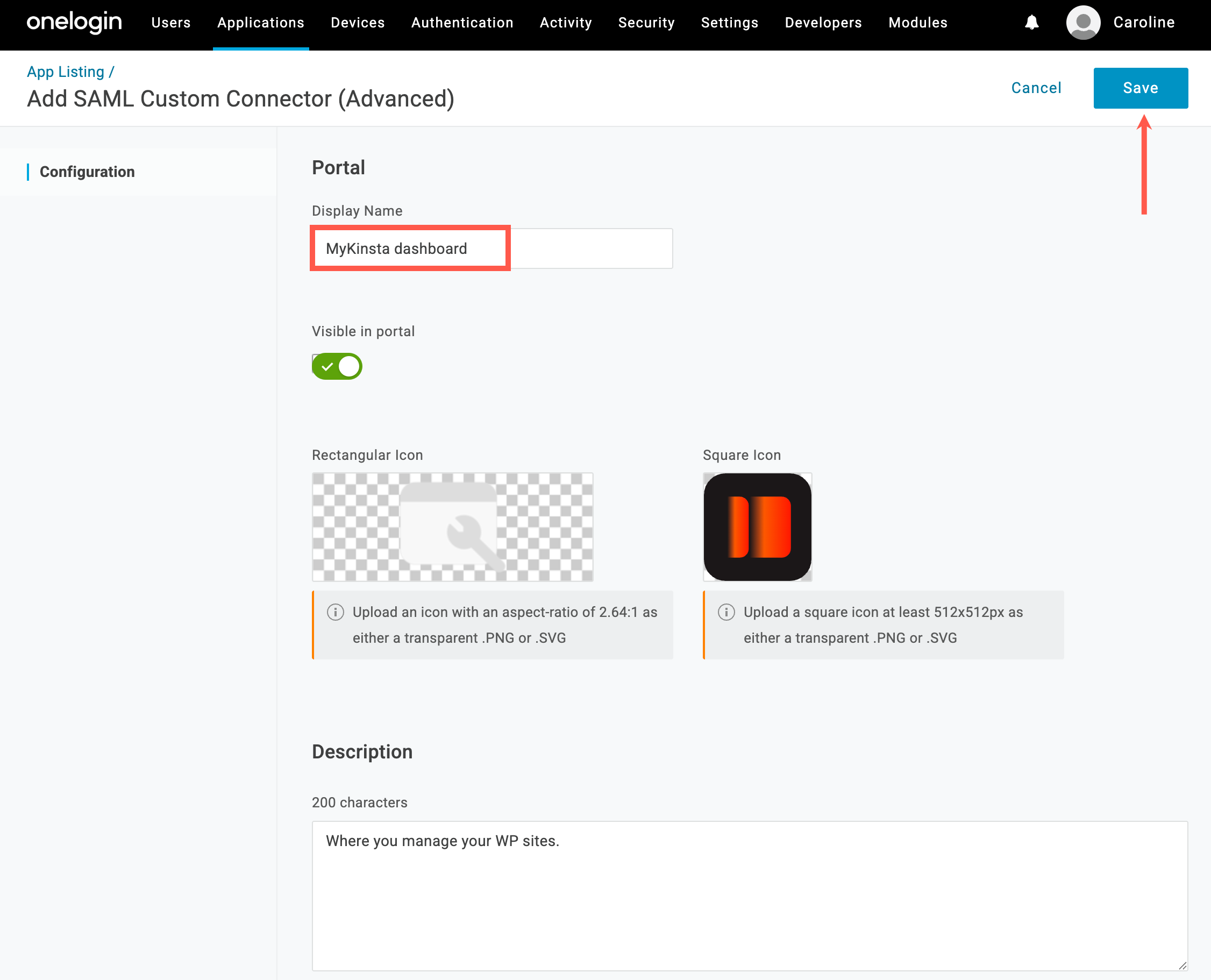
Add the app name in OneLogin.
- Audience (EntityID): Copy and paste the Entity ID from Sevalla.
- Recipient: Copy and paste the SSO/ACS URL from Sevalla.
- ACS (Consumer) URL Validator: Copy and paste the SSO/ACS URL from Sevalla.
- ACS (Consumer) URL: Copy and paste the SSO/ACS URL from Sevalla.
- Login URL: Copy and paste the Start URL from Sevalla.
- SAML initiator: Select Service Provider.
- SAML nameID format: Select Email.
- SAML issuer type: Select Specific.
- SAML signature element: Select Assertion.
- Sign SLO Response: Select this option.
- Sign SLO Request: Select this option.
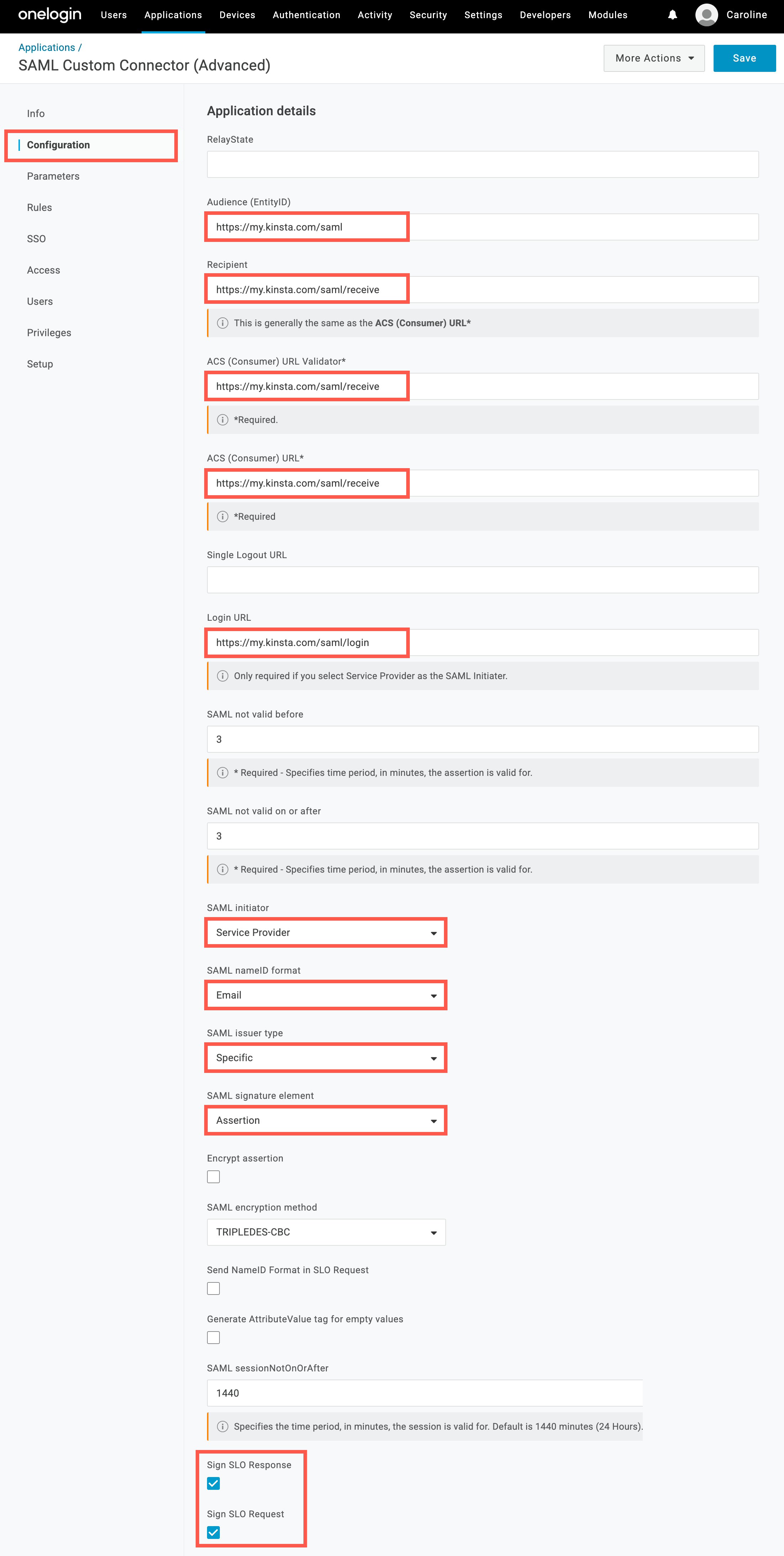
Configuration of the SAML app in OneLogin.
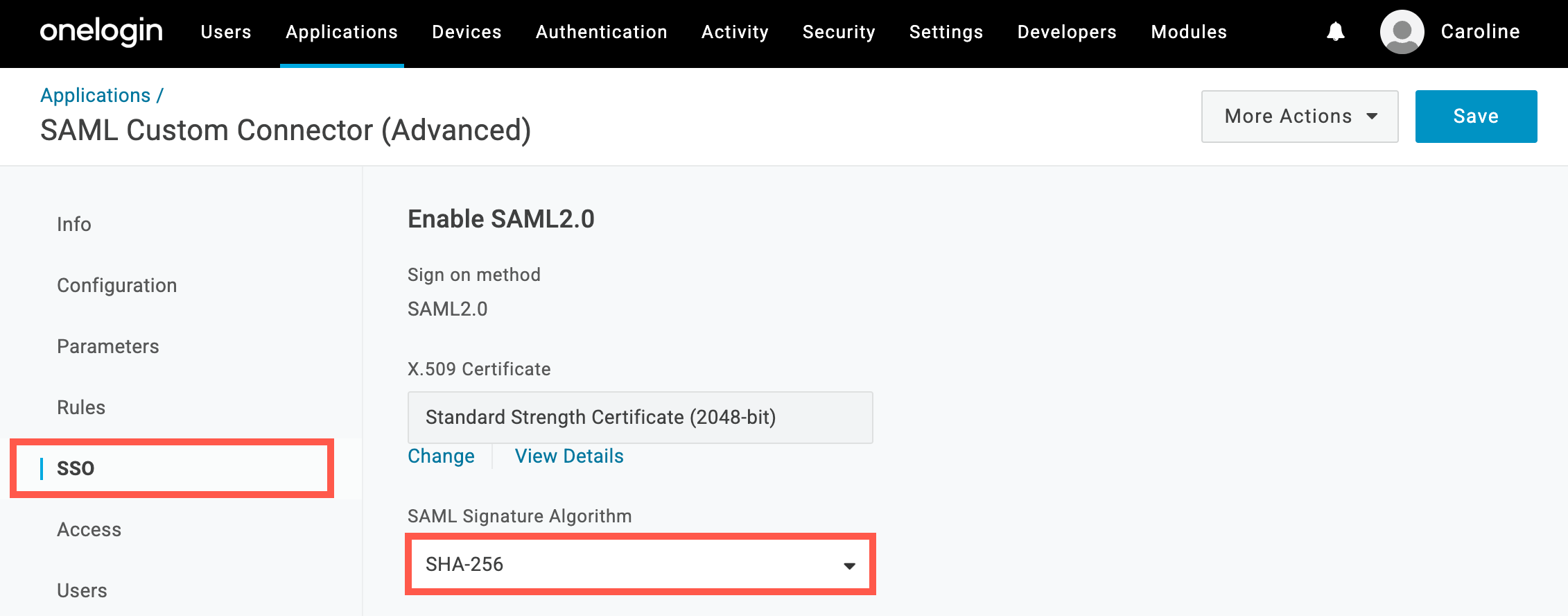
Change the SAML signature algorithm in OneLogin.
Map your OneLogin attributes
Within OneLogin, you must map the firstName, lastName, and email attributes from Sevalla to the correct fields within OneLogin. For more information about how to do this, refer to the OneLogin documentation.Assign users to the OneLogin app
In OneLogin, you can assign a policy to the application to allow all users using the policy to log in to the app. Go to Applications > Applications, select the application you set up for the Sevalla Dashboard, click Access, choose the policy you want to assign, and click Save. For more information about security policies, refer to OneLogin’s documentation. You can also assign individual users to the application. In OneLogin, click Users > Users, select the user you want to assign, click Applications, and click the plus icon.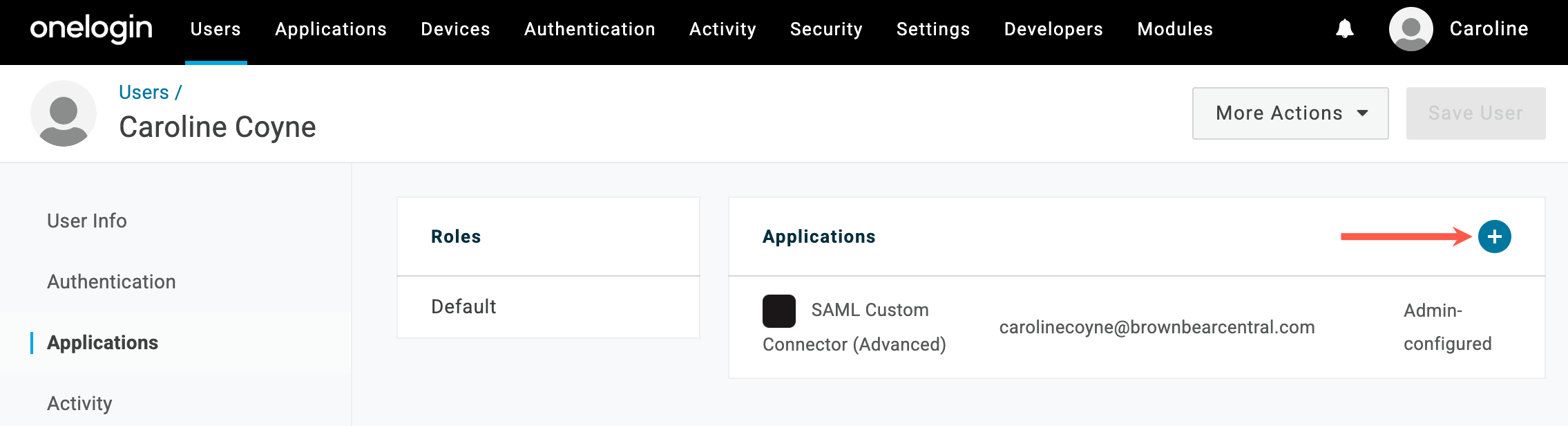
Add a user to an application in OneLogin.
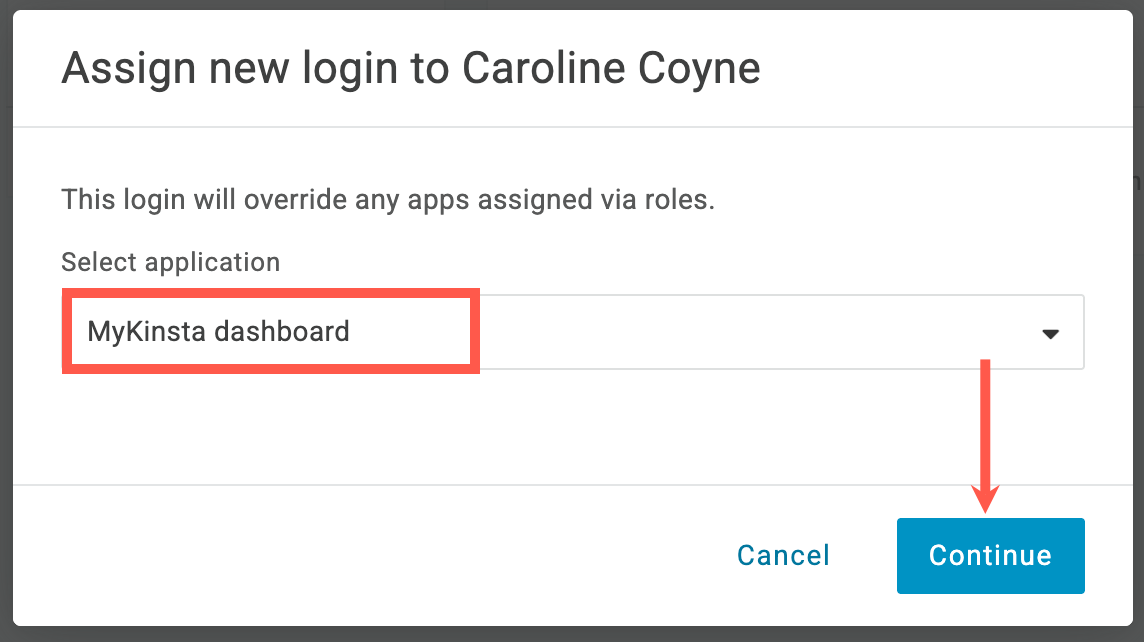
Assign an application to a user in OneLogin.
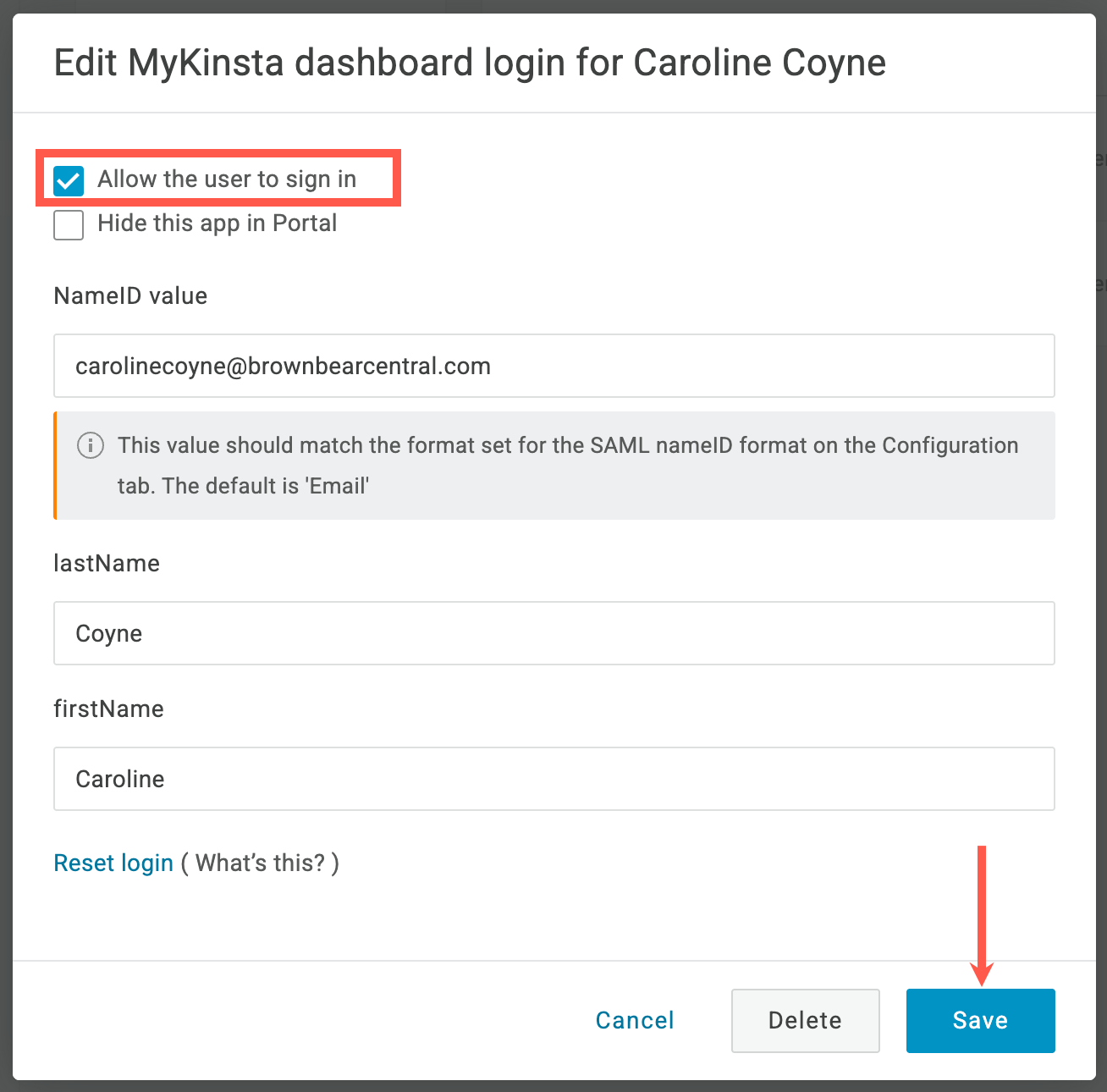
Save the app allocation for the user.
Sevalla setup
In Sevalla, on Create SAML app, click Continue so that you are on the Sevalla setup page.Email domain
In the Domain name, enter the email domain users will use to sign in using SAML SSO, and click Add domain. Only Sevalla accounts with an email address matching the verified domain can authenticate via SAML. For example, if SAML is enabled forexample.com, only users with an @example.com email address will be able to sign in for that company.
Each email address can only be linked to one SAML configuration in Sevalla. This means a domain (e.g.,
example.com) can be associated with only one company at a time. Similarly, each Sevalla user can use SAML authentication for a single company only.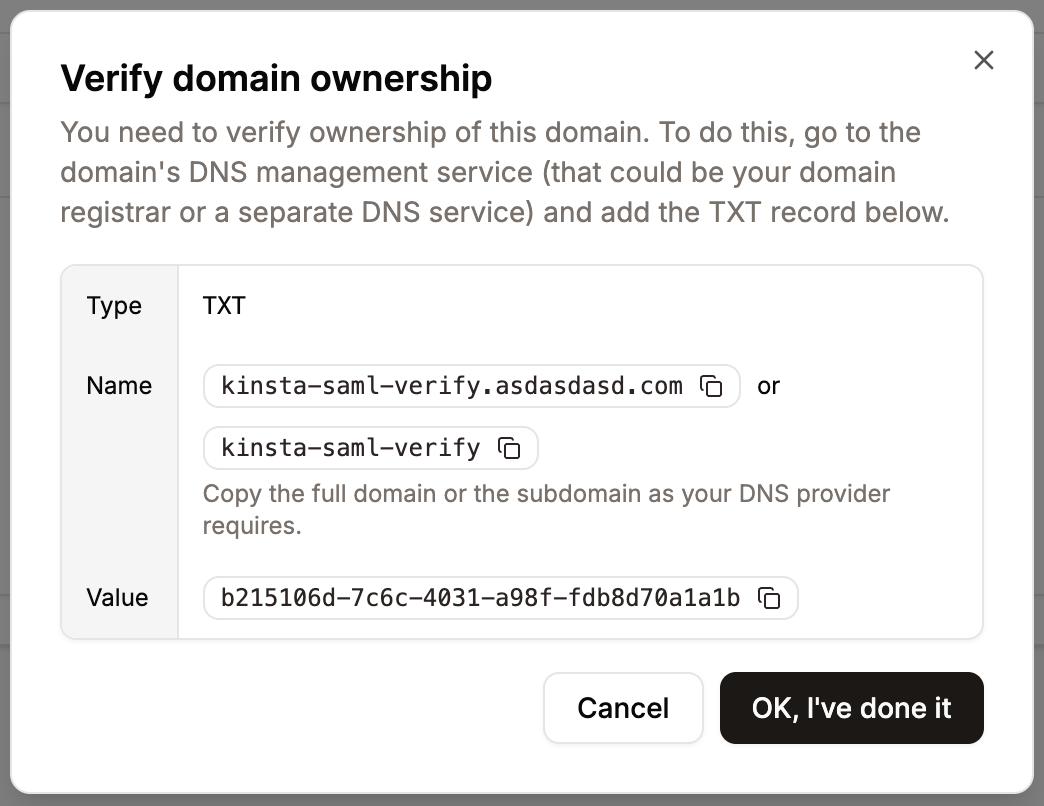
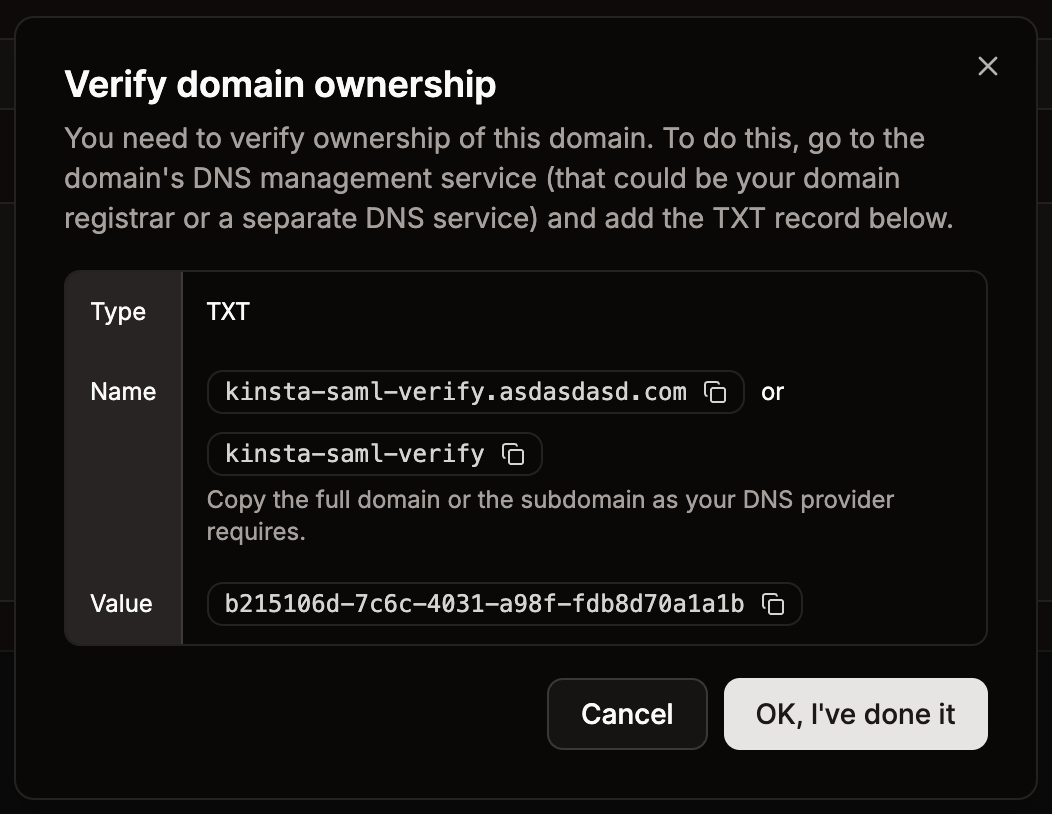
Add the TXT record to your DNS to verify ownership.
Set up Sevalla SAML
In OneLogin, go to Applications > Applications, select the application you set up for the Sevalla Dashboard, and click SSO. This page provides all the information you need to set up SAML in Sevalla.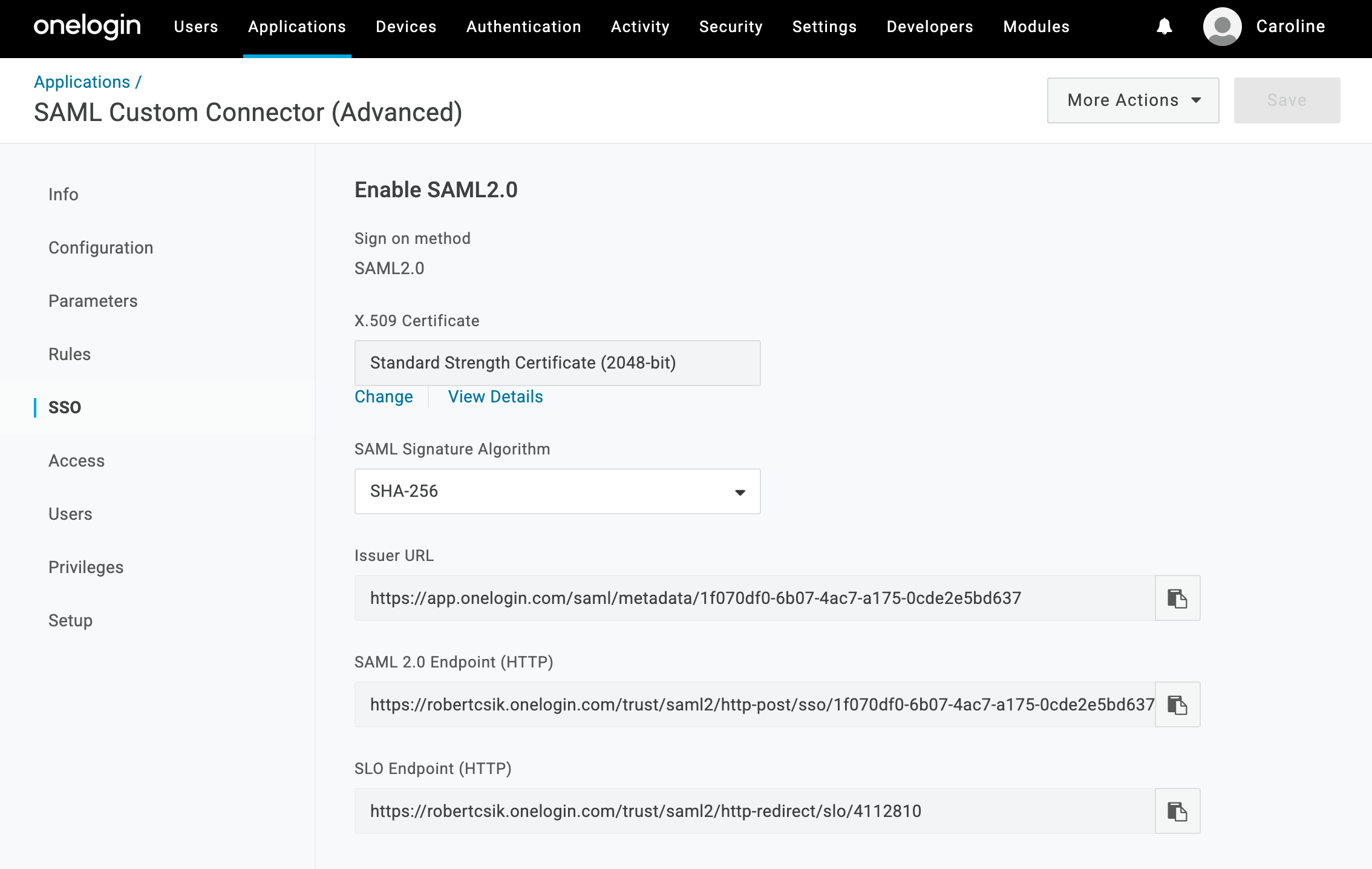
OneLogin SAML information for Sevalla setup.
- SSO URL: Copy and paste the SAML 2.0 Endpoint (HTTP) from OneLogin.
- Entity ID: Copy and paste the Issuer URL from OneLogin.
- Public certificate: In OneLogin, on the X.509 Certificate, click View Details, copy and paste the contents of the X.509 Certificate.
Test the authentication in Sevalla
You cannot enable SAML SSO within Sevalla without first testing the authentication. In Sevalla, within Single sign-on, click Continue until you are on the Test and finish tab, and click Test authentication. A notification appears if the test was successful or if the test fails. If the test fails, click Back and check your SAML settings within your IdP and within Sevalla. If the test is successful and you want to enable SAML, click Save and set SSO live.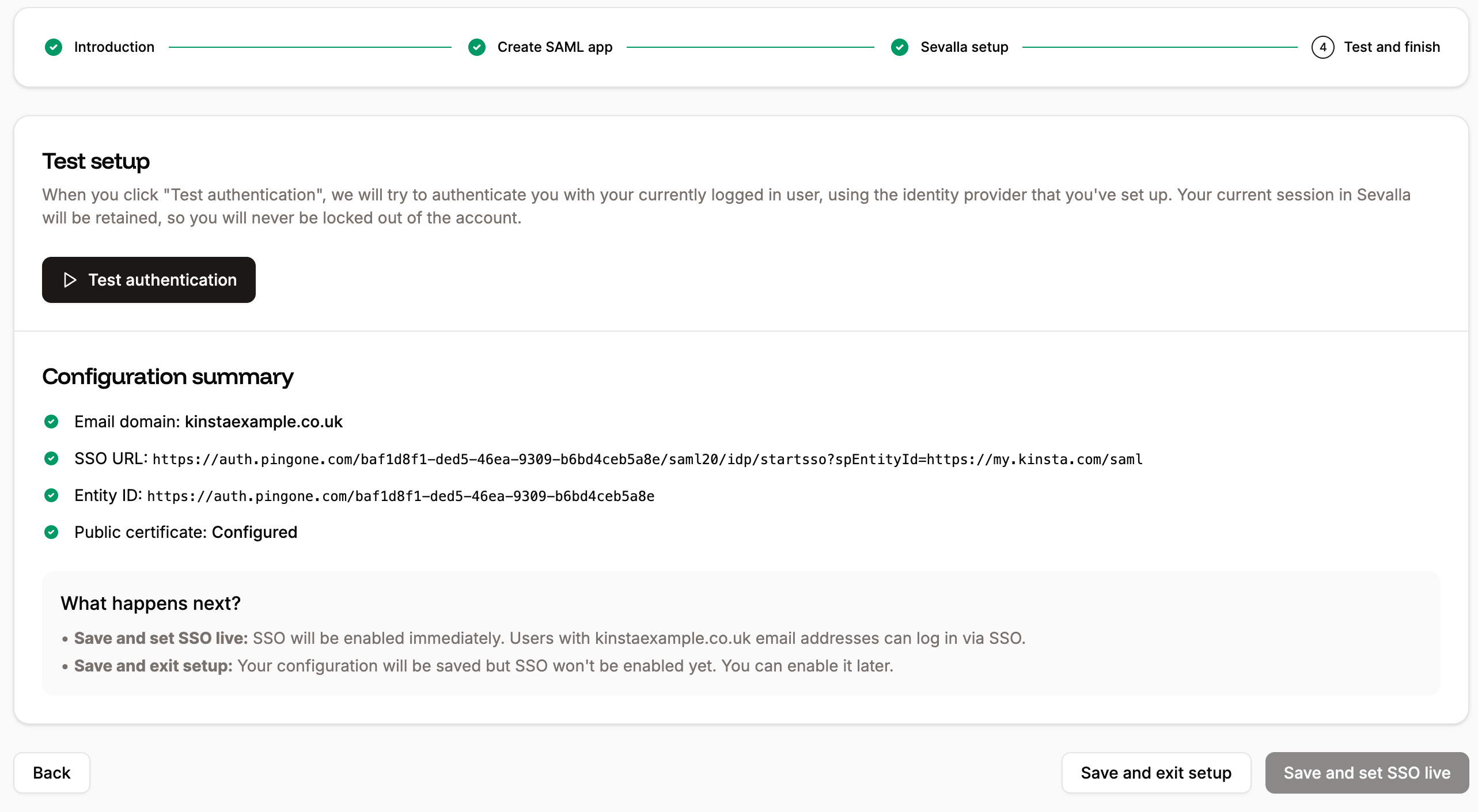
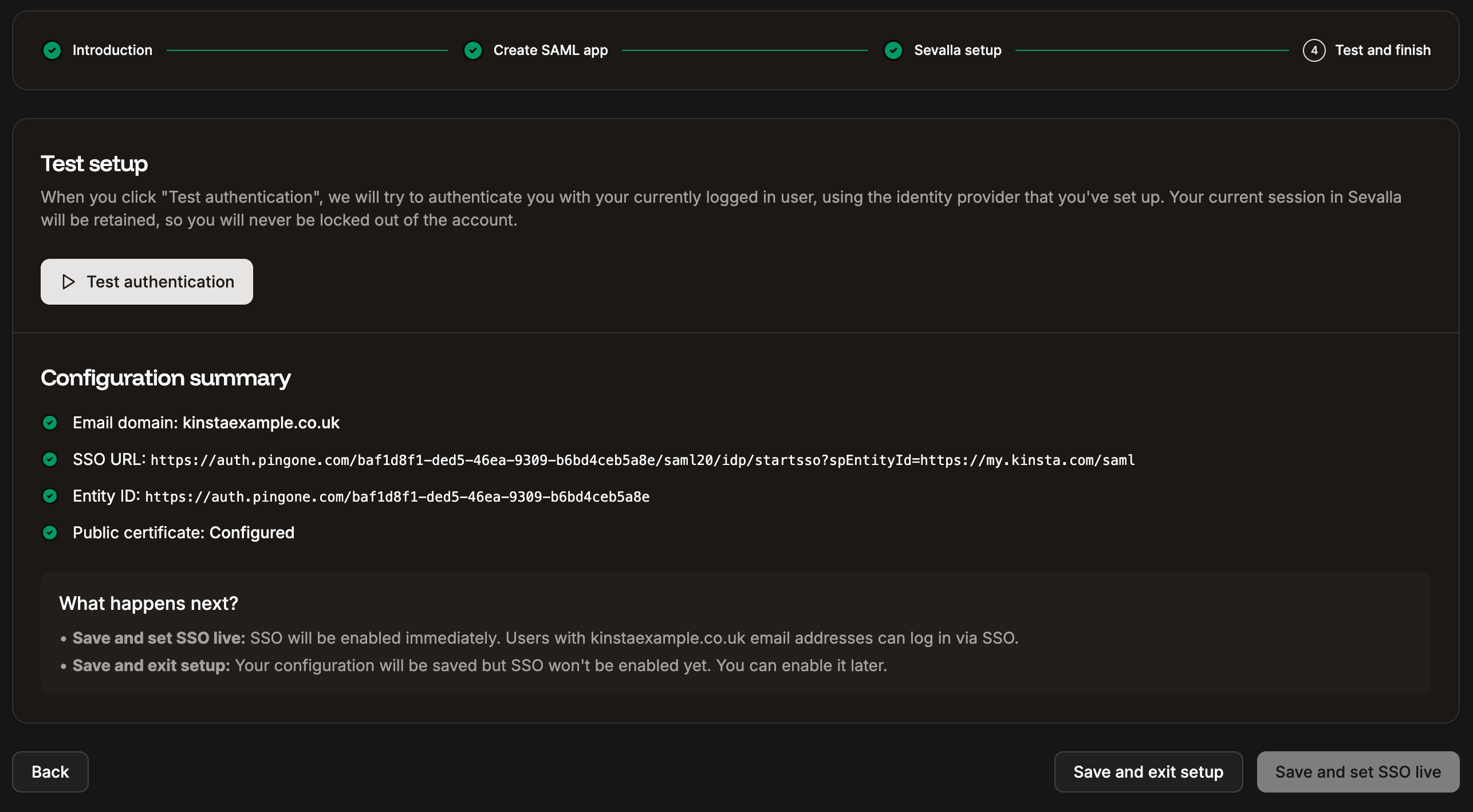
Test your SSO setup and set SSO live.
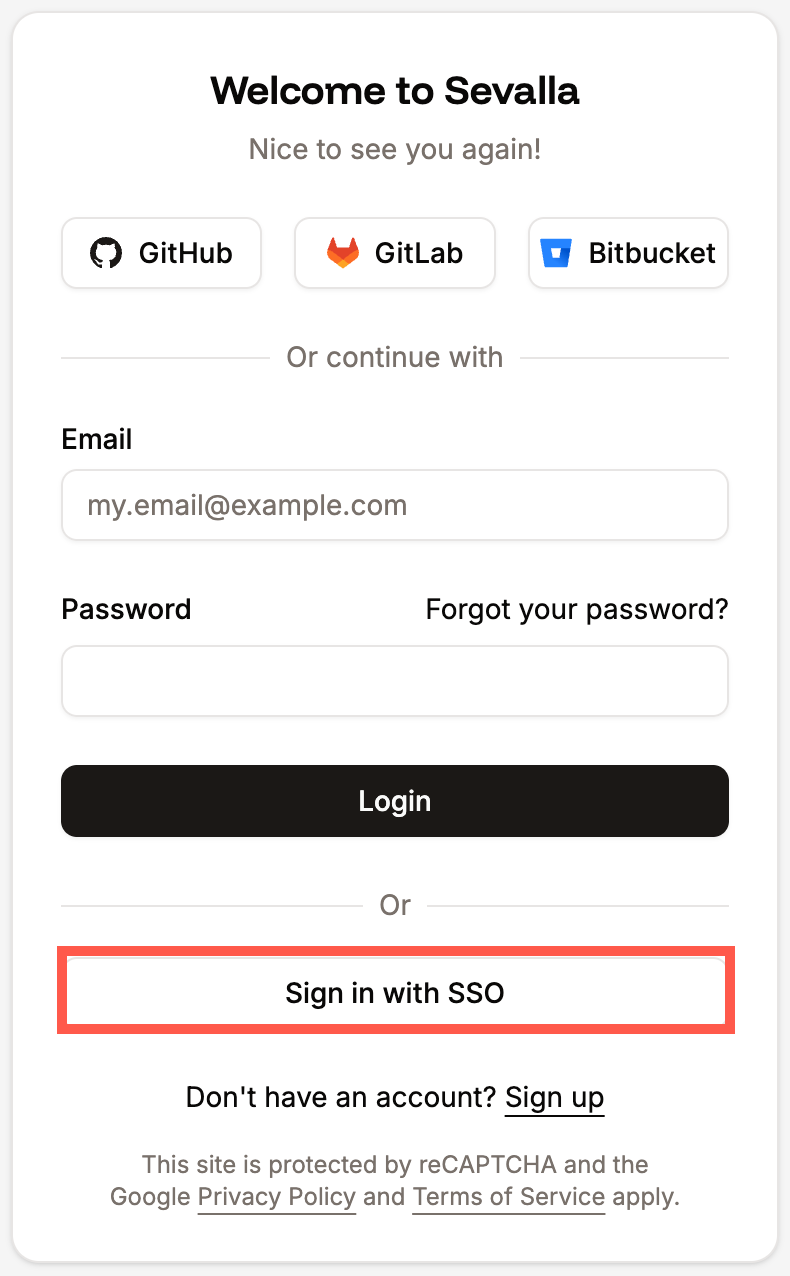
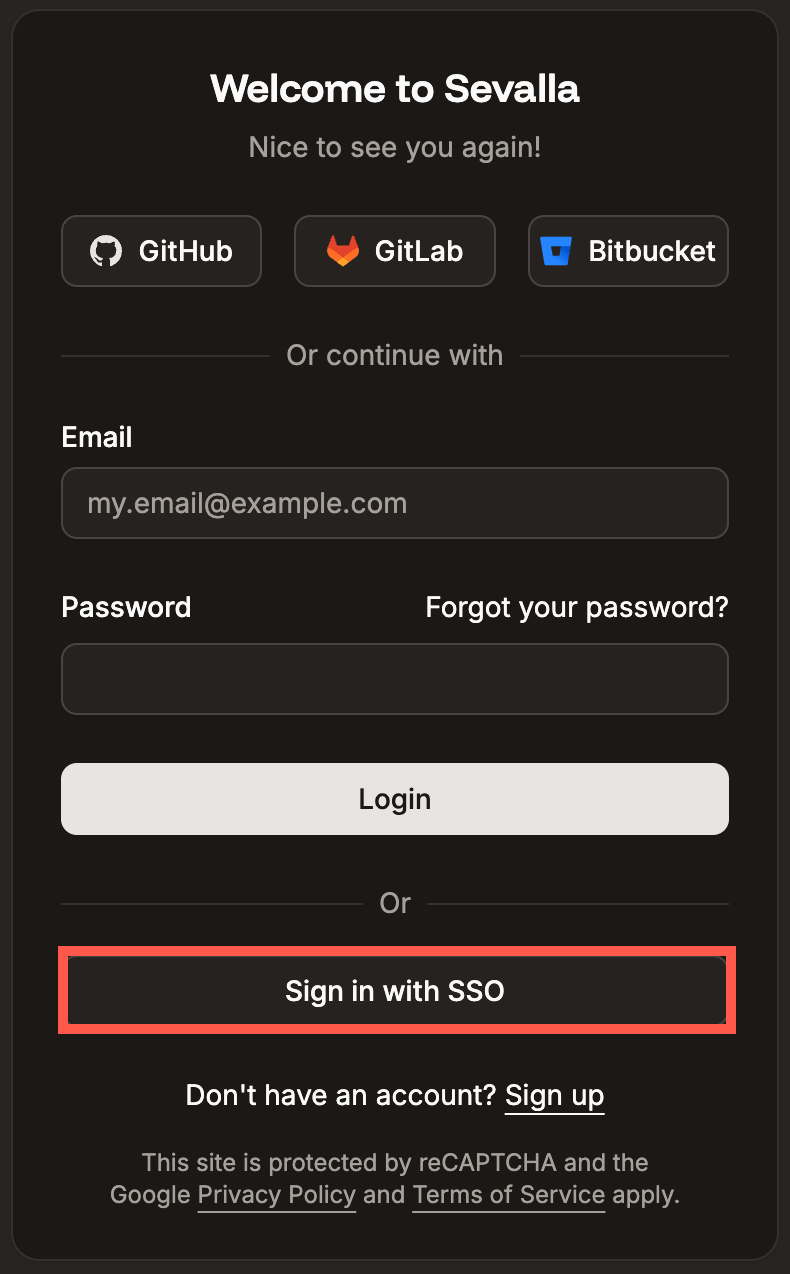
Sign in to Sevalla with SAML SSO.