

Before you begin
- A Sevalla company with a payment method, and a GitHub, GitLab or Bitbucket account for the repository. See Git providers.
- Python 3.12 or later on your computer.
Create the project
Create a virtual environment and install Flask, the database extensions, Gunicorn and the PostgreSQL driver:
Keep local files out of the repository:
.gitignore
storefront/models.py
storefront/extensions.py
postgres://, which SQLAlchemy doesn’t accept, so the code switches the scheme to postgresql+psycopg://:
storefront/__init__.py
DB_URL is the variable Sevalla adds when you connect the database; without it, the project uses SQLite in the instance folder.
Generate the first migration and apply it to the local database. Flask-Alembic keeps migrations in storefront/migrations:
Prepare the project for Sevalla
Pin the Python version
Nixpacks, the default build strategy, reads the Python version from.python-version. Nixpacks 1.41 supports Python versions up to 3.13, so pin 3.13:
.python-version
Set the start command
Createnixpacks.toml in the repository root:
nixpacks.toml
- Gunicorn calls the application factory and serves the application. The Flask development server isn’t meant for production.
- The web process listens on the port in the
PORTenvironment variable. Sevalla setsPORTto the web process’s port,8080by default. - Two Gunicorn workers fit in the smallest size (H1, 0.3 GB of memory). Raise
--workerswhen you choose a larger size. - Migrations don’t run here. A job runs them once per deployment.
List the dependencies
Nixpacks installsrequirements.txt with pip:
storefront/migrations, and push it to your Git provider:
Deploy to Sevalla
1
Create the database
In the sidebar, click Databases, then click Create database. Under Database, choose PostgreSQL and the newest version. Enter
orders-db as the Display name, choose a Data center and a Size, then click Create database. See Create a database for every field.2
Create the application
In the sidebar, click Applications, then click Create > Application. Under Source, click Private repository, then choose the Git provider, the Repository and the Branch. Under Location, choose the same Data center as the database. Keep the Size at H1 or choose a larger one, then click Create application. The application opens on its Overview tab with the status Not deployed yet: creating an application doesn’t deploy it.
3
Connect the database
Click the Networking tab. Under Connected services, click Add internal connection. Choose
orders-db as the Service, turn on Add environment variables to the application, and click Add internal connection. Sevalla adds DB_URL and the other connection variables to the application. See Connect an application.4
Add the environment variables
Click the Environment variables tab, then click Add environment variables. Add
FLASK_SECRET_KEY with a random string of 32 characters or more (generate one with python -c "import secrets; print(secrets.token_hex(32))"), keep Available during runtime selected, and click Add environment variables. Flask signs sessions with it.5
Create the migration job
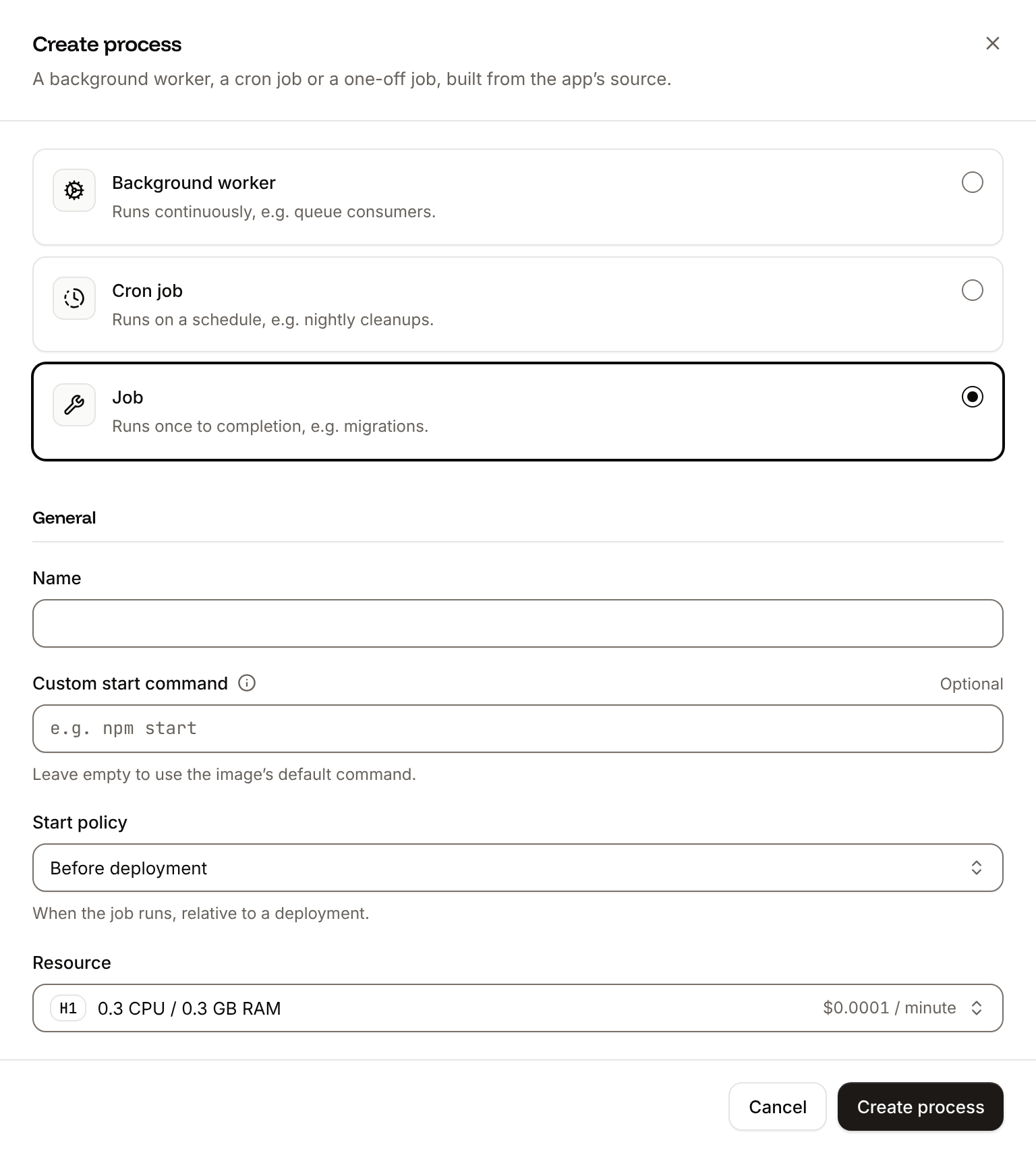
Click the Processes tab, then click Create process. Choose Job, enter
Migrate as the Name and flask --app storefront db upgrade as the Custom start command. Keep the Start policy at Before deployment and the Resource at H1, then click Create process.6
Deploy
Click the Overview tab, then click Deploy now under Recent deployments. Check the Branch and click Deploy.
7
Turn on auto-deploy
To deploy every push to the branch automatically, click the Settings tab, then click Update auto-deploy in the Auto-deploy section. Turn on Auto-deploy and click Update auto-deploy. See Deployments.
Verify the deployment
- On the Deployments tab, wait for the deployment’s status to change to Deployed. The application’s status next to its name changes to Running. During the rollout, the deployment’s build log shows
Migrate has been successful. If the job fails, the deployment fails and nothing changes for visitors. - Click the domain under the application’s name. The response is
{"items":0}, which shows that the application reads the PostgreSQL database.
Deploy changes
With Auto-deploy on, every push to the branch starts a deployment; otherwise, click Deploy now for each change. Each deployment builds the image, runs theMigrate job, then replaces the web process’s instances. For a schema change, run flask --app storefront db revision "<message>" locally and commit the new migration with the code. See Deployments.
Add a custom domain
Add the domain on the application’s Domains tab. Flask doesn’t check the host, so no code change is needed. Custom domains need a web process larger than H1.Troubleshoot the deployment
For more causes, see Troubleshoot builds and deployments. To add caching, background tasks or health checks, see the Flask guides.