

At a glance
Environment variables
These variables fill in Open WebUI’s settings on the first start only. See Change settings after the first start.
Before you begin
- A Sevalla company with a payment method.
- A LiteLLM proxy with a virtual key for Open WebUI, and an Ollama application with
embeddinggemma-2:270mpulled, both in the location where Open WebUI will run.
How Open WebUI runs on Sevalla
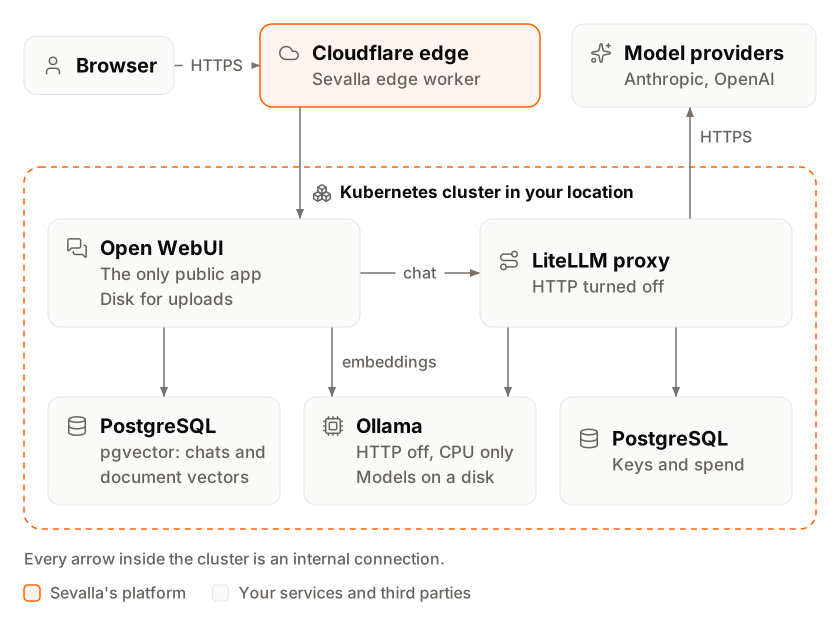
Create the database
1
Open the create form
In the sidebar, click Databases, then click Create database.
2
Choose PostgreSQL with pgvector
Click PostgreSQL, choose the latest version, and turn on Enable pgvector extension.
3
Name and place it
Enter the Display name
openwebui-db, choose the Data center where LiteLLM and Ollama run, and choose the Size. This guide was tested on DB1.4
Create it
Click Create database. Wait for the status Ready.
Deploy Open WebUI
1
Create the application
Click Applications, then click Create > Application. Under Source, click Docker image and enter
ghcr.io/open-webui/open-webui:v0.12.5-slim in Docker image. Keep the Registry credential at None (public image). Enter the Name open-webui, choose the same Data center, choose the Size S1, then click Create application. Don’t deploy yet.2
Add a disk for uploads
Click the Disks tab, then click Create disk. In Process, pick the web process. Enter the Path
/app/backend/data, pick the Size 10 GB, and click Create disk.3
Connect the database
Click the Networking tab. Under Connected services, click Add internal connection and choose
openwebui-db as the Service. Turn on Add environment variables to the application, change the key DB_URL to DATABASE_URL, and click Add internal connection.4
Connect LiteLLM and Ollama
Click Add internal connection again and choose
litellm, then once more for ollama. They need no variables.5
Add the environment variables
Click the Environment variables tab, then click Add environment variables. Add the variables from the table after these steps, then click Add environment variables.
6
Add a readiness probe
Click the Processes tab, click ⋯ on the web process, then click Update process. Under Health checks, turn on Readiness probe, enter the Path
/health and the Initial delay 10, then click Update process.7
Deploy
Click the Overview tab, click Deploy now, then click Deploy.
Copy each internal hostname from Internal hostnames on the
litellm and ollama applications’ Networking tabs.
Verify the deployment
- Wait for the deployment’s status to change to Deployed. The first start creates the tables in PostgreSQL and the admin account.
-
Check the health endpoint on the application’s domain:
-
Open the domain and sign in with
WEBUI_ADMIN_EMAILandWEBUI_ADMIN_PASSWORD. The model picker lists LiteLLM’s models, for examplelfm3,claude-haiku-5-5andgpt-6-luna. To check the same without a browser, sign in through the API and list the models: - Choose a model and send a message. The answer appears word by word as the model writes it.
WEBUI_ADMIN_PASSWORD on the Environment variables tab: Open WebUI stores a hash of the password in the database.
Streaming and WebSockets
The browser receives chat answers over a WebSocket atwss://<domain>/ws/socket.io/, which Cloudflare and Sevalla’s proxy pass through without settings. In a test in Chromium, the 513-character answer from lfm3 arrived in 49 updates over 5 seconds; claude-haiku-5-5 and gpt-6-luna started answering after 1.2 s and 4.5 s.
Open WebUI’s API streams too. Called with a bearer token, such as the token that /api/v1/auths/signin returns, /api/chat/completions with "stream": true returns Content-Type: text/event-stream with Cache-Control: no-cache, and the events reach the client unbuffered: the first of 42 arrived after 1.40 s and the last after 5.48 s.
Speed and cost of each chat
Open WebUI adds instructions and the definitions of its built-in tools (calendar, notes, memory and others) to each chat. A one-line question reached the models as 2,050 prompt tokens forlfm3 on Ollama, 4,410 for gpt-6-luna and 9,763 for claude-haiku-5-5:
- CPU models read the whole prompt before they write the first word: 41 s for those 2,050 tokens on an Ollama on S2. Small models also misuse the tools: asked to write 50 words,
lfm3calledcreate_calendar_eventinstead. Turn the built-in tools off for local models: in Admin Panel > Settings > Models, open the model and turn off Builtin Tools under Capabilities. The same question was then a 25-token prompt, and the answer streamed without a tool call. - Hosted models bill these tokens. One question each, plus the titles, tags and follow-up suggestions Open WebUI generated afterward, cost $0.002 in total for both providers, in LiteLLM’s spend for the key.
Upload documents
Attach a file to a chat, or add it to a knowledge base. Open WebUI saves it under/app/backend/data/uploads on the disk, has Ollama embed its text with embeddinggemma-2:270m, and stores the vectors in PostgreSQL. When the file shows as processed, ask about its content in the chat.
Let other people sign in
The admin account turns sign-up off. To let your team in:- In Open WebUI, open Admin Panel > Settings > Authentication and turn on New Sign Ups.
- New accounts get the Default User Role, pending unless you change it: an admin approves each one under Admin Panel > Users.
Change settings after the first start
The first start copies the connection, sign-up and document settings from the environment variables into the database. After that, the database wins: changingOPENAI_API_KEY on the Environment variables tab and deploying again left Open WebUI on the old key. Change these settings in Open WebUI instead, for example the LiteLLM key under Admin Panel > Settings > Connections, in OpenAI API.
To make the variables win on every start, set ENABLE_PERSISTENT_CONFIG to False. Settings you change in the Admin Panel then don’t survive a restart, including the switch that turned sign-up off when the admin account was created, so also set ENABLE_SIGNUP to False.
To add models from many providers as one more connection, see OpenRouter in Open WebUI.
Run more than one instance
This guide runs 1 instance: a process with a disk can’t run more. A larger size gives the instance more room. More instances need uploads in object storage instead of a disk and Redis for the WebSocket connections (WEBSOCKET_MANAGER=redis), which this guide doesn’t cover.
Update Open WebUI
1
Back up the database
Create a backup of
openwebui-db on its Backups tab: a new version can change the database schema when it starts. See Backups. Sevalla backs up the disk every day.2
Deploy the new version
On the application’s Deployments tab, click Deploy now. Enter the new Tag, with
-slim at the end, for example the latest from Open WebUI’s releases, and click Deploy.3
Keep the new version
When it works, on the Settings tab, in the Source section, click Update source, enter the new image in Docker image, and click Update source.
Add a custom domain
To serve Open WebUI from your own domain, such aschat.example.com, add the domain on the application’s Domains tab and create the DNS records that Sevalla shows. S1 is larger than H1, so custom domains work. See Custom domains.
Troubleshoot
Deploy with the API
The same deployment as the dashboard steps, as API calls an agent can run in order. It needs:- An API key that can create applications and databases, in
SEVALLA_API_KEY. - The IDs of the LiteLLM and Ollama applications, and Open WebUI’s virtual key from LiteLLM.
curl,jqandopenssl.
@sevalla/cli 2.1.0) and the tool of the Sevalla MCP server.
1
Set the variables
ADMIN_PASSWORD: it’s the admin account’s password.2
Find the location
List clusters (Replace
listClustersV3):eu-frankfurt-1 with the region ID of your location from Locations, and pick by region ID, not by display name. CLI: sevalla resources clusters. MCP: get_platform_options.3
Look up the sizes and the PostgreSQL version
List database resource types (CLI:
listDatabaseResourceTypesV3), list disk resource types (listDiskResourceTypesV3) and list database versions (listDatabaseVersionsV3):sevalla resources db-types, sevalla resources disk-types and sevalla resources db-versions --cluster $CLUSTER_ID --type postgresql. MCP: get_platform_options, and sevalla_api_read with listDiskResourceTypesV3.4
Create the database with pgvector
Create database (CLI: not available, because
createDatabaseV3) with extensions.enable_vector, then get database (getDatabaseV3) until its status is ready. Keep DB_PASSWORD: the API doesn’t return it:sevalla databases create has no option for extensions. MCP: create_database with "extensions": {"vector": true}; it generates the password itself and never returns it, and with connect_to_application_id and env_var_name DATABASE_URL it stores a postgresql:// URL, which Open WebUI accepts.5
Create the application
Create application (CLI:
createApplicationV3). It doesn’t deploy, and it creates the web process at S1, the size this guide uses:sevalla apps create --name open-webui --cluster $CLUSTER_ID --source dockerImage --docker-image ghcr.io/open-webui/open-webui:v0.12.5-slim. MCP: create_application with "deploy": false.6
Add the readiness probe
List processes (CLI: not available;
listProcessesV3), then update process (updateProcessV3). Send timeoutSeconds: a probe set through the API without it waits 120 seconds, not the dashboard’s 1:sevalla apps processes update has no probe options. MCP: sevalla_api_update with updateProcessV3 and the same body.7
Add the disk
Attach or update process disk (CLI:
updateProcessDiskV3):sevalla apps processes disk update $WEB_ID --app-id $APP_ID --resource-type $DISK_SIZE_ID --mount-path /app/backend/data. MCP: sevalla_api_update with updateProcessDiskV3.8
Connect the database, LiteLLM and Ollama
Create internal connection (CLI:
createApplicationInternalConnectionV3), once for each:sevalla apps internal-connections create $APP_ID --target-id $DB_ID --target-type database. MCP: sevalla_api_create with createApplicationInternalConnectionV3.9
Add the environment variables
The API connections add no variables, so build CLI:
DATABASE_URL in the dashboard’s format, postgres://<user>:<password>@<host>:<port>/<database>, from get database, and the two URLs from the web processes’ internal hostnames. Then create environment variable (createEnvironmentVariableV3) for each:sevalla apps env-vars create $APP_ID --key ENABLE_OLLAMA_API --value False, once per variable. MCP: set_environment_variables.10
Deploy
Trigger deployment (If it fails, read Get application deployment logs (
triggerDeploymentV3), then get deployment (getDeploymentV3) until status is success or failed, for at most 30 minutes:getApplicationDeploymentLogsV3) and the runtime logs. CLI: sevalla apps deployments trigger $APP_ID, then sevalla apps deployments get $DEPLOYMENT_ID --app-id $APP_ID. MCP: trigger_deployment, then get_deployment.11
Check the deployment
List application domains (CLI:
listApplicationDomainsV3) for the domain, then call Open WebUI:sevalla apps domains list --app-id $APP_ID. MCP: get_application, which lists the domains.