

At a glance
Environment variables
How the session works
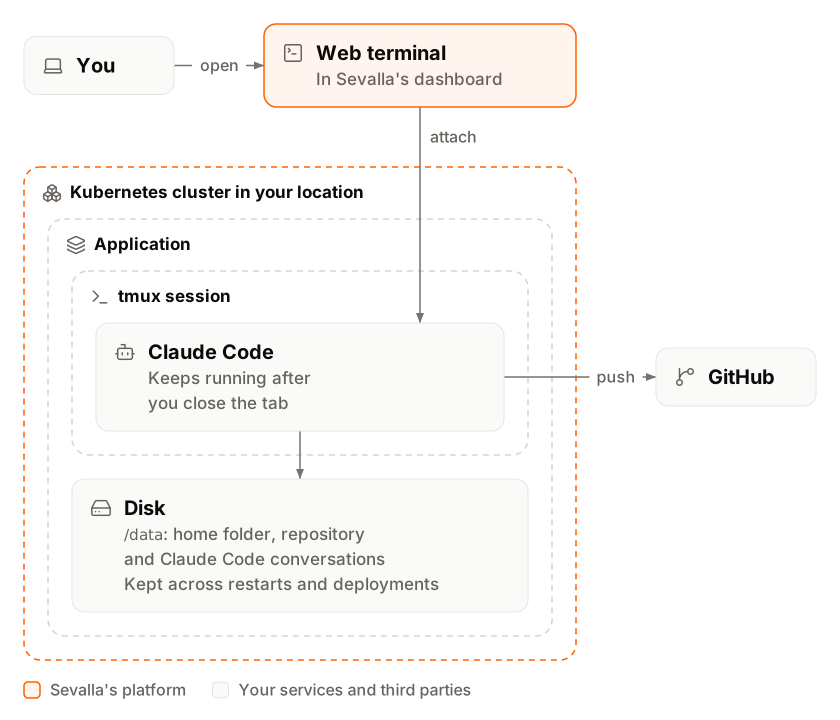
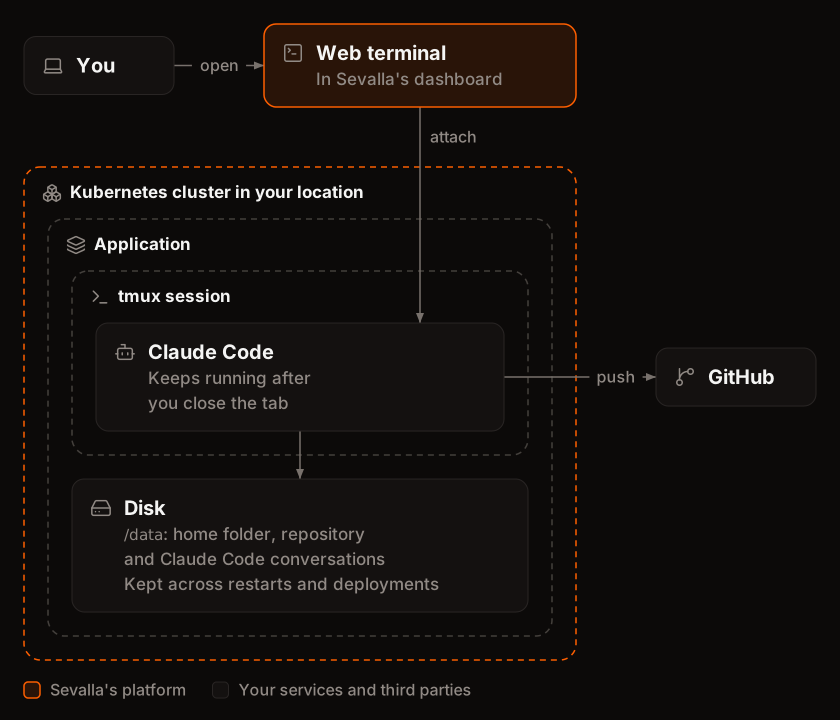
- One image, one long-lived process. The web process runs
start.sh, which clones the repository once, starts a tmux session namedclaudewith Claude Code in it, and then waits. Nothing listens on a port, and with HTTP traffic off nothing on the internet can reach the application. - The web terminal joins the session. The image sets
ENVto a small script, whichshruns when it starts interactively, and adds the same script to/etc/bash.bashrcforbash. The script attaches to theclaudesession, so every shell the web terminal opens lands in Claude Code. - The disk keeps the work.
HOMEis/data/homeand the clone is/data/repo, both on a disk. Claude Code’s settings, conversation history and your uncommitted changes survive restarts and deployments. The tmux session and a task that’s running don’t: see What survives a restart or a deployment. - GitHub is where work leaves the instance. Claude Code commits and pushes with a GitHub token that can reach one repository, and opens pull requests that you review and merge.
Before you begin
- A Sevalla company with a payment method. The S1 size needs one. See Pricing.
- A GitHub repository for Claude Code to work on, and a second, private one for this guide’s files, for example
acme/claude-workspace. - A Claude API key from the Claude Console, with a spend limit on its workspace. Or a Claude Pro, Max, Team or Enterprise plan and Claude Code on your computer, to create a token with
claude setup-token. - Git on your computer.
Create a GitHub token
Claude Code pushes branches and opens pull requests with a fine-grained personal access token that can reach only the repository it works on. Create one at github.com/settings/personal-access-tokens/new:- Repository access: only the repository Claude Code works on, for example
acme/storefront. - Repository permissions: Contents read and write, and Pull requests read and write. GitHub adds Metadata read-only by itself.
- Expiration: the shortest that suits you. When it expires,
start.shstops withgh: Bad credentials (HTTP 401)until you set a new token and deploy.
Create the project
The project is six small files. Create a folder for them:Dockerfile
start.sh runs when the instance starts. It checks the variables, answers Claude Code’s first-run questions, signs Git in with the token, clones the repository once, and starts the session:
start.sh
shell-init.sh is what makes the web terminal open in Claude Code. Inside tmux, TMUX is set, so the shells that tmux starts don’t try to attach again:
shell-init.sh
tmux.conf turns on the mouse, so the scroll wheel scrolls back through the session, and keeps 50,000 lines of it:
tmux.conf
managed-settings.json holds Claude Code’s permission rules (see Set permission rules):
managed-settings.json
.dockerignore keeps Git’s history and local environment files out of the build:
.dockerignore
Ingot can build a similar image from a
package.json that depends on @anthropic-ai/claude-code and an ingot.json whose packages.run lists ca-certificates, gh, git, jq and tmux. Ingot’s Node.js image has no root certificates for programs other than Node.js, so gh fails with x509: certificate signed by unknown authority without ca-certificates. HOME, ENV and DISABLE_AUTOUPDATER then become environment variables, and the start script has to write the shell hook to ~/.bashrc, because the image’s system folders belong to root. The Dockerfile keeps all of it in one file.Deploy to Sevalla
These steps create the application, switch it to the Dockerfile, add the variables, turn HTTP traffic off and add the disk before the first deployment.1
Create the application
In the sidebar, click Applications, then click Create > Application. Under Source, click Private repository, choose the Git provider, the
claude-workspace Repository and the main Branch, and turn off Auto-deploy. Under Location, choose a Data center. Choose S1 as the Size, then click Create application. The application opens on its Overview tab with the status Not deployed yet.2
Choose the Dockerfile build strategy
On the Settings tab, in the Build strategy section, click Update build strategy. Click Dockerfile, keep the Dockerfile path
Dockerfile and the Docker context ., then click Update build strategy.3
Add the environment variables
Click the Environment variables tab, then click Add environment variables. Add
ANTHROPIC_API_KEY, GH_TOKEN and GITHUB_REPO (see Environment variables), clear Available during buildtime so that none of them reaches the build, keep Available during runtime, and click Add environment variables.4
Turn HTTP traffic off
Click the Networking tab. In Expose HTTP traffic, click Disable, then click Disable HTTP in the Disable HTTP traffic dialog. The application’s domains show HTTP is disabled.
5
Add the disk
Click the Disks tab, then click Create disk. Choose the web process as the Process, enter
/data as the Path, keep the Size at 10 GB, and click Create disk.6
Deploy
Click the Overview tab, then click Deploy now under Recent deployments. Check the Branch and click Deploy.
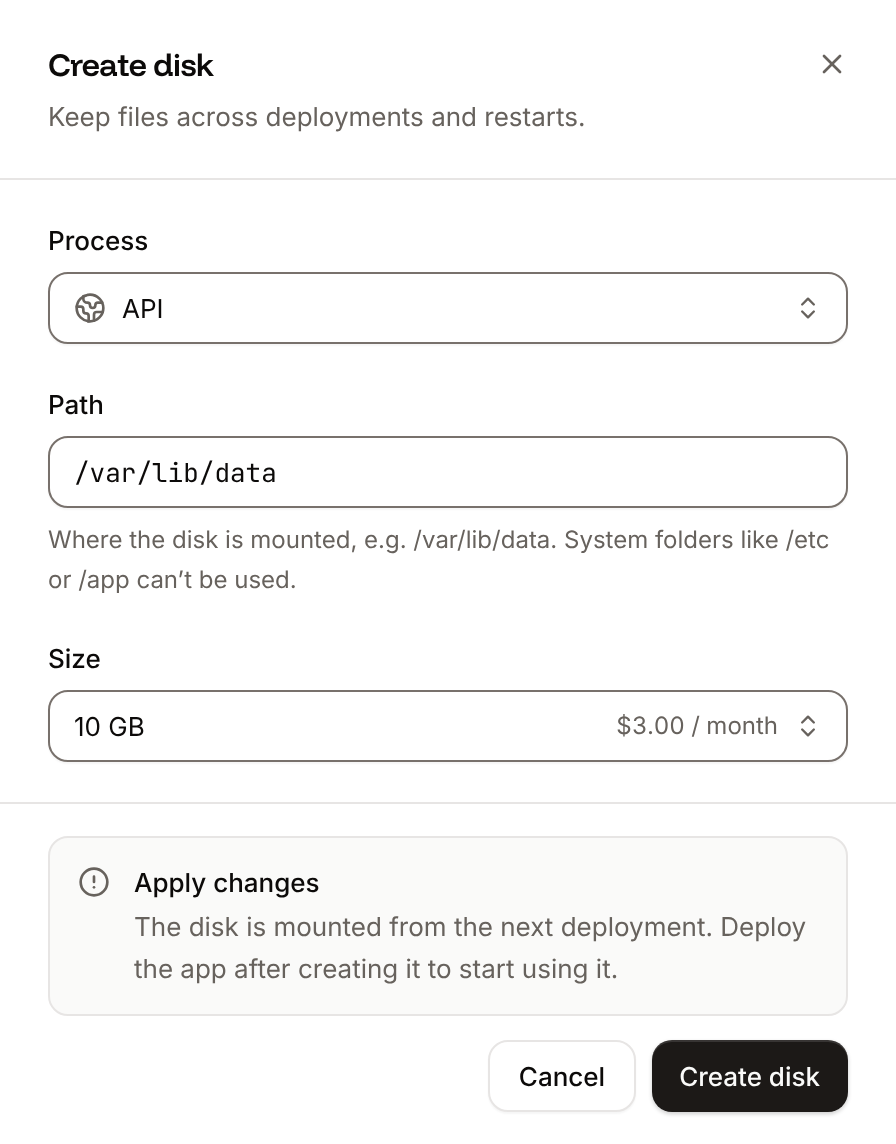
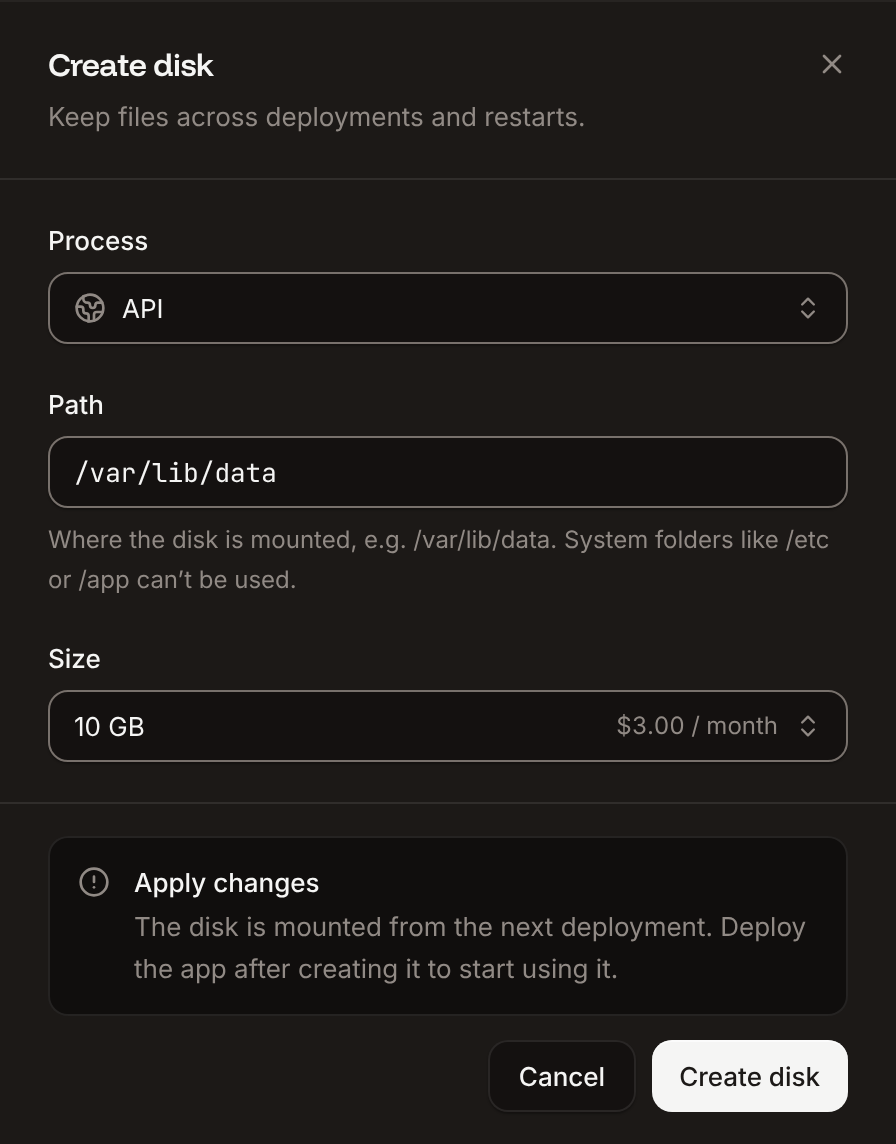
main branch would do that in the middle of a task. Deploy by hand when no task is running. Don’t point GITHUB_REPO at the repository this application deploys from either, or Claude Code’s own pushes to main would be the next deployment.
Verify the deployment
-
On the Deployments tab, click the deployment. Its Build log shows
📦 Building and pushing docker image using Dockerfile...and ends with🚀 Web has been deployed successfully., and its Dockerfile tab shows yourDockerfile. -
Wait for the deployment’s status to change to Deployed. On the first start, the runtime logs show:
Runtime logs
-
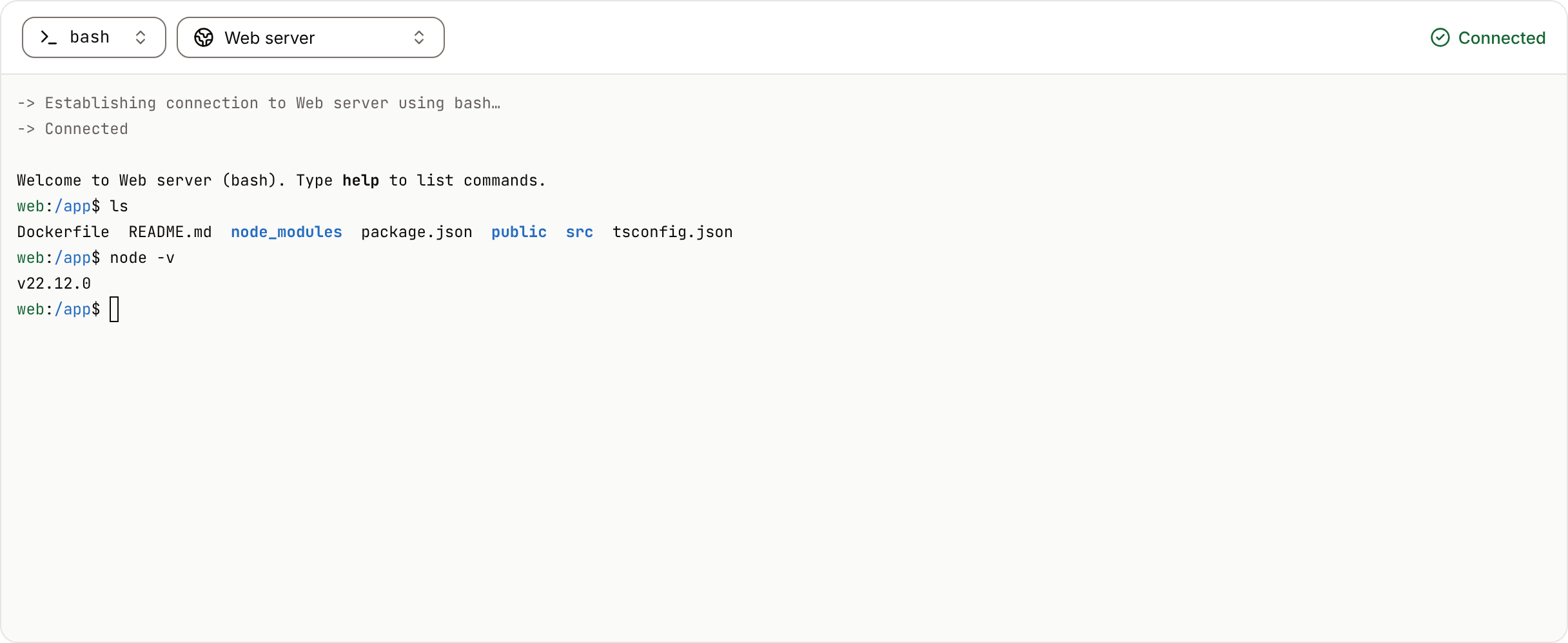
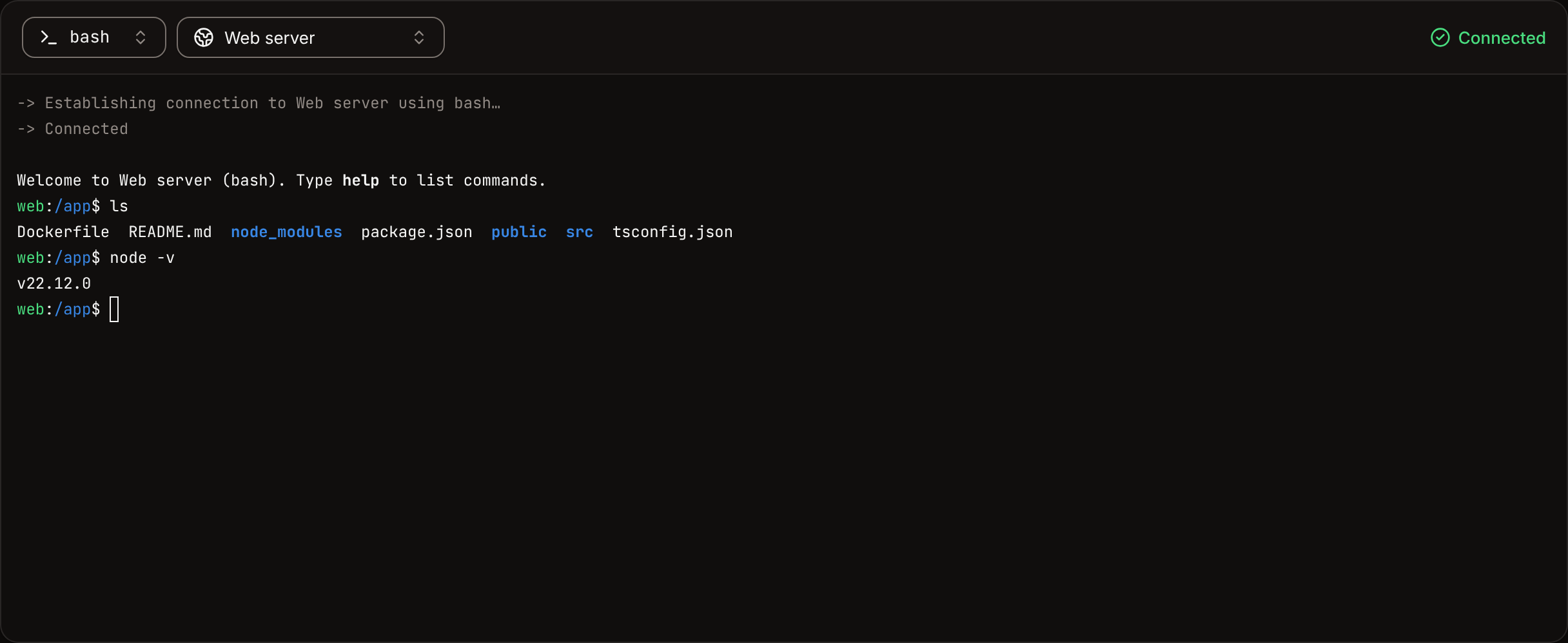
Click the Web terminal tab. The terminal opens in Claude Code, ready for a task, with the model and
/data/repoin its header and[claude] 0:claude*in tmux’s status bar at the bottom.
APP_ID, WEB_ID and DEPLOYMENT_ID come from Deploy with the API:
Work with Claude Code
Type a task at Claude Code’s prompt, for exampleAdd a health check endpoint with a test, then open a pull request. Claude Code works in /data/repo, commits on a branch, pushes it with GH_TOKEN and opens the pull request with gh pr create. Its status bar shows the pull request number, and you review and merge it on GitHub.
- Leave the session running. Close the browser tab, or press Ctrl-b then d to detach and get a plain shell in the same instance. Claude Code keeps working either way.
- Come back. Open the Web terminal tab again, from any browser. Every new tab or pane joins the same session; press Ctrl-b then d in it for a plain shell instead.
- From your own terminal. The Sevalla CLI opens the same session:
sevalla apps processes terminal <web-process-id> --app-id <app-id>. - Quit and restart Claude Code.
/exit(or Ctrl-c twice) leaves a shell in the session. Runclaudeto start a new conversation, orclaude --continueto pick up the last one. - Work on another repository. The token reaches only the repositories you gave it. Add another one to the token, then clone it under
/datafrom the session’s shell, for examplegh repo clone acme/storefront-docs /data/storefront-docs, and startclaudethere. Claude Code asks once whether you trust the folder.
printenv: every runtime environment variable, including the keys, is there. Claude Code can read them too.
Choose the model
With an API key, Claude Code starts on Opus 5.5. Change the model for the current session with/model, which also saves your choice to ~/.claude/settings.json on the disk for the next sessions. To fix the model for every session instead, set ANTHROPIC_MODEL, for example to claude-sonnet-5-5, and deploy: the variable outranks what /model saved. See Model configuration for aliases and effort levels, and Claude pricing for the price of each model.
Use a Claude subscription
With a Claude Pro, Max, Team or Enterprise plan, Claude Code can use your subscription instead of an API key. On your computer, run:/login and prints a token that’s valid for one year. Add it as CLAUDE_CODE_OAUTH_TOKEN (available during runtime only), delete ANTHROPIC_API_KEY, and deploy. Usage then counts against your plan’s limits. Anthropic’s terms allow subscription sign-in for your own use of Claude Code: don’t share the application with other people while it holds your token. See Authentication and Legal and compliance.
Set permission rules
managed-settings.json holds deny rules that Claude Code applies to every session, whatever mode it’s in: it never runs gh pr merge, gh repo delete or a force push, and disableBypassPermissionsMode turns off --dangerously-skip-permissions. In Claude Code, /permissions lists them on its Deny tab, marked as coming from managed settings that can’t be modified.
Claude Code 2.1.308 starts in auto mode, where a classifier checks each action for risky commands and prompt injection before it runs and asks you when it’s unsure. Press Shift+Tab to switch modes. To change the rules, update managed-settings.json and deploy; rules you add with /permissions save to the disk and last across restarts. See Configure permissions.
Deny rules stop the commands Claude Code usually writes, not every way of reaching the same result. The limits that hold are the token’s: the one repository it can reach, its two permissions, and branch protection on main (a ruleset, which private repositories get with GitHub Pro, Team or Enterprise Cloud).
What survives a restart or a deployment
A restart and a deployment both replace the instance, so the session ends andstart.sh starts a new one. Everything on the disk stays:
A process with a disk runs one instance, and Sevalla stops it before the new one starts, so each deployment has a short gap. A restart, from Deploy now with Skip building (restart latest), takes about 20 seconds; a deployment that builds takes 1 to 2 minutes. See Persistent storage.
To stop paying for the instance while you don’t need it, suspend the application on its Settings tab, in the Danger zone. Its disk and settings stay, and activating it starts a new session. See Suspend an application.
Choose the size and cost
Claude Code needs between 150 and 350 MB of memory for itself, and uses more when the instance has more. It fits in H1 (0.3 GB) for small tasks, but everything it runs for you, such as installing dependencies, building and running tests, shares the same memory. S1 (1 GB) is a good start; move to a larger size when your project’s builds need it. A process with a disk can’t autoscale, so scale it up, not out. See Scaling.
Prices are from Pricing and exclude tax. Instances and disks are billed by the second while they run.
Update Claude Code
ChangeCLAUDE_CODE_VERSION in the Dockerfile, commit and push, then click Deploy now when no task is running. The deployment builds a new image and replaces the instance; your disk, settings and conversations stay. claude update in the instance fails with Error: Insufficient permissions to install update, because the global npm folder belongs to root: the version comes only from the image.
Secure the session
- HTTP traffic stays off. Nothing on the internet reaches the instance. You reach it through the dashboard’s web terminal, the CLI or the API, all of which need your Sevalla account or an API key.
- Access to the application is access to the keys. Anyone who can open the application’s web terminal can use Claude Code with your keys and read them with
printenv. Give access to the application with care. See Web terminal. - Keys stay out of the image. The variables are available during runtime only, so they’re never in a build log or an image layer.
- The token is the boundary. One repository, contents and pull requests only, an expiry date, and a separate GitHub user if you want to see what Claude Code did. Set a spend limit on the Claude Console workspace of the API key.
- Read what you merge. Content Claude Code reads, such as issues, pull requests, web pages and dependencies, can contain instructions meant for it. Auto mode’s classifier checks each action, and you review every pull request before it reaches
main. - Outbound traffic is open. The instance can reach any address on the internet, as Claude Code needs to call the API and GitHub.
Troubleshoot
Deploy with the API
This sequence creates the same application as Deploy to Sevalla with the Sevalla API. Run the steps in order in one shell: later steps use the IDs that earlier steps save in shell variables. You need:- An API key with the Company developer or Company admin role.
- This guide’s repository pushed as in Create the project, and its Git provider connected to your Sevalla user with access to the repository. Create application checks this: without access, it fails with
400andCannot access repository <repository URL>: Repository not found or you don't have access. - Your Claude API key, the GitHub token, and
curlandjq.
1
Choose the location
List clusters (CLI:
listClustersV3) returns every location with its ID and its region ID in location. Print them, then save the one you want by its region ID, here eu-frankfurt-1 (Frankfurt, Germany; see Locations):sevalla resources clusters. MCP: get_platform_options.2
Look up the disk size
List disk resource types (CLI:
listDiskResourceTypesV3) returns the disk sizes. Save the 10 GB one:sevalla resources disk-types. MCP: sevalla_api_read with listDiskResourceTypesV3.3
Create the application
Create application (CLI:
createApplicationV3) creates the application with a web process at S1 and automatic deployments off, and doesn’t deploy it:sevalla apps create --name claude-workspace --cluster "$CLUSTER_ID" --source privateGit --git-type github --repository "$REPO" --branch main. MCP: create_application with deploy: false.4
Build from the Dockerfile
Update application (It prints
updateApplicationV3) sets the build strategy:dockerfile. CLI: sevalla apps update "$APP_ID" --build-type dockerfile --dockerfile-path Dockerfile. MCP: sevalla_api_update with updateApplicationV3 and the same body.5
Add the environment variables
Create environment variable (CLI: not available for runtime-only variables;
createEnvironmentVariableV3), once per variable, each available during runtime only:sevalla apps env-vars create has no runtime or buildtime option and makes a variable available during both. MCP: set_environment_variables with runtime: true and buildtime: false for each variable.6
Find the web process
List processes (CLI:
listProcessesV3) returns the web process that the application came with:sevalla apps processes list --app-id "$APP_ID". MCP: get_application.7
Turn HTTP traffic off
Update process (It prints
updateProcessV3) with is_ingress_enabled: false:false. CLI: not available. MCP: sevalla_api_update with updateProcessV3 and the same body.8
Add the disk
Attach or update process disk (It prints the disk, with
updateProcessDiskV3) mounts a 10 GB disk at /data from the next deployment:"size_gib":10 and "mount_path":"/data". CLI: sevalla apps processes disk update "$WEB_ID" --app-id "$APP_ID" --resource-type "$DISK_SIZE_ID" --mount-path /data. MCP: sevalla_api_update with updateProcessDiskV3 and the same body.9
Deploy
Trigger deployment (CLI:
triggerDeploymentV3) builds the latest commit on main:sevalla apps deployments trigger "$APP_ID". MCP: trigger_deployment.10
Wait for the deployment
Get deployment (If it’s
getDeploymentV3) every 15 seconds, for up to 30 minutes, until the status is final. It prints success when the instance runs:failed, read the build log with Get application deployment logs (getApplicationDeploymentLogsV3): curl -s "$API/applications/$APP_ID/deployments/$DEPLOYMENT_ID/logs?limit=5000" -H "Authorization: Bearer $SEVALLA_API_KEY" | jq -r '.[].message'. CLI: sevalla apps deployments get "$DEPLOYMENT_ID" --app-id "$APP_ID" and sevalla apps deployments logs "$DEPLOYMENT_ID" --app-id "$APP_ID". MCP: get_deployment and get_deployment_logs.11
Check the session
Get application runtime logs (They print
getApplicationRuntimeLogsV3) shows the start script’s last line, and Run a command in a process (execProcessCommandV3) lists the tmux session:Claude Code is running in tmux. Open the Web terminal to join it. and claude. CLI: sevalla apps logs runtime "$APP_ID" --search "Claude Code is running" and sevalla apps processes exec "$WEB_ID" --app-id "$APP_ID" -- tmux list-sessions -F "#{session_name}". MCP: search_runtime_logs, and sevalla_api_update with execProcessCommandV3.sevalla apps processes terminal "$WEB_ID" --app-id "$APP_ID".