

6333 and its gRPC API on port 6334. This guide deploys Qdrant, connects a Python application to it, backs it up to object storage, and measures how much memory a collection needs.
At a glance
Environment variables
On theqdrant application, which has no build, every variable is available during runtime:
On the
catalog client:
How Qdrant runs on Sevalla
A process with a disk runs one instance, and Sevalla stops it before it starts the new one on each deployment: In the tests, a deployment of Qdrant took about 20 seconds, during which requests to it failed. This guide runs Qdrant as a single node.
Before you begin
- A Sevalla company with a payment method, and a GitHub, GitLab or Bitbucket account for the client application’s repository. See Git providers.
- Python 3.14 and Docker on your computer, to build and check the client application.
Deploy Qdrant
Generate the API key:1
Create the application
In the sidebar, click Applications, then click Create > Application. Under Source, click Docker image and enter
qdrant/qdrant:v1.20.0-unprivileged. Keep None (public image) as the Registry credential. Enter qdrant as the Name, choose a Data center and the S1 size, then click Create application.2
Add the variables
Click the Environment variables tab, then Add environment variables. Add
QDRANT__SERVICE__API_KEY with the key you generated, and QDRANT__TELEMETRY_DISABLED with the value true to stop Qdrant from sending anonymous usage statistics. Click Add environment variables.3
Set the port and turn HTTP traffic off
Click the Networking tab. In Expose HTTP traffic, click Update port, enter
6333 and click Update port. Then click Disable, and Disable HTTP in the dialog.4
Expose the gRPC port
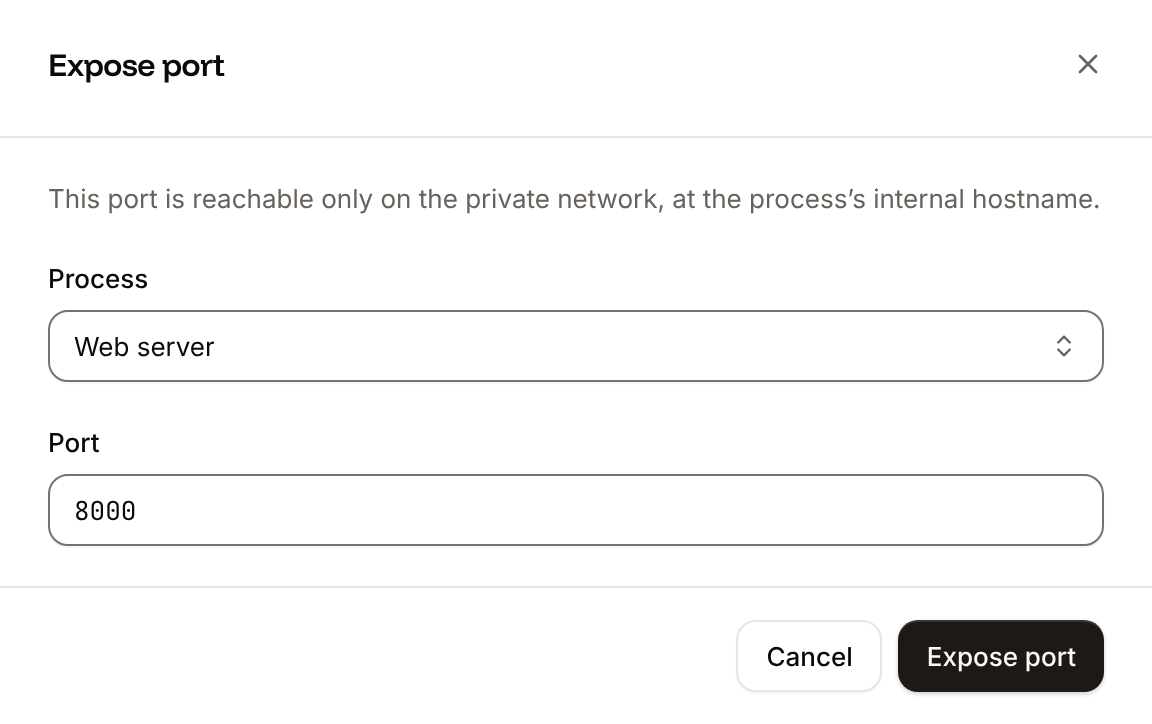
In Private ports, click Expose private port. Keep the web process as the Process, enter
6334 as the Port, and click Expose port.5
Add the disk
Click the Disks tab, then Create disk. Keep the web process, enter
/qdrant/storage as the Path, choose 10 GB and click Create disk.6
Add the readiness probe
Click the Processes tab, click ⋯ on the web process, then Update process. Under Health checks, turn on Readiness probe, set the Path to
/readyz and the Port to 6333, and click Update process. Qdrant answers /readyz without the API key.7
Deploy
Click the Overview tab, then click Deploy now under Recent deployments, and Deploy.
Qdrant gRPC listening on 6334 and Qdrant HTTP listening on 6333. Get application runtime logs (getApplicationRuntimeLogsV3) finds them, with the application ID from Deploy with the API:
.gitignore
app/main.py
- The client reads Qdrant’s address and key from
QDRANT_URLandQDRANT_API_KEY, which you set on Sevalla. - At startup, the application creates the collection if it doesn’t exist, with the vector size and distance of your embeddings, then adds the products.
upsertreplaces points with the same ID, so every instance and every restart can run it. query_pointswith a point ID searches with that point’s vector and leaves the point itself out of the results.
http://127.0.0.1:8000/products/1/similar returns [{"name":"Wool sweater","score":0.966},{"name":"Hiking boots","score":0.488}]. Press Ctrl+C to stop the application.
Prepare the project for Sevalla
Pin the Python version and list the dependencies with the versions you tested:.python-version, installs requirements.txt with pip, finds app = FastAPI() in app/main.py, and starts Uvicorn on the port in PORT. See Deploy a FastAPI application for the details. Commit everything and push it to your Git provider:
Deploy the application
1
Create the application
In the sidebar, click Applications, then click Create > Application. Under Source, click Private repository, then choose the Git provider, the Repository and the Branch. Under Location, choose the same Data center as Qdrant. Keep the Size at H1 or choose a larger one, then click Create application.
2
Connect Qdrant
Click the Networking tab. Under Connected services, click Add internal connection. Choose
qdrant as the Service, turn on Add environment variables to the application, and clear Available during build. Rename APP_HOST to QDRANT_HOST, then click Add internal connection.3
Add the variables
Click the Environment variables tab, then Add environment variables. Add
QDRANT_URL with the value http://${QDRANT_HOST}:6333, and QDRANT_API_KEY with Qdrant’s API key. Clear Available during buildtime and click Add environment variables.4
Deploy
Click the Overview tab, then click Deploy now under Recent deployments. Check the Branch and click Deploy.
${QDRANT_HOST} is a reference to Qdrant’s internal hostname, which the internal connection saved. Both variables are runtime only, so the build never sees the key.
Verify the connection
-
The deployment’s Build log shows Ingot’s build plan:
Build log
-
When the deployment is Deployed, open the application’s domain, for example
catalog-x7k2m.sevalla.app. It returns{"products":5}. -
Open
/products/1/similar. It returns[{"name":"Wool sweater","score":0.966},{"name":"Hiking boots","score":0.488}]: the search ran in Qdrant, over the private network.
status with Get deployment (getDeploymentV3) until it’s success or failed, and the build log, with the build plan above, with Get application deployment logs (getApplicationDeploymentLogsV3). The logs operation returns the last hour unless you pass from.
To use gRPC, which sends vectors in a compact binary format and suits large uploads, create the client with QdrantClient(url=..., api_key=..., prefer_grpc=True). It connects to port 6334 on the same hostname, the private port you exposed.
To build the application from a Dockerfile instead of Ingot, use the one in Deploy a FastAPI application: it works for this project unchanged, including the cron job in Back up Qdrant.
Back up Qdrant
Sevalla backs up the disk every day and keeps each backup for 7 days; restoring one rolls the whole disk back, through support. To restore a single collection, or to keep backups longer, store Qdrant’s snapshots in object storage.Store snapshots in object storage
1
Create a bucket
In the sidebar, click Object storage, then click Create object storage. Enter
qdrant-snapshots as the Name, pick a Location and click Create object storage. On its Settings tab, note the Endpoint, the Bucket name, the Access key and the Secret key.2
Point Qdrant at the bucket
On the
qdrant application’s Environment variables tab, add the variables below, with the bucket’s values. Then deploy the application..env
products collection:
snapshot.py
python snapshot.py create. It prints the snapshot’s name, for example products-4433101156359780-2026-10-30-04-13-11-0.snapshot, and the bucket’s Objects tab shows the file under snapshots/products/. Without the dashboard, run it with Run a command in a process (execProcessCommandV3) on the client’s web process:
Snapshot as the Name, python snapshot.py create as the Custom start command and 0 3 * * * as the Schedule (03:00 UTC every day), keep the Resource at H1, click Create process, and deploy. To check it, click ⋯ on the cron job and Run now: a new file appears in the bucket. Qdrant keeps every snapshot until you delete it, on the bucket’s Objects tab or with client.delete_snapshot.
Restore a snapshot
In the client application’s web terminal, runrestore with the snapshot’s name:
5 points restored. Without the dashboard, send the same command through Run a command in a process (execProcessCommandV3):
list can’t read its snapshots: find the name on the bucket’s Objects tab, under snapshots/products/. The collection that restore recreates must have the same vector settings as the snapshot, or Qdrant answers Snapshot is not compatible with existing collection. A snapshot restores only into the same or the next minor version of Qdrant.
Size Qdrant
Qdrant keeps every collection on the disk and uses memory to search it fast. For dense vectors, thememory setting of the collection decides how:
These numbers come from 100,000 random vectors of 768 dimensions, each with a small payload, in Qdrant 1.20 on S1, searched with 200 random queries (10 results each) over gRPC from another application:
To plan the memory for the
cached tier, add Qdrant’s own memory, the vectors (points × dimensions × 4 bytes, here 307 MB) and the vector index. S1 ran both 100,000-vector collections, 744 MB on the disk, without running out of memory: the operating system keeps in memory what fits, and searches read the rest from the disk, as in the cold column. Choose a Memory optimized size (M1 has 2 GB, M2 4 GB) for larger collections, or keep the vectors cold with quantization, which keeps a compressed copy in memory. Qdrant’s capacity planning has the full formulas. Grow the disk on the Disks tab before it fills; its Usage shows there.
Make Qdrant public
To reach Qdrant from outside Sevalla, for example from a notebook on your computer, turn HTTP traffic back on: on theqdrant application’s Networking tab, in Expose HTTP traffic, click Enable, then Expose HTTP. Sevalla applies it without a deployment.
The domain then serves Qdrant’s REST API over HTTPS, and every request needs the key in the api-key header; without it, Qdrant answers 401:
qdrant-client, put the port in the URL: QdrantClient(url="https://qdrant-x7k2m.sevalla.app:443", api_key=...). Without :443, the client adds Qdrant’s default port 6333 to the address and the request times out. Qdrant’s web interface is at /dashboard. The gRPC port stays private.
A public Qdrant is one leaked key away from someone reading or deleting your data, so keep it private unless a client outside Sevalla needs it. When one does, give the application a long random key, rotate it if it’s exposed, and allow only known addresses with IP restrictions.
Qdrant or pgvector
If your application already uses Sevalla PostgreSQL, pgvector adds vector search to the same database: one service to run, managed backups, and SQL joins between vectors and the rest of your data, with no disk or single instance to plan around. Qdrant is a separate service, but it’s built for vectors alone: it filters on payloads inside the search, keeps compressed vectors in memory with quantization, and lets you place each collection’s vectors in memory or on the disk. Start with pgvector for a few hundred thousand vectors next to relational data, and choose Qdrant when vector search is the main workload or the collections outgrow the database.Update Qdrant
Qdrant upgrades one minor version at a time: from 1.20 to 1.22, upgrade to the latest 1.21 patch release first. Keepqdrant-client within one minor version of the server, and update the server first.
1
Take a snapshot
Run
python snapshot.py create in the client application’s web terminal, for each collection you need.2
Change the image
On the
qdrant application’s Settings tab, in the Source section, click Update source. Change the Docker image to the new version, for example qdrant/qdrant:v1.21.0-unprivileged, and click Update source.3
Deploy
Deploy the application. Qdrant stops, starts on the new version with the same disk, and the readiness probe holds the deployment until it’s ready.
Troubleshoot
Deploy with the API
This sequence deploys Qdrant, the snapshot bucket and thecatalog client with the Sevalla API, for an agent or a script. It needs:
- An API key that can create applications and object storage, in
SEVALLA_API_KEY. - The client’s repository on a Git provider connected to your Sevalla account. Connecting one happens in the dashboard, under My account; see Git providers. If the account can’t read the repository, creating the application fails with
400andCannot access repository <url>: Repository not found or you don't have access. Make sure a Git account with access to this repository is connected at https://app.sevalla.com/my-account.For GitHub, the message adds that Sevalla’s GitHub App also needs access to the repository. curl,jqandopenssl, in a bash shell that keeps variables between commands.
null, its call failed: run the call again without the | jq part to read the error.
The CLI line of each step names the Sevalla CLI command, and the MCP line the Sevalla MCP server tool that does the same.
1
Pick the location
List clusters (CLI:
listClustersV3) lists the locations; pick one by name:sevalla resources clusters. MCP: get_platform_options.2
Look up the sizes
List process resource types (The last line generates Qdrant’s API key. CLI:
listProcessResourceTypesV3) and List disk resource types (listDiskResourceTypesV3):sevalla resources process-types, sevalla resources disk-types. MCP: get_platform_options.3
Create the snapshot bucket
Create object storage bucket (CLI:
createObjectStorageV3) returns the endpoint, the bucket name and the keys:sevalla object-storage create --name qdrant-snapshots. MCP: sevalla_api_create with createObjectStorageV3.4
Create the Qdrant application
Create application (CLI:
createApplicationV3) with a Docker image source, then List processes (listProcessesV3) for its web process and internal hostname. The API creates the web process at S1, the size this guide uses.sevalla apps create --name qdrant --cluster "$CLUSTER_ID" --source dockerImage --docker-image qdrant/qdrant:v1.20.0-unprivileged, then sevalla apps processes list --app-id "$QDRANT_APP_ID". MCP: create_application with deploy: false, then get_application.5
Set the port, turn HTTP off and add the readiness probe
Update process (CLI: not available. MCP:
updateProcessV3). is_ingress_enabled: false is the dashboard’s Disable HTTP. Send every probe field: without timeoutSeconds, the API stores 120 seconds instead of the dashboard’s 1.sevalla_api_update with updateProcessV3 and the same body.6
Expose the gRPC port
Create private port (CLI:
createApplicationPrivatePortV3):sevalla apps private-ports create "$QDRANT_APP_ID" --process-id "$QDRANT_PROCESS_ID" --port 6334. MCP: sevalla_api_create with createApplicationPrivatePortV3.7
Add the disk
Attach or update process disk (CLI:
updateProcessDiskV3):sevalla apps processes disk update "$QDRANT_PROCESS_ID" --app-id "$QDRANT_APP_ID" --resource-type "$DISK_10GB" --mount-path /qdrant/storage. MCP: sevalla_api_update with updateProcessDiskV3.8
Add Qdrant's variables
Create environment variable (CLI:
createEnvironmentVariableV3), once per variable:sevalla apps env-vars create "$QDRANT_APP_ID" --key QDRANT__TELEMETRY_DISABLED --value true, once per variable. MCP: set_environment_variables.9
Deploy Qdrant
Trigger deployment (It prints
triggerDeploymentV3), then Get deployment (getDeploymentV3) until it finishes:success. CLI: sevalla apps deployments trigger "$QDRANT_APP_ID", sevalla apps deployments get "$QDRANT_DEPLOYMENT_ID" --app-id "$QDRANT_APP_ID". MCP: trigger_deployment, get_deployment.10
Create the client application
Create application (CLI:
createApplicationV3) from the repository, then List application domains (listApplicationDomainsV3) for its address. The domain appears a moment after the application, so the last command waits for it:sevalla apps create --name catalog --cluster "$CLUSTER_ID" --source privateGit --git-type github --repository https://github.com/acme/catalog --branch main. MCP: create_application with deploy: false.11
Connect the client to Qdrant
Create internal connection (CLI:
createApplicationInternalConnectionV3). Through the API, a connection adds no variables; the next step adds them.sevalla apps internal-connections create "$CATALOG_APP_ID" --target-id "$QDRANT_APP_ID" --target-type app. MCP: sevalla_api_create with createApplicationInternalConnectionV3.12
Add the client's variables
Create environment variable (CLI:
createEnvironmentVariableV3), runtime only:sevalla apps env-vars create has no availability option, and its variables are available during the build too. MCP: set_environment_variables with runtime: true, buildtime: false.13
Create the snapshot cron job
Create process (CLI:
createProcessV3). Every process type needs scaling_strategy:sevalla apps processes create "$CATALOG_APP_ID" --name Snapshot --type cron --resource-type "$H1" --command "python snapshot.py create" --schedule "0 3 * * *". MCP: sevalla_api_create with createProcessV3.14
Deploy the client
Trigger deployment (It prints
triggerDeploymentV3) and wait:success. If it prints failed, read the build log with Get application deployment logs (getApplicationDeploymentLogsV3). CLI: sevalla apps deployments trigger "$CATALOG_APP_ID". MCP: trigger_deployment, get_deployment, get_deployment_logs.15
Check the deployment
The client reaches Qdrant over the private network:Start one run of the cron job with Trigger cron job (CLI:
triggerProcessCronV3), and read its status with List cron runs (listProcessCronRunsV3) after a minute:sevalla apps processes trigger "$CRON_ID" --app-id "$CATALOG_APP_ID", sevalla apps processes runs --app-id "$CATALOG_APP_ID" --process-id "$CRON_ID". MCP: sevalla_api_create with triggerProcessCronV3, sevalla_api_read with listProcessCronRunsV3.