

DATABASE_URL environment variable. The build generates the Prisma client from your schema, and a job applies your migrations with prisma migrate deploy before each deployment, so new code never runs against an old schema. This guide adds a Product table to an Express application with Prisma ORM 7.
At a glance
What this guide adds to the Express application:Environment variables
The Express application’s own variables are in its table. The internal connection also adds
DB_HOST, DB_PORT, DB_DATABASE, DB_USERNAME and DB_PASSWORD, which Prisma doesn’t read.
Before you begin
- An Express application deployed on Sevalla, as in Deploy Express. It pins Node.js 24; Prisma ORM 7 needs Node.js 20.19, 22.12, or 24.0 and later.
-
PostgreSQL on your computer, to create migrations against. With Docker:
Create the database
1
Create the database
In the sidebar, click Databases, then click Create database. Under Database, choose PostgreSQL and the newest version. Enter
orders-db as the Display name, choose the same Data center as the application and a Size, then click Create database. See Create a database for every field.2
Connect it to the application
In the sidebar, click Applications, then click the application. Click the Networking tab. Under Connected services, click Add internal connection. Choose
orders-db as the Service and turn on Add environment variables to the application. In the list of variables, change the key DB_URL to DATABASE_URL, then click Add internal connection.DATABASE_URL holds the database’s internal address, postgres://<user>:<password>@<host>:<port>/<database>, which Prisma reads as is. The connection also adds DB_HOST, DB_PORT, DB_DATABASE, DB_USERNAME and DB_PASSWORD, which this guide doesn’t use. The variables apply at the next deployment. See Connect an application.
Install Prisma
In the project, install Prisma ORM 7 and create its files:
Install
prisma and dotenv as dependencies, not dev dependencies: the migration job runs the CLI from the application’s image. With both as dependencies, Ingot and the Dockerfile can remove every dev dependency after the build. @7 keeps every Prisma package on the same major version.
prisma init creates:
prisma/schema.prisma, the schema, with a generator that writes the client togenerated/prisma.prisma7.config.ts, the CLI’s configuration, which loads.envand reads the database address fromDATABASE_URL..env, with a placeholderDATABASE_URL.- A
/generated/prismaline in.gitignore, so the generated client stays out of the repository.
.env out of the repository too, then point DATABASE_URL in it at the database on your computer. Sevalla doesn’t read this file: the application gets DATABASE_URL from the internal connection.
.env
Define the schema
Add a model to the end ofprisma/schema.prisma:
prisma/schema.prisma
prisma/migrations/<timestamp>_init/migration.sql. Commit the prisma/migrations folder: the migration job applies what’s in it.
Generate the client during the build
The generated client isn’t in the repository, so the build creates it. Makeprisma generate the build script, then run it once on your computer:
build script during every build, after it installs the dependencies, so the client always matches the committed schema. prisma generate doesn’t connect to the database.
Query the database
Create one client for the whole application:db.js
.ts files outside node_modules by stripping their types, so the project needs no compile step.
Add routes to server.js that list and create products:
server.js
.env, then create a product:
{"id":1,"name":"Coffee mug","createdAt":"2026-10-29T18:05:24.848Z"}.
Run migrations before each deployment
A job with the start policy Before deployment runs once per deployment, after the build and before the new version gets traffic:1
Create the job
On the application’s Processes tab, click Create process, then choose Job.
2
Set its command
Enter
Migrate as the Name and npx prisma migrate deploy as the Custom start command. Keep the Start policy at Before deployment and the Resource at H1, then click Create process.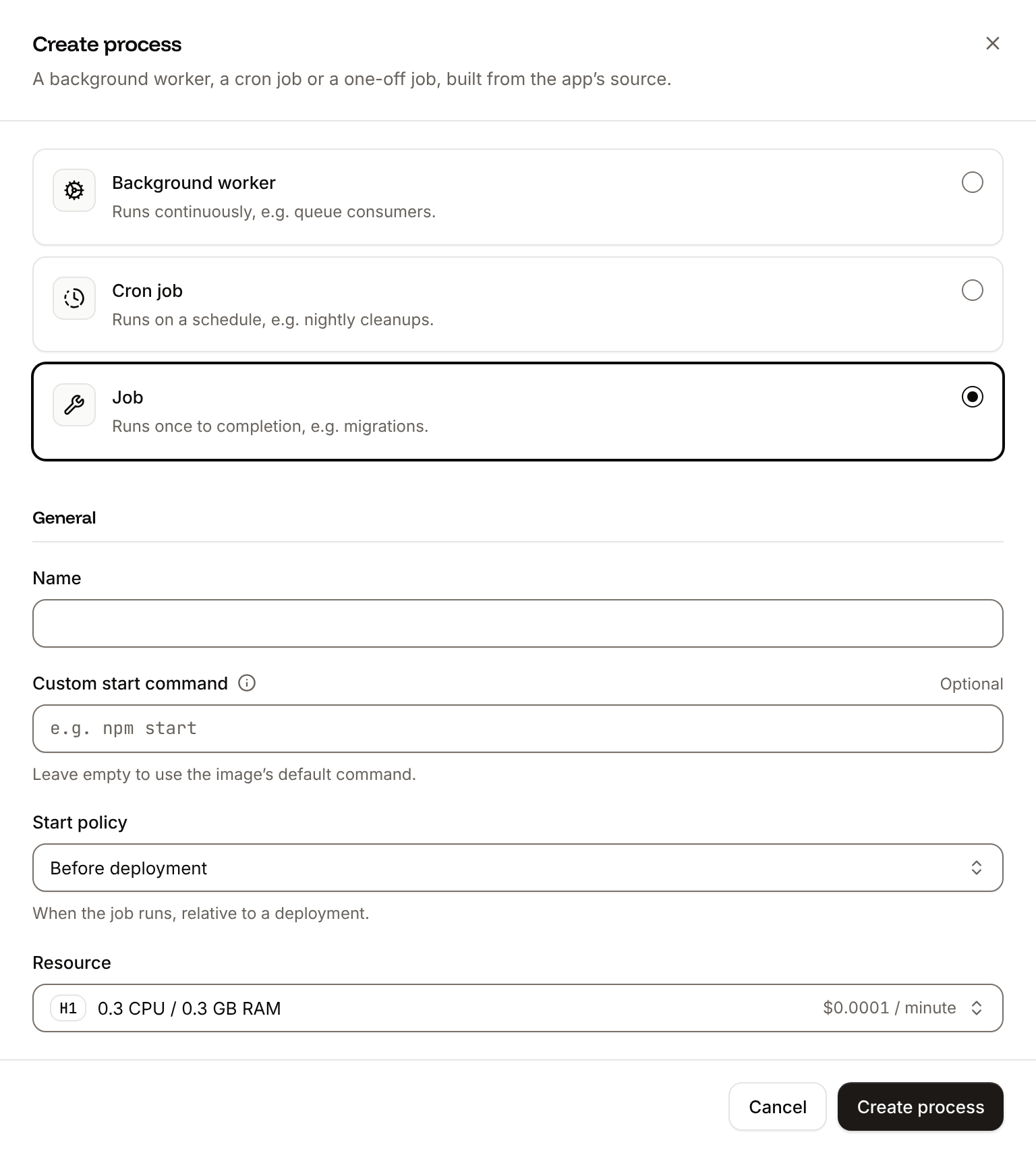
prisma migrate deploy applies the migrations in prisma/migrations that the database doesn’t have yet, and never resets data or creates migrations, unlike prisma migrate dev. If the job fails, the deployment fails and the previous version keeps serving traffic. Ingot recommends this job for any project with a prisma/migrations folder; Get Dockerfile lists it in processes.
Deploy and verify
Commit and push the changes,package-lock.json and prisma/migrations included. With auto-deploy on, the push starts a deployment; otherwise, start one with Deploy now on the application’s Overview tab. When the deployment’s status changes to Deployed:
-
Open the deployment on the Deployments tab. Its build log shows the client being generated, for example
✔ Generated Prisma Client (7.10.1) to ./generated/prisma in 41ms, and, during the rollout,Migrate has been successful. On the Logs tab, theMigrateprocess’s output ends withAll migrations have been successfully applied. -
Create a product and list the products. Use your application’s domain instead of
storefront-x7k2m.sevalla.app:The second command returns[{"id":1,"name":"Coffee mug","createdAt":"..."}]. -
On the database’s SQL studio tab, the
Producttable has the row. See Database studio.
500 or the job fails, read the application’s runtime logs:
Size the connection pool
EachPrismaClient keeps a pool of up to 10 connections, node-postgres’s default, in every instance of every process that creates one. The database accepts a limited number of connections: run SHOW max_connections; in the database’s SQL studio to see its limit. PostgreSQL keeps 3 of them for administration (superuser_reserved_connections), so with a limit of 100, all processes together can open 97.
Add up the pools before you scale: a web process with 4 instances and a background worker with 2 open up to 60 connections, plus 1 for the Migrate job and any you open from your computer. When the total gets close to the limit, lower the pool size per instance with max:
db.js
remaining connection slots are reserved for roles with the SUPERUSER attribute.
Deploy with a Dockerfile
Ingot needs no Dockerfile. Write your own when you want full control of the image: the base image, the system packages and every layer. Add aDockerfile and a .dockerignore to the root of the repository:
Dockerfile
What Prisma needs in the image: the generated client in
generated/prisma; @prisma/client and @prisma/adapter-pg, which run queries without a native engine; and, for the Migrate job, the prisma CLI with the schema engine that npm ci downloads for Debian with OpenSSL 3, plus prisma/, prisma7.config.ts and dotenv. The job runs npx prisma migrate deploy from the same image.
.dockerignore
Dockerfile, so you can keep it in a repository that builds with Ingot, but it adds the .dockerignore patterns to its own, and its build plan lists them in an Ignored row. Then switch the application to the Dockerfile build strategy:
1
Choose the Dockerfile build strategy
On the application’s Settings tab, in the Build strategy section, click Update build strategy. Click Dockerfile, keep the Dockerfile path
Dockerfile and the Docker context ., then click Update build strategy.2
Deploy
Click the Overview tab, then click Deploy now under Recent deployments. Check the Branch and click Deploy.
📦 Building and pushing docker image using Dockerfile..., then shows each step of your Dockerfile and, during the rollout, Migrate has been successful. curl https://storefront-x7k2m.sevalla.app/products returns the same products as before, and the deployment’s Dockerfile tab shows your file. See Dockerfile.
Deploy changes
To change the schema, editprisma/schema.prisma, run npx prisma migrate dev --name <change> on your computer, and commit the new folder in prisma/migrations with the code that uses it. The next deployment generates the new client during the build, and the Migrate job applies the migration before the new code starts. Make each migration work with the code that’s still running until the rollout ends: add a column before the code reads it, and drop it in a later deployment, after no code uses it. See Deployments.
Deploy with the API
This sequence adds the database and the migration job of this guide to the application from Deploy Express through the Sevalla API, so an agent or a script can run it as is.APP_ID is that application, and the changes on this page are pushed to its branch. Each step names the operation, shows the curl command, and gives the matching CLI command and MCP server tool.
You need an API key with the Company developer role in the SEVALLA_API_KEY environment variable (the CLI reads the same key from SEVALLA_API_TOKEN), and curl, jq and openssl. A call that fails returns status and message instead of the resource, and jq -r .id prints null: stop and read the message.
1
Look up the location and the database size
Get application (CLI:
getApplicationV3) returns the application’s location in cluster_id; the database must be in the same one. List database resource types (listDatabaseResourceTypesV3) returns the database sizes; DB1 is the smallest.sevalla apps get "$APP_ID" and sevalla resources db-types. MCP: get_application and get_platform_options.2
Create the database
Create database (CLI:
createDatabaseV3) starts creating a PostgreSQL 18 database with a password you generate. List database versions (listDatabaseVersionsV3) lists the versions of a location.sevalla databases create --name orders-db --type postgresql --db-version 18 --cluster "$CLUSTER_ID" --resource-type "$DB_SIZE_ID" --db-name storefront --db-user storefront --db-password "$DB_PASSWORD". MCP: create_database, which generates the password and doesn’t return it; with connect_to_application_id and env_var_name set to DATABASE_URL, it also connects the database and stores the connection URL, which replaces the next three steps as postgresql://..., which Prisma reads like postgres://.3
Connect the database
Create internal connection (CLI:
createDatabaseInternalConnectionV3) connects the database to the application over the private network. Unlike the dashboard, it adds no environment variables: a later step adds them.sevalla databases connections internal-create "$DB_ID" --target-id "$APP_ID" --target-type app. MCP: sevalla_api_create with createDatabaseInternalConnectionV3.4
Read the database details
Get database (CLI:
getDatabaseV3) returns the database’s internal hostname and port. The loop waits until its status is ready.sevalla databases get "$DB_ID" --json. MCP: get_database.5
Add DATABASE_URL
Create environment variable (CLI:
createEnvironmentVariableV3) adds DATABASE_URL in the format the dashboard uses, available during runtime only: prisma generate doesn’t need it during the build.sevalla apps env-vars create "$APP_ID" --key DATABASE_URL --value "postgres://..."; the CLI makes it available during the build too. MCP: set_environment_variables with runtime true and buildtime false.6
Create the migration job
List process resource types (CLI:
listProcessResourceTypesV3) returns the H1 size, and Create process (createProcessV3) adds the Migrate job. A job needs scaling_strategy and job_start_policy; beforeDeployment is the dashboard’s Before deployment.sevalla apps processes create "$APP_ID" --name Migrate --type job --resource-type "$H1_ID" --command "npx prisma migrate deploy" --job-start-policy beforeDeployment. MCP: sevalla_api_create with createProcessV3 and the same body.7
Deploy
Trigger deployment (CLI:
triggerDeploymentV3) builds the latest commit of the branch and rolls it out.sevalla apps deployments trigger "$APP_ID". MCP: trigger_deployment.8
Wait for the deployment
Get deployment (CLI:
getDeploymentV3) returns the deployment’s status: waiting, then inProgress, then success or failed. The loop polls every 15 seconds for up to 30 minutes and keeps polling through a failed request.sevalla apps deployments get "$DEPLOYMENT_ID" --app-id "$APP_ID". MCP: get_deployment.9
Check the deployment
Get application deployment logs (The output, with the time of your request in CLI:
getApplicationDeploymentLogsV3) returns the build log, Get application runtime logs (getApplicationRuntimeLogsV3) what the Migrate job printed, and List application domains (listApplicationDomainsV3) the application’s domain:createdAt:sevalla apps deployments logs "$DEPLOYMENT_ID" --app-id "$APP_ID" --search "Migrate has been", sevalla apps logs runtime "$APP_ID" --search "migrations have been" and sevalla apps domains list --app-id "$APP_ID". MCP: get_deployment_logs, search_runtime_logs and get_application.