

requirements.txt, finds the Flask server that app.py creates and starts it with Gunicorn in the web process, on the port in the PORT environment variable. Every callback is an HTTP request to /_dash-update-component, so the app needs no WebSocket and no sticky sessions.
At a glance
Environment variables
Before you begin
- A Sevalla company with a payment method, and a GitHub, GitLab or Bitbucket account for the repository. See Git providers.
- Python 3.14 on your computer.
Create the project
Create a virtual environment and install Dash and Gunicorn:
Keep local files out of the repository:
.gitignore
app.py
python app.py and open http://127.0.0.1:8050. The page shows Storefront sales and a chart; choose Shirts and the chart changes. Press Ctrl+C to stop it.
Prepare the project for Sevalla
Create the Flask server in app.py
Ingot has no Dash detection of its own. Dash depends on Flask, so Ingot treats the project as a Flask application, looks for a Flask object created at the top level ofmain.py, app.py or another common module, and serves it with Gunicorn. server = Flask(__name__) is that object, and Dash’s server argument runs the app on it instead of on a Flask object of its own.
Many Dash apps write server = app.server instead. That’s the same Flask object, but Ingot can’t see it without running the code, so it runs python app.py, Dash’s development server, which listens on 127.0.0.1 only: see Troubleshoot.
app.run(debug=True) sits under if __name__ == "__main__":, so it runs only when you start the file yourself. Gunicorn imports app.py without running it, so Dash’s debug tools and hot reload stay off in production.
Pin the Python version
Ingot builds on Python 3.14, its default line, unless the project sets a version. Pin the version you develop with in.python-version, so the build doesn’t change when a new Ingot release moves its default line:
.python-version
List the dependencies
Ingot installsrequirements.txt with pip, into a virtual environment at /app/.venv that’s on the PATH:
pip freeze lists Flask, which Dash installed. Ingot looks for the Flask server only when Flask is in requirements.txt, so keep it there if you write the file by hand.
How Ingot starts the app
Ingot starts the web process withgunicorn -c /etc/ingot/gunicorn.conf.py app:server, which the build plan shows in its Start row:
- Gunicorn listens on
0.0.0.0and the port in thePORTenvironment variable, which Sevalla sets to the web process’s port (8080by default). - Ingot’s Gunicorn settings run 1 worker process with 4 threads, so 4 callbacks run at once, and give requests 20 seconds to finish after
SIGTERM. On a larger size, set theWEB_CONCURRENCYenvironment variable to the number of worker processes, for example2: Gunicorn reads it at start. - Dash serves its JavaScript and CSS from the app itself, so no build step and no static file server are needed.
Deploy to Sevalla
These steps build with Ingot. To build from your own Dockerfile instead, see Deploy with a Dockerfile.1
Create the application
In the sidebar, click Applications, then click Create > Application. Under Source, click Private repository, then choose the Git provider, the Repository and the Branch. Under Location, choose a Data center. Keep the Size at H1 or choose a larger one, then click Create application. The application opens on its Overview tab with the status Not deployed yet: creating an application doesn’t deploy it.
2
Deploy
Click the Overview tab, then click Deploy now under Recent deployments. Check the Branch and click Deploy.
3
Turn on auto-deploy
To deploy every push to the branch automatically, click the Settings tab, then click Update auto-deploy in the Auto-deploy section. Turn on Auto-deploy and click Update auto-deploy. See Deployments.
Verify the deployment
-
On the Deployments tab, click the deployment. Its Build log shows Ingot’s build plan: Python 3.14 from
.python-version, pip fromrequirements.txt, and Flask with the Gunicorn command forapp:server.Build log -
Wait for the deployment’s status to change to Deployed. The application’s status next to its name changes to Running, and the web process’s runtime logs show
Listening at: http://0.0.0.0:8080andUsing worker: gthread. -
Click the domain under the application’s name, for example
sales-dashboard-x7k2m.sevalla.app. The page shows Storefront sales and the chart; choose Shirts and the chart changes, which means the callback ran on the server. -
Check the page, the health route and a callback from a terminal, with your application’s domain. The last command sends the request that the browser sends when you choose Shirts, and prints the chart’s values:
-
To check the deployment through the API, use
APP_IDandDEPLOYMENT_IDfrom Deploy with the API. Get deployment (getDeploymentV3) returns the status, and Get application deployment logs (getApplicationDeploymentLogsV3) returns the build log, whichsearchfilters:The log’s messages carry terminal color codes around the text. The CLI hassevalla apps deployments getandsevalla apps deployments logs, and the MCP serverget_deploymentandget_deployment_logs.


Add a health check
Without a readiness probe, a new instance receives traffic as soon as its container starts, before Gunicorn has imported the app. Point the probe at/healthz, the Flask route in app.py, which returns ok:
1
Open the web process
On the application’s Processes tab, click ⋯ on the Web process, then click Update process.
2
Turn on the readiness probe
Under Health checks, turn on Readiness probe and set the Path to
/healthz. Keep the Port at the web process’s port, 8080 unless you changed it.3
Save and deploy
Click Update process, then click Deploy in the undeployed changes bar at the bottom of the page.
getProcessV3) returns it in readiness_probe:
Scale the app
Dash keeps no session on the server: each callback request carries the inputs it needs, so any worker process on any instance can answer it. Scale in two ways:- More instances. On the Processes tab, raise the web process’s instance count, or turn on autoscaling. Sevalla spreads requests across the instances with no sticky sessions, which Dash doesn’t need. See Scaling.
- More worker processes per instance. Set the
WEB_CONCURRENCYenvironment variable, for example to2. With 2 instances on H1 andWEB_CONCURRENCYset to2, each instance used about 140 MB of its 0.3 GB.
dcc.Store, and shared data in a database.
Deploy with a Dockerfile
Ingot needs no Dockerfile. Write your own when you want full control of the image: the base image, the system packages and every layer. Add aDockerfile and a .dockerignore to the root of the repository:
Dockerfile
.dockerignore
Dockerfile, so you can keep it in a repository that builds with Ingot, but it adds the .dockerignore patterns to its own: its build plan shows an Ignored row with 6 patterns from .dockerignore. Then switch the application to the Dockerfile build strategy:
1
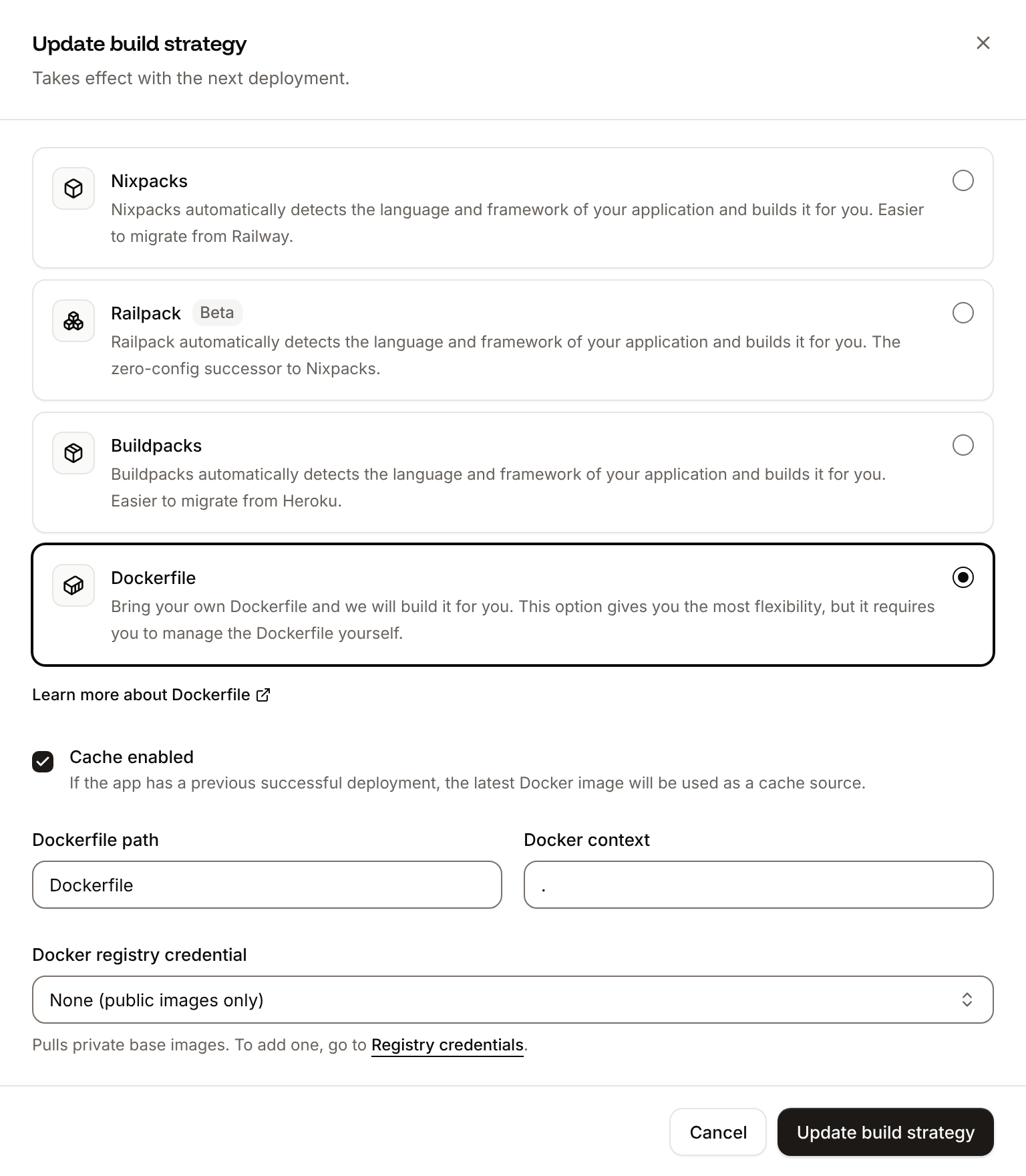
Choose the Dockerfile build strategy
On the application’s Settings tab, in the Build strategy section, click Update build strategy. Click Dockerfile, keep the Dockerfile path
Dockerfile and the Docker context ., then click Update build strategy.2
Deploy
Click the Overview tab, then click Deploy now under Recent deployments. Check the Branch and click Deploy.
📦 Building and pushing docker image using Dockerfile... where Ingot’s build plan was. The checks in Verify the deployment print the same output, and the deployment’s Dockerfile tab shows your Dockerfile. When an instance stops, its runtime logs end with Shutting down: Master. See Dockerfile, and Build from the Dockerfile with the API to switch with the API.
Deploy changes
With Auto-deploy on, every push to the branch starts a deployment; otherwise, click Deploy now for each change. Each deployment builds the image, then replaces the web process’s instances. After you install a package, runpip freeze > requirements.txt again and commit it. See Deployments.
Use environment variables
Keep API keys and connection strings in environment variables and read them withos.environ, for example os.environ["SALES_API_TOKEN"] in a callback. Variables apply at the next deployment.
Add a custom domain
To serve the app from your own domain, such asdashboard.example.com, add the domain on the application’s Domains tab and create the DNS records that Sevalla shows. Dash and Flask accept any host by default, so no code change is needed. Custom domains need a web process larger than H1, so scale the web process first. See Custom domains.
Troubleshoot
For more causes, see Troubleshoot Ingot builds and Troubleshoot builds and deployments.
Deploy with the API
These calls make the same deployment as Deploy to Sevalla and Add a health check, in an order that a script or an AI agent runs as it is. Each step names the Sevalla API operation, then the CLI command and the MCP server tool that do the same. You need:- An API key with the Company developer role, or the
APP:CREATE,APP:READandAPP:UPDATEpermissions, in theSEVALLA_API_KEYenvironment variable. The CLI reads the key fromSEVALLA_API_TOKEN. - The repository on a Git provider that’s connected to your Sevalla account. See Git providers. Creating the application checks it: when Sevalla can’t read the repository, the call returns
400withCannot access repository https://github.com/acme/sales-dashboard: Repository not found or you don't have access., followed by where to grant access. curlandjq.
1
Choose the location
List clusters (CLI:
listClustersV3) returns the locations your company can use, each with its id, the display_name that the dashboard shows and its region ID in location. Keep the ID of the one you want by its region ID, such as eu-frankfurt-1 for Frankfurt, Germany. Locations lists them all:sevalla resources clusters. MCP: get_platform_options.2
Create the application
Create application (CLI:
createApplicationV3) creates the application with a web process and auto-deploy off. It builds with Ingot (build_type is ingot) and isn’t deployed yet:sevalla apps create --name sales-dashboard --cluster $CLUSTER_ID --source privateGit --git-type github --repository https://github.com/acme/sales-dashboard --branch main. MCP: create_application with deploy set to false.3
Find the domain
List application domains (CLI:
listApplicationDomainsV3) returns the domain that Sevalla gives the application. It appears a few seconds after the application is created, so ask until it’s there:sevalla apps domains list --app-id $APP_ID. MCP: get_application.4
Find the web process
List processes (CLI:
listProcessesV3) returns the web process that the application was created with:sevalla apps processes list --app-id $APP_ID. MCP: get_application.5
Find the H1 size
List process resource types (CLI:
listProcessResourceTypesV3) returns the sizes by name, in lowercase:sevalla resources process-types. MCP: get_platform_options.6
Set the size and the readiness probe
The API creates the web process at S1, where the dashboard’s default is H1. Update process (CLI:
updateProcessV3) sets the size and adds the readiness probe from Add a health check, with the dashboard’s default timings. Send timeoutSeconds: a probe without it gets 120 seconds, where the dashboard sets 1.sevalla apps processes update $WEB_ID --app-id $APP_ID --resource-type $H1_ID sets the size; the CLI can’t set probes. MCP: scale_process with size_id for the size, and sevalla_api_update with updateProcessV3 and the same body for the probe.7
Turn on auto-deploy
Update application (CLI:
updateApplicationV3) turns on automatic deployments for every push to the branch:sevalla apps update $APP_ID --data '{"auto_deploy":true}'. MCP: sevalla_api_update with updateApplicationV3.8
Deploy
Trigger deployment (CLI:
triggerDeploymentV3) deploys the latest commit on the branch:sevalla apps deployments trigger $APP_ID. MCP: trigger_deployment.9
Wait for the deployment
Get deployment (CLI:
getDeploymentV3) returns the deployment’s status: waiting and inProgress while it runs, then success or failed. Poll it every 15 seconds, for up to 30 minutes, until the status is final:sevalla apps deployments get $DEPLOYMENT_ID --app-id $APP_ID. MCP: get_deployment.10
Read the build log
Get application deployment logs (CLI:
getApplicationDeploymentLogsV3) returns the build log, oldest line first: the build plan from Verify the deployment, the build and the rollout, which ends with Web has been deployed successfully. When the status is failed, the last lines say why. Without limit, the call returns the latest 1,000 lines, so a longer log loses its start; 5000 is the most it allows.sevalla apps deployments logs $DEPLOYMENT_ID --app-id $APP_ID. MCP: get_deployment_logs.11
Check the app
Run a callback the way the browser does, on the domain from the Find the domain step:
Build from the Dockerfile with the API
After you push theDockerfile from Deploy with a Dockerfile, Update application (updateApplicationV3) switches the build strategy. Then repeat the Deploy, Wait for the deployment and Check the app steps:
sevalla apps update $APP_ID --data '{"build_type":"dockerfile","dockerfile_path":"Dockerfile","docker_context":"."}'. MCP: sevalla_api_update with updateApplicationV3.