

doctl, recreate each component while the App Platform app keeps running, copy the data during a short maintenance window, then point the domains at Sevalla.
At a glance
Environment variables
How DigitalOcean App Platform maps to Sevalla
Before you begin
doctl, signed in withdoctl auth initto the team that owns the app, with a token that can read and update apps and databases.- The app’s code in a repository on GitHub, GitLab or Bitbucket. See Git providers.
- A Sevalla company with a payment method.
- The PostgreSQL client tools, at the same major version as the managed database or newer, and
jq. See Import and export PostgreSQL. - A maintenance window: the App Platform app is offline while you copy the data.
Take stock of the App Platform app
The app spec holds every setting you recreate. Find the app’s ID, then save its spec and list the database clusters:app.json contains the encrypted values of secret variables and your settings: don’t commit it. List the components to recreate:
-
The spec’s
regionis where the app runs. Create the Sevalla services in the closest location: -
A database with
production: trueis a managed database cluster. Itscluster_nameis the Name indoctl databases list, and Version is the PostgreSQL version: create the Sevalla database with the same version or a newer one. -
domainslists the custom domains to move. The starter domain onondigitalocean.appisn’t listed and doesn’t move: Sevalla gives the application asevalla.appdomain and the static site asevalla.pagedomain.
EV[1:...], which only App Platform can decrypt. Read each one in a console session of the component that has it, here the api service, and save it in a file named secrets.env as KEY=value, one per line:
printenv SESSION_SECRET, then exit. secrets.env contains secrets: don’t commit it either.
Create the database
In the sidebar, click Databases, then click Create database. Under Database, choose PostgreSQL and a version at least as new as the managed database’s. Enterorders-db as the Display name, choose the Data center closest to the app’s region and a Size with room for the data, then click Create database. The database’s status changes to Ready when it’s up. See Create a database.
Create the application
Create it from the repository
Check the build
source_dir, click the Settings tab, click Update build strategy under Build strategy, set the Build path to that folder, and click Update build strategy. If the service builds from a dockerfile_path, choose Dockerfile there instead and enter the path. See Build strategies.Connect the database
Click the Networking tab. Under Connected services, click Add internal connection. Chooseorders-db as the Service and turn on Add environment variables to the application. Change the key DB_URL to DATABASE_URL, the name your code already reads, and click Add internal connection. See Connect an application.
The URL starts with postgres:// and has no sslmode: the internal connection stays on Sevalla’s private network. If your code connects with TLS and the managed database’s CA certificate (${db.CA_CERT}), make it connect without them when that variable isn’t set, as the example app does: DigitalOcean’s certificate doesn’t validate a Sevalla database.
Move the environment variables
App Platform has app-level variables, which every component gets, and component-level variables, which win over them. On Sevalla, every process of the application shares the application’s variables, so the app-level and the component-level variables of the service, the workers and the jobs all go to the application. If two components set the same key to different values, set the value in the process’s start command instead, for exampleWORKER_INTERVAL_SECONDS=5 exec node worker.js. A static site’s variables go to the static site.
Export the plain variables
scope:Import them
RUN_AND_BUILD_TIME.env, keep Available during runtime and Available during buildtime selected, and click Add environment variables. Import RUN_TIME.env the same way with only Available during runtime selected, and BUILD_TIME.env with only Available during buildtime. Skip empty files.Add the secrets
secrets.env with the availability of each secret’s scope.Replace the bindable variables
DATABASE_URL is already there, from the internal connection.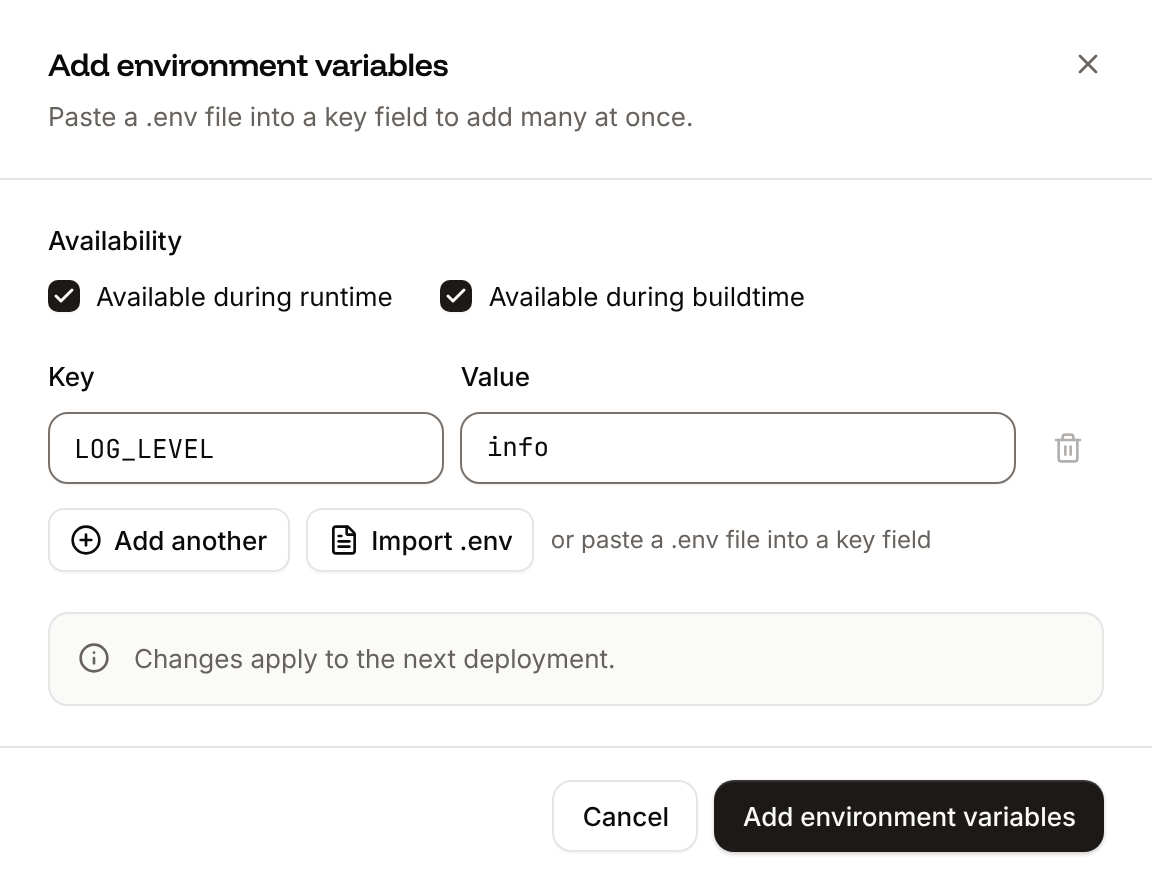
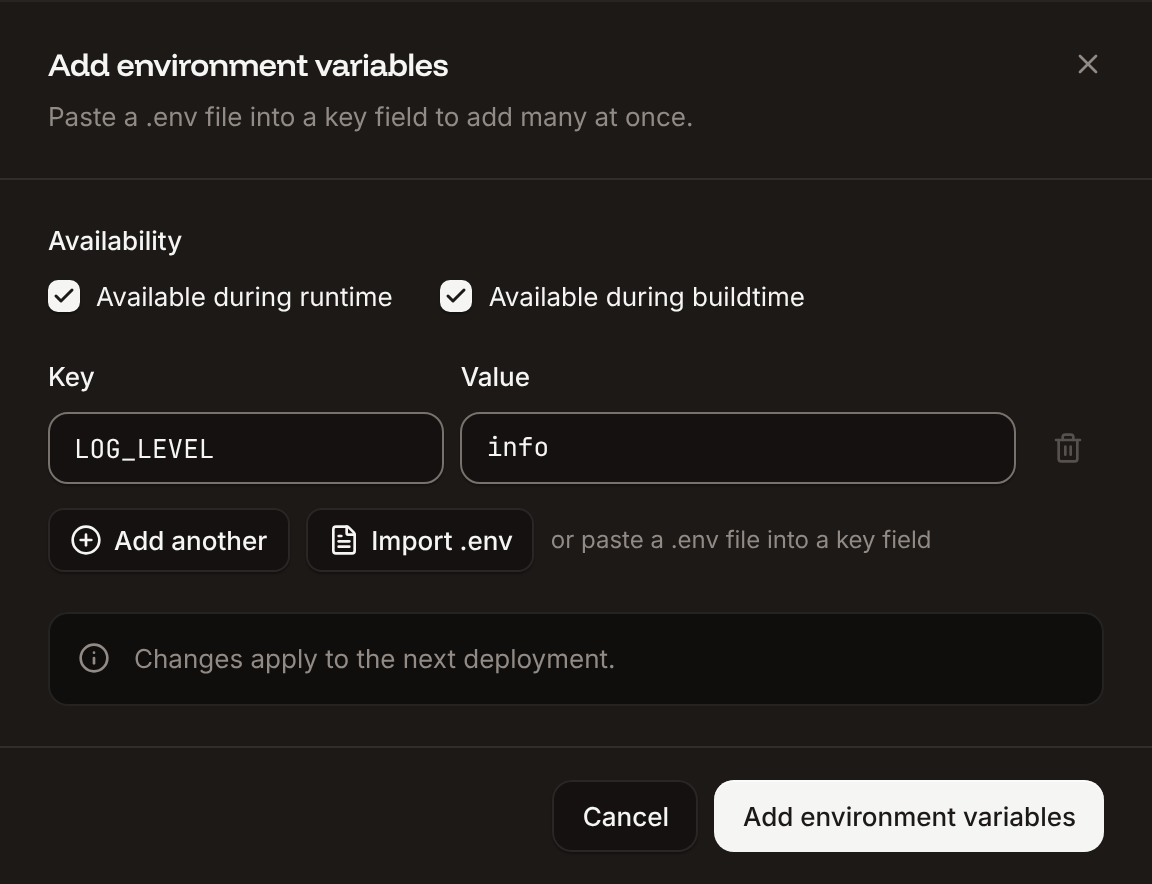
PORT: Sevalla sets it to the web process’s port. See Environment variables.
Replace the bindable variables
App Platform fills in bindable variables (${...}) when it deploys. Sevalla has no bindable variables with these names, so each one becomes a variable from the internal connection, a variable Sevalla sets, or a value you type:
PUBLIC_URL is the application’s URL and CORS_ORIGIN is the static site’s URL. DATABASE_CA_CERT and COMMIT_SHA go away: the jobs read SVL_DEPLOYMENT_COMMIT_SHA when COMMIT_SHA isn’t set. On the static site, API_URL becomes the application’s URL followed by /api.
Recreate the components
Create the processes
Add the health check
health_check with an http_path, click ⋯ on the Web process, then click Update process. Under Health checks, turn on Readiness probe, set the Path to the http_path, and copy any timings the spec sets. App Platform marks an instance unhealthy after 9 failed checks by default, Sevalla after 3. Set a liveness_health_check as the Liveness probe the same way, then click Update process.http_path has a TCP health check on App Platform. Sevalla’s probes are HTTP only: add a path that answers 200, or leave the probes off. Choose each process’s size and instance count from the spec’s instance_size_slug and instance_count, with at least as much memory: S1 has 1 GB, against 512 MB for apps-s-1vcpu-0.5gb. See Processes and Scaling.
Create the static site
Open the create form
Copy the build settings
build_command, the Root directory to its source_dir, and the Publish directory to its output_dir. App Platform searches _static, dist, public and build when output_dir isn’t set: enter the folder your build writes.Add its variables
envs, with bindable values replaced. For the example app, API_URL is the application’s URL followed by /api.Create it
Replace the ingress rules
App Platform serves every component of an app on the same domains and routes requests by path, withingress rules such as /api to the service and / to the static site. On Sevalla, each application and each static site has domains of its own, and no setting routes paths between them. Load balancers route by location, not by path, and a static site’s proxy rules cache responses, so they don’t fit an API either.
- Give each service its own domain. For example, keep
shop.example.comfor the static site and move the service toapi.example.com. Point the static site’s API address (API_URLin the example app) at the application’s domain, and let the application send CORS headers for the static site’s domain (CORS_ORIGINin the example app). - Keep the service’s paths. A rule with
preserve_path_prefix: truepasses/api/productsto the service as it is: the service then answers onhttps://api.example.com/api/products. Without it, App Platform strips the prefix, and the service answers onhttps://api.example.com/products. - Or serve everything from the application. If the static files can be built into the application, serve them from the web process and keep one domain.
- Redirect rules become a
_redirectsfile on the static site, or redirects in the application. CORS rules become a_headersfile on the static site, or headers that the application sets.
Copy the PostgreSQL data
Stop writes on App Platform
503. Archiving is an update of the spec, with maintenance.archive:archive to false the same way. App Platform then deploys it again and runs its POST_DEPLOY jobs.Allow your computer in the trusted sources
pg_dump waits and then fails with Operation timed out.Dump the database
doctl databases connection returns the cluster’s connection URL for the defaultdb database and the doadmin user. --show puts the real password in it: without it, doctl prints ********. If the spec’s database has a db_name, put that name in place of defaultdb:Open the Sevalla database to your computer
orders-db. Click the Networking tab, click Enable under External connection, then click Enable in the dialog. Copy the External hostname, External port and password. See Enable the external connection.Restore the dump
Compare the data
sevalla.txt lists each table with its row count and checksum, for example orders|1000|ed8a6c61bbd5d6e738497c271125ce7b.C collation, where a DigitalOcean managed database uses en_US.UTF-8: an ORDER BY on a text column can return rows in another order, which is why the comparison sorts with COLLATE "C". If your app depends on that order, test those queries on Sevalla before the cutover.
To rehearse, run these steps once without archiving the app, deploy, and test on the sevalla.app domain. For the real cutover, empty the database first, for example with pg_restore’s --clean --if-exists options, so the restore doesn’t collide with the rehearsal’s tables.
Deploy and verify
Deploy
Check the deployment
migrate has been successful.With the API, Get deployment (getDeploymentV3) returns the status, success for Deployed, and Get application deployment logs (getApplicationDeploymentLogsV3) finds the jobs’ results. APP_ID and DEPLOYMENT_ID come from Deploy with the API:Test the application
getApplicationRuntimeLogsV3) with search finds a line that a worker logs, for example the example worker’s start line:sevalla apps logs runtime "$APP_ID" --search "Worker ready". MCP: search_runtime_logs.Test the static site
sevalla.page domain. The example site’s build wrote the application’s URL into config.json:Check the cron jobs
triggerProcessCronV3) starts a run and List cron runs (listProcessCronRunsV3) returns its status, newest first:sevalla apps processes trigger "$CRON_ID" --app-id "$APP_ID", then sevalla apps processes runs --app-id "$APP_ID" --process-id "$CRON_ID". MCP: sevalla_api_create with triggerProcessCronV3, then sevalla_api_read with listProcessCronRunsV3.Turn on auto-deploy
deploy_on_push did, click the Settings tab, then click Update auto-deploy in the Auto-deploy section. Turn on Auto-deploy and click Update auto-deploy. The static site has Auto-deploy on from the start. See Deployments.Move the custom domains
The app’sdomains serve every component on App Platform. On Sevalla, add each domain to the service that answers it, for example shop.example.com to the static site and api.example.com to the application (see Replace the ingress rules). App Platform keeps serving each domain until you change its pointing record, so the switch has no downtime:
Add each domain
Verify it
Point it at Sevalla
CNAME to the app’s ondigitalocean.app domain, or A records to App Platform’s ingress IP addresses) with the pointing record that Sevalla shows. The status changes to Active when Sevalla sees it. See Point the domain.Remove it from App Platform
domains and update the app.zone in the spec’s domains), App Platform keeps the domain’s records itself. First remove zone from the domain in the spec and update the app, as DigitalOcean describes, then change the records in DigitalOcean’s DNS or at the DNS provider you move to. After the move, update the values that held the domain, such as CORS_ORIGIN and the static site’s API_URL in the example app, then deploy both.
Shut down the App Platform app
When the domains are Active and traffic reaches Sevalla:- Disable the external connection you opened: on the database’s Networking tab, click Disable under External connection, then click Disable in the dialog.
- Remove your IP address from the cluster’s trusted sources: find its
UUIDwithdoctl databases firewalls list "$DO_DB_ID", then rundoctl databases firewalls remove "$DO_DB_ID" --uuid <rule UUID>. - Keep
storefront.dumpuntil you no longer need it. - Delete the App Platform app with
doctl apps delete "$DO_APP_ID" --force. The managed database cluster stays, and keeps billing, but the app is no longer one of its trusted sources: a cluster without trusted sources accepts connections from any address. - Delete the cluster with
doctl databases delete "$DO_DB_ID" --forceonce you’re sure. Deleting it deletes its data and its backups.
Troubleshoot
Deploy with the API
This sequence does what Create the database to Deploy and verify do in the dashboard, with the Sevalla API and Ingot: it reads the app spec, creates the database, the application and the static site, turns each component into a process, copies the data and deploys. A script or an AI agent runs it as is, in one shell, from the folder withsecrets.env from Take stock of the App Platform app. Each step names the CLI command and the Sevalla MCP server tool that do the same. You need:
- An API key with the Company developer role, in
SEVALLA_API_KEY. - The repository on GitHub, and a GitHub account with access to it connected to Sevalla. The API has no call that reports the connection: without access, the step that creates the application fails with
400andCannot access repository https://github.com/acme/storefront: Repository not found or you don't have access., followed by where to connect a Git account (My account in the dashboard) and, for GitHub, to give Sevalla’s GitHub App access to the repository. doctl, signed in, pluscurl,jq,openssland the PostgreSQL client tools.
Choose the location
listClustersV3) returns every location with its region ID in location. Save the one closest to the app’s region, here us-ashburn-1 (Ashburn, USA) for nyc:sevalla resources clusters. MCP: get_platform_options.Look up the process size
listProcessResourceTypesV3). Save S1 for the processes this sequence creates:sevalla resources process-types. MCP: get_platform_options.Look up the database size and version
listDatabaseResourceTypesV3) and List database versions (listDatabaseVersionsV3). Save DB1, the smallest size, or one with room for the data, and the newest PostgreSQL version, which must be at least the managed database’s:sevalla resources db-types and sevalla resources db-versions --cluster "$CLUSTER_ID". MCP: get_platform_options.Create the PostgreSQL database
createDatabaseV3). You choose the password, and the API never returns it, so keep it for the connection URL:sevalla databases create --name orders-db --type postgresql --db-version "$PG_VERSION" --cluster "$CLUSTER_ID" --resource-type "$DB_SIZE_ID" --db-name storefront --db-user storefront --db-password "$PG_PASSWORD". MCP: create_database.Create the application
createApplicationV3) creates the application for the api service with a web process at S1, which can have custom domains, and doesn’t deploy it:sevalla apps create --name storefront --cluster "$CLUSTER_ID" --source privateGit --git-type github --repository "$REPO" --branch main. MCP: create_application with deploy: false.Create the static site
createStaticSiteV3) with the static site component’s source_dir, build_command and output_dir. It doesn’t deploy the site:sevalla static-sites create --name storefront-web --repository "$REPO" --branch main --build-command "npm --prefix web run build" --publish-directory web/dist --node-version lts; the CLI has no root directory option, so the build command and publish directory include the folder. MCP: create_static_site.Wait for the database
getDatabaseV3) shows status ready when the database is up, with its internal hostname and port:sevalla databases get "$PG_ID". MCP: get_database.Connect the database
createApplicationInternalConnectionV3):DATABASE_URL. CLI: sevalla apps internal-connections create "$APP_ID" --target-id "$PG_ID" --target-type database. MCP: sevalla_api_create with createApplicationInternalConnectionV3 and the same body.Add the environment variables
listApplicationDomainsV3) and List static site domains (listStaticSiteDomainsV3) return the two URLs. Then Create environment variable (createEnvironmentVariableV3) adds, once per variable: DATABASE_URL in the internal connection’s format, the spec’s plain app-level and component-level variables with the availability of their scope, the secrets from secrets.env at runtime only, and the replacements for the example app’s bindable variables:sevalla apps env-vars create "$APP_ID" --key <key> --value <value>, once per variable; it makes every variable available during the build and at runtime. MCP: set_environment_variables with all the variables in one call.Add the static site's variables
createStaticSiteEnvVarV3), once per variable of the static site component. The example site’s API_URL points at the application:sevalla static-sites env-vars create "$SITE_ID" --key API_URL --value "$APP_URL/api". MCP: sevalla_api_create with createStaticSiteEnvVarV3 and the same body.Add the health check
listProcessesV3) finds the web process, and Update process (updateProcessV3) turns the service’s health_check into a readiness probe, with App Platform’s defaults for the timings the spec leaves out. Always send timeoutSeconds: a probe without it gets 120 seconds.sevalla_api_update with updateProcessV3 and the same body.Create the workers, jobs and cron jobs
createProcessV3), once per worker and job in the spec: a background worker with exec before the run_command, a job with the start policy that matches its kind, and a cron job with the schedule and time zone of a SCHEDULED job:sevalla apps processes create "$APP_ID" --name worker --type worker --resource-type "$S1_ID" --command "exec node worker.js"; for a job add --type job --job-start-policy afterSuccessDeployment, for a cron job --type cron --schedule "*/15 * * * *" (the CLI can’t set a time zone). MCP: sevalla_api_create with createProcessV3 and the same body.Stop writes on App Platform
Open the database to your computer
toggleDatabaseExternalConnectionV3) turns the external connection on, and Get database (getDatabaseV3) returns its hostname and port once it’s up:sevalla databases connections external-toggle "$PG_ID". MCP: sevalla_api_create with toggleDatabaseExternalConnectionV3.Copy and compare the data
Deploy the application
triggerDeploymentV3) deploys the latest commit of the branch:sevalla apps deployments trigger "$APP_ID". MCP: trigger_deployment.Wait for the deployment
getDeploymentV3) reports the status, which ends as success, failed, cancelled or skipped. The loop keeps polling through a failed request, for up to 30 minutes:sevalla apps deployments get "$DEPLOYMENT_ID" --app-id "$APP_ID". MCP: get_deployment.Deploy the static site
deployStaticSiteV3), then Get static site deployment (getStaticSiteDeploymentV3) until it ends:sevalla static-sites deployments trigger "$SITE_ID", then sevalla static-sites deployments get "$SITE_DEPLOYMENT_ID" --site-id "$SITE_ID". MCP: sevalla_api_create with deployStaticSiteV3, then sevalla_api_read with getStaticSiteDeploymentV3.Turn on auto-deploy
updateApplicationV3) and Update static site (updateStaticSiteV3). Both start with auto-deploy off when the API creates them:sevalla apps update "$APP_ID" --data '{"auto_deploy": true}'. MCP: sevalla_api_update with updateApplicationV3 and updateStaticSiteV3.addApplicationDomainV3) and Add static site domain (addStaticSiteDomainV3) add each custom domain; read its DNS records in dns_records with List application domains a few seconds later.