

PORT environment variable. The content lives in a Sevalla MariaDB or MySQL database, uploads live on a disk, and a cron job runs WordPress’s scheduled events.
At a glance
Environment variables
Before you begin
- A Sevalla company with a payment method, and a GitHub, GitLab or Bitbucket account for the repository. See Git providers.
curl,tar,unzipandopensslon your computer. macOS and most Linux distributions include them. You don’t need PHP locally: Sevalla builds and runs WordPress.
Create the project
Download WordPress into a folder namedstorefront:
latest.tar.gz is always the newest WordPress release. This guide was tested with WordPress 7.1.
Create wp-config.php next to wp-config-sample.php. It reads the database connection, the keys and the site’s address from environment variables, so no secret is in the repository:
wp-config.php
DB_DATABASE,DB_USERNAME,DB_PASSWORD,DB_HOSTandDB_PORTare the variables Sevalla adds to the application when you connect the database.- The eight keys and salts sign the cookies that keep users signed in. Each one is an environment variable that you generate once.
WP_HOMEis the site’s address. SettingWP_HOMEandWP_SITEURLhere keeps WordPress from reading them from the database, so moving the site to another domain is a change to one variable.DISABLE_WP_CRONandDISALLOW_FILE_MODSare explained in Run scheduled events and Add plugins and themes.
.gitignore
Prepare the project for Sevalla
Pin the PHP version
WordPress has nocomposer.json, so set the PHP version in ingot.json:
ingot.json
What Ingot reads
How Ingot builds and starts WordPress
The project needs no build or start configuration:- WordPress has no Composer packages and no build step, so Ingot copies the files into the image.
- FrankenPHP serves the repository root on
PORT(8080by default). A request for a path without a file goes toindex.php, so pretty permalinks such as/hello-world/work without an.htaccessfile. FrankenPHP doesn’t read.htaccess, so rules that plugins write there have no effect. Files that start with a dot are never served. - FrankenPHP sets
HTTPSfor requests that reached Sevalla over HTTPS, andREMOTE_ADDRto the visitor’s address. WordPress buildshttps://links, and the admin sign-in works without theX-Forwarded-Protocode that WordPress suggests for sites behind a proxy. - PHP accepts uploads of up to 64 MB.
Deploy to Sevalla
These steps build with Ingot. To build from your own Dockerfile instead, see Deploy with a Dockerfile.1
Create the database
In the sidebar, click Databases, then click Create database. Under Database, click MariaDB or MySQL and choose the newest version. Enter
storefront-db as the Display name, choose a Data center and a Size, then click Create database. See Create a database for every field.2
Create the application
In the sidebar, click Applications, then click Create > Application. Under Source, click Private repository, then choose the Git provider, the Repository and the Branch. Under Location, choose the same Data center as the database. Keep the Size at H1 or choose a larger one, then click Create application. The application opens on its Overview tab with the status Not deployed yet: creating an application doesn’t deploy it.
3
Connect the database
Click the Networking tab. Under Connected services, click Add internal connection. Choose
storefront-db as the Service, turn on Add environment variables to the application, and click Add internal connection. Sevalla adds DB_HOST, DB_PORT, DB_DATABASE, DB_USERNAME, DB_PASSWORD and DB_URL to the application. See Connect an application.4
Generate the keys
On your computer, print eight random keys, one per line:
5
Add the environment variables
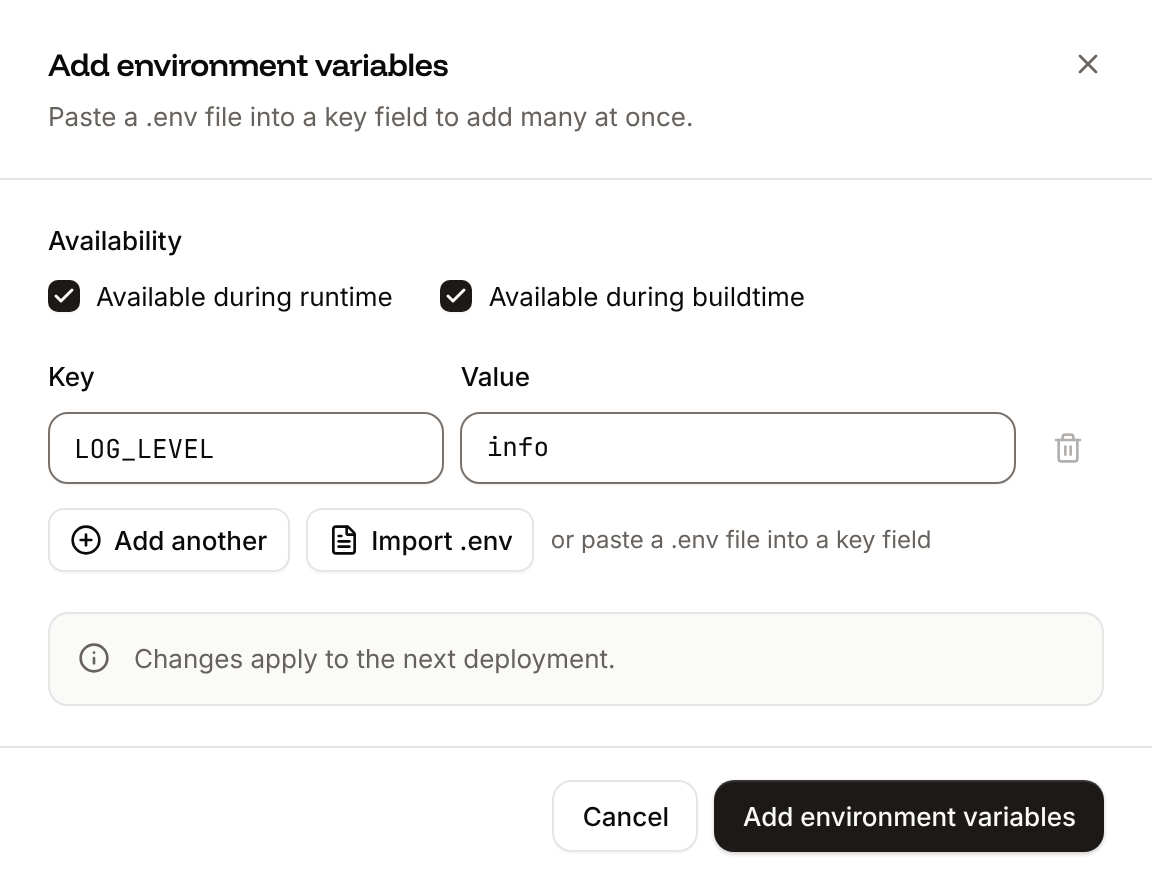
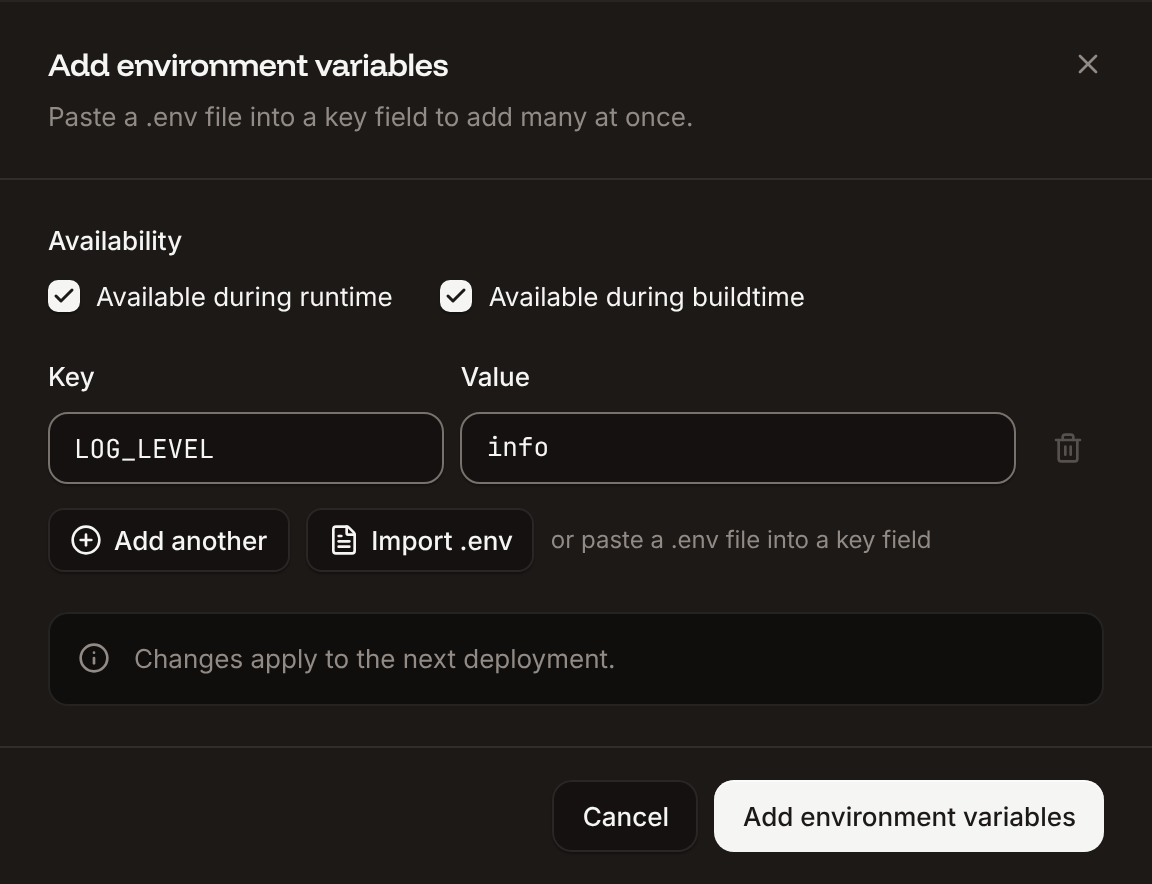
Click the Environment variables tab, then click Add environment variables. Paste the eight lines into the first Key field: the sheet adds one variable per line. Click Add another, enter
WP_HOME as the Key and the application’s URL as the Value, for example https://storefront-x7k2m.sevalla.app (the domain is under the application’s name in the page header). Click Add environment variables.6
Create the cron job
Click the Processes tab, then click Create process. Choose Cron job, enter
WordPress cron as the Name, php wp-cron.php as the Custom start command and */5 * * * * as the Schedule (every 5 minutes), then click Create process. See Run scheduled events.7
Create the disk
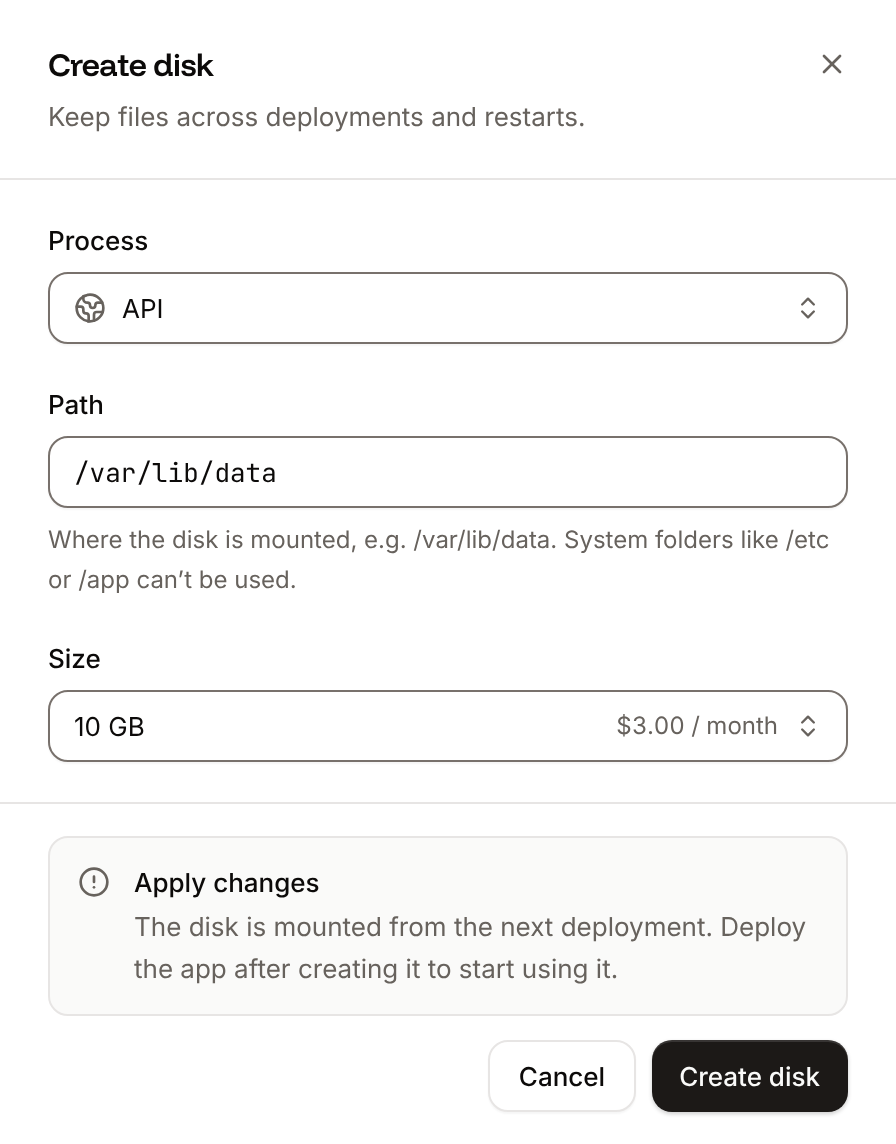
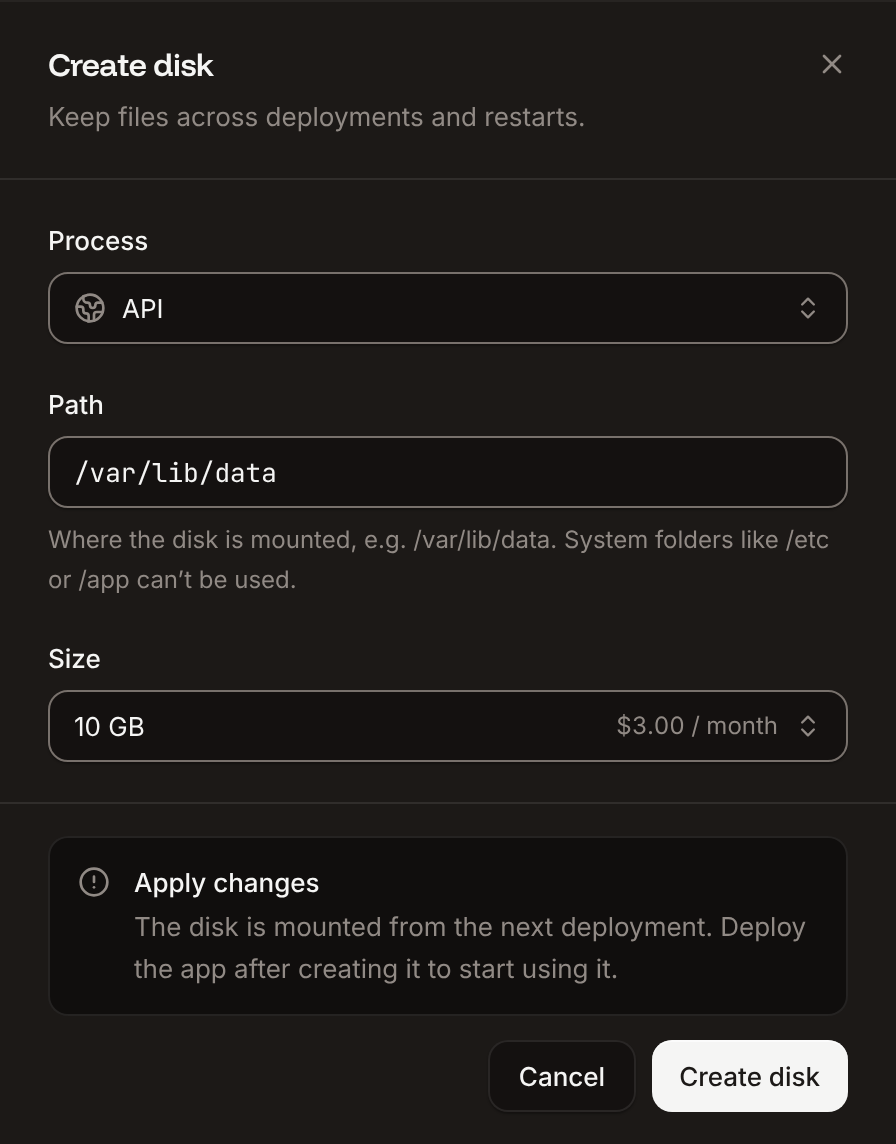
Click the Disks tab, then click Create disk. Choose the Web process, enter
/app/wp-content/uploads as the Path, choose a Size, and click Create disk. See Keep uploads between deployments.8
Deploy
Click the Overview tab, then click Deploy now under Recent deployments. Check the Branch and click Deploy.
9
Turn on auto-deploy
To deploy every push to the branch automatically, click the Settings tab, then click Update auto-deploy in the Auto-deploy section. Turn on Auto-deploy and click Update auto-deploy. See Deployments.
Verify the deployment
-
On the Deployments tab, click the deployment. Its Build log shows Ingot’s build plan: PHP 8.5 from
ingot.json, the extensions WordPress uses, and the repository root as the document root.Build log - Wait for the deployment’s status to change to Deployed. The application’s status next to its name changes to Running.
-
Click the domain under the application’s name, for example
storefront-x7k2m.sevalla.app. WordPress opens its installation page, Welcome. Enter the Site Title, a Username, a Password and Your Email, then click Install WordPress. On the Success! page, click Log In and sign in. The dashboard opens athttps://storefront-x7k2m.sevalla.app/wp-admin/.


Error establishing a database connection, see Troubleshoot the deployment.
Check from a terminal
These checks need no dashboard. The API calls useAPI, H, APP_ID and DEPLOYMENT_ID as set in Deploy with the API. WEB_ID and CRON_ID are the web process and the cron job from the same sequence.
-
The deployment’s status, from Get deployment (
getDeploymentV3): -
The rollout’s results in the build log, from Get application deployment logs (
getApplicationDeploymentLogsV3). The messages carry terminal color codes, whichgsubremoves, andselectdrops the lines of the image build, which start with#: -
The disk on the web process, from Get process (
getProcessV3): -
Install WordPress without a browser: the same form as the Welcome page, sent to
install.php. Run it right after the first deployment, because until WordPress is installed, anyone who opens the site can install it. Keep the password:On a site that’s installed already, the same request returns<h1>Already Installed</h1>and changes nothing. The home page then has the site’s title: -
A run of the cron job, with Trigger cron job (
triggerProcessCronV3), the API’s Run now, then List cron runs (listProcessCronRunsV3) about a minute later:
Keep uploads between deployments
An instance’s own files last only until the next deployment or restart: each deployment starts new instances from the image. Anything WordPress writes into its folder while it runs is gone after the next deployment unless it’s on a disk: images and files uploaded to the media library inwp-content/uploads/, plugins and themes installed from the admin, and updates installed from the admin. The media library still lists the uploads, but their files return 404.
The disk you created at /app/wp-content/uploads keeps the media library’s files across deployments and restarts. Sevalla mounts it writable for user 1000, which WordPress runs as. A disk has limits, from Persistent storage:
- The web process runs 1 instance, and can’t autoscale. Scale it up with a larger size instead.
- The site is unavailable for a few moments during each deployment, while Sevalla moves the disk to the new instance.
- Only the web process sees the disk: the cron job and other processes don’t.
Add plugins and themes
DISALLOW_FILE_MODS in wp-config.php removes the admin’s buttons that install and update plugins, themes and WordPress itself, because the next deployment would undo what they change. Add plugins and themes to the repository instead, so every deployment has them. For example, to add the Classic Editor plugin from WordPress.org:
DISALLOW_FILE_MODS. To update a plugin, theme or WordPress itself, replace its files in the repository with the new release and push.
Run scheduled events
WordPress normally starts its scheduled events, such as publishing scheduled posts and checking for updates, when someone views a page, so on a quiet site they run late.DISABLE_WP_CRON turns that off, and the WordPress cron cron job runs php wp-cron.php every 5 minutes instead: it runs the events that are due, then exits.
To check it, on the Processes tab, click ⋯ on the cron job, click Run now, then click Run now in the dialog. When the run ends, the cron job’s status changes to Succeeded. See Cron jobs.
The cron job runs in its own instance from the same image, with the same environment variables, so it reaches the database. It doesn’t see the disk: events that write files to wp-content/uploads/ belong in the web process.
Deploy with a Dockerfile
Ingot needs no Dockerfile. Write your own when you want full control of the image: the base image, the PHP extensions, the system packages and every layer. This one builds on FrankenPHP’s image rather than the officialwordpress image. The wordpress image runs Apache as root on port 80 and copies its own WordPress files into place when the container starts; using it with a repository that already holds WordPress means reconfiguring Apache for PORT, dropping root and bypassing its entrypoint. FrankenPHP’s image is the one Ingot uses, so WordPress behaves the same with both build strategies.
Add a Dockerfile, a Caddyfile and a .dockerignore to the root of the repository:
Dockerfile
The
Caddyfile configures FrankenPHP the way Ingot does, plus one rule for the uploads folder:
Caddyfile
- FrankenPHP listens on the port in
PORTand serves the WordPress files. A path without a file goes toindex.php, for pretty permalinks. Files that start with a dot, and theCaddyfileitself, get404. - A
.phpfile inwp-content/uploads/gets404instead of running, so a script that ends up in the uploads folder can’t run. Ingot’s configuration doesn’t have this rule. - Requests from Sevalla’s proxy that arrived over HTTPS reach WordPress with
HTTPSon, andREMOTE_ADDRis the visitor’s address from theCF-Connecting-IPheader rather than the proxy’s.
.dockerignore
.dockerignore keeps local uploads and files that only Ingot or Docker read out of the image.
Commit and push the three files. Ingot doesn’t build from your Dockerfile or use your Caddyfile, and it adds the patterns in .dockerignore to its own (the build plan shows Ignored 6 patterns from .dockerignore), so you can keep the files in a repository that builds with Ingot. Ingot reads ingot.json before it applies the patterns, so the PHP version still comes from it. Then switch the application to the Dockerfile build strategy:
1
Choose the Dockerfile build strategy
On the application’s Settings tab, in the Build strategy section, click Update build strategy. Click Dockerfile, keep the Dockerfile path
Dockerfile and the Docker context ., then click Update build strategy.2
Deploy
Click the Overview tab, then click Deploy now under Recent deployments. Check the Branch and click Deploy.
📦 Building and pushing docker image using Dockerfile... instead of Ingot’s build plan, and its Dockerfile tab shows your file. When the deployment’s status is Deployed, the site and the admin work as before: the application’s folder is /app in both images, so the disk at /app/wp-content/uploads keeps the uploads, and the cron job runs php wp-cron.php unchanged. See Dockerfile.
Deploy changes
With Auto-deploy on, every push to the branch starts a deployment; otherwise, click Deploy now for each change. Each deployment builds the image, then replaces the web process’s instance. See Deployments.Use environment variables
wp-config.php reads the variables it needs with getenv(). To add a setting, such as an API key for a plugin, add it on the application’s Environment variables tab and read it in wp-config.php with define( 'NAME', getenv( 'NAME' ) );. Changes apply at the next deployment. See Environment variables.
Add a custom domain
Add the domain on the application’s Domains tab, then setWP_HOME to it, for example https://shop.example.com, and deploy. Custom domains need a web process larger than H1, so scale the web process first. WordPress stores full URLs in posts, so links to media uploaded before the change still use the old domain.
Troubleshoot the deployment
For more causes, see Troubleshoot Ingot builds and Troubleshoot builds and deployments.
Deploy with the API
The same deployment as Deploy to Sevalla, as calls to the Sevalla API that a script or an AI agent runs in order. Each step names the matching CLI command and Sevalla MCP server tool. The sequence needs:- An API key with the Company developer role, or the capabilities to create, read and update applications and databases, in
SEVALLA_API_KEY. - The repository pushed to GitHub, and a GitHub account with access to it connected to Sevalla. Connecting one is a dashboard step, and the API has no call that reports it: if no connected account can read the repository, the step that creates the application fails with
400and a message that starts withCannot access repositoryand says where to connect one. curl,jqandopenssl.
1
Choose the location
List clusters (CLI:
listClustersV3) returns every location your company can use, with its region ID in location. Pick one by region ID, here Frankfurt, Germany (eu-frankfurt-1); Locations lists the others. Display names differ between environments, so don’t select by them:sevalla resources clusters. MCP: get_platform_options.2
Look up the sizes and the MariaDB version
List database resource types (CLI:
listDatabaseResourceTypesV3), List process resource types (listProcessResourceTypesV3), List disk resource types (listDiskResourceTypesV3) and List database versions (listDatabaseVersionsV3) give the IDs of DB1, H1 and the 10 GB disk, and the newest MariaDB version in the location. For production, pick db2 instead of db1:sevalla resources db-types, sevalla resources process-types, sevalla resources disk-types and sevalla resources db-versions --cluster $CLUSTER_ID. MCP: get_platform_options for the database and process sizes, and sevalla_api_read with listDiskResourceTypesV3 and listDatabaseVersionsV3 for the rest.3
Create the database
Create database (The database starts as CLI:
createDatabaseV3). You choose the password, and the API never returns it, so keep it in a variable for the environment variables:creating. Poll Get database (getDatabaseV3) until it’s ready. On error, delete the database and create it again:sevalla databases create --name storefront-db --type mariadb --db-version $MARIADB_VERSION --cluster $CLUSTER_ID --resource-type $DB1_ID --db-name wordpress --db-user wordpress --db-password $DB_PASSWORD. MCP: not available for this step. create_database generates a password that it never returns, and wp-config.php needs it in DB_PASSWORD: run this call with the API or the CLI.4
Create the application
Create application (Sevalla adds the domain about 2 seconds after it creates the application, so the loop waits for it. Without the wait, the variable can be empty, and
createApplicationV3) creates it with a web process and doesn’t deploy it. List application domains (listApplicationDomainsV3) returns its sevalla.app domain as the primary one, for WP_HOME:WP_HOME would be https:// without a domain.CLI: sevalla apps create --name storefront --cluster $CLUSTER_ID --source privateGit --git-type github --repository $REPO_URL --branch $BRANCH, then sevalla apps domains list --app-id $APP_ID. MCP: create_application with deploy: false, then get_application.5
Size the web process
The API creates the web process at S1, not the dashboard’s H1. List processes (CLI:
listProcessesV3) finds it, and Update process (updateProcessV3) sets H1:sevalla apps processes update $WEB_ID --app-id $APP_ID --resource-type $H1_ID. MCP: scale_process with size_id and apply_now: false.6
Connect the database
Create internal connection (It prints the connection’s ID. If it prints nothing or
createApplicationInternalConnectionV3):null, the connection wasn’t created: run the call again, because without it the application can’t reach the database. Unlike the dashboard, the API doesn’t add the connection’s environment variables. The next step adds them.CLI: sevalla apps internal-connections create $APP_ID --target-id $DB_ID --target-type database. MCP: sevalla_api_create with createApplicationInternalConnectionV3 and the same body.7
Add the environment variables
Create environment variable (It prints each of the 15 keys as it’s added.CLI:
createEnvironmentVariableV3) adds one variable per call. The loop adds the connection’s variables in the dashboard’s names and format, from Get database, then eight new keys and salts and WP_HOME, all for runtime only:sevalla apps env-vars create $APP_ID --key WP_HOME --value https://$APP_HOST, once per variable; the CLI makes each variable available during build and runtime, with no option for runtime only. MCP: set_environment_variables with runtime: true and buildtime: false for each variable.8
Create the cron job
Create process (CLI:
createProcessV3) with type cron needs the size, a scaling_strategy and the schedule, in UTC unless you add a time_zone:sevalla apps processes create $APP_ID --name "WordPress cron" --type cron --resource-type $H1_ID --command "php wp-cron.php" --schedule "*/5 * * * *". MCP: sevalla_api_create with createProcessV3 and the same body.9
Create the disk
Attach or update process disk (CLI:
updateProcessDiskV3) attaches the disk to the web process, the API’s equivalent of Create disk on the Disks tab:sevalla apps processes disk update $WEB_ID --app-id $APP_ID --resource-type $DISK_ID --mount-path /app/wp-content/uploads. MCP: sevalla_api_update with updateProcessDiskV3 and the same body.10
Deploy
Trigger deployment (CLI:
triggerDeploymentV3):sevalla apps deployments trigger $APP_ID --branch $BRANCH. MCP: trigger_deployment.11
Wait for the deployment
Poll Get deployment (On
getDeploymentV3) until the status is final: success, failed, cancelled or skipped. The loop keeps polling through a failed request and stops after 30 minutes:failed, read the build log with Get application deployment logs and see Troubleshoot the deployment. CLI: sevalla apps deployments get $DEPLOYMENT_ID --app-id $APP_ID and sevalla apps deployments logs $DEPLOYMENT_ID --app-id $APP_ID. MCP: get_deployment and get_deployment_logs.12
Turn on auto-deploy
Update application (To build from the Dockerfile instead of Ingot, send
updateApplicationV3):{"build_type": "dockerfile", "dockerfile_path": "Dockerfile", "docker_context": "."} with the same call before you deploy. CLI: sevalla apps update $APP_ID --data '{"auto_deploy": true}'. MCP: sevalla_api_update with updateApplicationV3 and the same body.https://$APP_HOST as the domain.