

public/ on the port that Sevalla sets in the PORT environment variable. A job runs the Doctrine migrations before each deployment, a background worker consumes Messenger’s queue, and the data lives in a Sevalla PostgreSQL database.
At a glance
Environment variables
The internal connection also adds
DB_HOST, DB_PORT, DB_DATABASE, DB_USERNAME and DB_PASSWORD, which the application doesn’t read. APP_ENV is prod in both images, and the values in .env are the defaults for every other variable.
Before you begin
- A Sevalla company with a payment method, and a GitHub, GitLab or Bitbucket account for the repository. See Git providers.
- PHP 8.5 and Composer 2 on your computer. Symfony 8.1 needs PHP 8.4 or later.
- Docker, to run PostgreSQL on your computer while you generate the first migration.
Create the project
Create a Symfony 8.1 project from the skeleton, then add thewebapp pack, which installs Twig, Doctrine, Messenger, AssetMapper, the security component and the mailer:
extra.symfony.docker setting stops Symfony’s recipes from adding Docker Compose files and from asking about them, so composer require runs without questions.
Add a home page. Create the controller:
src/Controller/HomeController.php
templates/home/index.html.twig
.gitignore already keeps vendor/, var/, the compiled assets in public/assets/ and local .env.local files out of the repository.
Prepare the project for Sevalla
Pin the PHP version
require.php pins the PHP line: Ingot builds on PHP 8.5 and follows its patch releases. The skeleton’s >=8.4 would build on Ingot’s default line, which a new Ingot release can move. See Pin the PHP version.
Set the PostgreSQL version
Doctrine needs to know the PostgreSQL version to write SQL for it. The connection URL that Sevalla generates doesn’t includeserverVersion, so set the version in config/packages/doctrine.yaml by uncommenting server_version and setting it to 18:
config/packages/doctrine.yaml
.env, change serverVersion=16 to serverVersion=18 in DATABASE_URL, so your local database matches:
.env
Generate the first migration
The webapp pack sends emails and notifications through Messenger’sasync transport, which keeps queued messages in a messenger_messages table. MESSENGER_TRANSPORT_DSN in .env ends in auto_setup=0, so Symfony doesn’t create the table itself: a migration does. Start PostgreSQL 18 with the credentials in .env, wait a few seconds for it to accept connections, then generate the migration:
src/Migrations/ creates messenger_messages. Your entities’ tables go into the same folder as you add them.
What Ingot reads
How Ingot builds and starts the project
The project needs no build or start configuration. Ingot:- Sets
APP_ENV=prodin the image and installs theintl,pcntl,pdo_mysqlandpdo_pgsqlextensions. Withpcntl, the Messenger worker handles theSIGTERMthat Sevalla sends when it replaces the worker: it finishes the message it’s handling, then stops. Your computer doesn’t needpcntl. - Runs
composer install --no-dev --optimize-autoloader. Its Composer scripts warm theprodcache, install the bundles’ public files and download the JavaScript packages inimportmap.php. Then Ingot runsphp bin/console asset-map:compile, sopublic/assets/is part of the image. None of these steps needsAPP_SECRETor the database. - Starts FrankenPHP, which serves
public/onPORT(8080by default). Onlyindex.phpruns: a request for any other.phpfile gets404, and files that start with a dot, such as.env, are never served. - Passes HTTPS and the visitor’s IP address from Sevalla’s proxy to PHP, so Symfony generates
https://URLs and$request->getClientIp()returns the visitor’s address withouttrusted_proxiessettings. - Doesn’t run migrations or start the Messenger worker: you create a job and a background worker for them.
prod, the Monolog configuration that the webapp pack installs writes logs as JSON to php://stderr, which Sevalla shows in the application’s runtime logs.
Commit everything and push it to your Git provider:
Deploy to Sevalla
These steps build with Ingot. To build from your own Dockerfile instead, see Deploy with a Dockerfile.1
Create the database
In the sidebar, click Databases, then click Create database. Under Database, click PostgreSQL and choose version 18, the version in
doctrine.yaml. Enter storefront-db as the Display name, choose a Data center and a Size, then click Create database. See Create a database for every field.2
Create the application
In the sidebar, click Applications, then click Create > Application. Under Source, click Private repository, then choose the Git provider, the Repository and the Branch. Under Location, choose the same Data center as the database. Keep the Size at H1 or choose a larger one, then click Create application. The application opens on its Overview tab with the status Not deployed yet: creating an application doesn’t deploy it.
3
Connect the database
Click the Networking tab. Under Connected services, click Add internal connection. Choose
storefront-db as the Service and turn on Add environment variables to the application. In the list of variables, rename the key DB_URL to DATABASE_URL, the variable Doctrine reads, then click Add internal connection. See Connect an application.4
Add the environment variables
Click the Environment variables tab, then click Add environment variables. Add these variables and click Add environment variables:
5
Create the migration job
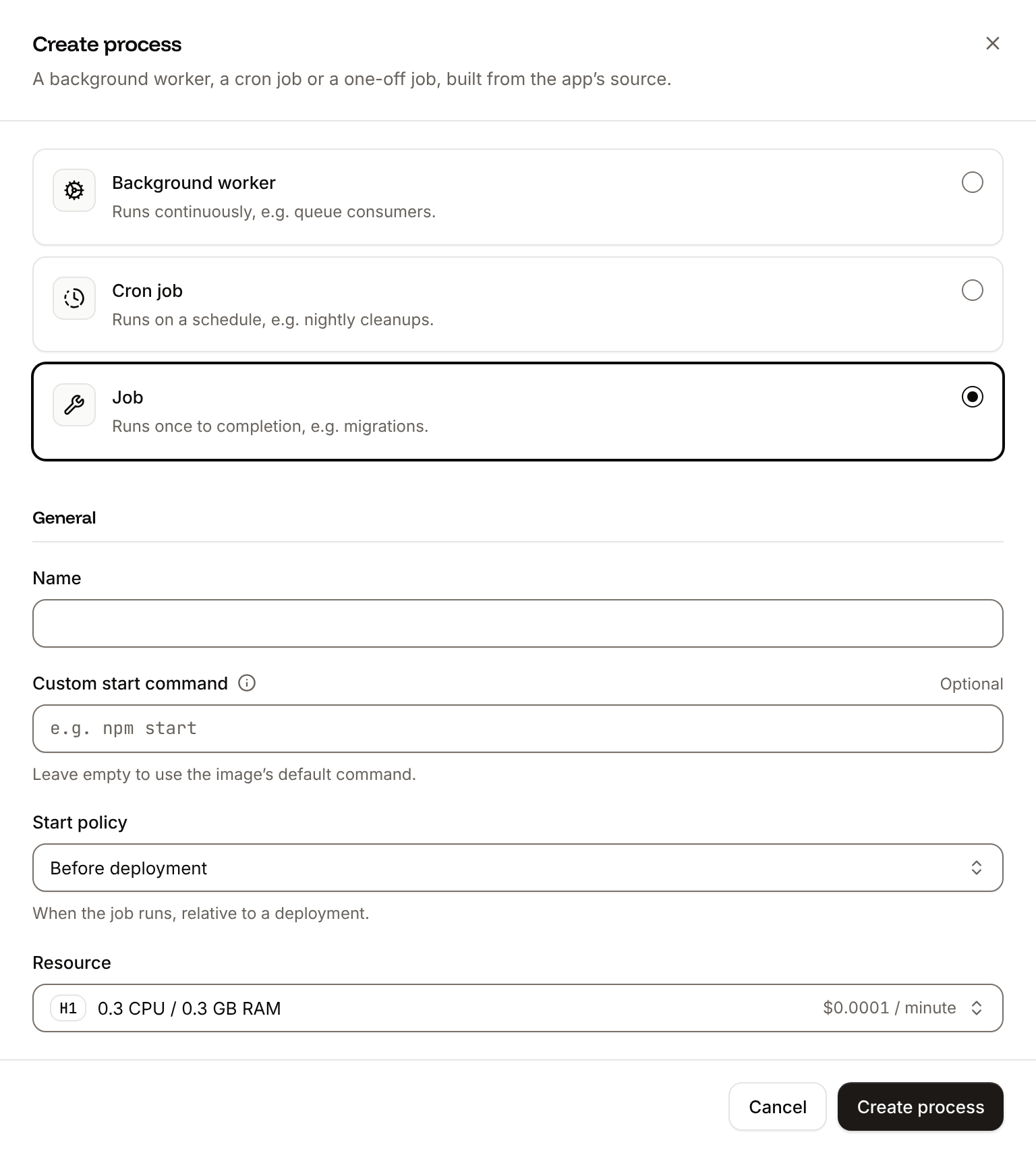
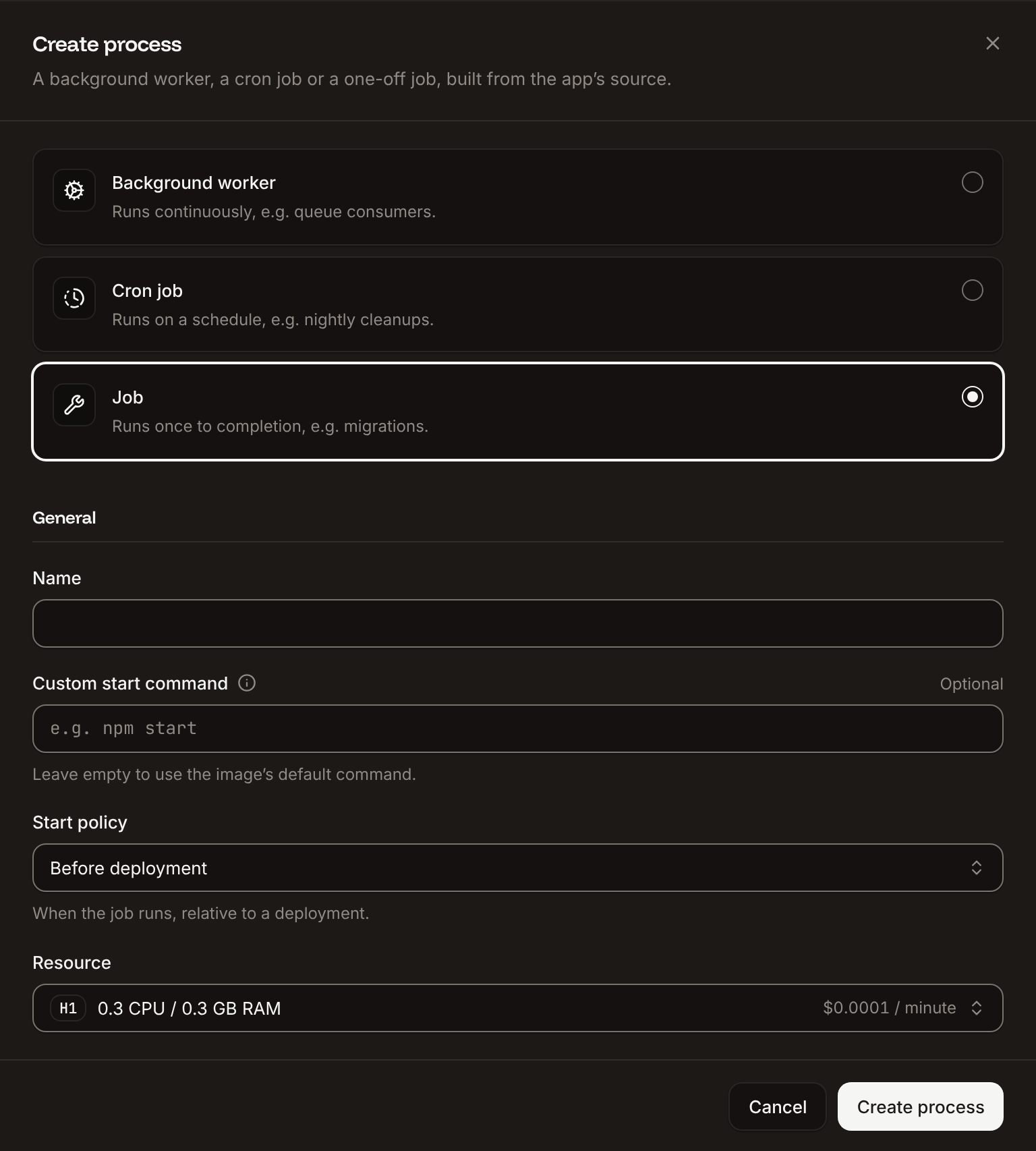
Click the Processes tab, then click Create process. Choose Job, enter
Migrate as the Name and php bin/console doctrine:migrations:migrate --no-interaction as the Custom start command. Keep the Start policy at Before deployment and the Resource at H1, then click Create process.6
Create the Messenger worker
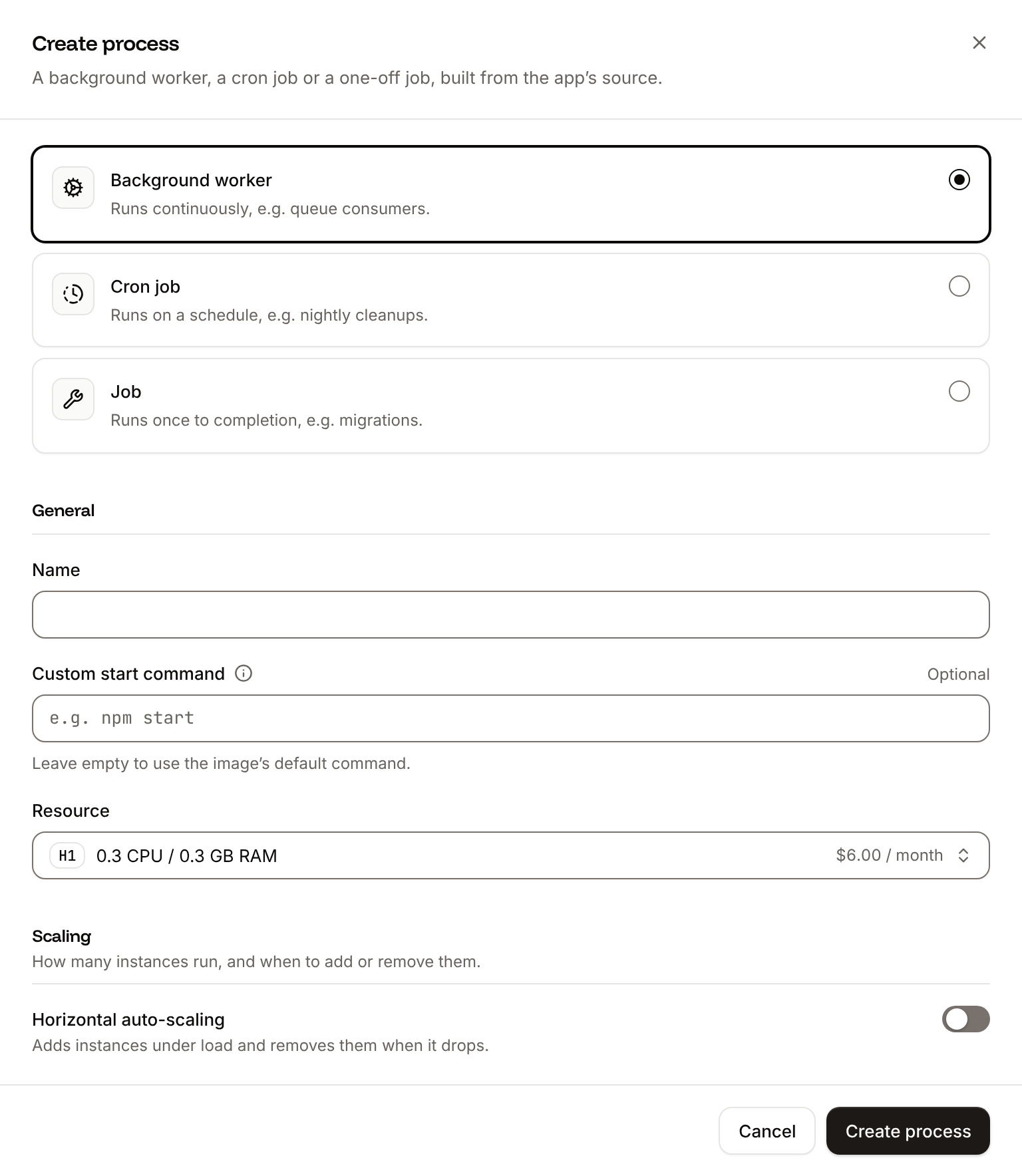
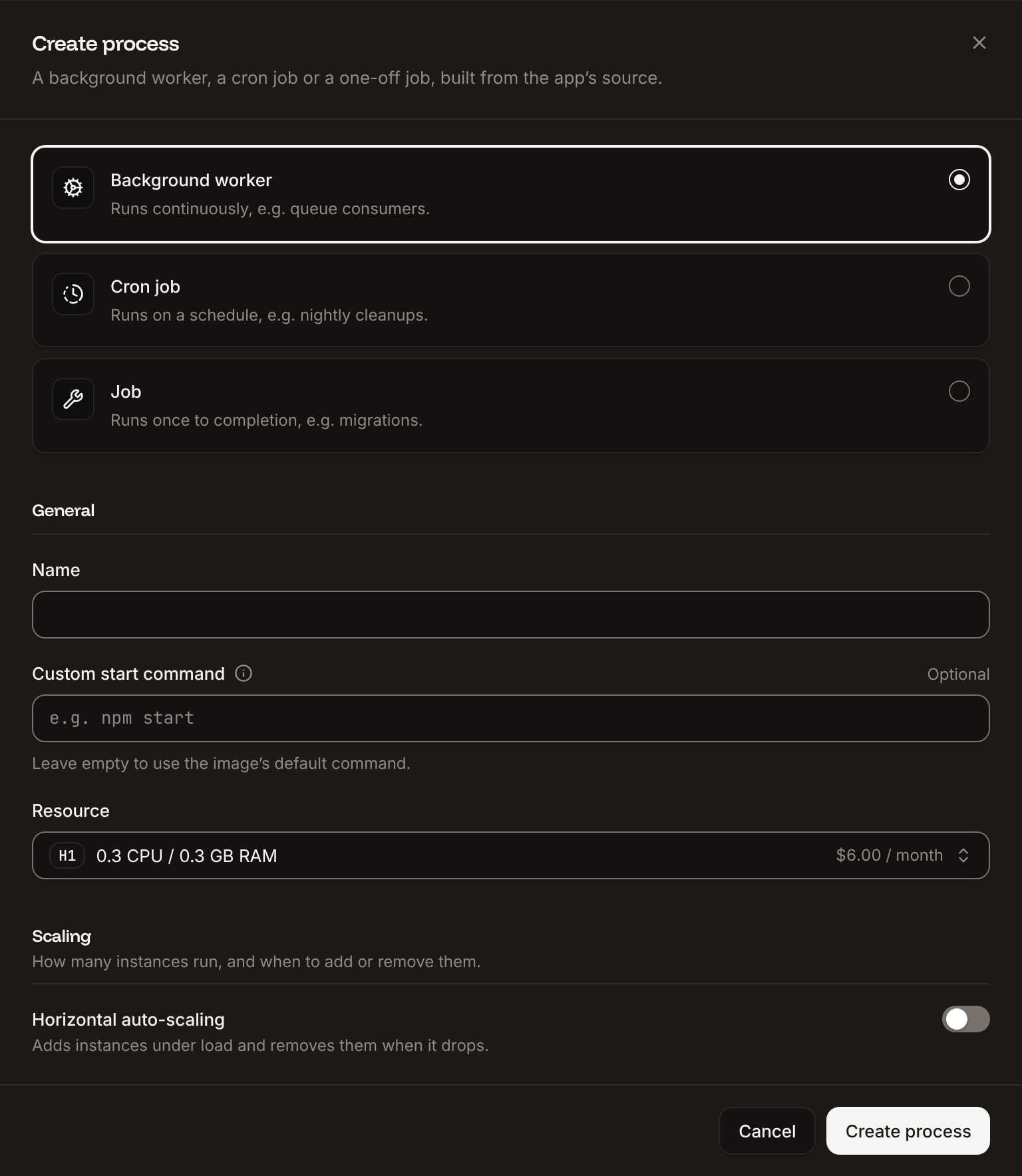
Click Create process again. Choose Background worker, enter
Messenger as the Name and exec php bin/console messenger:consume async as the Custom start command, keep the Resource at H1, then click Create process. See Process queued messages.7
Deploy
Click the Overview tab, then click Deploy now under Recent deployments. Check the Branch and click Deploy.
8
Turn on auto-deploy
To deploy every push to the branch automatically, click the Settings tab, then click Update auto-deploy in the Auto-deploy section. Turn on Auto-deploy and click Update auto-deploy. See Deployments.
Verify the deployment
-
On the Deployments tab, click the deployment. Its Build log shows Ingot’s build plan: Symfony and PHP 8.5 from
composer.json, the extensions and where each comes from, and AssetMapper fromcomposer.lock.Later, the build log shows theBuild logphp bin/console asset-map:compilestep, and, during the rollout,Migrate has been successful. If the job fails, the deployment fails and nothing changes for visitors. - Wait for the deployment’s status to change to Deployed. The application’s status next to its name changes to Running.
-
Click the domain under the application’s name, for example
storefront-x7k2m.sevalla.app. The page showsHello from Symfony on SevallaandThis page's address is https://storefront-x7k2m.sevalla.app/on a sky blue background: the URL starts withhttps://, and the background comes fromassets/styles/app.css, which AssetMapper compiled during the build.


Check from a terminal
These checks need no dashboard. The API calls useAPI, H, APP_ID and DEPLOYMENT_ID as set in Deploy with the API.
-
The deployment’s status, from Get deployment (
getDeploymentV3): -
The rollout’s results in the build log, from Get application deployment logs (
getApplicationDeploymentLogsV3). The messages carry terminal color codes, whichgsubremoves, andselectdrops the lines of the image build, which start with#: -
The worker’s start, from Get application runtime logs (
getApplicationRuntimeLogsV3), which searches the last hour by default: -
The
pcntlextension that lets the worker stop gracefully, with Run a command in a process (execProcessCommandV3) in the web process, whose image the worker shares.WEB_IDis the web process from the same sequence; the command runs without a shell, sogrepruns on your computer: -
The home page, with your domain:
Process queued messages
The webapp pack routes emails (SendEmailMessage) and notifications (ChatMessage, SmsMessage) to the async transport in config/packages/messenger.yaml. When the application sends one, Symfony stores it in the messenger_messages table and tells the worker about it with PostgreSQL’s NOTIFY, and the Messenger background worker handles it. To send your own message classes through the worker, route them to async in the same file.
The worker’s start command is exec php bin/console messenger:consume async:
execreplaces the shell that Sevalla starts the command with, so PHP is the process that receivesSIGTERM. Withpcntl, which Ingot installs for Symfony and the Dockerfile installs too, Messenger finishes the current message and stops when Sevalla replaces the worker on each deployment.- The worker runs from the same image as the web process, with the same environment variables, so it reaches the database through
DATABASE_URL.
Messenger process: when the worker starts, it logs [OK] Consuming messages from transport "async". To log each message it handles, add -vv to the start command. For more messages at once, increase the worker’s instances on the Processes tab: each instance takes different messages from the table. See Background workers.
Deploy with a Dockerfile
Ingot needs no Dockerfile. Write your own when you want full control of the image: the base image, the PHP extensions, the system packages and every layer. Add aDockerfile, a Caddyfile and a .dockerignore to the root of the repository:
Dockerfile
The
Caddyfile configures FrankenPHP the way Ingot does:
Caddyfile
- FrankenPHP listens on the port in
PORTand servespublic/. Files that start with a dot get404, and so does every PHP file exceptindex.php. - Requests from Sevalla’s proxy that arrived over HTTPS reach Symfony with
HTTPSon, so it generateshttps://URLs, andREMOTE_ADDRis the visitor’s address from theCF-Connecting-IPheader rather than the proxy’s. Symfony needs notrusted_proxiessettings.
.dockerignore
.dockerignore keeps installed packages, compiled assets, caches, tests and the local .env.* files out of the build. .env stays: it holds the defaults Symfony reads at runtime and no secrets.
Commit and push the three files. Ingot doesn’t build from your Dockerfile or use your Caddyfile, and it adds the patterns in .dockerignore to its own (the build plan shows Ignored 11 patterns from .dockerignore), so you can keep the files in a repository that builds with Ingot. Then switch the application to the Dockerfile build strategy:
1
Choose the Dockerfile build strategy
On the application’s Settings tab, in the Build strategy section, click Update build strategy. Click Dockerfile, keep the Dockerfile path
Dockerfile and the Docker context ., then click Update build strategy.2
Deploy
Click the Overview tab, then click Deploy now under Recent deployments. Check the Branch and click Deploy.
📦 Building and pushing docker image using Dockerfile... instead of Ingot’s build plan, then Migrate has been successful, and its Dockerfile tab shows your file. When the deployment’s status is Deployed, the domain shows the same page as in Verify the deployment, with an https:// address. The Migrate job, the Messenger worker and the environment variables work unchanged. See Dockerfile.
Deploy changes
With Auto-deploy on, every push to the branch starts a deployment; otherwise, click Deploy now for each change. Each deployment builds the image, runs theMigrate job, then replaces the web process’s and the worker’s instances. For a schema change, run php bin/console make:migration locally and commit the new migration with the code. See Deployments.
Use environment variables
Symfony reads real environment variables before the values in.env, so a variable you add on the application’s Environment variables tab replaces the default in .env. Changes apply at the next deployment. Keep secrets, such as APP_SECRET and a MAILER_DSN with a password, on Sevalla rather than in a committed .env file. See Environment variables.
Add a custom domain
Add the domain on the application’s Domains tab, then setDEFAULT_URI to it, for example https://shop.example.com, and deploy. Custom domains need a web process larger than H1, so scale the web process first.
Troubleshoot the deployment
For more causes, see Troubleshoot Ingot builds and Troubleshoot builds and deployments.
Deploy with the API
The same deployment as Deploy to Sevalla, as calls to the Sevalla API that a script or an AI agent runs in order. Each step names the matching CLI command and Sevalla MCP server tool. The sequence needs:- An API key with the Company developer role, or the capabilities to create, read and update applications and databases, in
SEVALLA_API_KEY. - The repository pushed to GitHub, and a GitHub account with access to it connected to Sevalla. Connecting one is a dashboard step, and the API has no call that reports it: if no connected account can read the repository, the step that creates the application fails with
400and a message that starts withCannot access repositoryand says where to connect one. curl,jqandopenssl.
1
Choose the location
List clusters (CLI:
listClustersV3) returns every location your company can use, with its region ID in location. Pick one by region ID, here Frankfurt, Germany (eu-frankfurt-1); Locations lists the others. Display names differ between environments, so don’t select by them:sevalla resources clusters. MCP: get_platform_options.2
Look up the sizes
List database resource types (CLI:
listDatabaseResourceTypesV3) and List process resource types (listProcessResourceTypesV3) give the IDs of DB1 and H1:sevalla resources db-types and sevalla resources process-types. MCP: get_platform_options.3
Create the database
Create database (The database starts as CLI:
createDatabaseV3) with PostgreSQL 18, the version in doctrine.yaml. You choose the password, and the API never returns it, so keep it in a variable for the environment variables:creating. Poll Get database (getDatabaseV3) until it’s ready. On error, delete the database and create it again:sevalla databases create --name storefront-db --type postgresql --db-version 18 --cluster $CLUSTER_ID --resource-type $DB1_ID --db-name storefront --db-user storefront --db-password $DB_PASSWORD. MCP: create_database generates a password that it never returns. Create the application first, then pass connect_to_application_id and env_var_name: "DATABASE_URL": the tool connects the database and stores its URL, in the form postgresql://<user>:<password>@<host>:<port>/<database>, which Doctrine accepts like postgres://. Then skip the connection step, and leave the connection’s variables out of the environment variables step.4
Create the application
Create application (Sevalla adds the domain about 2 seconds after it creates the application, so the loop waits for it. Without the wait, the variable can be empty, and
createApplicationV3) creates it with a web process and doesn’t deploy it. List application domains (listApplicationDomainsV3) returns its sevalla.app domain as the primary one, for DEFAULT_URI:DEFAULT_URI would be https:// without a domain.CLI: sevalla apps create --name storefront --cluster $CLUSTER_ID --source privateGit --git-type github --repository $REPO_URL --branch $BRANCH, then sevalla apps domains list --app-id $APP_ID. MCP: create_application with deploy: false, then get_application.5
Size the web process
The API creates the web process at S1, not the dashboard’s H1. List processes (CLI:
listProcessesV3) finds it, and Update process (updateProcessV3) sets H1:sevalla apps processes update $WEB_ID --app-id $APP_ID --resource-type $H1_ID. MCP: scale_process with size_id and apply_now: false.6
Connect the database
Create internal connection (It prints the connection’s ID. If it prints nothing or
createApplicationInternalConnectionV3):null, the connection wasn’t created: run the call again, because without it the application can’t reach the database. Unlike the dashboard, the API doesn’t add the connection’s environment variables. The next step adds them.CLI: sevalla apps internal-connections create $APP_ID --target-id $DB_ID --target-type database. MCP: sevalla_api_create with createApplicationInternalConnectionV3 and the same body.7
Add the environment variables
Create environment variable (It prints each key as it’s added. The build reads none of them: Symfony’s Composer scripts and
createEnvironmentVariableV3) adds one variable per call. The loop adds the connection’s variables in the dashboard’s names and format, from Get database, with DB_URL renamed to DATABASE_URL, then a new APP_SECRET and DEFAULT_URI, all for runtime only:asset-map:compile use the defaults in .env.CLI: sevalla apps env-vars create $APP_ID --key DEFAULT_URI --value https://$APP_HOST, once per variable; the CLI makes each variable available during build and runtime, with no option for runtime only. MCP: set_environment_variables with runtime: true and buildtime: false for each variable.8
Create the job and the worker
Create process (CLI:
createProcessV3) needs the size, a scaling_strategy and, for a job, its job_start_policy:sevalla apps processes create $APP_ID --name Migrate --type job --resource-type $H1_ID --command "php bin/console doctrine:migrations:migrate --no-interaction" --job-start-policy beforeDeployment, and sevalla apps processes create $APP_ID --name Messenger --type worker --resource-type $H1_ID --command "exec php bin/console messenger:consume async". MCP: sevalla_api_create with createProcessV3 and the same bodies.9
Deploy
Trigger deployment (CLI:
triggerDeploymentV3):sevalla apps deployments trigger $APP_ID --branch $BRANCH. MCP: trigger_deployment.10
Wait for the deployment
Poll Get deployment (On
getDeploymentV3) until the status is final: success, failed, cancelled or skipped. The loop keeps polling through a failed request and stops after 30 minutes:failed, read the build log with Get application deployment logs and see Troubleshoot the deployment. CLI: sevalla apps deployments get $DEPLOYMENT_ID --app-id $APP_ID and sevalla apps deployments logs $DEPLOYMENT_ID --app-id $APP_ID. MCP: get_deployment and get_deployment_logs.11
Turn on auto-deploy
Update application (To build from the Dockerfile instead of Ingot, send
updateApplicationV3):{"build_type": "dockerfile", "dockerfile_path": "Dockerfile", "docker_context": "."} with the same call before you deploy. CLI: sevalla apps update $APP_ID --data '{"auto_deploy": true}'. MCP: sevalla_api_update with updateApplicationV3 and the same body.https://$APP_HOST as the domain.