

At a glance
Environment variables
How Render maps to Sevalla
Before you begin
- A Render API key in
RENDER_API_KEY, for a workspace member who can see the services, pluscurlandjq. The commands on this page read the Render setup through the Render API. - The services’ code in a repository on GitHub, GitLab or Bitbucket. See Git providers.
- A Sevalla company with a payment method.
- The PostgreSQL client tools (
pg_dump,pg_restore,psql) at the major version of the newer of the two databases or later, such as 18, if the services use Render Postgres:pg_dumprefuses to dump a server newer than itself. See Import and export PostgreSQL. - Python 3 with
pip, to copy Key Value data. - A maintenance window: the Render web service is in maintenance mode, and its workers and cron jobs are suspended, while you copy the data.
render.yaml. Replace the names with yours:
Take stock of the Render services
Collect what you’ll recreate. Arender.yaml describes what its Blueprint created, but not services created in the dashboard, values entered there, generated values or secret files, so read the setup from the Render API:
- Each web service, private service and background worker shows its start command, and the web service its pre-deploy command and health check path. Each cron job shows its schedule, and a service with a disk its mount path.
regionis the Render region. The closest Sevalla locations are San Jose, USA fororegon, Chicago, USA forohio, Ashburn, USA forvirginia, Frankfurt, Germany forfrankfurtand Singapore forsingapore. Put every service and database in the same location: internal connections work only inside one. See Locations.- The Postgres
versionis the PostgreSQL major version. Create the Sevalla database with the same version or a newer one. - New Render Key Value instances run Valkey 8, shown with a version such as
8.1.10; legacy instances run Redis. Create a Sevalla database of the same engine, at the same version or newer.
Create the databases
Create the PostgreSQL database
orders-db as the Display name, choose the Data center closest to the Render region and a Size with room for the data, then click Create database.Create the Valkey database
storefront-cache as the Display name, and choose the same Data center. See Create a database.Create the applications
Create one application for the web service and the workers, cron jobs and pre-deploy command that share its code, and one for each private service.Create the main application
storefront as the name, choose a Size, and click Create application. Creating an application doesn’t deploy it. See Create an application.Create the private service application
storefront-files, from the same repository and Data center.Set its start command
storefront-files, click the Processes tab, click ⋯ on the Web process, then click Update process. Enter the private service’s start command after exec as the Custom start command, here exec node files.js, and click Update process.Turn its HTTP traffic off
Add the disk
/var/data, pick a Size of at least the Render disk’s size (10 GB is the smallest), and click Create disk. See Persistent storage.PORT, 8080 by default, where Render used 10000. A server that listens on PORT needs no change. A web process on H1 can’t have custom domains; if you’ll move a domain to storefront, choose a larger size, such as S1.
Connect the services
Connect PostgreSQL
storefront, click the Networking tab. Under Connected services, click Add internal connection. Choose orders-db as the Service and turn on Add environment variables to the application. Change the key DB_URL to DATABASE_URL, the name your code already reads, and click Add internal connection.Connect Valkey
storefront-cache the same way. Its URL is already called REDIS_URL.Connect the private service
storefront-files application. Connected services then lists its web process’s internal hostname, such as storefront-files-x7k2m-web.storefront-files-x7k2m.svc.cluster.local.Move the environment variables
On Render, each service and each environment group has its own variables. On Sevalla, all processes of an application share its variables, so the web service’s, the workers’, the cron jobs’ and the linked environment groups’ variables go into one set.Export the variables
render.json. If two services set the same key to different values, keep the one the application needs, or rename one in your code:Export the secret files
secretFiles of the same group request:Remove what Sevalla replaces
sevalla.app domain under its name in the page header. Both files contain secrets: don’t commit them.Add the variables
storefront, click the Environment variables tab, then click Add environment variables. Add each key and value from config.json, plus FILES_HOSTPORT with the internal hostname of storefront-files and :8080. Keep Available during runtime and Available during buildtime selected, and click Add environment variables. Import .env takes a file of KEY=value lines, such as the output of jq -r 'to_entries[] | "\(.key)=\(.value)"' config.json, for values without line breaks.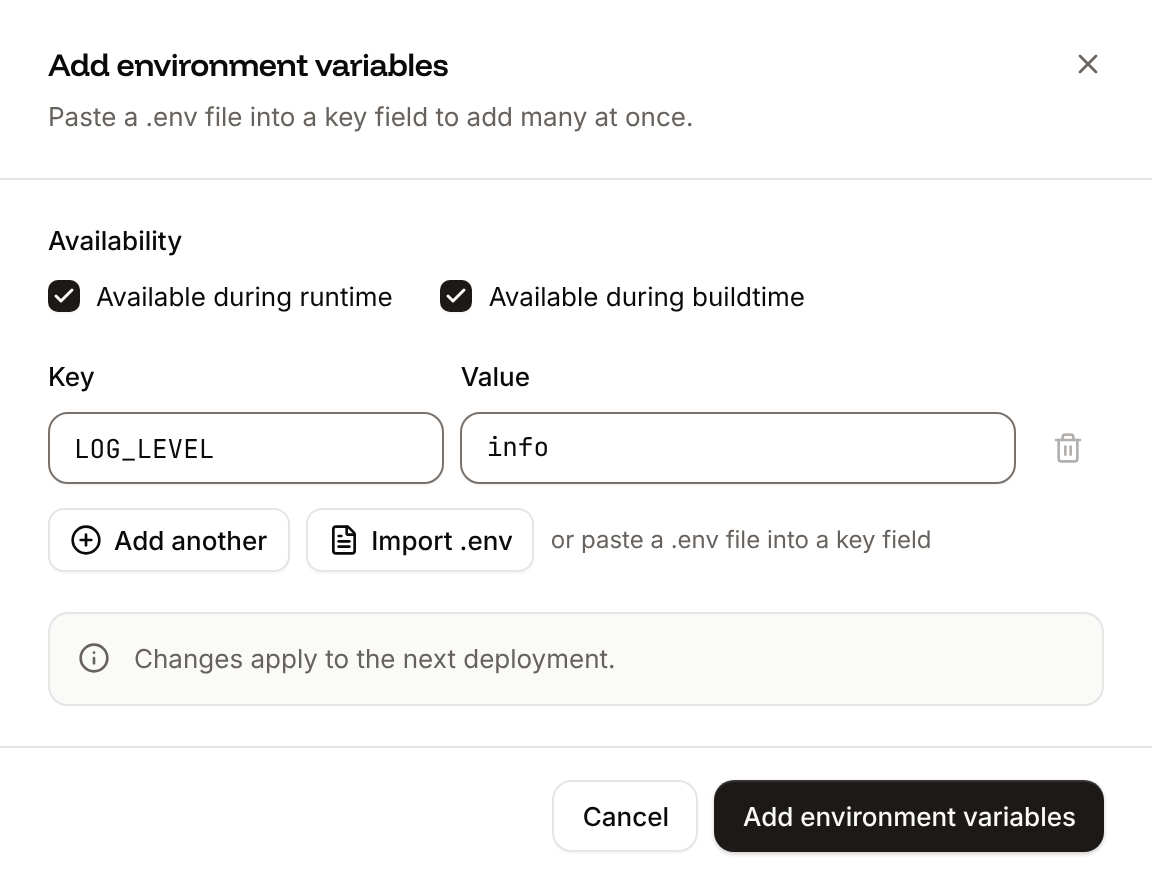
/etc/secrets, where Render puts secret files: Ingot runs it as user 1000:1000, which can write to /app and /tmp. Either read the variable in your code, or write the file when the process starts, as the web process does in Recreate the services as processes. An environment group that many applications share can become global variables, which reach every application in the company. Don’t add PORT: Sevalla sets it to the web process’s port.
Recreate the services as processes
Stop writes on Render
Turn on maintenance mode for the web service, which then answers every request with503 and Render’s maintenance page, and suspend the background workers and cron jobs:
Copy the PostgreSQL data
Dump the Render database
Open the Sevalla database to your computer
orders-db. Click the Networking tab, click Enable under External connection, then click Enable in the dialog. Copy the External hostname, External port and password. See Enable the external connection.Restore the dump
--clean --if-exists drops each table before it restores it, so the restore works on an empty database and on one where the pre-deploy job already created the tables.Compare the tables
C collation, where Render Postgres uses en_US.UTF8: an ORDER BY on a text column can return rows in another order, which is why the comparison sorts with COLLATE "C". If your application depends on the order, add a COLLATE clause to those queries.
To rehearse, run these steps once without stopping writes, deploy, and test on the sevalla.app domain. The real copy’s --clean replaces the rehearsal’s data.
Copy the Key Value data
Skip this when Key Value holds only caches you can lose: the application refills them. Otherwise copy the keys withDUMP and RESTORE, which keep each key’s type and expiry:
Allow your computer on Render
rediss:// (TLS):1. An empty list (ipAllowList: []) blocks external connections again.Open the Valkey database to your computer
storefront-cache, as for PostgreSQL, and copy its External connection URL.Copy the keys
0 and keeps each key’s expiry. Use a URL that starts with redis://, as Sevalla’s REDIS_URL does: redis-py doesn’t accept valkey://. If RESTORE fails with DUMP payload version or checksum are wrong, the Sevalla database runs an older version than Render’s: create it with a newer version. See Import and export Redis.
Copy the disk files
A disk’s files move as an archive: you pack them on Render, bring the archive to your computer, and unpack it on the Sevalla disk.Deploy the private service application
storefront-files, click Deploy now on the Overview tab, check the Branch, and click Deploy. Its web process must run, with the disk mounted, before you can copy files to it.Pack the files on Render
wormhole send prints a code, such as 1-integrate-button, and waits. If you set up SSH for Render, you can copy the archive with scp -s instead.Receive the archive
Unpack it on the Sevalla disk
storefront-files web process, upload files.tar.gz to /var/data, and unpack it there:--strip-components=1 skips the archive’s top folder, .: on Sevalla it’s the disk’s root, which belongs to root, and tar fails with Cannot change mode to rwxrwxr-x: Operation not permitted when it tries to update it. For a larger archive, see the disk step of Deploy with the API.Compare the files
1000 on Sevalla with Ingot, the user the application runs as.
Deploy and verify
Deploy
storefront, click Deploy now on the Overview tab, check the Branch, and click Deploy.Check the deployment
migrate has been successful.With the API, Get deployment (getDeploymentV3) returns the status, success for Deployed, and Get application deployment logs (getApplicationDeploymentLogsV3) finds the job’s result. APP_ID and DEPLOYMENT_ID come from Deploy with the API:Compare the responses
/stats reads every kind of data: PostgreSQL rows, Valkey keys, the secret file, the environment group’s variable, and the private service’s disk over the internal hostname:Check the worker and the cron job
getApplicationRuntimeLogsV3) with search finds what they log, and Trigger cron job (triggerProcessCronV3) runs the cron job now instead of waiting for its schedule. CRON_PROCESS_ID comes from Deploy with the API:/jobs returned, and List cron runs (listProcessCronRunsV3) shows the run you started. CLI: sevalla apps logs runtime "$APP_ID" --search "processed job" and sevalla apps processes runs --app-id "$APP_ID" --process-id "$CRON_PROCESS_ID". MCP: search_runtime_logs.Turn on auto-deploy
Move the custom domains
Render points a subdomain with aCNAME record to the service’s onrender.com domain, and a root domain with an A record to 216.24.57.1 (or an ALIAS or ANAME record). Keep those records until Sevalla’s certificate is ready, so Render serves the domain until you switch:
Lower the TTL
Add each domain
storefront application’s Domains tab, click Add custom domain, enter the domain in Domain name, for example shop.example.com, and click Add custom domain. Render adds a www redirect for a root domain automatically; on Sevalla, add www.example.com as a domain of its own.Verify it
TXT record on _cf-custom-hostname.shop.example.com for ownership and, once listed, one on _acme-challenge.shop.example.com for the certificate. Leave the record that points at Render. When the domain’s status changes to Pointing, its certificate is ready. For a wildcard domain, Render’s _acme-challenge CNAME to verify.renderdns.com takes the name Sevalla needs: replace it with Sevalla’s. See Verify the domain.Point it at Sevalla
CNAME to onrender.com, or the A record to 216.24.57.1, with the pointing record that Sevalla shows. The status changes to Active when Sevalla sees it. See Point the domain.Remove it from Render
Shut down the Render services
When the domains are Active and traffic reaches Sevalla:- Disable the external connections you opened: on each database’s Networking tab, click Disable under External connection, then click Disable in the dialog. On Render,
ipAllowList: []closes Key Value again. - Keep
render.dumpandfiles.tar.gzuntil you no longer need them. - If the services come from a Blueprint, disconnect it first, on the Blueprint’s page in the Render Dashboard or with
curl -s -X DELETE "$RENDER/blueprints/<Blueprint ID>" -H "Authorization: Bearer $RENDER_API_KEY". Its resources stay, and a later Blueprint sync can no longer recreate the ones you delete. - Delete the Render services, then the Postgres database, the Key Value instance and the environment group, in the Render Dashboard or with the Render API’s delete requests, such as
curl -s -X DELETE "$RENDER/services/$WEB_ID" -H "Authorization: Bearer $RENDER_API_KEY". Render keeps no backup of a deleted Postgres database.
Troubleshoot
Deploy with the API
This sequence does what Create the databases to Deploy and verify do in the dashboard, with the Sevalla API and Ingot: it creates the databases and both applications, connects them, adds the variables, turns each Render service into its process, copies the data and deploys. A script or an AI agent runs it as is, in one shell, after Take stock of the Render services and Move the environment variables, soRENDER, the Render IDs and config.json are set. Each step names the CLI command and the Sevalla MCP server tool that do the same. You need:
- An API key with the Company developer role, in
SEVALLA_API_KEY. The CLI reads it fromSEVALLA_API_TOKEN. - The repository on GitHub, and a GitHub account with access to it connected to Sevalla. The API has no call that reports the connection: without access, the step that creates an application fails with
400andCannot access repository https://github.com/acme/storefront: Repository not found or you don't have access., followed by where to connect a Git account (My account in the dashboard) and, for GitHub, to give Sevalla’s GitHub App access to the repository. RENDER_API_KEY,curl,jq,openssl, the PostgreSQL client tools, and Python 3 withredisinstalled andcopy_keys.pyfrom Copy the Key Value data in the current folder.files.tar.gzfrom Copy the disk files, behind an HTTPS link.
Choose the location
listClustersV3) returns every location with its region ID in location. Save the one closest to the Render region, here eu-frankfurt-1 (Frankfurt, Germany) for Render’s frankfurt:sevalla resources clusters. MCP: get_platform_options.Look up the sizes
listProcessResourceTypesV3), List database resource types (listDatabaseResourceTypesV3) and List disk resource types (listDiskResourceTypesV3). Save S1 for the processes, DB1 for the databases (pick a larger size for more data) and the 10 GB disk:sevalla resources process-types, sevalla resources db-types and sevalla resources disk-types. MCP: get_platform_options for the process and database sizes, and sevalla_api_read with listDiskResourceTypesV3.Look up the database versions
listDatabaseVersionsV3) returns the versions the location offers, oldest first. Save the newest PostgreSQL and Valkey versions, which are at least as new as Render’s:sevalla resources db-versions --cluster "$CLUSTER_ID". MCP: not needed, create_database takes the newest version by default.Create the PostgreSQL database
createDatabaseV3). You choose the password, and the API never returns it, so keep it for the connection URL:sevalla databases create --name orders-db --type postgresql --db-version "$PG_VERSION" --cluster "$CLUSTER_ID" --resource-type "$DB_SIZE_ID" --db-name storefront --db-user storefront --db-password "$PG_PASSWORD". MCP: create_database.Create the Valkey database
createDatabaseV3) again, for Render Key Value:sevalla databases create --name storefront-cache --type valkey --db-version "$VALKEY_VERSION" --cluster "$CLUSTER_ID" --resource-type "$DB_SIZE_ID" --db-name storefront --db-password "$KV_PASSWORD". MCP: create_database with type: "valkey".Create the private service application
createApplicationV3) creates storefront-files with a web process at S1, without deploying it:sevalla apps create --name storefront-files --cluster "$CLUSTER_ID" --source privateGit --git-type github --repository "$REPO" --branch main. MCP: create_application with deploy: false.Make its web process private
listProcessesV3) finds the web process, and Update process (updateProcessV3) sets the private service’s start command and turns HTTP traffic off. The response has the internal hostname the main application uses:sevalla apps processes update "$FILES_WEB_ID" --app-id "$FILES_APP_ID" --command "exec node files.js"; the CLI can’t turn HTTP traffic off. MCP: sevalla_api_update with updateProcessV3 and the same body.Attach the disk
updateProcessDiskV3) mounts a 10 GB disk at the Render disk’s mount path:sevalla apps processes disk update "$FILES_WEB_ID" --app-id "$FILES_APP_ID" --resource-type "$DISK_SIZE_ID" --mount-path /var/data. MCP: sevalla_api_update with updateProcessDiskV3 and the same body.Create the main application
createApplicationV3) creates storefront with a web process at S1, which can have custom domains:sevalla apps create --name storefront --cluster "$CLUSTER_ID" --source privateGit --git-type github --repository "$REPO" --branch main. MCP: create_application with deploy: false.Wait for the databases
getDatabaseV3) shows status ready when a database is up, with its internal hostname and port:sevalla databases get "$PG_ID". MCP: get_database.Connect the services
createApplicationInternalConnectionV3), once per database and once for the private service application:sevalla apps internal-connections create "$APP_ID" --target-id "$PG_ID" --target-type database, and --target-type app for the application. MCP: sevalla_api_create with createApplicationInternalConnectionV3 and the same body.Add the environment variables
createEnvironmentVariableV3), once per variable: DATABASE_URL, REDIS_URL and FILES_HOSTPORT in place of Render’s internal URLs, then every entry of config.json:sevalla apps env-vars create "$APP_ID" --key <key> --value <value>, once per variable. MCP: set_environment_variables with all the variables in one call.Set up the web process
updateProcessV3) gives the web process a start command that writes the secret file first, and a readiness probe for Render’s health check path:sevalla apps processes update "$WEB_PROCESS_ID" --app-id "$APP_ID" --command '<command>'; the CLI can’t set probes. MCP: sevalla_api_update with updateProcessV3 and the same body.Create the processes
createProcessV3), once per Render service that runs the same code: a job with the start policy beforeDeployment for the pre-deploy command, a background worker with its command after exec, and a cron job with Render’s schedule:sevalla apps processes create "$APP_ID" --name worker --type worker --resource-type "$S1_ID" --command "exec node worker.js", with --type job --job-start-policy beforeDeployment for the job and --type cron --schedule "*/5 * * * *" for the cron job. MCP: sevalla_api_create with createProcessV3 and the same body.Deploy the private service
triggerDeploymentV3) deploys the latest commit of the branch, and Get deployment (getDeploymentV3) reports the status, which ends as success, failed, cancelled or skipped. The disk copy needs this web process running. The loop keeps polling through a failed request, for up to 30 minutes:sevalla apps deployments trigger "$FILES_APP_ID", then sevalla apps deployments get "$FILES_DEPLOYMENT_ID" --app-id "$FILES_APP_ID". MCP: trigger_deployment, then get_deployment.Open the databases to your computer
toggleDatabaseExternalConnectionV3) turns each database’s external connection on, then Get database (getDatabaseV3) returns external_hostname and external_port once it’s ready:External connection toggle started twice. CLI: sevalla databases connections external-toggle "$PG_ID". MCP: sevalla_api_create with toggleDatabaseExternalConnectionV3.Restore PostgreSQL
Restore the keys
copy_keys.py from Copy the Key Value data:Unpack the files on the disk
files.tar.gz from Copy the disk files behind an HTTPS link only you know, such as a presigned link to an object storage bucket. Run a command in a process (execProcessCommandV3) then downloads and unpacks it into the disk, and hashes the result for the comparison with Render:sh -c, and stops after 60 seconds at most; for an archive that takes longer to download, use the web terminal. Ingot’s Node.js image has no curl, so the download uses Node.js’s fetch; in an image of another language, use its HTTP client. CLI: sevalla apps processes exec "$FILES_WEB_ID" --app-id "$FILES_APP_ID" --timeout 60 -- sh -c '<script>'. MCP: sevalla_api_create with execProcessCommandV3 and the same body.Deploy the main application
triggerDeploymentV3) and Get deployment (getDeploymentV3), as for storefront-files. The migrate job runs first:sevalla apps deployments trigger "$APP_ID". MCP: trigger_deployment.Close the databases again
toggleDatabaseExternalConnectionV3) turns the external connections off. The applications keep using the internal connections:sevalla databases connections external-toggle "$PG_ID". MCP: sevalla_api_create with toggleDatabaseExternalConnectionV3.Turn on auto-deploy
updateApplicationV3), for both applications:true twice. CLI: sevalla apps update "$APP_ID" --data '{"auto_deploy": true}'. MCP: sevalla_api_update with updateApplicationV3 and the same body.addApplicationDomainV3) adds each custom domain and returns the DNS records in dns_records.