

How API keys work
Every Sevalla tool authenticates with an API key:
Create one key per tool or environment, so you can rotate or revoke one without breaking the others.
Before you begin
- You need the Company owner, Company admin or Company developer role. Other roles can’t see the API keys page. See users and roles.
- The company needs a valid payment method, because API keys can create billable services. Without one, Create API key is disabled and the sheet shows Add a payment method to create an API key.
Create an API key
1
Open API keys
In the sidebar, under Tools, click API keys, then click Create API key.
2
Name the key
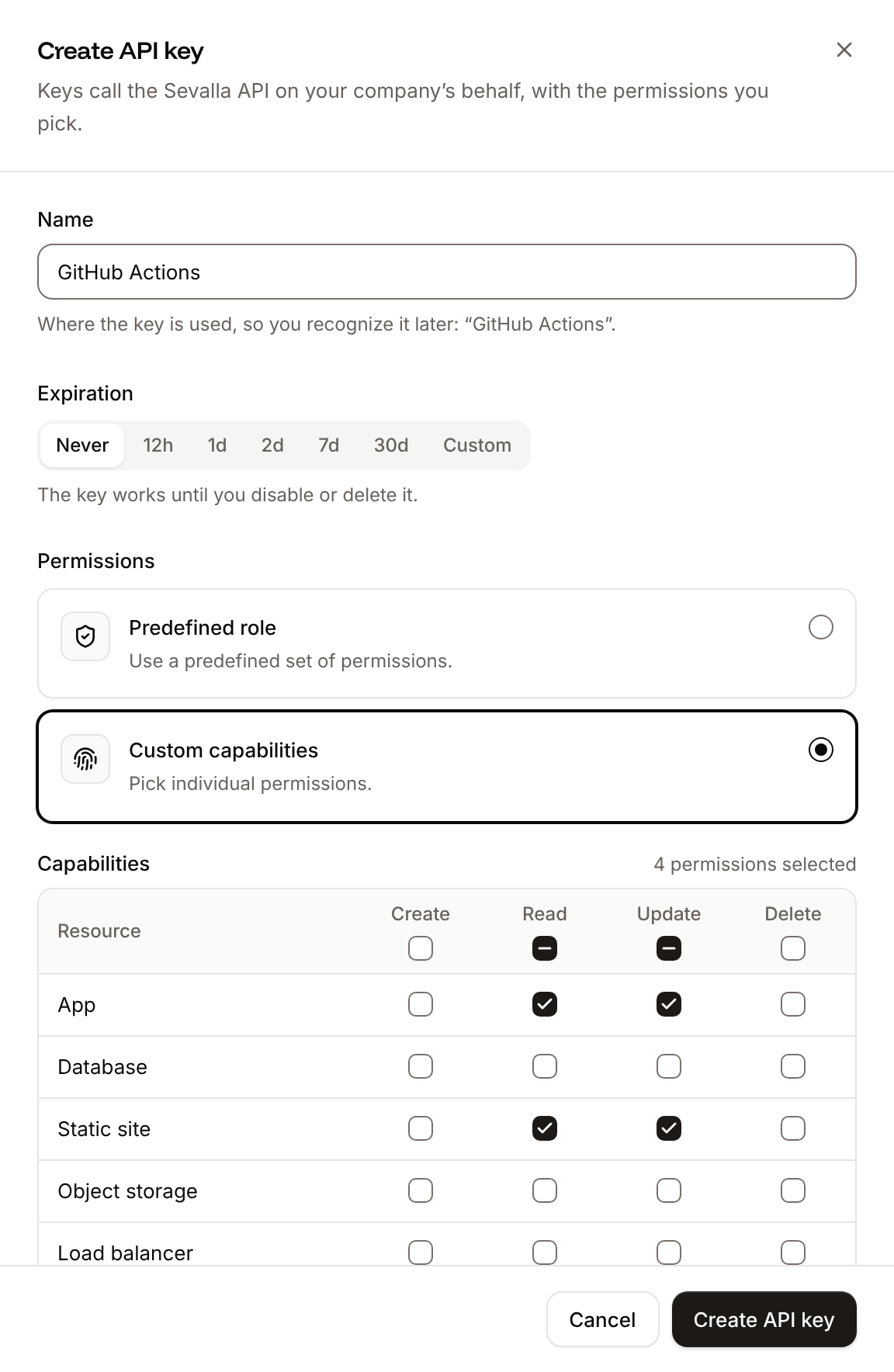
In Name, enter where the key is used, so you recognize it later, for example
GitHub Actions.3
Choose when it expires
Under Expiration, keep Never or pick when the key stops working.
4
Set the permissions
Under Permissions, choose Predefined role and select a Role, or choose Custom capabilities and tick the permissions the key needs (see Permissions).
5
Create and copy the key
Click Create API key. The sheet changes to API key created and shows the full key under API token. Click Copy API token and close, and store the key in a password manager or your CI secrets right away.
Permissions
A key gets either one predefined role or a set of custom capabilities, never both. Sevalla checks the key’s permissions on every request, so changes apply to the next request. A request the key isn’t allowed to make fails with403 and names the missing permission, for example This API key is missing the APP:UPDATE permission. Grant it to the key or use a key that has it.
Predefined roles
Custom capabilities
Each capability is one action on one resource type, writtenRESOURCE:ACTION in the API (APP:READ, DATABASE:CREATE). In the dashboard, the Capabilities table has one row per resource and one column per action; the checkbox above a column selects that action for every resource.
Triggering, rolling back and cancelling deployments of an application needs
APP:UPDATE; reading its deployments and logs needs APP:READ. The same holds for static sites with STATIC_SITE, and promoting a pipeline needs PIPELINE:UPDATE.
Limit a permission to specific resources
When you tick a permission for a resource type that can be limited, Resource scope appears with a box for that type. Choose All … resources (the default) or Specific … resources, then tick the resources. If you choose specific resources but tick none, the form shows a message such asSelect at least one app, or apply to all.
A limited permission works only on the resources you picked: a request for another resource of that type fails with 403, and lists return only the picked resources. When you delete a resource, Sevalla removes the capabilities limited to it from every key. In the API, any capability can take a resource_id.
Rotate an API key
Rotating gives the key a new token and keeps its name, permissions and expiration. The old token can keep working for a while, so you can update everything that uses it first.1
Open the rotation
On the API keys page, open the key’s menu (the three dots) and click Rotate key.
2
Choose how long the old token works
Under Expiration, pick Now, 1 hour, 2 hours, 4 hours, 8 hours, 24 hours (the default), 48 hours, 72 hours or 7 days. Now breaks every client that still uses the old token.
3
Rotate and copy the new token
Click Rotate key. The dialog changes to New API token. Click Copy token and close, then update every place that uses the key.
401.
Disable or enable an API key
Disabling a key blocks it at once without deleting it: every request with it fails with401 until you enable it again.
1
Open the key's menu
On the API keys page, open the key’s menu and click Disable, or Enable for a disabled key.
2
Confirm
Click Disable (or Enable) in the dialog.
Update an API key
Updating changes a key’s name or permissions. The token stays the same, so nothing that uses the key needs to change. The expiration can’t be changed.1
Open the key
On the API keys page, open the key’s menu and click Update.
2
Change the name or permissions
Change Name or Permissions, then click Update API key.
Delete an API key
Deleting a key revokes it for good: every request with it fails with401. You can’t undo this.
1
Open the key's menu
On the API keys page, open the key’s menu and click Delete.
2
Confirm
Type the key’s name, then click Delete API key.
Keys that Sevalla creates for you
Some sign-ins create a key in the company you pick, with the permissions you choose and no expiration. These keys appear in the list like any other, and you rotate, disable or delete them the same way.
AI support uses a managed key that isn’t listed. While AI support is on, the page shows AI support is enabled for this company with a link to manage its permissions on the AI support page.
Troubleshoot API keys
API and CLI
In the API, a new key needs
role_ids or capabilities (at least one), expired_at is optional, and rotation takes old_token_ttl_hours from 0 to 168. The CLI’s create takes custom capabilities only, not roles, and its rotate defaults to --ttl 0, which ends the old token at once.