

At a glance
Environment variables
The internal connection also adds
DB_HOST, DB_PORT, DB_DATABASE, DB_USERNAME and DB_PASSWORD, which the project doesn’t read.
Before you begin
- A Sevalla company with a payment method, and a GitHub, GitLab or Bitbucket account for the repository. See Git providers.
- Python 3.14 on your computer.
Create the project
Create a virtual environment and install Litestar with its CLI, Uvicorn and Advanced Alchemy, and the database drivers:
Keep local files out of the repository:
.gitignore
Product model:
app.py
DB_URLis the variable Sevalla adds when you connect the database. Its URL starts withpostgres://, which SQLAlchemy doesn’t accept, sodatabase_url()switches the scheme topostgresql+psycopg://, SQLAlchemy’s name for psycopg 3. WithoutDB_URL, the project uses SQLite on your computer.SQLAlchemyPlugingives every handler a database session in itsdb_sessionargument, and adds thelitestar databasecommands, which run Alembic with the same connection.
litestar database init writes alembic.ini and the migrations folder, and litestar run finds the application in app.py. Open http://127.0.0.1:8000: the response is {"products":0}, and the interactive API docs are at http://127.0.0.1:8000/schema. Press Ctrl+C to stop the server.
Prepare the project for Sevalla
Pin the Python version
Ingot builds on Python 3.14, its default line, unless the project sets a version. Pin the version you develop with in.python-version, so the build doesn’t change when a new Ingot release moves its default line:
.python-version
List the dependencies
Ingot installs the packages inrequirements.txt with pip, into a virtual environment at /app/.venv that’s on the PATH, so list them with the versions you tested:
Check the start command
The project needs no start command. Ingot findsapp = Litestar(...) in app.py and Uvicorn in requirements.txt, and starts the web process with uvicorn app:app --host 0.0.0.0 --port "$PORT", which the build plan shows in its Start row.
- Uvicorn listens on all interfaces, on the port in the
PORTenvironment variable. Sevalla setsPORTto the web process’s port,8080by default. - Requests reach the application through Sevalla’s proxy. Ingot’s image sets
FORWARDED_ALLOW_IPS=*, so Uvicorn trusts theX-Forwarded-ProtoandX-Forwarded-Forheaders, and Litestar sees thehttpsscheme and the visitor’s address. See Request headers. - Uvicorn runs one worker process in each instance. On a larger size, set the
WEB_CONCURRENCYenvironment variable to run more, for example2. See Scaling. - Migrations don’t run here. A job runs them once per deployment, with
litestar database upgrade --no-prompt. Without--no-prompt, the command asks for confirmation, and with no terminal to answer it the job fails.
main.py, app.py, app/main.py and other common files. To start it another way, set the web process’s start command; see Set the start command.
Commit everything and push it to your Git provider:
Deploy to Sevalla
These steps build with Ingot. To build from your own Dockerfile instead, see Deploy with a Dockerfile.1
Create the database
In the sidebar, click Databases, then click Create database. Under Database, choose PostgreSQL and the newest version. Enter
orders-db as the Display name, choose a Data center and a Size, then click Create database. See Create a database for every field.2
Create the application
In the sidebar, click Applications, then click Create > Application. Under Source, click Private repository, then choose the Git provider, the Repository and the Branch. Under Location, choose the same Data center as the database. Keep the Size at H1 or choose a larger one, then click Create application. The application opens on its Overview tab with the status Not deployed yet: creating an application doesn’t deploy it.
3
Connect the database
Click the Networking tab. Under Connected services, click Add internal connection. Choose
orders-db as the Service, turn on Add environment variables to the application, and click Add internal connection. Sevalla adds DB_URL and the other connection variables to the application. See Connect an application.4
Create the migration job
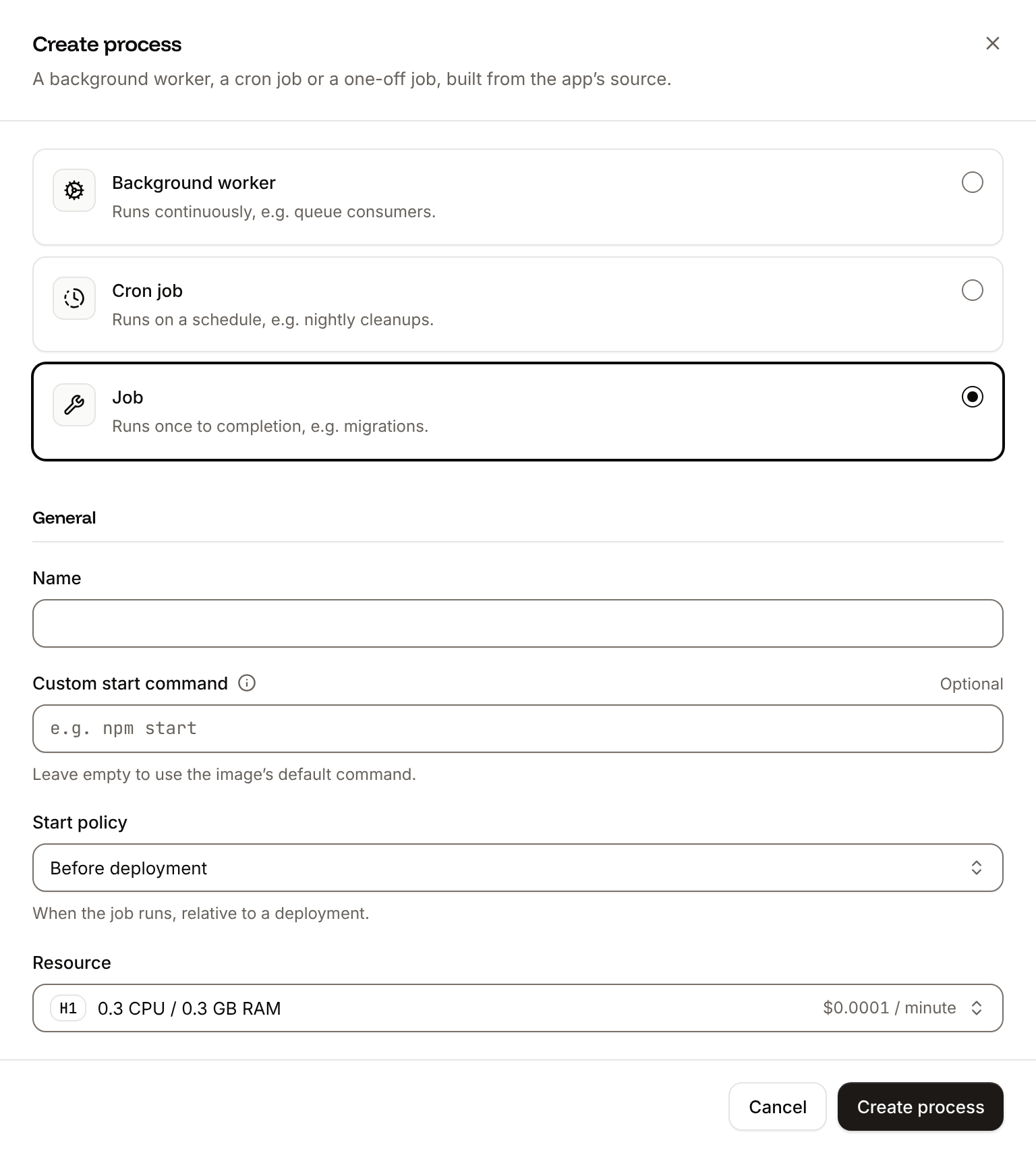
Click the Processes tab, then click Create process. Choose Job, enter
Migrate as the Name and litestar database upgrade --no-prompt as the Custom start command. Keep the Start policy at Before deployment and the Resource at H1, then click Create process.5
Deploy
Click the Overview tab, then click Deploy now under Recent deployments. Check the Branch and click Deploy.
6
Turn on auto-deploy
To deploy every push to the branch automatically, click the Settings tab, then click Update auto-deploy in the Auto-deploy section. Turn on Auto-deploy and click Update auto-deploy. See Deployments.
Verify the deployment
-
On the Deployments tab, click the deployment. Its Build log shows Ingot’s build plan: Python 3.14 from
.python-version, pip fromrequirements.txt, and Litestar with the Uvicorn command forapp:app.After the build, the log showsBuild logMigrate has been successful, thenWeb has been deployed successfully. If the job fails, the deployment fails and nothing changes for visitors. - Wait for the deployment’s status to change to Deployed. The application’s status next to its name changes to Running.
-
Count the products, add one and count again, with your application’s domain. The responses come from the PostgreSQL database:
The interactive API docs are at
/schema, and the OpenAPI document at/schema/openapi.json. -
To check the deployment through the API, use
APP_IDandDEPLOYMENT_IDfrom Deploy with the API. Get deployment (getDeploymentV3) returns the status, and Get application deployment logs (getApplicationDeploymentLogsV3) returns the build log, whichsearchfilters:The messages carry terminal color codes around the text. The job’s own output is in the runtime logs: Get application runtime logs (getApplicationRuntimeLogsV3) withsearch=Running%20upgradereturns a line that ends withRunning upgrade -> 6bb629e5f505, Create product table, with your migration’s revision. The CLI hassevalla apps deployments get,sevalla apps deployments logsandsevalla apps logs runtime, and the MCP serverget_deployment,get_deployment_logsandsearch_runtime_logs.
Add a health check
Without a readiness probe, a new instance receives traffic as soon as its container starts, before Uvicorn listens. Point the probe at/healthz, the handler in app.py that returns ok without touching the database, so a slow database doesn’t take every instance out of service:
1
Open the web process
On the application’s Processes tab, click ⋯ on the Web process, then click Update process.
2
Turn on the readiness probe
Under Health checks, turn on Readiness probe and set the Path to
/healthz. Keep the Port at the web process’s port, 8080 unless you changed it.3
Save and deploy
Click Update process, then click Deploy in the undeployed changes bar at the bottom of the page.
getProcessV3) returns it in readiness_probe:
Deploy with a Dockerfile
Ingot needs no Dockerfile. Write your own when you want full control of the image: the base image, the system packages and every layer. Add aDockerfile and a .dockerignore to the root of the repository:
Dockerfile
.dockerignore
Dockerfile, so you can keep it in a repository that builds with Ingot, but it adds the .dockerignore patterns to its own: its build plan shows an Ignored row with 7 patterns from .dockerignore. Then switch the application to the Dockerfile build strategy:
1
Choose the Dockerfile build strategy
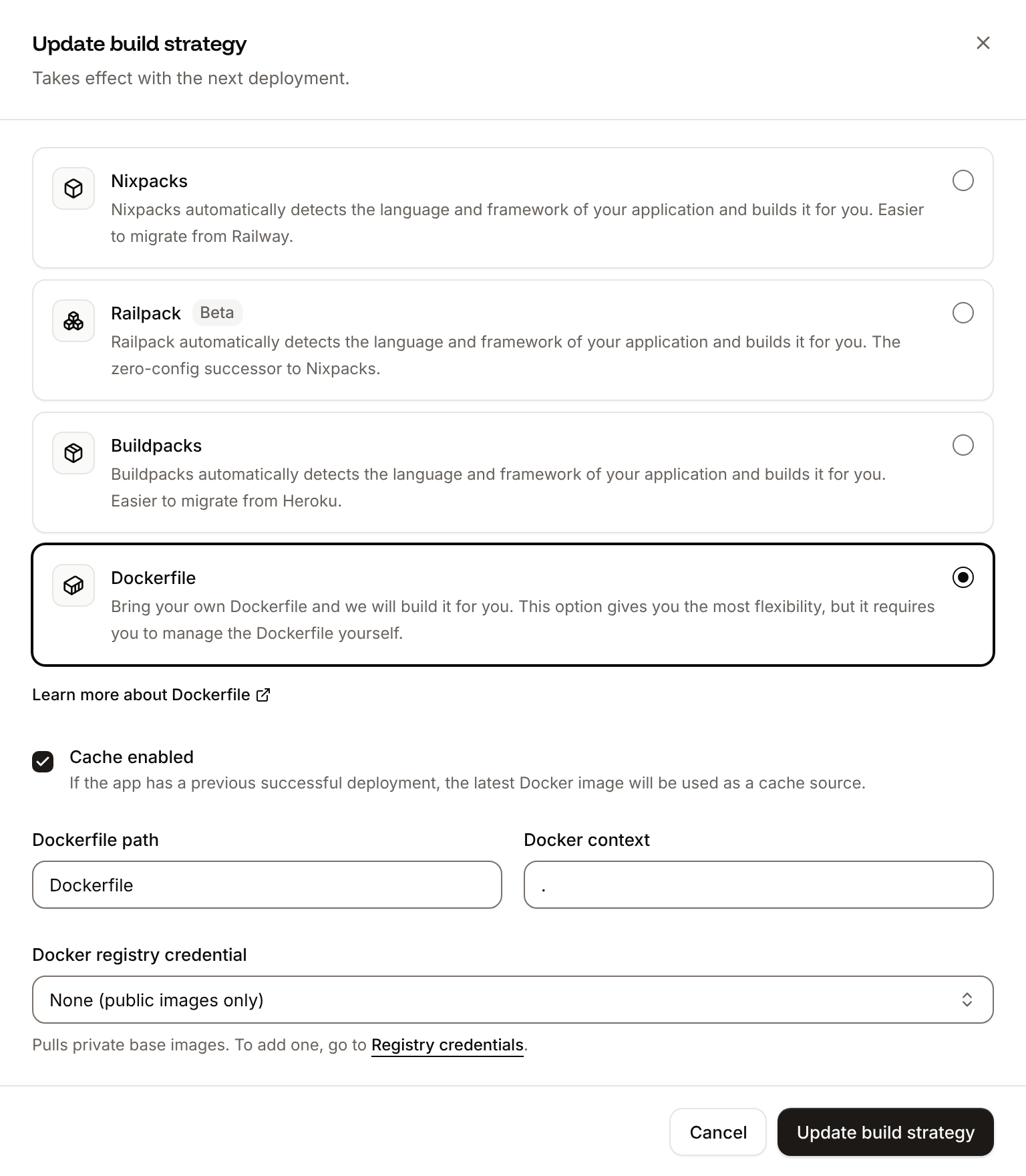
On the application’s Settings tab, in the Build strategy section, click Update build strategy. Click Dockerfile, keep the Dockerfile path
Dockerfile and the Docker context ., then click Update build strategy.2
Deploy
Click the Overview tab, then click Deploy now under Recent deployments. Check the Branch and click Deploy.
📦 Building and pushing docker image using Dockerfile... where Ingot’s build plan was, then Migrate has been successful: the job runs litestar database upgrade --no-prompt in the new image. The API returns the same products from the same database, and when an instance stops, its runtime logs end with Shutting down and Finished server process. The deployment’s Dockerfile tab shows your Dockerfile. See Dockerfile, and Build from the Dockerfile with the API to switch with the API.
Deploy changes
With Auto-deploy on, every push to the branch starts a deployment; otherwise, click Deploy now for each change. Each deployment builds the image, runs theMigrate job, then replaces the web process’s instances. For a schema change, run litestar database make-migrations -m "<what changed>" on your computer and commit the new file in migrations/versions with the code. After you install a package, run pip freeze > requirements.txt again. See Deployments.
Use environment variables
Add configuration on the application’s Environment variables tab and read it withos.environ, as database_url() reads DB_URL. Variables apply at the next deployment. See Environment variables.
Add a custom domain
To serve the API from your own domain, such asapi.example.com, add the domain on the application’s Domains tab and create the DNS records that Sevalla shows. Litestar accepts any host unless you add its AllowedHostsConfig, so no code change is needed. Custom domains need a web process larger than H1, so scale the web process first. See Custom domains.
Troubleshoot
For more causes, see Troubleshoot Ingot builds and Troubleshoot builds and deployments.
Deploy with the API
These calls make the same deployment as Deploy to Sevalla and Add a health check, in an order that a script or an AI agent runs as it is. Each step names the Sevalla API operation, then the CLI command and the MCP server tool that do the same. You need:- An API key with the Company developer role in the
SEVALLA_API_KEYenvironment variable. The CLI reads the key fromSEVALLA_API_TOKEN. - The repository on a Git provider that’s connected to your Sevalla account. See Git providers. Creating the application checks it: when Sevalla can’t read the repository, the call returns
400withCannot access repository https://github.com/acme/storefront: Repository not found or you don't have access., followed by where to grant access. curl,jqandopenssl.
1
Choose the location
List clusters (CLI:
listClustersV3) returns the locations your company can use, each with its id, the display_name that the dashboard shows and its region ID in location. Keep the ID of the one you want by its region ID, such as eu-frankfurt-1 for Frankfurt, Germany. Locations lists them all:sevalla resources clusters. MCP: get_platform_options.2
Find the sizes
List process resource types (CLI:
listProcessResourceTypesV3) and List database resource types (listDatabaseResourceTypesV3) return the sizes by name, in lowercase. Keep H1 for the processes and DB1, the smallest, for the database:sevalla resources process-types and sevalla resources db-types. MCP: get_platform_options.3
Create the database
Create database (CLI:
createDatabaseV3) starts creating a PostgreSQL 18 database. You choose the password here, because the API never returns it and DB_URL needs it:sevalla databases create --name orders-db --type postgresql --db-version 18 --cluster $CLUSTER_ID --resource-type $DB1_ID --db-name storefront --db-user storefront --db-password $DB_PASSWORD. MCP: create_database, which generates a password it never returns. Call it once the application exists, with connect_to_application_id set to the application and env_var_name set to DB_URL: it also adds the internal connection and DB_URL, in place of the Connect the database and Add the database URL steps. Its URL starts with postgresql://, which database_url() switches to psycopg 3 too.4
Create the application
Create application (CLI:
createApplicationV3) creates the application with a web process and auto-deploy off. It builds with Ingot (build_type is ingot) and isn’t deployed yet:sevalla apps create --name storefront --cluster $CLUSTER_ID --source privateGit --git-type github --repository https://github.com/acme/storefront --branch main. MCP: create_application with deploy set to false; by default it starts a deployment before the database, the variable and the job exist.5
Find the domain
List application domains (CLI:
listApplicationDomainsV3) returns the domain that Sevalla gives the application. It appears a few seconds after the application is created, so ask until it’s there:sevalla apps domains list --app-id $APP_ID. MCP: get_application.6
Set the size and the readiness probe
The API creates the web process at S1, where the dashboard’s default is H1. List processes (CLI:
listProcessesV3) finds the web process, and Update process (updateProcessV3) sets the size and adds the readiness probe from Add a health check, with the dashboard’s default timings. Send timeoutSeconds: a probe without it gets 120 seconds, where the dashboard sets 1.sevalla apps processes update $WEB_ID --app-id $APP_ID --resource-type $H1_ID sets the size; the CLI can’t set probes. MCP: scale_process with size_id for the size, and sevalla_api_update with updateProcessV3 and the same body for the probe.7
Wait for the database
Get database (CLI:
getDatabaseV3) until its status is ready, for up to 10 minutes, then keep its internal hostname and port:sevalla databases get $DB_ID --json. MCP: get_database.8
Connect the database
Create internal connection (CLI:
createApplicationInternalConnectionV3) lets the application reach the database on Sevalla’s private network, and returns the connection’s id:sevalla apps internal-connections create $APP_ID --target-id $DB_ID --target-type database. MCP: sevalla_api_create with createApplicationInternalConnectionV3 and the same body.9
Add the database URL
Unlike the dashboard, the API doesn’t add the connection’s variables. Create environment variable (CLI:
createEnvironmentVariableV3) adds DB_URL in the dashboard’s format, available during runtime only. Without is_buildtime, a variable is available during the build too:sevalla apps env-vars create $APP_ID --key DB_URL --value "postgres://storefront:$DB_PASSWORD@$DB_HOST:$DB_PORT/storefront", which makes it available during build and runtime. MCP: set_environment_variables with buildtime set to false.10
Create the migration job
Create process (CLI:
createProcessV3). A job needs job_start_policy, and every process needs resource_type_id and scaling_strategy:sevalla apps processes create $APP_ID --name Migrate --type job --command "litestar database upgrade --no-prompt" --job-start-policy beforeDeployment --resource-type $H1_ID. MCP: sevalla_api_create with createProcessV3 and the same body.11
Turn on auto-deploy
Update application (CLI:
updateApplicationV3) turns on automatic deployments for every push to the branch:sevalla apps update $APP_ID --data '{"auto_deploy":true}'. MCP: sevalla_api_update with updateApplicationV3.12
Deploy
Trigger deployment (CLI:
triggerDeploymentV3) deploys the latest commit on the branch:sevalla apps deployments trigger $APP_ID. MCP: trigger_deployment.13
Wait for the deployment
Get deployment (CLI:
getDeploymentV3) returns the deployment’s status: waiting and inProgress while it runs, then success or failed. Poll it every 15 seconds, for up to 30 minutes, until the status is final:sevalla apps deployments get $DEPLOYMENT_ID --app-id $APP_ID. MCP: get_deployment.14
Read the build log
Get application deployment logs (CLI:
getApplicationDeploymentLogsV3) returns the build log, oldest line first: the build plan from Verify the deployment, the build, Migrate has been successful and the rollout, which ends with Web has been deployed successfully. When the status is failed, the last lines say why. Without limit, the call returns the latest 1,000 lines, so a longer log loses its start; 5000 is the most it allows.sevalla apps deployments logs $DEPLOYMENT_ID --app-id $APP_ID. MCP: get_deployment_logs.15
Check the API
Request the health route and count the products, on the domain from the Find the domain step. Then add a product with the checks in Verify the deployment, with
$HOST in place of storefront-x7k2m.sevalla.app:Build from the Dockerfile with the API
After you push theDockerfile from Deploy with a Dockerfile, Update application (updateApplicationV3) switches the build strategy. Then repeat the Deploy and Wait for the deployment steps:
sevalla apps update $APP_ID --data '{"build_type":"dockerfile","dockerfile_path":"Dockerfile","docker_context":"."}'. MCP: sevalla_api_update with updateApplicationV3.