

At a glance
What this guide adds to the Express application:Environment variables
The web process and the worker both get them. The Express application’s own variables are in its table. The internal connection also adds
REDIS_URL, which the code doesn’t read.
Before you begin
- An Express application deployed on Sevalla, as in Deploy Express. It pins Node.js 24.
- Redis or Valkey on your computer, to try the queue locally. With Docker:
docker run -d --name storefront-redis -p 6379:6379 valkey/valkey:9.
Create the database
1
Create the database
In the sidebar, click Databases, then click Create database. Under Database, choose Redis or Valkey and the version. Enter
storefront-redis as the Display name, choose the same Data center as the application and a Size, then click Create database. See Create a database for every field.2
Connect it to the application
In the sidebar, click Applications, then click the application. Click the Networking tab. Under Connected services, click Add internal connection. Choose
storefront-redis as the Service, turn on Add environment variables to the application, and click Add internal connection.REDIS_HOST, REDIS_PORT, REDIS_PASSWORD and REDIS_URL to the application, which apply at the next deployment. Environment variables belong to the application, so the web process and the worker both get them. See Connect an application.
Install BullMQ
Create the queue
Create the queue in a module that the web process and the worker both import:queue.js
- BullMQ opens its own connections from these options and sets what each one needs, such as
maxRetriesPerRequest: nullfor the worker’s blocking connection. - The separate
REDIS_*variables work for both engines. For a Valkey database,REDIS_URLstarts withvalkey://, which ioredis doesn’t parse. attemptsandbackoffretry a failed job twice, 1 second and then 2 seconds after it fails. See Retry failed jobs.removeOnCompleteandremoveOnFaildelete finished jobs after 24 hours and failed jobs after 7 days, so the queue doesn’t grow without limit in the database’s memory.
Add jobs from the web process
Replaceserver.js with a server that adds a job for each request and reports a job’s state:
server.js
Process jobs in a worker
Create the worker, which runs in its own process:worker.js
concurrency: 5 lets one worker instance run 5 jobs at a time. The SIGTERM handler makes the worker stop taking new jobs and wait for the ones it’s running; Shut down cleanly during deployments explains why it matters.
To try it locally, start the server and the worker in two terminals, with the database on your computer:
curl -X POST http://localhost:3000/emails -H "Content-Type: application/json" -d '{"to":"ana@example.com"}'. The response is {"id":"1"}, and the worker prints Sending job 1 to ana@example.com, attempt 1, then Job 1 completed 5 seconds later.
Create the background worker
1
Open the Processes tab
In the sidebar, click Applications, then click the application. Click the Processes tab, then click Create process.
2
Create the worker
Choose Background worker. Enter
Worker as the Name and exec node worker.js as the Custom start command. Keep the Resource at H1 and the instance count at 1, then click Create process.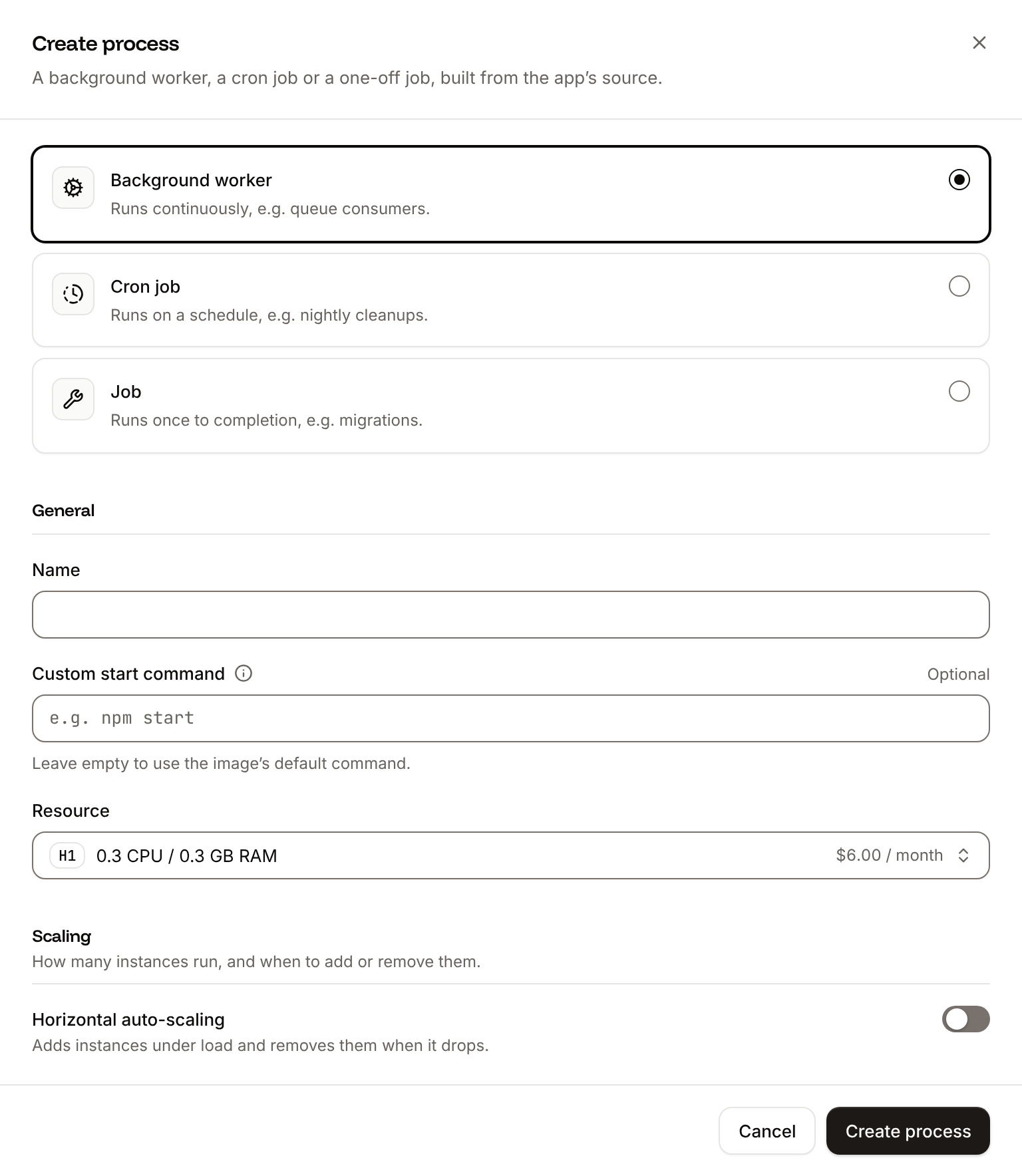
exec. Sevalla runs a custom start command with /bin/sh -l -c, and the shell stays the container’s main process: it doesn’t pass the stop signal on, so node worker.js on its own never receives SIGTERM. exec replaces the shell with Node.js, which then gets the signal. The worker runs from the same image as the web process, and starts with the next deployment. See Background workers.
Deploy and verify
Commit and push the changes,package-lock.json included: Ingot installs BullMQ from it with npm ci, and the web process still starts with the start script. With auto-deploy on, the push starts a deployment; otherwise, start one with Deploy now on the application’s Overview tab. The deployment also gives both processes the variables the internal connection added. When the deployment’s status changes to Deployed:
-
Add a job. Use your application’s domain instead of
storefront-x7k2m.sevalla.app:The response is{"id":"1"}, with the status202. -
On the application’s Logs tab, choose the
Workerprocess. It logsSending job 1 to ana@example.com, attempt 1and, 5 seconds later,Job 1 completed. See Runtime logs. -
Check the job’s state:
The response is
{"id":"1","state":"completed","result":{"sentTo":"ana@example.com","sentAt":"..."}}.
Port should be >= 0 and < 65536. Received type number (NaN)., the REDIS_* variables aren’t set in the running application: add the internal connection with Add environment variables to the application turned on, then deploy.
Retry failed jobs
When the job function throws, BullMQ runs the job again, up to theattempts set in queue.js, waiting longer each time: with backoff exponential and delay 1000, the second attempt starts 1 second after the first fails, and the third 2 seconds after the second. The failed event fires after every failed attempt; after the last one, the job’s state is failed and it stays in Redis for 7 days.
For an error that retrying can’t fix, such as an invalid address, throw UnrecoverableError from bullmq: the job fails at once, without the remaining attempts.
Shut down cleanly during deployments
Each deployment starts new worker instances, then stops the old ones. Sevalla waits 5 seconds, sendsSIGTERM, and stops the instance if it’s still running 30 seconds after the shutdown began. See How processes run.
With exec node worker.js and the SIGTERM handler in worker.js, an old instance stops taking jobs and finishes the ones it’s running, while the new instance takes the next ones. Its logs end with:
exec, the signal never reaches the worker, and Sevalla stops it 30 seconds into the shutdown, in the middle of its jobs. BullMQ doesn’t lose those jobs: once their lock expires, it marks them as stalled and a running worker starts them again from the beginning, about a minute later. Write jobs so that running one twice does no harm, and keep each job well under 25 seconds, or split long work into several jobs, so an old instance can finish what it started.
Schedule repeating jobs
BullMQ can add a job on a schedule. Add a job scheduler toworker.js, after the import lines, and import the queue too:
worker.js
Scale the worker
To run more jobs at once, raiseconcurrency for jobs that mostly wait on other services, or add instances to the Worker process on the Processes tab for jobs that use CPU. Every instance takes jobs from the same queue, and BullMQ gives each job to one worker at a time. See Scaling.
Deploy with a Dockerfile
Ingot needs no Dockerfile. Write your own when you want full control of the image: the base image, the system packages and every layer. Add aDockerfile and a .dockerignore to the root of the repository:
Dockerfile
The worker runs from the same image with its own start command, which replaces the image’s
CMD. Keep exec node worker.js: Sevalla still starts it with /bin/sh -l -c, and exec makes Node.js the container’s first process, which receives SIGTERM.
.dockerignore
Dockerfile, so you can keep it in a repository that builds with Ingot, but it adds the .dockerignore patterns to its own, and its build plan lists them in an Ignored row. Then switch the application to the Dockerfile build strategy:
1
Choose the Dockerfile build strategy
On the application’s Settings tab, in the Build strategy section, click Update build strategy. Click Dockerfile, keep the Dockerfile path
Dockerfile and the Docker context ., then click Update build strategy.2
Deploy
Click the Overview tab, then click Deploy now under Recent deployments. Check the Branch and click Deploy.
📦 Building and pushing docker image using Dockerfile..., then shows each step of your Dockerfile. Add a job as in Deploy and verify: the Worker process logs Job 1 completed, and the deployment’s Dockerfile tab shows your file. See Dockerfile.
Deploy changes
With Auto-deploy on, every push to the branch starts a deployment; otherwise, click Deploy now for each change. Each deployment builds one image and replaces the instances of both processes with it. Jobs added while the deployment runs wait in Redis until a worker takes them. See Deployments.Deploy with the API
This sequence adds the database and the background worker of this guide to the application from Deploy Express through the Sevalla API, so an agent or a script can run it as is.APP_ID is that application, and the changes on this page are pushed to its branch. Each step names the operation, shows the curl command, and gives the matching CLI command and MCP server tool.
You need an API key with the Company developer role in the SEVALLA_API_KEY environment variable (the CLI reads the same key from SEVALLA_API_TOKEN), and curl, jq and openssl. A call that fails returns status and message instead of the resource, and jq -r .id prints null: stop and read the message.
1
Look up the location and the database size
Get application (CLI:
getApplicationV3) returns the application’s location in cluster_id; the database must be in the same one. List database resource types (listDatabaseResourceTypesV3) returns the database sizes; DB1 is the smallest.sevalla apps get "$APP_ID" and sevalla resources db-types. MCP: get_application and get_platform_options.2
Create the database
Create database (CLI:
createDatabaseV3) starts creating a Valkey 9.0 database with a password you generate. List database versions (listDatabaseVersionsV3) lists the versions of a location; a Redis database works the same way with "type": "redis".sevalla databases create --name storefront-redis --type valkey --db-version 9.0 --cluster "$CLUSTER_ID" --resource-type "$DB_SIZE_ID" --db-name storefront --db-password "$DB_PASSWORD". MCP: create_database, which generates a password and doesn’t return it; set one you know afterwards with sevalla_api_update, resetDatabasePasswordV3 and {"new_password": "..."}.3
Connect the database
Create internal connection (CLI:
createDatabaseInternalConnectionV3) connects the database to the application over the private network. Unlike the dashboard, it adds no environment variables: a later step adds them.sevalla databases connections internal-create "$DB_ID" --target-id "$APP_ID" --target-type app. MCP: sevalla_api_create with createDatabaseInternalConnectionV3.4
Read the database details
Get database (CLI:
getDatabaseV3) returns the database’s internal hostname and port. The loop waits until its status is ready.sevalla databases get "$DB_ID" --json. MCP: get_database.5
Add the environment variables
Create environment variable (CLI:
createEnvironmentVariableV3) adds one variable per call. add_var sends each one as available during runtime only. These are the variables the dashboard’s internal connection adds, except REDIS_URL, which the code doesn’t read:sevalla apps env-vars create "$APP_ID" --key REDIS_HOST --value "$(jq -r .internal_hostname <<< "$DB")", once per variable; the CLI makes each one available during the build too. MCP: set_environment_variables with the three variables in one call, each with runtime true and buildtime false.6
Create the background worker
List process resource types (CLI:
listProcessResourceTypesV3) returns the H1 size, and Create process (createProcessV3) adds the Worker process. Every process type needs scaling_strategy.sevalla apps processes create "$APP_ID" --name Worker --type worker --resource-type "$H1_ID" --command "exec node worker.js". MCP: sevalla_api_create with createProcessV3 and the same body.7
Deploy
Trigger deployment (CLI:
triggerDeploymentV3) builds the latest commit of the branch and rolls it out.sevalla apps deployments trigger "$APP_ID". MCP: trigger_deployment.8
Wait for the deployment
Get deployment (CLI:
getDeploymentV3) returns the deployment’s status: waiting, then inProgress, then success or failed. The loop polls every 15 seconds for up to 30 minutes and keeps polling through a failed request.sevalla apps deployments get "$DEPLOYMENT_ID" --app-id "$APP_ID". MCP: get_deployment.9
Check the deployment
List application domains (The worker’s lines and the job’s state, here for job CLI:
listApplicationDomainsV3) returns the application’s domain. Add a job, then Get application runtime logs (getApplicationRuntimeLogsV3) shows what the worker printed:2: with the job scheduler from Schedule repeating jobs in worker.js, the first job you add gets ID 2, not 1.sevalla apps domains list --app-id "$APP_ID" and sevalla apps logs runtime "$APP_ID" --search "job $JOB_ID ". MCP: get_application and search_runtime_logs.