

/mcp, and AI clients such as Claude, Claude Code and Cursor call its tools over HTTPS. This guide builds a server with two read-only tools that query a Sevalla PostgreSQL database over an internal connection, requires a bearer token on every request, and keeps no state between requests, so it runs on as many instances as you need.
To let an AI agent manage your Sevalla services instead, connect it to the Sevalla MCP server.
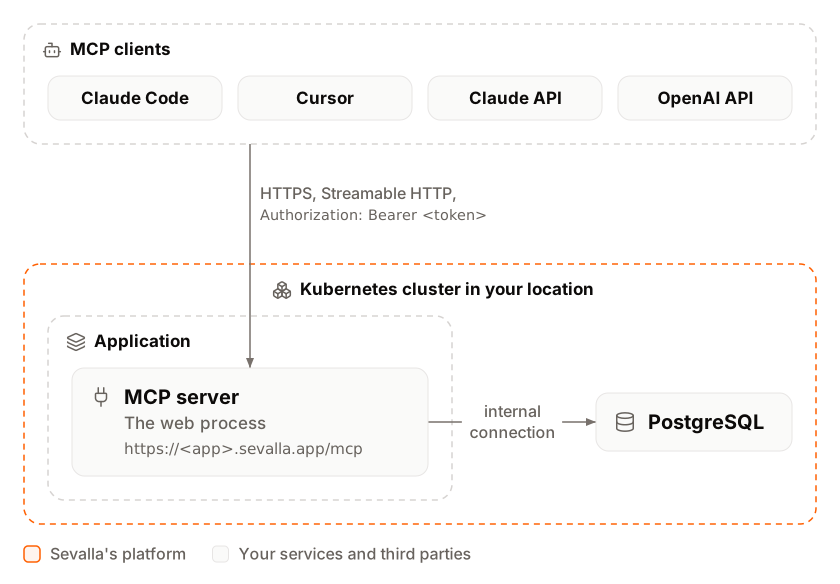
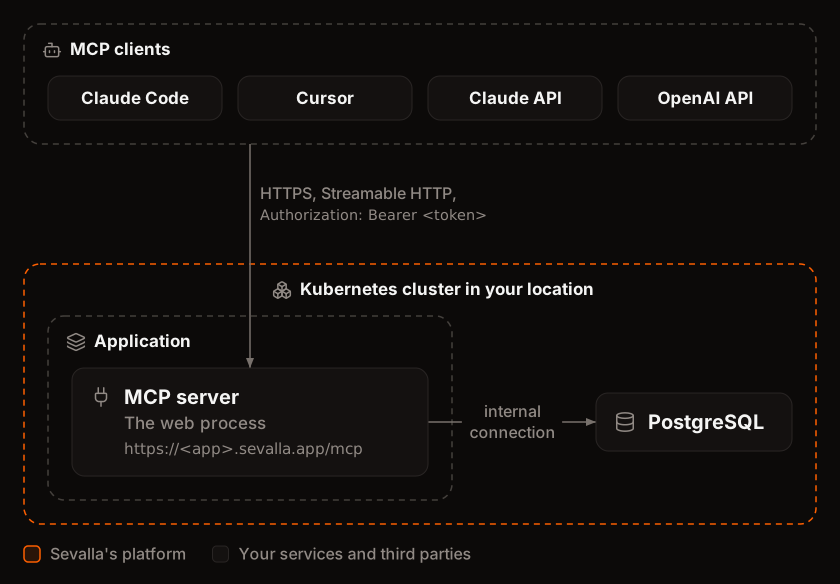
At a glance
Environment variables
The internal connection also adds
DB_HOST, DB_PORT, DB_DATABASE, DB_USERNAME and DB_PASSWORD, which the server doesn’t read.
Before you begin
- A Sevalla company with a payment method, and a GitHub, GitLab or Bitbucket account for the repository. See Git providers.
- Node.js 24 or later on your computer. Node.js 24 runs TypeScript files directly, so the project has no build step.
Create the project
Create a folder, set the package’s module type, start script and Node.js version, and install the SDK, Express, the PostgreSQL client and Zod:
Create the server:
server.ts
- Streamable HTTP on
/mcp.createMcpHandleranswers every MCP request at/mcp:POSTfor requests and notifications. It answers clients on the2026-07-28protocol revision and on the older revisions that open with aninitializerequest. - No sessions. The handler builds a new
McpServerfrombuildServerfor each request and keeps nothing in memory between requests, so it never issues anMcp-Session-Id. See Run more than one instance. - A bearer token.
requireTokencompares theAuthorizationheader withBearerand theMCP_TOKENenvironment variable in constant time, and answers401to anything else. The server refuses to start withoutMCP_TOKEN, so it never runs open by mistake./healthstays public for the readiness probe. - Read-only database access.
DB_URLis the variable Sevalla adds when you connect the database. Every connection starts withdefault_transaction_read_only=on, and the queries pass the model’s arguments as parameters ($1), never as SQL text. ThereadOnlyHintannotation tells clients the tools change nothing; clients use it to decide whether to ask you before a call. - Shutdown. Sevalla sends
SIGTERMto each instance it replaces during a deployment. The server stops accepting connections, finishes the requests in progress, then closes the handler and the database pool.
tsconfig.json so npx tsc and your editor check the types the way Node.js runs the file:
tsconfig.json
.gitignore
schema.sql
npx tsc to check the types; it prints nothing when they’re correct. To run the server on your computer, point DB_URL at a local PostgreSQL database that has these tables, for example MCP_TOKEN=local-token DB_URL=postgres://localhost:5432/storefront npm start, then open http://localhost:3000/health: the response is ok.
Prepare the project for Sevalla
The project already has what Ingot, Sevalla’s builder, needs:
The server reads
PORT, which Sevalla sets to the web process’s port (8080 by default), and listens on all interfaces.
Commit everything and push it to your Git provider:
Deploy to Sevalla
These steps build with Ingot. To build from your own Dockerfile instead, see Deploy with a Dockerfile. Generate the token that clients send, and keep it in your password manager:1
Create the database
In the sidebar, click Databases, then click Create database. Under Database, choose PostgreSQL and the newest version. Enter
orders-db as the Display name, choose a Data center and a Size, then click Create database. See Create a database for every field.2
Create the tables
When the database is ready, click its SQL studio tab, then click SQL console at the top of the sidebar. Paste the contents of
schema.sql and click Run all.3
Create the application
In the sidebar, click Applications, then click Create > Application. Under Source, click Private repository, then choose the Git provider, the Repository and the Branch. Under Location, choose the same Data center as the database. Keep the Size at H1 or choose a larger one, then click Create application. The application opens on its Overview tab with the status Not deployed yet: creating an application doesn’t deploy it.
4
Connect the database
Click the Networking tab. Under Connected services, click Add internal connection. Choose
orders-db as the Service, turn on Add environment variables to the application, and click Add internal connection. Sevalla adds DB_URL and the other connection variables to the application. See Connect an application.5
Add the token
Click the Environment variables tab, then click Add environment variables. Enter
MCP_TOKEN as the key and the token you generated as the value. Under Availability, clear Available during buildtime, so the token reaches only the running server, then click Add environment variables.6
Deploy
Click the Overview tab, then click Deploy now under Recent deployments. Check the Branch and click Deploy.
7
Turn on auto-deploy
To deploy every push to the branch automatically, click the Settings tab, then click Update auto-deploy in the Auto-deploy section. Turn on Auto-deploy and click Update auto-deploy. See Deployments.
Verify the deployment
-
On the Deployments tab, click the deployment. Its Build log shows Ingot’s build plan: Node.js 24 from
engines.node, npm frompackage-lock.json, and the start command from thestartscript.Build log -
Wait for the deployment’s status to change to Deployed. The application’s status next to its name changes to Running. Its runtime logs show
MCP server listening on port 8080, after the SDK’s warningServer is binding to 0.0.0.0 without DNS rebinding protection: the warning is about servers onlocalhost, and this server requires a token instead. With the API, Get deployment (getDeploymentV3) returns the status, Get application deployment logs (getApplicationDeploymentLogsV3) searches the build log, and Get application runtime logs (getApplicationRuntimeLogsV3) searches the runtime logs. WithAPP_IDandDEP_IDfrom Deploy with the API: -
Copy the domain under the application’s name, for example
storefront-mcp-x7k2m.sevalla.app. The MCP endpoint is that domain with/mcp. In a terminal, put the token in a variable and call theget_order_statustool with a JSON-RPC request:The response is one Server-Sent Event with the tool’s result, read from the database:Check the health endpoint, and that the same server refuses a request without the token: -
List the tools with the MCP Inspector, the protocol’s own test client:
Without
jq, the output is the full list with each tool’s input schema. To call a tool, use--method tools/call --tool-name search_products --tool-arg query=mug.


Run more than one instance
Sevalla spreads the requests to a web process across its instances, request by request, with no session affinity: two requests from the same client can reach different instances. This server works with any number of instances becausecreateMcpHandler keeps no session, so any instance answers any request.
A server that keeps MCP sessions in memory doesn’t. With the SDK’s sessionful transport (NodeStreamableHTTPServerTransport with a sessionIdGenerator), the instance that answers initialize creates the session, and every request that reaches the other instance fails with 404 and {"jsonrpc":"2.0","error":{"code":-32001,"message":"Session not found"},"id":null}. In a test with 2 instances, 25 of 50 requests failed this way and the MCP Inspector couldn’t complete a single tool call, while this guide’s server answered 200 of 200 tool calls. Keep MCP state out of the server: anything a tool must remember belongs in the database.
A readiness probe makes each new instance wait until it answers before it gets requests, so a deployment switches over only to instances that serve MCP:
1
Open the web process
On the application’s Processes tab, click ⋯ on the Web process, then click Update process.
2
Set the instances
In Scaling, drag Instance count to
2 or more. More than 1 instance needs a valid payment method.3
Turn on the readiness probe
Under Health checks, turn on Readiness probe and set the Path to
/health. Keep the Port at the web process’s port, 8080 unless you changed it.4
Save and deploy
Click Update process, then click Deploy in the undeployed changes bar at the bottom of the page.
{"scaling_strategy":{"type":"manual","config":{"instanceCount":2}}} to Update process (updateProcessV3), then deploy; the readiness probe is part of Deploy with the API. The Sevalla MCP server’s scale_process tool sets the instance count too.
Connect a client
Each client needs the endpoint URL, such ashttps://storefront-mcp-x7k2m.sevalla.app/mcp, and the token, sent as Authorization: Bearer <token>. Clients connect over the internet to the application’s domain, so keep HTTP traffic on.
Claude Code
Add the server, then check that Claude Code connects:claude mcp list shows storefront: https://storefront-mcp-x7k2m.sevalla.app/mcp (HTTP) - ✔ Connected. Ask Claude Code “What is the status of order 1001?”: it calls get_order_status and answers that the order has shipped. claude mcp add stores the server for the current project only; add --scope user to use it in every project.
Claude
In Claude (claude.ai and the desktop app), a custom connector sends a fixed token only through Request headers, which Anthropic offers to a limited set of organizations. If your Add custom connector dialog has a Request headers section:1
Add the connector
Go to Customize > Connectors and click Add custom connector. On a Team or Enterprise plan, an owner adds it in Organization settings > Connectors instead.
2
Enter the server and the token
Enter the endpoint URL as the MCP server URL. Under Request headers, add the
authorization header with the value Bearer followed by your token.Cursor
Add the server to.cursor/mcp.json in your project, or to ~/.cursor/mcp.json for every project. Cursor reads ${env:STOREFRONT_MCP_TOKEN} from the environment it runs in, so the token stays out of the file:
.cursor/mcp.json
ChatGPT
ChatGPT adds MCP servers as plugins, with OAuth, No authentication, or OAuth or no authentication. It can’t send a fixed bearer token, so it can’t connect to this server as built. Don’t remove the token to connect it: anyone who finds the URL could then call the tools. See OpenAI’s custom MCP server documentation.Other clients
Any MCP client that supports Streamable HTTP and custom headers connects the same way. The MCP Inspector in Verify the deployment is the quickest check that the URL and token work. To change the token, updateMCP_TOKEN on the Environment variables tab, deploy, and update every client.
Deploy with a Dockerfile
Ingot needs no Dockerfile. Write your own when you want full control of the image: the base image, the system packages and every layer. Add aDockerfile and a .dockerignore to the root of the repository:
Dockerfile
The image holds no secrets:
MCP_TOKEN and DB_URL reach the container at runtime.
.dockerignore
Dockerfile, so you can keep it in a repository that builds with Ingot, but it adds the .dockerignore patterns to its own: its build plan shows an Ignored row with 6 patterns from .dockerignore. Then switch the application to the Dockerfile build strategy:
1
Choose the Dockerfile build strategy
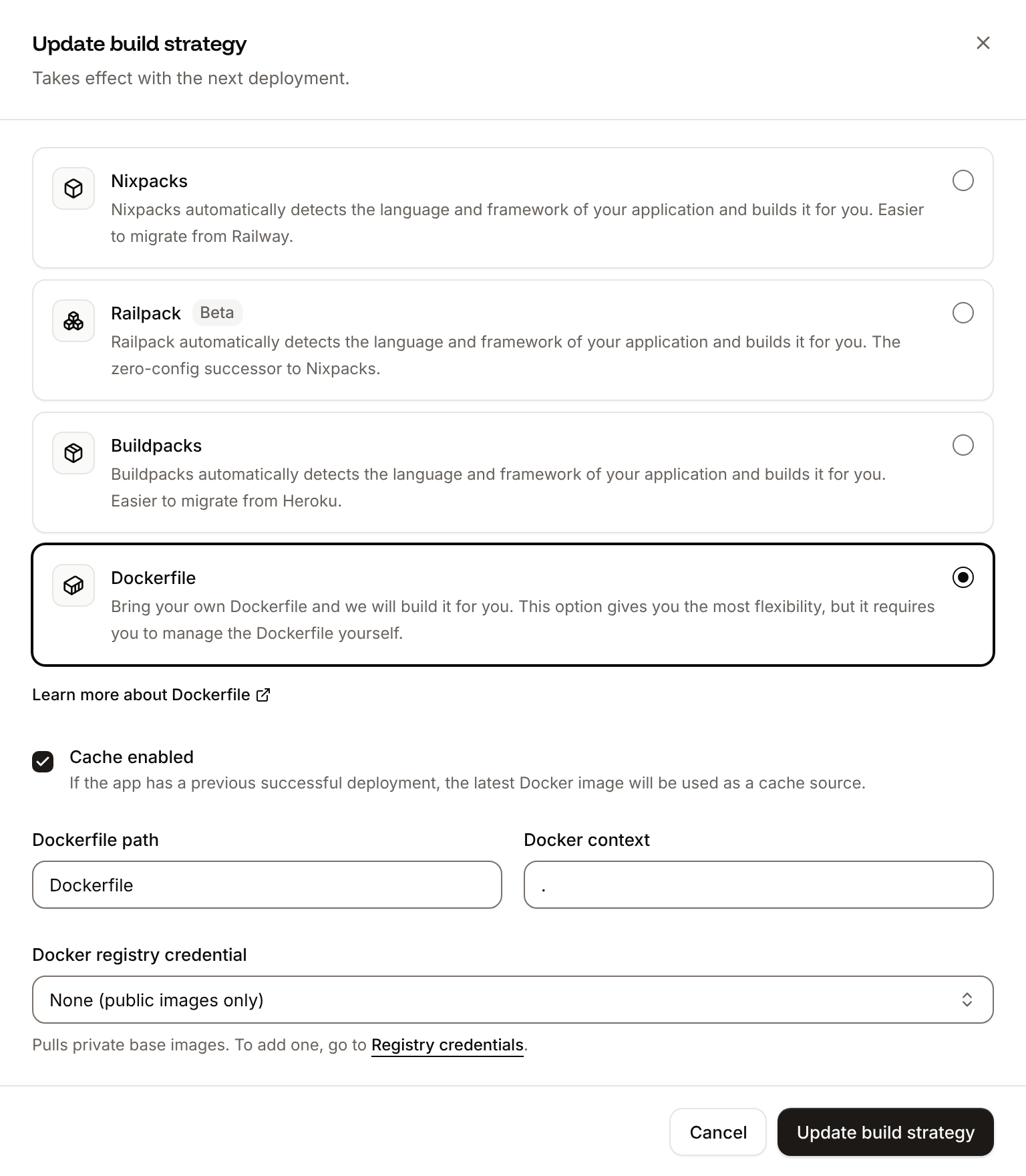
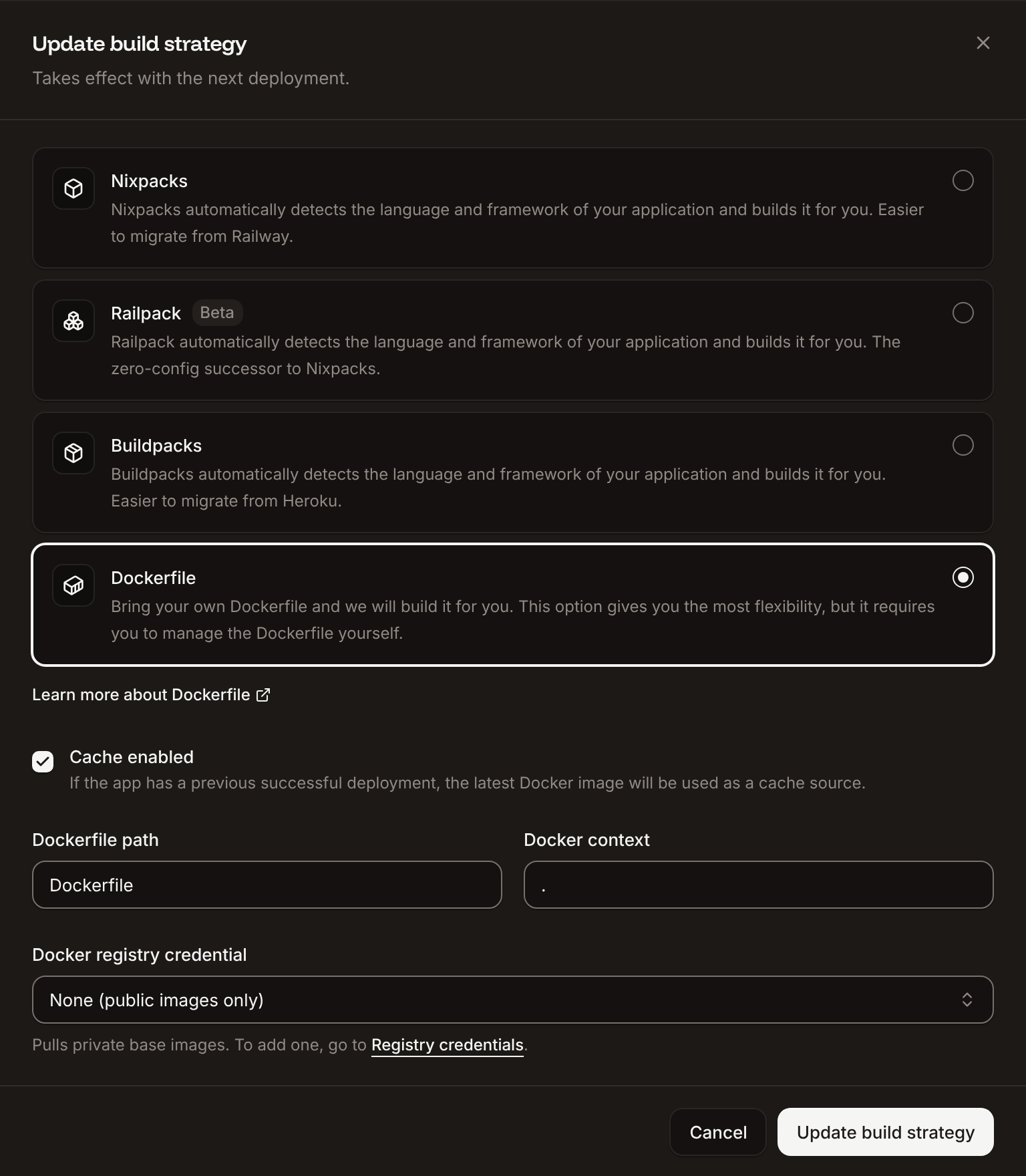
On the application’s Settings tab, in the Build strategy section, click Update build strategy. Click Dockerfile, keep the Dockerfile path
Dockerfile and the Docker context ., then click Update build strategy.2
Deploy
Click the Overview tab, then click Deploy now under Recent deployments. Check the Branch and click Deploy.
📦 Building and pushing docker image using Dockerfile... instead of Ingot’s build plan, and its Dockerfile tab shows your Dockerfile. When the deployment is Deployed, the curl request in Verify the deployment returns the order again. See Dockerfile for build arguments and private base images.
Deploy changes
With Auto-deploy on, every push to the branch starts a deployment; otherwise, click Deploy now for each change. Each deployment builds the image, then replaces the web process’s instances. Clients see a tool you add the next time they list the tools, for example when they reconnect. See Deployments.Add a custom domain
To serve the MCP endpoint from your own domain, such asmcp.example.com, add the domain on the application’s Domains tab and create the DNS records that Sevalla shows. The server accepts any host, so no code change is needed; update the URL in each client. Custom domains need a web process larger than H1, so scale the web process first. See Custom domains.
Troubleshoot
For build and runtime failures every application shares, see Troubleshoot builds and deployments. To write the same server in Python, see Deploy an MCP server with Python.
Deploy with the API
These steps make the same deployment as Deploy to Sevalla through the Sevalla API, as commands an agent or a script runs in order. Each step names the API operation, the CLI command and the Sevalla MCP server tool that do the same. What the sequence needs:- An API key with the Company developer role, or custom capabilities that create, read and update applications and databases, in the
SEVALLA_API_KEYenvironment variable. A call the key isn’t allowed to make fails with403and names the missing permission. - The project pushed to GitHub, from a Git account connected to Sevalla. If Sevalla can’t read the repository, Create application fails with
400andCannot access repository <url>: Repository not found or you don't have access., followed by where a person grants access. List Git providers (listGitProvidersV3) returns theconnect_urlthat connects an account. curl,jq,opensslandpsql, run from the project folder, which holdsschema.sql.
1
Set the variables
Generate the token clients send and the database password. Clients need
MCP_TOKEN; List environment variables (listEnvironmentVariablesV3) returns it again later, while the Sevalla MCP server’s tools never show variable values.2
Pick the location
List clusters (CLI:
listClustersV3) returns each location with its region in location. Pick one by its region from Locations, for example eu-frankfurt-1 for Frankfurt, Germany:sevalla resources clusters. MCP: get_platform_options.3
Find the database size
List database resource types (CLI:
listDatabaseResourceTypesV3) returns the database sizes; db1 is the smallest.sevalla resources db-types. MCP: get_platform_options.4
Find the process size
List process resource types (CLI:
listProcessResourceTypesV3) returns the process sizes; h1 is H1.sevalla resources process-types. MCP: get_platform_options.5
Create the database
Create database (CLI:
createDatabaseV3) starts creating orders-db:sevalla databases create --name orders-db --type postgresql --db-version 18 --cluster $CLUSTER_ID --resource-type $DB_SIZE_ID --db-name storefront --db-user storefront --db-password $DB_PASSWORD. MCP: create_database, which generates the password itself and never returns it; once the application exists, its connect_to_application_id and env_var_name: "DB_URL" also make the connection and write DB_URL as postgresql://app_user:..., which pg accepts like postgres://.6
Open the database to your computer
When Get database (The output is
getDatabaseV3) reports ready, Toggle external connection (toggleDatabaseExternalConnectionV3) gives the database a public hostname, so you can create the tables from your computer:External connection toggle started. CLI: sevalla databases connections external-toggle $DB_ID. MCP: sevalla_api_create with toggleDatabaseExternalConnectionV3.7
Create the tables
Wait until Get database (
getDatabaseV3) is ready again with an external_hostname, then run schema.sql. The hostname can refuse connections for a minute after it appears, so psql retries; -1 runs the file in one transaction, so a failed attempt leaves nothing behind:psql prints CREATE TABLE twice, INSERT 0 3 and INSERT 0 2, after server closed the connection unexpectedly for each attempt that came too early. CLI: sevalla databases get $DB_ID. MCP: get_database.8
Close the database again
The application reaches the database over the internal connection, so turn the public hostname off with Toggle external connection (CLI:
toggleDatabaseExternalConnectionV3):sevalla databases connections external-toggle $DB_ID. MCP: sevalla_api_create with toggleDatabaseExternalConnectionV3.9
Create the application
Create application (The web process starts at the S1 size, not the dashboard’s H1, and
createApplicationV3) creates the application with a web process, without deploying it:auto_deploy is false. CLI: sevalla apps create --name storefront-mcp --cluster $CLUSTER_ID --source privateGit --git-type github --repository https://github.com/acme/storefront-mcp --branch main. MCP: create_application with deploy: false (it deploys by default).10
Find the web process
List processes (CLI:
listProcessesV3) returns the web process:sevalla apps processes list --app-id $APP_ID. MCP: get_application.11
Set the size and the readiness probe
Update process (The response shows
updateProcessV3) sets the web process to H1 and adds the readiness probe on /health. Send timeoutSeconds: without it, the API sets the probe’s timeout to 120 seconds, where the dashboard uses 1."resource_type_name":"h1" and the probe. CLI: sevalla apps processes update $WEB_ID --app-id $APP_ID --resource-type $H1_ID sets the size; the CLI has no option for probes. MCP: sevalla_api_update with updateProcessV3 and the same body.12
Connect the database
Create internal connection (The output is the connection’s ID. Unlike the dashboard, the API adds no environment variables with the connection; the next step adds them. CLI:
createApplicationInternalConnectionV3) lets the application reach orders-db:sevalla apps internal-connections create $APP_ID --target-id $DB_ID --target-type database. MCP: sevalla_api_create with createApplicationInternalConnectionV3.13
Add the environment variables
Create environment variable (Each call prints the key it created. CLI:
createEnvironmentVariableV3), once per variable, adds the six connection variables the dashboard adds, with the address from Get database, and MCP_TOKEN for runtime only:sevalla apps env-vars create $APP_ID --key DB_URL --value <url>, one variable per command; CLI 2.1.0 makes every variable available during build and runtime and has no option to change that, so add MCP_TOKEN with the API or MCP. MCP: set_environment_variables, with runtime and buildtime per variable.14
Turn on auto-deploy
Update application (The response is
updateApplicationV3) deploys every push to main from now on:true. CLI: sevalla apps update $APP_ID --data '{"auto_deploy":true}'. MCP: sevalla_api_update with updateApplicationV3.15
Deploy
Trigger deployment (CLI:
triggerDeploymentV3) builds the latest commit on main with Ingot:sevalla apps deployments trigger $APP_ID. MCP: trigger_deployment.16
Wait for the deployment
Poll Get deployment (The last line is
getDeploymentV3) until status is success, failed, cancelled or skipped:success. On failed, read the build log with Get application deployment logs (getApplicationDeploymentLogsV3): curl -s "$API/applications/$APP_ID/deployments/$DEP_ID/logs?order=desc&limit=50" -H "Authorization: Bearer $SEVALLA_API_KEY" | jq -r '.[].message'. CLI: sevalla apps deployments get $DEP_ID --app-id $APP_ID and sevalla apps deployments logs $DEP_ID --app-id $APP_ID. MCP: get_deployment and get_deployment_logs.17
Run the checks
List application domains (The output is CLI:
listApplicationDomainsV3) returns the domain; then call the server:ok, then the order, as in Verify the deployment:sevalla apps domains list --app-id $APP_ID. MCP: get_application.{"build_type":"dockerfile","dockerfile_path":"Dockerfile","docker_context":"."} to Update application (updateApplicationV3), then run the deploy and wait steps again. CLI: sevalla apps update $APP_ID --build-type dockerfile --dockerfile-path Dockerfile. MCP: sevalla_api_update with updateApplicationV3.