

/horizon that shows jobs, throughput and failures. On Sevalla, php artisan horizon runs in a background worker: a process that runs from the same image as the web process with its own start command. Horizon starts a supervisor and the worker processes that run the jobs, and adds or removes worker processes as the queue grows, so the worker’s size decides how many it can run.
At a glance
What this guide adds to the application from Deploy a Laravel application:Environment variables
The application’s other variables are in Deploy a Laravel application.
Before you begin
- A Laravel application deployed on Sevalla, as in Deploy Laravel.
Install Horizon
Install Horizon 5 and publish its configuration and service provider:horizon:install writes config/horizon.php and app/Providers/HorizonServiceProvider.php, and registers the provider in bootstrap/providers.php. Horizon needs the pcntl and posix PHP extensions: Ingot finds ext-pcntl in composer.lock and installs it, and its build plan lists it:
Build log
Create a job
Create a job class:app/Jobs/SendOrderConfirmation.php
SendOrderConfirmation::dispatch($order->id). With QUEUE_CONNECTION set to redis, the job waits in Redis until Horizon runs it.
Set the number of worker processes
Horizon’sproduction environment, which Laravel uses when APP_ENV isn’t set, starts 1 worker process and adds more while jobs wait, up to maxProcesses, 10 by default. Each worker process is a PHP process with the whole application loaded, so the memory Horizon needs grows with them. Read the limit from an environment variable, so you can fit it to the worker’s size without a code change:
config/horizon.php
Protect the dashboard
Outside thelocal environment, Horizon shows its dashboard only to users that its viewHorizon gate allows, and answers everyone else with 403. Laravel’s new projects have no sign-in page, so use HTTP basic authentication: add Laravel’s auth.basic middleware to Horizon’s routes, which asks for the email and password of a user in the users table:
config/horizon.php
app/Providers/HorizonServiceProvider.php
composer.json and composer.lock included.
Connect a Redis database
1
Create the database
In the sidebar, click Databases, then click Create database. Under Database, choose Redis, or Valkey: Horizon works with both. Enter
storefront-redis as the Display name, choose the same Data center as the application and a Size, then click Create database.2
Connect it to the application
In the sidebar, click Applications, then click the application. Click the Networking tab. Under Connected services, click Add internal connection. Choose
storefront-redis as the Service, turn on Add environment variables to the application, and click Add internal connection. Sevalla adds REDIS_HOST, REDIS_PORT, REDIS_PASSWORD and REDIS_URL, the names Laravel’s config/database.php reads. See Connect an application.3
Switch the queue connection
Click the Environment variables tab, then click Add environment variables. Add
QUEUE_CONNECTION with the value redis, and click Add environment variables.redis PHP extension (phpredis), Laravel’s default client, which Ingot installs for Laravel.
Run Horizon on Sevalla
1
Create the background worker
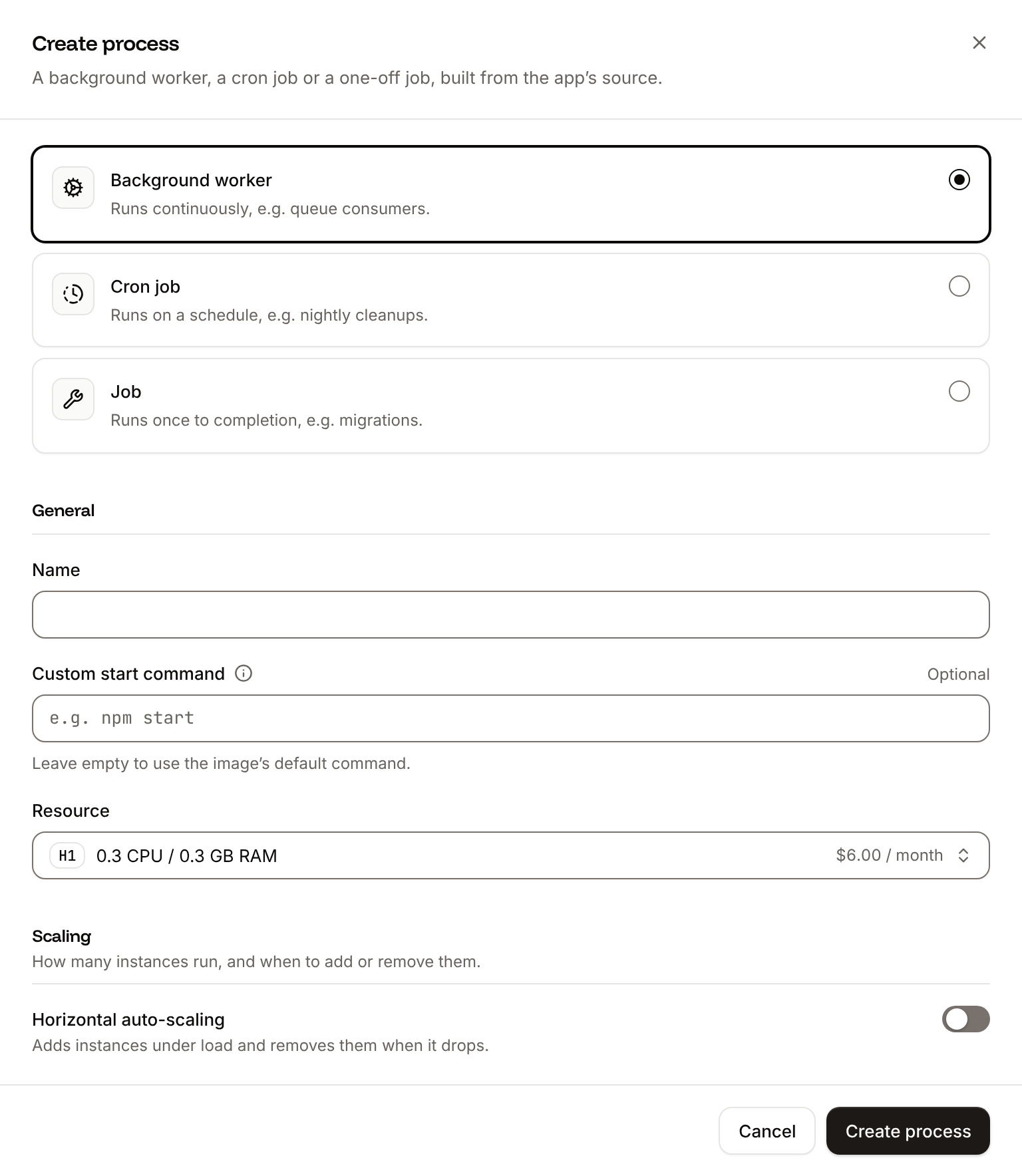
On the application’s Processes tab, click Create process. Choose Background worker, enter Choose S1 as the Resource, keep the instances at 1, and click Create process.
Horizon as the Name and this Custom start command:2
Deploy
Click Deploy in the undeployed changes bar at the bottom of the page.
🚀 Horizon has been deployed successfully., and the worker’s runtime logs show Horizon started successfully. Horizon replaces php artisan queue:work: if the application has a queue worker from Run Laravel queues, delete it, so jobs run only under Horizon. Horizon scales its own worker processes, so keep the background worker at 1 instance and raise HORIZON_MAX_PROCESSES and the size instead.
Stop Horizon cleanly on deployments
Sevalla runs a custom start command with/bin/sh -l -c. exec replaces that shell with Horizon, so Horizon receives the SIGTERM that Sevalla sends when it stops an instance during a deployment: it tells each worker process to finish its job, logs Worker STOPPED Interrupted for each, and exits when they have. In a test, a job that works for 20 seconds had run for 3 when Horizon received SIGTERM: it ran to the end, logged 20s DONE, and then Horizon stopped. The signal does end PHP’s sleep() early, so a job that waits with sleep(20) returned after 4 seconds instead; wait in a loop that checks the time if the wait matters.
Sevalla sends SIGTERM 5 seconds after the shutdown begins and stops the instance 30 seconds after it began, so a job has about 25 seconds to finish. A job that’s still running then stays reserved in Redis and fails with has been attempted too many times. once its retry_after has passed. Without exec, the shell receives the signal and ignores it, and every running job is cut off at 30 seconds. See Stop the worker cleanly on deployments.
Size the Horizon worker
Horizon runs a master process, a supervisor and the worker processes in one instance. Each PHP process loads the application, and the instance’s memory grows with the number of worker processes, measured on Sevalla with jobs that use little memory of their own:
S1 (1 GB) fits the default of 10. On H1 (0.3 GB), a busy queue makes Horizon start more worker processes than 0.3 GB holds: Sevalla stops the instance for running out of memory and starts it again, Horizon scales up again to work through the same queue, and the instance restarts in a loop. The jobs that were running fail with
has been attempted too many times. To run Horizon on H1, add the HORIZON_MAX_PROCESSES environment variable with the value 5, and deploy. Jobs that load more data need more memory per process: check the instance’s memory on the application’s Analytics tab while the queue is busy.
Open the dashboard
The dashboard asks for the email and password of a user in theusers table whose email is in the viewHorizon gate. Create the user once:
-
Click the Web terminal tab, and in the shell that opens in the Web process, create the user with a password of your own:
The
Usermodel hashes the password when it saves it. -
Open
/horizonon the application’s domain, for examplehttps://storefront-x7k2m.sevalla.app/horizon. The browser asks for a username and password: enter the email and the password. The dashboard shows the status Active.
401, and a signed-in user whose email isn’t in the gate gets 403. Basic authentication sends the password with every request, which Sevalla’s HTTPS protects.
Update the Dockerfile
If the application builds from the Dockerfile in the deploy guide, install thepcntl extension, which Horizon needs to start and to stop cleanly, and the redis extension for the Redis connection. Ingot installs both on its own. posix, which Horizon also needs, is part of the PHP image. Change the first RUN line:
Dockerfile
pcntl, the build stops at composer install with laravel/horizon v5.50.1 requires ext-pcntl * -> it is missing from your system. Install or enable PHP's pcntl extension. The ldd line finds the libraries the redis extension loads, so the final stage installs them with no other change. The start command is the same with both build strategies.
Verify
-
When the deployment’s status is Deployed, click the Web terminal tab, and in the shell that opens in the Web process, queue a job:
-
Click the Logs tab and look at the
Horizonprocess’s runtime logs. They show the job running, the line it logs, andDONE:Runtime logs - Open the dashboard as in Open the dashboard, and click Completed Jobs: the job is listed there.
QUEUE_CONNECTION is redis: with the deploy guide’s database queue, jobs wait in PostgreSQL, where Horizon doesn’t look. Jobs that failed are under Failed Jobs in the dashboard.
Check from a terminal
These checks need no dashboard.API, H, APP_ID, WEB_ID and HORIZON_PASSWORD are set as in Deploy with the API.
-
Horizon’s status, from the dashboard’s own API with the user’s credentials:
-
The dashboard without credentials:
-
Queue a job in the web process with Run a command in a process (
execProcessCommandV3), the API’s counterpart of the web terminal: -
The line the job logs, from Get application runtime logs (
getApplicationRuntimeLogsV3), after waiting 10 seconds for the log to arrive:
sevalla apps processes exec $WEB_ID --app-id $APP_ID --timeout 30 -- php artisan tinker --execute 'App\Jobs\SendOrderConfirmation::dispatch(42);', then sevalla apps logs runtime $APP_ID --search "order 42". MCP: sevalla_api_update with execProcessCommandV3, and search_runtime_logs.
Troubleshoot
Deploy with the API
The same steps as Run Horizon on Sevalla, as calls to the Sevalla API.APP_ID, CLUSTER_ID, WEB_ID, H1_ID and DB1_ID are the application, its location, its web process and the H1 and DB1 sizes from Deploy with the API in the deploy guide, with API and H set as there. Push the Horizon changes first: the deployment builds the branch as it is.
1
Look up the Redis version
List database versions (CLI:
listDatabaseVersionsV3) gives the newest Redis version in the location. For Valkey, select valkey here and in the next step:sevalla resources db-versions --cluster $CLUSTER_ID --type redis. MCP: sevalla_api_read with listDatabaseVersionsV3.2
Create the database
Create database (CLI:
createDatabaseV3), then poll Get database (getDatabaseV3) until it’s ready:sevalla databases create --name storefront-redis --type redis --db-version $REDIS_VERSION --cluster $CLUSTER_ID --resource-type $DB1_ID --db-name storefront --db-password $REDIS_PASSWORD. MCP: create_database.3
Connect it to the application
Create internal connection (CLI:
createApplicationInternalConnectionV3). It prints the connection’s ID; if it prints nothing or null, run it again:sevalla apps internal-connections create $APP_ID --target-id $REDIS_ID --target-type database. MCP: sevalla_api_create with createApplicationInternalConnectionV3 and the same body.4
Add the environment variables
Create environment variable (CLI:
createEnvironmentVariableV3), once per variable: the connection’s variables in the dashboard’s names and format, then QUEUE_CONNECTION, all for runtime only:sevalla apps env-vars create $APP_ID --key QUEUE_CONNECTION --value redis, once per variable, for build and runtime. MCP: set_environment_variables with runtime: true and buildtime: false.5
Create the Horizon worker
List process resource types (CLI:
listProcessResourceTypesV3) gives the ID of S1, and Create process (createProcessV3) with type worker needs the size and a scaling_strategy. Keep exec in the start command:sevalla apps processes create $APP_ID --name Horizon --type worker --resource-type $S1_ID --command "exec php artisan horizon". MCP: sevalla_api_create with createProcessV3 and the same body.6
Deploy
Trigger deployment (CLI:
triggerDeploymentV3):sevalla apps deployments trigger $APP_ID. MCP: trigger_deployment.7
Wait for the deployment
Poll Get deployment (CLI:
getDeploymentV3) until the status is final: success, failed, cancelled or skipped. The loop keeps polling through a failed request and stops after 30 minutes:sevalla apps deployments get $DEPLOYMENT_ID --app-id $APP_ID. MCP: get_deployment.8
Create the dashboard user
Run a command in a process (CLI:
execProcessCommandV3) creates the user in the web process, with a new password that you keep for the checks:sevalla apps processes exec $WEB_ID --app-id $APP_ID --timeout 30 -- php artisan tinker --execute '...'. MCP: sevalla_api_update with execProcessCommandV3.https://$APP_HOST as the domain. To build from the Dockerfile, send {"build_type": "dockerfile", "dockerfile_path": "Dockerfile", "docker_context": "."} to Update application (updateApplicationV3) before you deploy.