

Before you begin
- A FastAPI project deployed on Sevalla, as in Deploy FastAPI.
Create a bucket
In the sidebar, click Object storage, then click Create object storage. Enterstorefront-media as the Name, choose the Location closest to the application, and click Create object storage. Keep it private: the code in this guide shares each file through a presigned URL that expires.
Add the bucket details to the application
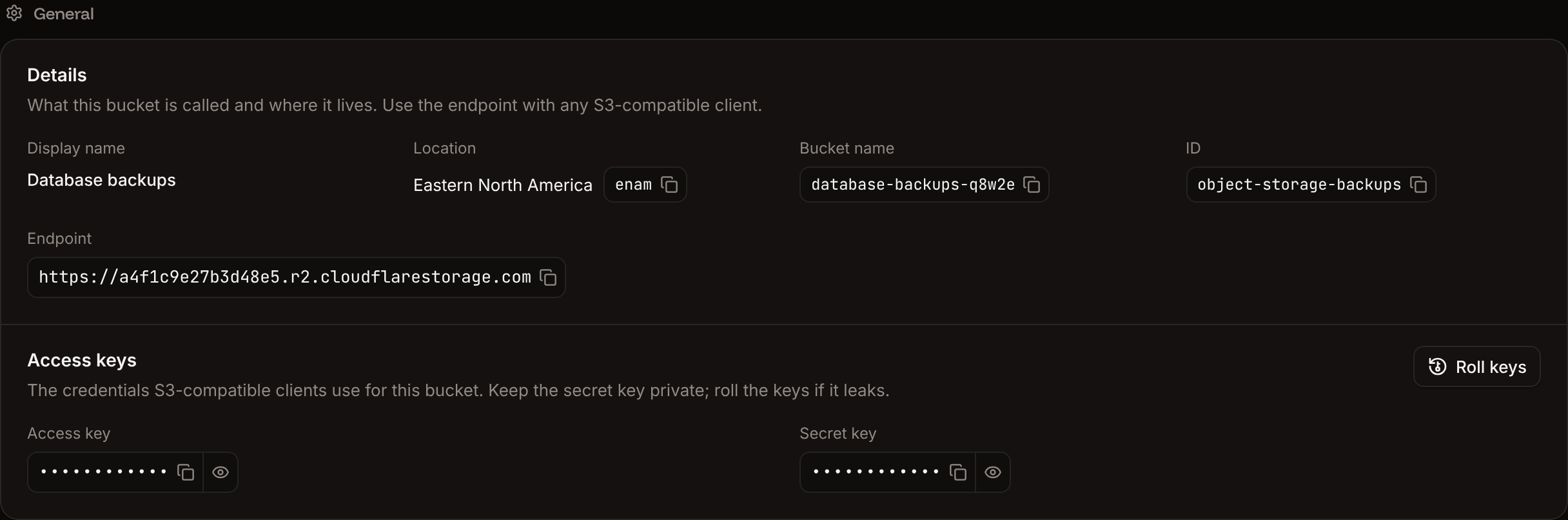
The values come from the bucket’s Settings tab. See Connect with the S3 API for each one.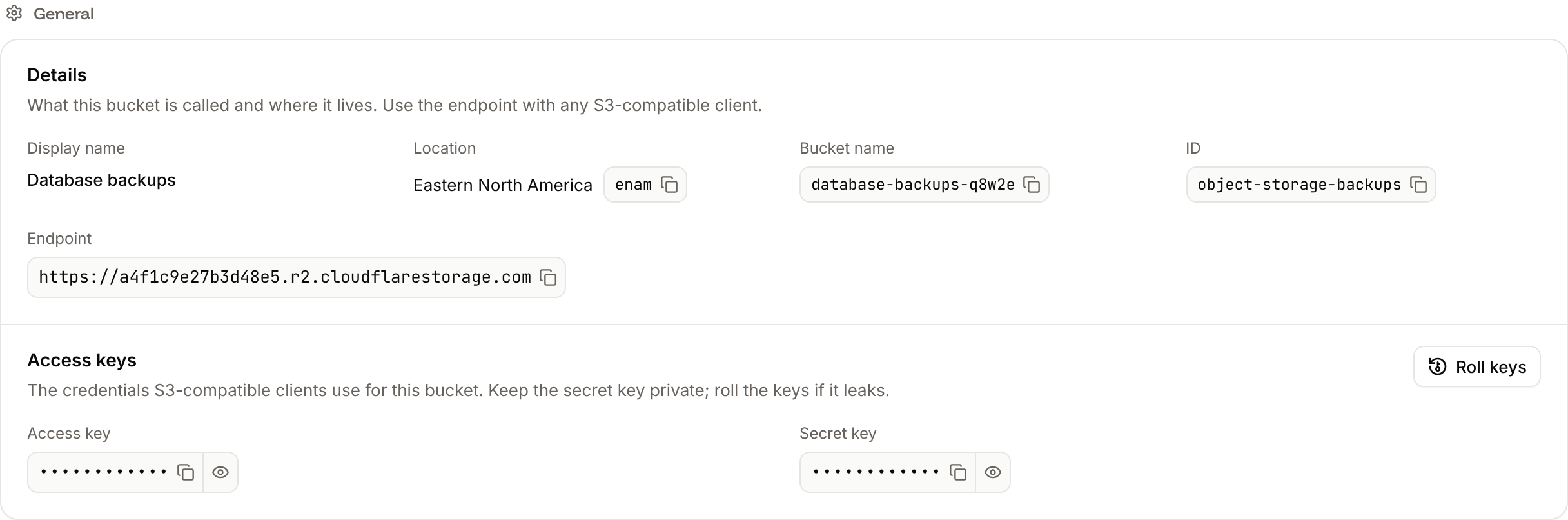
1
Open the environment variables
In the sidebar, click Applications, then click the application. Click the Environment variables tab.
2
Add the variables
Click Add environment variables. Add the variables, keep Available during runtime selected, and click Add environment variables.
Install boto3
Install boto3 and updaterequirements.txt:
Add the S3 client
Create the client from environment variables. Cloudflare R2, which runs Sevalla’s object storage, uses the regionauto:
storefront/storage.py
Upload and list files
Add two routes tostorefront/main.py. Uploads use FastAPI’s UploadFile, which fastapi[standard] supports. The routes are plain def functions, so FastAPI runs boto3’s blocking calls in a thread pool:
storefront/main.py
list_objects_v2 returns up to 1,000 objects per call; pass ContinuationToken for more. See presigned URLs. For a public bucket, link files on its public domain instead; see public URLs.
Commit and push the changes. If Auto-deploy is off, click Deploy now on the application’s Overview tab.
Verify
Upload a file and list the bucket, with your application’s domain:{"filename":"hello.txt"}. The second lists hello.txt with a url: open it, and the page reads Hello from Sevalla. In the sidebar, click Object storage, click the bucket, and the Objects tab lists hello.txt. See Manage objects.