

How keys and folders work
Every object has a key: its full path in the bucket, such asdocuments/terms.pdf. The browser splits keys at each / and shows the parts as folders.
- Folders aren’t objects. A folder exists while at least one key starts with it, and you can’t create an empty one. To make folders in the dashboard, upload a whole folder: its structure is kept.
- Uploading creates the key. A file
terms.pdfuploaded whiledocumentsis open gets the keydocuments/terms.pdf. - The same key replaces the file. Uploading a file with a key that already exists overwrites the old file.
Browse a bucket
In the sidebar, click Object storage, then click the bucket. The Objects tab opens at the bucket’s root.
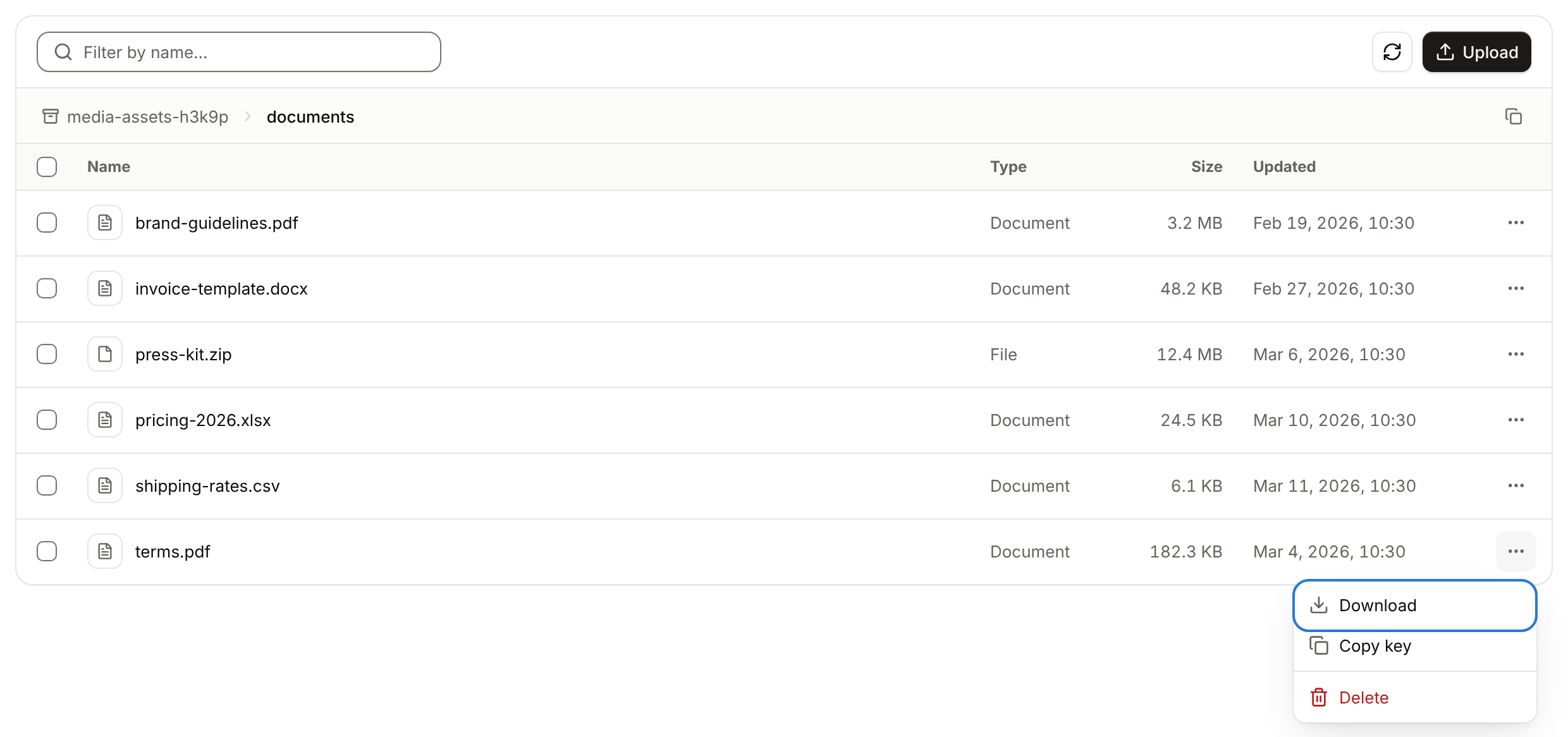
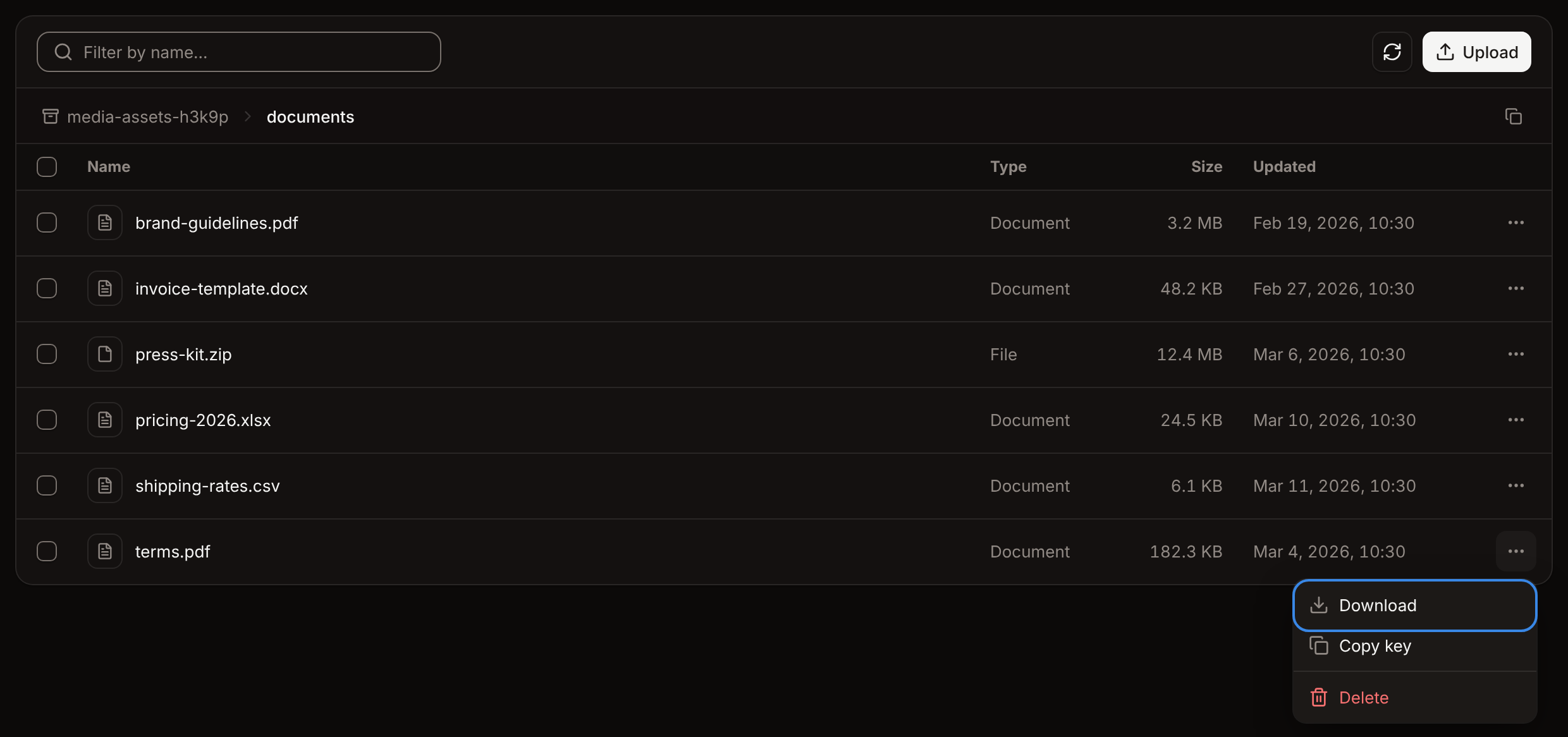
The Type column comes from the file extension: Folder, Image, Document, Video, Audio or File. Size and Updated are shown for files only.
Upload files
1
Open the destination folder
In the sidebar, click Object storage, click the bucket, then open the folder to upload into. Stay at the root to upload there.
2
Open the upload sheet
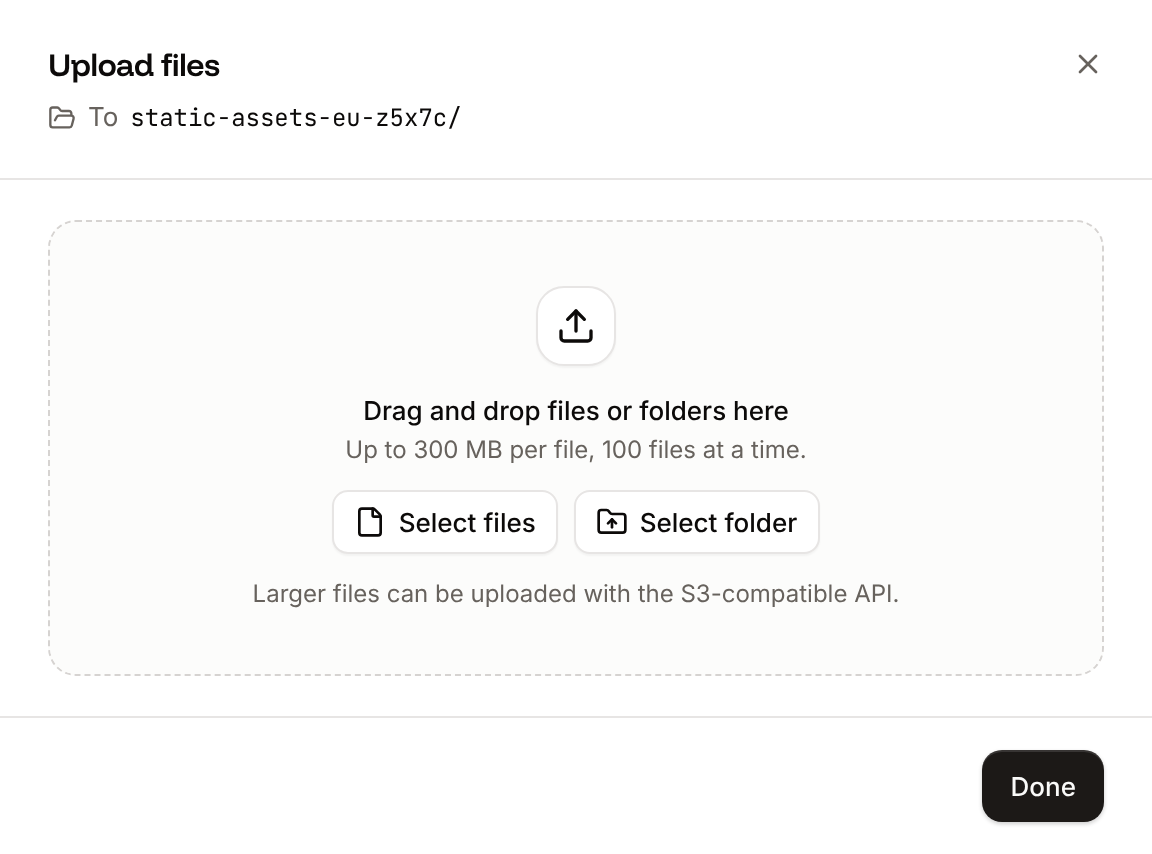
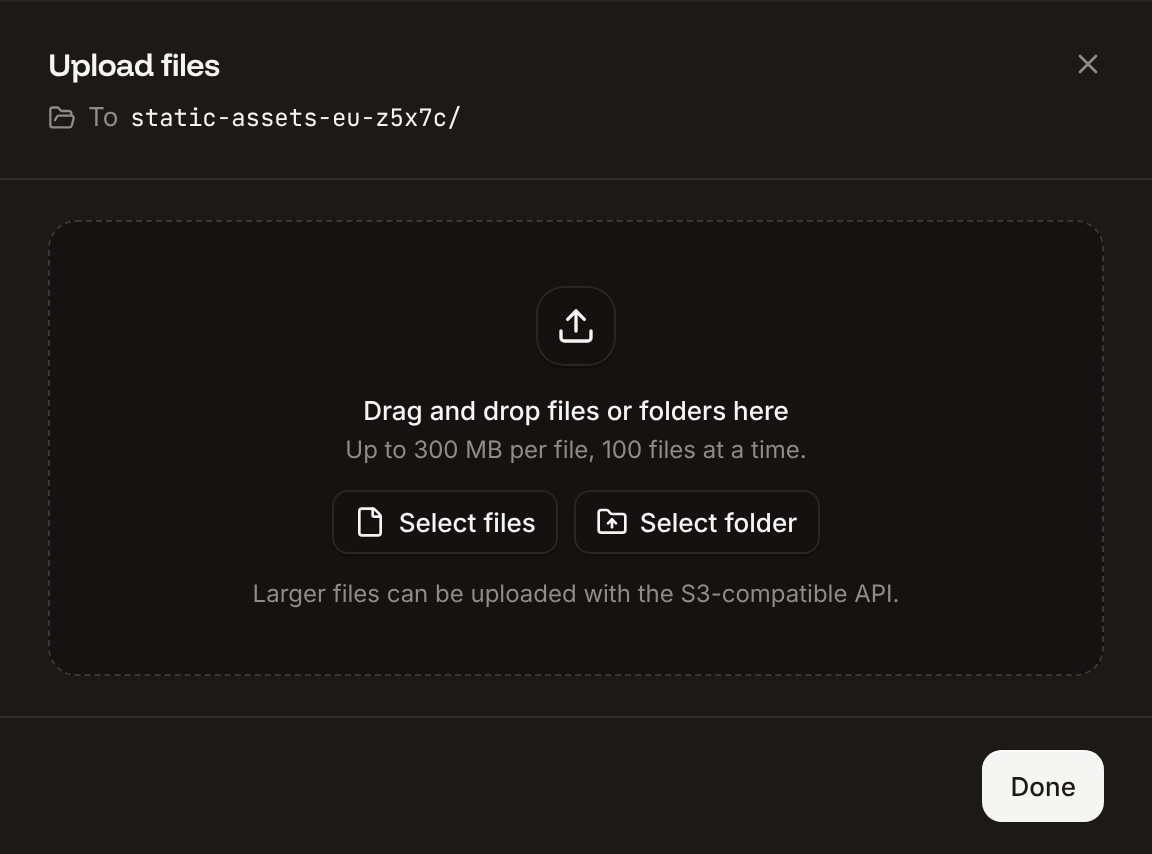
Click Upload. The Upload files sheet shows the destination, such as To
media-assets-h3k9p/documents/.3
Add the files
Click Select files or Select folder, or drag files and folders onto the sheet. Each file starts uploading right away, with its own progress bar.
4
Close the sheet
Click Done when every file has a green check mark. While files are still uploading, the button reads Upload in background: the uploads continue while the bucket’s Objects tab stays open.
Preview an image
Click an image’s name, or click … next to it and then Preview. The Preview image dialog shows the image, with a Download button.Download a file
Click … next to the file, then click Download. The browser saves it under the file’s name. The dashboard downloads one file at a time; to download a whole folder, use an S3 tool, such asaws s3 cp --recursive with the AWS CLI.
Copy the key of a file
Click … next to the file, then click Copy key. It copies the full key, such asdocuments/terms.pdf, which S3 clients and public URLs use.
Delete files
1
Select the files
To delete one file, click … next to it, then click Delete. To delete more than one, select their checkboxes (the checkbox in the header selects every file on the page), then click Delete 2 files (the button shows how many are selected).
2
Confirm
Click Delete file or Delete files.