

BackgroundTasks runs a function in the web process right after it sends the response: fine for a few seconds of work, but the task is lost if the instance restarts, and it shares the web process’s CPU. For anything longer, Celery runs the tasks in a separate background worker process on Sevalla, with a Redis database holding the queue.
Before you begin
- A FastAPI project deployed on Sevalla, as in Deploy FastAPI.
Run a short task after the response
Add aBackgroundTasks parameter to a route and queue the function on it. It needs no setup on Sevalla:
storefront/main.py
Create a Redis database
1
Create the database
In the sidebar, click Databases, then click Create database. Under Database, choose Redis, or Valkey: the code in this guide works with both. Enter
storefront-redis as the Display name, choose the same Data center as the application and a Size, then click Create database.2
Connect it to the application
In the sidebar, click Applications, then click the application. Click the Networking tab. Under Connected services, click Add internal connection. Choose
storefront-redis as the Service, turn on Add environment variables to the application, and click Add internal connection. Sevalla adds REDIS_HOST, REDIS_PORT, REDIS_PASSWORD and REDIS_URL. See Connect an application.Add Celery to the project
Install Celery with its Redis support, and updaterequirements.txt:
storefront/worker.py
delay:
storefront/main.py
Run the worker on Sevalla
1
Create the background worker
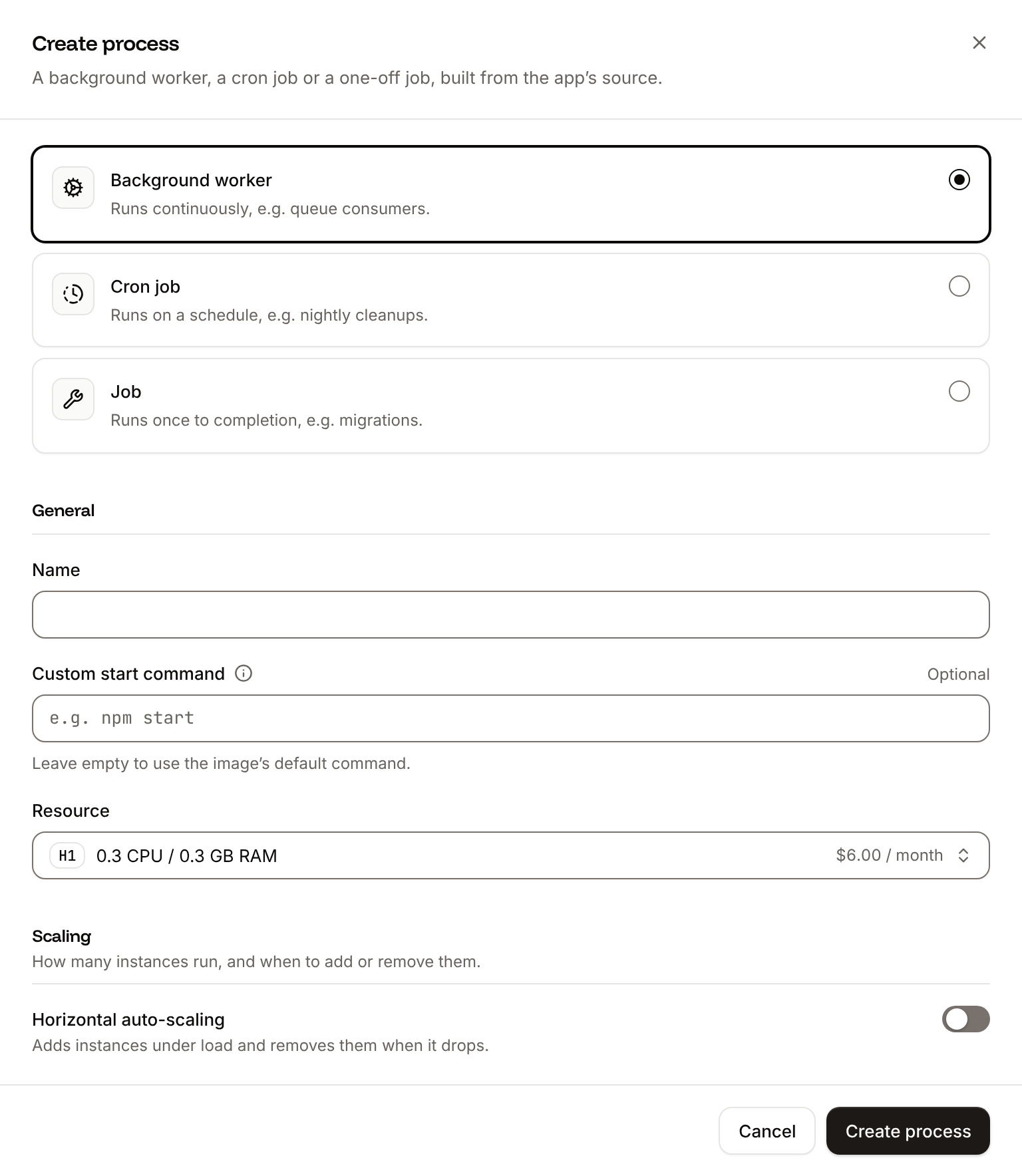
On the application’s Processes tab, click Create process. Choose Background worker, enter Choose a Resource and click Create process.
Celery worker as the Name and this Custom start command:2
Deploy
Click Deploy in the undeployed changes bar at the bottom of the page.
--concurrency to match the size. Without it, Celery starts one worker process per CPU of the machine it runs on, which can be more than the process’s memory holds. Two processes fit in H1 (0.3 GB of memory). To process more tasks at once, add instances in the process’s Scaling section, or choose a larger size and raise --concurrency. See Scaling.
Run tasks on a schedule
Run scheduled work as a cron job: create a Cron job process with a Schedule in cron syntax, such as0 3 * * * for every day at 03:00 UTC, and a Custom start command that runs a script, such as python -m storefront.cleanup. See Cron jobs.
Verify
-
Queue a task, with your application’s domain:
The response is
{"status":"queued"}. -
Click the Logs tab and look at the worker’s runtime logs. They show
Task storefront.worker.send_order_confirmation[...] received, the lineSending the confirmation for order 42, andTask storefront.worker.send_order_confirmation[...] succeeded.
Celery worker process shows Running. If it shows Crashed, the logs show why, for example Error 111 connecting when REDIS_URL is missing or wrong.