

At a glance
What this guide adds to the application from Deploy a Rails application:Environment variables
The worker reads the same variables as the web process, listed in Deploy a Rails application.
Before you begin
- A Rails application deployed on Sevalla, as in Deploy a Rails application. The deploy guide creates Solid Queue’s tables in the application’s database, and
config/environments/production.rbalready setsconfig.active_job.queue_adapter = :solid_queue.
Create a job
Generate a job:perform method with the work the job does:
app/jobs/order_confirmation_job.rb
OrderConfirmationJob.perform_later(order.id). perform_later writes the job to the database and returns at once. Commit and push the changes.
Run the jobs in a background worker
1
Create the background worker
On the application’s Processes tab, click Create process. Choose Background worker, enter
Jobs as the Name and exec bin/jobs as the Custom start command. Keep the Resource at H1 or choose a larger one, and click Create process.2
Deploy
Click Deploy in the undeployed changes bar at the bottom of the page.
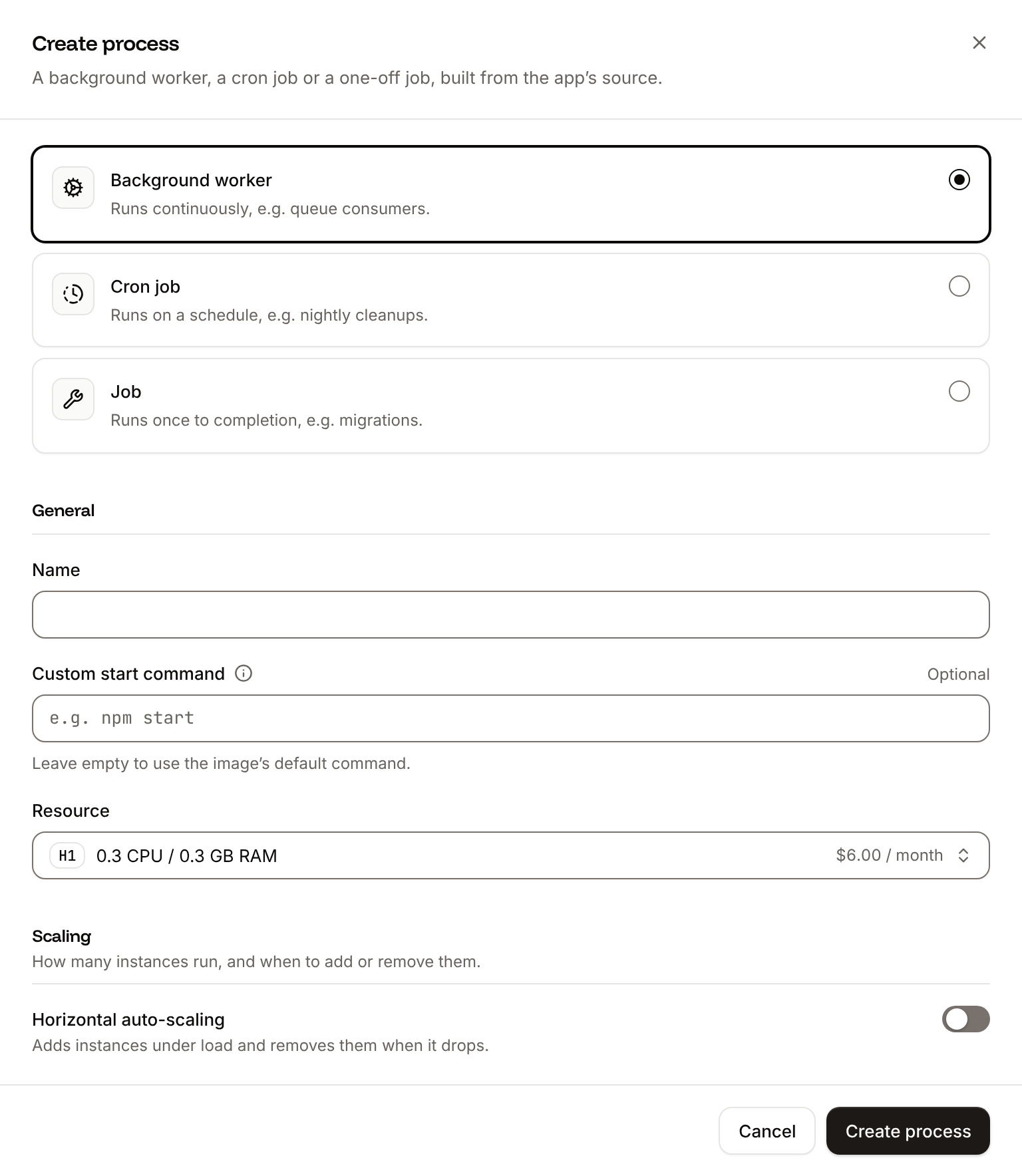
bin/jobs starts Solid Queue’s supervisor, which runs three processes: a worker that runs the jobs with 3 threads (set in config/queue.yml), a dispatcher, and a scheduler for recurring tasks. Together they used 170 MB to 250 MB of memory at rest on H1 (0.3 GB) in this guide’s tests; choose a larger size for jobs that need more. To run more jobs at once, add instances in the process’s Scaling section. See Scaling.
Keep exec in the start command. Sevalla runs a custom start command with /bin/sh -l -c, and the shell stays the container’s main process unless exec replaces it with Solid Queue. The shell doesn’t pass on the SIGTERM that Sevalla sends when it replaces an instance, so without exec, a job that’s running when you deploy is killed and marked as failed.
Run the jobs inside Puma
Instead of a background worker, the web process can run Solid Queue: Rails’config/puma.rb loads Solid Queue’s Puma plugin when the SOLID_QUEUE_IN_PUMA environment variable is set, and the plugin starts the supervisor with Puma. It saves a process, but the web process then holds Puma and Solid Queue’s four processes.
1
Add the variable
On the application’s Environment variables tab, click Add environment variables, add
SOLID_QUEUE_IN_PUMA with the value 1, and click Add environment variables.2
Give the web process more memory
On the Processes tab, click ⋯ on the Web process, then click Update process. Choose S1 or a larger size and click Update process.
3
Deploy
Click Deploy in the undeployed changes bar at the bottom of the page. Don’t create the
Jobs worker, or delete it if you created it.bin/rails runner command in the web terminal ran out of memory, which restarted the web instance. Each web instance runs its own Solid Queue processes.
Run recurring tasks
Solid Queue’s scheduler queues jobs on a schedule fromconfig/recurring.yml. Add a job that reports the size of the catalog, then schedule it under production:
app/jobs/inventory_report_job.rb
config/recurring.yml
clear_solid_queue_finished_jobs comes with Rails: it deletes the records of finished jobs every hour. Write schedules in plain English, such as at 5am every day, or as cron expressions; times are in UTC. Commit and push the changes; the scheduler reads the file when it starts, so the schedule applies with the next deployment.
With more than one instance of the worker, or of the web process with Solid Queue inside Puma, each runs a scheduler, and Solid Queue still queues each task once per scheduled time. For a command that isn’t a job, you can also use a cron job, for example bin/rails runner "Cart.expired.destroy_all".
Verify
-
Click the Web terminal tab, and in the shell that opens in the Web process, queue a job:
The command prints
Enqueued OrderConfirmationJob (Job ID: ...) to SolidQueue(default) with arguments: 42. -
Click the Logs tab and look at the runtime logs of the
Jobsprocess, or of the web process with Solid Queue inside Puma. They showPerforming OrderConfirmationJob, the lineSending the confirmation for order 42, andPerformed OrderConfirmationJob (Job ID: ...) from SolidQueue(default) in 3.24ms. -
Every 5 minutes, the same logs show
Enqueued InventoryReportJoband a line such as0 products in the catalog.
Check from a terminal
These checks need no dashboard.API, H, APP_ID and WEB_ID are set as in Deploy with the API, and DEPLOYMENT_ID is the deployment it started.
-
The rollout’s results in the build log, from Get application deployment logs (
getApplicationDeploymentLogsV3). The messages carry terminal color codes, whichgsubremoves, andselectdrops the lines of the image build, which start with#: -
Queue a job in the web process with Run a command in a process (
execProcessCommandV3), the API’s counterpart of the web terminal. The command runs without a shell, and the key needs write access to the application. Rails takes a few seconds to boot, so allow 60: -
A few seconds later, the job’s lines in the
Jobsworker’s logs, from Get application runtime logs (getApplicationRuntimeLogsV3):Use the job ID from the previous step. The lines start with[ActiveJob] [OrderConfirmationJob]and the job ID:
sevalla apps processes exec $WEB_ID --app-id $APP_ID --timeout 60 -- bin/rails runner "OrderConfirmationJob.perform_later(42)", then sevalla apps logs runtime $APP_ID --search "order 42". MCP: sevalla_api_update with execProcessCommandV3, and search_runtime_logs.
Running jobs during a deployment
Each deployment starts new instances of the worker, then sendsSIGTERM to the old ones. Solid Queue stops taking jobs and waits up to 5 seconds (SolidQueue.shutdown_timeout) for the running ones to finish. A job that doesn’t finish in that time is stopped and returned to the queue: the logs of the old instance show Release claimed jobs (...) size: 1, and a new instance runs the job again from the start. The same happens with Solid Queue inside Puma.
So write jobs that can run twice without harm: check whether the work is already done before you do it, and keep long work in small jobs.
Deploy with a Dockerfile
The Dockerfile from Deploy with a Dockerfile needs no change:bin/jobs is part of the image, and the start command runs in its /rails folder as the rails user. With the Dockerfile, exec bin/jobs makes Solid Queue’s supervisor the container’s main process in the same way, and Solid Queue inside Puma runs under Puma, which is the main process already.
Troubleshoot
Deploy with the API
The same steps as Run the jobs in a background worker, as calls to the Sevalla API.APP_ID and H1_ID are the application and the H1 size from Deploy with the API in the deploy guide, with API and H set as there. Push the jobs and config/recurring.yml first: the deployment builds the branch as it is.
1
Create the background worker
Create process (To run Solid Queue inside Puma instead, skip this call: add
createProcessV3) with type worker needs the size and a scaling_strategy. Keep exec in the start command:SOLID_QUEUE_IN_PUMA with the value 1 with Create environment variable, and set the web process to S1 with Update process. CLI: sevalla apps processes create $APP_ID --name Jobs --type worker --resource-type $H1_ID --command "exec bin/jobs". MCP: sevalla_api_create with createProcessV3 and the same body.2
Deploy
Trigger deployment (CLI:
triggerDeploymentV3):sevalla apps deployments trigger $APP_ID. MCP: trigger_deployment.3
Wait for the deployment
Poll Get deployment (CLI:
getDeploymentV3) until the status is final: success, failed, cancelled or skipped. The loop keeps polling through a failed request and stops after 30 minutes:sevalla apps deployments get $DEPLOYMENT_ID --app-id $APP_ID. MCP: get_deployment.