

Instance sizes
An instance size sets the CPU and memory of each instance of a process. Every instance of a process uses the same size. The dashboard shows sizes by name, in four groups: Hobby, Standard, CPU optimized and Memory optimized.
Rules that come with the sizes:
- H1 and custom domains. H1 is the only size in the Hobby group, and the dashboard also calls it the Hobby size. The web process can’t use H1 while the application has a custom domain, and you can’t add a custom domain while it uses H1.
- Payment method. Without a payment method on the company, only H1 can be picked.
- Limits are hard. A process that uses more memory than its size is stopped with exit code
137and restarted. CPU use above the size is throttled, not stopped. - Local disk. Every instance also has up to 20 GB of ephemeral storage, whatever its size.
Change the size of a process
1
Open the process
In the sidebar, click Applications, then click the application. Click the Processes tab, click ⋯ on the process, then click Update process.
2
Pick the size
In Resource, pick the new size.
3
Save and deploy
Click Update process, then deploy the application. The process restarts on the new size.
Set the number of instances
Running more than one instance of the web process spreads requests across them and keeps the application up while one instance restarts. Every instance costs the same as the first.1
Open the process
On the application’s Processes tab, click ⋯ on the web process or background worker, then click Update process.
2
Set the count
In Scaling, leave Horizontal auto-scaling off and drag Instance count to the number you want.
3
Save and deploy
Click Update process, then deploy the application.
A process with a disk is limited to 1 instance: adding a disk reduces a scaled process to one, and it can’t use autoscaling.
Horizontal autoscaling
Horizontal autoscaling adds instances to a web process or background worker when its average CPU or memory use rises above a target, and removes them when use falls. The process never runs fewer than the minimum or more than the maximum instances you set.
Sevalla scales up when either target is exceeded, and scales down when both are below their targets for the scale down interval. The Instance count chart on the Analytics tab shows how many instances ran and when. You pay for the instances that run, for as long as they run.
Autoscaling isn’t available:
- while hibernation is on, and you can’t turn hibernation on while any process autoscales;
- for a process with a disk;
- without a valid payment method on the company.
Turn on autoscaling
1
Open the process
On the application’s Processes tab, click ⋯ on the web process or background worker, then click Update process.
2
Configure autoscaling
In Scaling, turn on Horizontal auto-scaling, set the minimum and maximum with the Instance count slider, and adjust the targets and steps if you need to.
3
Save and deploy
Click Update process, then deploy the application.
Hibernation
Hibernation scales the application to zero when its domains receive no HTTP requests for the time you set, so its web process and background workers stop costing money while it’s idle. Use it for staging applications, demos and side projects. How hibernation works:- Going to sleep. After Hibernate after minutes without HTTP requests, Sevalla stops every instance of the web process. Background workers stop with it.
- Waking up. The application wakes on the next HTTP request to any of its domains, usually within 90 seconds. Sevalla holds that first request for up to about 3 minutes while the application starts, then passes it on, or answers
503if the application still isn’t ready. How long waking takes depends on how fast your application starts. Background workers start again with the web process. - Requests that aren’t held. Requests with a body larger than 50 MB, or without a
Content-Lengthheader, get a503while the application wakes instead of waiting. - Your own
503responses. While hibernation is on, Sevalla retries any request your application answers with503, for up to about 3 minutes, before it passes the503on. - What doesn’t wake it. Only HTTP requests to the application’s domains wake it. Connections through a TCP proxy or from other services on the private network don’t.
- What keeps running. Cron jobs and jobs run on their own schedule, whether the application sleeps or not.
Turn on hibernation
1
Open the hibernation settings
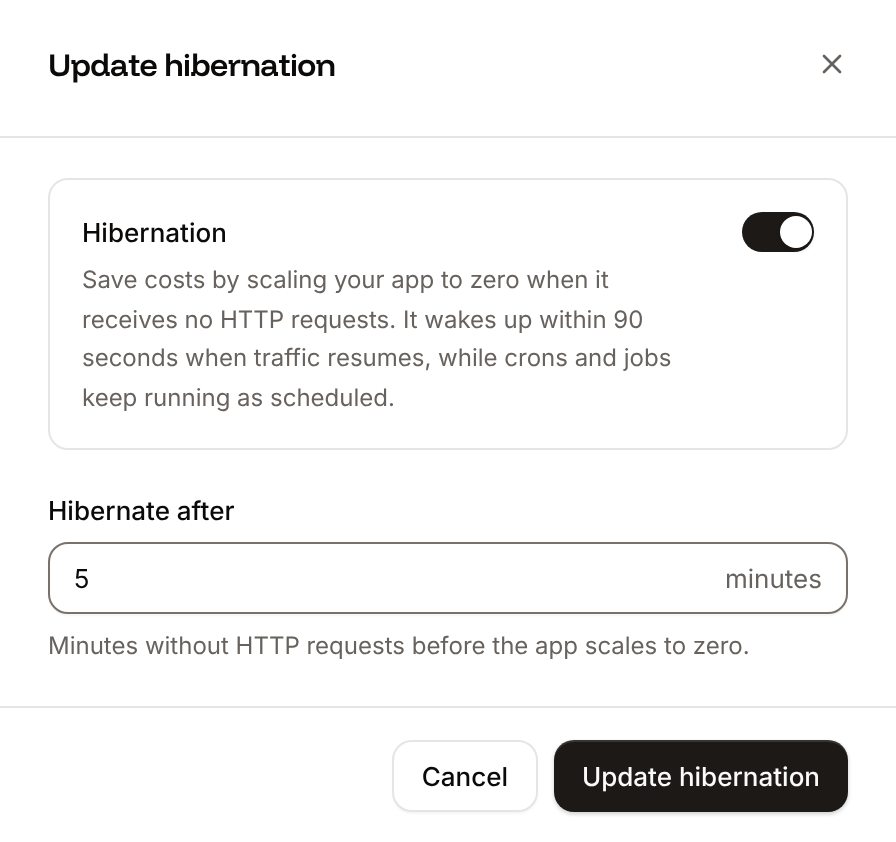
In the sidebar, click Applications, then click the application. Click the Settings tab, then click Update hibernation in the Hibernation section.
2
Set the idle time
Turn on Hibernation and enter Hibernate after: the minutes without HTTP requests before the application scales to zero, from 1 to 10000. The default is 5.
3
Save
Click Update hibernation. The change applies to the running application, without a deployment.
What scaling costs
You pay for each instance of each process, by its size, for the time it runs:
Disks, bandwidth and build time are billed separately. See Pricing and How billing works.