

At a glance
What this guide adds to the application from Deploy a Rails application:Environment variables
The application’s other variables are in Deploy a Rails application.
Before you begin
- A Rails application deployed on Sevalla, as in Deploy a Rails application.
Create a bucket
In the sidebar, click Object storage, then click Create object storage. Enterstorefront-media as the Name, choose the Location closest to the application, and click Create object storage. Keep the bucket private: Rails links to each file with a URL that expires.
Add the bucket details to the application
The values come from the bucket’s Settings tab. See Connect with the S3 API for each one.1
Open the environment variables
In the sidebar, click Applications, then click the application. Click the Environment variables tab.
2
Add the variables
Click Add environment variables. Add the four variables and click Add environment variables. They apply with the next deployment.
Allow uploads from the browser
Direct uploads send each file from the browser to the bucket, so large files don’t pass through Puma. The browser needs the bucket’s permission for that: a CORS rule.1
Open the bucket settings
In the sidebar, click Object storage, click the bucket, then click the Settings tab.
2
Create the rule
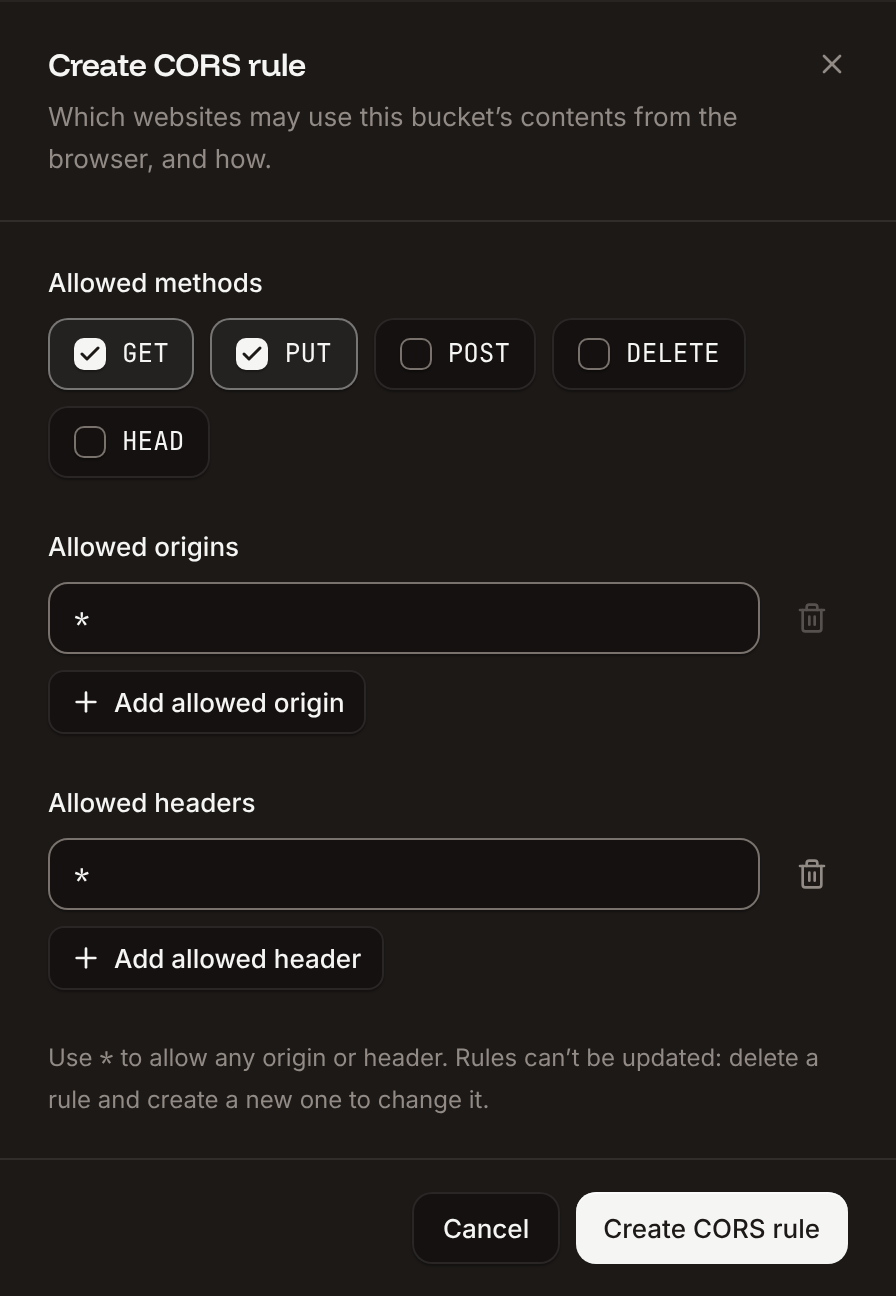
In CORS policy, click Create rule. Under Allowed methods, select only
PUT. Under Allowed origins, enter the application’s address, for example https://storefront-x7k2m.sevalla.app; click Add allowed origin to add a custom domain too. Under Allowed headers, enter Content-Type, Content-MD5 and Content-Disposition, clicking Add allowed header for each. Click Create CORS rule.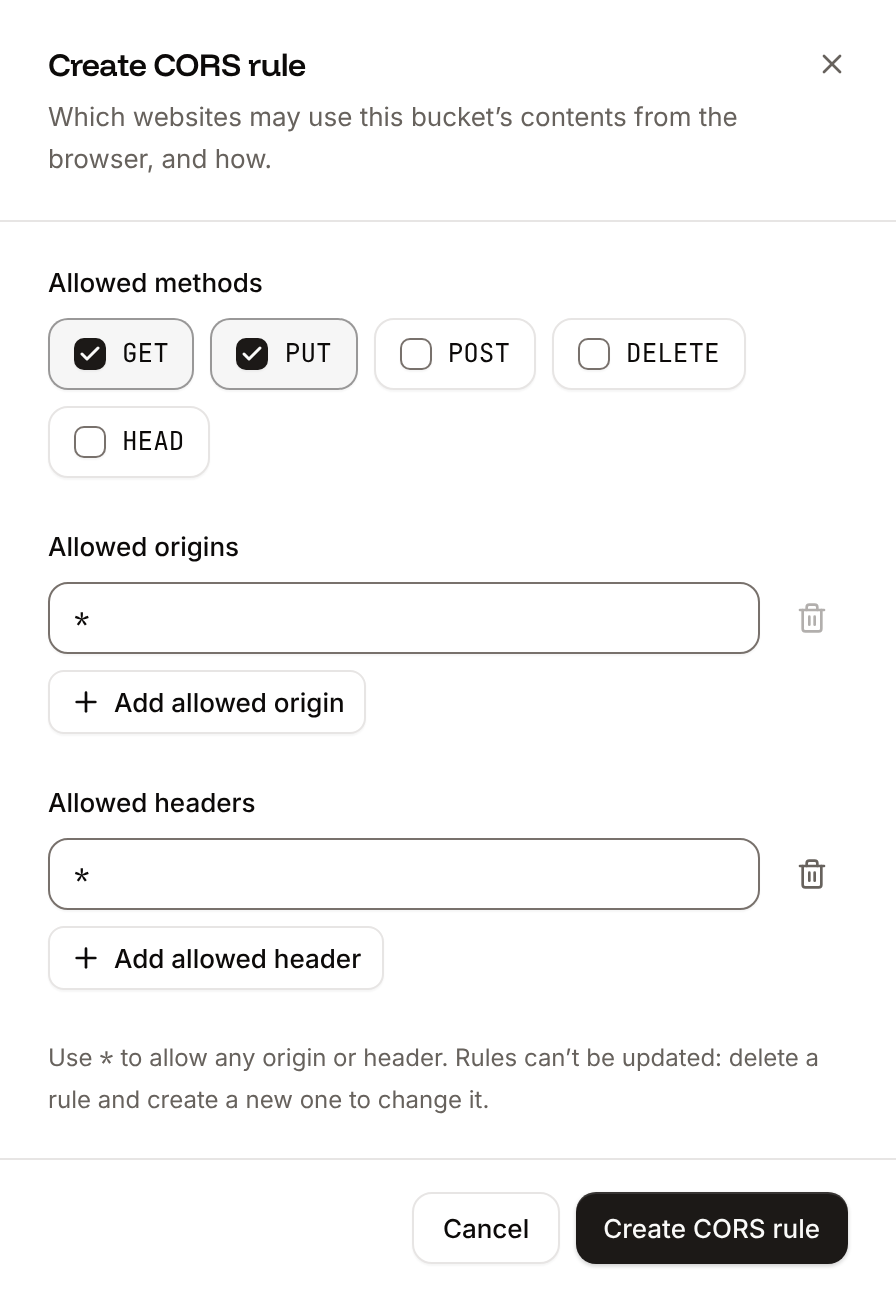
Configure Active Storage
Add the AWS SDK for S3, which Active Storage’s S3 service uses, and create Active Storage’s tables:config/storage.yml:
config/storage.yml
region: autois the region of every Sevalla bucket.- The two checksum options make the AWS SDK add its own checksum only to requests that need one. Active Storage already sends an MD5 checksum with each upload, and without the options the SDK adds a CRC32 one too, which the bucket rejects with
You can only specify one non-default checksum at a time.
config/environments/production.rb, use the service:
config/environments/production.rb
local service.
Attach photos to products
Give each product a photo:app/models/product.rb
app/controllers/products_controller.rb, allow the new field in product_params:
app/controllers/products_controller.rb
app/views/products/_form.html.erb, add a file field above the submit button. direct_upload: true makes the browser upload the file to the bucket before it sends the form:
app/views/products/_form.html.erb
app/views/products/_product.html.erb, show the photo resized to fit 400 by 400 pixels, after the description:
app/views/products/_product.html.erb
config/importmap.rb and start it in app/javascript/application.js:
config/importmap.rb
app/javascript/application.js
Gemfile.lock and db/schema.rb included. If Auto-deploy is off, click Deploy now on the application’s Overview tab. The Migrate job creates Active Storage’s tables before the new version starts.
Verify
- Open the application’s domain, click New product, enter a name, choose an image in Photo, and click Create Product. The product’s page shows the photo, at most 400 pixels wide.
- In the sidebar, click Object storage, click the bucket, and look at the Objects tab: it lists two objects with random names, the upload and its resized variant. See Manage objects.
- Deploy the application again, then reload the product’s page: the photo is still there, because it’s in the bucket and not on the instance’s disk.
/rails/active_storage/representations/redirect/, which redirects to a link on the bucket that expires after 5 minutes. Rails creates each variant the first time a page asks for it, and stores it in the bucket next to the original.
Active Storage also queues ActiveStorage::AnalyzeJob for each upload, to record an image’s width and height. Run it with Solid Queue as in Run Rails background jobs; variants work without it.
Check from a terminal
These checks need no dashboard.API, H, APP_ID, WEB_ID, APP_HOST and BUCKET_ID are set as in Deploy with the API.
-
Upload a file through Active Storage and get its expiring URL, with Run a command in a process (
execProcessCommandV3) in the web process, the API’s counterpart of the web terminal. The command runs without a shell, and the key needs write access to the application. The output also holds Active Storage’s log line, sogrepkeeps the URL. Then open the URL: -
The file in the bucket under a random key, from List objects (
listObjectStorageObjectsV3): -
The CORS rule, from List CORS policies (
listObjectStorageCorsPoliciesV3), with your domain inorigins:
sevalla object-storage objects list --bucket-id $BUCKET_ID and sevalla object-storage cors-policies list --bucket-id $BUCKET_ID. MCP: sevalla_api_update with execProcessCommandV3, and sevalla_api_read with listObjectStorageObjectsV3.
Deploy with a Dockerfile
The Dockerfile from Deploy with a Dockerfile needs no change: it already installslibvips, which the image_processing gem in Rails’ Gemfile uses to create variants, and aws-sdk-s3 is plain Ruby, which bundle install installs from Gemfile.lock. With Ingot, the build plan’s Native libraries row shows libvips42t64 (ruby-vips): Ingot installs it for the same gem.
Troubleshoot
Deploy with the API
The same steps as Create a bucket, Add the bucket details to the application and Allow uploads from the browser, as calls to the Sevalla API.APP_ID and APP_HOST are the application and its domain from Deploy with the API in the deploy guide, with API and H set as there. The API key also needs the capabilities to create, read and update object storage. Push the Active Storage changes first: the deployment builds the branch as it is.
1
Create the bucket
Create object storage bucket (The response holds the secret key, so the command prints only the other fields. CLI:
createObjectStorageV3) returns the bucket’s name, endpoint and keys. location is the region hint closest to the application, here weur (Western Europe) for Frankfurt:sevalla object-storage create --name storefront-media --location weur. MCP: sevalla_api_create with createObjectStorageV3 and the same body.2
Add the environment variables
Create environment variable (CLI:
createEnvironmentVariableV3), once per variable, from the bucket’s details, for runtime only:sevalla apps env-vars create $APP_ID --key S3_BUCKET --value <bucket name>, once per variable, for build and runtime. MCP: set_environment_variables with runtime: true and buildtime: false.3
Create the CORS rule
Create CORS policy (CLI:
createObjectStorageCorsPolicyV3) adds the rule for direct uploads:sevalla object-storage cors-policies create $BUCKET_ID --origins https://$APP_HOST --methods PUT --headers Content-Type,Content-MD5,Content-Disposition. MCP: sevalla_api_update with createObjectStorageCorsPolicyV3 and the same body.4
Deploy
Trigger deployment (CLI:
triggerDeploymentV3):sevalla apps deployments trigger $APP_ID. MCP: trigger_deployment.5
Wait for the deployment
Poll Get deployment (CLI:
getDeploymentV3) until the status is final: success, failed, cancelled or skipped. The loop keeps polling through a failed request and stops after 30 minutes:sevalla apps deployments get $DEPLOYMENT_ID --app-id $APP_ID. MCP: get_deployment.