

Supported providers
Self-managed GitLab, GitHub Enterprise Server and Bitbucket Data Center can’t be connected. Deploy from them as a public repository if the repository is public, or mirror the repository to one of the supported services.
The authorization pages say Kinsta or MyKinsta: Sevalla is a Kinsta product, and the integration runs through Kinsta’s apps.
Connect a Git account
You connect a Git account from any form that picks a repository: creating an application or a static site, updating a service’s source, or the preview app settings of a pipeline.1
Pick the provider
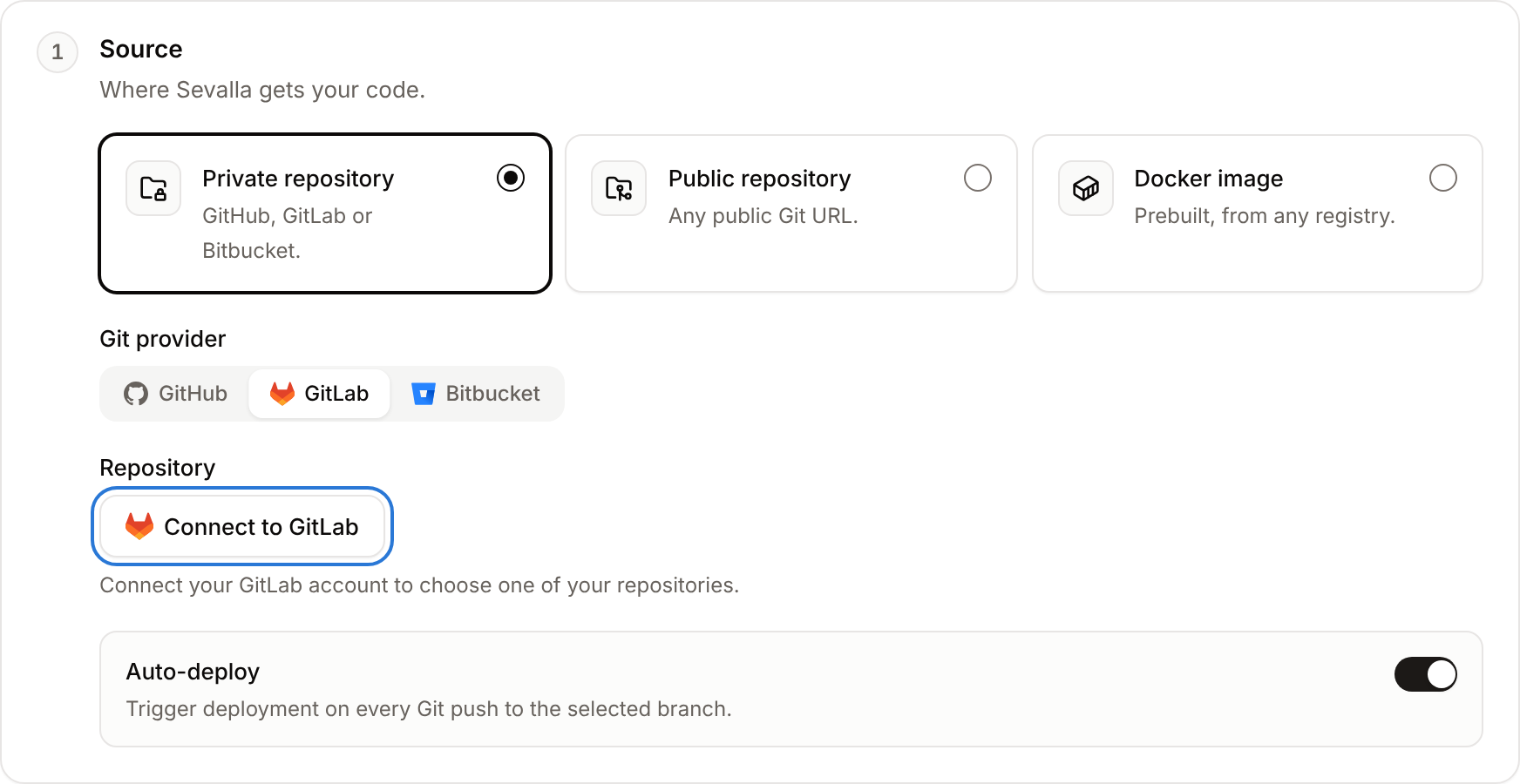
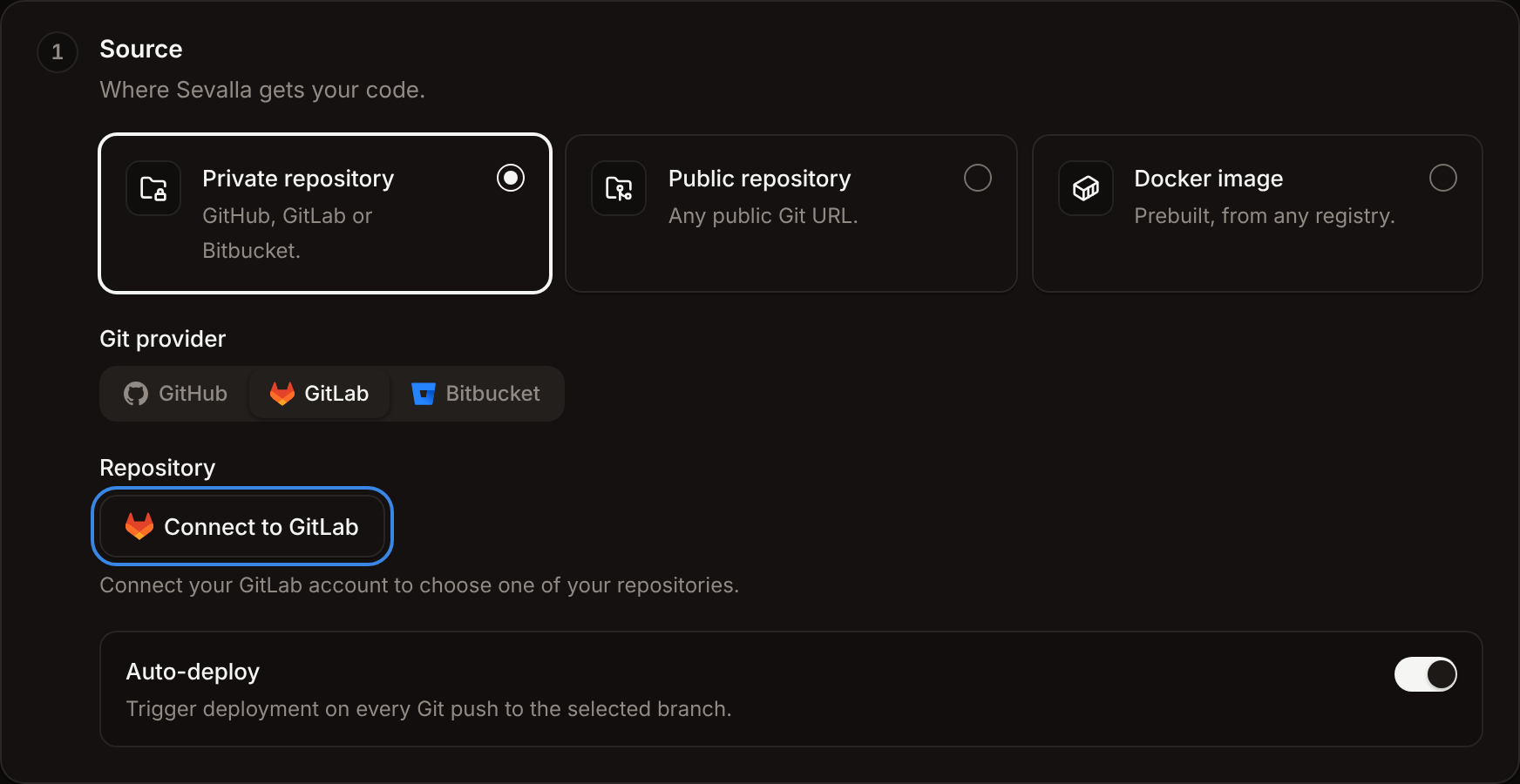
Under the source, choose Private repository, then pick GitHub, GitLab or Bitbucket in Git provider.
2
Connect the account
Click Connect to GitHub, Connect to GitLab or Connect to Bitbucket. The provider’s authorization page opens in a new tab.
3
4
Go back to Sevalla
Return to the Sevalla tab. It picks up the connection on its own; if it doesn’t, click Check again.
Rules for Git accounts
- Each Sevalla user connects one account per provider. To use another one, revoke the current one first.
- A Git account is linked to one Sevalla user at a time.
- The connection belongs to your Sevalla user, not to the company. Teammates who create services from the same repository connect their own account.
- Sevalla’s fraud prevention can block a Git account. A blocked account shows
Git account blockedin the repository picker, withThis account is temporarily blocked by fraud prevention. Add a payment method to verify, then contact support with your handle to lift the block.To lift the block, contact support.
How Sevalla accesses your repositories
At every deployment that builds, Sevalla clones the repository’s branch with an access token, checks out the deployment’s commit, and builds it.
When Sevalla loses access to a repository (the app is uninstalled, the repository is removed from it, every connected account revokes access, or the repository is deleted), deployments from it fail and pushes stop deploying. See Troubleshoot builds and deployments.
Automatic deployments
With automatic deployments on, Sevalla deploys a service on every push to its branch. See Deployments for applications and Deployments for static sites.
Bitbucket pushes don’t include the list of changed files, so deploy paths can’t filter them: an application skips every push and a static site deploys every push. See Bitbucket.
Git submodules
Sevalla clones with--recurse-submodules, so submodules are checked out with the repository. Submodule URLs with SSH syntax for GitHub, GitLab or Bitbucket (git@github.com:acme/shared.git) are rewritten to HTTPS. A private submodule must be on the same provider as the repository and accessible with the same access: on GitHub, the GitHub App must be installed on the submodule’s repository too. Submodules on other hosts must be public.
Git LFS
Sevalla downloads the files your repository tracks with Git LFS when it clones it: Git LFS is on for every new application and static site. With it off, the build gets the LFS pointer files instead. Turn it off or on in the Git Large File Storage (LFS) section of the service’s Settings tab: see Application settings and static site deployments.Deploy a public repository
A public repository deploys without a Git account: choose Public repository when you create the service and enter its Repository URL (such ashttps://github.com/acme/storefront) and Branch. Any public Git URL works, on any host.
Review the code, security and license of a public repository you don’t control before you deploy it.
Repository access in My account
In the user menu, click My account. The Git login & repository access section has a card per provider with two lines:
Click Enable to connect, or Revoke to disconnect.


Revoke repository access
1
Open My account
In the user menu, click My account.
2
Revoke
In Git login & repository access, click Revoke on the provider’s Repository access line, then click Revoke in the dialog.
If Login is also disabled, Sevalla removes the connection completely. For GitHub, it also revokes its authorization on GitHub. For GitLab and Bitbucket, it opens the provider’s page of authorized applications, where you revoke MyKinsta yourself.
API and CLI
Connecting an account is done in the browser: the API returns the provider’s
connect_url to open. For GitHub, it also returns a settings_url to manage the GitHub App’s repository access.